
How To Edit Videos on iPhone and Make Them Look Professional (Step-by-Step Guide)
Content Creation
Quick Summary
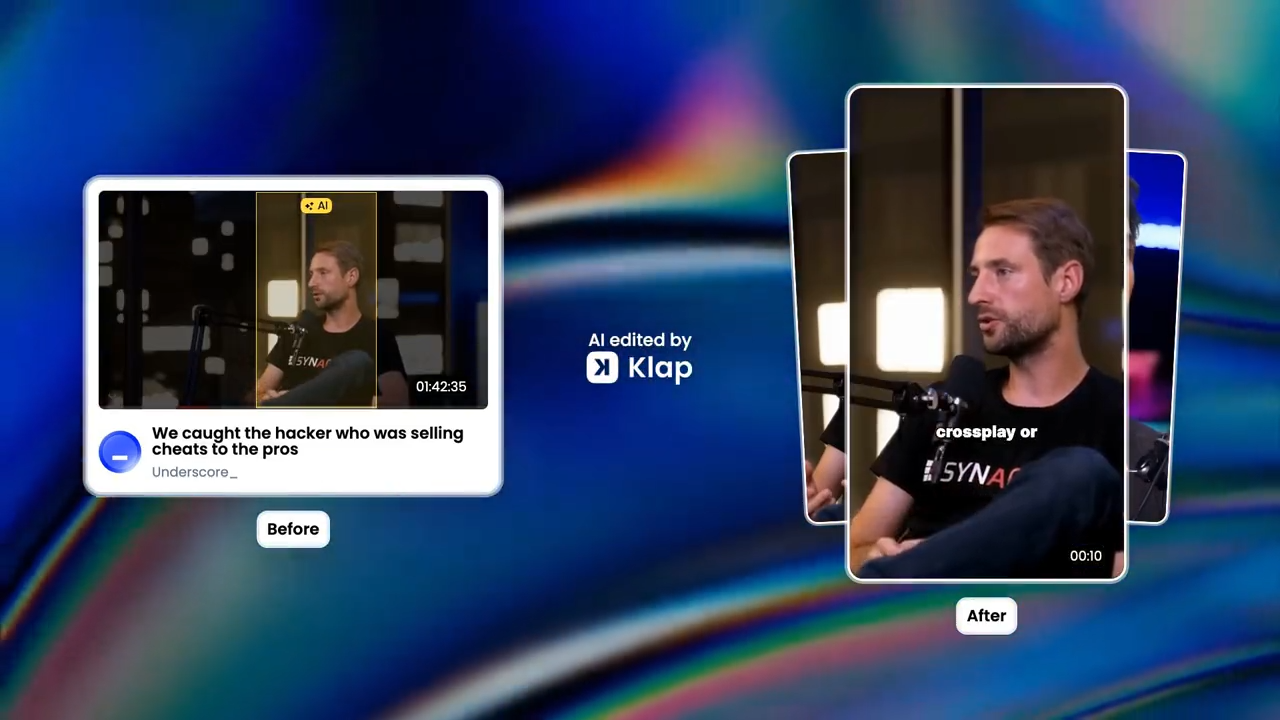
This guide walks you through how to edit videos on your iPhone using several methods, from the built-in iPhone features to fast and easy AI tools like Klap. It covers how to add captions, apply filters, add music, and crop your videos. You’ll also discover why Klap’s AI stands out for delivering quicker, more efficient editing, helping you create professional videos with minimal effort.
Want to Edit Videos Like a Pro on Your iPhone?
Editing videos on your iPhone doesn’t have to be difficult or time-consuming. Whether you're capturing memories, sharing tutorials, or creating content for social media, knowing how to edit your footage can help you produce polished, professional-looking videos right from your phone.
With the right tools and techniques, you can take your raw footage and turn it into high-quality content in just a few minutes.
In this guide, we’ll show you how to edit videos on your iPhone using a range of methods, from iPhone's built-in features to faster, easier AI tools like Klap.
Why Listen to Us?
Klap has helped over two million creators, brands, and media teams turn long videos into viral shorts. Our AI analyzes content, trims unwanted sections, and highlights the most engaging moments, making it easier than ever to create shareable, high-impact videos. With this experience, we’re perfectly positioned to guide you on the best ways to edit your videos on iPhone like a pro.

What Does It Mean to Edit Videos on an iPhone?
Editing videos on an iPhone means using your phone to change and improve your video clips. You can cut out unwanted parts, add music, adjust colors, and even insert captions or special effects. This process lets you take raw footage and transform it into a smooth, professional-looking video you can share with friends, on social media, or for work.
Why Is Knowing How to Edit Videos on an iPhone Important?
- Convenience: You can edit videos directly on your phone anytime, anywhere, without needing a computer.
- Time-saving: Quickly trim, adjust, and enhance your videos in minutes; perfect for on-the-go editing.
- Social media ready: Edit videos for platforms like Instagram, TikTok, and YouTube and meet the platform’s requirements.
- Easy sharing: Once your video is edited, it’s simple to share it instantly with friends, family, or your audience.
How to Edit Videos on iPhone
There are different ways to edit videos on your iPhone, depending on your needs and preferred tools. Here are three practical methods, starting with the quickest and simplest:
Method 1: Use Klap to Edit Videos on iPhone (Recommended)
Klap is the fastest AI tool for seamless video editing on mobile devices, eliminating hours of manual work. With Klap, you can quickly upload your footage, trim clips, add music, apply filters, and more, all in one easy-to-use platform.
Follow these easy steps to edit a video on iPhone with Klap:
Step 1: Sign Up for Klap and Choose Your Plan
- Visit klap.app and sign up for free.
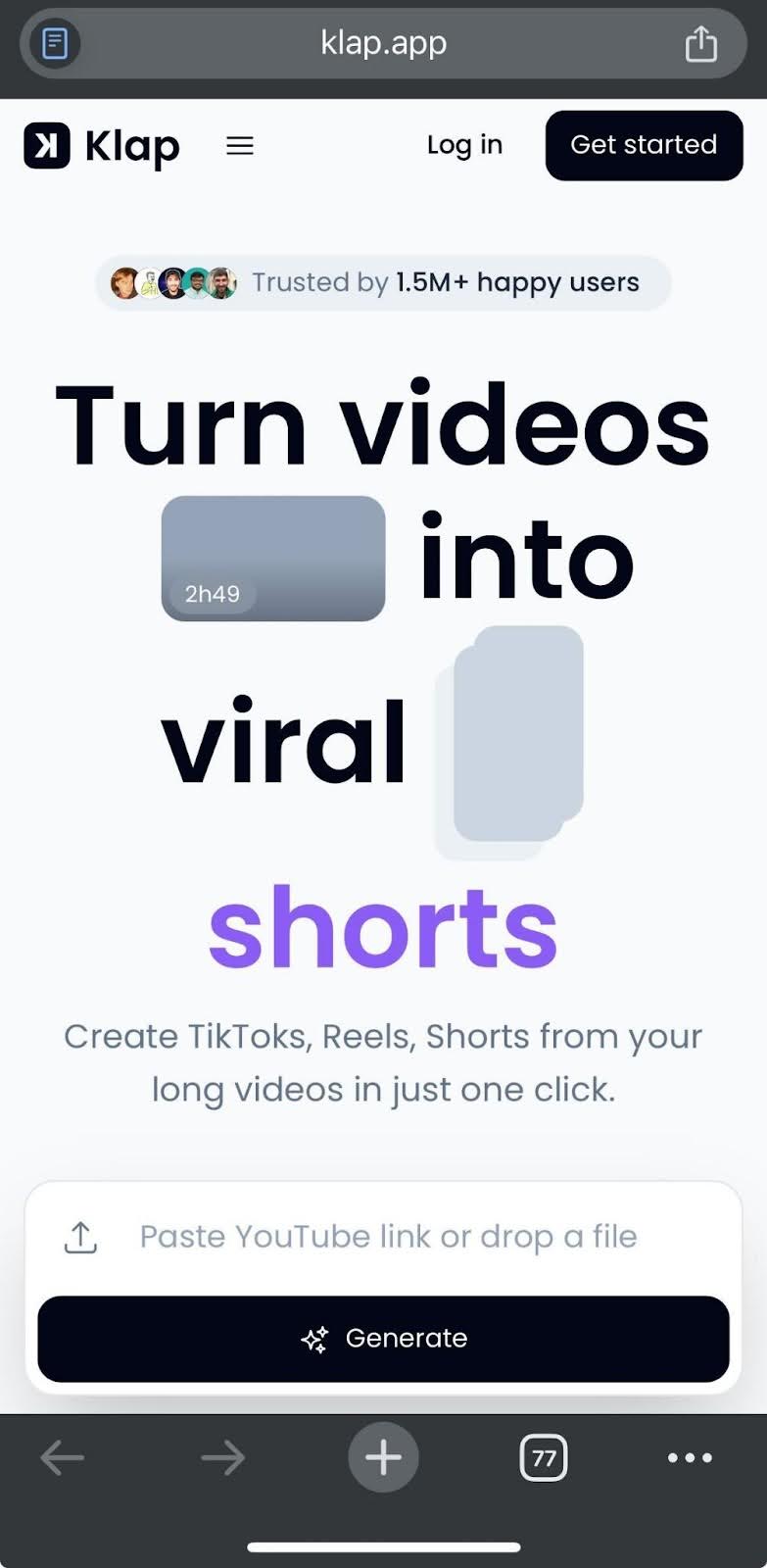
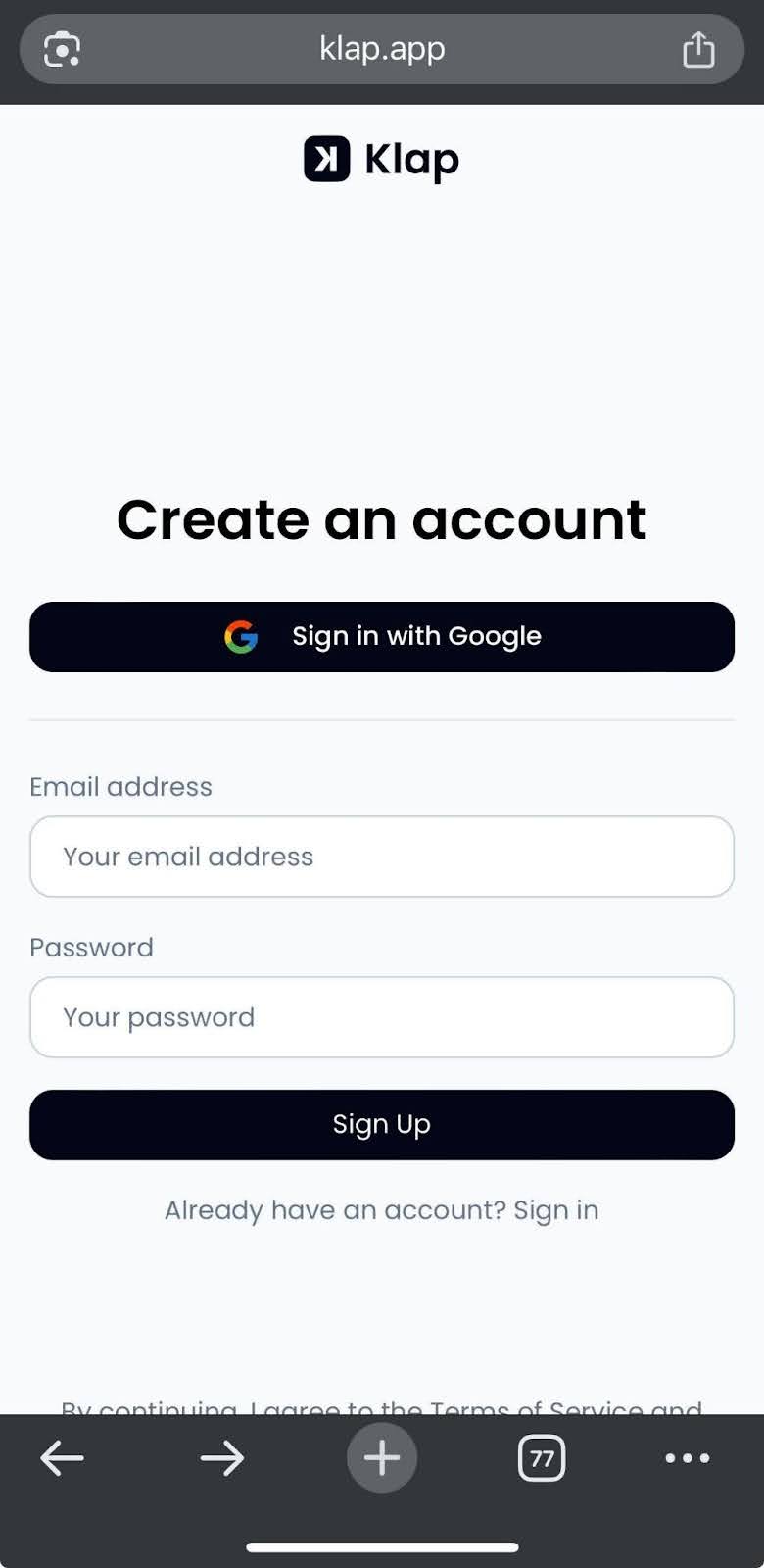
- You can sign up with your Google account or email.
- Follow the on-screen prompts to complete your account setup.
- Start with a no-commitment free trial, or choose a plan that fits your needs.
Step 2: Upload Your Video or Paste the Link
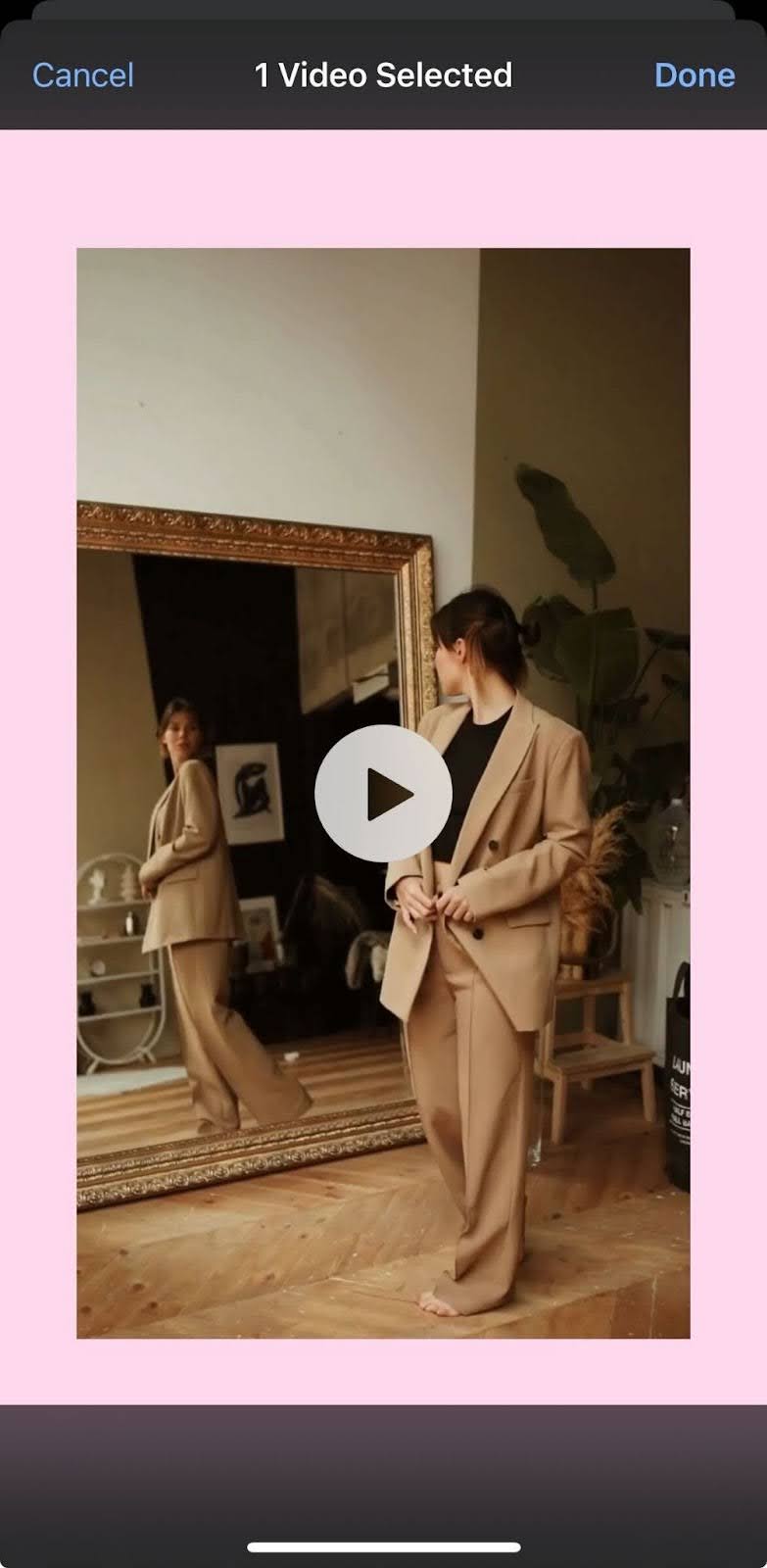
- After signing up, you’ll be redirected to your dashboard. From there, you can upload a video directly from your device or paste a link. Klap also supports uploads from cloud storage services like Google Drive, making it easy to get started.
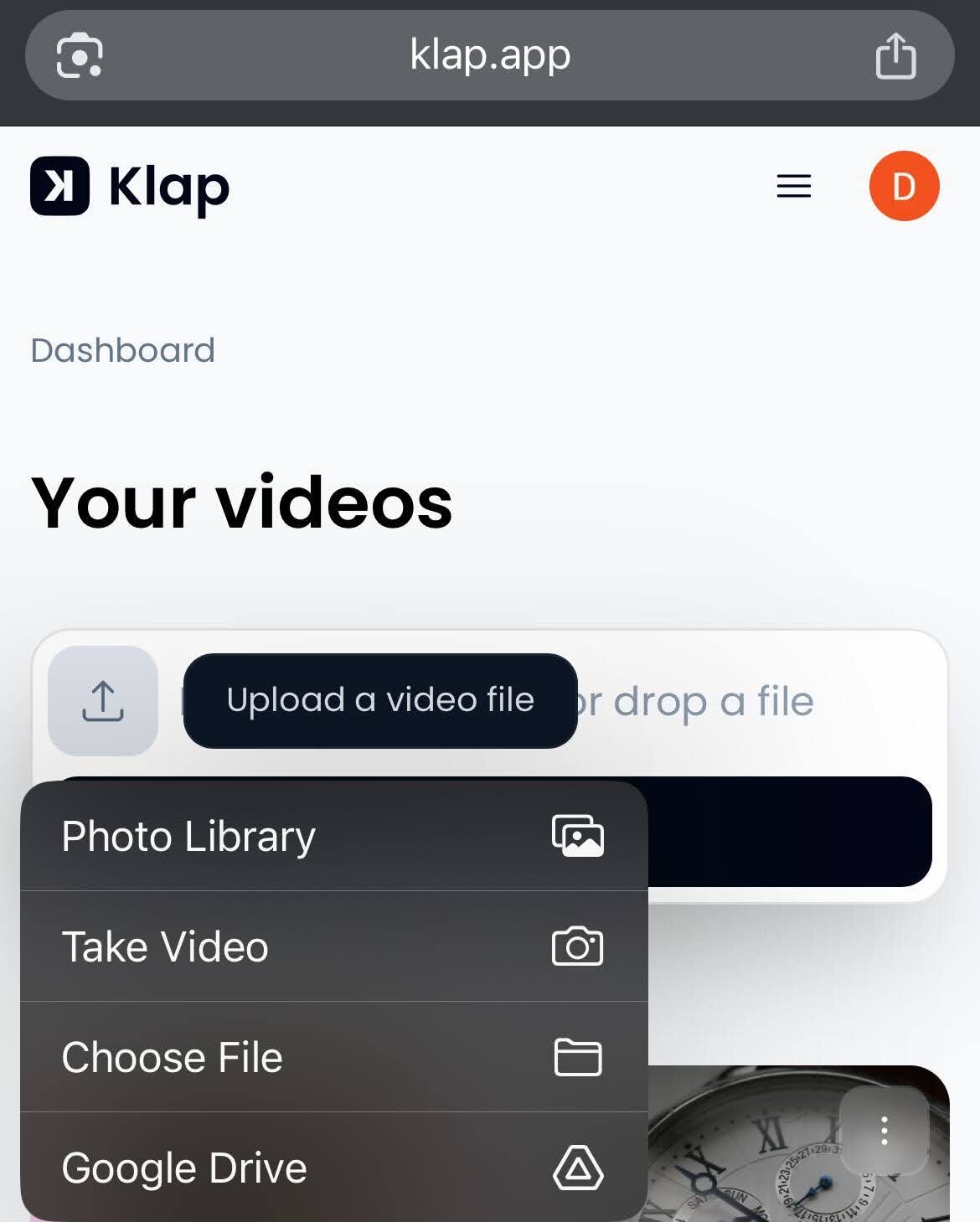
- Once you’ve selected an upload option or pasted a link, click on ‘Done.’ Klap supports all major video formats, such as MP4, MOV, AVI, and more.
Step 3: Select the Action You Want to Perform
- Click on the ‘Shorts’ button to open a menu of available options.
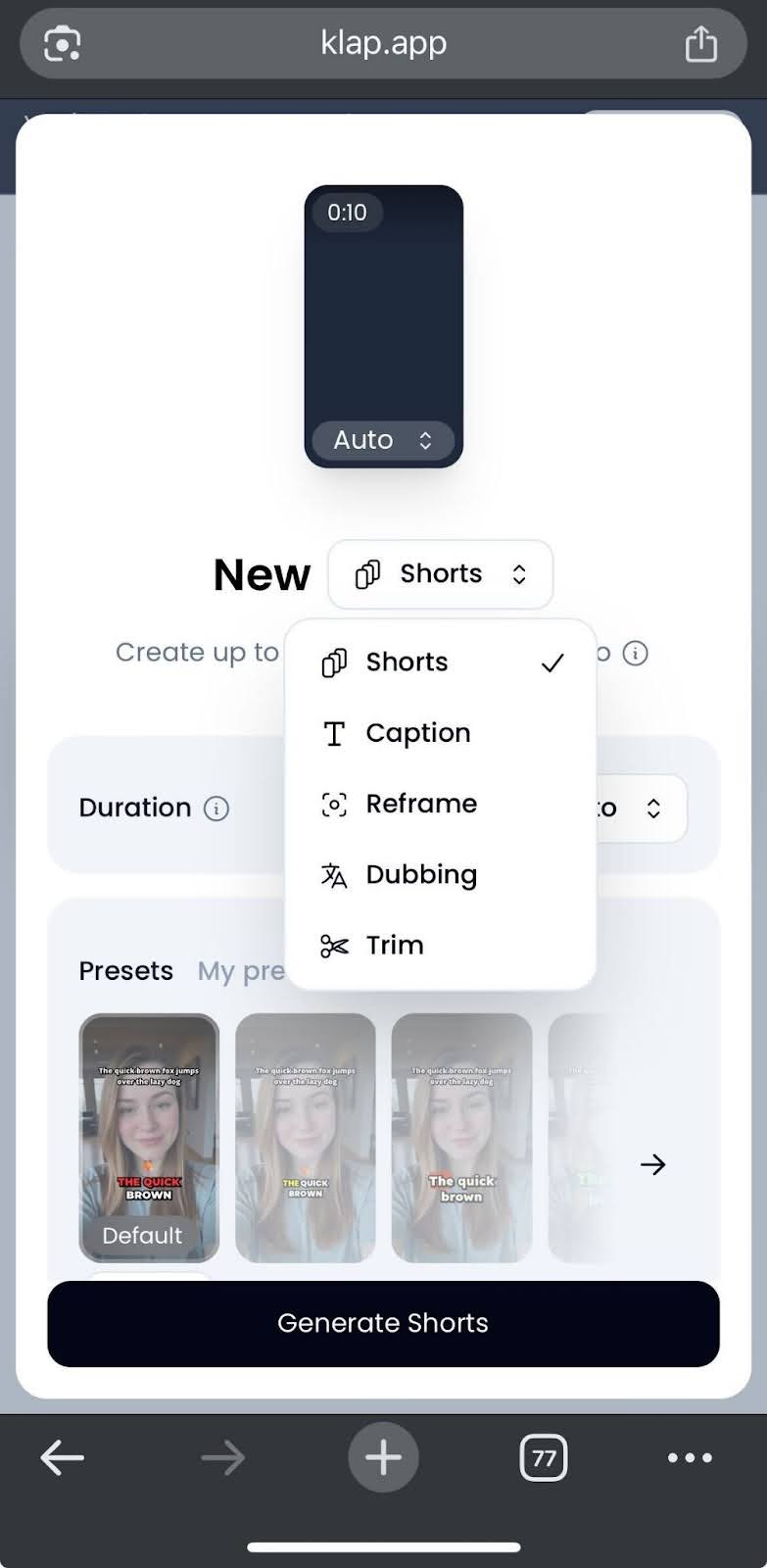
Here’s what each option allows you to do:
- Shorts: Convert long videos into shorts, automatically selecting the most engaging clips for optimal audience engagement.
- Captions: Automatically generate and add captions in 50+ languages to your videos, making them more accessible and boosting viewer engagement.
- Reframe: Resize and adjust your videos for different platforms, automatically applying the best layout (e.g., portrait, landscape) for each one.
- Dubbing: Add voiceovers or translations in different languages, allowing your content to reach a global audience.
- Trim: Cut and edit your video to remove unwanted sections, keeping the content concise and focused.
Step 4: Add a Caption to Your Video
- For this guide, we’ll be adding captions to our video, so click on ‘Caption.’
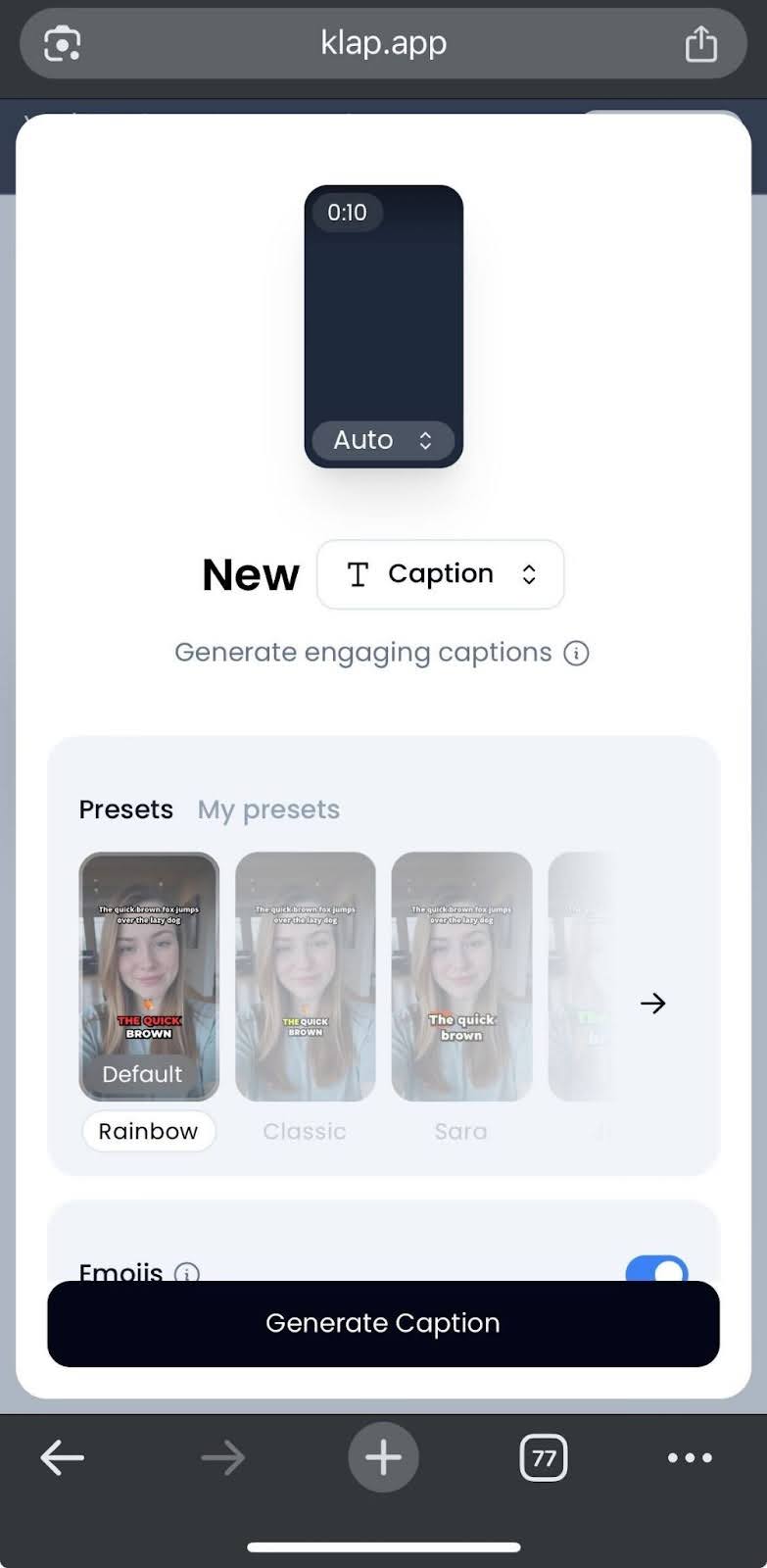
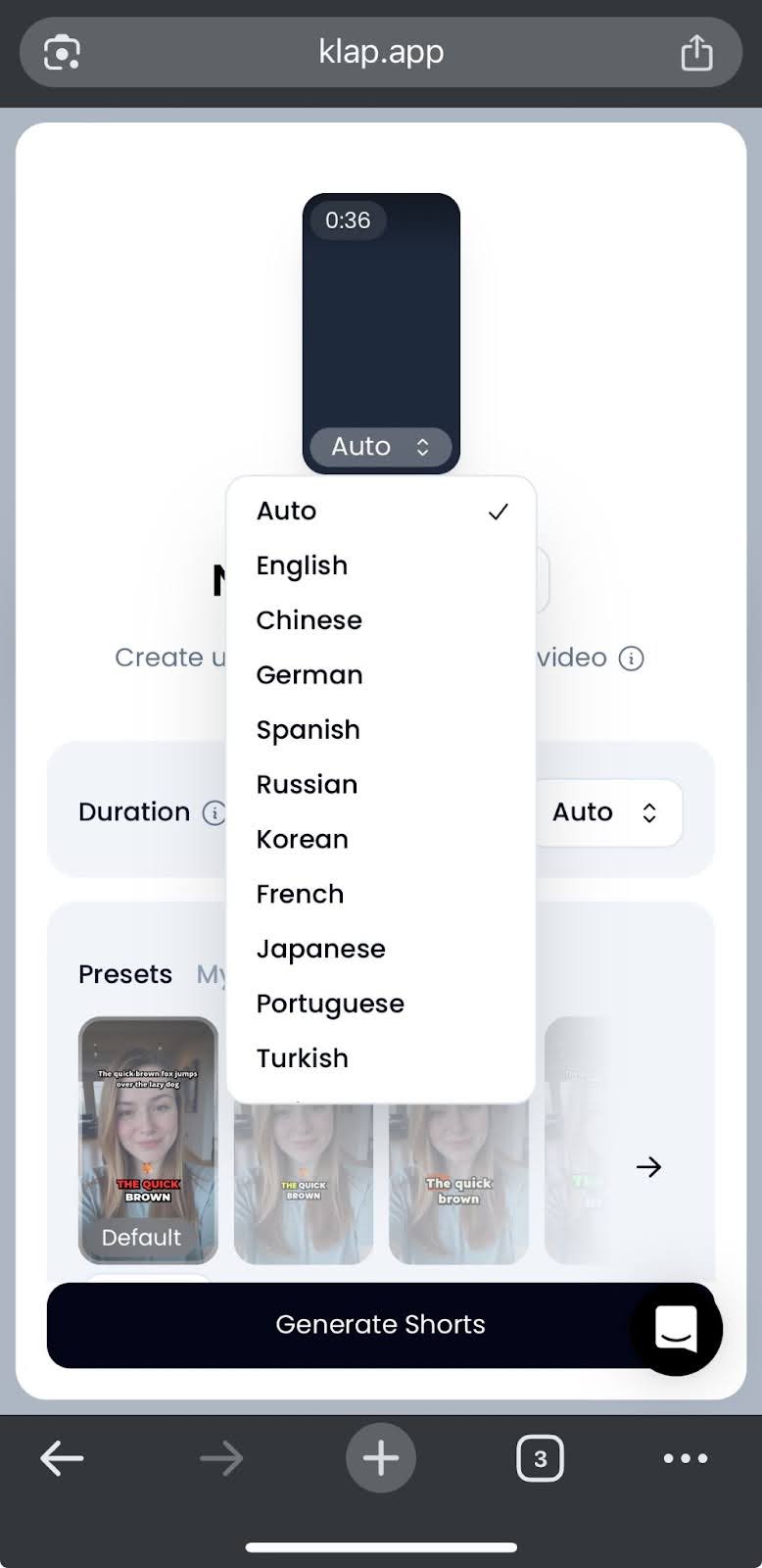
- Choose your preferred language for the caption.
- Select your preferred preset (optional).
- Click the toggle switch if you want relevant emojis to be auto-generated.
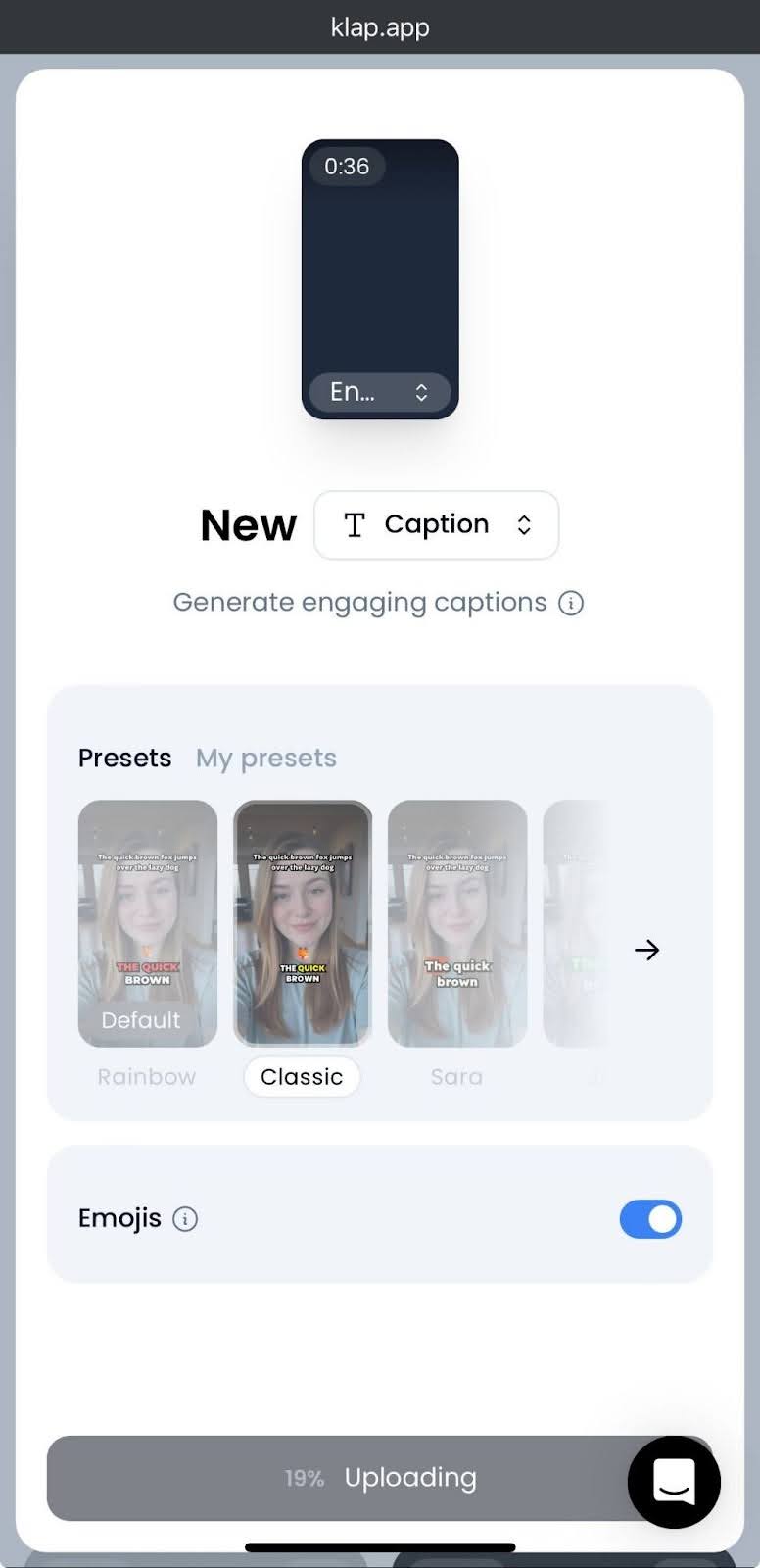
Step 5: Generate Your Video With Captions
- Click on the ‘Generate Caption’ button and wait for your captioned video to be generated.
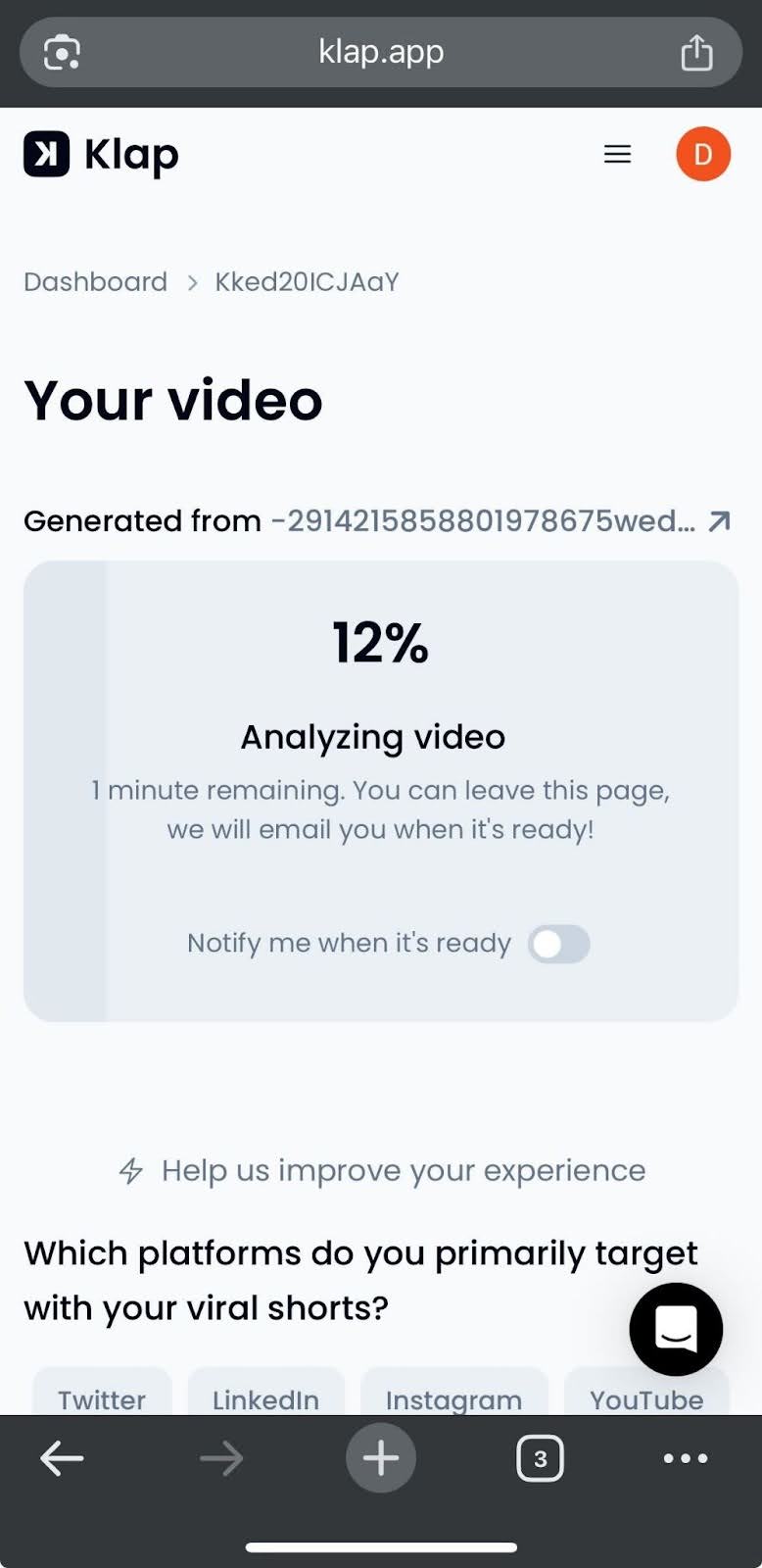
- Klap’s AI automatically analyzes your video and adds accurate, time-synced captions to your video, making it accessible and engaging for viewers.
Step 6: Publish Your Captioned Video
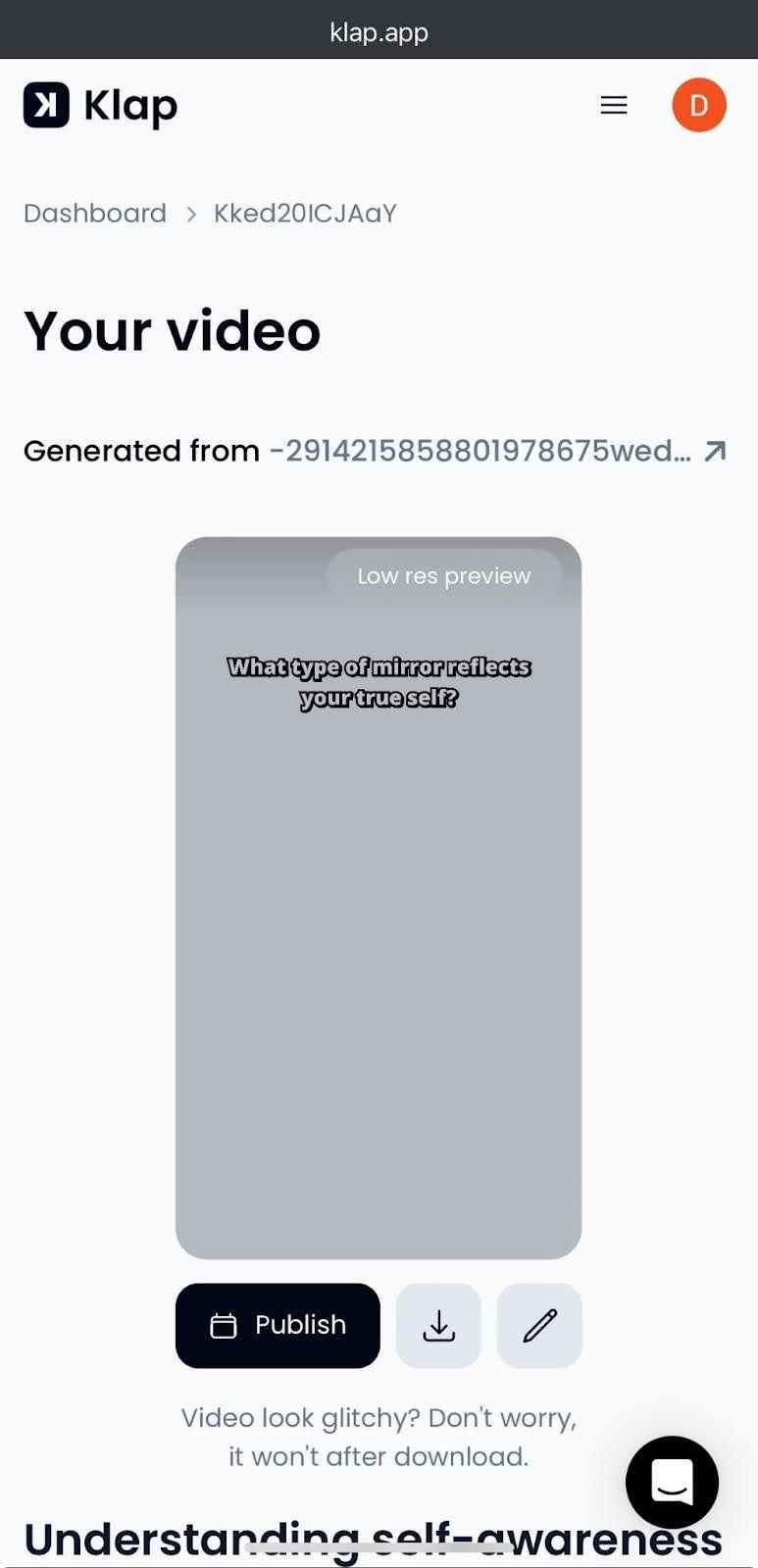
- Your captioned video is ready to be published (all done in a few minutes). You can download it or publish it directly to your social media accounts.
- If you’d like to perform other actions like converting long videos into shorts, reframing, dubbing, or trimming, click the pencil icon. It enables you to further edit your captioned video. Klap’s AI makes all of these tasks simple and efficient, helping you create polished, professional videos with ease.
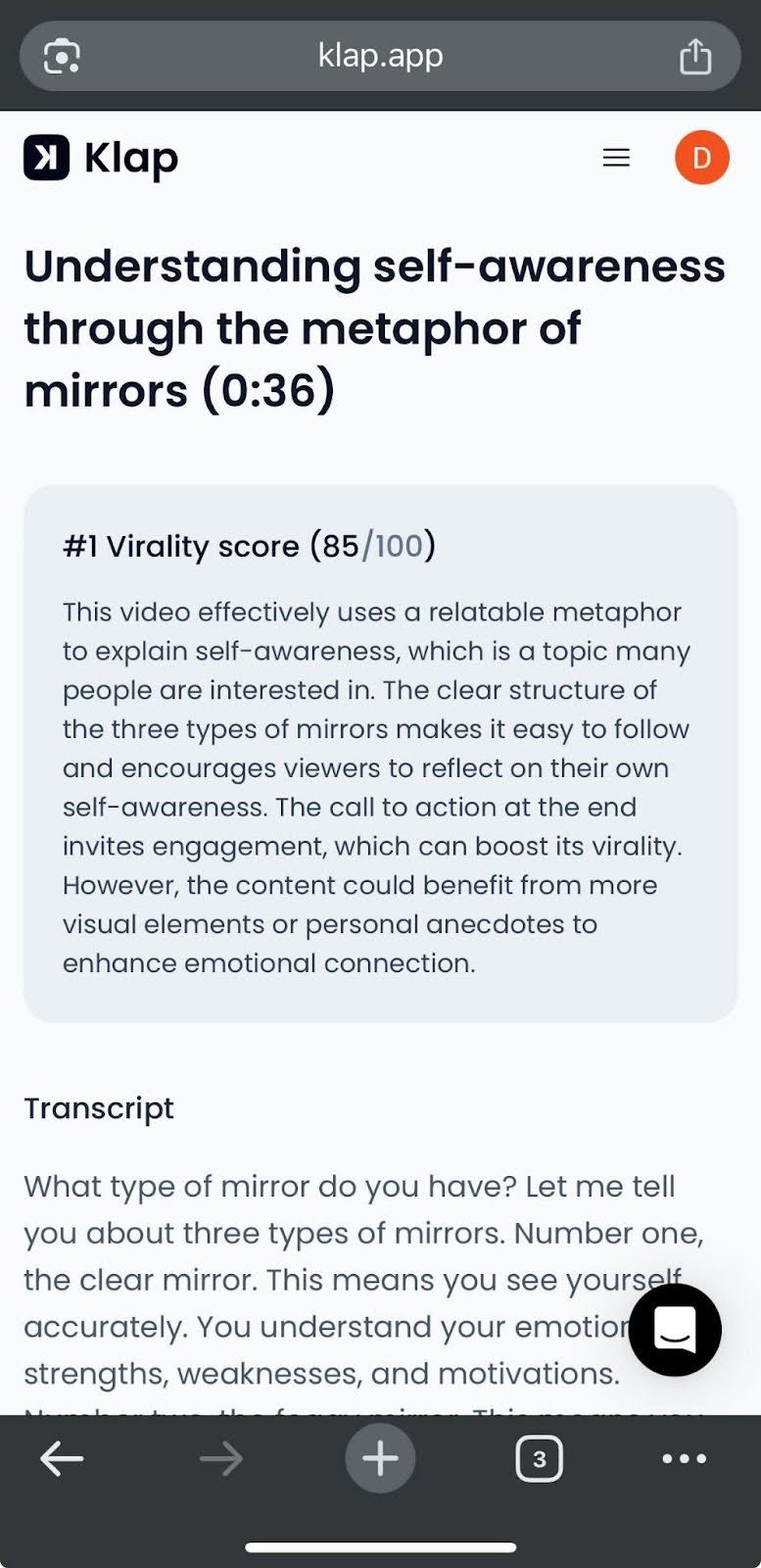
- Klap’s AI analyzes your video to give you a virality score, assessing factors like engagement potential, content trends, and audience appeal. This helps you understand how likely your video is to perform well and offers insights for optimizing future content.
Want to know how to change aspect ratio like an expert video editor? Here, we share tips on How to Change Aspect Ratio Like a Pro.
Method 2: Edit Videos With iPhone’s Inbuilt Editing Features
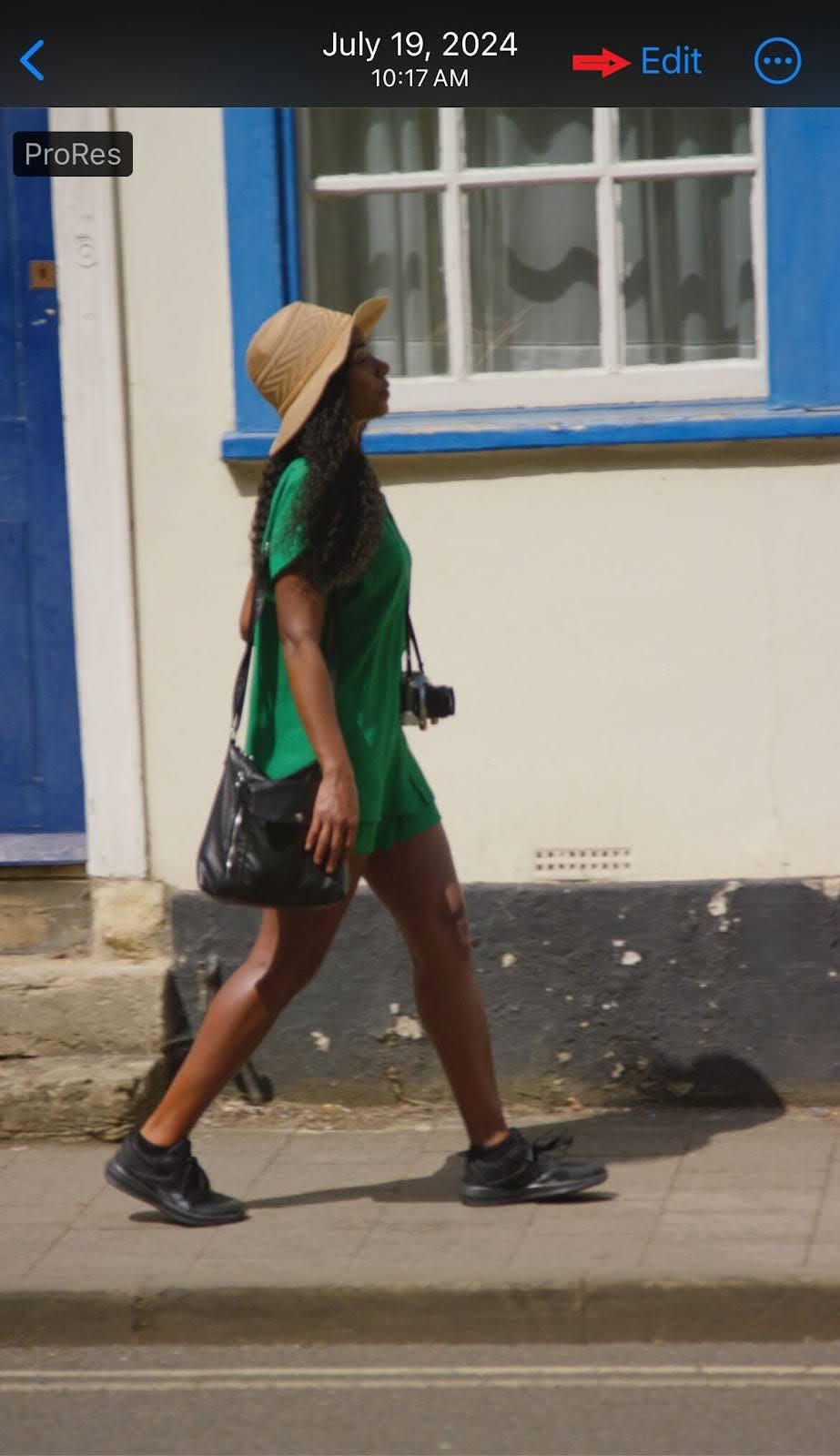
Step 1: Open the Photos App and Click the ‘Edit’ Button
- Launch the Photos app on your iPhone and find the video you want to edit.
- Tap on the video to open it.
- Once the video is open, tap the "Edit" button in the top-right corner of the screen to access the editing tools.
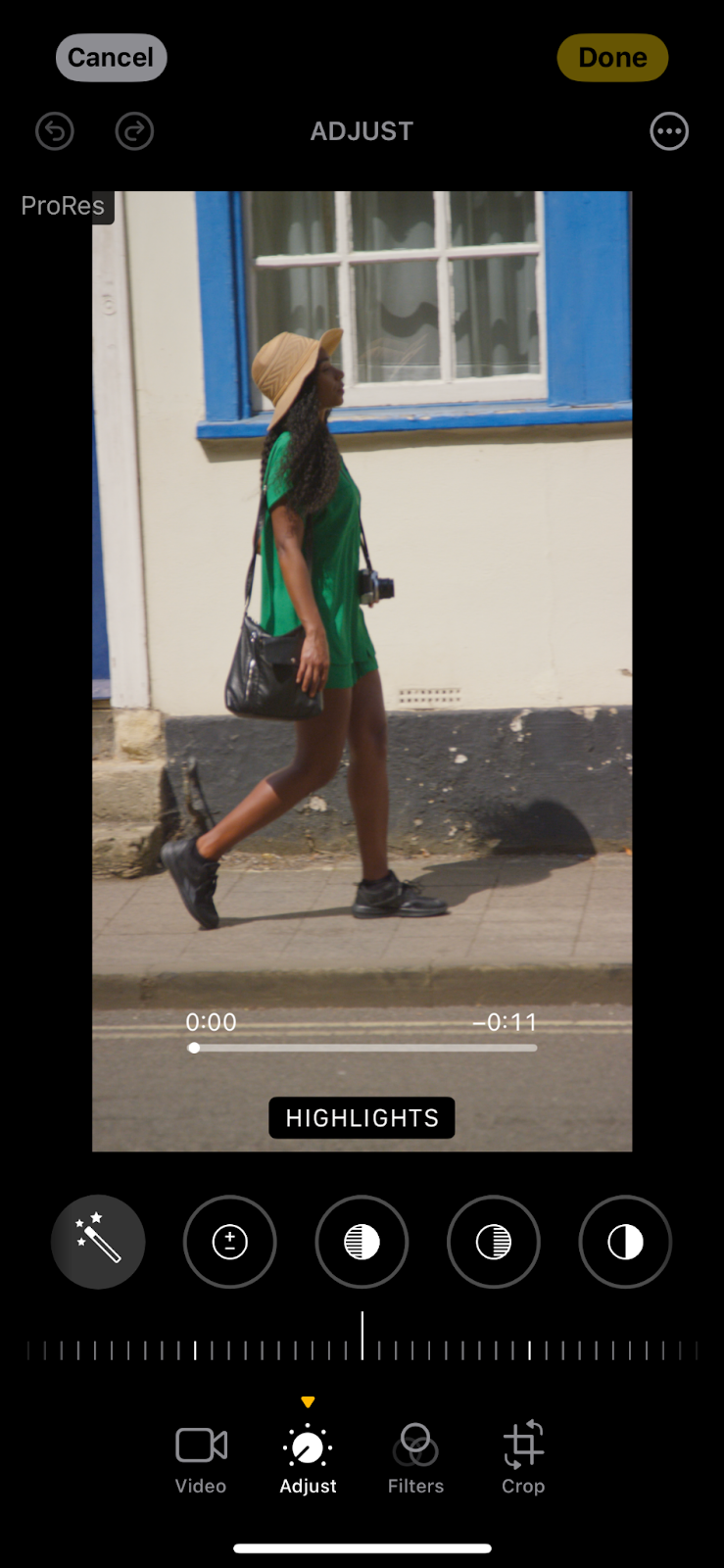
Step 2: Adjust the Video’s Look
- Tap the ‘Adjust’ icon (it looks like a dial) to change the video's brightness, contrast, exposure, and more.
- Use the sliders to fine-tune the look of your video.
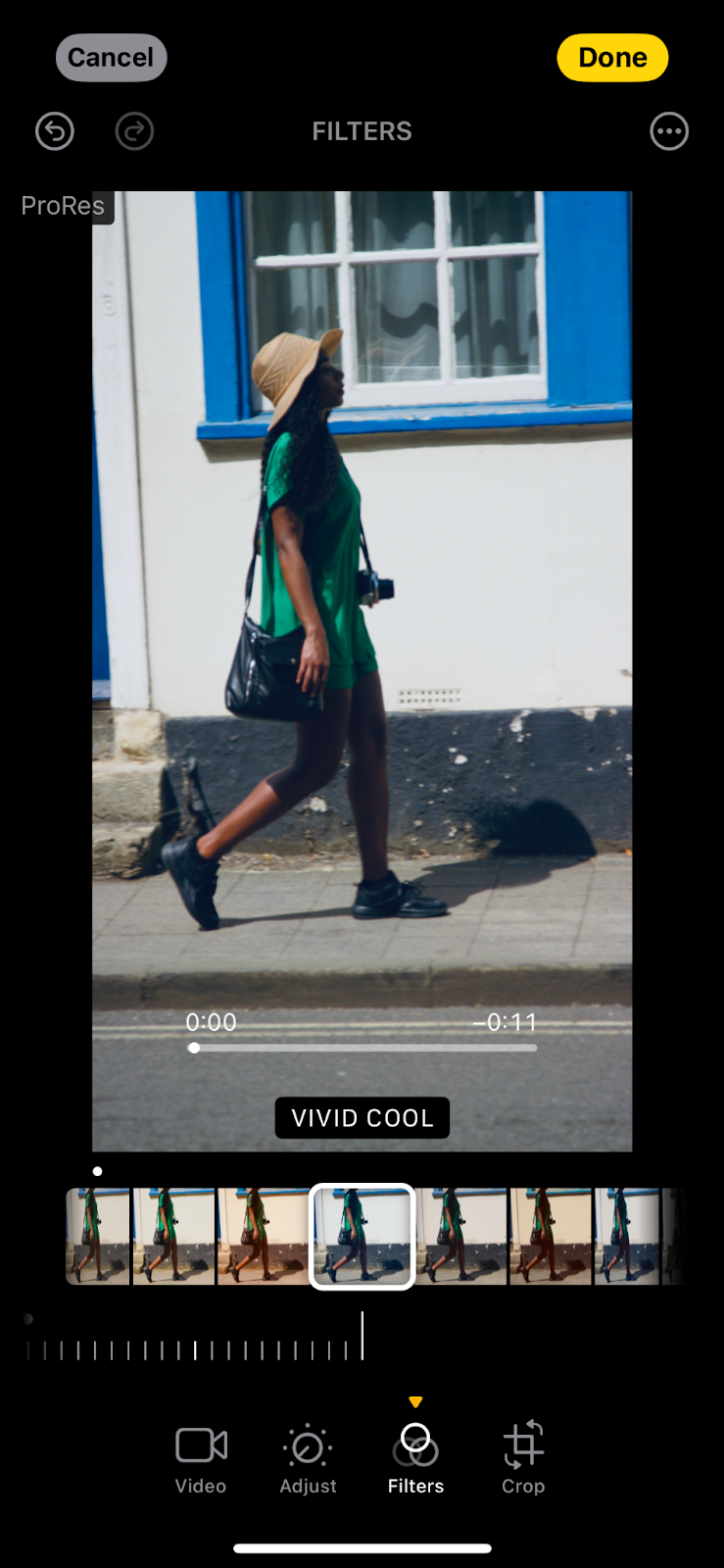
Step 3: Apply Filters
- Tap the ‘Filters’ button (three overlapping circles) to choose from a variety of filters.
- Select the filter that best fits your video and tap it to apply.
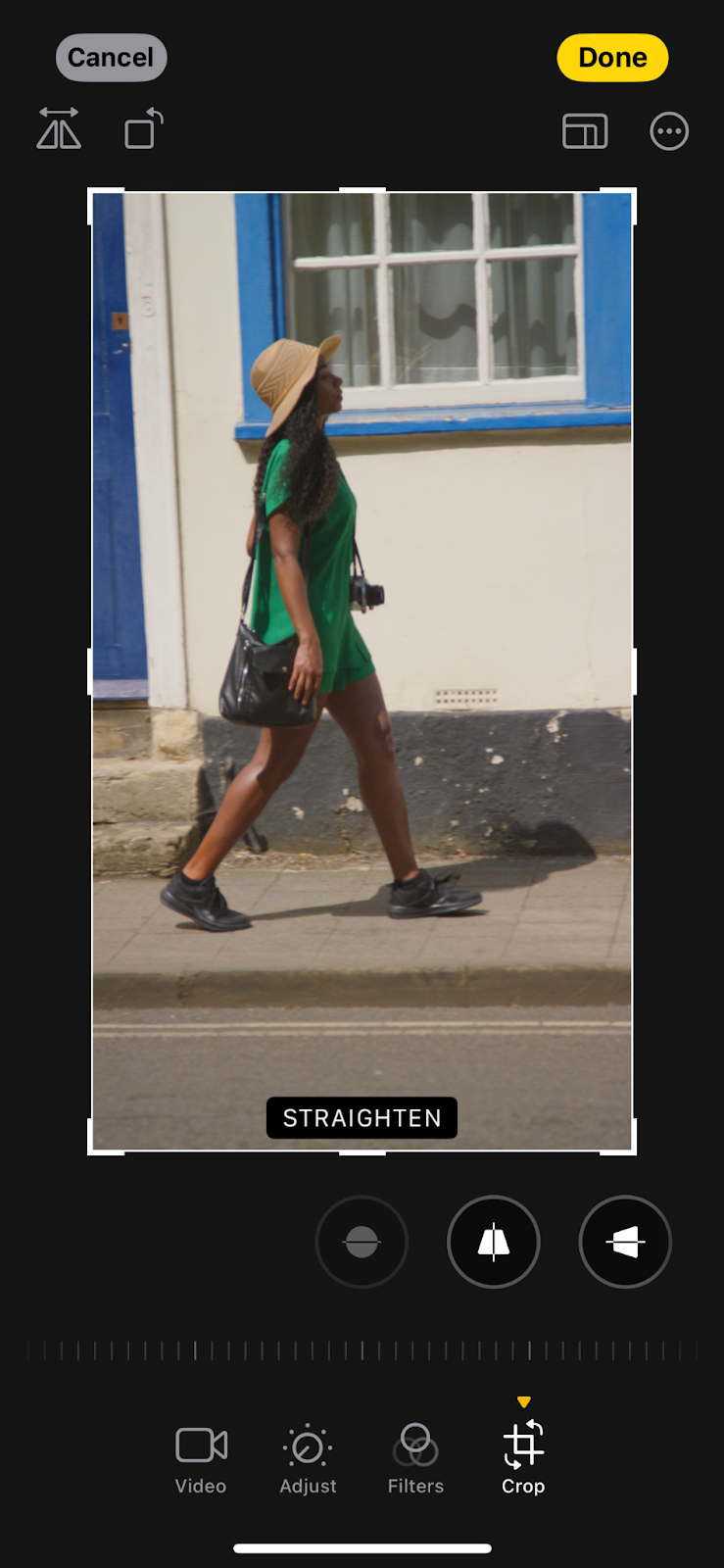
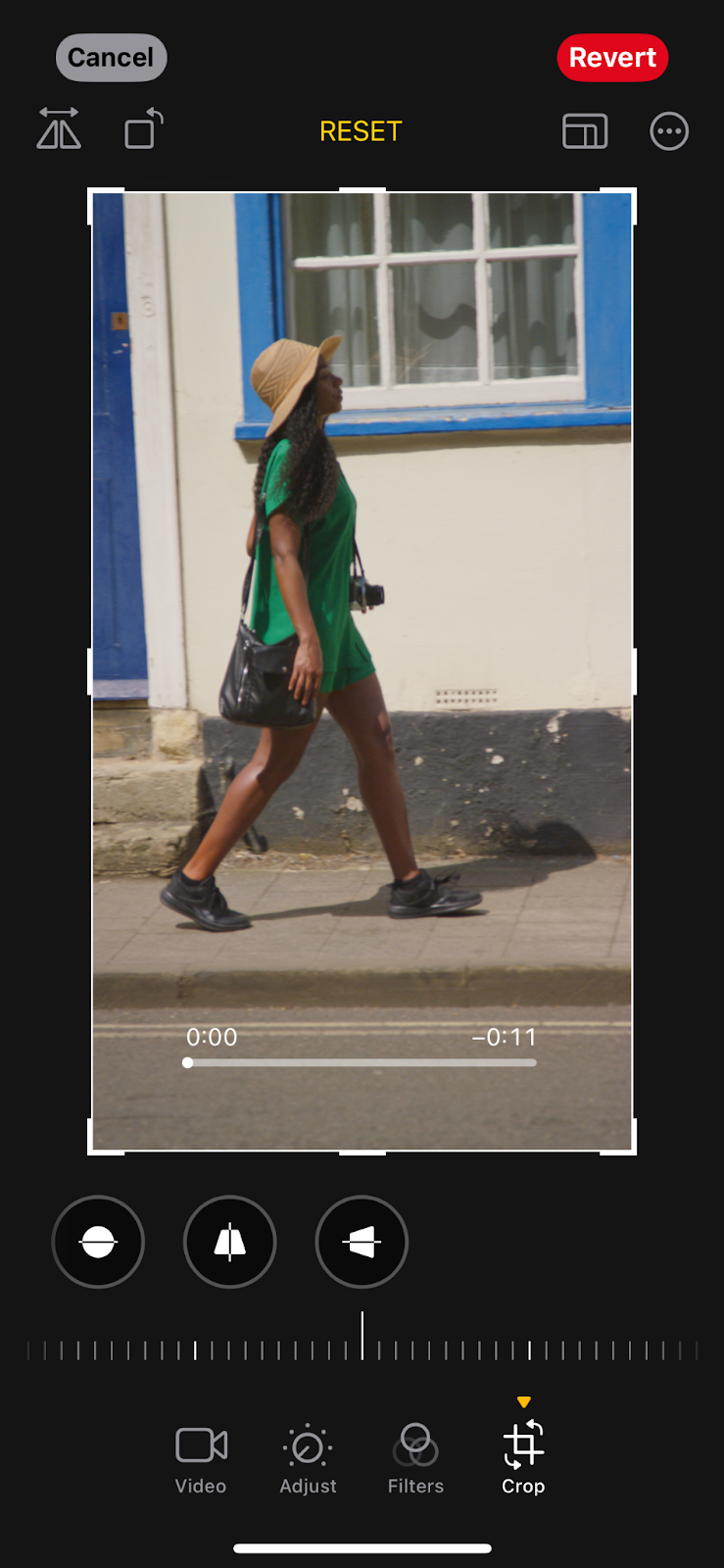
Step 4: Rotate or Crop the Video
- To rotate or crop your video, tap the ‘Crop’ button (square icon with arrows).
- Rotate the video by using the rotate button, or drag the corners to crop and adjust the framing.
Step 5: Save Your Edited Video
- Once you're satisfied with your edits, tap "Done" in the top-right corner to save the changes.
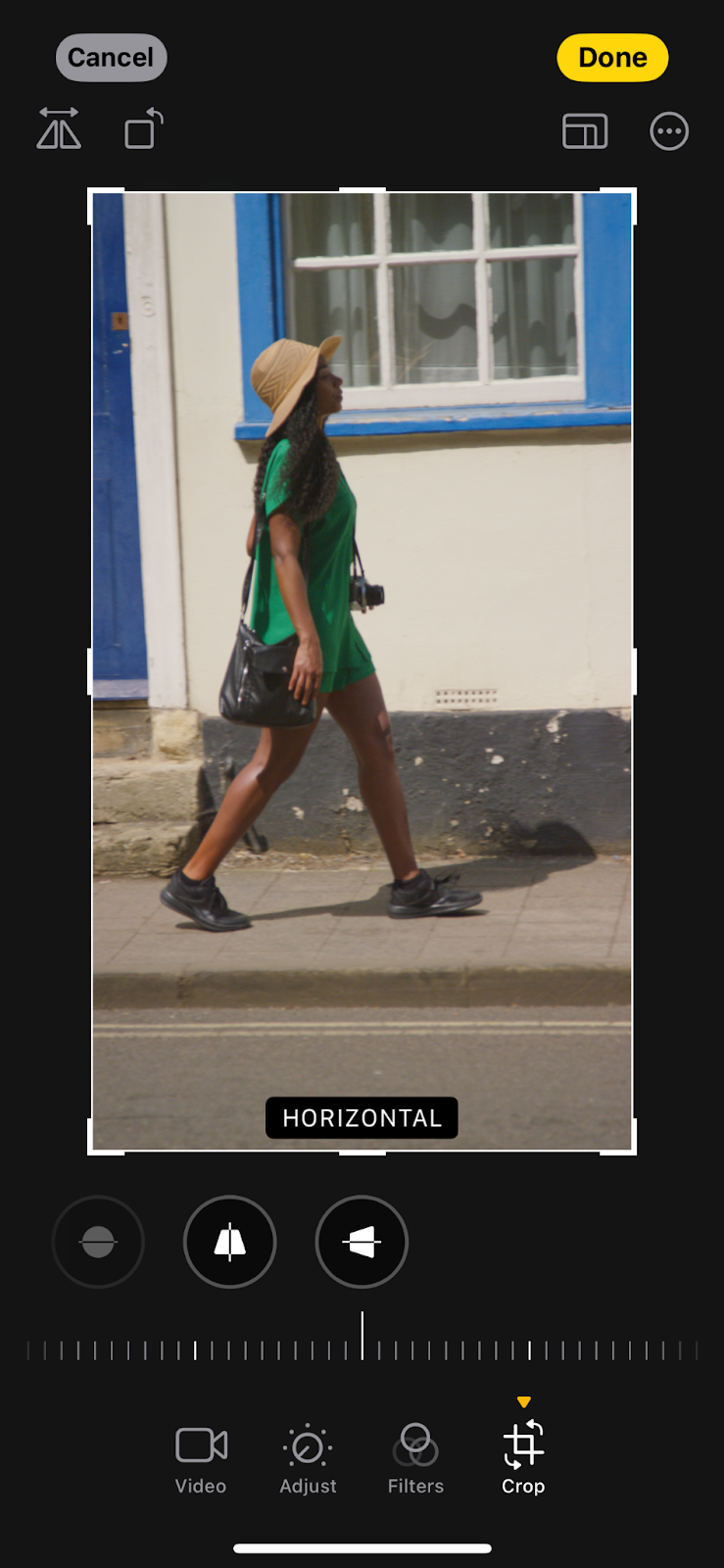
- If you want to revert to the original video at any point, tap ‘Revert’ to undo all changes.
Method 3: Edit Videos With InShot
InShot is a mobile video editing app that allows users to trim, merge, add music, text, stickers, and apply filters to videos.
Here’s how to add music to your videos on your iPhone, using InShot.
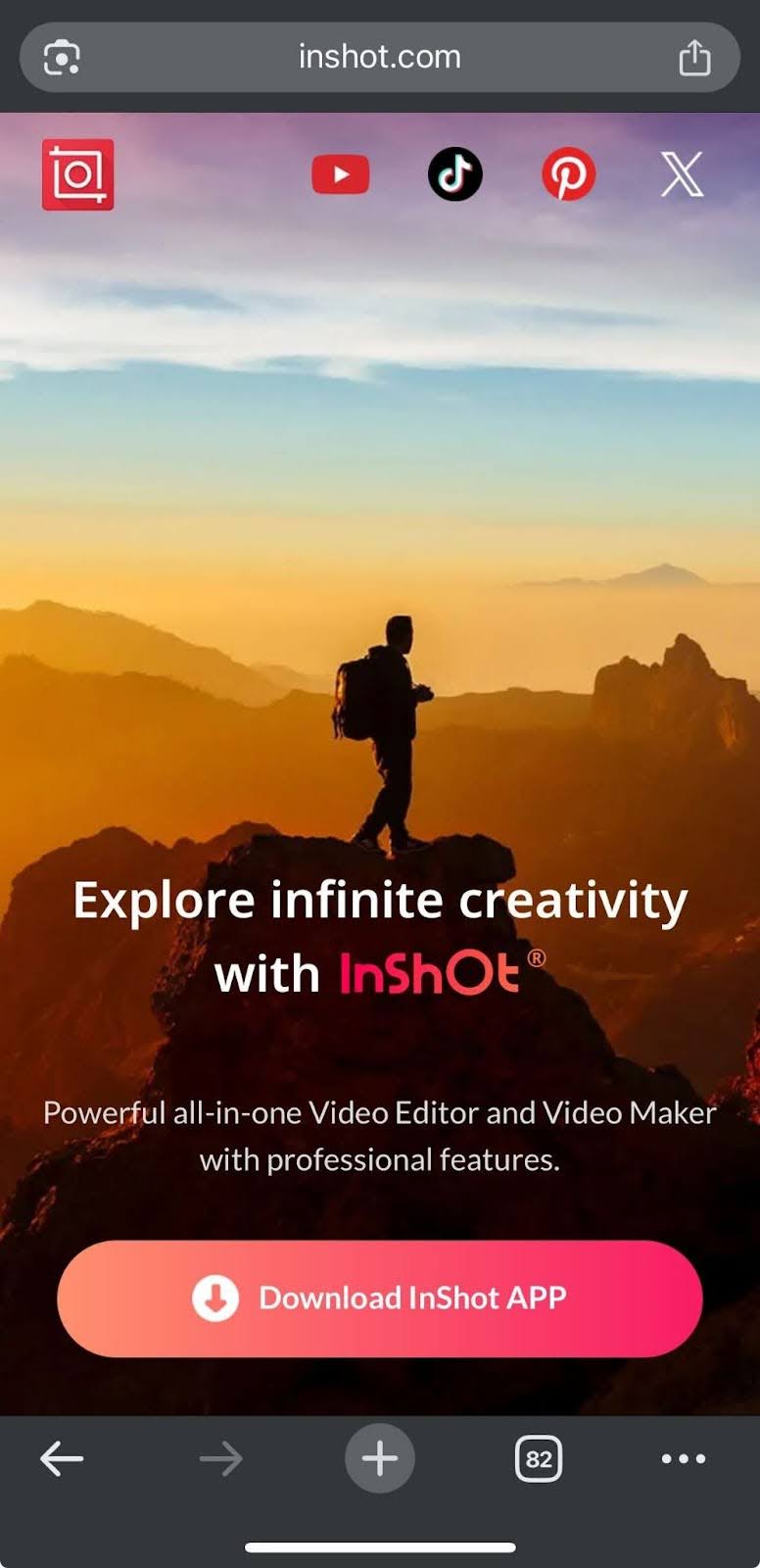
Step 1: Download and Install InShot
- Open the App Store on your iPhone.
- Search for InShot and tap ‘Install’.
- Once installed, open the app.
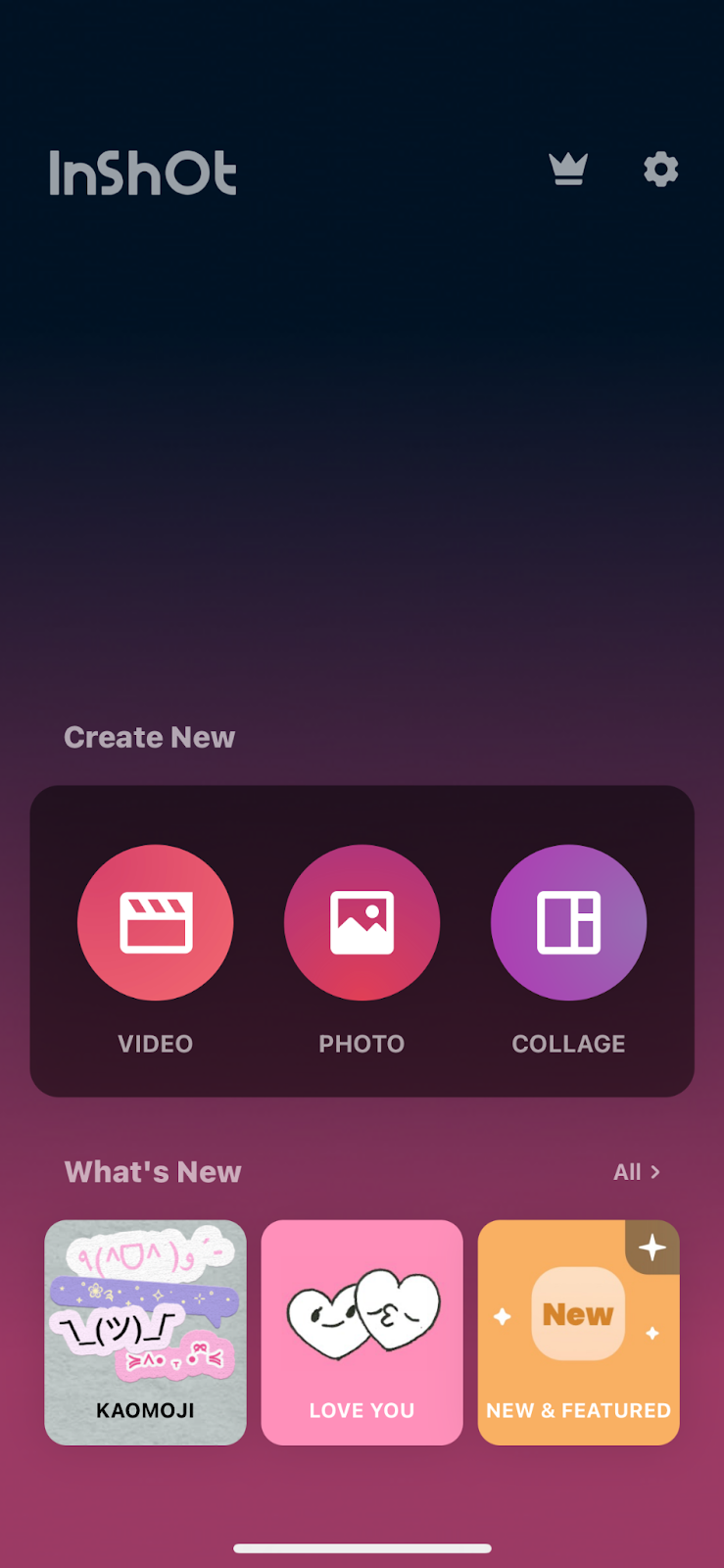
Step 2: Create a New Project
- Tap the ‘Video’ option to start a new project.
- Select ‘New Project’ from the options presented.
- Choose the video(s) you want to edit from your photo library.
Step 3: Add Music
- Once your video is imported, tap the ‘Music’ icon at the bottom of the screen.
- Tap Tracks to add music from InShot’s library, or tap ‘My Music’ to add a song from your device.
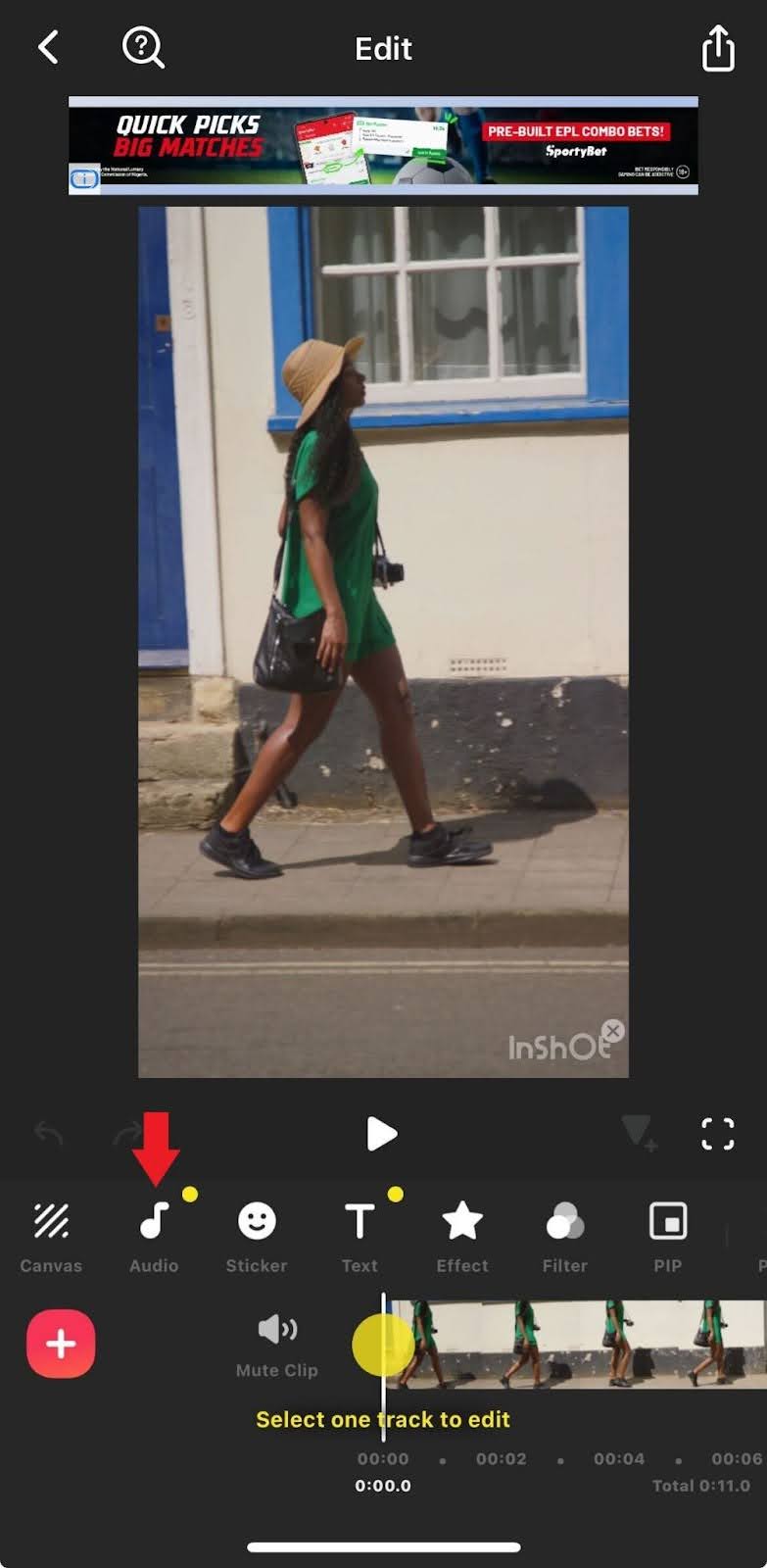
Step 4: Select a Track
- Browse the available tracks or select your own music file.
- Tap the track you want to use to add it to your video.
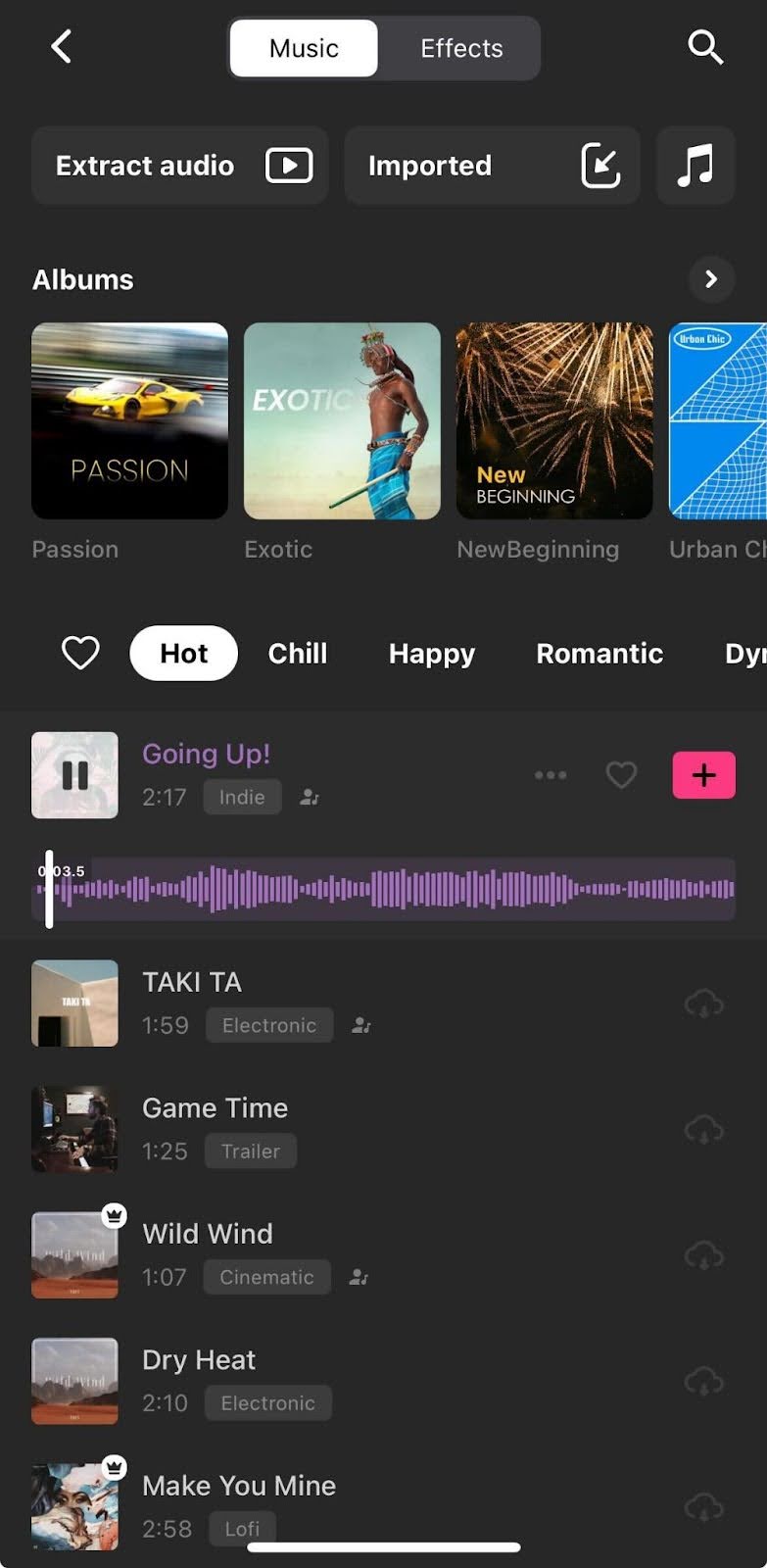
Step 5: Adjust the Music
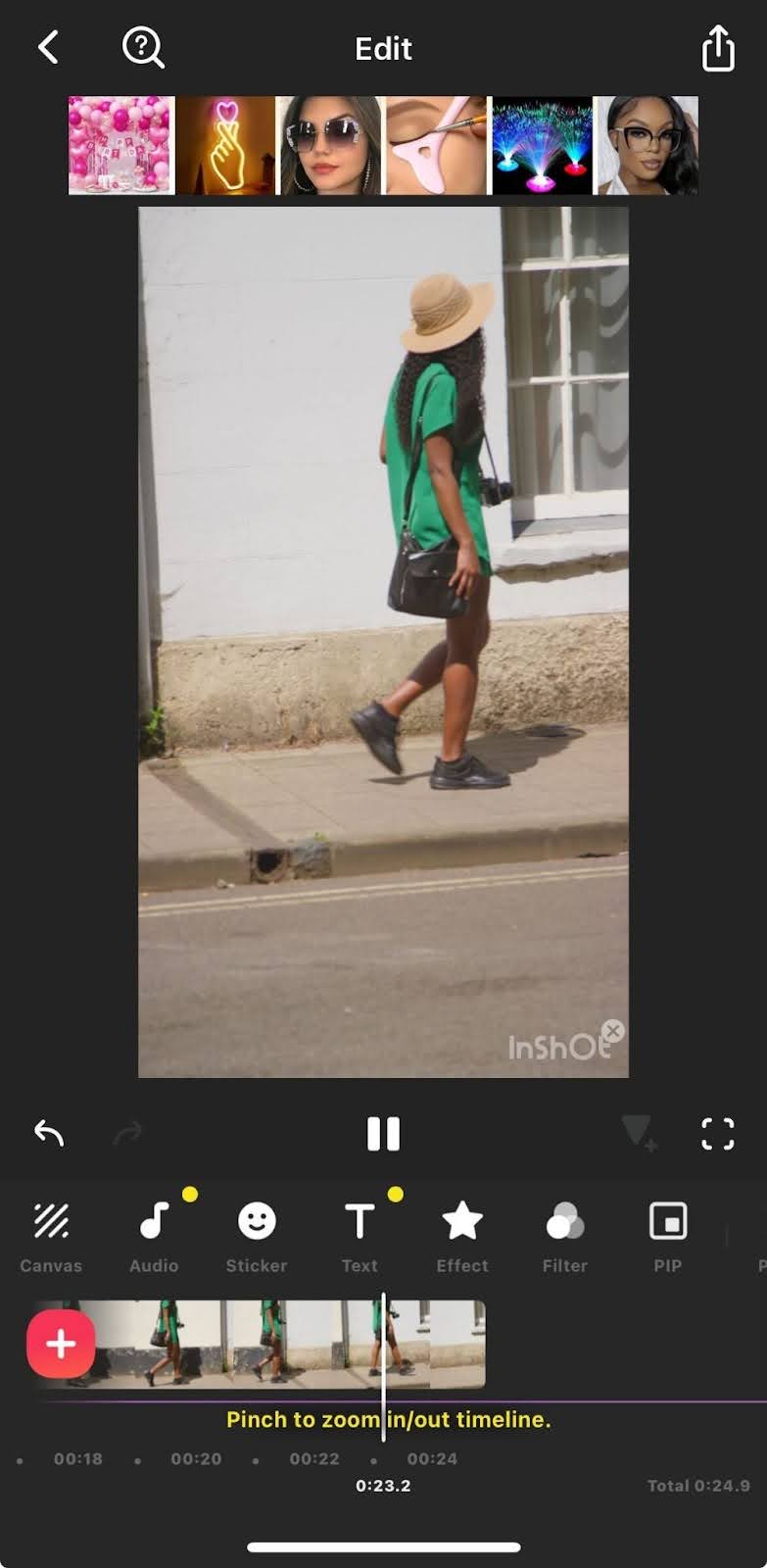
- Once the music is added, you can drag the music clip to align it with the video.
- Use the Trim feature to adjust the length of the music or select the exact part of the song you want.
- You can also adjust the volume of the music and the video by tapping on the Volume icon.

Step 6: Preview and Adjust
- Tap the ‘Play’ button to preview the video with the music.
- If needed, adjust the music volume or reposition it to sync better with the video.
Step 7: Save the Video
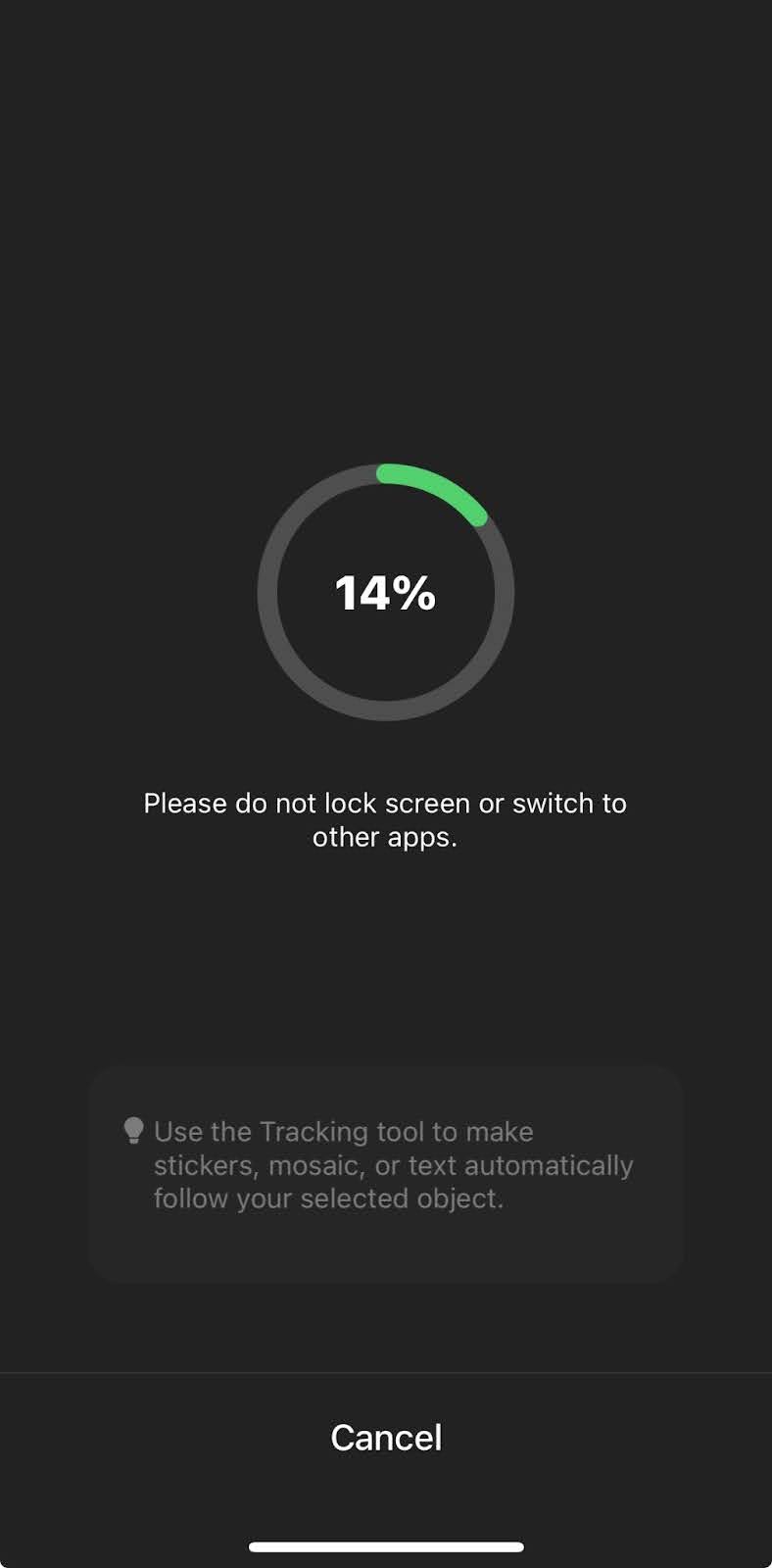
- Once you're satisfied with the music, tap the ‘Save’ icon on the top-right corner of your screen.
- Select your preferred video specifications, then click the save button.
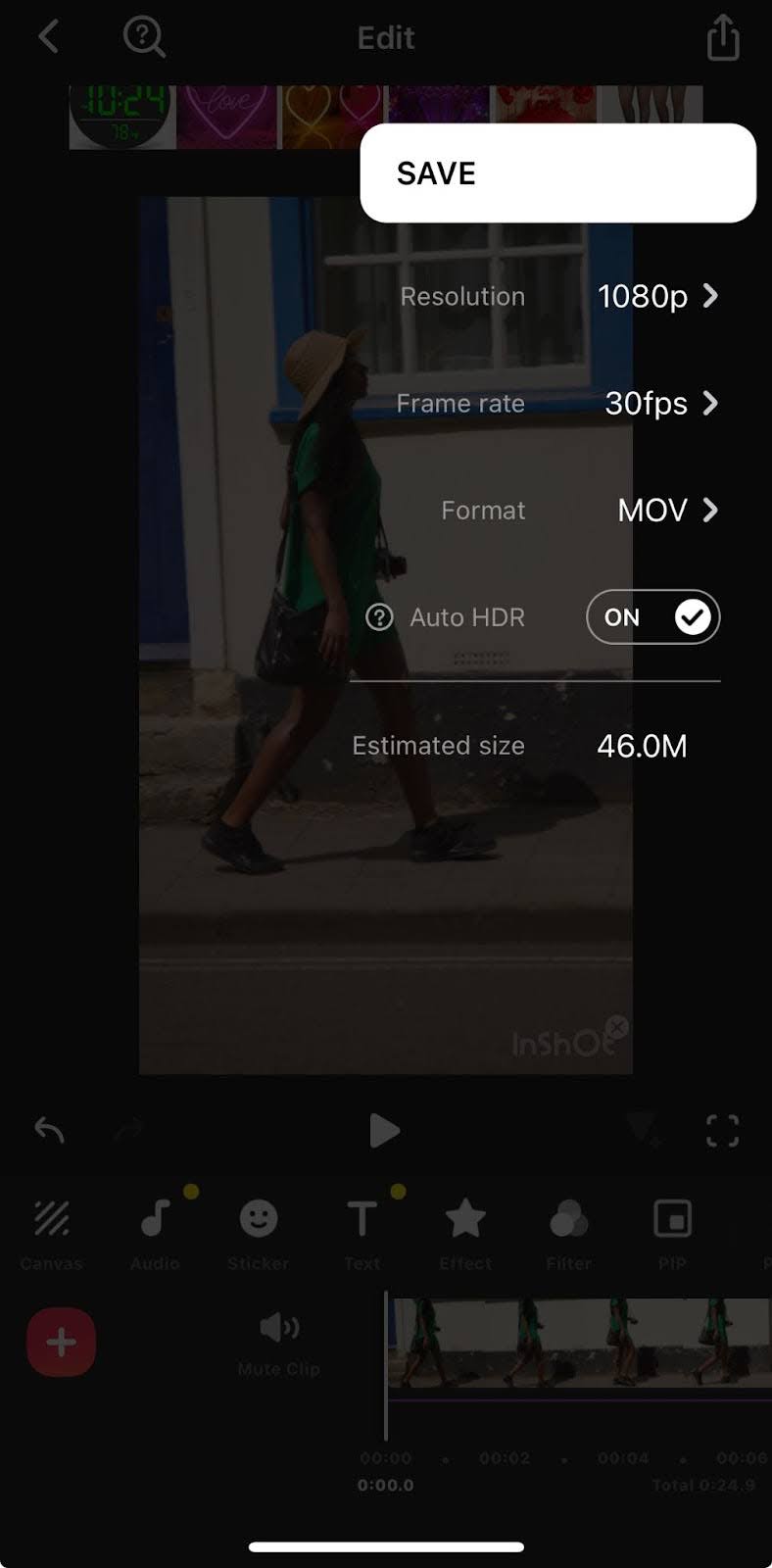
- Follow the instructions on the screen.
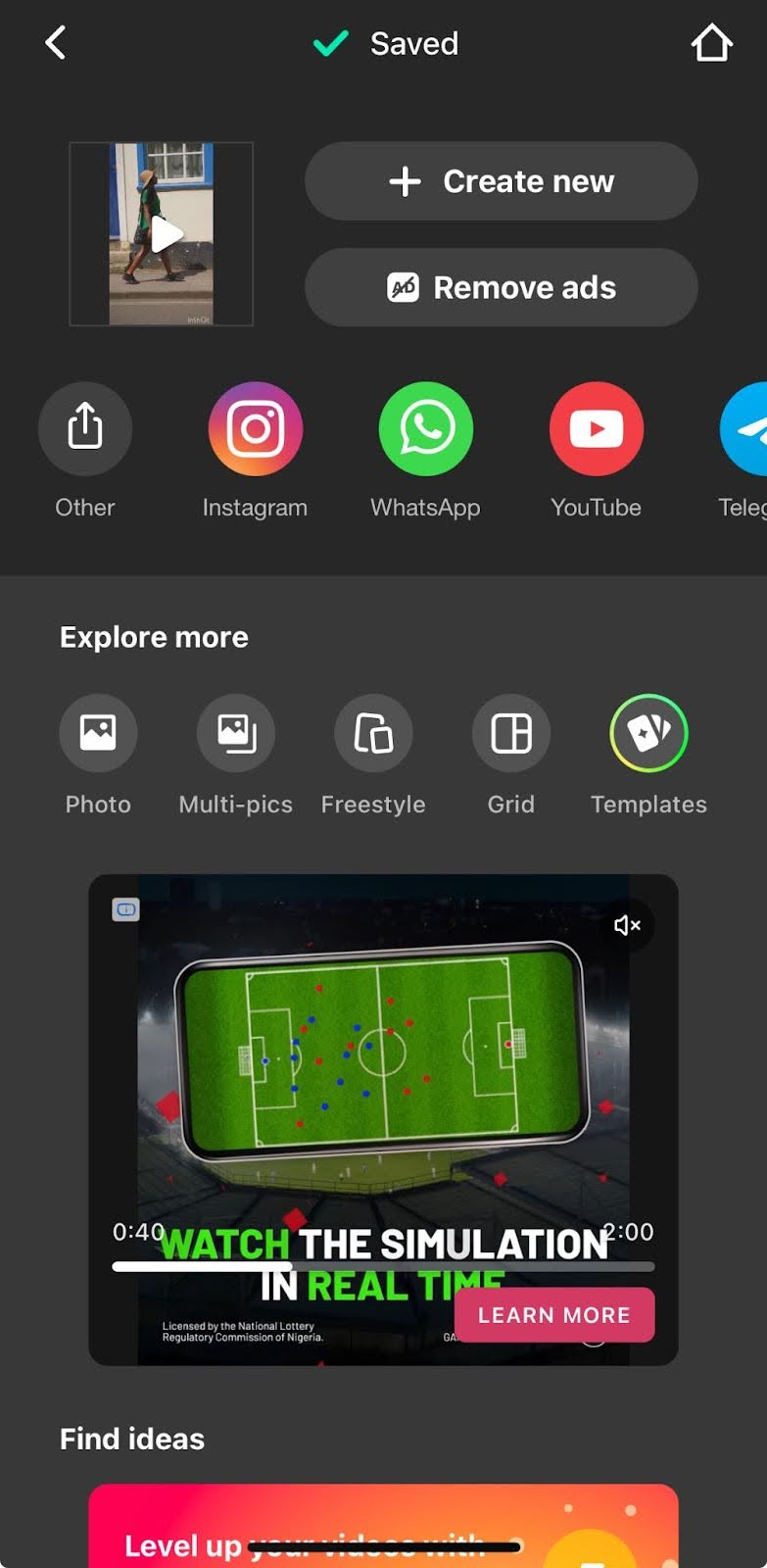
- To export to your iPhone, click on the ‘Other’ icon.
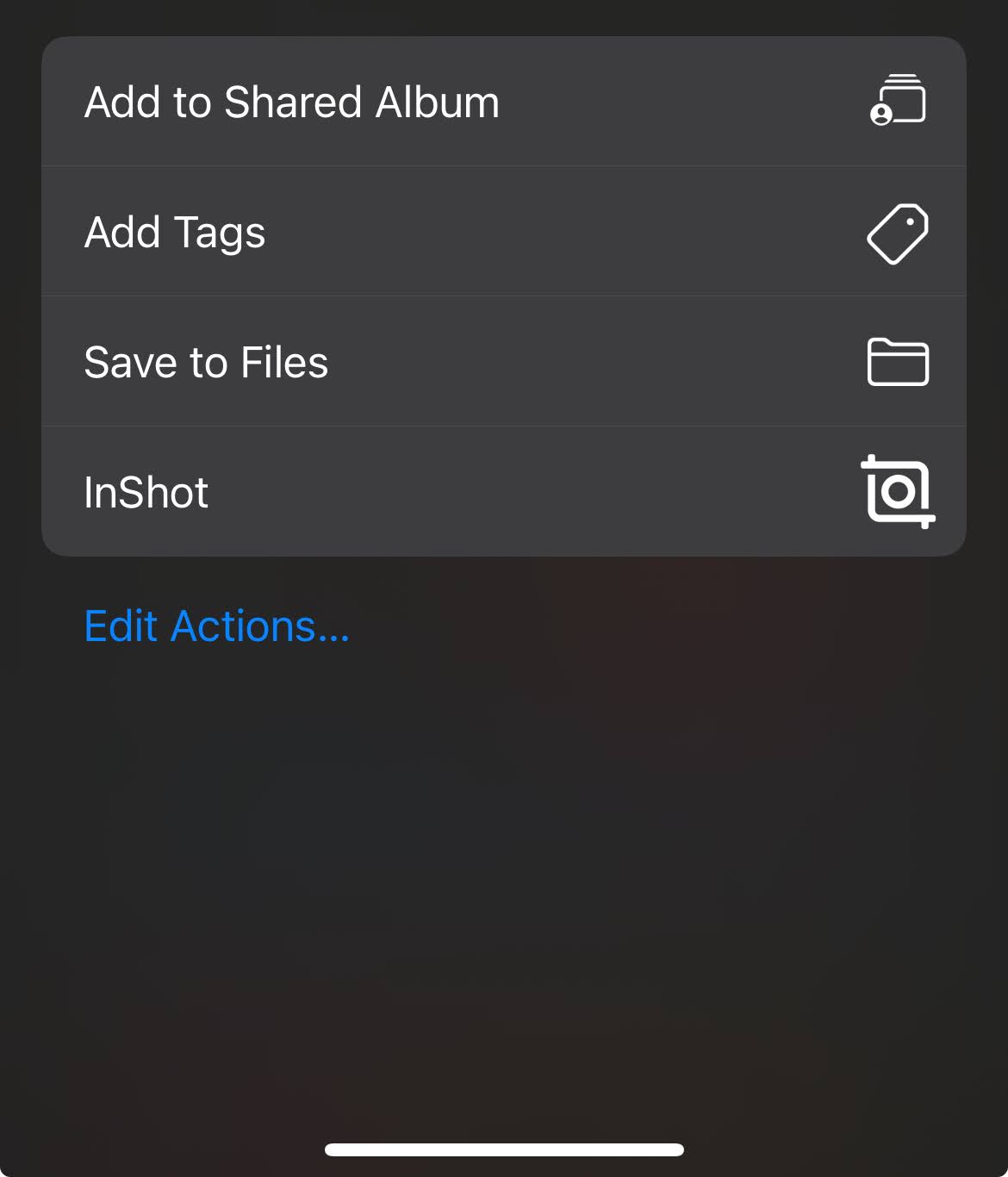
- Click on Save to Files and select your preferred folder.
- Open your files and navigate to the folder where you saved the video.
Best Practices for Editing Videos on iPhone
Plan Your Edits Before You Start
Before you start editing, take a moment to plan what you want to achieve. Think about the message, the length of the video, and the elements you want to highlight, like music or text. This will help you stay focused and make the editing process faster.
Keep It Short
iPhone videos are perfect for quick content. Trim your clips to remove unnecessary footage and keep only the most engaging parts. Klap’s AI takes care of the hard work by automatically removing unwanted sections, like pauses and repetition, leaving you with a clean, professional-looking video.
Use Natural Lighting
Good lighting is key to high-quality video. Whenever possible, shoot your video in natural light to avoid the need for heavy adjustments during editing. This will make color corrections easier and your video look more professional.
Stick to Simple Edits
While iPhone editing tools offer many features, less is often more. Focus on basic edits like trimming, adding music, and enhancing colors. Overdoing it with filters or effects can distract from the content.
Preview Your Edits
Always preview your edits before finalizing them. Make sure the video flows well, the audio is clear, and there are no abrupt transitions. Checking your work will save you time in the long run and ensure the final product is polished.
Export and Save in the Right Format
When you're finished, make sure to export your video in the correct format for your platform. iPhones allow you to export videos in various resolutions, so choose one that matches the platform where you'll be sharing it (e.g., 1080p for Instagram or YouTube).
If you’re using Klap, this is one less thing to worry about, as our AI automatically exports your video in the optimal resolution and format for each platform, ensuring it looks great wherever you share it.
Why Klap Is the Best App for Editing Your Videos on iPhone
AI-Powered Editing
Klap’s AI simplifies video editing by automating time-consuming tasks. It can automatically trim unwanted sections, generate captions, and reframe your videos based on content recognition. This allows you to focus on creativity rather than manual editing, saving time and producing polished, professional results with ease.
Fast and Efficient
With Klap’s lightning-fast processing capabilities, you can edit, enhance, and export videos in a matter of minutes. Whether you’re working on a quick project or a longer piece of content, Klap's AI ensures that every edit is completed quickly, making it the perfect app for busy creators who need results in a hurry.
Ease of Use
Klap is designed to be intuitive, so even if you’re new to video editing, you can jump right in without a steep learning curve. With simple drag-and-drop functionality, easy navigation, and clear instructions, Klap ensures you can edit videos quickly and efficiently, regardless of your experience level.
Versatile Features
Klap offers an extensive set of editing tools that cater to a wide range of needs. Whether you're adding captions to enhance accessibility, converting long videos into engaging short-form content, applying fun filters, or making precise cuts, Klap has it all. Features like trimming, dubbing, and video speed adjustment, ensure that you have full control over your video without needing to switch between multiple apps.
Seamless Sharing
Once your video is edited, Klap streamlines the sharing process. You can easily export your video in the perfect resolution for your preferred platform (YouTube, Instagram, TikTok, etc.) and share it directly from the app. With one click, your video is ready to be published, ensuring you don’t waste time on formatting and can focus on reaching your audience quickly.
Create Professional-Grade Videos on iPhone With Klap
Editing high-quality videos on your iPhone doesn’t require advanced skills or juggling multiple apps. With Klap, you can turn raw footage into polished, professional-grade videos in minutes. Unlike iPhone’s built-in tools and other video editing apps, our AI-powered features automatically handle trimming, captions, reframing, and formatting, all with just a few taps.
Whether you’re creating content for social media or personal projects, Klap removes technical friction, delivering faster workflows, consistent quality, and videos that are instantly ready to publish.
Try Klap today and start creating high-quality videos directly on your iPhone.
