How to Make Video Clips with Sound in 2026
Other
Make it silent first. That's the advice you'll hear in almost every short-form tutorial, and it's only half right.
A clip that only works muted wastes the tap that turns sound on. The voice sounds thin, music sits behind the words, or the first second starts mid-sentence like a webinar you stumbled into. Good video clips with sound solve both problems at once. Muted, the captions carry the full meaning. With audio, the same cut feels better, clearer and more intentional.
Start by deciding what "good enough to publish" means, in numbers you can check. Then cut, mix, caption and reframe to hit those numbers.
Quality Targets for Clips That Work Muted or Loud
Your viewer makes two different tests, often within seconds. First, the clip autoplays muted in a crowded feed. Can they follow the point from the picture and the text alone? Second, they tap for sound. Can they understand the voice on a small phone speaker without turning it up and down?
That second test matters more than silent-first advice suggests. According to Deloitte's 2024 Digital Media Trends survey, 47% of surveyed Gen Z consumers and one-third of surveyed millennials said social-media videos and livestreams were their favorite form of video content in 2024. These aren't background viewers. If they stop, they expect the clip to work as video, not as a moving transcript.
What muted has to prove
Muted playback needs more than dialogue typed on screen. It needs the words, who's speaking, and any sound that changes the meaning. A laugh after a punchline, applause, a door slam, a sudden music change. Leave that cue out and a reaction can read as sarcasm, agreement or confusion.
With sound on, your job flips. Speech has to stay intelligible over music and effects, loud moments can't jump, and the first spoken word can't arrive clipped. If the sounded version only adds volume, you haven't designed the audio. You've just unmuted it.
Acceptance rule: Mute the preview and check the story lands. Then play it on a phone speaker and check the audio adds tone and emphasis the text can't carry.
Acceptance targets before you export
Use this table as a pass or fail gate. Don't publish and hope the platform fixes a miss.
| Check | Target | Why it matters | Reject if |
|---|---|---|---|
| Integrated loudness | -20 to -16 LUFS | Phones and streams sit in this band | Outside the band or uneven across a batch |
| True peak | -1.0 dBTP maximum | Limits clipping after lossy AAC encode | Hotter than -1.0 dBTP |
| Short-term loudness | No more than 5 LU above target | Applies to clips of 60 seconds or less | Speech or music jumps past the limit |
| Caption speed | 145 words per minute or less | Comprehension falls above this in reviewed studies | Any caption interval over 145 wpm |
| Picture and audio file | 1080 x 1920, 9:16, MP4, H.264, AAC | Common mobile export for TikTok, Reels, Shorts and Stories | Missing audio, wrong crop, or a non-vertical frame |
Reject a file that misses a row, fix that one problem, and recheck it. A batch of clips that all pass the same gates feels consistent in a feed, even when they came from different parts of a long recording.
How to Choose a Segment That Sounds Finished
Length is a reality check, not a creative target. According to Statista's online video content creators data, in 2024 the average TikTok video created by accounts was 42.7 seconds long, up from 39 seconds in 2023. Plan for one complete thought in about 15 to 60 seconds. Longer destinations exist, but a three-minute stretch dumped into a feed rarely holds to the end.
The visual below puts that length window next to the planning steps.

Speech-led sources are the easiest place to start because the hook is already in the words. Klap works best with videos that include speaking, such as podcasts, interviews, educational videos, product reviews, and trainings, because its algorithm relies heavily on speech detection. A music-only demo can still work, but then the picture has to supply the hook in the first second instead.
Make the cut decisions in order
- Find a claim, question or reaction. Skim the long recording for a moment that makes sense on its own. Skip hellos, sponsor reads and logo stings. You want the sentence a viewer would repeat to a friend.
- Set clean in and out points. Start just before the first word and end on the last word, leaving about a quarter-second of room tone. That small gap stops you clipping a consonant or cutting off the breath that makes the line sound human.
- Play it with your eyes closed. If you need the previous minute to understand the line, the segment is too tight. Widen the window to include the setup, or choose a different beat.
- Keep meaningful sound inside the window. Don't trim away laughter that confirms a joke landed, or a sound effect that explains a startled face. If the sound changes interpretation, it's part of the segment.
- Mark speaker changes now. Note who starts each line while you're listening. You'll need those labels when you caption, and it's faster to mark them at the cut stage than to reconstruct them later.
Say you're cutting a podcast interview. The guest says, "We cut our refund rate by changing one email." That's a strong opening only if the next sentence names the change. If the explanation comes twenty seconds later after small talk, don't stretch the clip to cover it. Pick the later moment where claim and explanation sit together.
This short example shows the difference between a cut that lands mid-thought and one that starts on a complete idea.
Run a three-clip test batch
Before you process a full recording, cut three test clips from the same source with different hooks. One can open on a bold claim, one on a question, one on a reaction. Listen to each on your phone and read each muted. You'll learn quickly whether this speaker, room and topic produce clean short segments.
Apply the same test to any AI-proposed cut. A start that lands mid-syllable is a reject. So is an ending that stops before the last word, even if the middle is strong. Automation is useful for finding candidates. Your ears still decide what's finished.
How to Master Dialogue for Phone Speakers
A long-form mix won't translate by default. A podcast balanced for an hour of headphone listening sounds polite in the studio and buried in a noisy feed. The phone speaker is small, the room around your viewer isn't quiet, and music that felt tasteful under a webinar intro can cover consonants completely.
Treat every short clip as a new delivery asset with its own mix. The checklist below covers the shift in mindset before you touch a limiter.

Measure, limit, then listen small
1. Measure after the cut. Check integrated loudness and true peak on the edited clip, not the source file. Trimming changes both, especially if you removed a quiet intro or a loud laugh.
2. Land in the streaming band. Use gentle compression or limiting to bring dialogue into range. The EBU R128 streaming guidance identifies -23 LUFS as a reference broadcast level but allows higher distribution levels, generally -20 to -16 LUFS, when the delivery environment requires them. Keep true peak at or below -1.0 dBTP so lossy encoding doesn't push peaks into clipping.
3. Control short jumps. On clips of 60 seconds or less, keep maximum short-term loudness no more than 5 LU above the target. That stops a shout, a table slap or a music hit from making the viewer reach for the volume button.
4. Duck everything under speech. Lower music and effects whenever words carry the point. Let the bed come forward only on beats with no dialogue, such as a transition or a visual reveal. If you're adding a bed from scratch, work through how to add background music in video before you master, so the ducking is part of the edit rather than a rescue job.
5. Audition on three devices. Play the same exported file on headphones, laptop speakers and a phone speaker at normal volume. The phone check is the deciding one. If speech disappears there, the mix isn't done, no matter how good it sounds in headphones.
Don't chase maximum loudness. A clean, slightly quieter voice beats a clipped file that only sounded bigger in your editor.
Two mistakes that undo the work
Over-limiting is the first. Push a limiter to make a clip feel louder and you flatten dynamics, then introduce harsh distortion on sibilants and peaks. Ease the compression back and accept a level inside the band.
Uneven batches are the second. Export ten clips at different loudness levels and platform normalization makes the set feel random. One clip blasts, the next whispers. Measure every clip to the same target before you schedule anything, so perceived volume stays steady across the batch.
How to Sync Captions to the Real Audio
Captions aren't decoration and they aren't a transcript pasted over the picture. They represent the audio track for anyone who can't hear it in that moment, whether they're Deaf, hard of hearing, on a train, or scrolling with the sound off. For video clips with sound, that makes captions a distribution requirement.
The four-step pass below keeps the text tied to what the viewer would hear.

The caption-first workflow
1. Transcribe, then break at speech boundaries. Split captions where the speaker naturally pauses, not where a line happens to fill up. Keep each caption event to no more than two lines and keep placement consistent so the viewer's eye doesn't hunt for the next line.
2. Check speed on every interval. A review of 36 peer-reviewed studies reports that viewer comprehension declines when caption speed exceeds 145 words per minute, and full captions produced better comprehension than keyword-only or absent captions in studied learning contexts. Calculate words per minute for each caption, then retime or split anything above 145 wpm.
3. Name speakers and meaningful sounds. When more than one person talks, label who's speaking. Add cues such as [laughter], [applause] or [door slams] when the sound affects meaning or emotion. A bare transcript can't tell a muted viewer why everyone on screen suddenly reacts.
4. Validate against the voice after every trim. Move an in or out point and your timing can drift. Play caption against audio and fix lag, punctuation, names and technical terms the auto-transcript misheard. Domain vocabulary is where automation fails most, so check product names and jargon manually.
5. Choose open captions for cross-platform clips. Burned-in captions stay visible everywhere. Closed captions depend on each player's controls and settings. For background on keeping timing tight, see subtitle synchronization.
Klap uses intelligent framing and facial recognition to create responsive subtitles when converting topics into shorter clips, and it edits and transcribes videos in 52 languages, including English, Spanish, French, German, Japanese, and Chinese. That speed helps, but you still own the manual pass for names, speaker changes and non-speech cues.
Why this isn't optional polish
The literature alongside that review cites an estimate that 85% of Facebook videos are watched without sound and reports viewers were 80% more likely to watch an entire video when captions were present. Treat those figures as platform and study dependent, not a universal promise for your channel. They still point in one direction. If your clip needs sound to make sense, part of your audience never gets the point.
There's also a standards baseline. WCAG Level A expects captions for prerecorded video with synchronized audio unless the media is clearly labeled as an alternative for text. Keep captions off faces and important on-screen text, then run the final two-mode check. Muted, the story lands. With sound, tone and emphasis add something the words alone can't.
How to Reframe and Export for Each Feed
Resizing isn't reframing. Shrink a 16:9 interview into a portrait frame and you can lose the guest, the product, or the slide the speaker is pointing at. The crop has to follow the subject, not just the center of the original shot.
The Sprout Social video specs guide lists a commonly recommended export for TikTok, Instagram Reels, YouTube Shorts, and Stories as 1080 × 1920 pixels with a 9:16 aspect ratio, using an MP4 container, H.264 video, and AAC audio. It also lists YouTube Shorts as supporting 1080 × 1920 output and videos up to three minutes. That's your vertical master. Most destinations differ in interface and length cues, not in the core file.
Review the automatic crop like an editor
- Two people on screen: Check which face the crop follows when the speaker changes. A static center crop of a two-shot often cuts both people in half.
- Moving speaker: Watch for drift when someone walks, gestures wide or leans out of frame. Nudge the crop so the face and the object being explained stay inside the portrait frame.
- Slides and screen shares: Confirm headings and key text survive the crop. If the slide is the point, a stacked layout with speaker above and screen below often reads better than a tight face crop.
- Caption safe area: Raise captions above the bottom interface. Then play the export full screen on a phone and confirm buttons, progress bars and captions controls don't cover words.
Export one master at 1080 by 1920 and adjust only when a destination needs it. LinkedIn is the exception worth planning for, where a square fallback can protect the message if the feed crops your vertical frame. If you're unsure which export settings affect clarity most, check video quality settings before you render the whole batch.
Export differences by destination
| Destination | Frame | Container and codecs | Length cue | Extra check |
|---|---|---|---|---|
| TikTok | 1080 x 1920, 9:16 | MP4, H.264, AAC | Pace to the 15 to 60 second window | Hook and captions clear in the first second |
| Instagram Reels | 1080 x 1920, 9:16 | MP4, H.264, AAC | Same vertical master as TikTok | Caption clear of Reels controls |
| YouTube Shorts | 1080 x 1920, 9:16 | MP4, H.264, AAC | Up to 3 minutes; 15 to 60 seconds still finishes more often | Title matches the spoken hook |
| Instagram Stories | 1080 x 1920, 9:16 | MP4, H.264, AAC | About 15-second beats | Text inside the story safe area |
| 1080 x 1920 or 1080 x 1080 | MP4, H.264, AAC | Use the same 15 to 60 second window | Square fallback if the feed crops vertical |
Save the phone-checked vertical file as the version you publish. Don't schedule from the wide original and trust a platform crop you haven't seen.
If you haven't watched the exact exported file full screen on a phone, you haven't finished the reframe.
Fixes When the Clip Still Sounds Wrong
Don't re-edit the whole clip when it fails a check. Play the export once muted and once on a phone speaker, name the symptom, and make the single fix that matches it. Then re-export that clip only and listen again before you touch the rest of the batch.
Most failures are boring and specific. Captions lag because the trim moved. Voices muffle because the long-form mix stayed untouched. Faces split because a center crop met a two-shot. Each one has a direct cause.
Clip problems, causes and fixes
| Symptom | Likely cause | Fix |
|---|---|---|
| Captions lag the voice | Trim moved without a retime | Snap lines to the new speech boundaries |
| Voice lost under music | Long-form mix left as-is | Duck music and effects under dialogue |
| Harsh, flat speech | Over-limiting for loudness | Ease compression and cap peak at -1.0 dBTP |
| Clips in a batch feel uneven | Different integrated loudness | Remeasure all clips to -20 to -16 LUFS |
| Face or product cut off | Center crop of a 16:9 frame | Reframe to the active subject |
| Captions under buttons | Bottom safe area ignored | Raise captions and replay full screen on a phone |
| Wrong names or missing laughter | Unedited auto transcript | Correct terms, speakers and meaningful sounds |
Work in that order when several symptoms show up together. Fix framing and caption position first, because moving text can change what you notice about timing. Then fix the mix. A caption pass on a clip you're about to recut is wasted work, since new in and out points shift the timing again.
For transcript errors, slow down on the details automation gets wrong. Correct product names, add speaker labels, restore laughter or a music cue that carries the emotion, and run a words-per-minute check on fast lines. One symptom, one change, one fresh phone listen. That's faster than tweaking five settings and guessing which one helped.
Publish the Next Batch From One Long Video
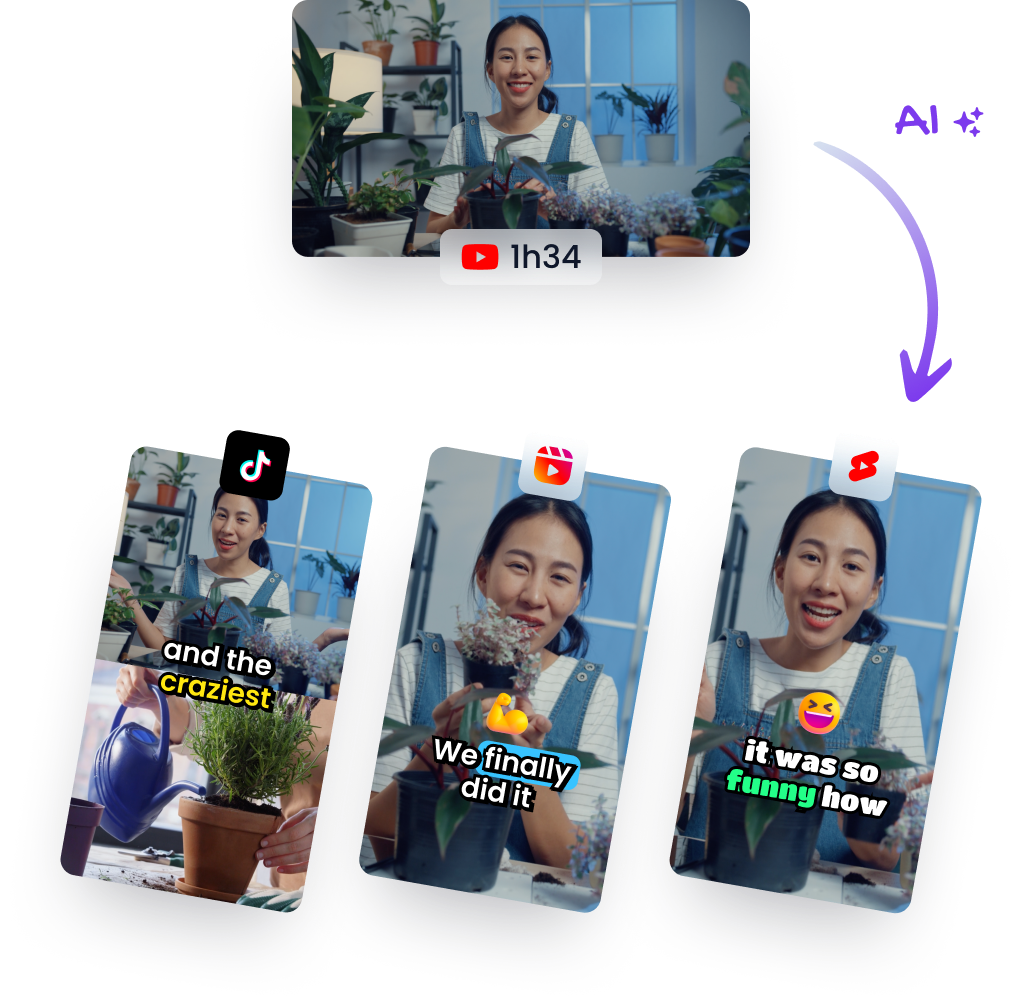
If you already own a speaking video, stop recutting it by hand for every feed. Run an AI pass to propose short vertical candidates, then spend your review time where it matters. Check cut points that don't clip words, captions that name speakers and meaningful sounds, loudness inside the acceptance band, and a frame that keeps the face clear of the phone interface.
Treat AI output as a draft. Reject any candidate that starts mid-sentence, loses the setup a punchline needs, or drops a laugh that carries the meaning.
Klap is built for that first pass. It turns long videos into shorts from an uploaded file or a YouTube link, can export in high resolution, and can publish clips directly to TikTok, YouTube, Instagram, and LinkedIn, with scheduling. The free trial lets you create 1 video for free and no credit card is required to start. For heavier volume, the Pro plan costs $39 per month when billed yearly, is for professionals, and includes 300 clips per month.
Whatever tool you use, finish the same way. Mute one clip and play it through. Play it again with sound on your phone. If the muted version carries the point and the sounded version feels better, not just louder, schedule the batch.
Turn one podcast, interview or lesson you already recorded into phone-ready video clips with sound that read clearly muted and hold up on a small speaker. Try Klap to generate your first captioned, reframed batch, then run the loudness, caption speed and safe-area checks from this guide before you publish.