Video to Text Transcription: 10 Tools Compared for 2026
Other
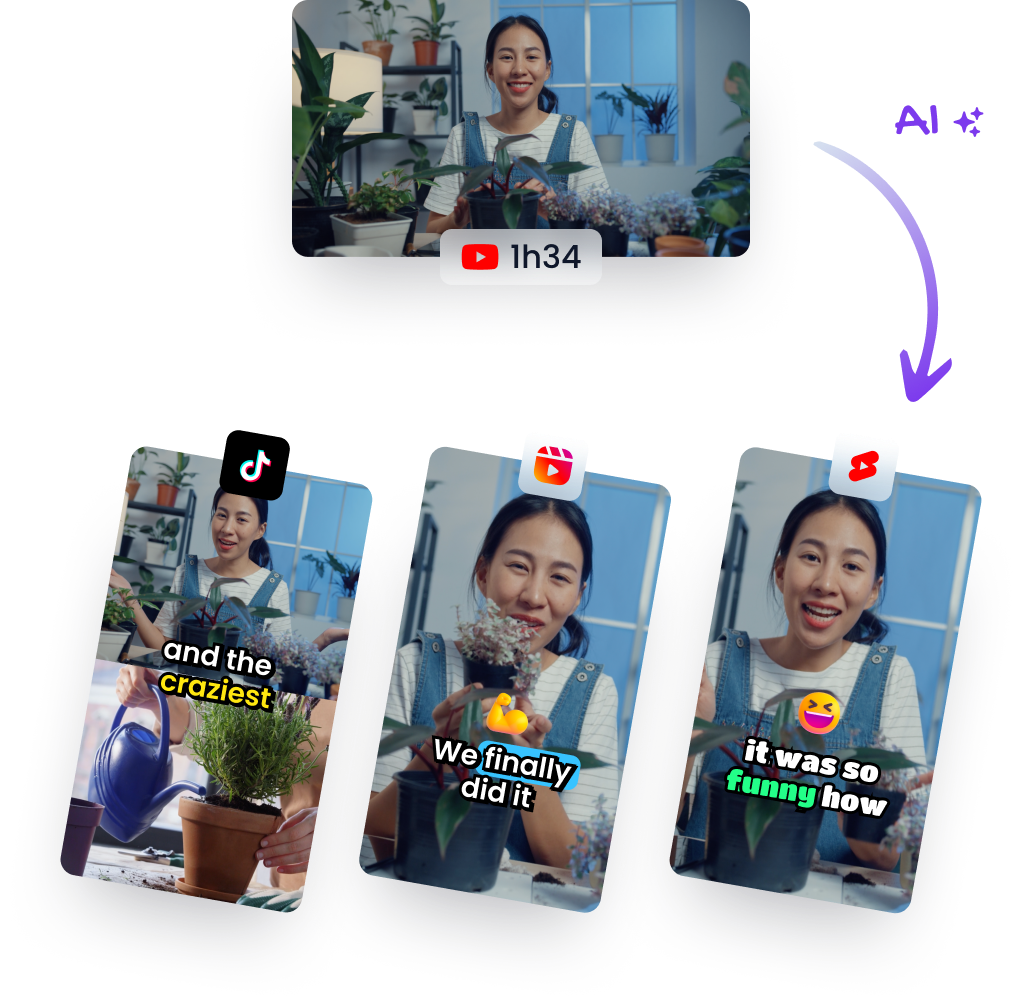
The one-hour webinar is already on the drive. Nobody transcribed it, there are no captions, and you can't search a single quote. That's the usual state of a recording the week after it goes live. Video to text transcription is the cheapest step between that file and a week of clips, show notes, and captions. Cutting, reframing, and writing hooks all take longer than turning speech into text.
Automatic output is a draft, not a finished record. The U.S. government's Section 508 accessibility guidance reports that approximately 15% of American adults, about 37.5 million people aged 18 and over, experience some difficulty hearing. The same guidance notes that only 14% of organizations considered auto-captions fully accessible, while 47% used them as a first draft before human review.
I sort the tools below by the workflow they finish and by what they cost across a realistic month, not by a feature grid. Transcript-only services export text and subtitle files. Transcript-to-edit tools cut the picture when you delete a line. Subtitle studios style burned-in captions. API pipelines bill inside your own system. Automatic is enough for a quiet solo host. Hybrid means the machine drafts and a person fixes names, numbers, and overlaps. Human-reviewed means you pay for that pass before anyone sees the line. I price against four to ten hours of interviews a month, not a two-minute demo.
1. TurboScribe
TurboScribe fits a transcript-only workflow when the backlog is long and you don't want a video suite attached. Three free transcripts a day let you test a real file before you pay. Unlimited is $20 a month, or $10 a month billed annually. That's the plan I price for a show that ships several hour-long episodes.
The upload screen stays a file drop, not an editor.

It transcribes in 98+ languages and translates into 134+. You get speaker recognition and optional audio restoration. Video files can run to 10 hours or 5 GB, with batches of up to 50. Exports cover TXT, DOCX, PDF, SRT, and VTT.
Why it earns the slot:
- File size: long interviews and webinars don't have to be split.
- Handoff: SRT and VTT land in an editor without a second timing pass.
- Monthly math: annual Unlimited stays cheaper than per-minute tools once you're past a handful of hours.
It won't edit or publish the video. Overlap and noise still need a look, and accuracy moves with the recording and the language. For a plain video to text export, I start here.
2. Descript
Delete a sentence and the matching stretch of video goes with it. That's Descript, and it's the transcript-to-edit pick for interviews, podcasts, and talking-head lessons.
You work in the transcript, not only on a timeline.

Imported video, audio, and Zoom recordings transcribe automatically. Speaker detection and transcription cover 25 languages. The editor lives in the same product, so you're not hunting the same moment twice.
A free plan lets you try the cut-by-text habit. Paid caps in the current listings are 10 hours a month on Hobbyist and 30 hours on Creator. A weekly hour-long show fits Creator. An agency library does not. Read the AI-use allowance on the plan you buy, because that number moves.
If the only file you need is a document, you're paying for an editor you may never open.
Descript is heavier than a transcript-only job. For a straight transcribe video to text pass with no cuts, a lighter exporter is the cheaper month.
3. Rev
Rev prices two different promises. AI transcription is $0.25 per minute. Human transcription starts at $1.99 per minute. I use the cheap pass for internal notes and the human pass when a name or a number can't be wrong on screen.
Uploads accept audio and video, then open in an interactive editor.

Captions and subtitle services sit beside plain transcripts. You still have to listen. A review of mainstream videoconferencing and social-media platforms cites roughly twice the error rate for second-language speakers compared with first-language speakers, which is why a short clip with no surrounding context is a bad place to trust a first draft, as covered in the Journal of Sociolinguistics.
Where the bill changes shape:
- A 20-minute clip: AI stays a few dollars, which is fine for a one-off.
- A weekly hour: AI is about $15, and a human pass is about $120, every week.
- Bad rooms: overlap and noise don't vanish because a person is typing.
Subscription tools win once you transcribe every week. Rev wins when one bad line would misquote a guest.
4. Happy Scribe
Happy Scribe is the multilingual subtitle desk. AI transcription covers 150+ languages and dialects, with speaker detection, shared editing, and optional human proofreading.
The workspace is built for a team passing one transcript around.

Basic is $8.50 a month and Pro is $19 a month when billed annually. Extra AI credits are $0.20 per minute. Exports include DOCX, TXT, SRT, and MP4, with more subtitle formats on higher tiers.
The free trial is 10 minutes of AI transcription, subtitling, or translation. That's a sample, not a pilot episode. Human proofreading starts at $2.00 per minute, so a 60-minute webinar is a real invoice.
Practical rule: pay for proofreading only on the lines you will publish, not on the full raw recording.
I send teams here when one interview needs an English transcript and a subtitle file in another language. If you only archive English meetings, the credit meter is the wrong shape.
5. Sonix
Pay-as-you-go at $10 per hour is the honest test when interviews arrive in bursts. Core starts at $25 a month with five transcription hours. Usage is prorated to the second, so a 12-minute clip doesn't have to bill as a full hour.
Search and folders matter more here than a flashy export button.

Transcription and translation cover 54+ languages. The browser editor, subtitle tools, shared folders, and permissions sit on the plans that include them. Exports aimed at Premiere Pro and Final Cut Pro mean the text can leave as an edit.
A 2025 evaluation found these systems systematically favor standard American English, and Bosnian, Turkish, Ukrainian, and Italian English accents were among those underrecognized. The same evaluation reported that as models improved on first-language English, the relative disparity for second-language speakers worsened, which is laid out by Soria and colleagues. Search won't fix a wrong name. Team seats add cost without adding hours, and daily podcast volume makes $10 an hour expensive fast.
6. VEED
VEED fits a subtitle-production workflow: generate text in the browser editor, style the captions, burn them into the video, or export TXT, VTT, and SRT. Paid plans include subtitle generation under a fair-use limit of 50 hours a month.
Caption styling is the main reason to choose it. For a transcript-only job, the editor may be more than you need.

WCAG guidance on captions says captions should be provided for all live audio content in synchronized media. UK on-demand providers have been increasing subtitle availability. You still need to check timing around speaker changes.
Translation to 125+ languages and speaker detection sit on paid plans. Subtitle-file downloads require a paid plan, and longer videos may push you to upgrade. Translation also uses allowance or AI credits. For a captioned social cut, VEED is a subtitle-focused option among video transcription software.
7. Otter.ai
A team reviewing recorded interviews needs to find a quote weeks later, not produce social captions. Otter.ai fits that searchable-archive workflow: it organizes conversation transcripts with speaker labels, summaries, and action items. It is less suited to subtitle production.

You can import recordings or connect meeting and cloud platforms where files are already stored. The free plan caps file imports and recording length; paid tiers raise those limits. Check the current plan details before importing a long recording, since the limits determine whether a file fits your workflow.
Summaries and action items add value for teams reviewing meetings, but they do little for a transcript-only task and do not replace a subtitle file. Choose Otter.ai for searchable internal interviews and meeting records. For captioned social clips, use a tool built for subtitle production.
8. Notta
Notta tries to cover live meetings and uploaded recordings in one login. Free is $0, with no credit card. Pro is $8.17 a month billed annually, with 1,800 transcription minutes. Business is $16.67 a month on the same annual billing.
Mobile and web both capture, which is the point for a team that records everywhere.

Speaker identification and AI summaries come with the transcript. Team workspaces land on higher tiers. Translation sits on eligible plans or add-ons, so don't assume the cheap tier speaks every language you publish in.
Caps that change the workflow:
- Free recordings: three minutes each, which is a voice memo, not a podcast.
- Pro recordings: five hours each, so a full-day workshop still gets split.
- Shared libraries: Business is the tier where a team workspace starts to matter.
I use Notta when the same people capture standups and also drop in last month's webinar, and 1,800 minutes covers that month. If every asset is a finished social video, the meeting features are spare weight.
9. Kapwing
Kapwing combines video editing with automatic subtitles, so it fits a workflow where captions need correction and styling before export. Free is available. Pro costs $16 a month, and Business costs $50 a month. For transcript-only work, an editor may be more than you need.

Import a YouTube link or another online video, generate subtitles, then refine them in the same project as the edit. Paid plans remove the watermark and support exports up to 4K; they also add shared workspaces and brand tools. Auto-subtitling uses credits, so check the plan allowance against your publishing schedule. Free exports have a watermark and are limited to four minutes and 720p.
Kapwing makes the most sense for social teams producing captioned edits in one place. If you mainly need searchable text, choose a transcript-focused tool instead.
10. Google Cloud Speech-to-Text
This is an API pipeline, not an upload page. Standard Speech-to-Text V2 recognition is $0.016 per minute for the first 500,000 minutes a month. Dynamic batch recognition is $0.003 per minute. At ten quiet hours, batch is a couple of dollars before storage. At agency scale, that gap is the budget.
You build the button yourself.

You get standard and specialized models, batch options, and video-oriented recognition, and you can chain other Google Cloud services. New customers may get credits. Storage and the job runner around the API still bill separately.
OpenAI reported that its Whisper models were trained on 680,000 hours of multilingual and multitask supervision, while a 1952 AT&T Bell Laboratories digit system reached approximately 97 to 99 percent for one male speaker and could fall to roughly 50 to 60 percent without adjustment, as described in Spoken Language Communication with Machines. Setup is code, quotas, and retries. I only recommend Google Cloud Speech-to-Text when transcription has to run inside your product or a nightly batch.
How the 10 Video to Text Transcription Tools Compare on Price, Free Access, and Best Use
The right price comparison depends on what you need after transcription: a text file, searchable meeting notes, captions on a finished video, or an API pipeline. The table compares entry prices and free access with the workflow each tool supports.
| Item | Starting Price | Free Option | Best For |
|---|---|---|---|
| TurboScribe | $10/month, billed annually | 3 transcripts daily | Long recordings and straightforward transcript exports |
| Descript | Hobbyist plan includes 10 hours; Creator includes 30 hours | Free plan available | Editing video and audio by editing transcripts |
| Rev | AI transcription: $0.25/minute; human transcription: $1.99/minute | No free option | Choosing between AI and human transcription |
| Happy Scribe | $8.50/month, billed annually | 10 minutes of trial transcription | Multilingual transcripts and subtitles |
| Sonix | $10/hour pay-as-you-go | No free option | Searchable transcripts and team workflows |
| VEED | Paid plans include a 50-hour fair-use limit | Limited free use | Creating and styling captions alongside video |
| Otter.ai | Paid tiers increase import and transcription limits | 3 lifetime file imports | Meeting notes, summaries, and searchable conversations |
| Notta | Free plan; paid plans from $8.17/month, billed annually | Free plan available | Transcribing meetings and uploaded recordings |
| Kapwing | Free plan; Pro from $16/month | Free plan with limited, watermarked exports | Editing social videos with captions |
| Google Cloud Speech-to-Text | $0.003/minute for dynamic batch recognition | New-customer credits may be available | Developers building custom transcription workflows |
Check the unit before comparing totals. Rev charges by minute, Sonix by hour, and TurboScribe offers a subscription for frequent transcript exports. Descript's included hours make the plan cap the key cost for transcript-based editing. VEED's 50-hour fair-use limit is a usage boundary, not a per-hour price; Otter's paid tiers raise import and transcription limits.
For occasional files, trial minutes or free imports may be enough to assess a workflow. At regular volume, compare the paid allowance with the hours you expect to process, and include human review when transcript accuracy matters.
Match the Tool to Your Workflow Before You Spend a Dollar
Start with the file you need at the end. A plain transcript, a subtitle file, a searchable archive, and a finished clip are four different purchases. An editor bought for a TXT file wastes the month. A meeting notetaker bought to burn captions on a Reel does the same.
Match the job before you enter a card:
- Transcript only, lots of hours: TurboScribe on annual Unlimited, if you export and leave.
- Text that cuts video: Descript, and watch the hour cap before a season starts.
- A line that can't be wrong: Rev's human rate, or Happy Scribe proofreading on the lines you will post.
- Languages and subtitle formats: Happy Scribe or Sonix, then compare credits with a flat month.
- Captioned social video: VEED or Kapwing, styled for the channel length you post.
- Meetings you will search: Otter or Notta, not a subtitle studio.
- Your own product or a nightly batch: Google Cloud Speech-to-Text, with storage in the budget.
Run your worst recording first. Overlapping guests, a thick accent, a brand name people misspell. If that file comes back clean, the easy solo takes will too. If names and negations slip, plan a review step before any clip stands alone.
A cheap transcript of a noisy panel is still a bad caption once the setup is cut away.
Price the review, not just the minute. Quiet audio might need a light pass for punctuation and speaker labels. A panel needs someone to listen while they read, because a missing "not" becomes the whole claim. I would rather pay a flat tool and spend an hour fixing clear footage than pay a human service for a take that was already easy.
Flat plans win when you clear the included hours every week. Meters win when the month is uneven. Translation credits are worth buying only if the second language is delivered. The transcript is the map for a short, not the short itself. You still pick the hook, the proof, and the last line, then reframe for a phone. If you want transcripts that feed straight into short-form clips, Klap lets you create one video for free with no credit card required, so you can see how your own footage comes out before a paid plan.
Klap turns long videos into captioned vertical clips for TikTok, Reels, and Shorts, using the spoken track to find moments worth posting. Upload a file or paste a YouTube link, then adjust captions and framing before you export or schedule. Visit Klap and run one of your own recordings through that path before you lock a transcription stack.