Subtitle Synchronization Made Simple for 2026
Other
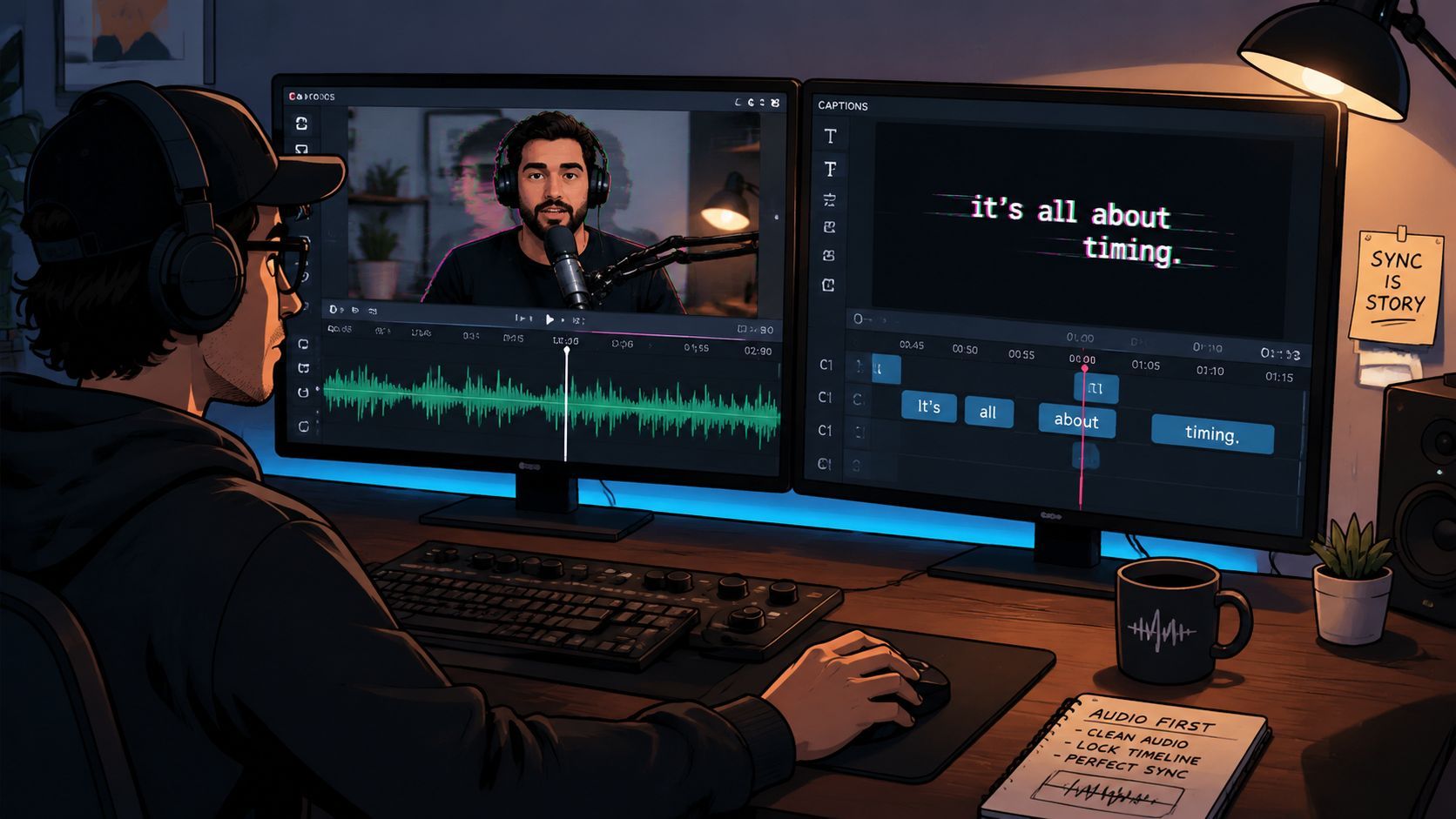
You've probably had this happen: the transcript is accurate, the captions sit neatly on the timeline, and the waveform seems to confirm everything. Then you watch the exported vertical clip on your phone and the result feels late, rushed, or strangely hard to follow. A punchline lands before its caption, two speakers share one text block, and the lower-third interface covers the words that looked perfectly placed in the editor.
That's because subtitle synchronization isn't only a timestamp problem. It's a multimodal editing decision involving speech onset, frame rate, reading speed, speaker identity, caption placement, and mobile safe zones. A caption can be technically aligned with the audio and still fail the viewer.
When Captions Look Right but Still Feel Wrong
A creator scrubbing through a recycled podcast clip on a second monitor may see captions appearing close to the speaker's mouth. The transcript matches the dialogue, and each cue seems to begin on the right word. Yet the caption disappears just before the punchline finishes, drifts ahead during a long sentence, and occupies the same lower-third space as a platform username.
The timeline isn't necessarily wrong. The viewing context is.
Portrait video changes the relationship between the caption and the image. A crop can move the active speaker toward the edge, a caption can wrap into an extra line, and interface elements can cover text that was safe in a desktop preview. Compression can also soften small lettering, making a cue feel difficult to read even when its in-point and out-point are accurate.
Timing is only one layer
Professional guidance treats timing as a measurable quality criterion. Netflix's timed-text timing guidance sets a minimum subtitle duration of five-sixths of a second, about 20 frames at 24 fps, and a maximum of 7 seconds per event. It also calls for subtitles to begin on the first frame of audio or within 1–2 frames of it.
Those limits reflect how people read and perceive speech, not merely how editors arrange clips. BBC guidance recommends 160–180 words per minute, approximately 0.33–0.375 seconds per word, and advises leaving at least 1 second, preferably 1.5 seconds, between subtitle events when a pause separates speech segments. BBC subtitle guidance also recommends that captions appear with speech onset, disappear roughly with speech completion, and generally don't anticipate speech or linger more than 1.5 seconds after a speaker stops when that speaker is visible.
Practical rule: Review captions in the final aspect ratio, at the final size, with the platform UI in mind. A desktop timeline can confirm timing, but only the mobile preview can confirm usability.
Speaker placement makes the problem more complex. In a two-person interview, the viewer needs to associate the words with the correct face. Research on dynamic subtitle allocation in complex audio-visual scenes indicates that placing subtitles near the active speaker can improve comprehension and help viewers follow speaker identity. That makes speaker-aware placement especially important for interviews, podcasts, and creator videos with frequent cuts.
If the caption is synchronized for the waveform but not for comprehension, the edit still needs work. For practical speaker detection considerations, see Klap's guide to speaker identification.
How Subtitle Timing Actually Works
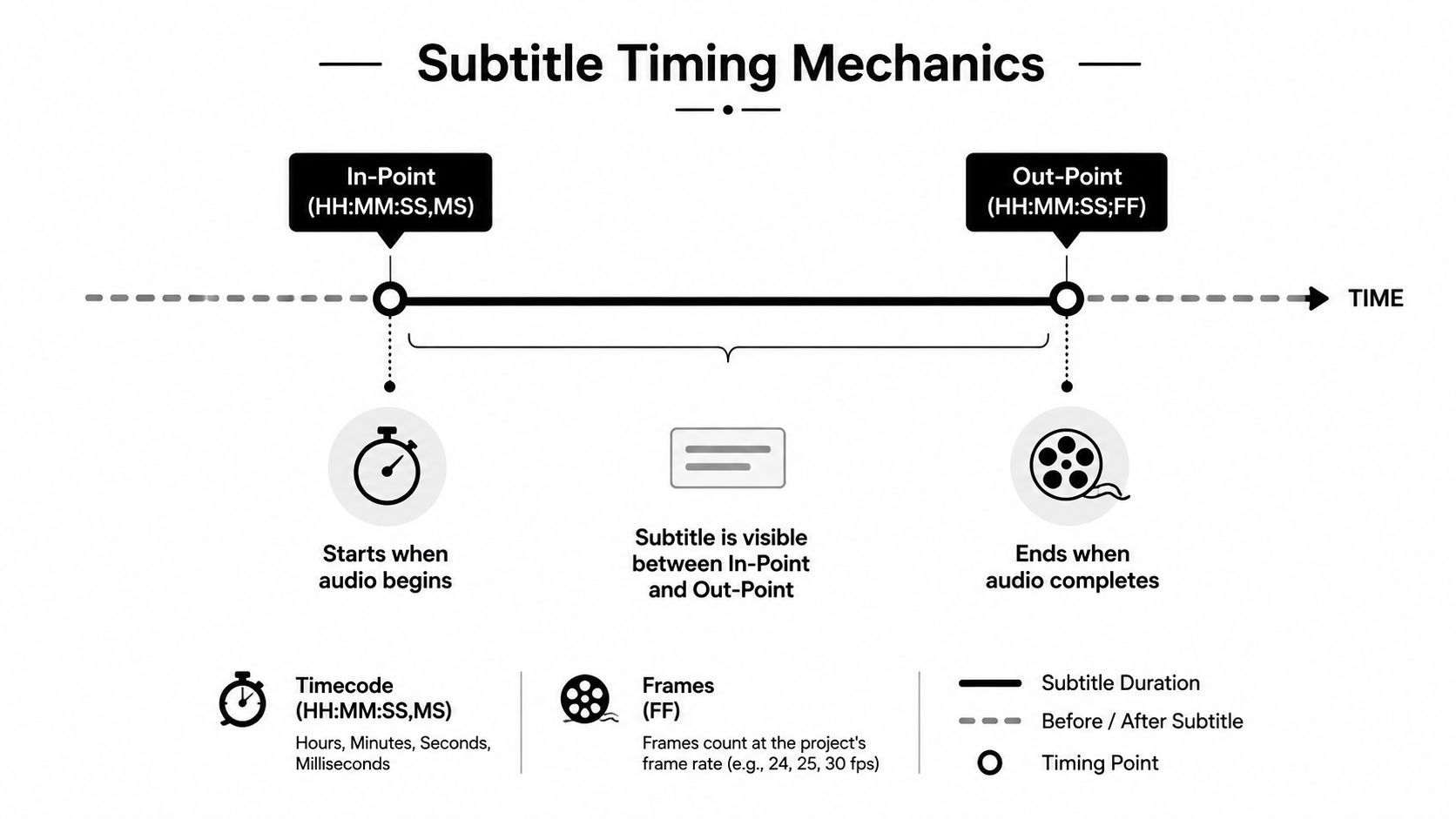
Every subtitle event has an in-point and an out-point. The in-point tells the player when text should appear, while the out-point tells it when the text should disappear. Depending on the file and editing application, those values may use milliseconds, such as HH:MM:SS,MS, or frame counts, such as HH:MM:SS;FF.
Frame rate determines how finely you can move a caption when you're working in frame-based timecode. A subtitle placed one frame earlier at one frame rate won't represent the same duration as one frame earlier at another. That's why a caption file can look correct in one timeline and drift after it's imported into a project with a different frame-rate interpretation.
A global offset is different from a frame-rate mismatch. If every caption arrives late because the audio has a different lead-in from the subtitle source, applying one offset can move the entire file without rewriting every event. If the file gradually moves out of alignment, a global offset won't solve the underlying problem. You'll need to correct the timing relationship across the duration of the video.
The tolerance is tighter than it looks
The SUBTLE recommended quality criteria recommend aligning subtitles with speech onset within 2–3 frames. Consecutive subtitles should have a fixed interval of 2 to 6 frames, with 3–4 frames recommended depending on frame rate. Netflix's guidance requires at least 2 frames between subtitle events.
Those gaps prevent captions from appearing to flash together or from feeling like one continuous block when the speaker has paused. The exact display time still has to respect reading speed, sentence structure, and the visual rhythm of the edit.
A useful operational benchmark comes from a two-pass alignment workflow described in AppTek's explanation of the SUBER metric. The method first constrains candidate timing windows with weighted finite-state transducers, then refines them using evidence from the audio track. On the MGB Challenge development set, it reached an F-score of 0.8965, with timing counted as correct only within a 100 ms window of the reference.
That threshold matters when you're preparing captions for broadcast, accessibility, or repeated social reuse. “Looks close” isn't a dependable quality standard once small errors accumulate around fast speech and rapid cuts. For broader closed-caption considerations, Klap's closed-caption requirements guide provides useful production context.
Automated vs Manual Subtitle Synchronization
Automation is excellent at producing a workable first pass. It can identify speech segments, create timed events, and save an editor from building every cue from scratch. On clean, single-speaker narration, it often gets close enough that the remaining work is mostly text correction and visual styling.
It becomes less reliable when the audio contains interruptions, overlapping voices, music, unusual pronunciation, or deliberate silence. A transcript can be correct while the segmentation is wrong. One caption may combine two speakers, a pause may vanish, or a dramatic beat may be treated as empty space that should be removed.
ScenarioAuto-Sync PerformanceManual Sync PerformanceRecommended Approach
Clean single-speaker narration
Strong first-pass alignment and consistent cue creation
Useful for correcting emphasis and boundaries
Automate, then review
Scripted social clip
Fast at matching familiar wording to speech
Better for punchlines, pauses, and final phrasing
Use a hybrid pass
Podcast with interruptions
Can merge speakers or misread overlaps
Better at separating voices and controlling event boundaries
Manual review is essential
Interview with changing speakers
Timing may be acceptable while speaker attribution remains unclear
Can split cues at speaker changes and reposition text
Combine automation with speaker-aware edits
Music beds or noisy recordings
May place cues against the wrong sound evidence
Can anchor captions to visible speech and clean dialogue
Correct manually around difficult sections
Accessibility-focused delivery
Produces a useful draft but may miss non-speech information and readability issues
Provides stronger control over pauses, labels, and display duration
Treat automation as a draft only
The hybrid workflow wins most often
The practical sequence is simple:
- Generate the initial captions with an automated tool such as Klap's AI caption generator.
- Open the result in a timecode editor or your non-linear editor.
- Check the first spoken consonant, the final spoken sound, and the gap before the next event.
- Split captions when the speaker changes.
- Shorten dense lines instead of forcing the viewer to read faster.
- Rewatch the exported crop on a phone.
Manual syncing still earns its place in emotionally paced material. A speaker may pause before a key phrase, hold a word for emphasis, or leave silence after a joke. An automated engine can align the transcript to the acoustic signal and still flatten the intention of the edit.
The honest verdict is that auto-sync is a strong starting draft, not a finishing pass. The more voices, visual changes, and deliberate pauses a clip contains, the more valuable the manual review becomes.
Editing Timecodes, Frame Rates, and Offsets
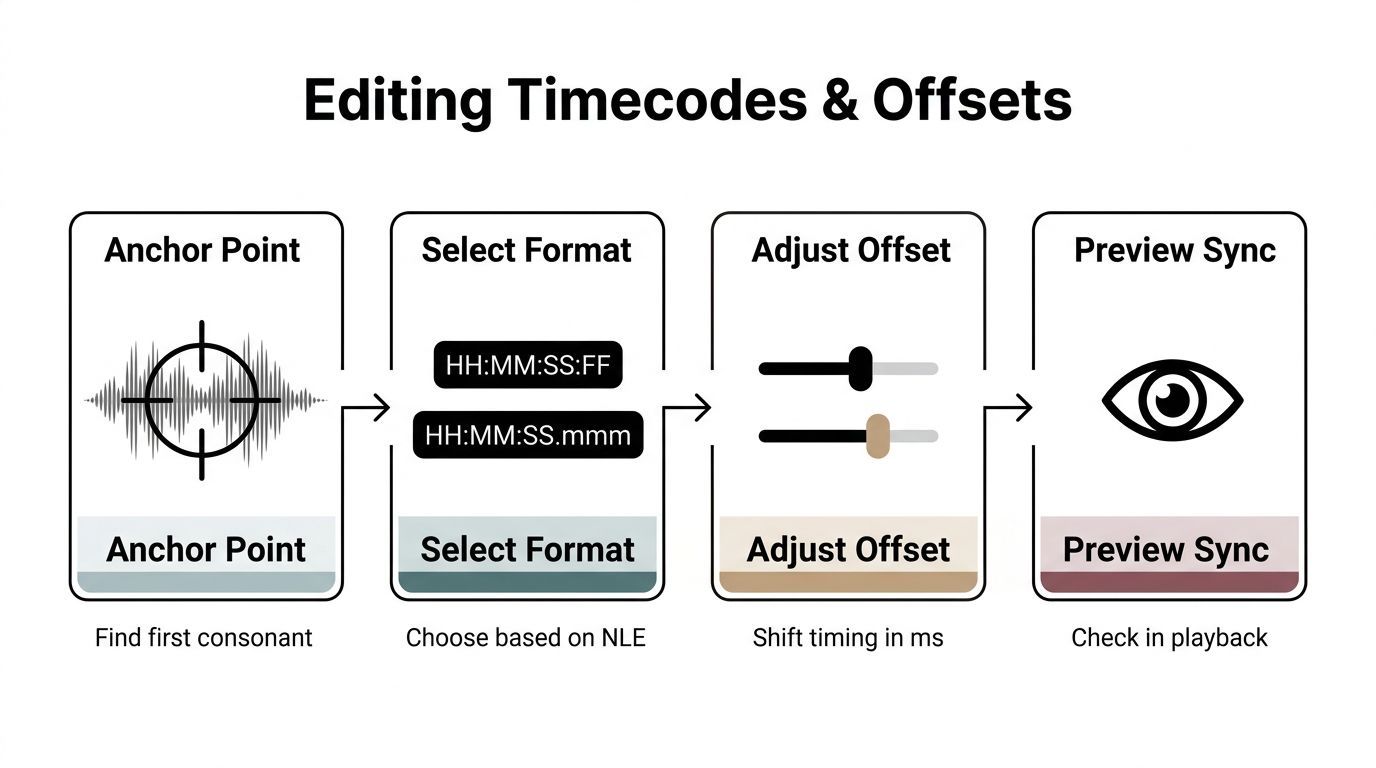
Start with an anchor point that a viewer can perceive. For spoken dialogue, that's usually the first hard consonant or clearly audible syllable, not the breath or silence before the word. Move the in-point to that moment, then set the out-point near the end of the spoken phrase without cutting off the final sound.
Use the right timecode format
Your editing application may expect HH:MM:SS:FF, where the final field represents frames, or HH:MM:SS.mmm, where the final field represents milliseconds. Choose the format the application and delivery file use. Converting between them without confirming the project frame rate can create errors that are difficult to spot in a short preview.
Frame-rate conversion causes a different kind of trouble from a simple offset. If the source subtitle file and the master video use different timing bases, the first caption may appear correct while later captions gradually drift. Don't drag individual cues at random. Confirm the source and master settings, then remap the subtitle timings using a known conversion process.
Correct offsets globally
If every event is late by the same amount, use a global offset in milliseconds. This is faster and safer than editing a large file cue by cue. If the delay changes over time, sample the beginning, middle, and end, then apply a linear correction or regenerate the cues from the locked master audio.
A workflow that works reliably is:
- Find the anchor: Align the first audible consonant, not pre-roll silence.
- Select the format: Match frame-based or millisecond timecode to the NLE and delivery format.
- Adjust the offset: Apply a global shift only when the error is consistent.
- Preview the sync: Check the waveform, then watch the result at normal playback on the target device.
For mixed-rate projects, re-derive timing from the audio waveform rather than trusting a proxy. Verify several checkpoints across the clip, because a file that appears aligned at the opening can still separate from speech later. Display timing should resolve cleanly to the project's frame boundaries, avoiding sub-frame behavior that can create inconsistent playback between applications and devices.
Common Syncing Problems and How to Fix Them
Most sync failures have a recognizable pattern. Captions that are late everywhere usually need an offset. Captions that start correctly and become increasingly wrong usually point to a frame-rate or version mismatch. Captions that appear to arrive early may be too dense to read comfortably.
ProblemRoot CauseTargeted Fix
Gradual drift
Subtitle and master video use different timing bases, or the source was retimed
Compare multiple checkpoints, confirm frame rate, then apply a linear correction or regenerate
Consistent delay
Audio lead-in and subtitle file begin at different positions
Apply a global offset instead of moving every cue
Old captions on a new cut
The editor reused an SRT from an earlier export
Re-run alignment against the locked master audio
Overlapping speakers
One event contains dialogue from more than one person
Split at the speaker change and keep events short and distinct
Burned-in captions drift after export
The render uses variable frame rate
Re-mux or export with constant frame rate, then review the final file
Mobile captions feel early
The text is too long and takes too much time to parse
Shorten the cue, improve line breaks, and reassess display duration
Poor source subtitle quality
Downloaded captions contain timing and text errors
Treat the file as raw material and align it to the actual audio
A benchmark from the Subaligner project illustrates why downloaded subtitle files often need repair. In one benchmark using randomly sourced OpenSubtitles files, the pre-synchronization error rate was about 50%. After synchronization, the system reported 50% of lines within 50 ms, 80% within 100 ms, 90% within 400 ms, and 95% within 800 ms of the target position.
Those figures are useful as evaluation points, not as a promise that every file will behave the same way. The source edit, audio quality, variable frame rate, and subtitle quality all influence the result.
Diagnose before nudging
Version mismatch is especially common with repurposed content. A producer may replace an intro, remove a pause, or insert a sponsor segment while leaving the old SRT attached. No amount of local cue dragging will make that file trustworthy across the new cut.
Multi-speaker overlap also can't be solved through timing alone. The caption needs a readable boundary, a clear speaker association, and enough space for the viewer to process the change. If two voices alternate quickly, shorter events and deliberate line breaks usually work better than preserving sentence-length blocks.
Accessibility Standards Canada states that captions should preserve synchronization within 100 ms for recorded captions, and within 100 ms of caption availability to the player for live captions, as summarized by SubZap's accessibility timing reference. That gives teams a concrete threshold to test against, while the final review still needs to consider comprehension and placement.
Syncing Subtitles Inside Klap for Social Clips
For a social clip workflow, begin with the actual source that will become the final short. Uploading a proxy, an earlier export, or a version with different opening material can create a mismatch that appears to be a caption problem but is really a source-version problem.
Klap's workflow transcribes the source, generates caption events, and aligns them to detected speech. The automated result gives you a timed draft, but it still needs an editorial pass before publication, especially when the clip contains a hook, a change in speaker, or a final call to action.
Audit the moments that carry the edit
Open the caption editor and inspect three locations:
- The hook: Check that the first important phrase appears with the speech rather than after the viewer has already seen the speaker begin.
- The pivot: Review the point where the argument, story, or speaker changes. Split the event if the current caption asks the viewer to follow too much at once.
- The close: Make sure the final phrase remains visible long enough to understand the call to action without covering a face or platform control.
Drag cue edges against the waveform when a caption begins too early or disappears too soon. Word-boundary snapping can help keep the edit clean, but don't accept every detected boundary automatically. Speech recognition can identify words without understanding whether a pause is meaningful to the performance.
Vertical reframing adds another review layer. If a cut moves the speaker toward the left or right side of the frame, move the caption into a clear safe area or shorten the line. A caption that sits correctly over the original horizontal composition may cover the mouth, overlap a graphic, or fall beneath interface controls after reframing.
Preview the style at the intended mobile size before exporting. Test whether the font remains legible against changing backgrounds, whether the line breaks follow speech rhythm, and whether the caption stays inside the visible safe area. Export a sidecar SRT or VTT when the platform preserves those files, or burn the captions into the video when the delivery path may strip them.
Syncing Subtitles for Comprehension, Not Just Timing
A perfectly aligned caption can still be unreadable. Treat the final pass as a reading test: break lines at natural breath pauses, keep captions to 2 lines, protect the safe zone, choose a font size that survives mobile playback, and check contrast.
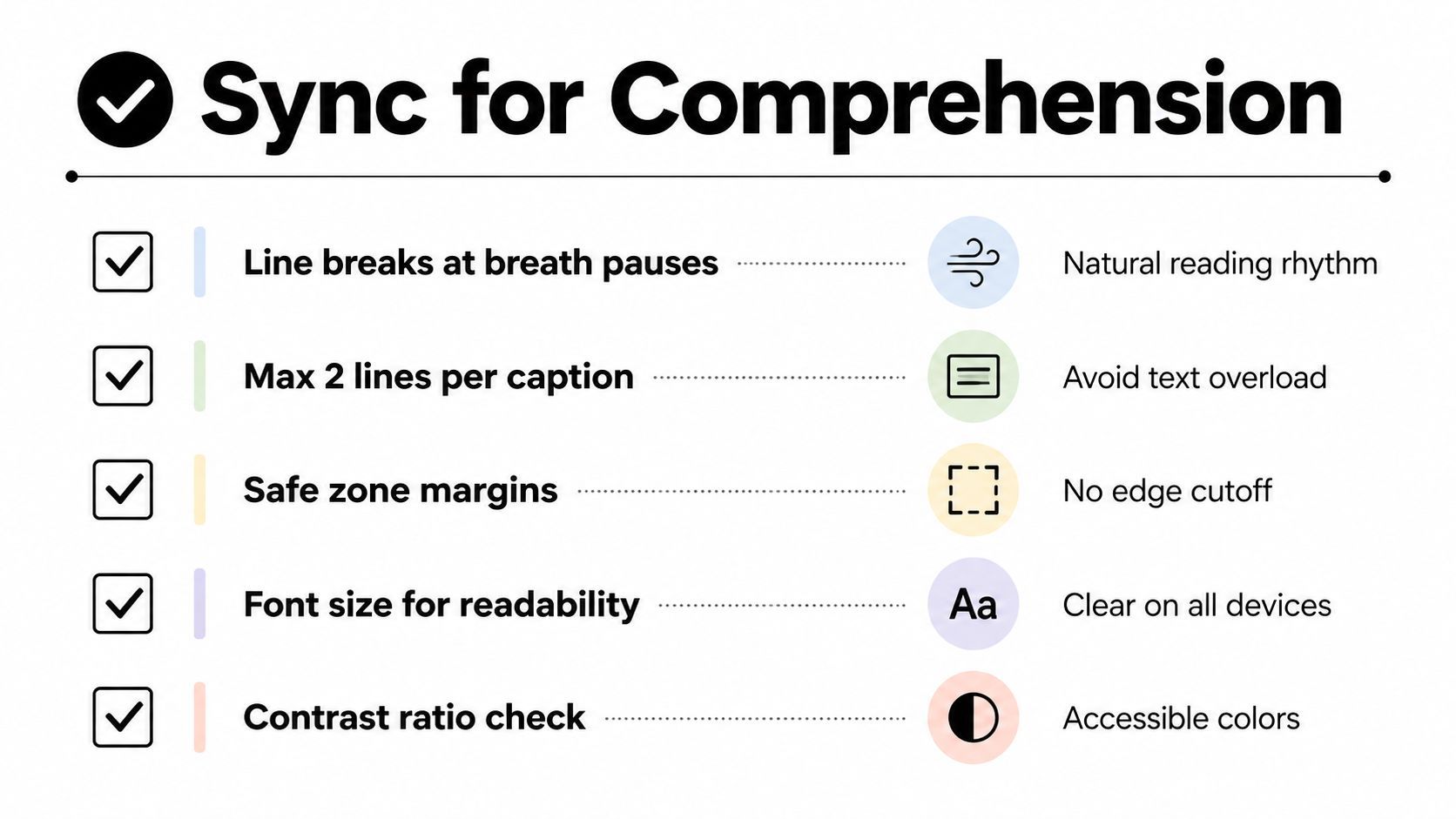
Dense exchanges usually work better as two short lines than one wrapped sentence. Speaker labels should appear when face cuts make identity unclear, and important phrases may need a little visual breathing room before the edit moves on. For language learning or instructional material, keyword-focused captions can sometimes serve comprehension better than forcing every spoken word into the same display pattern, as discussed in research on time-synchronized captions.
Before exporting SRT or VTT, mute the video and review the captions at 1.5x playback speed. If the text is difficult to follow without audio, it's likely too dense or poorly segmented for someone watching on a noisy phone. Subtitle synchronization is the beginning of accessibility, not the end.
Klap can generate synchronized captions from uploaded long-form video, let you review and edit cue timing, and support the reframing and caption styling needed for social clips. Test your next podcast, webinar, or interview segment in Klap, then review the hook, speaker changes, and final call to action on the exported mobile version before publishing.