Aspect Ratio Options for Better Social Videos
Other
You've found a strong moment in a horizontal recording, trimmed the pause, and added captions. Then you switch to a vertical preview: the speaker's hands disappear, the product slips outside the frame, and the captions cover what's left. The clip still contains the right words, but it no longer tells the whole story.
Choosing among aspect ratio options starts with that problem, not with an export menu. The useful question is whether your frame lets viewers see and understand what matters.
Why the Right Aspect Ratio Changes Your Video
A speaker can look comfortably centered in a wide recording yet feel cramped in a tall crop. If you shrink the entire recording instead, you preserve the surroundings but may leave the person looking small inside distracting empty space. Neither result is automatically wrong, but each asks something different of the viewer.
Think of the video as a scene outside a window. The aspect ratio describes the window's shape; composition determines what you see through it. Changing the window doesn't rearrange the scene. You have to decide which details belong inside the new boundaries.
This overview connects the frame shapes to their viewing environments.

The same words can create a different experience
Consider a presenter explaining how to arrange a bed. A close crop might make their explanation feel direct, but a wider view could be necessary to show the bedding, hand movements, and finished arrangement. For planning that kind of shoot, BEDHEAD's resource on how to create product videos for bedding is a relevant companion to your framing decisions.
The edit can also feel different without changing the spoken words. When you remove surrounding visual information, viewers concentrate on the face. When you retain the environment, they have more to inspect, so consider whether they need more time before the next cut.
Practical rule: Choose what the viewer needs to notice before deciding how tightly to frame it.
Inspect the story before the canvas
Before resizing, identify the visual job of the clip:
- Explanation: Does the face carry the message, or does the speaker point to something?
- Demonstration: Must viewers see hands, tools, and the result together?
- Conversation: Is the listener's reaction part of the meaning?
Your answer may justify several compositions from the same recording. That isn't unnecessary duplication. It's an editorial choice to preserve the story across different viewing situations.
Common Aspect Ratio Options Explained
Aspect ratio is width compared with height. Resolution is the pixel count inside that shape. They work together, but they answer different questions: the ratio describes the window, while resolution describes how much detail fills it.
A helpful analogy: ratio is the picture frame, resolution is the print inside it. Swapping the frame changes what fits. It never sharpens the print.
For example, 1080 × 1920 is a common pixel canvas for 9:16 vertical video across short-form destinations, as listed in these social video sizing specifications. Picking that shape says nothing about how sharp your source will look once enlarged.
Read the shape before choosing the preset
A portrait canvas is taller than it is wide. A wide canvas is wider than it is tall. Square framing has equal sides, which suits a subject that stays centered and needs little surrounding space.
Then ask one more question before picking a row in the table: does the crop merely fit, or does it keep everything a viewer needs? A crop can be usable, meaning the subject fits inside the frame, yet still unsafe, with captions covered, hands clipped, or on-screen text partially cut. Repurposed interviews and webinars fail on the second test more often than the first.
Common aspect ratio options at a glance
| Aspect ratio | Orientation | Common use | Main compositional risk |
|---|---|---|---|
| 9:16 | Tall portrait | Full-screen short-form viewing | Losing gestures or subjects beside the main speaker |
| 4:5 | Portrait | Feed placements | Squeezing wide demonstrations |
| 1:1 | Square | Flexible feed assets | Losing both side context and vertical breathing room |
| 16:9 | Wide | Conventional YouTube, presentations, desktop viewing | Making details small when fitted inside a tall display |
| 4:3 | Traditional television shape | Older recordings and archival material | Cropping original graphics or composition during conversion |
Treat these rows as starting points rather than promises that a given shot will survive the conversion. When you are planning several content formats alongside your video exports, the Blu Dragonfly social media format guide can help you map those decisions.
Why wide and legacy shapes still matter
Widescreen predates social media. ATSC adopted 16:9 digital television in 1996 for pictures up to 1,920 × 1,080, helping establish the widescreen foundation described in this history of the television aspect ratio. That history explains why so much source footage arrives already horizontal.
Older material deserves the same care. The relationship between established television framing and digital production explains why archival footage carries different framing assumptions, as discussed in TV Technology's account of the analog-to-digital transition.
Resist stretching an older image to fill a new shape. Faces and products should keep their proportions. Adjust the boundaries, placement, or surrounding canvas instead. A familiar preset earns its place only when the finished picture still looks intentional.
Choosing a Ratio for Each Distribution Goal
Start by naming the distribution surface, not just the platform. A full-screen short, a feed post, and a conventional video upload are different viewing situations, even when they belong to the same service.
Use this destination map as an initial choice, then test whether your source supports it.

Compare the placement with the content
For a short solo explanation, a tall portrait composition may feel natural because the face is the main visual information. For a product demonstration, a less narrow feed composition might give the hands and object more useful room.
Square can be a reasonable compromise when you want a shared feed asset and the subject fits comfortably. A horizontal setup remains useful when the relationship between things matters, such as a presenter beside a slide or interview participants facing each other.
- Choose full-screen portrait when a close, focused composition supports the message.
- Choose a taller feed frame when you want vertical room without such a narrow view.
- Choose square when a balanced central composition simplifies cross-posting.
- Keep horizontal when the surrounding information is part of the explanation.
These choices should support a distribution plan rather than multiply exports without purpose. Legacy Builder's distribution playbook is a useful planning resource for organizing that work.
Watch the distinction between format and classification
On YouTube, the shape can affect where an upload belongs. Videos uploaded after October 15, 2024, with a square or vertical aspect ratio and a duration of up to three minutes can be categorized as Shorts; a wider-than-square upload is better suited to standard video classification, according to YouTube's Shorts guidance.
Check the YouTube Shorts format guide when preparing that specific destination. Don't assume that a short running time alone determines the viewing format.
A shared vertical master is sensible when the framing and text work across your intended placements. Create separate versions when the destination requires a different arrangement, not merely because you've added another platform to the schedule.
How Reframing Changes Composition
Filling the screen isn't always the right objective. A full-height image can still be a poor edit if the viewer can't see the action that explains the dialogue.
Use the image below as a reminder to separate orientation from composition. Turning or narrowing a viewing area doesn't automatically rearrange the objects within it.

Choose a method for the information you have
Cropping removes material outside the selected frame. Manual tracking lets you reposition that frame deliberately over time, while automated reframing can follow a subject as a starting point.
Fitting the complete image takes a different approach. Letterboxing leaves space above and below an image; pillarboxing leaves space beside it. Those unused areas may be preferable to cutting away an essential detail.
A centered solo speaker may tolerate automatic portrait reframing, while interviews, screen recordings, demonstrations, and presenters beside slides can need separate compositions to preserve essential information, as outlined in this subject-led discussion of social video aspect ratios.
A crop can be technically clean and still remove the reason the shot matters.
Review changes over time
Pause at a representative frame, but don't approve the composition there. Play through the moment when the speaker leans, reaches, points, or exchanges a glance with someone else.
Use the video below as a prompt to examine framing choices in motion.
<iframe width="100%" style="aspect-ratio: 16 / 9;" src="https://www.youtube.com/embed/qQNiqzuXjoM" frameborder="0" allow="autoplay; encrypted-media" allowfullscreen></iframe>Watch for crop conflict, where the frame can hold one important element only by excluding another. A face and a held product might fit separately but not together; a cursor might remain visible while its target disappears.
When that happens, consider a deliberate cut, a different layout, or a fitted source image. Don't keep moving the crop just because tracking is available. Unnecessary movement can compete with the explanation.
The vertical video editing guide provides a related workflow for handling these adjustments. Treat automation as a first composition to review, not as confirmation that every meaningful detail survived.
Examples for Common Source Videos
Open the source recording before selecting an export preset. The following are representative editing situations, not performance case studies, and each begins with a different piece of information that must remain visible.
Conversations need more than face detection
A podcast guest recorded alone is a straightforward candidate for a close portrait composition. Check the guest's posture and gestures first: an apparently static speaker may lean back during the strongest sentence or raise an object into view.
An interview with participants side by side asks a different question. If the exchange depends on reactions, showing only the current speaker can weaken the moment. Try a shared layout or intentional speaker changes rather than allowing the crop to travel constantly between faces.
| Source situation | Essential visual information | Composition to test |
|---|---|---|
| Solo podcast guest | Expression and meaningful gestures | A focused portrait view |
| Shared interview shot | Speaker, listener, and their interaction | A shared layout or deliberate cuts |
| Webinar | The relevant slide content and explanation | A detail-led layout with speaker context |
The horizontal version still has a job in these examples. It preserves the original relationship between participants or between the speaker and their supporting material.
Demonstrations need the action and its result
For a screen recording, follow the task rather than the presenter's face. Keep the relevant control, cursor movement, and resulting change understandable. If a tighter view hides where the action happened, add context before moving closer.
For a product demonstration, watch the hands. A bottle, fabric sample, or tool might look attractive in a close crop while the actual demonstration happens outside it. Decide whether viewers need to see the grip, the movement, the surface being worked on, or the finished result.
For a presenter moving through a wide background, identify whether the setting matters. If the presenter is introducing objects around a room, a stationary portrait crop may miss the point. If the background is incidental, a restrained follow movement may be enough.
Editing test: Describe what viewers should learn from the picture with the sound muted. Then check whether your crop still shows it.
A square feed edit, a portrait excerpt, and a wide lesson can therefore have distinct jobs. Keep multiple versions only when they communicate differently; don't create extra files that repeat the same compromise.
Build Vertical Short Clips That Remain Clear
Begin with the message, not the caption style. Write a plain sentence describing what the viewer should understand, then identify the visual evidence needed to support it.
Google identifies 9:16 as best suited to Shorts; its guidance supports a 1080 × 1920 canvas, a centered subject, and essential text away from interface-prone edges, as summarized in Google's Shorts asset specifications. Treat that as a destination starting point, not a substitute for reviewing your footage.
Use this checklist to organize the first composition.

Separate fitting from understanding
Geometric safety means an element sits inside the frame. Communication safety means viewers can read or interpret it.
A caption may satisfy the first condition and fail the second. It might compete with a name label, cover the demonstrated object, or become difficult to follow in a small feed preview. Longer translated wording can also require a different line break or position.
Use an accessibility-aware review rather than relying only on a centered text box. This distinction is discussed in the safe-area and caption considerations for social video.
- Readability: Check the captions at realistic playback size, not only in an enlarged editor preview.
- Obstruction: Make sure text doesn't hide mouths, hands, controls, or product details.
- Placement: Leave room for the destination's interface and inspect the actual upload preview.
- Language: Review translated captions as their own layout, rather than assuming the original breaks will work.
Don't use a universal margin as proof of accessibility. The caption's contrast, pacing, wording, and relationship to the image also deserve attention.
Review the sequence before export
Set the composition before polishing decorative elements. Then play through the entire clip with captions enabled, watching transitions as closely as the opening frame.
Check a tall short-form preview and a less narrow feed preview separately. Preserve a clean horizontal master so future edits aren't forced to reuse an already cropped and captioned file.
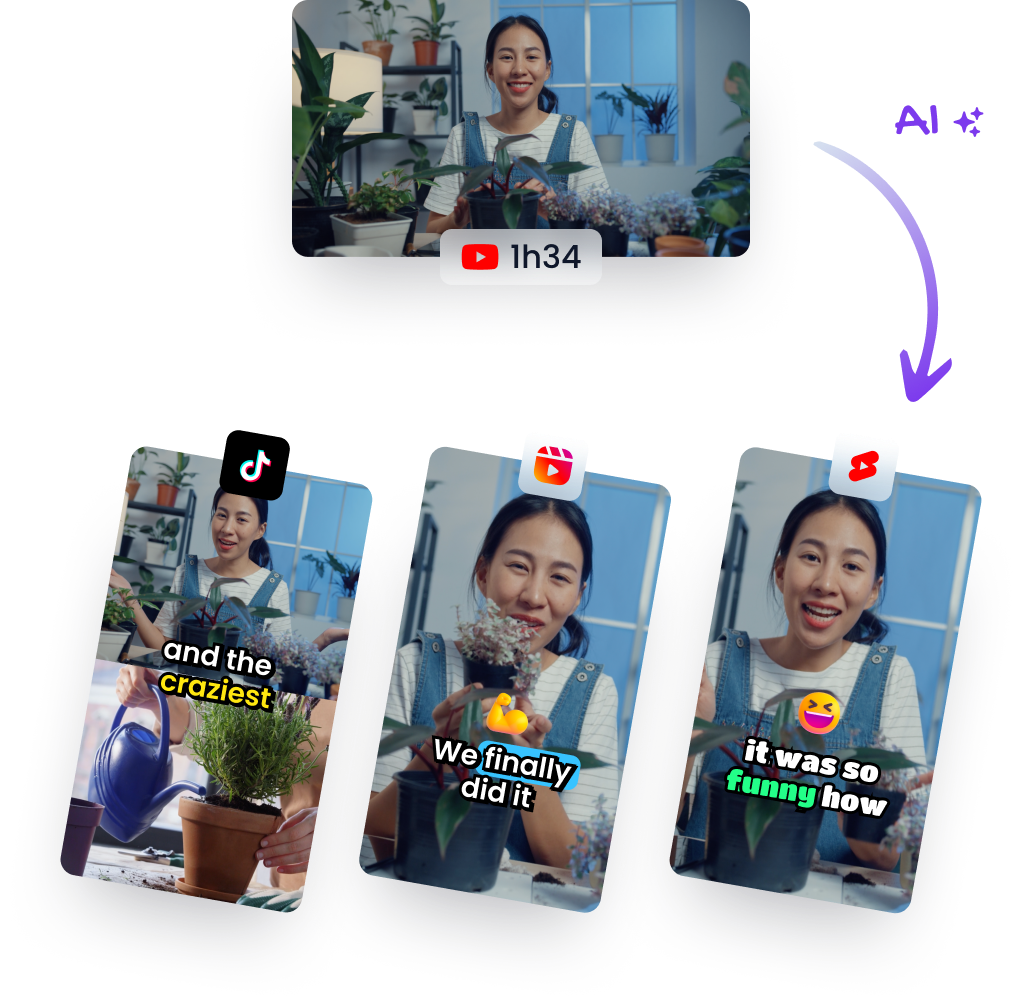
Klap is one option alongside manual editing: users can generate clips from long-form footage, adjust start and end boundaries and captions, select an aspect ratio or style, then download or publish. Whichever workflow you choose, keep the editorial review in your hands.
Finish with a playback test outside the editing canvas. Watch once for the message, once for visual continuity, and once for text placement. If you need to pause to understand an essential label, consider enlarging it, simplifying it, or giving that detail more screen time.
A Practical Aspect Ratio Decision Rule
Use this rule for your next export: start with the destination, identify the minimum visual information needed to understand the moment, and create another composition whenever the first one removes that information.
The shared vertical canvas described earlier is a useful starting point for short-form distribution, but horizontal interviews and presentations still need repositioning to keep essential content visible. A matching export size doesn't make different source recordings interchangeable.
Give every version a clear job
A full-screen short should feel intentional on a tall display. A feed version should remain readable in its feed context. A flexible square crop should simplify distribution without making the explanation incomplete, while the wide master should retain the source context for conventional viewing and future editing.
Keep that master even when the current campaign is entirely vertical. Save the source and editable project separately from finished exports so you can revise framing without inheriting previous compromises.
Before approving a file, run a final preview check:
- Subject visibility: Can viewers identify who or what matters?
- Motion: Do meaningful gestures and actions stay understandable throughout?
- Captions: Can viewers follow the words without losing the picture?
- Safe placement: Are names, labels, and calls to action clear of obstructions?
- Context: Does the frame show enough to explain why the moment matters?
Then review your video quality settings separately from the composition. A sharper export can't restore a missing hand, an excluded speaker, or an instruction cropped out of view.
The most useful aspect ratio options are not presets you can select. They are different ways to direct attention while protecting meaning. Approve the version that communicates clearly, and make another when clarity requires it.
Klap turns long-form recordings into short clips with automatic reframing, captions, and adjustable aspect ratios. Visit Klap, try a segment from your next podcast or webinar, and review the framing and captions before downloading or publishing your clip.