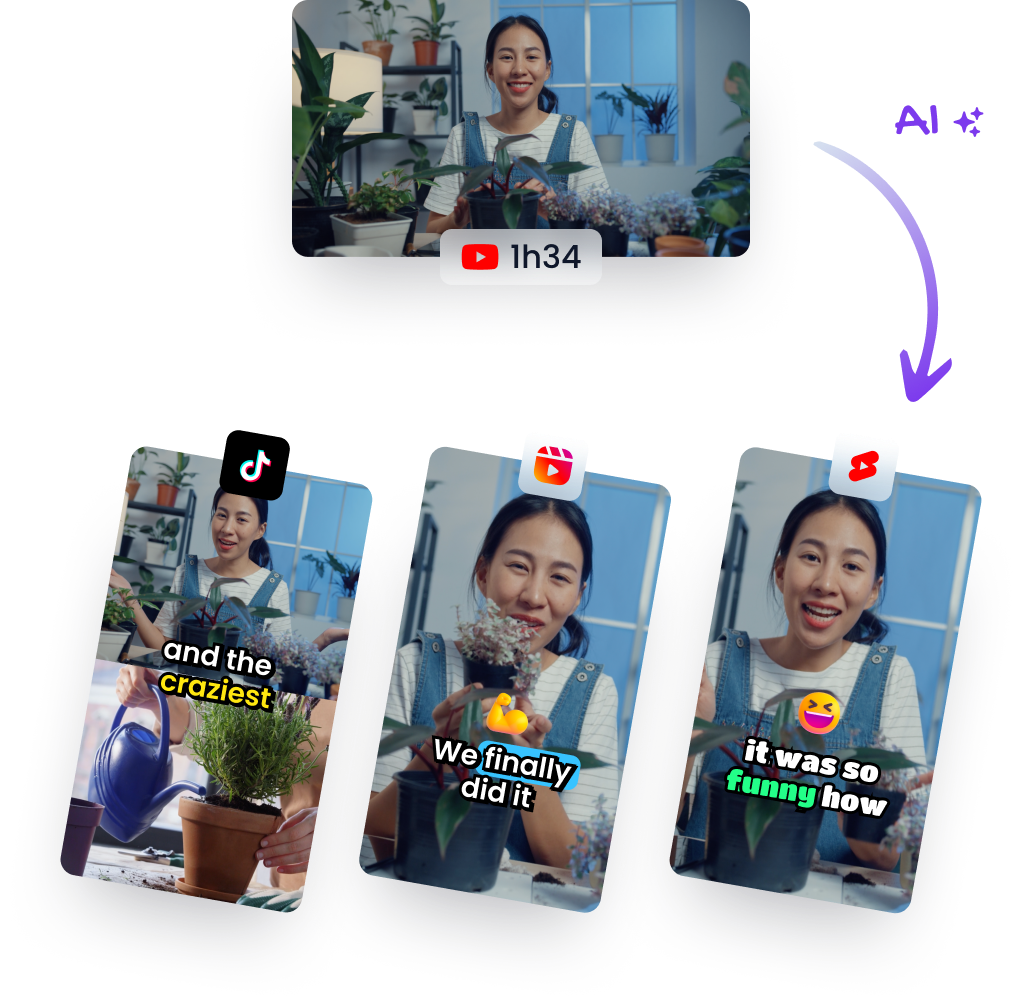
Master Video Quality Settings: Top Export Tips
Other

Most creators still treat 4K like a guarantee. It isn't. On social platforms, the file that survives upload isn't the largest one, it's the one whose bitrate, codec, and framing match what the platform can preserve after it re-encodes everything.
That's why a clean 1080x1920 export often looks sharper on a phone than a huge source file that gets crushed during delivery. The job isn't to maximize resolution in a vacuum, it's to protect detail through the entire compression path, from edit timeline to app playback.
Why High Resolution Does Not Guarantee High Quality
A lot of bad short-form video starts with a good source file and ends with a bad export decision. The mistake is assuming that resolution alone decides clarity, when the platform's recompression often has the final say. If the upload doesn't give the encoder enough room to preserve edges, skin texture, text, and motion, higher source resolution just becomes expensive baggage.
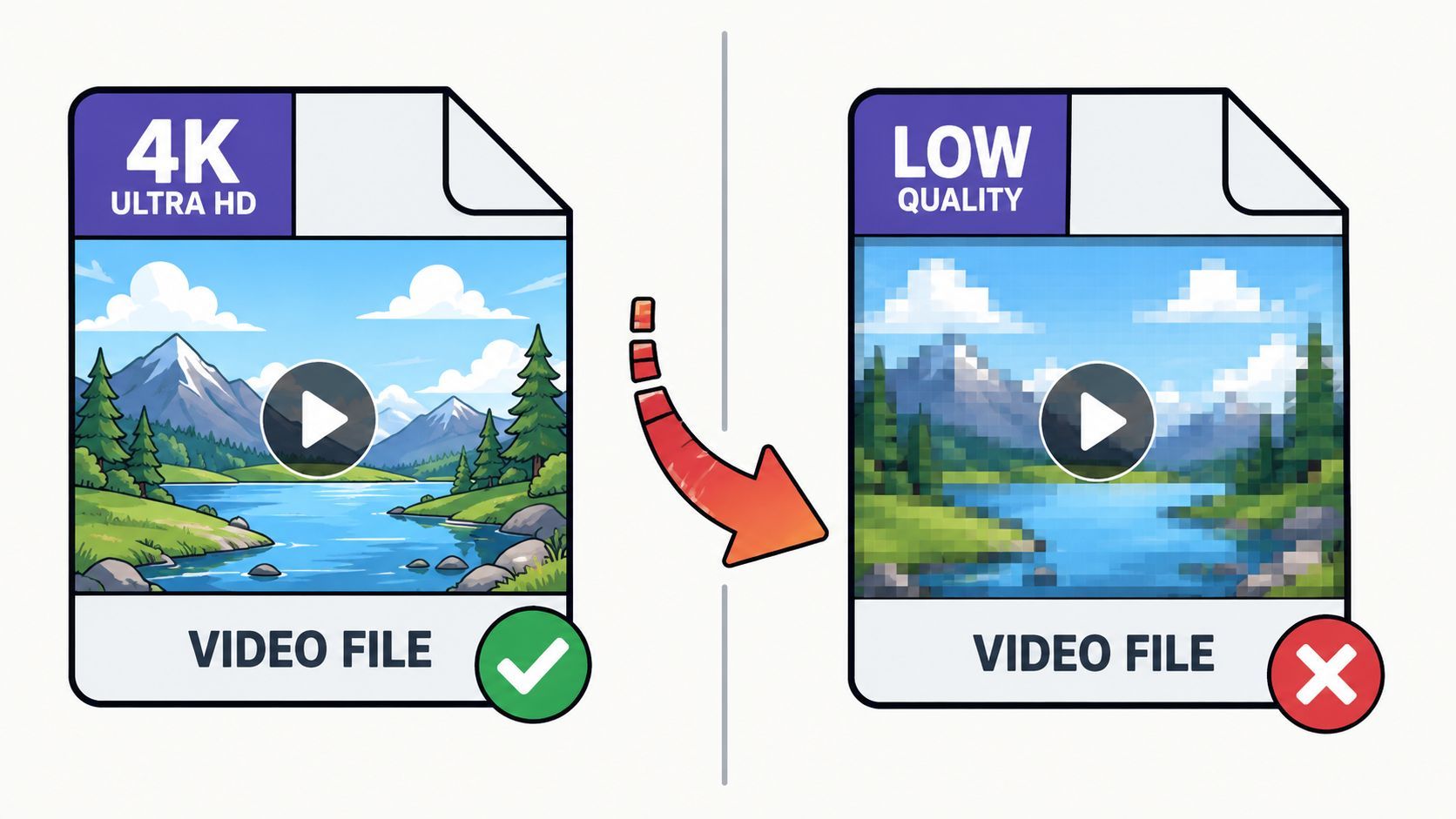
The compression survival gap
The useful question isn't “Can I shoot in 4K?” It's “Will my final clip survive platform compression in a way that still looks intentional?” That's where compression survival matters. A vertical clip that's carefully framed, encoded at a sensible bitrate, and exported for the right feed can beat a noisier 4K render that gets hammered on upload.
This is why frame rate still matters too. If you want a clean refresher on how motion cadence affects perceived smoothness, anchor 5 is a solid frame rate explainer to keep nearby while you're choosing export settings. And when you're scaling or reframing existing footage, the workflow described in resolution scaling guidance is more useful than chasing a bigger source file.
What platform compression actually rewards
Platforms don't preserve every extra pixel equally. They preserve what reads clearly after recompression, which is why a well-tuned 1080p master often holds up better than an oversized upload that triggers heavier processing. The right answer depends on the delivery path, not the bragging rights of the source file.
Practical rule: if the platform is going to downscale, crop, or recompress your video anyway, prioritize a clean, stable image with enough bitrate to survive the trip.
The biggest mistake I see in repurposed shorts is overthinking capture and underthinking delivery. Editors spend hours on a source master, then export with settings that starve the clip once it hits Instagram, TikTok, or YouTube's pipeline.
Understanding Bitrate and Codec Efficiency
Bitrate is the currency that buys you visible detail. Resolution sets the canvas, but bitrate decides how much information each frame gets to keep. If you spread too few bits across fast motion, gradients, captions, hair, and backgrounds start breaking apart, and the clip can look rough even when the dimensions are technically correct.
What the quality floor looks like
A peer-reviewed study on high-resolution video quality found that perceived quality climbed fastest until bitrate reached about 5 Mbps, then improvements flattened out, showing diminishing returns. For MOS 4 or “good quality,” Full HD needed at least 7.50 Mbps for both H.264 and H.265. Ultra HD needed 11.55 Mbps for H.264 and 9.00 Mbps for H.265. For MOS 3 or “fair quality,” Full HD dropped to 2.80 Mbps for H.264 and 2.60 Mbps for H.265, while Ultra HD dropped to 4.50 Mbps and 2.80 Mbps respectively. Those figures come from the same peer-reviewed research on high-resolution video quality and bitrate thresholds (MDPI Sensors study, PMC version of the study).
ResolutionCodecMin. Mbps (Good)Min. Mbps (Fair)
Full HD
H.264
7.50
2.80
Full HD
H.265
7.50
2.60
Ultra HD
H.264
11.55
4.50
Ultra HD
H.265
9.00
2.80
Those numbers show the trap clearly. You can export at a higher resolution and still end up with a clip that looks underfed if bitrate is too low for the motion and texture in the scene.
H.264 versus H.265 in practice
H.265 is usually the better compression choice when you want similar perceived quality at a smaller file size, especially at higher resolutions. That doesn't make it magically better in every pipeline, because compatibility and platform handling still matter, but it does mean H.265 often gives you more room to keep detail without ballooning file size.
The deeper lesson is simple. Don't tune only for average bitrate. Fast pans, textured backgrounds, gradients, and captions are where low bitrate exposes itself first. That's also why a flat, consistent export profile usually behaves better than a clever-looking preset that starves difficult scenes.
A clean codec choice matters less than a codec choice that matches the full delivery chain.
For a more detailed format comparison, the best video format guide is worth reading alongside your export preset, especially if you're deciding whether an edit should live in H.264 or H.265 before upload.
Recommended Export Presets by Platform
Platform presets only work when they reflect how each feed handles ingestion. The safest baseline for vertical shorts is still 1080x1920, because that's the natural shape of most social-first delivery. From there, the deciding factors are frame rate, motion type, and how much compression the platform tends to apply after upload.
A practical baseline for TikTok, Reels, and Shorts
For short-form delivery, keep the format simple. 30 fps is the most dependable default for talking-head clips, interviews, screen cutdowns, and most repurposed long-form content. Push to higher frame rates only when the source benefits from it, because extra frames need extra bitrate to stay clean.
- TikTok: use 1080x1920, 30 fps, and a bitrate in the 5 to 8 Mbps range for ordinary talking-head or dialogue clips.
- Instagram Reels: use 1080x1920, 30 fps, and a bitrate in the 6 to 10 Mbps range when captions, faces, and motion all need to stay readable.
- YouTube Shorts: use 1080x1920, 30 fps, and a bitrate in the 5 to 8 Mbps range for straightforward vertical uploads.

The platform-specific guidance around YouTube Live and upload settings shows why bitrate ranges matter, especially as ingestion resolution rises. Google's YouTube Live encoder guidance publishes different bitrate ranges by resolution and frame rate, and industry guidance around YouTube commonly recommends 8 Mbps for 1080p/30fps, 12 to 15 Mbps for 1080p/60fps, and 35 to 45 Mbps for 4K uploads. A 2026 creator guide also recommends 45 Mbps for 4K/30fps SDR and 68 Mbps for 4K/60fps SDR, which reinforces how quickly bitrate needs climb as frame rate increases. That guidance is captured in YouTube's encoder support documentation.
Copy-paste logic that survives recompression
The best presets are conservative enough to survive platform processing, but not so large that they waste bandwidth. If the clip is talking-head based, keep the bitrate steady and let clarity come from framing, lighting, and captions. If the clip has fast motion, text overlays, or lots of background detail, lean upward within the bitrate range rather than assuming the platform will preserve it for you.
format guidance for YouTube becomes useful in practice. Export settings aren't just technical preferences, they're a filter for what the platform can still recognize after it has done its own compression work.
Building a Repurposing Workflow for Shorts
A repurposing workflow breaks the habit of exporting once and hoping the platform will preserve the result. Keep the source video intact for as long as possible, because every resize, color shift, and re-encode increases the chance that the short will lose detail before it reaches the feed. A clean pipeline starts with the best master you have, moves through reframing and captions in a working stage, and ends with the platform-specific export at the end.
Keep the master separate from the social version
A long-form podcast, webinar, or interview deserves one high-quality master file that stays untouched. Build shorts from a working copy, not from the source file itself. That lets you crop, move text, and reframe for vertical output without damaging the original reference.
The U.S. Department of Homeland Security's video best-practices guide treats quality as a chain of dependencies. It starts with identifying the system components, then choosing the best fit for the budget, and finally checking interoperability against the user requirement. The same guide ties higher-quality digital video to settings such as 4:2:2 chroma sampling and 24-bit color depth at high bit rates of 50 Mbps or more, while acceptable DV-quality video sits around 25 Mbps with 4:1:1 sampling and 24-bit depth (U.S. government video quality guide).
Verify the actual delivery path
The workflow only works if the target platform accepts what you built. Run one short test export, upload it, and check playback before you batch production. The guide also recommends using the original frame size when practical, with 1920×1080 as a preferred reference and 1280×720 as a minimum for HD workflows.
If your captions look perfect in the editor but soft on the platform, the problem is usually not the typography. It is the order in which the file got resized and compressed.
For teams using automated repurposing tools, platforms like Klap handle this pipeline by taking a long-form upload or link, identifying clip-worthy sections, reframing for mobile, adding captions, and preparing short exports. Used well, that kind of system keeps the most destructive quality decisions at the end, where they belong.
Troubleshooting Common Visual Artifacts
Bad artifacts don't usually appear as one dramatic failure. They show up as small annoyances that make the clip feel cheap, like banding in a sky, blocky motion in a pan, or text that looks sharp in the timeline and soft on the phone. Each one usually traces back to a different mismatch in the export chain.
Banding and macroblocking usually point to bitrate or scene mismatch
Banding tends to appear first in smooth gradients, especially skies, studio backdrops, and colored lights. Macroblocking usually shows up when fast movement, texture, or camera motion outpaces the bitrate assigned to the frame. If you see both in the same clip, the export is probably asking too much of the codec for the bitrate you chose.
The fix is usually not “export bigger.” It's “export smarter.” Raise bitrate for difficult scenes, test a short segment with motion and gradients, and avoid assuming the average scene tells the truth about the hardest seconds in the clip.
Captions can fail even when the video looks fine
Text overlays need special care because they're among the first things a platform encoder softens. If the source file is sharp but the captions look fuzzy, the problem often comes from resizing after the captions were burned in, or from exporting the text too close to the edge of the frame. Keep the typography large, centered, and built into the export order after framing is locked.
Color conversion can wreck an otherwise clean file
Color problems usually show up when footage moves from one aspect ratio or format path to another without a clean conversion stage. That's especially common when a horizontal master gets repurposed into vertical shorts and the working file gets compressed more than once. The safest fix is to keep color conversion and resizing in the same controlled step, then review the clip on the same kind of phone where the audience will watch it.
The easiest artifact to miss is the one that looks fine on a desktop monitor and wrong on a handset.
One more note for benchmark-driven teams, especially those comparing encodes. Some modern quality tuning workflows disable adaptive quantization and use flat scaling lists when the goal is benchmark performance rather than perceptual efficiency. That can improve measured scores, but it isn't always the right move for real-world shorts, where human viewing behavior matters more than a lab result.
Scaling Production with AI Automation
Manual export tuning breaks down the moment one webinar becomes thirty clips. At that point, the team needs a system that can detect the hook, reframe the shot for mobile, add captions, and keep the settings consistent without someone babysitting every render. The value of automation isn't just speed, it's keeping the same quality logic across every output.
What the automation should do
A strong AI repurposing pipeline starts with the long-form master, finds the usable moments, and converts them into vertical outputs with captions intact. It should also reduce the number of times a file gets re-encoded, because every extra pass increases the chance that detail gets shaved off. That matters most for interview clips, podcasts, coaching content, and webinars where the audience is reading faces and text at the same time.
Where Klap fits
Klap is one option in this space. It ingests long-form video, identifies clips, reframes them for social formats, adds captions, and prepares exports for short-form platforms. That kind of workflow is useful when the bottleneck is production volume, not creative ideas.
The goal is a master-to-social pipeline that preserves detail until the last possible step, then applies the right settings once, cleanly, for each channel. That's how you get more usable shorts without turning every export into a guessing game.
If you want a faster way to turn long-form video into vertical clips that still hold up after platform compression, try Klap. It's built for repurposing webinars, podcasts, and uploads into social-ready shorts with reframing and captions already in the workflow. Use it to test your export presets against real clips, not theory.