How to Record a Webinar: Setup, Audio and Clips
Other
Only 33% of registrants attended live in Goldcast's analysis of 19,531 webinars across 418 B2B brands during 2024. If you record a webinar as an afterthought, you're designing the experience around the people who showed up and leaving everyone else with whatever happened to be captured.
A useful recording needs more than a working record button. It needs clear sound, deliberate framing, permission to reuse what appears on screen, and an edit that makes sense to someone who never entered the live room.
What Webinar Benchmarks Mean for Your Recording
Replay viewers aren't necessarily less committed. Banzai's Demio analysis found an 86.3% focus rate for on-demand webinars versus 74.2% for live webinars; customers hosted more than 800,000 webinars in 2023 and produced an average of 27 on-demand webinars compared with 9 live webinars.
Completion and distribution figures point in the same direction: SHNO's webinar marketing statistics roundup reports 91% completion among on-demand viewers versus 74% among live attendees, 31% of no-shows later watching the recording, and a separate analysis in which 70% of total views occurred after the event. These are different measures from different analyses, not interchangeable promises about your next session.
What those numbers change
The recording deserves its own production plan. Decide what a replay viewer should understand, what action they should take, and which references will become confusing once the live event ends.
Watch time sets a useful editing constraint. Livestorm's summary of a large 2025 benchmark reports a 47.7% show-up rate and average watch time of 26 minutes in a typical 68-minute session. Treat that opening stretch as valuable space, not a waiting room for late arrivals.
- Record for the absent viewer. Explain the topic without assuming they read the invitation or saw a previous session.
- Front-load substance. Put the useful demonstration, explanation, or decision framework before extended biographies.
- Package the replay deliberately. Give it a descriptive title, a clear viewing path, and a next step that still works after the event.
Planning rule: The live audience gets interaction. The replay audience needs context without waiting for it.
Build the distribution schedule alongside the agenda. These webinar marketing tips can help connect registration, follow-up, and ongoing promotion rather than treating the recording as an email attachment.
How to Set Up Recording Before the Session
Use Zoom as a reference workflow, then translate the checks to your platform. The important distinction is between having permission to record, configuring the capture, and starting it.
-
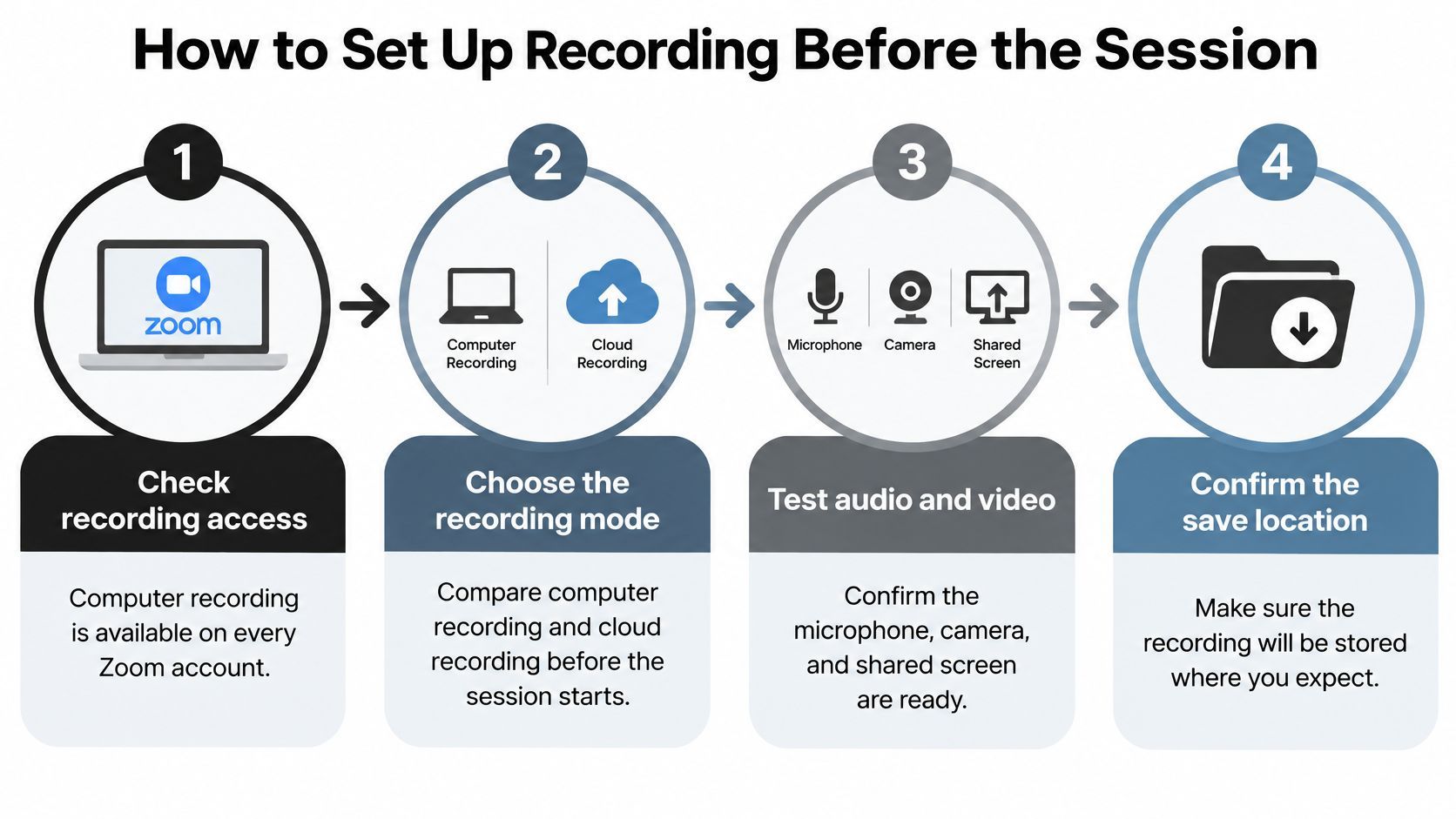
Confirm the account and storage method. Zoom's recording documentation says computer recording is available with all Zoom accounts, while cloud recording requires a paid Pro, Business, Education, or Enterprise subscription. Computer recording gives you direct file ownership but relies on the host's storage and machine; cloud recording makes online access and sharing easier.
-
Enable recording ahead of the event. Check the webinar's settings while there's still time to resolve administrator restrictions. Don't promise an on-demand replay until you've confirmed that the account and host can produce it.
-
Set the layout and start behavior before opening the session. Zoom's webinar recording settings distinguish automatic recording from enabling recording, and warn that layout changes after the meeting starts won't apply to the cloud recording. Choose the intended speaker-and-slides arrangement beforehand, then enable automatic start if the opening must be captured.
-
Assign a recording owner. Name a producer who checks the recording indicator as the session opens. The presenter shouldn't have to troubleshoot capture while delivering the introduction.
-
Record a rehearsal and open the result. Use the actual host account, camera, microphone, and presentation computer. A successful live preview doesn't prove the saved file contains the same layout or the expected sound.
-
Confirm the destination and deliverables. Locate the output folder or cloud recording page, and keep the MP4 video and separate M4A audio file when Zoom produces them. Check the files before closing down the production workflow, allowing for processing time.
Use this setup flow as a visual check before the rehearsal.
Match the replay promise to the setup
If the registration page promises a restricted replay, don't distribute an unrestricted download. If it promises access without another registration, test that exact route.
For Teams, Webex, or a dedicated webinar tool, use the same acceptance checks: verify the recording modes included in your plan, configure layout and start behavior, then open the resulting replay as a viewer.
Consent and Privacy Rules for Speakers and Attendees
A speaker's permission doesn't cover everyone in the room. Attendees can enter the recording through a spoken question, a visible name, a chat message, or a shared screen, even when their cameras are off.
Digital Applied's discussion of webinar privacy describes the European Commission's 2025 webinar privacy notice, which covers speakers, Q&A, and panel discussions, offers participation options such as disabling cameras and removing identifying usernames, and specifies five-year retention. It also notes that U.S. federal law generally permits one-party consent while some states require every participant's consent.
That isn't a universal retention recommendation or a complete legal test. For a multistate or international audience, use an all-participant consent workflow as a conservative operating baseline, and have counsel confirm the applicable requirements.
Separate permission to record from permission to publish
- Speaker agreement. Document whether permission covers the full replay, promotional excerpts, captions, and public social distribution.
- Attendee notice. Explain what you'll capture on the registration page and repeat it before recording participation.
- Participation choices. Explain how attendees can ask a question without appearing publicly, including a private moderator channel.
- Retention ownership. Assign someone to manage deletion, access requests, and removal of accidental disclosures.
Use the checklist to keep speaker and attendee permissions distinct.

A practical opening notice should identify what's being recorded, where it will be published, and how someone can participate without entering the recording. Don't suggest that remaining in the room automatically satisfies every applicable consent requirement.
Before publication, have a person review names, voices, questions, customer information, and shared screens. Does this segment expose an attendee beyond the use they agreed to? A restricted educational replay and a searchable social clip create different levels of exposure.
Audio and Video Settings That Hold Up in the Replay
Separate tracks and an opening slate save editing work. Capture clean audio and presentation sources separately when your platform supports it, so sound repairs don't require rebuilding the entire picture edit.
Livestorm's webinar best-practice guidance supports technical rehearsals, stable capture settings, consistent microphone placement, and a 30 to 60 second opening slate. Use the slate to show the session title, identify the speaker, and provide a spoken count or clap for track alignment.
Recommended audio and video settings for a webinar recording
These are practical starting settings, not guarantees. Test the exported file, especially if your platform reduces resolution or combines layouts.
| Setting | Recommended Value | Why It Matters |
|---|---|---|
| Video resolution | Start at 1080p and verify the saved output | Stays sharp on laptops and provides room for a vertical crop |
| Frame rate | 30 fps for talking head, 60 fps for live demos when supported | Keeps motion smooth on screen shares and demos |
| Camera height | Lens at eye level | Avoids awkward angles and reads well in a vertical crop |
| Key light | Softbox or window at about 45 degrees | Gives even skin tones without a silhouette |
| Microphone | Dedicated USB or XLR microphone, about 15 to 20 cm from the mouth | Captures less room sound than a distant laptop microphone |
| Audio sample rate | 48 kHz where selectable | Fits standard video-editing workflows |
| Screen share | One monitor, notifications off | Keeps pop-ups and private messages out of the replay |
| Opening slate | Title card, speaker identification, and track check before the opening | Gives editors a clean start |
| Tracks | Separate audio and presentation sources where possible | Lets editors repair sound independently |
Keep camera resolution and frame rate stable during capture. If the machine struggles, simplify the setup before going live rather than changing settings throughout the presentation.
A softbox is easier to control than daylight that shifts during the session. Position the microphone consistently, listen for clipping and room echo, and close mail, messaging, and notification overlays before sharing your screen.
Fix intelligibility before buying a better camera. A sharp picture won't rescue an answer the viewer can't understand.
Use the same source organization you'd use for conference video editing: label the speaker, presentation, and audio files clearly. Delay the start if the rehearsal reveals unreadable slides, distorted speech, or missing sources; don't delay solely because an optional quality target isn't available.
Running the Session So the Recording Holds Up
Say you're presenting a product-training webinar. Open with the task the viewer will be able to complete, then show the finished result before explaining how to build it. Keep biographies short enough that the audience reaches useful material without skipping.
The producer confirms capture while the presenter begins. The moderator handles access questions privately, so the recording doesn't open with a long exchange about who can hear whom.
During the explanation
Move from the outcome to the working example. Use clear verbal markers such as the key mistake or here is the result, then pause naturally before moving to the next subject.
- At a poll. Explain the question aloud, allow time to respond, and describe the result rather than pointing at a chart.
- During a demonstration. Narrate what you're selecting and why. If a page loads slowly, explain the next decision instead of filling the gap with repeated apologies.
- At a speaker handoff. Introduce the next person with the question they'll answer, not another extended biography.
The moderator selects audience questions that have a clear premise. Before answering, the presenter restates the question without unnecessary identifying details, making the exchange understandable without the chat panel.
Producer's cue: Leave a clean pause at a topic change. Editors need a place to cut that doesn't interrupt a word.
Before the close
Say important qualifications aloud, even when they're printed on the slide. If a recommendation applies only to a particular account type, environment, or use case, keep that condition in the spoken answer.
Don't improvise an authoritative answer to an unresolved question. Mark it for follow-up, then record a separate clarification if the answer belongs in the replay.
Close with an action that remains available after the broadcast. Replace live-only directions, such as submitting a question before the room closes, with a durable contact route or resource that a later viewer can use.
Editing and Repurposing the Replay into Short Clips
Choose the outputs before trimming: a full replay for depth, chapters for navigation, a concise edit for time-limited viewers, and vertical clips for discovery. They serve different viewing intentions, so don't force every version to use the same opening.
The editing workflow starts with preserving the source.
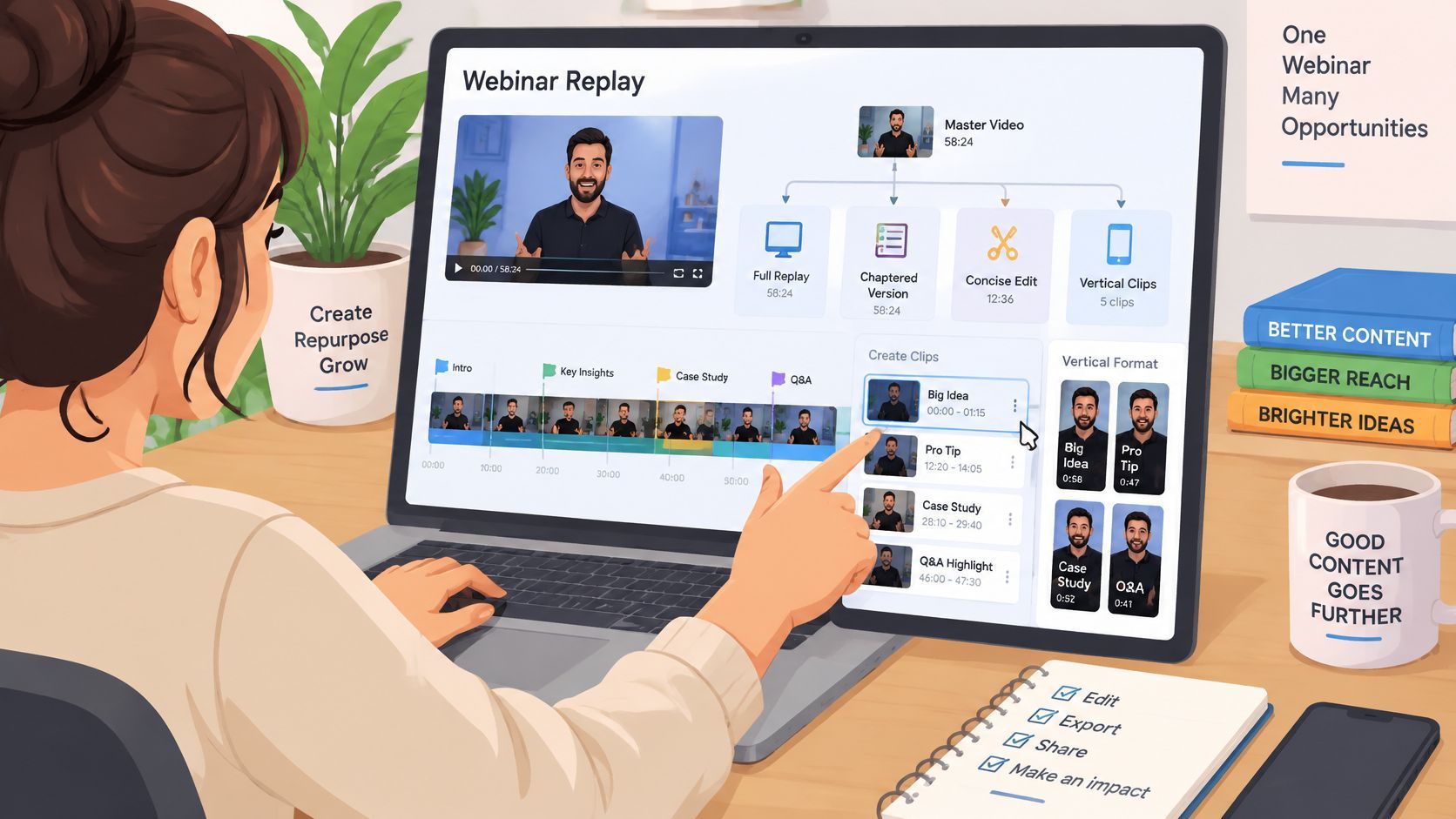
Keep the high-resolution master untouched and edit a working copy. Generate a transcript with speaker labels and timestamps, then identify topic transitions, demonstrations, and complete answers rather than cutting at arbitrary intervals.
Select meaning before framing
A usable clip needs a self-contained premise, not just an energetic sentence. Reject or repair excerpts that begin without their setup, use an ambiguous pronoun, or depend on a slide the viewer won't see.
Keep qualifications attached to the claim they limit. Add readable captions, check technical terms manually, and reframe only after confirming that the selected passage makes sense.
For a broader distribution workflow, use this guide to repurposing content. Assign each export a destination and publication owner so the finished files don't sit in a shared folder indefinitely.
This walkthrough provides a practical look at turning longer material into shorter outputs.
<iframe width="100%" style="aspect-ratio: 16 / 9;" src="https://www.youtube.com/embed/PkL4YENlI6Q" frameborder="0" allow="autoplay; encrypted-media" allowfullscreen></iframe>At Klap, we accept an uploaded video or YouTube link and generate captioned vertical clips; speech-heavy webinars, trainings, interviews, and product reviews suit the workflow best because clip selection relies heavily on speech detection. Treat generated clips as drafts: a human should approve factual context, caption accuracy, attendee exposure, and the final crop before publication.
Fix Recording Problems and Run a Test Recording
If there's no recording file, start with the recording state and save destination. Confirm that capture started, check available storage, and look for processing status before assuming the platform lost the session.
Webinar recording symptoms, causes and fixes
| Symptom | Likely Cause | Fix |
|---|---|---|
| No recording file after the session | Recording not enabled, or storage full | Enable recording ahead of time and check free disk space before each session |
| Opening minutes missing | Recording started manually after the session began | Turn on automatic recording start |
| Replay shows the wrong layout | Layout changed after the meeting started | Choose the layout before the start time and leave it unchanged |
| Echo or hollow voice | Laptop microphone picking up speaker output | Use headphones and a dedicated microphone |
| Choppy video in the recording | Upload bandwidth or CPU overload | Lower camera resolution, close heavy apps, and check upload bandwidth |
| Replay has no Q&A or chat | Interactions not captured or not restated on screen | Assign a moderator and restate key questions aloud |
| Attendees cannot open the replay | Passcode, expiry, or access settings too strict | Check sharing, passcode, and expiry before sending the link |
Zoom's recording-management documentation describes controls for sharing, passcodes, viewing permissions, downloads, and deletion. Set those deliberately rather than assuming a cloud recording is ready for public distribution.
Run an acceptance test
Make a short test recording using the production account, intended layout, and actual microphone. Include a screen share, a speaker change, and a sample audience question so you're testing the workflow, not just the camera.
- Inspect both ends. Watch the opening and closing, then listen on headphones for distortion, echo, or missing speech.
- Test viewer access. Open the replay in a private browser window. Confirm that the intended audience can reach it without your host login.
- Check interaction capture. Verify where chat and Q&A appear, and whether the replay contains enough spoken context.
- Protect the source. Store the completed recording in separate locations and log the test result for the next producer.
Treat a failed check as a reason to repair the setup and record another test. A note saying you'll fix it after the event won't recover an opening that was never captured.
Klap turns webinar recordings into captioned short clips you can review, refine, and share. Visit Klap to try the workflow with your approved recording and create 1 video for free, with no credit card required.