On Screen Text: How to Keep Clips Readable
Other

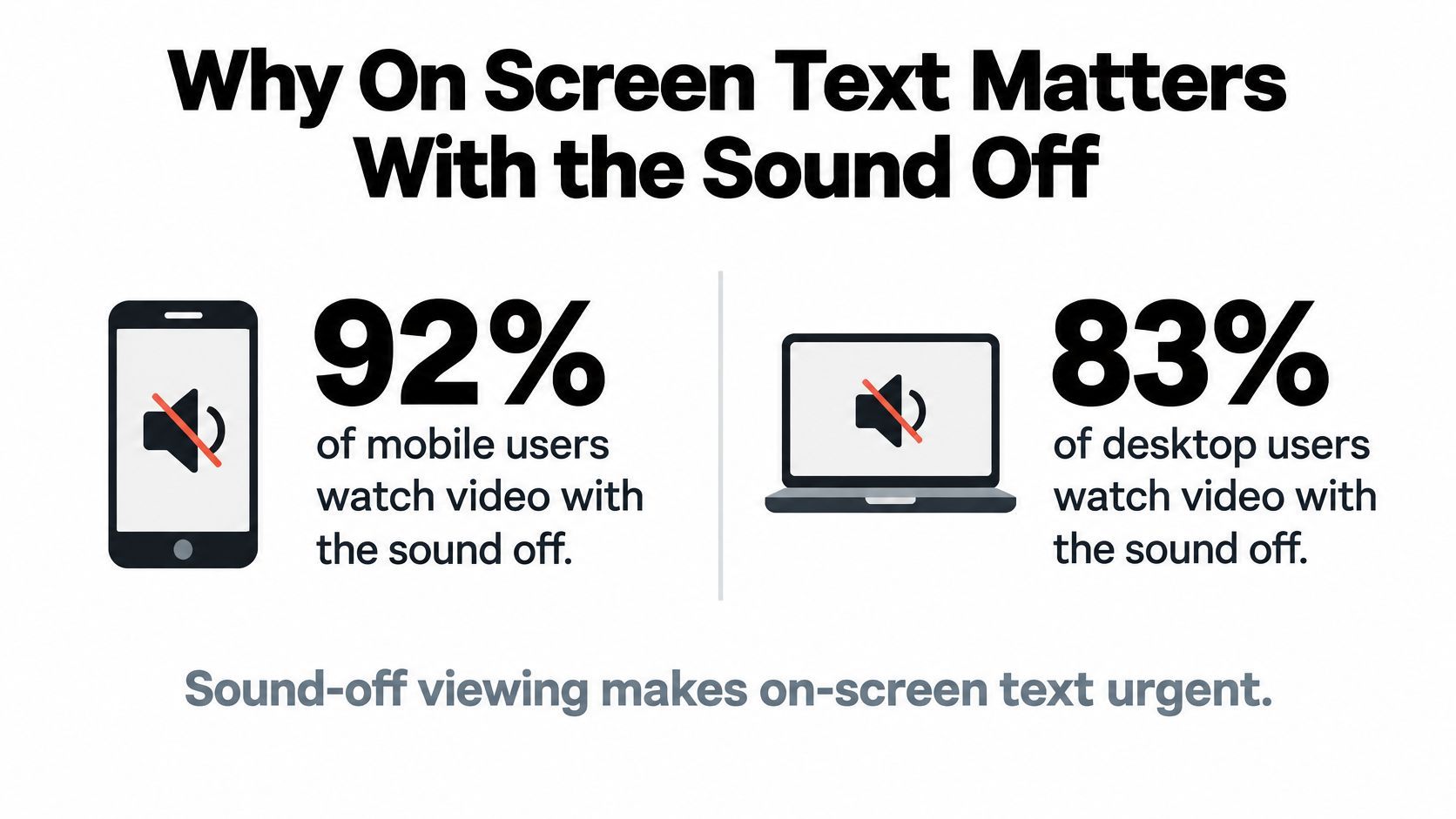
92% of mobile users and 83% of desktop users watched video with the sound off, according to a Verizon and Publicis Media study cited by Buttercut. For a creator, that changes the editing question: not whether the words look good, but whether someone can understand the clip without hearing it.
Why On Screen Text Matters With the Sound Off
A viewer might encounter your interview on a quiet train, your tutorial beside a noisy coffee machine, or your product demonstration before deciding to unmute. In each situation, the picture has to communicate before the soundtrack can help. On screen text makes the meaning available at the moment someone needs it.
The term means words displayed within the video picture. It includes speech-synchronized captions and subtitles, brief overlays that emphasize a hook, and lower thirds that identify a person or product. It doesn't mean the description beneath a social post, and it isn't the same as a separate transcript that readers must match to the action themselves.
Access and attention are different jobs
Text serves two purposes that can overlap without being interchangeable. It preserves meaning for someone who can't rely on sound, and it helps a scrolling viewer decide whether the subject interests them.
- Preserve understanding: Carry the spoken explanation when someone has hearing loss, encounters an unfamiliar accent, or processes the dialogue in a second language.
- Establish relevance: Give enough context that a viewer can recognize the topic before committing to the clip.
- Support the picture: Explain what the viewer should notice without hiding the action that proves your point.
Say you're repurposing a baking tutorial. An opening phrase about fixing collapsed cakes establishes the subject, while synchronized captions explain why the batter needs a different mixing technique. A large headline repeated throughout the demonstration would add little after the viewer understands the topic.
Start with the missing information
Watch the opening without audio and ask what a stranger wouldn't know. Perhaps the speaker says “this,” but the object hasn't appeared yet. Perhaps the clip starts halfway through an answer, so the original question needs a short context label.
Add the missing information, not every possible explanation. Late captions, crowded lines, and competing headlines can make watching harder rather than clearer.
Practical rule: Give viewers the words they need to understand the picture, then leave enough room and time to use them.
Choose the text treatment by its job. A spoken explanation needs a different approach from a silent montage or a guest introduction.
Captions Overlays and Lower Thirds Side by Side
On-screen text types and when each one earns its place
| Text type | What it carries | Best moment | Main failure |
|---|---|---|---|
| Captions | Spoken words plus meaningful sounds | Speech-led clips and interviews | Covering the mouth or lagging the voice |
| Subtitles | Dialogue in another language or a clearer rendering | Multilingual or second-language viewers | Treating translation as decoration |
| Keyword overlay | One short emphasized phrase | Hook in the first seconds | Competing with the caption line |
| Lower third | Name, role, place, or product | Guest intros and product shots | Hidden by platform buttons |
| Context card | Subject when there is little or no speech | Music clips and B-roll | Left on screen after the point is made |
Pick the primary text job before choosing a font or animation. These treatments shouldn't all look equally important, because viewers shouldn't have to decide which of several simultaneous messages to read first.
Captions carry the conversation as it unfolds. Their position should let someone follow the words and the speaker's expression without repeatedly searching the frame. A caption block across the mouth may preserve the transcript while hiding useful visual information.
Subtitles serve a related dialogue-focused purpose, often through translation. Don't style a translated sentence as a fleeting decorative sticker: someone relying on that translation needs the complete meaning, not just the emphasized word.
Emphasis isn't transcription
A keyword overlay adds a short editorial message. For a repair tutorial, it might identify the mistake before the speaker explains the fix. If the overlay repeats the caption in a louder style, remove it rather than making the viewer read the same thought twice.
A lower third answers who or what. Display a guest's name and role while that identification helps, then clear the area. Product names and locations work the same way, but placing them near the bottom doesn't guarantee they'll remain visible after publishing.
Context cards are useful when the footage has no dialogue to carry the explanation. A sequence of before-and-after room shots might need a brief description of the renovation, not a transcript-shaped block of text.
- Podcast excerpt: Prioritize captions, then add identification only when the guest isn't otherwise clear.
- Music montage: Start with a context card rather than inventing dialogue-style captions.
- Guest introduction: Separate the identity label from the spoken caption so neither interrupts the other.
Build a readable visual hierarchy
Use a clean sans-serif typeface that remains legible on a small phone. White or light lettering with a dark outline, shadow, or semi-opaque background can preserve separation over changing footage. Test the treatment against the brightest and busiest shots, not just the opening frame.
Keep caption blocks to one or two lines as an editing default, and avoid placing letters over high-detail areas. Section 508 caption guidance emphasizes readable text, synchronized presentation, speaker identification where needed, and meaningful audio information.
Make supporting labels quieter than the primary message. If adding a second layer forces you to shrink everything, you've probably added more text than the composition can support.
Timing Rules for Readable Captions
Caption timing is a reading budget, not an export setting. The BBC subtitle guidance recommends approximately 160 to 180 words per minute, equivalent to about 0.33 to 0.375 seconds per word, with the following timing targets and review flags.
Caption timing targets and fail flags
| Check | Target | Flag it when |
|---|---|---|
| Reading speed | 160 to 180 words per minute | Above roughly 180 words per minute |
| Time per word | 0.33 to 0.375 seconds | Under about 0.3 seconds per word |
| Four-word line | About 1.2 seconds on screen | It disappears before it can be read |
| Lead-in | No more than about 1.5 seconds before speech | Text anticipates the voice by more |
| Hang time | No more than about 1.5 seconds after speech if the speaker is visible | The line stays up and invites a reread |
Diagnose speed before changing style
Start with the reading-speed flag. If a caption exceeds the working range, a larger font won't create more reading time. Look for a better phrase boundary, a less crowded caption block, or a different clip boundary that avoids rushing through the explanation.
Next, inspect very short displays. Automated segmentation can produce a grammatically correct phrase that flashes too quickly to process, especially when a speaker accelerates or briefly interrupts themselves.
Finally, look for lingering text. Leaving the previous phrase visible during a new sentence can invite rereading and make viewers compare words that no longer match the voice. Remove it at the relevant speech boundary rather than letting it occupy every pause.
Segment by meaning and speech
Break captions where the speaker completes a useful unit of thought. Keep a person's name together, avoid separating a modifier from the word it explains, and don't split a short phrase just because the transcription tool inserted a timestamp there.
For a worked example, a six-word caption needs roughly two to two-and-a-quarter seconds using the per-word range above. A half-second pop doesn't provide a comparable reading opportunity, even if the words are familiar.
- Preserve phrase boundaries: Keep connected ideas together instead of replacing text after every tiny speech fragment.
- Check adjacent captions: A readable line can still feel rushed if it immediately replaces another dense line.
- Resolve fast speech in the edit: Adjust the cut or segmentation rather than deleting essential meaning to make the text fit.
Use subtitle synchronization checks to compare the text with the actual spoken phrase, not just the transcript's order. Inspect the finished vertical composition because line wrapping can change after reframing.
A caption isn't finished when its timestamp is correct. It's finished when the viewer has enough time to read it.
Run a silent phone pass on the cut. Mark every line you can't finish before it changes, then adjust those lines before adding more animation or emphasis.
Accessible Captions Versus Style Overlays
Accessible captions preserve audio meaning. Style overlays add emphasis. A highlighted keyword may support a point, but it can't replace dialogue, speaker identification, or a sound that changes how someone understands the scene.
W3C's caption guidance explains that WCAG Success Criterion 1.2.2 requires synchronized captions for prerecorded video with audio at Level A; a transcript alone doesn't satisfy that requirement. Treat this as a distinction between access and decoration, not as a reason to put every sound into every caption.

Preserve what changes the meaning
Start with verbatim dialogue when the exact wording matters. An accurate equivalent can sometimes remove a distracting false start, but it must preserve the claim, uncertainty, and tone. Don't turn a hesitant possibility into a confident promise.
Identify speakers when the image doesn't make the voice obvious. Include laughter, applause, a siren, or an off-screen door when missing that sound would change the story, not because the sound exists.
- Names and terminology: Check personal names, product names, abbreviations, and specialist jargon against a reliable reference.
- Language changes: Review code-switching and culturally specific terms rather than accepting a fluent-looking substitution.
- Meaningful sounds: Ask whether a silent viewer would interpret the scene differently without the cue.
Automation still needs an editorial decision
Voxbooster's evidence review cites a 2025 study in which captions improved speech recognition but delayed or inaccurate text increased reported fatigue, a review of 36 peer-reviewed studies from 2015–2025 describing caption dependence among Deaf and hard-of-hearing, neurodivergent, and multilingual viewers, and a comparison with word-error rates of 19–34% for English dialogue and 25–66% for Dutch. These findings support reviewing usefulness, not merely checking whether captions exist.
Adoption doesn't remove that responsibility. Wistia's 2025 State of Video findings report that 90% of teams had taken accessibility steps, with captions the most common starting point; CMS Critic's summary of the same report says more than 60% of surveyed respondents had used or planned to use AI-generated captions.
The 2025 Global Ad Accessibility Report analyzed 11.8 million ad deliveries across more than 100 markets to measure accessibility-feature adoption. That scale makes caption quality a publishing concern, not just an individual styling choice.
Use closed-caption requirements to inform the review, then make a human pass wherever a wrong name or missing sound could mislead.
How to Test Text After the Platform UI
A caption can be accurate, prominent, and still disappear before someone finishes it. Kapwing's review of subtitle use notes reports of this problem on TikTok and describes how platform interfaces can obstruct text.
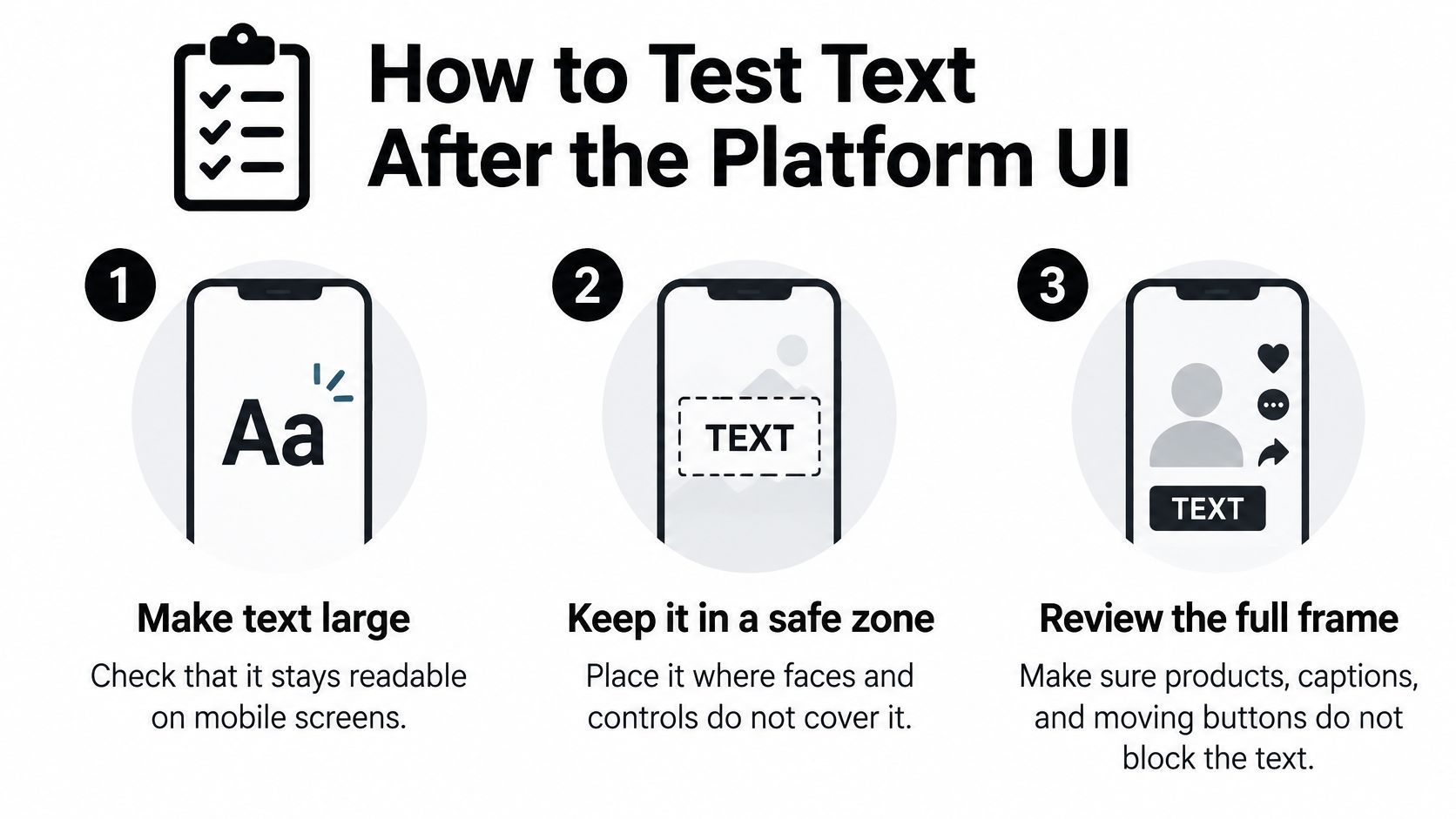
The editing preview isn't the final viewing environment. TikTok, Reels, and Shorts add usernames, descriptions, action buttons, and other controls around your composition. A caption that looks safely inside the exported picture may end up underneath those elements.
Test the posted composition
Use the actual export, not an enlarged desktop preview. Your vertical video aspect ratio determines the canvas, but it doesn't guarantee that every part of that canvas remains unobstructed.
- Compare phone sizes. Preview on a small phone and a larger phone. Hold each at an ordinary viewing distance rather than bringing the screen closer to compensate.
- Time a real read. Read the opening naturally without pausing playback. Better still, ask someone unfamiliar with the script to read it and explain what they understood.
- Inspect visual collisions. Check the mouth, hands, product, slides, and any on-screen evidence needed to understand the claim.
- Compare interface states. Inspect logged-in and logged-out views where available. Don't assume buttons and title treatments will occupy identical positions.
- Correct the blocked region. Move the caption block higher when the lower band is covered. Don't shrink readable lettering into a small gap just to preserve your original placement.
Review motion as well as still frames
Scrubbing to an attractive frame isn't enough. A speaker may lean into the caption area, a demonstration may bring a product into the lower frame, or a moving camera may put bright detail behind previously clear lettering.
Watch through the whole sequence after repositioning text. If moving captions higher creates a collision elsewhere, change the layout for that shot or remove an unnecessary supporting label.
Export note: Finished on both phones. Mouth clear. No control covering the line.
Use that as a pass-fail record, not a general impression that the clip looks fine. When another platform crops or overlays the video differently, prepare a separate placement instead of assuming one version will work everywhere.
If the reviewer can read the line but can't explain the action happening behind it, the text is still taking too much of the frame.
Short Form Examples by Clip Type
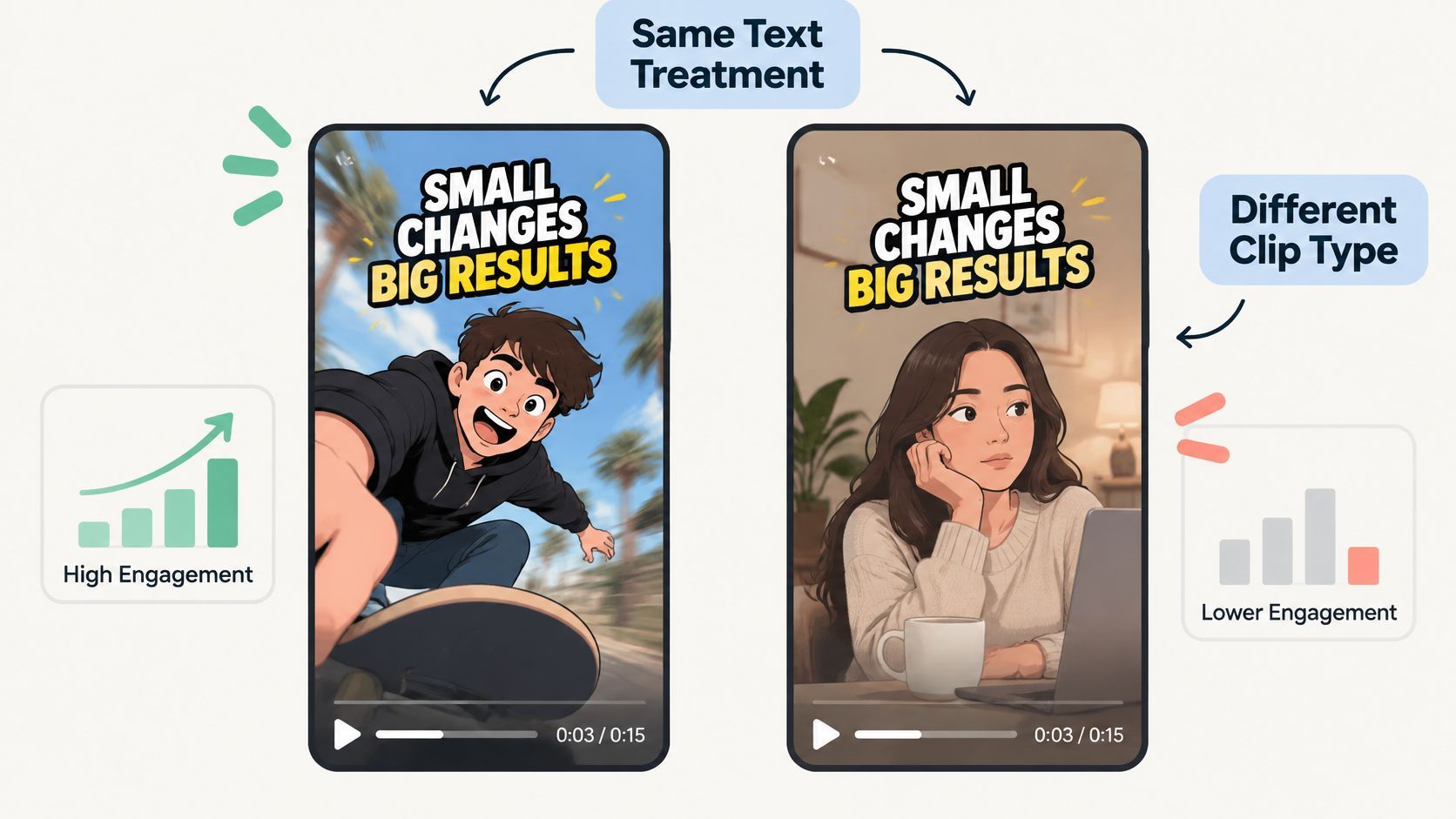
Text doesn't produce the same result for every format. In Emplifi's Facebook Reels analysis, videos with text had 5.1% higher three-second retention and 7.6% higher ten-second retention, with roughly unchanged thirty-second retention; music-based Reels showed increases of 4%, 6.6%, and 9.8% at those respective points, while speech-driven videos showed a 6% decrease in ten-second retention.
Those are associations within that analysis, not a promise for your next upload. Use them to choose a sensible test, not to justify removing accessibility captions from speech-led content.
A music montage needs context
Say you're editing a montage of pasta plating techniques. A brief opening card describing different ways to plate the same dish gives the sequence a purpose before the viewer has worked it out from the pictures.
After that, let the food and movement carry the explanation. Remove a second headline that repeats the setup, and don't add a caption merely to restate a background lyric that isn't needed to understand the demonstration.
The useful text answers what viewers are watching. It doesn't compete with every cut.
A podcast hook needs a clean conversation
An interview excerpt already contains a verbal message. Caption the spoken phrase, identify the guest briefly if necessary, and keep a keyword sticker away from their face.
Say the guest explains why a common hiring question fails. The spoken answer is the main content, so a second headline paraphrasing every sentence makes the viewer choose between competing versions of the same idea.
Cut that extra headline. Keep the dialogue complete, and remove the name label once identification has done its job.
A product demonstration needs visible proof
For a demonstration, introduce the product with a short lower third, then preserve the area where the presenter handles it. If the explanation depends on reading a label or seeing a latch move, keep that evidence unobstructed.
- Remove redundant identity text: A product name needn't remain throughout the demonstration once the viewer knows it.
- Protect the action: Place captions away from the hands and the feature being tested.
- Test one editorial change: Compare cleaner text with the previous treatment rather than changing the hook, pacing, and layout together.
Compare early retention before and after your text change, using the opening checkpoints discussed in the analysis. Music-led clips are a sensible place to test clearer context cards; speech-led clips are a sensible place to test cleaner, not denser, supporting text.
Check the Clip Then Export It
Before export, name the primary text job for the clip in front of you. Choose captions for speech, a context card for footage without dialogue, or an identity label while a name matters. Add another layer only when it supplies information the first layer doesn't.
Make the final editorial decision
Use a short release checklist rather than relying on how polished the animation looks.
- Confirm the words: Correct names, jargon, translations, and meaningful sound cues that could mislead.
- Confirm the read: Test this exact cut on a phone, including its fastest caption changes.
- Confirm the placement: Prepare an alternative export if another platform blocks the chosen caption area.
Automation proposes words; the editor decides whether they're right and usable. Don't approve a clip because its transcript is accurate in a separate document.
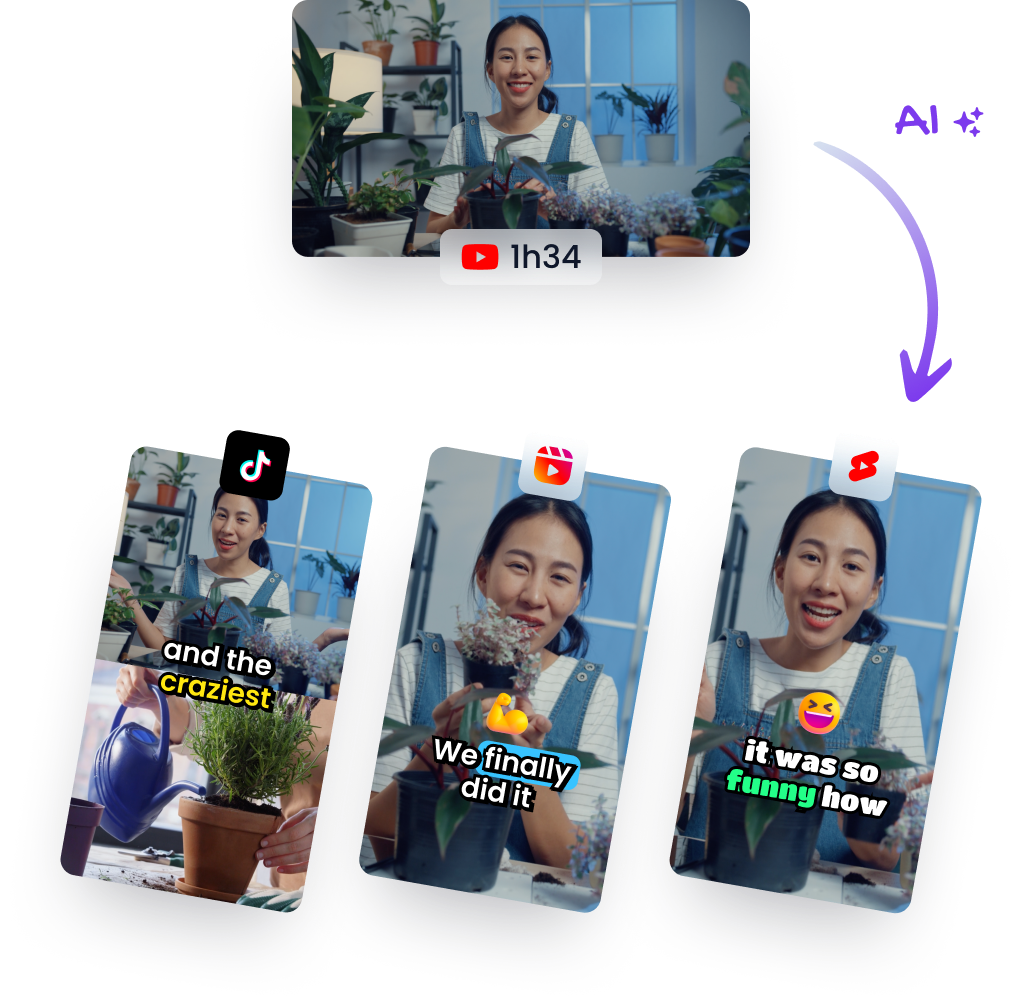
For an existing podcast, webinar, or long video, you can start from the source rather than typing every line. At Klap, we create transcripts, captions, and clips from videos you upload or link to, including subtitles and recommended captions to post alongside the clips.
Keep those outputs distinct during review: subtitles belong inside the viewing experience, while a suggested post caption accompanies the upload. Approve the wording, then verify that viewers can finish reading it without losing the action.
Turn an existing long video into captioned short clips with Klap. Upload or link your source, review the generated subtitles, and adjust the text's style and placement before running your final phone check.