Max Length of YouTube Shorts in 2026: 3 Minutes Explained
Other
YouTube Shorts can run up to 3 minutes (180 seconds), provided the video is square or vertical and was uploaded on or after October 15, 2024. The common advice to just keep your clip under the maximum misses important exceptions involving format, older uploads, and copyright claims.
A short running time doesn't automatically make a video a Short. For creators repurposing podcasts, interviews, or webinars, the useful question is whether the finished file qualifies, not just whether the editing timeline looks short enough.
Current Length Limit and Format Rules at a Glance
The max length of YouTube Shorts is a ceiling, not a complete classification rule. You also need the right canvas and an eligible upload date.
According to YouTube's three-minute Shorts guidance, square or vertical uploads made on or after October 15, 2024 qualify as Shorts when they run up to 3 minutes, while older uploads between 61 seconds and 3 minutes remain long-form. The change expanded the previous maximum of 60 seconds, but it didn't retroactively reclassify that older material.
How YouTube classifies an upload by length, shape and date
| Video type | Aspect ratio | Length | Classified as |
|---|---|---|---|
| Vertical upload, on or after Oct 15, 2024 | 9:16 | 0:01 to 3:00 | Short |
| Square upload, on or after Oct 15, 2024 | 1:1 | 0:01 to 3:00 | Short |
| Landscape upload, any date | 16:9 | Any length | Long-form, not a Short |
| Vertical upload, on or after Oct 15, 2024 | 9:16 | Over 3:00 | Long-form, not a Short |
| Vertical upload, before Oct 15, 2024 | 9:16 | 1:01 to 3:00 | Long-form, not a Short |
| Vertical upload, before Oct 15, 2024 | 9:16 | Up to 1:00 | Short |
The distinction matters when you browse an existing video library. Two files can have identical dimensions and running times yet belong to different categories because you uploaded them under different rules.
Length sets the ceiling, while shape and upload date decide the category.
For example, don't assume a brief widescreen product demonstration belongs in the Shorts category just because it finishes quickly. Likewise, don't expect an older vertical interview excerpt to change categories without a new upload.
Your first inspection should be simple: check the shape first, then check the length. For an existing upload, check its publication history too.
Why Shape Decides Whether a Video Is a Short
Think of length and shape as separate checkpoints. An airport bag that passes the weight scale can still get stopped at the gate if its tag is wrong. Similarly, passing the duration check doesn't compensate for exporting the wrong canvas.
YouTube's announcement of longer Shorts specifies videos with a square or taller aspect ratio and a duration of up to 3 minutes. A widescreen file doesn't meet that shape requirement, even when its content would work well as a Short.
The same excerpt, two different outcomes
Say you extract a 2:40 podcast answer and export it in 16:9. Its duration fits, but its widescreen frame means it remains long-form. Re-export that same hypothetical excerpt in 9:16, with the speaker properly reframed, and it passes the shape checkpoint for a new Short.
Square works too. You don't have to choose a tall canvas to qualify, although a vertical composition gives you a phone-oriented layout.
The boundary is equally strict at the end of the timeline:
- At 3:00, the hypothetical clip passes the length checkpoint if its shape and upload date also qualify.
- At 3:01, an extended version fails the duration checkpoint regardless of its shape. Trimming the excess can change its category.
Fix the canvas before uploading
YouTube won't turn a widescreen upload into a vertical Short just because you intended it for that format. Reframe and export a qualifying file before uploading it, rather than expecting a title, description, or hashtag to fix the dimensions.
Use the YouTube Shorts format guide when setting up your editing canvas. Keep faces, demonstration objects, and essential screen details visible before positioning captions.
A clipping tool that only cuts horizontal footage still produces horizontal files. Cutting selects the moment; reframing prepares the format. You need both when repurposing widescreen recordings.
How the Limit Grew From 15 Seconds to 3 Minutes
Shorts began with a much tighter time allowance, then expanded through a minute-long format before reaching today's longer ceiling. That history explains why older tutorials and editing presets don't always agree.
The timeline shows the progression of those limits.

The 2025 Hootsuite guide to YouTube Shorts confirms that the maximum increased from 60 seconds to 3 minutes in October 2024. An older export preset may therefore enforce a limit that's still useful editorially but no longer represents the full upload allowance.
An archive example
Consider a hypothetical vertical interview excerpt published in September before the change. It runs longer than the old allowance but fits within the expanded one, so the original upload stays long-form.
If you prepare that same material as a fresh qualifying upload now, YouTube evaluates the new upload under the expanded rules. You haven't changed the classification of the original. You've created another upload with its own publication date.
Archive rule: An existing video's age matters independently of the source recording's age.
This makes the distinction between a source asset and a published upload important. An interview recorded years ago can supply a new Short; the recording date isn't the classification test.
When auditing your library, separate published videos from files you can re-edit. Keep the original upload where it serves its purpose, then create a self-contained excerpt with a clear opening and finished ending.
Don't treat a newer upload date as a guarantee of public availability, though. Copyright claims can still prevent an otherwise qualifying excerpt from reaching viewers.
Where Copyright Claims Cut Your Usable Length
A clip that fits the duration limit isn't automatically safe to publish. Copyright status creates a separate availability test, particularly when you extend beyond a minute.
YouTube's Shorts monetization policies state that Shorts longer than 1 minute with an active Content ID claim can be blocked globally, regardless of the copyright policy attached to the claim. Clips at or below 60 seconds avoid this particular longer-Short blocking rule; those from 61 to 180 seconds need additional care.
The practical issue is the combination of running time and claimed material, not the clock alone.

Why repurposed recordings need an audio review
Suppose you prepare a 2:50 interview excerpt with licensed background music. It can meet the technical format rules and still become unavailable if the soundtrack receives an active claim. Having a license may give you grounds to resolve a claim, but it doesn't mean a claim can't occur.
Podcasts, webinars, and branded recordings deserve close inspection because music may already be mixed into the source. A presenter's introduction, transition sting, or embedded video can carry third-party material into an otherwise original excerpt.
Run these checks before scheduling:
- Review the whole segment: Listen for music under speech and inspect inserted footage, not just the opening.
- Inspect YouTube Studio: Check the uploaded draft for copyright notices and resolve active claims before release.
- Replace or remove questionable material: Return to the editor when necessary, especially if music is baked into the dialogue track.
Blocked viewers can't watch the Short, and it can't earn Shorts revenue while it remains blocked. Removing or replacing the claimed material, or successfully disputing the claim, can resolve the obstacle.
A duration limit and a rights limit are different constraints. Shortening a clip doesn't grant permission to use someone else's work.
Use a content rights management workflow to keep licenses and permissions connected to your source files. A shorter edit avoids this specific blocking rule, not copyright obligations generally.
Picking a Clip Length for Each Goal
Choose the length from the viewer's task and the source material, not from the maximum available space. A punchline doesn't need the same treatment as a technical explanation, and neither should be stretched merely because the platform allows it.
The following bands are editing starting points, not platform requirements or proven performance benchmarks. Use them to decide what the clip needs to accomplish before you trim.
Clip length bands by goal and source material
| Goal | Target length | Best source material | Rights note |
|---|---|---|---|
| Reach and new-viewer hooks | 15-45 seconds | One punchline or quotable answer | Low risk when the speech is original and contains no outside material |
| Tutorial step or tip | 30-60 seconds | One demonstration with no outside audio | Keep screen recordings free of third-party music |
| Story or argument | 60-120 seconds | Complete arc from setup to payoff | Check music before publishing; clips over 60 seconds are exposed to claim blocking |
| Full-context excerpt | 120-180 seconds | Interview answer or webinar segment | Highest review priority when outside material is present; use original or cleared audio |
YouTube's music guidance warns that Shorts longer than 1 minute with an active copyright claim can be blocked, regardless of the claim's policy. That makes audio review part of choosing a length, not merely a final publishing check.
A pricing-answer example
Say a podcast guest gives a 2:40 answer about pricing. The speaker starts with a surprising conclusion, then explains the customer research and trade-offs behind it.
For a new-viewer hook, create a hypothetical 52-second cut that preserves the conclusion and enough explanation to avoid misleading viewers. That version falls below the longer-Short blocking threshold, but you should still inspect its audio rights.
For a complete explanation, keep the 2:40 version and verify every music bed, transition, and third-party audio excerpt. Don't publish both versions from the same untested soundtrack and assume the shorter one proves the longer one is safe.
The editorial test is whether removing another passage would damage understanding. If it would, keep the necessary context rather than forcing a rushed cut.
The publishing test is separate: if the explanation needs more than a minute, confirm that the audio is original or cleared before scheduling. Longer doesn't automatically mean riskier; including unresolved third-party material does.
How to Export a Clip That Qualifies
Prepare the file in your editor before opening the upload screen. Fixing framing, captions, and an overlong ending is easier while you still have the original timeline.
This visual summarizes the core preparation sequence.

-
Choose a self-contained segment. Start with a line that makes sense without the preceding conversation, and end after the answer or demonstration finishes. Remove references that leave viewers wondering what they missed.
-
Set a qualifying canvas. Choose 9:16 for phone-first viewing or 1:1 for square, rather than exporting 16:9. Check the project's output settings, not merely the preview window.
-
Reframe before adding captions. Keep the speaker or subject visible through cuts and movement, then place captions around the important visual information. If you use automatic reframing and captioning, review the result instead of assuming every shot works.
-
Leave a trimming margin. For example, plan a longer excerpt at 2:45 rather than aiming at the exact ceiling. That leaves room for an ending adjustment without accidentally producing an over-limit file; a hypothetical 3:01 export won't qualify.
-
Target an appropriate export resolution. YouTube's Shorts creation guidance specifies a maximum resolution of 1080p for its Shorts creation tools. That makes it a practical output target, not a claim that resolution alone determines Shorts classification.
-
Check audio and inserted footage. Identify outside material before exporting, and replace anything you can't confidently use. Shortening may change the applicable blocking rule, but it doesn't clear the underlying rights.
Review the exported file
Open the actual download and watch it from beginning to end. Look for clipped captions, accidental blank frames, a missing final word, or a crop that cuts away from the demonstration.
This video provides an additional visual reference for the workflow.
<iframe width="100%" style="aspect-ratio: 16 / 9;" src="https://www.youtube.com/embed/ONCw7VJ_4wQ" frameborder="0" allow="autoplay; encrypted-media" allowfullscreen></iframe>Keep export review separate from draft review. A file can look correct locally while its uploaded draft still needs copyright checks, publication settings, and completed details.
Confirm Length and Format Before You Publish
YouTube's upload guidance accepts Shorts up to 3 minutes with a square or vertical aspect ratio, through mobile or desktop workflows, and lets desktop users select up to 15 short-video files at once.
Treat length and shape as two separate gates before you look at anything else. A file can be under the ceiling and still miss Shorts placement because the canvas is widescreen, while a vertical clip can still be blocked by an unresolved claim or by upload-date eligibility.

Run these checks on every file, even when you upload a batch.
- Length: Confirm the exported file stays within the duration ceiling.
- Shape: Verify that the actual canvas is vertical or square.
- Upload date: Check eligibility under the expanded rule if reviewing an existing upload.
- Rights: Resolve active claims and investigate questionable music or footage.
- Resolution: Confirm your chosen output target and inspect playback quality.
- Draft details: Complete the title, audience selection, visibility, and scheduling settings.
A podcast batch may contain both vertical excerpts and an accidentally exported widescreen file. Review each draft individually rather than assuming every file inherited the same settings. One clean item does not clear the rest.
Use the YouTube Shorts publishing guide for the upload workflow. After publishing, check classification and availability; if something looks wrong, inspect shape first, then length, then claims. Absence from your own Shorts feed alone does not prove misclassification or guarantee a technical problem.
Confirm all six checks, then publish or fix the item that failed.
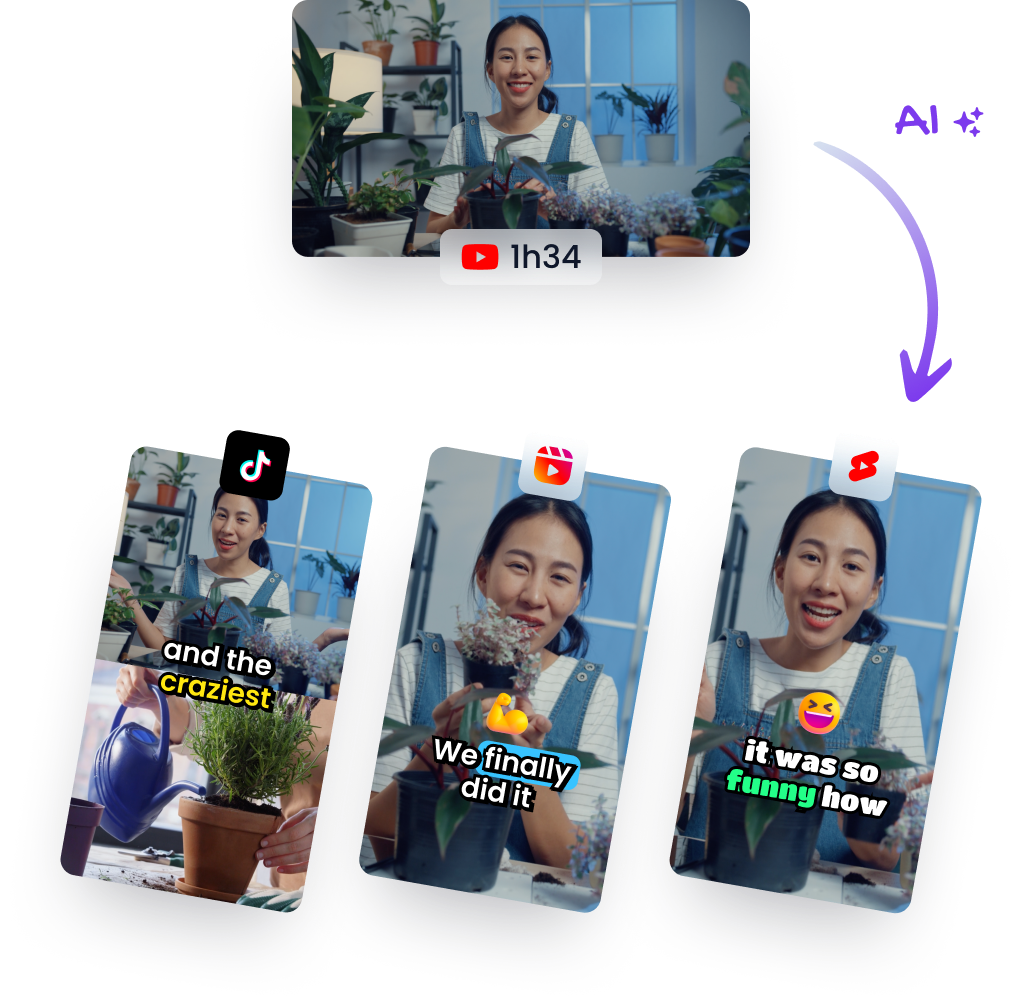
Klap turns long-form recordings into short clips with automatic reframing and captions, and lets you adjust timing, captions, aspect ratio, and presentation before export. Bring a podcast, interview, or webinar, select a self-contained moment, and prepare a vertical clip that you can review for duration and framing before you publish.