How to Repurpose Content Into Short Clips That Perform
Other
You recorded a forty-minute webinar last month. The replay sits in a folder, the podcast cut is live, and your calendar already has the next recording. Meanwhile the people who would have cared never saw the one sentence that answered their question, because that sentence is buried eighteen minutes in.
That is the usual state of a content library. The long recording did its job for the people who showed up. Everyone else needs a native clip, built for a phone, that stands on its own and points back to the full episode. Learning how to repurpose content is less about squeezing more posts from one file and more about deciding which moments deserve a second life.
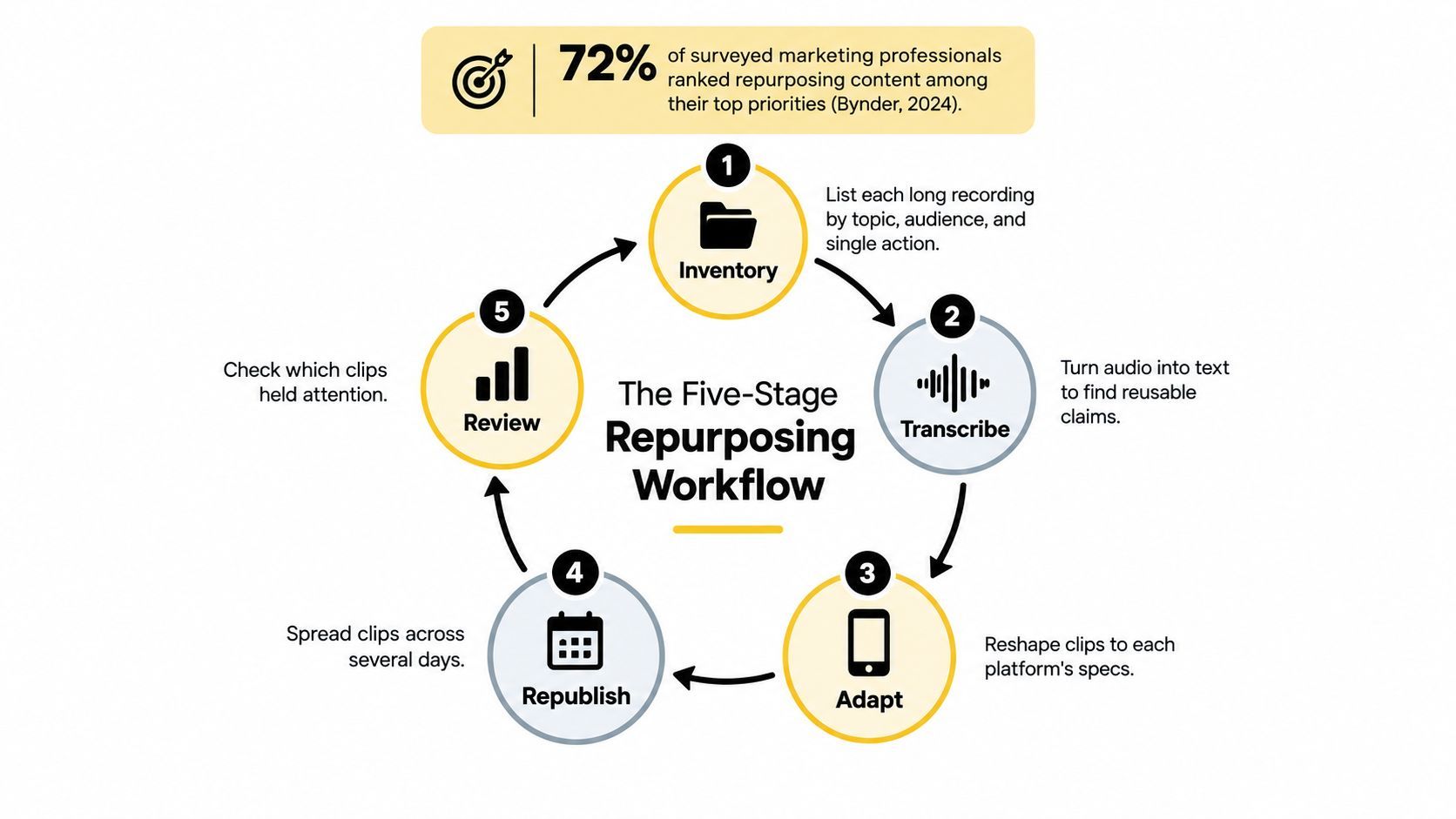
The Five-Stage Repurposing Workflow at a Glance
Repurposing has become a priority for marketing teams. In 2024, 72% of surveyed marketing professionals called repurposing content for multiple channels their “top emerging priority,” according to Bynder's 2024 content marketing trends survey. Short-form video is a common format: HubSpot's 2024 video marketing research found that 83% of surveyed video marketers used it, compared with 39% who used long-form video and 14% who used live video. Among consumers, 37% preferred discovering products through short-form video such as TikTok or Instagram Reels, compared with 8% who preferred long-form video, according to HubSpot's consumer and video research.
Use the workflow below to move each recording from source material to measured, platform-specific posts. Every stage produces an output for the next, with a clear completion check to prevent unfinished clips from going live. Treat each clip as an entry point designed for its platform, not as the same excerpt resized for every feed.
| Stage | Core action | Output | Done when |
|---|---|---|---|
| 1. Inventory | List long recordings by topic, audience and intended action | Ranked list of sources | Each source has one target platform |
| 2. Segment | Transcribe and split into self-contained ideas with timestamps | Candidate segment list | Every segment carries one claim, demo, objection or story |
| 3. Rank | Score segments on hook, standalone clarity, payoff and fit | Shortlist of three to five candidates per source | Each candidate opens with a question, number or bold claim |
| 4. Adapt | Reframe to 9:16, caption and add one call to action | Platform-ready vertical clips | Captions are reviewed and safe zones checked on a phone |
| 5. Publish and measure | Stagger platform variants and track retention, engagement and conversion | Results log | Median results are reviewed after two to four weeks |
Stopping rule: shortlist three to five candidates, then finish the source once three are platform-ready. If fewer than three candidates meet the ranking checks, move on rather than forcing weak cuts. Give each platform version its own opening and context so viewers encounter a native entry point, not a near-duplicate post.
Keep the full episode as the destination. Each clip should include the original link and a timestamp, so viewers can go directly to the moment behind the idea.
How to Find Clips That Hold Attention
A clip holds attention when a stranger can understand it in one pass. Fame of the guest doesn't substitute for that. Work one source at a time.
Inventory, then split the transcript
1. Inventory the source before you touch the timeline. Write the topic, the audience, and the single action you want a viewer to take. Sort recordings by how many reusable claims they contain, not by how recently you published them. A webinar full of setup and no payoff loses to an older interview with three clean answers.
Weak inventory note: "Episode 42, guest was great." Strong inventory note: "Episode 42, ops managers, action is book a demo, three objections answered on pricing."
2. Transcribe and segment into units that stand alone. One claim, one demonstration, one objection answered, or one story. Mark start and end timestamps. If a segment only makes sense after the previous five minutes, it isn't a clip yet.
Weak segment: minutes 12 to 19, "the whole pricing discussion." Strong segment: 14:08 to 14:41, the sentence where the guest names the price objection and answers it.
Score, then cut the shortlist
3. Score each segment on four checks. The opening has to carry a question, a number, or a bold claim. A stranger has to understand it without the episode. It has to end on a payoff. One idea has to fit a cut you can post without trimming.
"Today we are going to talk about retention" loses people before the point arrives. "We cut churn by changing the second email, not the product" states the result in the first sentence. The second opening is the one you keep. A wider set of hook examples is worth scanning when your own openings all sound like agendas.
4. Keep three to five segments per source. Drop anything that needs a prior episode. Don't pick a moment only because a well-known guest is on screen. A famous face with a muddy claim still gets swiped.
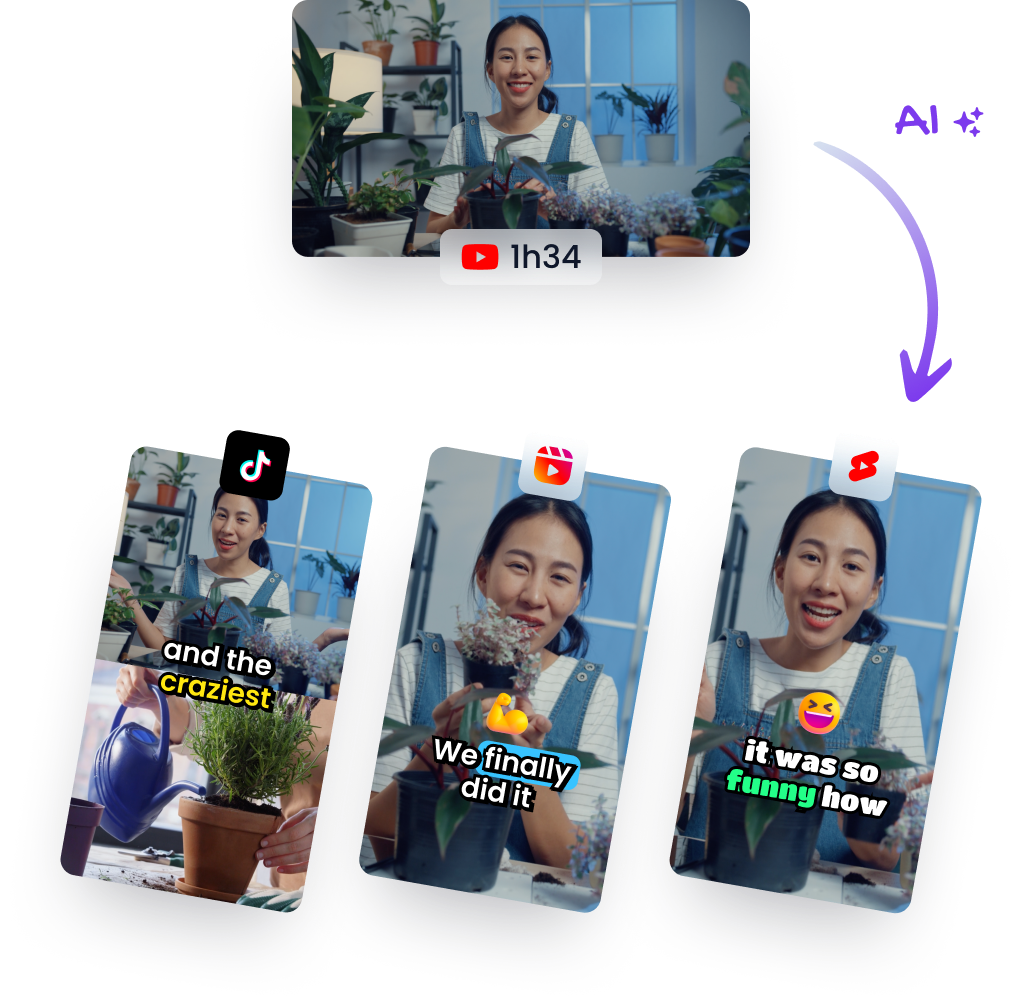
Klap's AI can surface hook candidates from an upload or a YouTube link. A human still has to confirm that each chosen moment keeps its meaning, because a tight cut can turn a qualified claim into a promise the speaker never made.

Practical rule: if you can't write the clip's promise in one line, it isn't one clip.
You should leave this stage with a shortlist of timestamps, each tagged with its claim and its intended action. That list is what you adapt. You don't go back into the full episode hoping something else will appear.
Platform Specs and What Changes Per Channel
A clip can meet a platform's file requirements and still feel like a repost. Treat each export as a native entry point: keep the claim, but adapt the opening, framing, and action to the place where someone encounters it. Check current organic upload limits in the app before publishing, since format rules can change.

| Platform | Format and export | Length guidance | What to adapt |
|---|---|---|---|
| TikTok organic | Vertical video; check current in-app upload options | Confirm current organic limits in the app | Give the clip a platform-specific opening and concise post text |
| TikTok ads | The cited in-feed ad specifications describe ad formats, not organic posting rules | The referenced ad format accepts 5 to 60 seconds and suggests 9 to 15 seconds | Apply these figures only when preparing that ad format |
| Instagram Reels | Vertical video; confirm current upload options in the app | No fixed organic duration recommendation here | Choose a relevant cover and write a caption for the intended audience |
| YouTube Shorts | Square or vertical video | Eligible uploads can be up to 3 minutes | Rewrite the title and description for the clip |
| YouTube long-form | 16:9 widescreen | Full episode length | Link clips back to the full episode |
For TikTok ads, TikTok's in-feed specifications list 9:16 vertical video and an accepted duration of 5 to 60 seconds, with 9 to 15 seconds suggested for the referenced ad format. Those are ad specifications, not rules for organic posts. For organic publishing, check the app's current requirements rather than treating ad specs as a posting limit. TikTok's small-business video guidance recommends 1080×1920 or higher for video and advises winning attention in the first three seconds.
YouTube classifies eligible square or vertical uploads of up to three minutes as Shorts when they are uploaded on or after October 15, 2024, according to YouTube's Shorts eligibility documentation. A 16:9 upload stays long-form. Check the export's aspect ratio and duration, then confirm eligibility before publishing.
What still changes when the picture doesn't
Keep the source footage, but adapt the entry point and destination for each audience.
- Opening: Lead with the clip's claim, not a shared intro card. Give viewers context they can understand without the full episode.
- Caption and post text: Write fresh copy for each app. Don't assume a character count or display cutoff from one platform applies to another.
- Cover, title, and description: Choose a cover frame deliberately. Rewrite the YouTube title so it describes the clip rather than repeating the episode name.
- Call to action: Give each clip one clear action that fits the platform's link behavior.
- Aspect ratio: Choose the export format intentionally, especially when you want a video to remain long-form on YouTube. Review the available aspect ratio options before exporting instead of treating the crop as an afterthought.
For Reels, use a duration that lets the idea make sense without adding a generic time target. Confirm the current organic upload limit in the app before you publish. Keep the full episode in its own 16:9 format, and make each clip's route back to it clear.
How to Reframe and Caption Each Clip
A horizontal webinar clip may show the speaker clearly in the editor and still lose their gestures on a phone. Build each vertical version around what the viewer needs to see and understand, rather than treating it as a resized excerpt.
1. Set a 9:16 canvas at 1080×1920 or higher. Place the speaker's focal region in the vertical frame, not just at the center of the original 16:9 image. A centered crop can cut off hands or slides.
2. Turn on subject tracking and review the entire clip. Check that the face and hands stay visible through gestures and edits. Tracking can drift when a speaker leans toward a whiteboard, so correct the framing manually where needed.
3. Generate captions from speech recognition, then check every name, number, technical term, and line break by hand. A fluent-looking caption can still change the claim if it renders a figure incorrectly.
4. Keep each on-screen line short enough to read at a glance. Use captions to reinforce the key words, not to display a full transcript, and keep text clear of the bottom and right edges where app controls may cover it.
5. Add a brief label if the clip begins mid-conversation. Identify the speaker and their role, or give just enough context for a new viewer to follow the point.
6. Cut the lead-in to the first meaningful word and end on the last complete sentence. Remove leftover “um” or “so anyway,” but keep enough context for the statement to make sense on its own.
7. Export a master and save the project. Build platform-specific versions from the same approved edit and timestamps, then adjust the opening, framing, or on-screen text to make each version a useful entry point rather than a near-duplicate post.
Why the phone check comes last
Automatic captions can change meaning without any warning. "Forty percent" rendered as "fourteen percent" reads smoothly and states something different. The editor preview also cannot show exactly where app controls will sit over the finished clip.
Watch the exported master on a phone at normal brightness before making variants. Confirm the captions are easy to read, the speaker's gestures stay in frame, and the clip makes sense without the full webinar. Fix the master first. Every version built from it inherits the same framing and caption choices.
Common Clip Problems and How to Fix Them
Most failed clips fail for a reason you can see on the next export. Start with the opening, because that is where viewers leave before the claim arrives.
| Symptom | Likely cause | Fix |
|---|---|---|
| Viewers swipe away in the first second | Clip opens on logo, intro or setup | Move the strongest sentence to frame one, then backfill context |
| Captions hidden behind app buttons | Text placed before reframing or in the bottom third | Recheck placement on a phone after reframing |
| Speaker's face or hands cut off | Centre crop from a horizontal source | Reframe from the focal region and track the subject |
| New viewers confused | Context trimmed too hard | Keep one setup sentence or add a short on-screen label |
| Wrong names or numbers on screen | Unreviewed automatic transcript | Check names, figures and jargon by hand before export |
Which fixes you can trust this week
Opening, framing, and caption placement are one-cycle fixes. You can see them on a phone before the clip is public, so don't wait for a performance report to move the strongest sentence to frame one.
Meaning problems take a little longer to confirm. A label fixes confusion you can predict. If you cut so hard that the claim becomes misleading, rebuild the segment from the timestamps rather than adding a caption that papers over a bad cut.
A logo in frame one is not branding. It is a head start for the swipe.
Transcript errors are the quiet ones. They don't look broken in the edit if you already know the speaker's name. Read the captions as if you have never heard the episode. If a number, a product name, or a person's name is off, the clip doesn't ship.
Repetition is a different failure. The same hook and the same ask on every platform can look fine on day one and fade after people have already seen the claim. That pattern needs a two to four week read, not a same-day verdict. Don't kill a variant after one quiet afternoon, and don't keep posting a duplicate just because the first version got views.
How to Republish Without Burning Out Your Audience
You publish a strong clip on Monday, then see the same followers encounter nearly the same promise on three platforms by Wednesday. Spacing posts helps, but spacing alone does not make them feel distinct. Give each clip a different reason to stop: a new opening, a platform-specific angle, or a separate takeaway.
Share two or three clips from one source across several days rather than dropping them together. Treat each as a native entry point for its platform, not just a resized excerpt. Before scheduling, compare the hook, claim, and call to action against the other cuts. If all three match, revise one angle or hold that clip for later.

In 2024, 19% of social media marketers said they repurposed the same content across platforms, while 47% said they shared similar content adapted for different platforms, according to HubSpot's survey of more than 1,500 social media marketers. Those figures describe reported practices, not which approach prevents repetition or performs better. For practical video content distribution, make each post feel native by changing its entry point and giving it a distinct job.
Caps, signals, and what you actually measure
Set a simple starting limit: publish no more than one clip built around the same claim per platform in a week. If you have another cut of that claim, schedule it for a later week only after changing its hook or takeaway. Log related versions as variants, so a different crop does not disguise repeated messaging.
Watch four fatigue signals:
- Completion: completion falls while impressions hold.
- Saves and shares: these drop while views stay flat, suggesting the clip is watched but not kept or passed along.
- Unfollows: they rise in the days after a repeated post.
- Comments: viewers say they have already seen the point, or replies turn sour about repetition.
Use a two to four week test window, and compare each variant by its median result rather than its single best clip. One outlier can make several weak posts look like a winning format. Avoid judging a repeat by one quiet afternoon.
Views can rise while sales stay flat if the team treats views as the whole score. Track completion rate, profile actions, qualified clicks, and conversions alongside views. Sort results by awareness, qualified traffic, leads, and sales, then check what share of viewers do not already follow you. That helps distinguish reach to new people from repeated exposure to your existing audience.
Republish a working clip later with a fresh hook. Rebuild a failing clip before showing it again. If viewers leave during the opening, changing its distribution will not fix the cut. Keep the embedded walkthrough available as a separate resource, without assuming it demonstrates this section's specific recommendations.
<iframe width="100%" style="aspect-ratio: 16 / 9;" src="https://www.youtube.com/embed/6RulpW8UNbw" frameborder="0" allow="autoplay; encrypted-media" allowfullscreen></iframe>Run One Source Through the Workflow This Week
Pick one recording that runs at least twenty minutes. A podcast episode, a webinar, or an interview already on YouTube is enough. Don't start a library cleanup.
Tag the source with topic, audience, and one action. Segment the transcript. Score segments on opening strength, standalone clarity, payoff, and whether one idea fits the cut. Adapt the top three with reframing, reviewed captions, and a single call to action.
For the upload, paste the YouTube link or upload the file into Klap, review the suggested moments, move the start and end points, edit the captions, and export vertical versions. Check each export against the platform rows before it goes live. Publish one clip to each of two platforms, staggered across the week, and log the metrics at the start of week two.
Schedule the full review for two to four weeks out and compare the median of each variant. Keep the variant that holds completion and drives a qualified action. Rebuild any cut that loses viewers in the opening. Then take the next source, and stop when you have three ready clips or the ranking goes weak.
Klap turns a long recording into vertical shorts for TikTok, Reels, and YouTube Shorts, with suggested moments, reframing, and captions you can still edit before export. If you want to run this week's source through that workflow instead of building every cut by hand, start with one video on Klap. Bring the shortlist, keep the original link on every clip, and publish only the variants that still make sense on their own.