Caption Generator for YouTube Video: 10 Best Picks
Other
A video is ready to publish, but the captions still need a decision. You can add a selectable caption track directly in YouTube, spend a few minutes correcting an editable subtitle file, or use a broader AI workflow that also turns long-form footage into captioned Shorts. The best caption generator for YouTube video depends on where you publish, how much review the footage needs, and whether viewers should be able to switch captions off.
Those choices matter because captions do more than decorate a clip. Google introduced automatic speech recognition for YouTube in 2009, initially supporting selected channels and enabling automatic translation of available caption tracks into 51 languages, according to YouTube's history of automatic captions. Captions support access for deaf and hard-of-hearing viewers, as well as people watching without sound or following a video in another language.
The practical trade-off is control versus convenience. A native caption track is simple to publish, while burned-in text gives you more control over how captions look on a phone. For a closer look at how captioning fits into video production, see AIDictation's guide to video caption pipelines. The tools below are organized by workflow, so you can choose based on the job you need to finish.
1. Klap
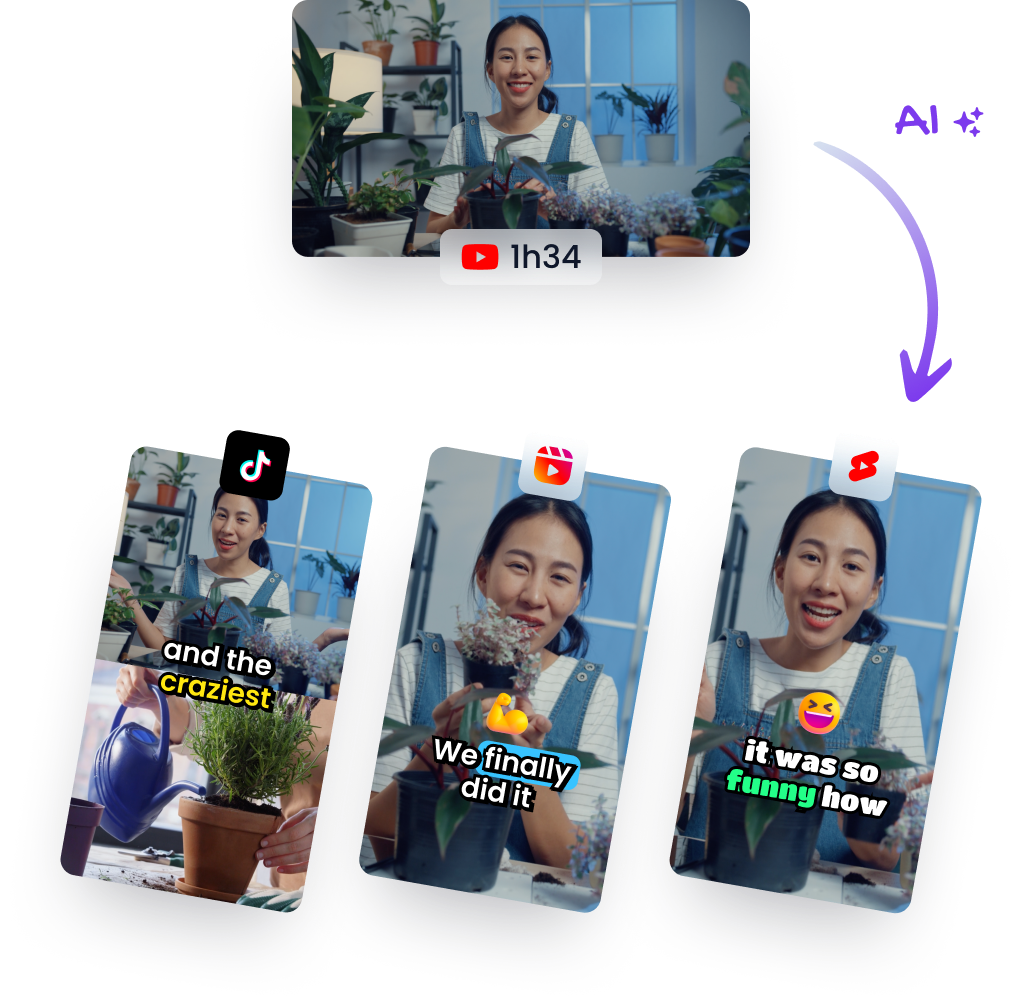
If the job is more than adding subtitles to a finished upload, Klap is built for a different workflow: turning long-form footage into short, captioned social videos. Paste a YouTube link or upload a video, and it can identify potential highlights, reframe footage for vertical viewing, and add captions. That suits podcasts, interviews, tutorials, reviews, and other videos where the spoken content carries the clip.

Useful when one video needs several outputs
You can review the selected moments, adjust clip timing and framing, edit the caption text, and customize the visual style before exporting. That review step matters. An automatically selected segment might start too early, cut off a useful setup, or leave a caption poorly timed after the clip has been trimmed. Klap's AI caption generator fits naturally when captions are part of a repurposing workflow rather than the only task.
Klap also supports multiple languages and offers layouts for formats such as split-screen, screencast, and gaming videos. The trade-off is that the automated highlight selection works best when the footage has clear speech and distinct moments. It won't make a quiet visual sequence compelling by itself, and no tool can guarantee that a clip will perform well.
Editing rule: Review the clip and its captions together. A transcript that was timed for a long video can feel rushed or land in the wrong place after trimming.
Choose Klap when you want to generate and polish short-form clips from existing footage, not just download a subtitle file. For a standalone YouTube caption track, Studio or a subtitle editor may be a simpler fit. See Klap's platform for its current workflow and plan details.
2. YouTube Studio
For creators who want captions attached to a YouTube upload, YouTube Studio is the most direct option. It can generate captions for eligible videos in supported languages, and you can edit the words and timing in Studio. The result is a selectable caption track, so viewers can turn it on or off.
That distinction makes Studio a good default for straightforward publishing. You don't need to upload your video to a second service or add a separate captioning subscription. You also avoid baking text into the image when you want viewers to control caption visibility.
Where the native workflow falls short
Automatic captions can mishear names, technical language, accented speech, or words obscured by background noise. YouTube advises creators to review and edit machine-generated captions rather than publish them unchecked, as explained in its caption editing guidance.
A published comparison of automatic-caption systems found YouTube was the most accurate among the systems tested, but the result depended on the content and conditions in that study. That's a reason to treat generated text as a first draft, not a guarantee. Studio also won't produce animated, branded captions or a polished video export. Pick it when a clean, selectable track is the priority; use another editor when the captions need to be part of the picture.
3. VEED
VEED suits creators who want to generate captions in a browser and decide how those captions should reach viewers. You can edit the transcript and timing, style the text, burn captions into the video, or download an SRT file for a YouTube upload. That flexibility is useful when the same footage needs both a selectable subtitle track and a captioned social export.

Choose the output before you edit
If you need captions viewers can switch off, download the subtitle file and attach it to YouTube. If the video will be watched in a feed where many people keep sound off, burned-in text makes the message visible immediately. That convenience has a cost: viewers can't disable text that's permanently embedded in the picture.
VEED combines captioning with browser-based video editing, so you can make basic visual adjustments without moving to another program. Its free access has limitations, and some capabilities depend on the plan. That can make it handy for testing a workflow, but check the current limits before building it into a regular publishing schedule.
Use VEED when you want more control over caption appearance than Studio provides, without committing to a transcript-first editing process. For a caption-only task, its broader editing tools may be more than you need. Start with the VEED subtitle tool and decide whether the export or styling options match the way you publish.
4. Kapwing
Kapwing is a browser editor that pairs automatic caption generation with collaborative video work. You can edit the transcript, translate subtitles, and export the video or subtitle files, including SRT and VTT. A shared workspace is useful when one person makes the edit and another needs to check wording, timing, or brand presentation before publication.

The team workflow is the main reason to choose it over a basic caption generator. A reviewer can catch a misspelled brand name or an incorrect speaker label before the editor exports the video. If you're working alone and only need an SRT, those collaboration features may add unnecessary complexity.
Check the export limits early
Kapwing's free tier lets users try caption generation, but free exports include a watermark and have a short duration limit. Paid pricing is per member, which can become a meaningful factor for a team. Test the actual export path before you spend time editing a full video.
For a practical comparison of captioning approaches, see this guide to AI caption generators. Kapwing is a sensible pick when caption edits happen alongside shared video revisions. Its subtitle generator is less compelling if all you need is an editable subtitle file and no team review.
5. Descript
Descript is a strong fit when captions are one part of editing a podcast, interview, or tutorial. It creates a transcript from speech, supports speaker labels, and lets creators edit video through the transcript. You can also style captions, burn them into the video, or export a subtitle file.
That transcript-led approach is helpful when the spoken content needs editing as well as captioning. Instead of correcting captions after the picture edit, you can work on the words and footage together. It's a broader production workflow, though, not the quickest route to a simple subtitle export.
Practical rule: Fix the spoken edit before you finalize caption timing. Otherwise, each cut can leave you with transcript segments that need another pass.
Descript offers a free plan for trying the editor, but its larger feature set comes with a learning curve. Paid plans are priced per person, and media time and AI usage depend on the plan. If you already produce a show or regularly edit dialogue-heavy YouTube videos, combining transcript work and captioning can reduce tool switching. If you only need captions, the extra editing environment may slow you down.
Visit Descript's video caption generator to see whether transcript-based editing fits your process.
6. Happy Scribe
Happy Scribe centers its workflow on transcription, subtitles, and translation. It can import video from YouTube and cloud storage, then provides an editor for correcting captions and exporting subtitle formats on eligible plans. Creators who need additional assurance can also pay for human proofreading.
That makes it a useful candidate for multilingual publishing or videos where the transcript needs careful review. Translation is not just a matter of converting each word: names, jokes, speaker changes, and line breaks can all affect whether subtitles read naturally. A human proofreading option can help when the cost of a transcription or translation error is high, but it's an additional service rather than a substitute for planning review time.
Treat minute allowances as part of the workflow
Paid plans have transcription-minute allowances, so estimate the footage you expect to process before choosing a tier. The limits matter most for creators with recurring production, rather than someone captioning an occasional upload. AI output still needs checking, especially for names and specialist vocabulary.
Choose Happy Scribe when subtitle files, translation, or optional proofreading matter more than animated on-screen captions. If you mainly want a stylized video export, a browser video editor may be more direct. See Happy Scribe's caption generator for its current export and plan options.
7. Flixier
Flixier combines automatic captions with a cloud-based video editor. You can edit caption text and timing, customize its appearance, finish the video, and export subtitle files such as SRT, VTT, or TXT. Keeping these tasks in one editor is convenient when the video itself still needs work.
The choice comes down to whether you want a video editor alongside your subtitles. If you're adjusting a shot, adding titles, or preparing an export, Flixier can keep the work in one place. If you only need a clean SRT for YouTube, a dedicated subtitle tool can be lighter.

Match the plan to your publishing cadence
The free captioning allowance is limited, and free exports include a watermark with duration and resolution restrictions. Paid tiers provide larger subtitle-minute allowances, but may not make sense for occasional use. Check which format and export quality your project needs before editing, rather than discovering a limit at the end.
Flixier is best for creators who want to caption and finish their video in a cloud editor. For a concise walkthrough of the basics, use this guide to adding captions to videos. Then compare its current options on the Flixier subtitle generator.
8. CapCut
CapCut is a practical option for creators who want captions as part of editing, not as a separate subtitle-file job. Its web, desktop, and mobile workflows can generate captions, let you edit the text and appearance, and offer translation options. That makes it convenient for short-form edits where the caption style is part of the visual design.
The trade-off is that CapCut is a full editor, not a dedicated service for preparing subtitle files. If your priority is an SRT or VTT track for YouTube, check the export workflow before starting. If the goal is a polished, visible caption treatment on a social clip, editing the text and video together is a more natural fit.

CapCut describes its caption workflow as free to use, but some advanced features or assets may depend on plan or platform. Generated text still needs review, particularly when a clip includes proper names, technical language, or overlapping speakers. For mobile-first editing and visible caption styling, try the CapCut auto-caption generator.
9. SubtitleBee
SubtitleBee focuses on subtitles, translation, and text burned into video. Its workflow includes subtitle generation, video resizing and cropping, text overlays, and custom fonts or branding on paid tiers. Monthly subtitle-minute allowances can help creators estimate whether the service fits a recurring caption workload.
That minute-based structure is useful if you know roughly how much footage you process, but it can be less attractive for sporadic uploads. Free access is limited in minutes and export options, while paid plans may include more capacity and watermark-free exports. Compare the allowance with your real publishing volume rather than choosing by the feature list alone.
A focused tool, not a clip finder
SubtitleBee is centered on captioning and video styling. It doesn't focus on finding highlights in a long video and turning them into clips, so creators who need that step will still need another tool. On the other hand, a focused subtitle workflow can be simpler when all you need is translation and formatted captions.
Look at SubtitleBee when recurring subtitle work and branded exports matter. If you publish occasionally, a free tier or your existing editor may be enough. Review the SubtitleBee platform for current plan allowances and export options.
10. Captions
Captions sits closer to the repurposing end of the workflow spectrum. Paste a YouTube link into its Clips feature and it pulls moments out of a longer video, reframes them for vertical formats, and layers captions on top. Automatic captioning, translation, and AI-assisted editing live in the same app, so a finished upload can become a set of captioned shorts without you exporting a single subtitle file.
That bundling is the appeal and the cost. If your publishing flow starts with long footage and ends with captioned shorts, keeping both steps in one place saves real handoff time. If you only need an SRT file, the extra tooling gets in the way. Expect some duration and format limits depending on the device you run it on, and confirm pricing for that specific platform since the published rates differ between them.

If you are standardizing how caption fields carry over between tools, you can find caption profile reference conventions useful as a shared baseline. Then review the Captions platform to check whether its clip workflow and export options match your publishing flow. For creators who only need selectable captions on the upload itself, YouTube Studio is the more direct route.
Top 10 YouTube Caption Generators Compared
| Tool | Core capabilities | Experience & standout | Best for | Price & value |
|---|---|---|---|---|
| 🏆 Klap | AI finds highlights, creates vertical clips, reframes video, and adds captions | ★ Fast repurposing; ✨ 52 languages, brand styling, sharing, and scheduling | 👥 Creators and marketers turning long videos into social clips | 💰 One video free; Pro listed at $29/month |
| YouTube Studio | Auto-captions with editable text and timing | ★ Convenient YouTube workflow; captions remain selectable, not burned in | 👥 YouTube creators needing basic captions | 💰 Free |
| VEED | Auto-subtitles, caption styling, SRT export, and browser editing | ★ More visual control; ✨ captions can be burned into video | 👥 Creators wanting captions plus simple editing | 💰 Free with limitations; plan features vary |
| Kapwing | Auto-captions, translation, video editing, and SRT/VTT export | ★ Collaborative workspace; free exports have limits and watermark | 👥 Teams editing and reviewing videos together | 💰 Free tier; paid pricing per member |
| Descript | Transcription, styled captions, subtitle export, and transcript-based editing | ★ Edit video by editing text; broader toolkit has a learning curve | 👥 Podcasters and interview or tutorial creators | 💰 Free plan; paid plans per person |
| Happy Scribe | Transcription, subtitles, translation, and subtitle exports | ★ Strong multilingual workflow; ✨ paid human proofreading | 👥 Users needing accurate subtitles or translation | 💰 Paid plans with minute allowances; proofreading costs extra |
| Flixier | Auto-captions, styling, cloud editing, and SRT/VTT/TXT exports | ★ Caption and finish videos in one editor; free exports are limited | 👥 Creators seeking an online editing workflow | 💰 Free tier; larger allowances on paid plans |
| CapCut | Auto-captions, styling, translation, and video editing | ★ Flexible web, desktop, and mobile workflows | 👥 Social creators designing captioned videos | 💰 Caption workflow described as free; some features may vary |
| SubtitleBee | Auto-subtitles, translation, resizing, and branded text | ★ Monthly subtitle-minute plans; ✨ supports 120+ languages on paid tiers | 👥 Creators with recurring subtitle needs | 💰 Free tier; paid plans scale by minutes |
| Captions | Auto-captions, translation, AI editing, and short-clip creation | ★ Repurposes long videos; ✨ Clips can use YouTube links | 👥 Creators seeking captions and AI clip workflows | 💰 Limited free version; pricing varies by platform |
Build a Caption Workflow You Can Trust
Choose the tool around the publishing task, not the longest feature list. YouTube Studio is the fastest native path when you want a selectable caption track attached to a YouTube video. A browser editor such as VEED, Kapwing, or Flixier makes more sense when styling and SRT or VTT exports matter. For interview and podcast work, Descript's transcript-led editing can bring the spoken edit and captions together. When the true goal is turning one long video into several captioned Shorts, consider a repurposing platform such as Klap or Captions.
Then build in review. Automatic speech recognition can save the time spent creating a transcript from scratch, but it can still mishear accents, background noise, overlapping speech, names, and domain terminology. In one study, viewers who watched subtitled videos had a correct-answer rate of 62.28%, compared with 45.45% for viewers without subtitles. The result supports captions as a comprehension aid, not a reason to publish unreviewed text; see the study comparing comprehension with and without subtitles.
Review captions as part of the edit
Before export, check names, technical terms, speaker attribution, synchronization, reading speed, line breaks, and translation accuracy. James Madison University recommends captions of no more than three lines, with each line around 40 characters or roughly 7–10 words, along with accurate spelling, punctuation, and synchronization in its captioning guidance. For vertical clips, also check that text stays legible after cropping and doesn't cover a face or key visual information.
Finally, pick the right output format. Use a selectable subtitle track when viewers should control captions, and burned-in text when the clip needs to communicate in a sound-off feed. If you're localizing, review meaning and line breaks in the translated version rather than assuming a translated transcript is ready to publish. YouTube's guidance for adding captions and subtitles can help clarify the platform's caption workflow.
Measure the workflow by minutes of review saved per published video and how often captions still need correction. A generator that produces a fast first draft but requires extensive repair may not save time. Keep the review steps consistent, note which errors recur, and choose a tool that makes those corrections easy.
Klap can turn an existing YouTube video into short vertical clips with captions, reframing, and editable timing, so you can review the complete clip before it goes out. If you want captioning to be part of a repeatable repurposing workflow, visit Klap and see how it fits your next upload.