How to Automate Long-Form Video Clipping with AI
Content Creation
Updated October 21, 2026. Klap is our product.
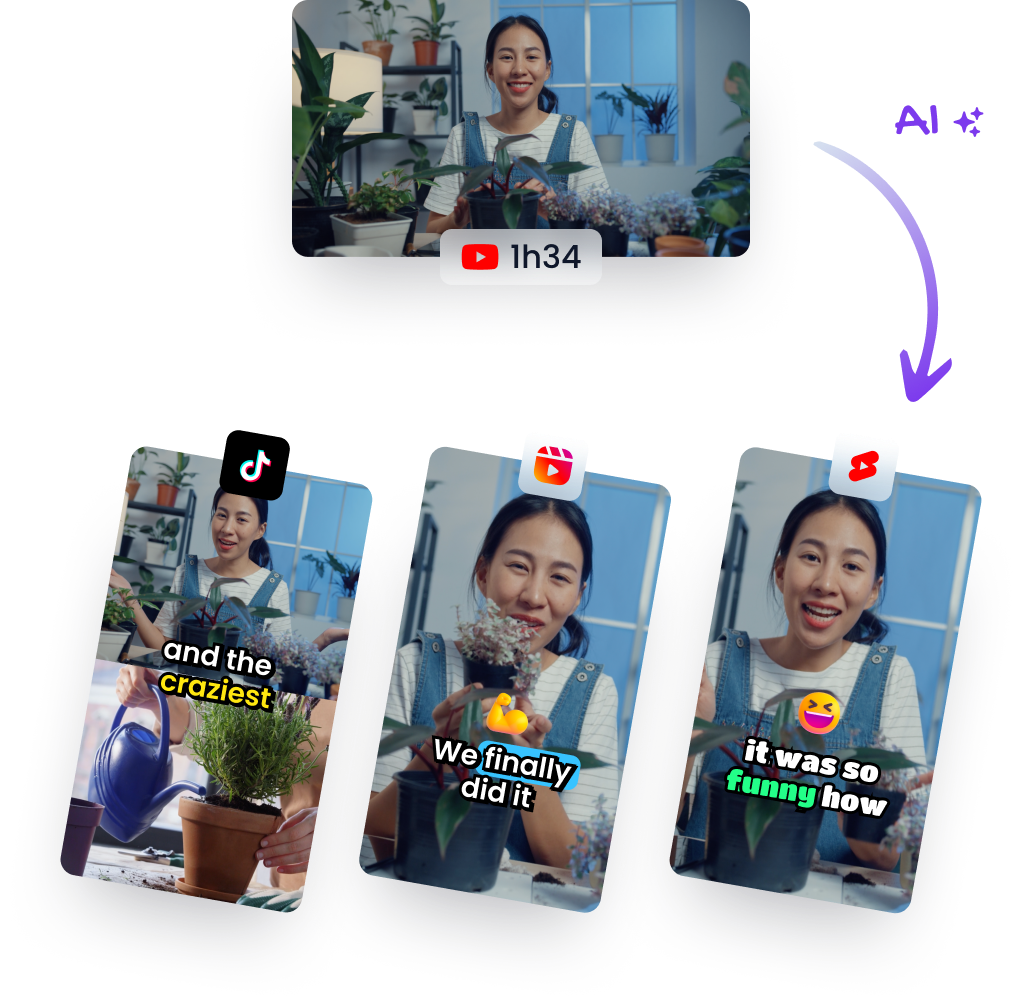
To automate long-form video clipping with AI, give a clipping tool your long video. It finds the moments worth posting, reframes them to vertical, adds captions and schedules them to your social accounts. Your part is a short review before anything goes live. This guide sets out that workflow as a routine you can run every week: what to hand to the AI, where a human check still matters, and how to go from one long video to a week of scheduled Shorts, Reels, TikToks and LinkedIn posts. It also covers the API route if you want new videos clipped without opening an app. The examples use Klap, which is our product, but the workflow and the review checklist apply to any AI clipping tool.
What you can automate in long-form clipping (and what you shouldn't)
Clipping automation means software does the repetitive parts of turning a long video into short ones. It watches or transcribes the video, picks self-contained moments, cuts them, crops them to a vertical 9:16 frame and burns in captions. A good tool also posts them for you.
Here is what AI handles well today:
- Finding moments. The tool reads what people say and picks segments with a clear point, a strong opinion or a story. For more on how this works, see our guide to automatically cutting video highlights.
- Reframing. It follows the active speaker and switches to split-screen when two or more people talk.
- Captions. It transcribes speech and adds animated captions, which matters because many people scroll with the sound off.
- Publishing. It sends clips to your connected accounts on a schedule.
What you shouldn't hand over entirely:
- The final call on hooks. The AI can rank moments, but you know your audience and which opening line will stop them scrolling.
- Context. A clip that makes sense in a 60-minute interview can mislead on its own. A sarcastic line, a half-finished answer or a joke about a guest needs a human eye.
- Brand and legal checks. Names, claims and anything a sponsor or client must approve.
One more limit: this kind of automation works best on speech-driven video. Podcasts, interviews, webinars, courses, talking-head YouTube videos and streams with commentary all suit it. It is weaker on gameplay or sports footage without commentary, because the tool chooses moments from what people say. If your video has little speech, expect to pick moments yourself.
The four stages of an automated clipping workflow
Every clipping workflow, manual or automated, has the same four stages. Splitting it this way shows you where the time goes and where a review belongs.
- Ingest. Get the long video into the tool, by link or file upload. Fully automatable.
- Select moments. Decide which parts become clips. The AI does the first pass, and you steer it with settings and instructions.
- Format. Cut, reframe to vertical, caption and add any extra elements. Mostly automated, with a quick human fix-up.
- Publish. Post or schedule to TikTok, YouTube Shorts, Instagram Reels, LinkedIn and Facebook. Fully automatable once accounts are connected.
The human check sits between stages 3 and 4. It is the one step you should not skip, and it is also the step that saves you the most time compared with editing by hand. Reviewing a ready-made clip takes far less work than building it from scratch.
If you're new to repurposing and want the strategy side (which platforms, which formats, how many clips), read how to convert long videos into short-form content first, then come back to set up the routine below.
Step 1: Feed in your long video
Sign in at klap.app and open Videos, where your projects live under "Your videos". Use the input that reads "Drop a file or paste a video link":
- Paste a link from YouTube, Twitch, Vimeo, Loom, Google Drive or Dropbox. This is the fastest route if your video is already published or stored in the cloud.
- Drop a file in MP4, WebM or MOV format. The upload button's tooltip reads "Upload a video file".
Klap then asks you to confirm that you have the rights to the video ("Confirm Video Usage Rights"). Only clip content you own or have permission to use. That matters even more when posting is automated, because nobody stops to ask.
Two practical notes:
- It needs a video. An audio-only file such as an MP3 or WAV isn't accepted. If you record an audio podcast, you'll need a video version, even a simple one with a static image, before you can clip it.
- Build the habit around your upload. The simplest automation is a routine: the day your long video goes live, paste its link. If you'd rather not open the app at all, see the API section below.
Our long video to short video converter page explains the input options in more detail.
Step 2: Let the AI pick the moments, and steer it
Choose the "Shorts" task ("Turn your video into viral shorts"). The other tasks, "Captions" and "Reframe", are for when you only want captions added or a video adapted to another aspect ratio.
Before you click "Generate", you can adjust four settings:
- "Number of shorts": leave it on "Auto" or set an upper limit. A limit keeps you from reviewing clips you'll never post.
- "Shorts length": "Auto" or a length range. Pick shorter ranges for TikTok-style hooks and longer ones for LinkedIn, where viewers often accept more explanation.
- "Source language:": "Auto" usually works. Set it yourself if the video mixes languages or has heavy accents.
- "Moments" ("Tell the AI what to clip"): this is where you steer the selection in plain words.
Example "Moments" instructions:
- Podcast: "Moments where the guest tells a personal story or disagrees with the host."
- Webinar: "Clear, practical tips viewers can apply without seeing the slides."
- Course lesson: "Short explanations of a single concept, with no references to earlier lessons."
- Interview for a brand: "Any mention of customer results or the product roadmap."
Save the instructions that work for each show or series and reuse them every week. That way the selection stays consistent without you rethinking it each time.
When processing finishes, each short shows a "Virality score". Treat it as a reading order: review the highest-scored clips first. It doesn't guarantee views. A clip with a modest score can still be the right one for your audience.
Step 3: Review and fix the clips in minutes, not hours
When the project shows "Your shorts are ready!", run each clip you plan to post through this five-point check:
- Hook in the first seconds. Does the clip open on the point, or on throat-clearing ("So, yeah, I think…")? If it's the second, trim the start.
- Clean start and end. No half-word at the beginning, no answer cut off before the conclusion.
- Caption accuracy. Check names, brand terms, numbers and jargon. These are where transcription slips.
- Speaker framing. The person talking should be in frame. In split-screen moments, check that both speakers are visible.
- No missing context. Would a stranger understand and fairly read this clip without the full video?
To fix a clip, click the pencil button on the short to open the editor. The side tabs cover the usual fixes:
- "Trim" to tighten the start or end.
- "Reframe" to adjust who's in frame.
- "Captions" to correct text ("Text"), change the look ("Style") or apply a saved look ("Presets").
- "Elements" to add extra on-screen elements.
"Back to Shorts" returns you to the project. Our guide to adding captions to videos covers caption style choices if you're setting up a look for the first time.
When another tool is the better pick: if a clip needs frame-by-frame work, such as precise cuts on a beat, B-roll layering, color work or complex transitions, a manual editor like Descript, CapCut or VEED is the better tool. Download the clip and finish it there. Automated clipping saves the most time when most clips need light fixes, not a full edit.
Step 4: Schedule a week of posts from one video
Publishing is where automation pays off most, because it takes your daily posting off your plate.
Connect your accounts once. Open the avatar menu, go to "Social accounts" and click "Connect" for TikTok, YouTube, Instagram, LinkedIn or Facebook. LinkedIn posts go to a personal profile, not a company page.
Schedule in bulk. On the project, click "Schedule posts" to schedule several shorts at once. For a single clip, use "Publish" on that short. In both cases you "Choose accounts", pick a date and save the post.
Check the week in "Calendar". Every scheduled post shows up there. If something becomes timely, such as news that matches a clip, you can send it at once with "Post now".
A cadence that works for many creators:
- Spread clips across the week instead of posting them all on day one. One long video can then keep your accounts active until the next one comes out.
- Lead with your highest-reviewed clip on the day the long video goes live, so new viewers can find the source.
- Vary the clip per platform where you can. Use a punchier moment for TikTok and Shorts, and a more explanatory one for LinkedIn.
For platform-specific tips, see how to repurpose YouTube videos for TikTok.
Automating further: a recurring pipeline with the API
If you publish many long videos, or clip for several shows, opening the app for each one becomes the bottleneck. Klap has a self-serve API. Developers get their API key under "API" in the avatar menu, and a script or automation can then submit videos and collect the resulting clips. Klap can also be used from ChatGPT and Claude.
A typical pipeline looks like this:
- Trigger: a new video lands somewhere you control, such as a new upload on your YouTube channel or a file added to a shared folder.
- Submit: your script or automation sends the video to Klap through the API.
- Collect: when processing finishes, the clips come back to your pipeline.
- Review: clips go to whoever does the five-point check, for example by posting links to a team channel or adding rows to a review sheet.
- Publish: approved clips get scheduled.
Keep step 4 even in a fully automated pipeline. The review is quick, and it's what stops an out-of-context clip from going out under your name.
About no-code tools such as Zapier or Make: if your automation platform can send requests to an API, it can be the glue in this flow. Check Klap's API documentation (linked from the "API" page in the app) for what the API supports before you design the flow. Don't assume a ready-made connector exists.
One honest limit for teams: Klap has no team workspaces, multiple seats or user roles. A team running this pipeline shares one account, so agree internally on who reviews and who schedules. Our piece on YouTube automation with AI covers the wider channel workflow around clipping.
What it costs to automate this way
Klap's Pro plan is $79 (as of October 2026) a month. The "Billing" page in the app shows the current plans and what each includes, and "Usage" shows how much of your plan you've used.
There is no free plan. New accounts in eligible countries get one free trial video, so you can run the whole workflow above on one of your own videos before paying. The trial isn't available everywhere: India, Pakistan, Indonesia and the Philippines are excluded.
Is automation worth paying for? It depends on volume:
- Weekly long videos, or several shows: the time saved on finding moments, reframing, captioning and scheduling adds up quickly, and the API route removes the manual upload step.
- An occasional short video: if you only clip now and then, and your inputs are short, a cheaper tool or a manual editor you already use may suit you better.
Common mistakes when automating clipping
- Publishing without review. Automation makes it easy to schedule a whole project in one go. Fix: keep the five-point check between generating and scheduling, even when you're short on time.
- Clipping video with weak speech. Silent gameplay, music-only footage or muffled audio gives the AI little to select from. Fix: use automation on speech-driven videos, and pick moments by hand for the rest.
- Same caption and clip on every platform. What works on TikTok can feel abrupt on LinkedIn. Fix: vary clip length and the opening moment by platform, and write a post caption that fits each audience.
- Ignoring source rights. Clipping someone else's stream or interview without permission can get posts removed or worse. Fix: only clip content you own or have written permission to use, and take the rights confirmation seriously.
- Too many clips per video. More clips means more review time and weaker average quality. Fix: set a limit in "Number of shorts" and post only the clips that pass review.
- Never looking at results. Automation without feedback repeats the same mistakes. Fix: check "Analytics" regularly and adjust your "Moments" instructions toward the topics and formats that perform.
FAQ
Can AI automatically clip long videos into shorts?
Yes. AI clipping tools transcribe a long video, pick self-contained moments, reframe them to vertical and add captions without manual editing. They work best on speech-driven content like podcasts, interviews and webinars. You should still review clips before posting.
How do I automate YouTube Shorts from long videos?
Paste your YouTube link into a clipping tool, choose how many shorts and what length you want, and generate. Review the clips, then connect your YouTube account and schedule them. For hands-off processing, an API can submit each new upload for you.
Can I automate clipping with Zapier or Make?
If your clipping tool has an API and your automation platform can send requests to it, you can build a flow where a new video triggers clipping. Check the tool's API documentation for what it supports before relying on a ready-made connector. Keep a human review step before publishing.
How long does AI take to clip a long video?
It depends on the video's length and the tool, and it's typically far faster than editing by hand. You don't need to watch it run: the project tells you when your shorts are ready. Plan most of your time for review, not processing.
Do I still need to review AI-generated clips?
Yes. The AI picks moments well but can miss context, cut a sentence short or mis-transcribe a name. A quick check of the hook, the start and end, the captions, the framing and the context catches these before they go live.
Turn your next long video into short clips with Klap: paste a link and pick the moments worth posting. Try Klap
Researched with AI assistance and reviewed by Theo.