
How to Clip YouTube Videos for TikTok: 3 Fast Methods
Content Creation
Quick Summary
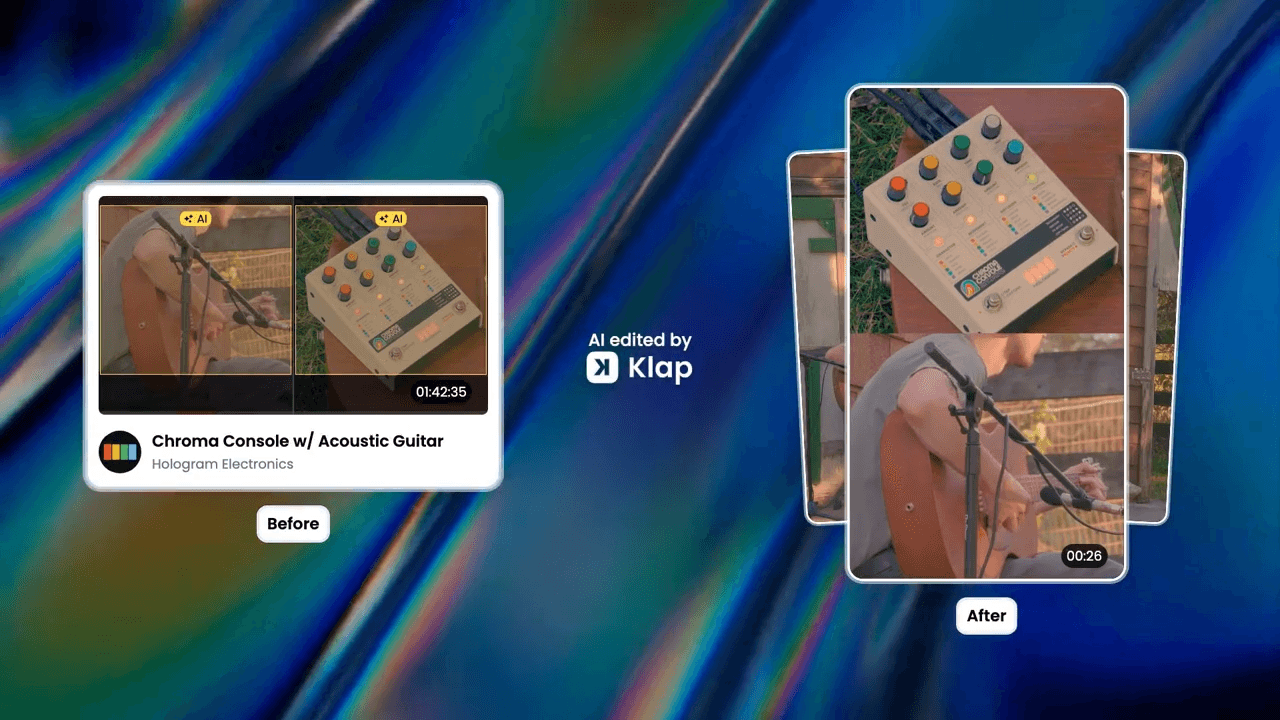
This article explains how to clip YouTube videos for TikTok by turning longer content into short, engaging segments formatted for vertical viewing. It covers three tools including Klap for automated clipping, Opus Clip for speaker-focused edits, and VEED.io for AI and manual control. Each section walks through upload, clipping, and export with clear, practical steps. For more tips and workflow guides, explore the Klap blog.
Spending Hours Finding the Right Moments From Your YouTube Videos?
You’ve already done the hard part by scripting, filming, and editing a high quality YouTube video. Leaving it only on YouTube means missing out on millions of potential viewers on TikTok.
The barrier for most creators is not a lack of content. It is the time required to find the gold inside a long video. Manually hunting for 30-second hooks, reframing every shot, and typing captions from scratch turns a creative win into an administrative headache. It should not take five hours to edit five minutes of highlights.
In this Klap article, we explain three ways to clip YouTube videos for TikTok. You’ll learn about AI-powered tools that automate highlight detection and clipping, plus a manual option for when you want more control.
Why Listen to Us?
At Klap, we help over 2.2 million creators and teams turn long-form videos into short, publish-ready clips for TikTok, Reels, and YouTube Shorts. That volume of real content gives us direct data on what actually works: which clip lengths retain viewers, how AI can identify the best moments, and where manual editing slows creators down. This guide reflects those real-world patterns, not theory.
What Does It Mean to Clip YouTube Videos for TikTok?
Clipping YouTube videos for TikTok means taking a short segment from a longer horizontal video and adapting it for vertical mobile viewing. This involves three changes: converting 16:9 footage to 9:16 vertical, moving the most engaging moment to the beginning, and adding burned-in captions for viewers watching without sound.
Why Clip YouTube Videos for TikTok
- Reach a New Audience: TikTok has over 1.5 billion monthly users. Many will never find you through YouTube search alone. Clips act as trailers that drive new viewers to your longer content.
- Let the Algorithm Work For You: TikTok surfaces content based on engagement, not subscriber count. A single clip from a small creator can get millions of views. Read more about how creators use Klap to create viral content.
- Work Once, Publish Many Times: One YouTube video can produce 5 to 10 clips. One day of filming becomes two weeks of consistent social media presence.
- Start With Clean Footage: YouTube does not add watermarks to downloaded videos. Unlike TikTok videos that carry platform branding, your source footage is ready to use.
- Data-Driven Content Testing: Clipping serves as a low-stakes testing ground. Analyze which segments perform best as shorts to gather feedback on which topics or hooks resonate most, then apply that data to your next long-form video.
How to Clip YouTube Videos for TikTok
Method 1: Using Klap
Klap is built for clipping long videos into short, viral clips. It works entirely in your browser. No software download required.
Step 1: Paste Your YouTube Link
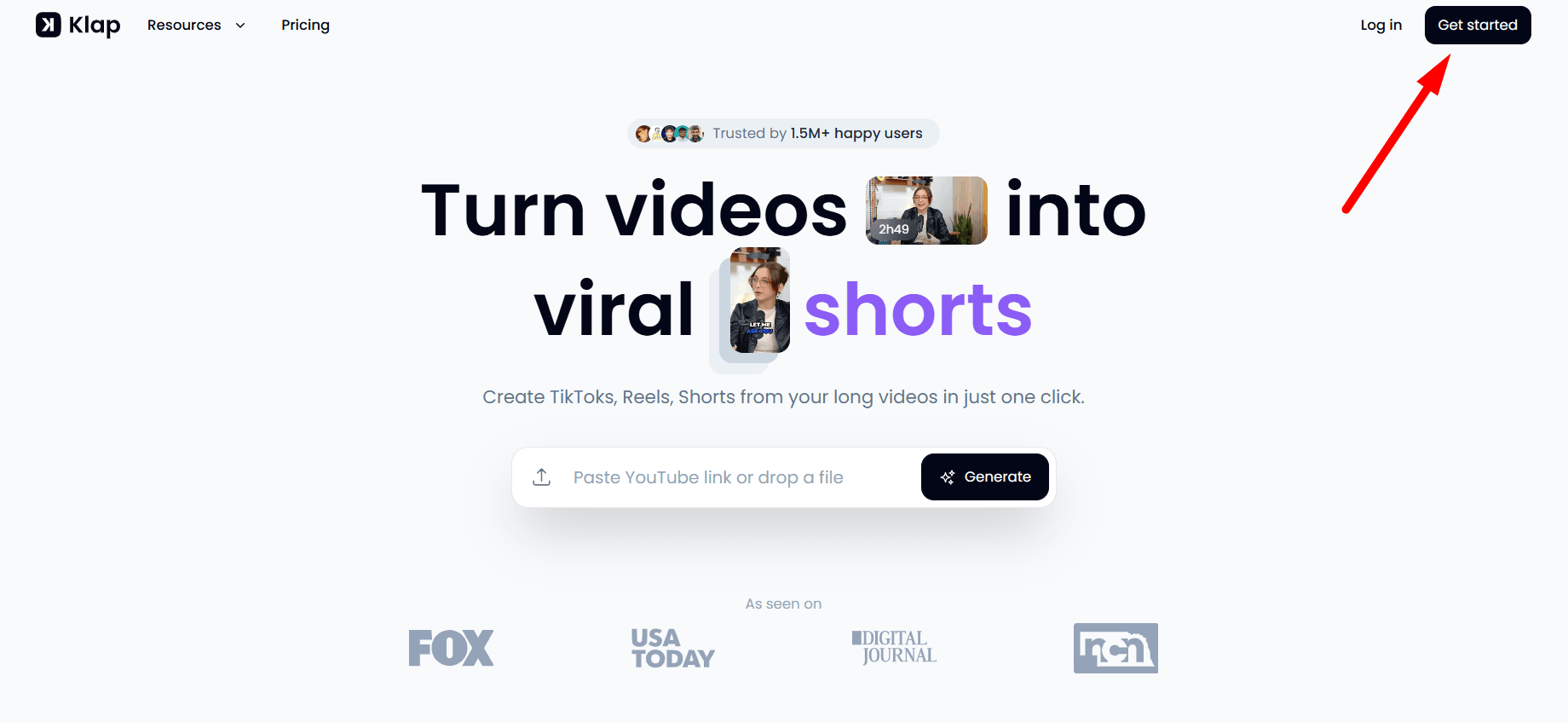
Go to klap.app and click "Get started" to log in.
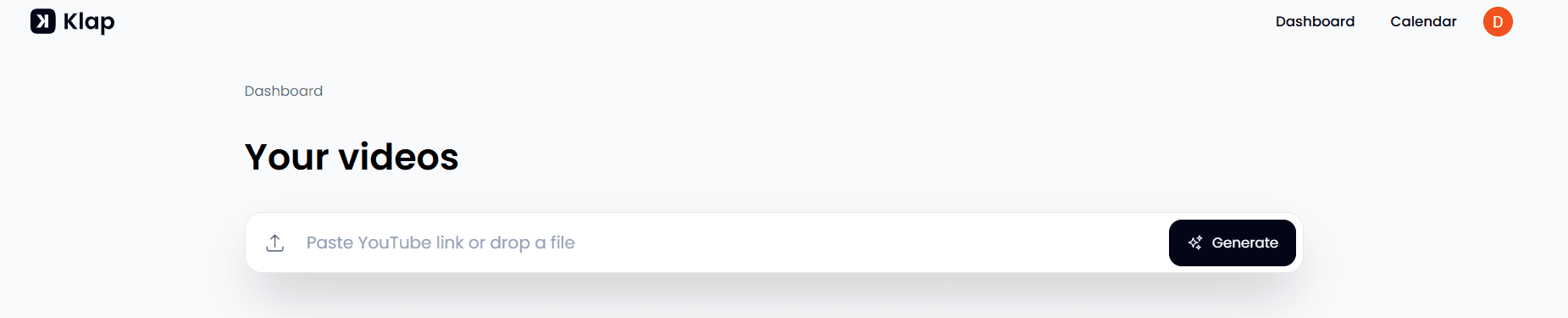
From your dashboard, paste the YouTube URL of the video you want to clip or upload a file directly. Click Generate to start.
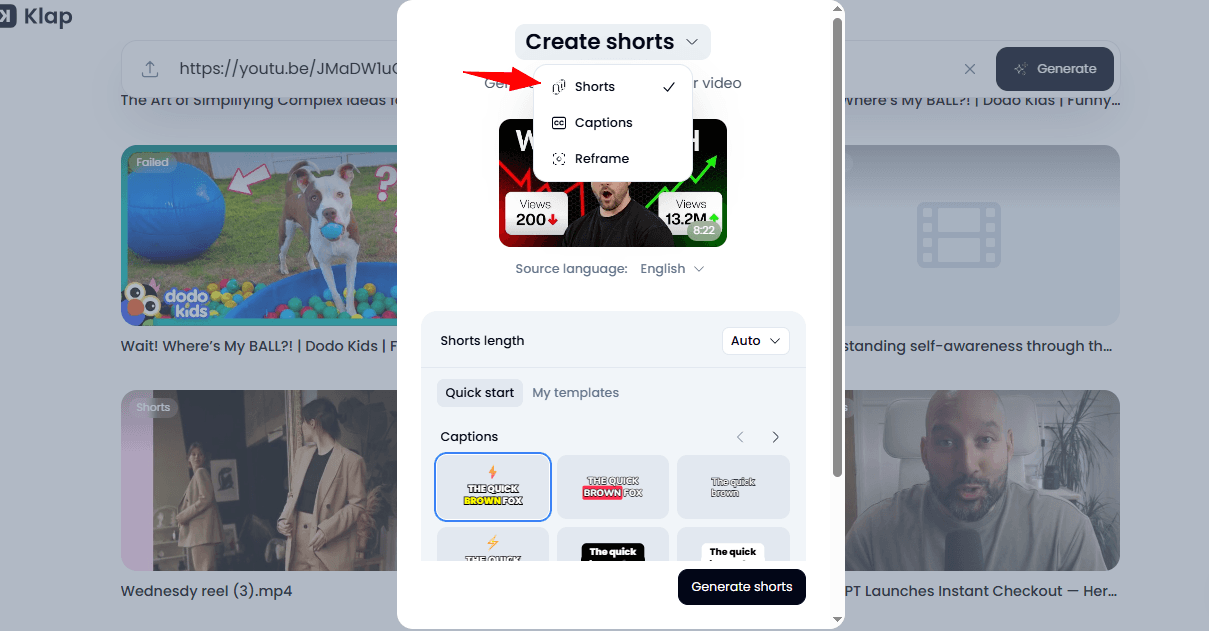
Step 2: Configure Your Clipping Settings
Before the AI begins isolating segments, define your output parameters in the settings panel:
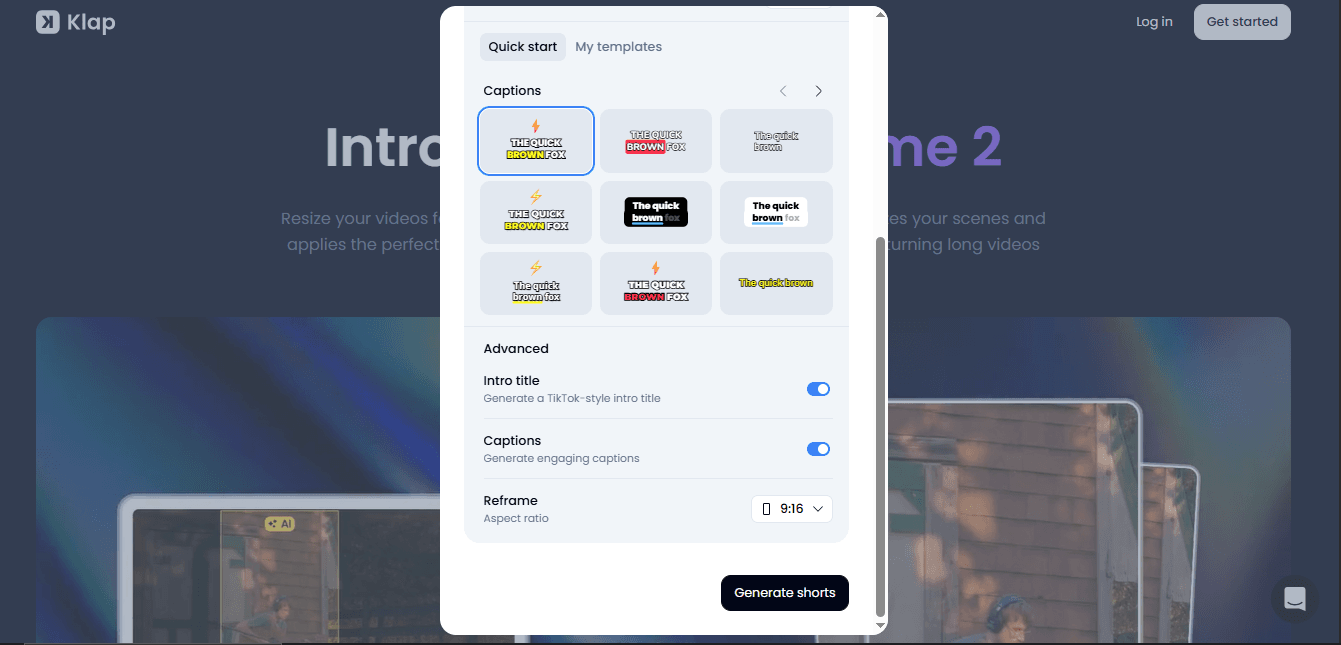
- Set the Aspect Ratio to 9:16 Vertical: This ensures the AI optimizes the extraction for TikTok’s vertical environment.
- Define Clip Length: Choose Auto to allow Klap to find natural starting and ending points based on the context of the speech, or manually cap clips at 30 seconds or 1 minute.
- Confirm Aspect Ratio: Verify the aspect ratio is set to 9:16 vertical; this is the standard for TikTok and ensures your content fills the entire phone screen.
- Enable Auto-Captions: Toggle this on to ensure every extracted segment is immediately readable without audio.
Step 3: Let the AI Isolate Clips
Klap scans your video and identifies the most engaging segments based on speech patterns, topic shifts, and energy changes. This takes a few minutes for a typical YouTube video. The system then cuts these segments into short clips, usually 15 to 90 seconds long.
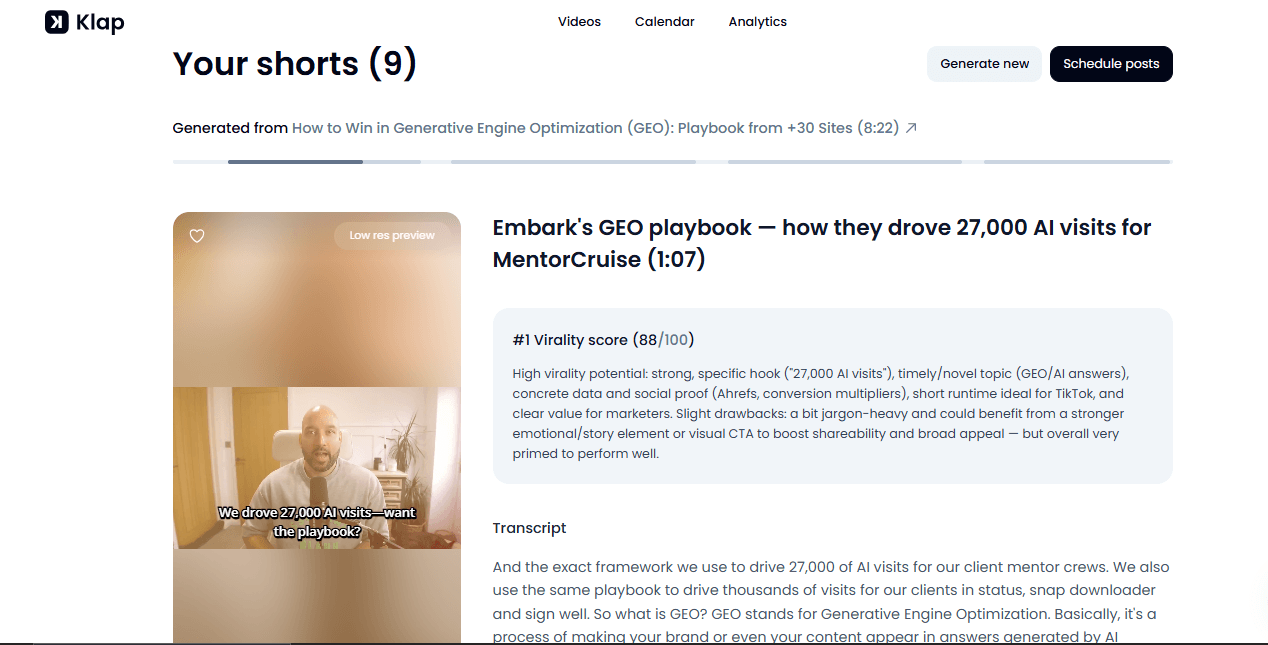
Once processing completes, Klap displays a list of generated clips. Each clip corresponds to a distinct topic or moment from your original video.
Step 4: Polish Your Clips
Each clip receives a Virality Score from 1 to 100. This score predicts how likely the clip is to perform well on TikTok based on factors like hook strength and pacing. Start with the highest-scoring clips. Click the pencil icon on any clip to open the editor. From the toolbar, you can:
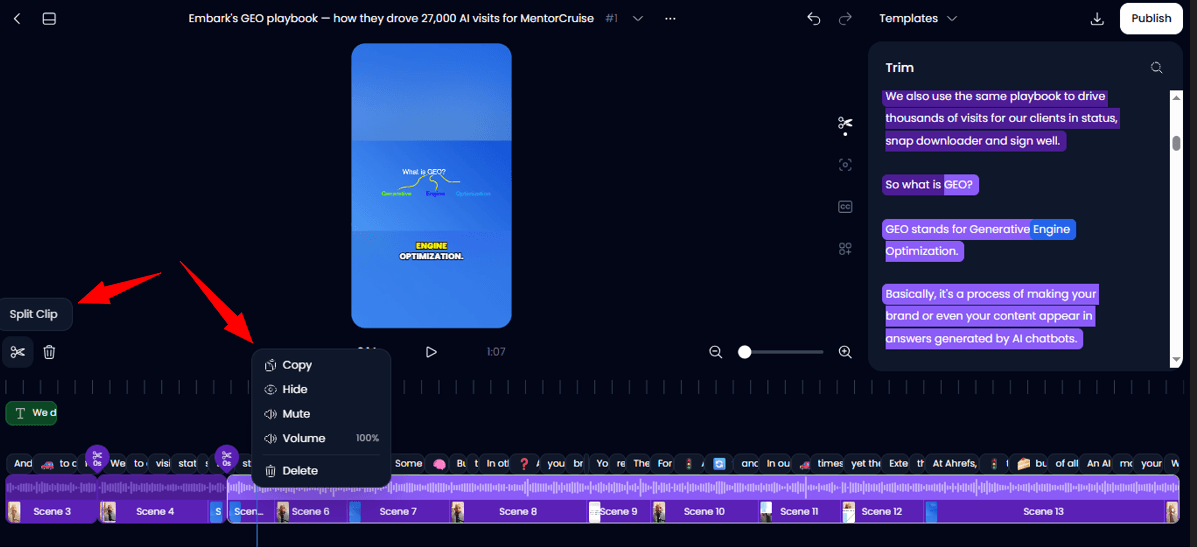
- Clip by Script: Use the right-hand panel to trim your video simply by deleting text from the captions. When you remove a word or sentence from the script, Klap automatically deletes that specific part of the audio and video.
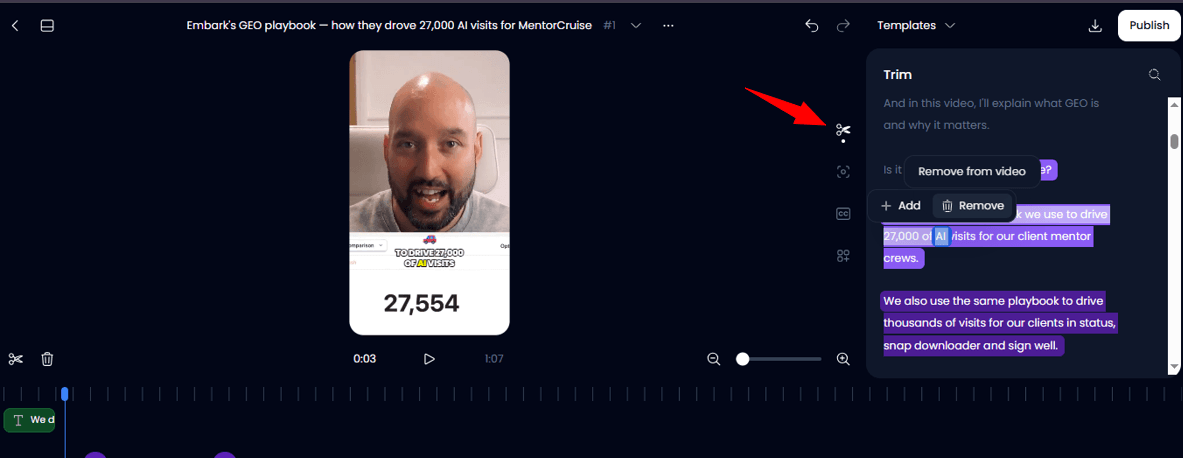
- Split and Hide: Use the Split tool on the left-hand side to break a clip into two. If you only want to keep one part, you can right-click a split section to hide or delete it. This is the fastest way to manually clip precisely the moment you want.
- Reframe & Style: Verify the camera is centered on the speaker and customize the caption fonts and colors to match your brand.
Step 5: Schedule, Download, or Publish
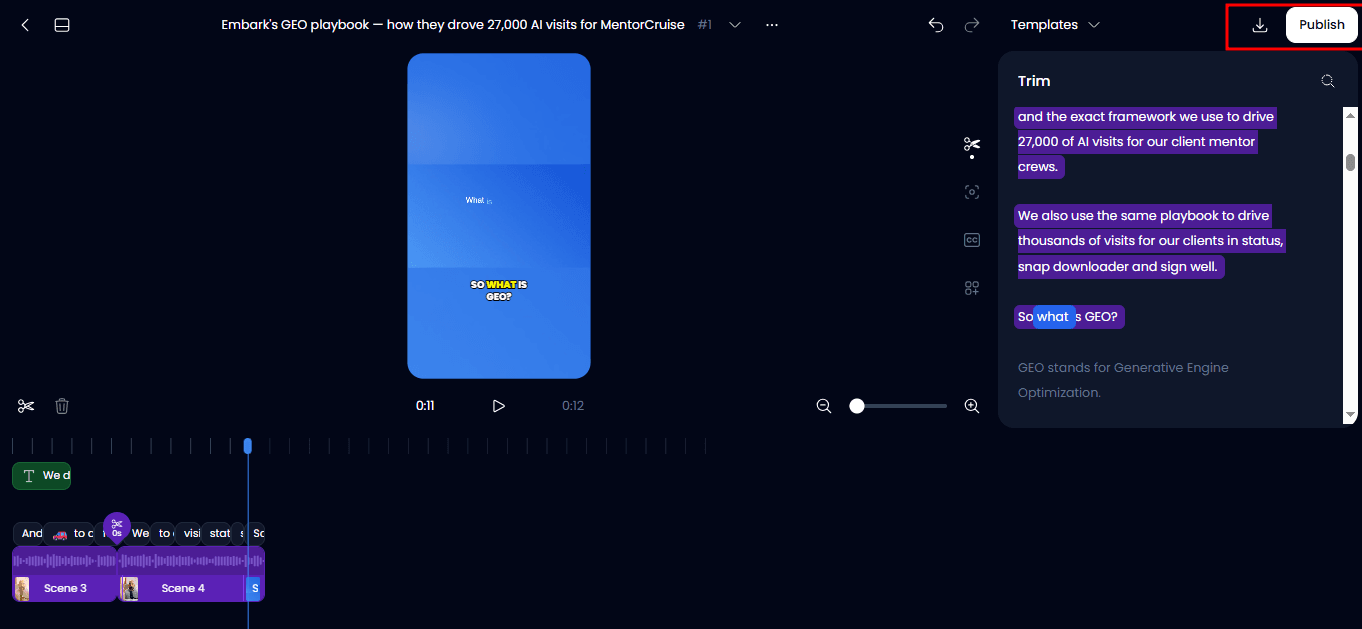
Once your clip is polished, click Download to save the file or click Publish to post directly to your linked TikTok account.
Method 2: Using Opus Clip
Opus Clip focuses on identifying speakers and their key statements. It is useful for interviews, panel discussions, or any video with multiple people.
Step 1: Upload Your YouTube Link
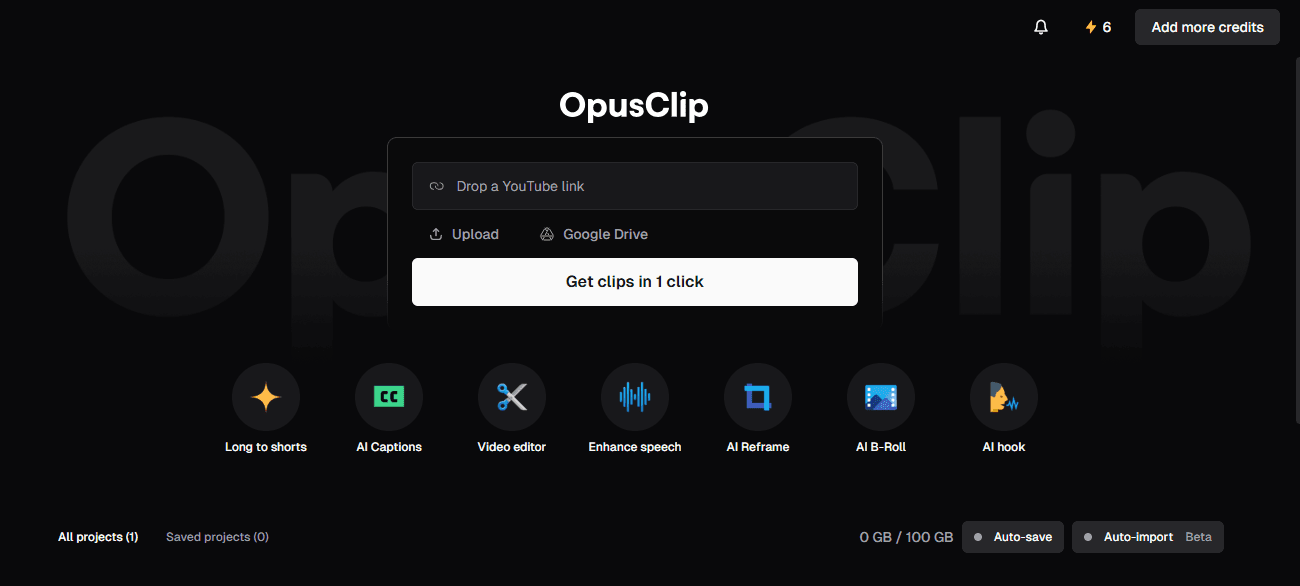
Visit opus.pro, sign in, and paste your YouTube URL. The AI will immediately begin transcribing the audio and searching for "hooks," moments with high viral potential.
Step 2: Choose Your Best Hook
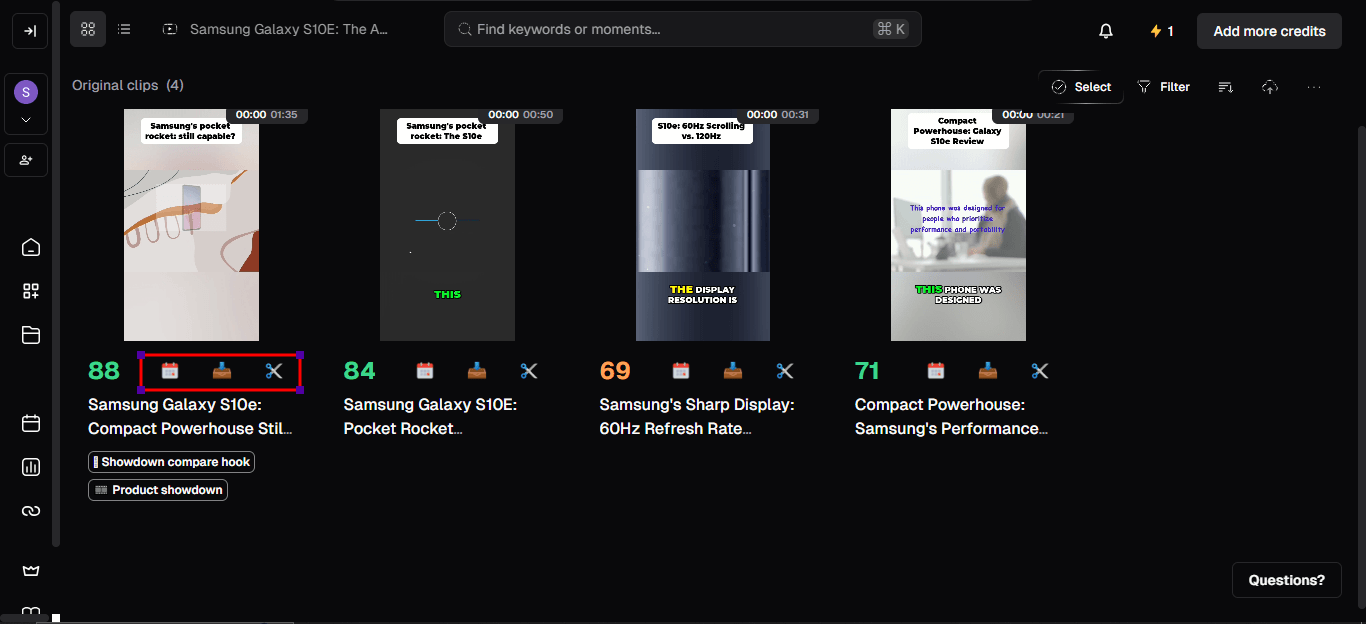
Opus Clip ranks every segment with a Virality Score. At this stage, you can immediately download in HD if the clip looks perfect or post it directly to TikTok. If you want to make changes, click Edit Clip to open the editor.
Step 3: Clip and Trim via Script
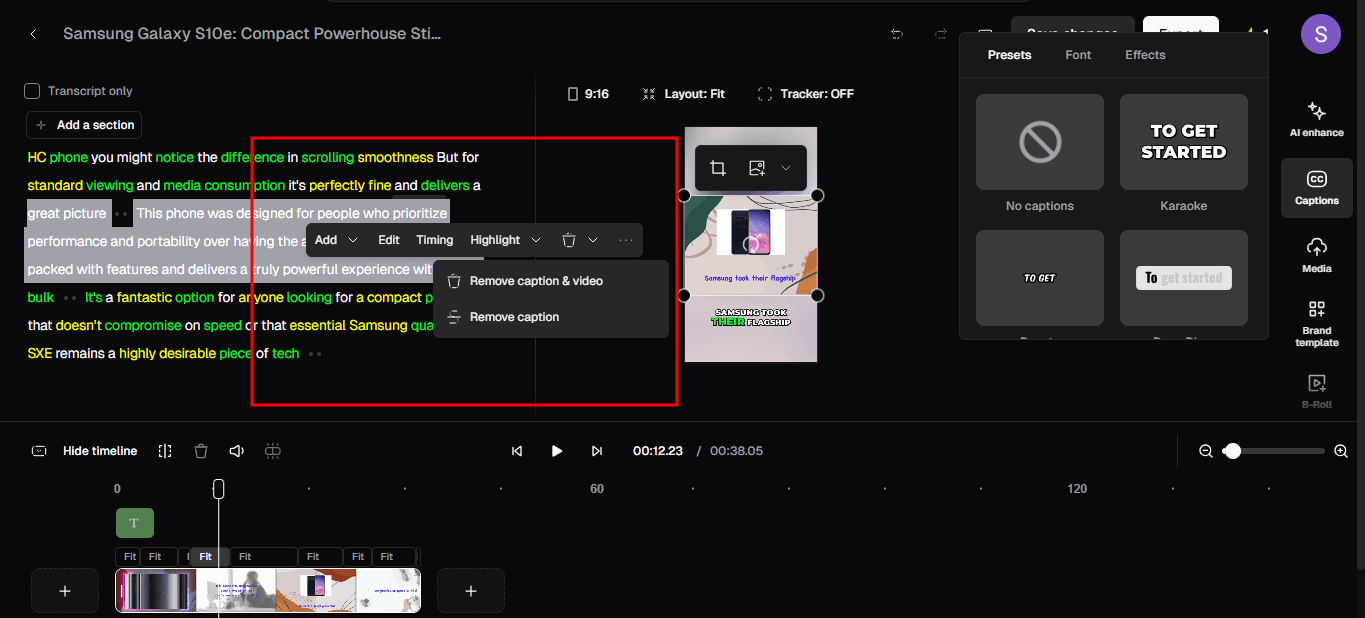
Inside the browser-based editor, you can edit your video like a Word document:
- Cut by Text: Highlight any word or sentence in the transcript. You can choose to Remove Caption (keep the video/audio but hide the text) or Remove Caption & Video (delete that part of the clip entirely).
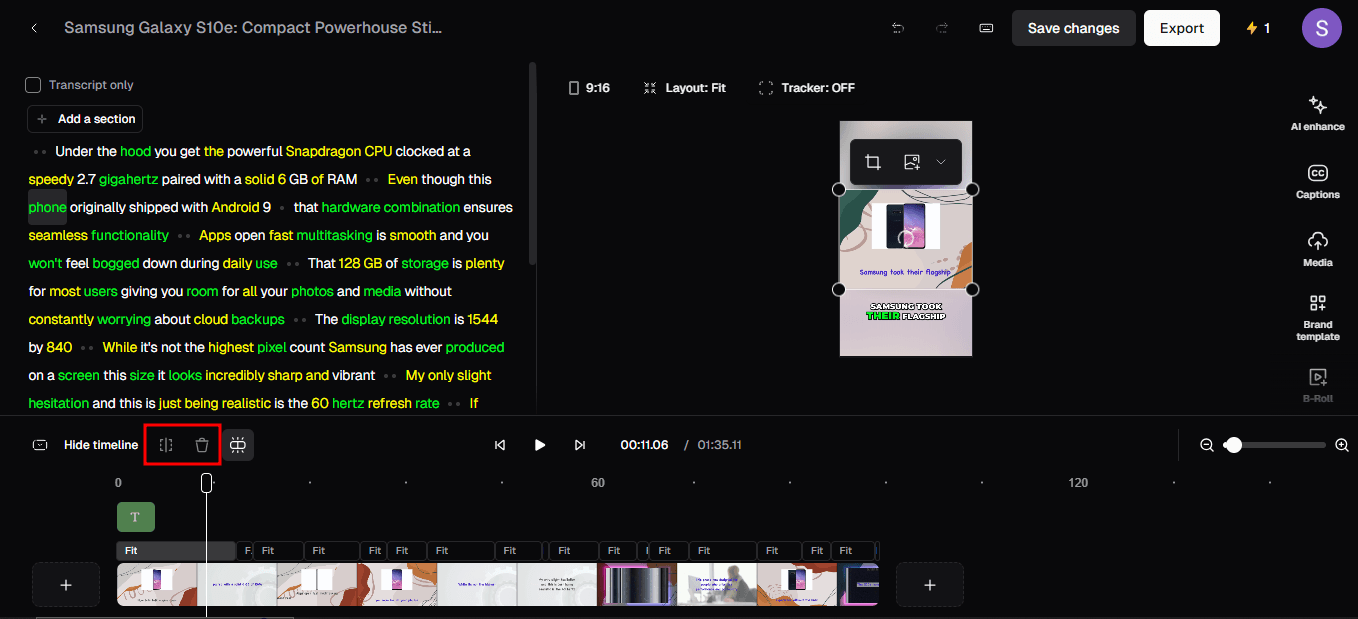
- Split and Delete: Use the Split tool on the timeline to break a clip into parts. If a segment doesn't fit, just right-click and delete it to shorten the clip to the exact moment you want.
Step 4: Export and Publish
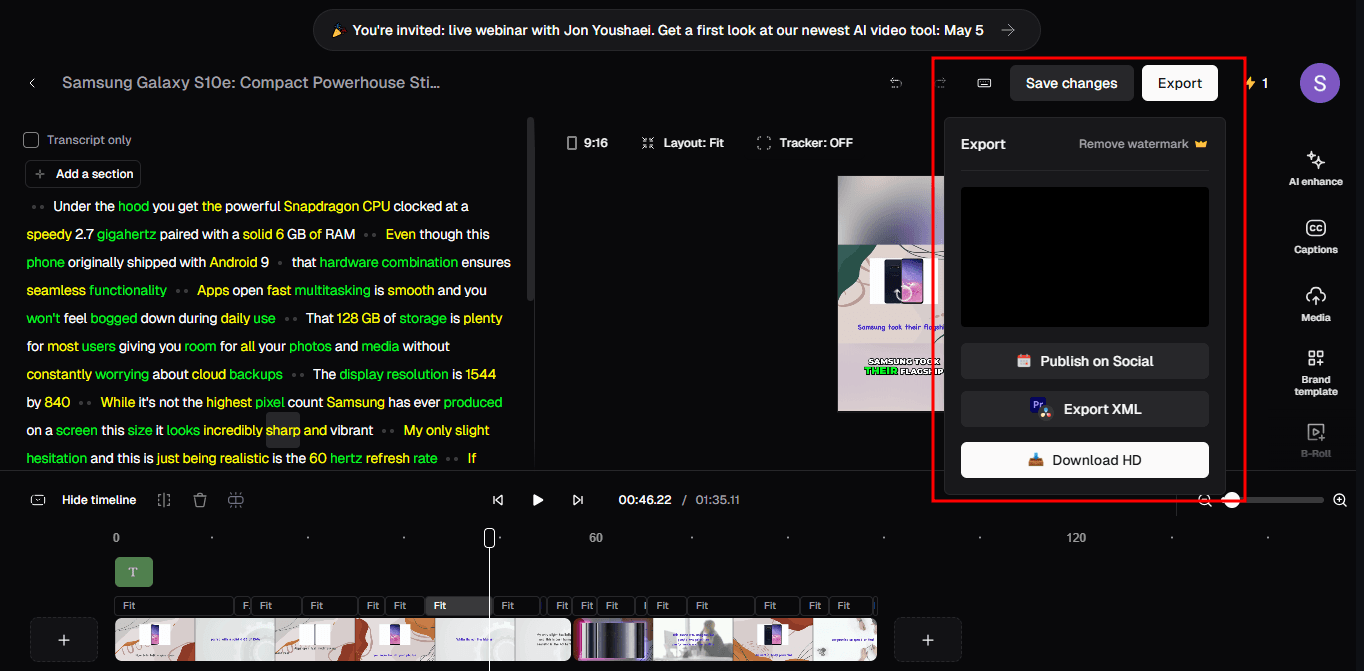
When the clip is ready, you have several professional options:
- Download HD: Save a high-resolution version of the clip to your device.
- Export XML: If you want to do further professional editing, you can export the project file for Premiere Pro or DaVinci Resolve.
- Publish to TikTok: Post the clip directly to your linked TikTok account or schedule it for later to keep your feed active.
Method 3: Using VEED.io
Unlike Klap and Opus Clip, VEED.io does not accept YouTube links directly. You must download the YouTube video as an MP4 file using a separate tool before you can upload and clip. This adds an extra step to your workflow.
Step 1: Download Your YouTube Video
Use a tool like 4K Video Downloader to save your YouTube video as an MP4 file, but first, make sure you have the rights to reuse or download the content. VEED does not accept YouTube links directly, so this step is required.
Step 2: Upload Your Video
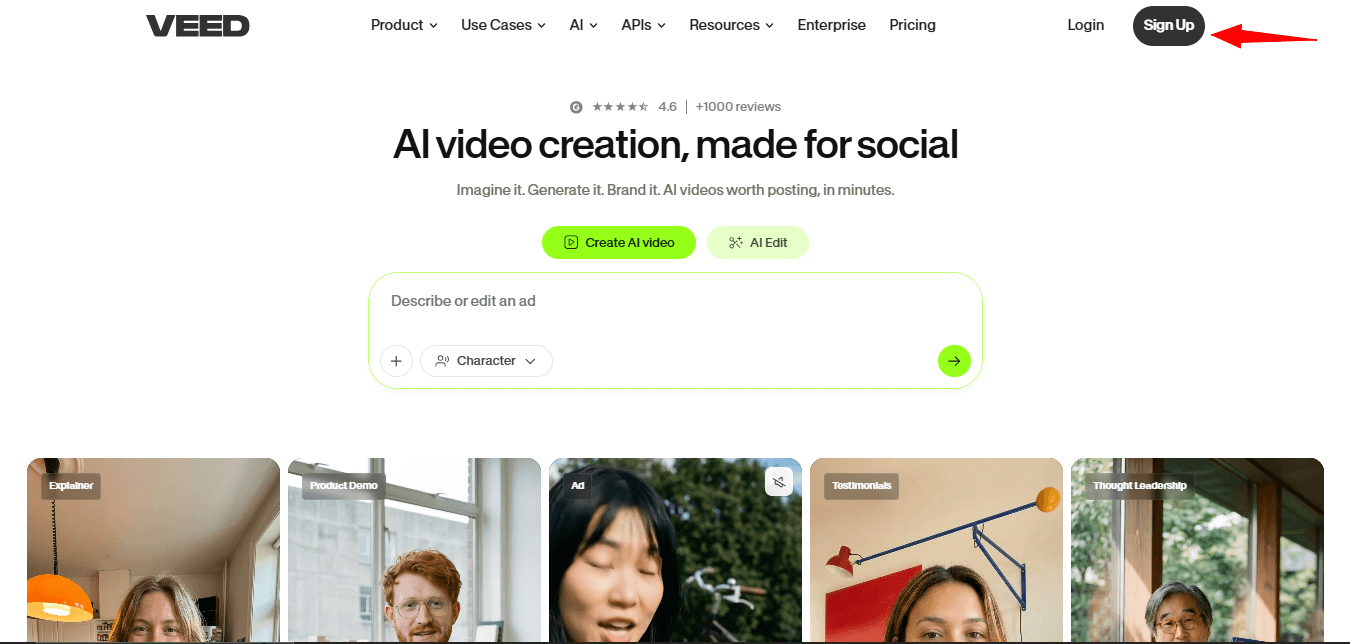
Go to veed.io and sign up for a free account.
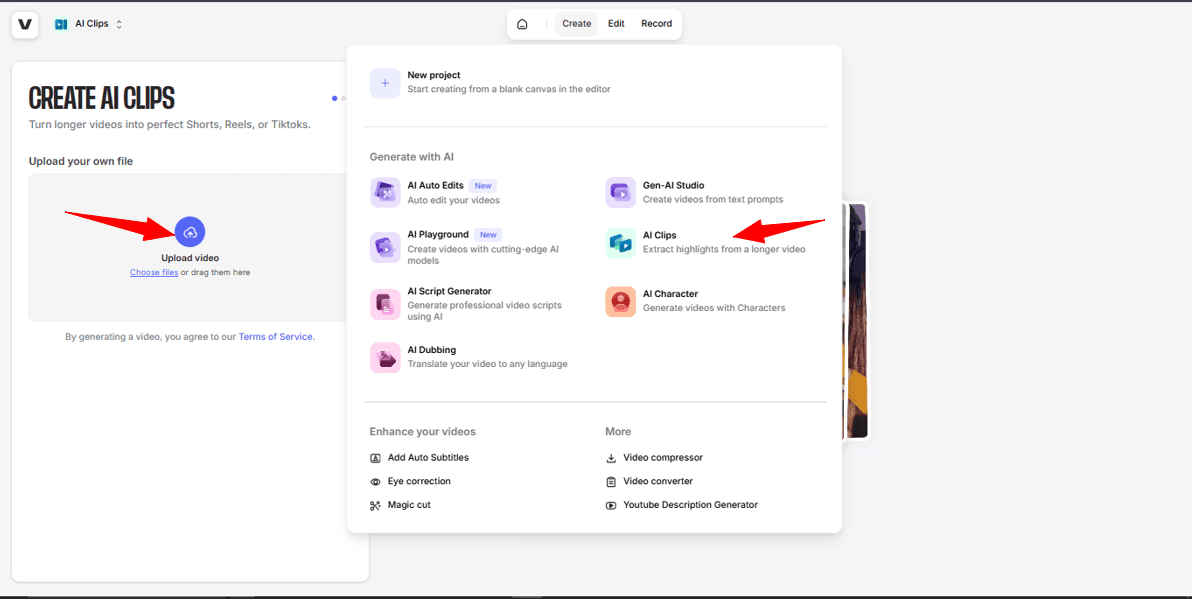
Click Create and choose AI Clips. Upload your downloaded YouTube video file.
Step 3: Configure Your Clipping Settings
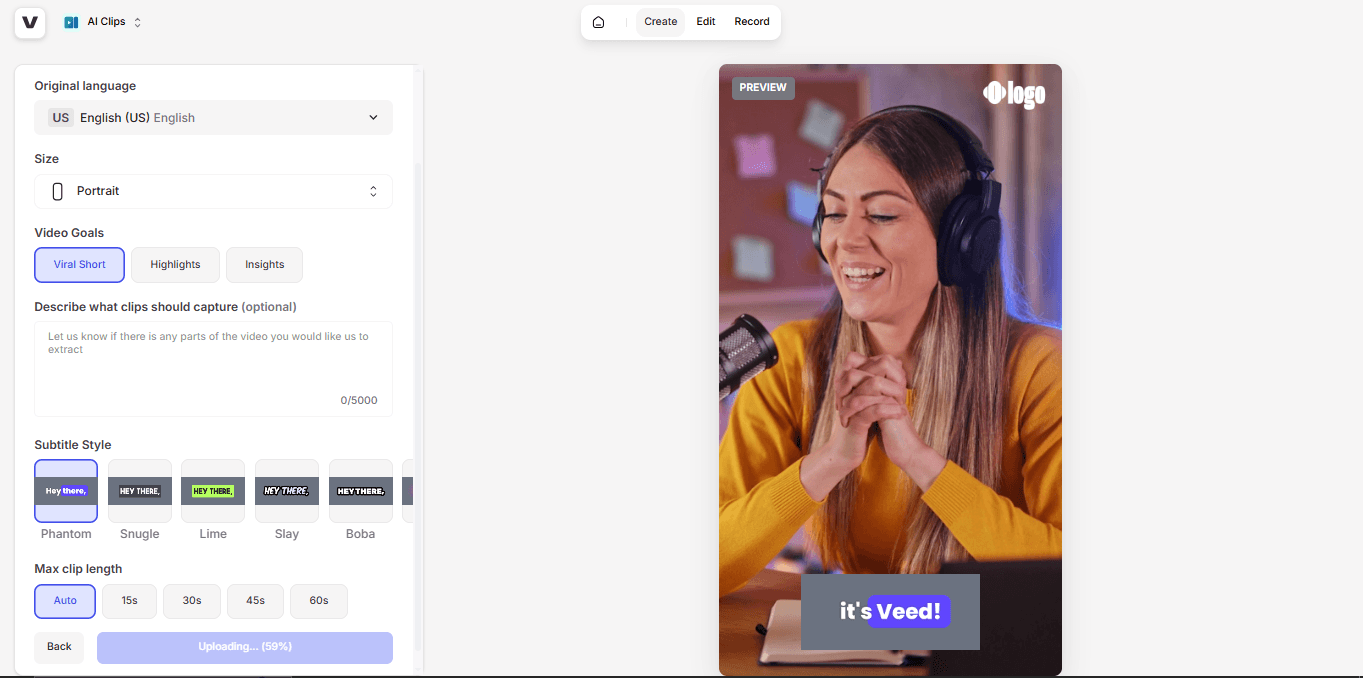
Select your video's spoken language. Set the size to Portrait for TikTok (9:16). Optionally, describe what kind of clips you want to capture, for example, "the funniest moments" or "key takeaways from the intro." Choose the maximum clip length or set it to Auto. Options include Auto, 15 seconds, 30 seconds, 45 seconds, and 60 seconds.
Step 4: Let the AI Analyze
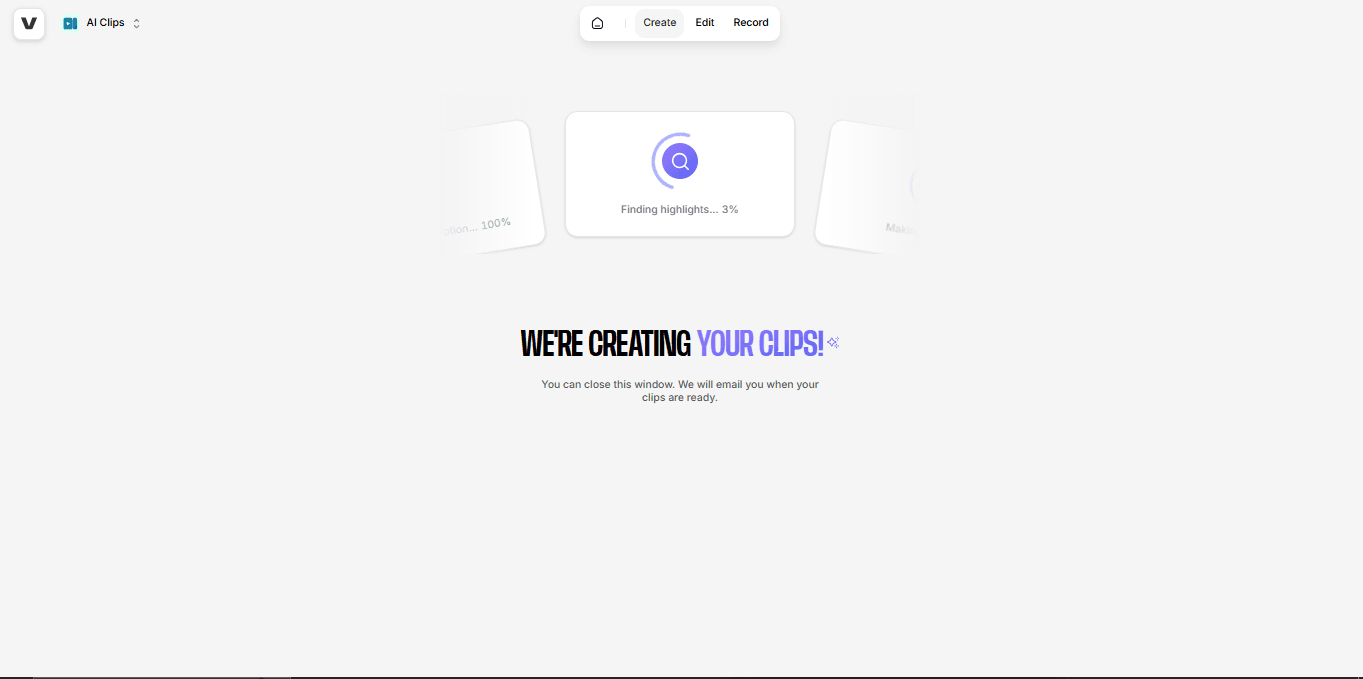
The AI scans your video and notifies you when clip creation is complete.
It returns suggested clips with scores based on flow, hook, interest, and engagement. From the results page, you can download clips directly, trim them, or enter the editor for further edits.

Step 5: Review and Trim
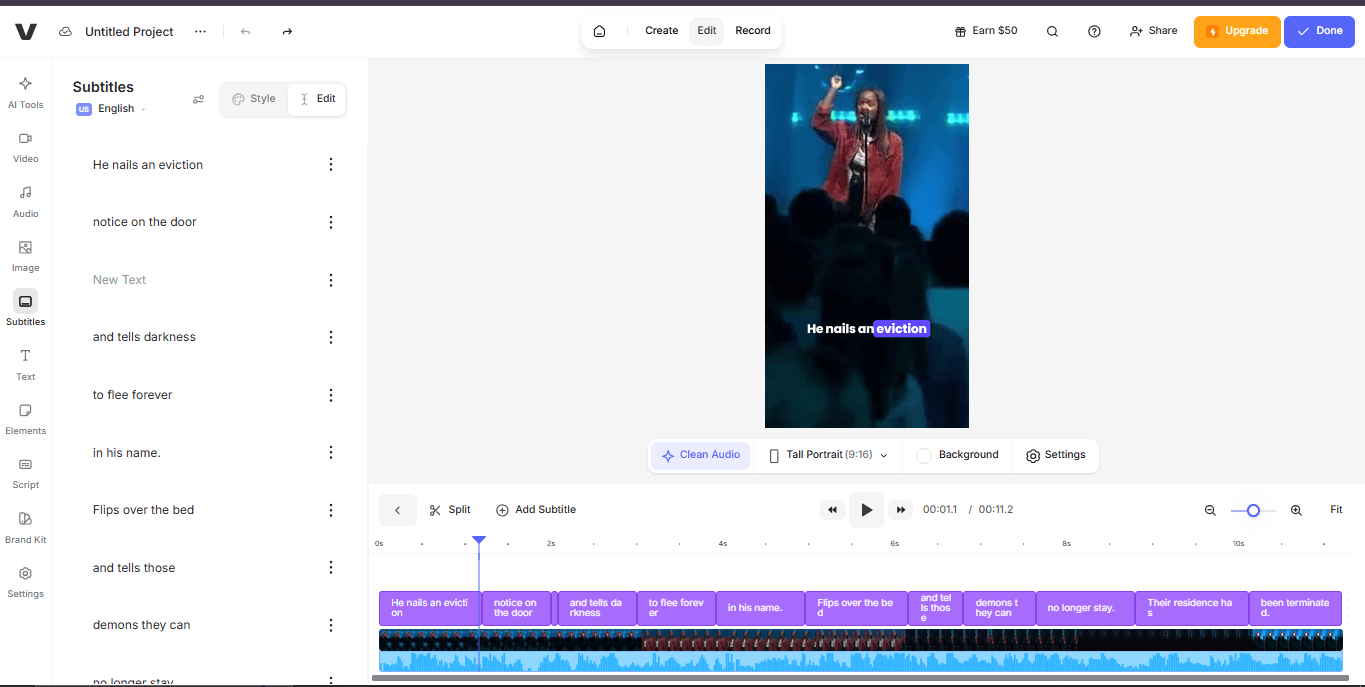
In the editor, you can manually clip by moving the playhead, splitting with S, and deleting unwanted sections. Click on the script to remove spoken words, and VEED automatically cuts those corresponding sections from the video.
Step 6: Export for TikTok
When you are satisfied with your clip, click Done. Select your preferred export quality. The free tier includes watermarked exports. Click Export to save the file to your device.
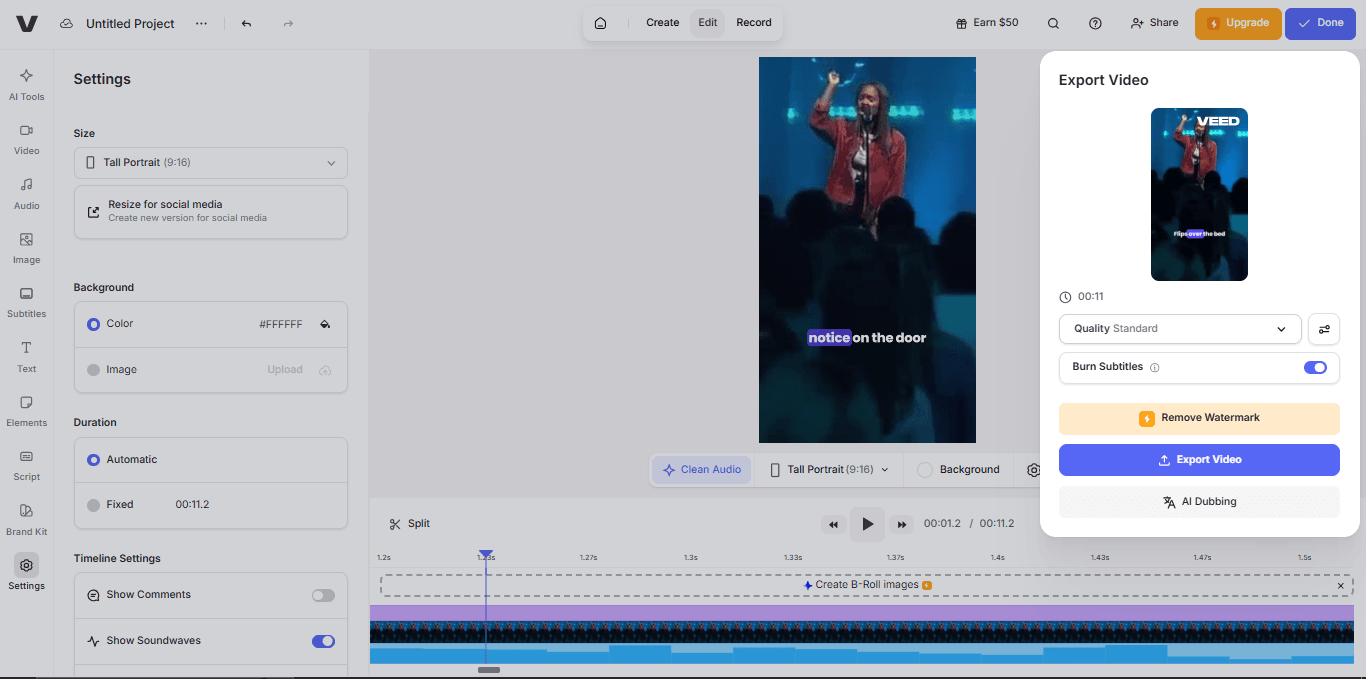
VEED does not currently support direct TikTok publishing from the dashboard. Download the file and upload it manually to TikTok.
Best Practices for Clipping YouTube Videos for TikTok
Cut the First Three Seconds Ruthlessly
YouTube creators often start with "Hey guys" or "Welcome back." TikTok viewers have already scrolled past ten videos. Start your clip at the first interesting word or visual. Open the video in your editor, find the first frame where the speaker starts making their point, and cut everything before it.
Remove Every Pause Longer than Half a Second
TikTok pacing is faster than YouTube. Listen to your clip while watching something else. If you can look away and not miss anything, the clip is too slow. Cut dead air ruthlessly. Use your editor's waveform view to spot gaps in audio. The result should feel slightly "too fast" when you first watch it; that is usually the right pace for TikTok.
Position Captions Above TikTok's UI buttons
TikTok overlays like the like button, comment bar, and profile icon cover the bottom right and bottom center of the screen. Move your captions to the middle or upper middle of the frame. As a test, imagine a black bar at the bottom of your preview to simulate the TikTok interface. If your captions sit inside that bar, move them higher.
Clip in Batches, Not One at a Time
It is more efficient to process 10 clips at once. Klap allows you to view a full list of AI-generated hooks from a single link. This "content multiplication" strategy is a no-brainer for creators looking to maintain a daily posting schedule without burning out.
Watch Your Clip Without Sound First
If your captions don’t tell the story alone, you’ll lose muted viewers. Adding context through professional techniques like lower thirds or headline overlays ensures your clip is engaging even in silence.
Start Clipping Your YouTube Videos With Klap
Your YouTube library is full of valuable insights ready to reach a wider audience. Clipping your existing footage for TikTok makes your message accessible to viewers who prefer short, 60-second segments. It is the fastest way to extend your content's lifespan and maintain a consistent presence across multiple platforms.
Klap takes care of the most time consuming parts of the process by identifying strong hooks, adjusting your video for vertical viewing, removing filler words, and generating burned in captions. Instead of spending hours editing manually, you get high quality clips that are formatted and ready to publish in minutes.
Stop letting your best content sit on just one platform. Transform your YouTube videos into a viral TikTok presence and start growing your following today.
