TikTok Format Size Guide: Dimensions and Export Settings
Other

The recommended TikTok format size is 9:16 vertical at 1080 × 1920 pixels. Web and API upload routes add their own file size and duration limits, so the master file isn't always the file you should send.
The catch is the 50 MB maximum in TikTok's Web Video Kit specifications. A sharp, high-bitrate export can exceed that ceiling even when its dimensions are ideal. Good delivery starts with a vertical master, then a separate export that fits the actual publishing route.
TikTok Format Size at a Glance
Use 1080 × 1920 in a 9:16 frame as your editing master, then select the delivery requirements for the route you'll use. Don't treat an integration, a manual app upload, and a paid placement as interchangeable destinations.
TikTok upload specs by route
| Upload route | Dimensions | Duration | File size |
|---|---|---|---|
| Creator master (recommended) | 1080 × 1920, 9:16 | Up to 3 minutes | Keep an archive master; enforce the selected upload route's cap |
| Web Video Kit | MP4, at least 540p; use 9:16 | 3–60 seconds | 50 MB maximum |
| Share Video API | MP4, at least 540p | 3–60 seconds | 50 MB maximum |
| Content Posting API | 360–4096 px per side | Up to 3 minutes; 5 or 10 minutes on some accounts | Up to 4 GB |
| In-feed ad (Travel Ads) | 540 × 960 minimum, 9:16 | 5–60 seconds, 15 recommended for the cited in-feed guidance | Check the selected placement's asset requirements |
| Global App Bundle ad | 720 × 1280 minimum, 9:16 | Follow the selected placement's duration specification | Follow the selected placement's upload cap |
The ad rows need particular care. TikTok's Travel Ads specifications recommend vertical 9:16 assets with a 540 × 960 minimum, while its Global App Bundle specifications recommend 9:16 with a 720 × 1280 minimum. Those are placement-specific minimums, not competing definitions of the ideal editing canvas.
Read the table as a delivery checklist
The creator master row describes the file you build and retain. It isn't a universal upload specification, and it doesn't imply a single file-size allowance for every account or publishing method.
The remaining rows describe delivery constraints. A file must satisfy the whole row, not just the dimension cell. Correct geometry won't rescue an unsupported container, an overlong clip, or a file that exceeds an endpoint's size cap.
- Editing your own footage: Start with the master canvas and preserve a clean, high-quality export.
- Sending through a scheduler: Identify the integration's actual TikTok endpoint before choosing its export preset.
- Preparing an advertisement: Use the selected placement's requirements, not a generic organic-video checklist.
Practical rule: Choose the upload route before the final export. Otherwise, you're guessing which constraints the file needs to satisfy.
A browser-based publishing tool isn't automatically the Web Video Kit, either. Identify the actual workflow rather than assuming every upload made in a browser follows the same technical rules.
Why 9:16 at 1080 × 1920 Is the Master Size
Think of the master canvas as the blueprint for the finished clip. It establishes where the speaker, captions, product demonstration, and graphics belong before you decide how heavily to compress the delivery file.
TikTok's business production guidance emphasizes full-screen presentation and checking that creative fits a 9:16 frame. The commonly used 1080 × 1920 export gives you Full HD in portrait orientation, while 720 × 1280 preserves the same shape with less spatial detail.

Reframe the conversation, not the entire room
Say you're repurposing an interview. The original shot includes the host, guest, microphones, and a wide stretch of desk. Shrinking that complete composition into a portrait canvas keeps everything technically visible, but makes the speaking person unnecessarily small.
Crop around the active speaker instead. Leave enough room for natural head movement and gestures, then change the crop when the conversation changes speakers. If the guest demonstrates a product, widen or redesign that moment rather than forcing the same tight portrait crop throughout.
The trade-off is deliberate: you lose peripheral scenery to preserve meaningful detail. That's usually preferable to retaining the whole room while making the expression or product impossible to read comfortably.
- Faces: Judge the crop at phone size, not only on a large editing monitor.
- Captions: Keep letters large enough to read without letting text consume the entire composition.
- Demonstrations: Preserve the object and the action together, even when that requires a different layout.
Keep a master you can reuse
A lower-resolution export can be useful for constrained delivery, but it shouldn't become the only copy you retain. Captions and product details give you less room for compromise once compression softens their edges.
The same vertical geometry also suits Instagram Reels, YouTube Shorts, and mobile Stories. Reusing the composition saves layout work, although each platform still needs its own interface and delivery checks.
Preview the composition full screen on a phone. If the speaker feels properly scaled and the demonstration reads without zooming, the geometry is doing its job. That test checks framing, not upload compatibility or safe-zone compliance.
How to Choose a File for Each Upload Route
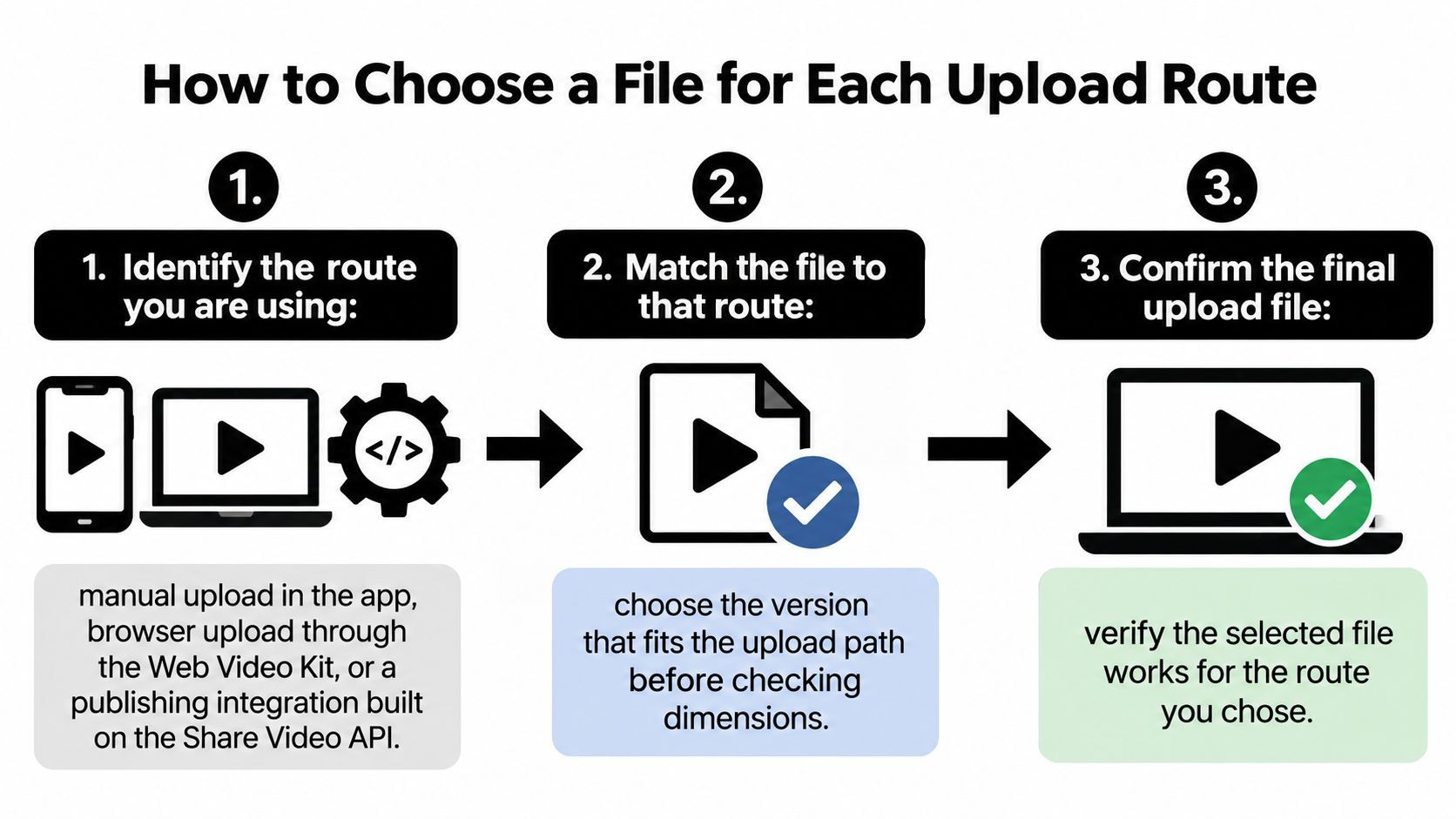
Start with the destination, not the resolution menu. An export preset called “TikTok” can't tell whether you're posting manually, sharing through a web integration, or submitting an ad.
Identify the route and its restrictions
-
Manual upload in the app: Use the portrait master, then confirm the account's available publishing duration. Don't assume longer-video access on one account applies to another account you manage.
-
Web Video Kit or Share Video API: Prepare a compact MP4 rather than automatically sending the archive export. Inspect the completed file's size and duration, because a preset name doesn't prove compliance.
-
Content Posting API integration: Check the container, encoded video codec, frame rate, dimensions, and file size together. Renaming a file extension won't convert its underlying media.
-
Paid placement: Select the ad product first. A file that passes an organic integration can still miss the requirements of a particular campaign placement.
TikTok's Content Posting API media guide accepts MP4, WebM, and MOV, supports H.264, H.265, VP8, and VP9, requires 23–60 FPS, permits 360–4096 pixels per side, and allows files up to 4 GB. Its account-duration guidance describes 3-minute publishing access, with 5- or 10-minute access on some accounts.
Those allowances don't transfer automatically to narrower sharing workflows. Treat the endpoint as the contract your exported file must meet.
Check what's inside the file
Container and codec aren't the same thing. MP4 is the wrapper; the video stream inside it has its own encoding. MediaInfo is useful for checking both when an integration rejects a file that appears normal in your file browser.
For a practical explanation of those choices, use our guide to the best video format. When compatibility matters more than squeezing out the smallest possible file, a conventional MP4 export is easier to troubleshoot than an unusual container-and-codec combination.
The best-looking file on your workstation isn't necessarily a valid delivery file.
A very large master can fail before TikTok ever evaluates its visual quality. It can also take longer to transfer, making a failed automated job more expensive to rerun.
Archive the master and send the route-specific copy. Give them distinct filenames, such as podcast-guest-master.mp4 and podcast-guest-web.mp4, so an editor or scheduler operator can identify the right asset without opening both.
Export Settings That Survive TikTok Compression
Recommended MP4 export settings
| Setting | Recommended value | Why it matters |
|---|---|---|
| Container | MP4 | Accepted by the web, share, and Content Posting API routes |
| Video codec | H.264 | Broad compatibility through the upload and transcoding workflow |
| Audio codec | AAC | Standard companion for MP4 uploads |
| Frame rate | 30 fps | Appropriate for talking-head footage; the Content Posting API accepts 23–60 fps |
| Resolution | 1080 × 1920 | Master canvas with room for captions and face tracking |
| Bitrate | 6–12 Mbps, constant or constrained VBR | Preserves more detail than a compatibility-floor encode |
| Delivery copy | Compact MP4 under 50 MB, at least 540p | Fits the Web Video Kit and Share Video API ceiling |
TikTok's video-package specifications recommend vertical creative, recognize a 540 × 960 minimum, and support common containers including MP4 and MOV. Render the finished composition, including the reframe and captions, rather than exporting a wide-format source inside an otherwise vertical project.
Give the encoder enough data
TikTok's automotive ad specifications document a 516 kbps minimum bitrate and a 500 MB file cap for that cited ad specification; neither should be mistaken for a universal organic-upload rule. For a portrait master, 6–12 Mbps with H.264 is a practical encoding target, not a TikTok-mandated quality setting.
The minimum is a compatibility floor. Encoding near it can leave obvious blocking in moving backgrounds and smearing around caption edges.
Finish the text treatment before the final encode. Burned-in captions become image detail, so inspect their edges, outlines, and animation after compression rather than judging only the editor preview.
Match frame rate to the source
Use H.264 video with AAC audio as the conservative MP4 combination. For interviews and educational footage, the table's frame-rate default is a sensible starting point.
Don't manufacture extra frames merely because an export menu offers them. Preserve higher source frame rates when fast movement benefits, but ordinary talking-head footage rarely justifies spending the delivery budget on duplicated frames.
Our video quality settings guide can help you separate resolution, bitrate, and frame rate when tuning a preset.
Budget the delivery copy separately
For a hypothetical 60-second clip, the recommended master bitrate produces approximately 45–90 MB of video data, before audio and container overhead. That calculation explains why the upper end can't fit the web-sharing ceiling.
For a 540p delivery copy, a practical starting target of about 3–4 Mbps produces roughly 22–30 MB of video data over the same duration, while a 15-second example stays below 8 MB before overhead. These are calculated estimates, not guaranteed output sizes.
- Retain headroom: Audio and container information also occupy space.
- Inspect the result: Variable bitrate can overshoot its nominal target.
- Check moving text: A small file isn't a successful export if the captions become difficult to read.
Keeping Captions and Faces Inside the Safe Area
A wide-format podcast can survive the crop and still fail visually. The automatic reframe follows the guest, but the subtitle baseline sits under TikTok's interface and the corner logo disappears into an overlay.
The speaker is present. The message isn't fully visible.
TikTok's reservation in-feed guidance warns that elements outside the safe zone can be covered or cropped, with the usable area changing according to ad format, caption length, interactive add-ons, and device presentation. It also notes that previews aren't device-specific; TopView's opening presentation and subsequent in-feed presentation have different conditions, with the in-feed safe zone more restrictive.

Protect what viewers need to understand
Aspect ratio describes the canvas, not guaranteed visibility. Avoid treating an arbitrary margin template as a promise that every placement will display every element.
-
Center the speaker's face in the middle band. Leave room for movement rather than tracking so tightly that a head turn sends the face into an edge. If the guest looks toward an object, preserve that relationship instead of mechanically centering the nose.
-
Place captions in the lower-middle band. Keep them away from the bottom interface, and review the longest caption rather than only a short opening phrase. A subtitle that suddenly wraps can cover the speaker's mouth or overlap another graphic.
-
Move logos and stickers away from the top and bottom edges. Branding shouldn't compete with account information or publishing controls. Keep essential product labels in the protected composition too.
-
Check at least two device previews before publishing. Treat this as a production check, not a guarantee of identical display everywhere. Where possible, inspect the processed upload on actual phones.
Review text as part of the composition
Our guide to on-screen text offers additional layout guidance. Shorten a title or change a line break before reducing text until it's barely legible.
Layout check: If hiding an overlay would remove the clip's main claim, that overlay belongs in the protected central area.
Also inspect speaker changes. A caption placement that works over an empty shirt in the opening shot may cover a product held up later. Safe framing requires watching the whole clip, not approving a thumbnail.
Worked Example and Pre-Upload Test
Say you're extracting a practical answer from a podcast episode. The guest explains how to prepare a product demonstration, but the useful advice comes after introductions and a question that makes sense only in the full episode.
Don't export that entire exchange just because it's already a continuous passage. Build a self-contained clip with an understandable opening, the useful explanation, and a clear ending.
Cut a complete thought
TikTok's ad preview guidance lists 5–60 seconds for the cited in-feed advertising format and recommends 15 seconds. That recommendation belongs to ad creative; it isn't a universal organic-video limit.
For this hypothetical edit, make a short version that delivers a hook and payoff within that recommended opening window. If the demonstration needs context, create an alternate cut that remains within the chosen route's duration allowance.
- Open with the answer: Replace a vague reference such as “that's the mistake” with the sentence that identifies the mistake.
- Preserve necessary context: Don't cut qualifications that change the meaning of the advice.
- End after the payoff: Remove the host's transition into the next topic unless it adds something the viewer needs.
A concise edit shouldn't feel incomplete. If the explanation requires a longer organic version, make that a separate editorial choice rather than forcing every destination to share the same cut.
Build and inspect the portrait composition
Set the sequence to the master canvas and crop around the speaking guest. Keep the face in the central band, but leave enough space to show the product when the guest raises it.
Add subtitles in the lower-middle area and correct names, terminology, and punctuation. Watch the crop through the demonstration, because a face-tracking composition can preserve the speaker while losing the object that makes the advice useful.
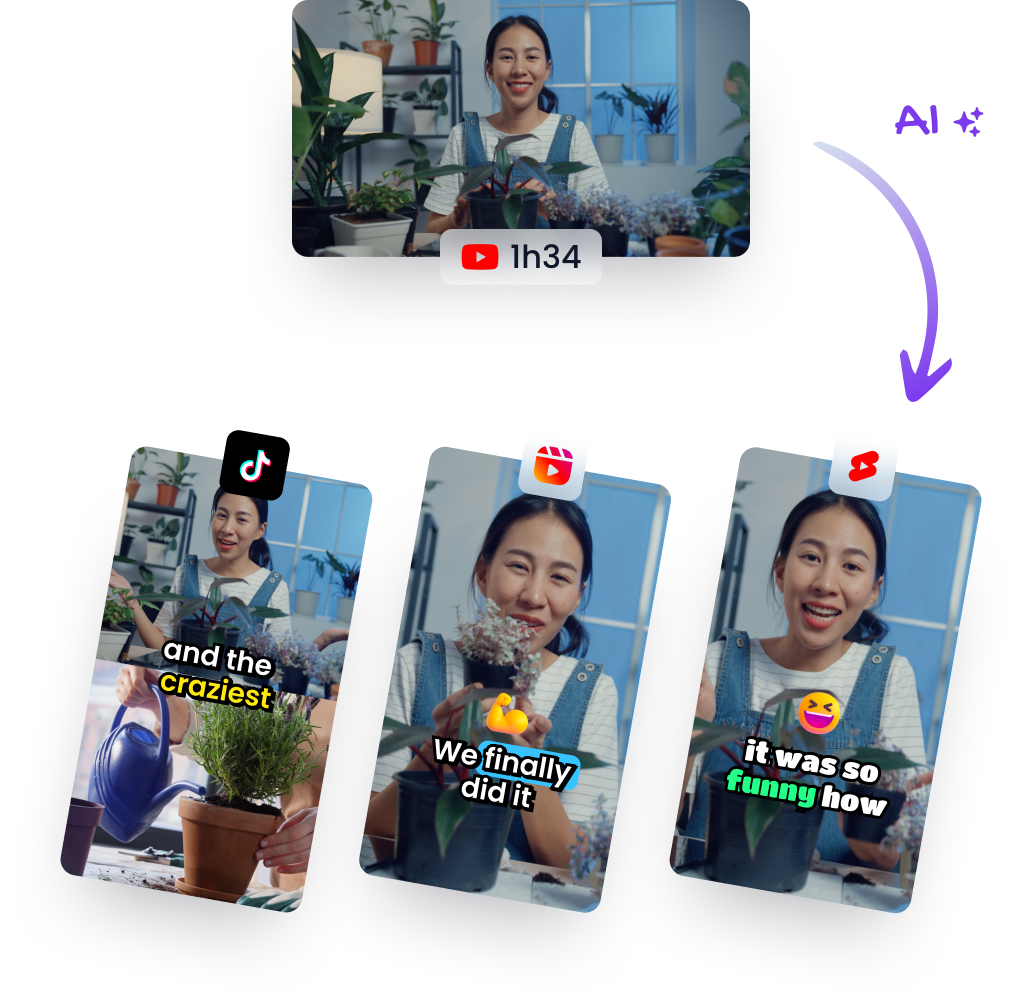
In Klap, our process is to upload a video or paste a YouTube link, let the AI create vertical clips, then export and share them. Our reframing workflow targets the portrait master canvas, but the editor still needs to review whether the selected crop preserves the meaning of each shot.
Export distinct master and delivery files
Export the archive using the recommended MP4, H.264, AAC, frame-rate, and master-bitrate preset. Then create the compact web copy using the lower-resolution delivery target, leaving room under the endpoint's file-size ceiling.
In this example, the delivery copy uses the 540p, approximately 3–4 Mbps starting preset. Verify its actual encoded size instead of assuming the estimate proves compliance.
Don't generate the delivery copy from an already compressed delivery copy. Return to the finished timeline or high-quality master so repeated encoding doesn't unnecessarily soften captions and facial detail.
Test the actual publishing path
Run a single test through the route you intend to use for the batch. A successful manual upload doesn't establish that a scheduler or sharing endpoint will accept the same asset.
Check the processed result, not just the local export:
- Technical acceptance: Confirm the container, codec, dimensions, duration, and final file size against the selected route.
- Phone playback: Inspect full-screen framing, caption visibility, audio synchronization, and the demonstration.
- Processed quality: Look for softened text, blocky motion, or unexpected cropping after platform processing.
Only then export and queue the remaining clips. Klap can convert a 3-minute YouTube video into 5 ready-to-publish videos for Instagram or TikTok in one click, but testing a representative clip first keeps a delivery mistake from spreading across the batch.
Klap turns existing videos into vertical shorts with captions and reframing, giving you a practical starting point for a TikTok-ready master. Visit Klap to create 1 video for free, with no credit card required, then test its exported file through your intended upload route before preparing the rest.