How to Publish Shorts on YouTube the Right Way
Other
You've cut a useful moment from a podcast, interview, or webinar. The captions look right, the speaker fits the vertical frame, and the file is ready. But you're still wondering whether a normal upload will count as a Short, whether the background music is safe, and whether publishing more clips could create monetization problems.
Learning how to publish Shorts on YouTube means handling those decisions before you press Publish. The upload itself is straightforward. The harder work is making a clip that qualifies, stands on its own, and doesn't create a rights or originality problem later.
Why Publishing YouTube Shorts Still Matters
A new viewer may find your channel through a single Short, without seeing the episode or tutorial it came from. Give that viewer a complete moment: an interview answer that explains a hiring mistake, or a tutorial that solves one specific problem. A clip that needs the full video to make sense gives a new viewer less reason to stay.
Shorts can put your ideas in front of viewers who have not found your longer videos. Your long-form library can then provide deeper explanations, arguments, or conversations for viewers who want more. Each format has a different job, so choose what the clip should do before you edit it.

A Short can test whether one question, explanation, or demonstration holds attention before you invest in developing it into a larger video. That makes publishing useful for more than reach: it gives you a focused way to learn which moments connect with viewers. Keep the test specific. A clear point is easier to evaluate than a clip trying to summarize an entire webinar.
Give the clip a job
Decide what a viewer should understand or do after watching. A coach might show a common mistake and how to recognize it. An educator might explain one technique. A brand might demonstrate a product solving a specific problem, without making viewers wait through a sales introduction.
The source clip also needs to feel like a finished piece, not just a fragment. Keep enough context for the point to make sense, and check that the edit adds something beyond a near-identical repost. A clip that feels complete and original can serve viewers on its own while still pointing interested people toward the longer video.
Rights affect that decision too. A popular audio track may help a clip feel familiar, but a claim can affect how it is used or earns. Reused footage with little meaningful change can also create originality concerns. Check the audio and make a deliberate edit before publishing, rather than treating Shorts as a simple crop of existing content. For another perspective on planning short videos, consult the Veo3 AI guide to YouTube Shorts.
Practical rule: Keep the long video for depth. Make each Short useful even if the viewer never watches anything else from your channel. That gives the clip a clear purpose, makes performance easier to interpret, and keeps the publishing decision grounded in both viewer value and originality.
File Specs That Decide Whether It Counts as a Short
Classification, permission, and revenue eligibility are separate checks. A correctly shaped file can qualify as a Short without being safe to publish or eligible to earn. Run the checks in export order so you don't finish an edit only to discover that the soundtrack changes your publishing options.
Check shape, duration, and resolution
For videos uploaded on or after October 15, 2024, YouTube classifies square or vertical videos up to 3 minutes long as Shorts; earlier uploads keep their previous long-form classification, according to YouTube's three-minute Shorts classification guidance.
Start by inspecting the actual exported file, not just the editing timeline. Confirm that the export hasn't added a horizontal background or included unused material after the intended ending.
Use this checklist before moving to the details screen:

YouTube documents a maximum Shorts upload resolution of 1080p, so test your deliverable at that resolution even if you retain a higher-resolution editing master, as explained in its Shorts creation and upload guidance.
The master preserves editing flexibility. The deliverable is what you inspect for readable captions, clean edges, and a stable crop on a phone.
Make the rights and monetization decision
Length isn't just a storytelling choice. YouTube allows eligible three-minute Shorts to participate in revenue sharing, but Shorts longer than one minute containing claimed content are blocked and cannot be monetized; only eligible, advertiser-friendly views qualify, and creators must accept the Shorts Monetization Module before views become eligible, according to YouTube's Shorts monetization rules.
For repurposed interviews and podcasts, use this decision path:
- Clean ownership and permission: Choose the length the explanation needs, within the classification limit.
- Uncertain music or guest footage: Hold publication while you verify permission or replace the material.
- A shorter edit would work: Consider staying near a minute for editorial simplicity, but don't treat a shorter runtime as copyright clearance.
- Revenue is a priority: Check both the content's eligibility and your channel's monetization setup before counting on earnings.
A longer Short can preserve an important qualification or show the complete demonstration. It can also leave more opportunities for unnecessary setup, third-party material, or an unresolved ending.
The right export isn't automatically the shortest file. It's the shortest complete version that preserves the meaning and contains material you're authorized to use.
Publishing Shorts from a Phone or Computer
Choose the device around the work that remains. A computer is convenient when the edit is finished and you need to manage files, titles, and approvals. A phone is useful when you still want to trim footage or make native visual adjustments.
Neither path replaces editorial review. A successful transfer only confirms that you uploaded a file, not that the clip makes sense to someone encountering it cold.
Phone vs Desktop Shorts Upload
| Path | Best when | Limit to watch |
|---|---|---|
| Phone | You're working from saved footage and want to trim or add native text and effects | Check music permissions and inspect the final mobile edit |
| Desktop | Your externally edited clips are ready for metadata and publication | Review every draft separately rather than treating a batch as approved |
On a computer, sign in to YouTube Studio, select Create, choose Upload videos, and select your prepared Short. Complete its details and review the publishing choices before releasing it.
Desktop uploads can accept up to 15 short videos at once, but each needs its own details and publishing decision, as described in YouTube's desktop Shorts upload instructions. Batch uploading saves file handling; it shouldn't eliminate the final approval pass.
On a phone, use the Upload Short flow to select saved footage. YouTube's mobile editor supports text, filters, music, and other audio; if a source exceeds 3 minutes, choose Edit into a Short and trim it to the permitted length, while audio selected from the in-app library is limited to 15-second clips, according to YouTube's mobile upload guidance.
That makes mobile convenient for a straightforward cut, but less attractive when you're comparing caption versions, checking guest approvals, or managing a folder of finished exports. For a broader workflow comparison, use this guide to YouTube upload software to evaluate where file preparation ends and publishing management begins.
Run a shared quality check
For a mobile-first edit, a 9:16 canvas is a practical choice, with faces and essential text kept centrally positioned for review, as recommended in the Shorts production workflow. Don't assume automatic reframing followed the correct speaker throughout an interview.
Use the same inspection routine regardless of where you upload:
- Watch without sound: Check whether the visual explanation is understandable and the captions are readable.
- Watch with sound: Listen for clipped words, abrupt music changes, and subtitles that appear too early or late.
- Inspect the opening: Make sure the viewer can identify the promise without knowing the source episode.
- Inspect the ending: Remove accidental blank frames and avoid a loop that changes the meaning of the statement.
Review the title, visibility, and audience choices with the same care as the picture. If the final check exposes unfinished work, save the Short as a draft rather than publishing it and hoping nobody notices.
Publish immediately only when both the file and its details are ready. A draft is a useful production state, not a failed upload.
Titles Hashtags and Visibility That Help Discovery
Write the title for someone who has never heard of your show. An episode label helps your existing filing system; a clear payoff helps a stranger decide whether the subject matters to them.
For an interview clip about hiring, Why Your Job Description Attracts the Wrong Applicants is more informative than a guest name followed by an episode label. That's an editorial example, not a guaranteed winning title. The important choice is to name the problem the clip addresses.
Match the title to the opening
A title shouldn't promise a result the footage never delivers. If the clip explains a diagnostic question, don't package it as a complete solution. The opening should confirm the same subject immediately rather than spending its first moments introducing the podcast.
Treat the details screen as a final editorial pass, not an administrative chore:

Use the description for context the frames can't comfortably carry. Explain what the demonstration covers, identify the discussion's subject, or clarify a limitation. Don't paste a long episode summary just because it's available.
For hashtags, choose terms that describe the topic and intended interest. A gardening demonstration needs relevant gardening context, not a pile of loosely related creator tags. Treat hashtags as labels, not a substitute for a clear subject.
The opening seconds are your thumbnail in motion. Start on the answer, conflict, result, or strongest statement, then supply the context viewers need.
Separate audience settings from visibility
Visibility is a release decision. Keep the clip unpublished or under limited visibility while you're checking captions, awaiting a guest release, or resolving music permissions. Public release should follow approval, not serve as the approval process.
Audience settings require a separate judgment. Review whether the content is directed to children rather than treating that field as a way to target a marketing demographic. A coach's intended customer profile and a platform's audience designation aren't interchangeable.
Before approving the packaging, check these common editing mistakes:
- Tiny captions: Enlarge or simplify them instead of expecting viewers to pause.
- Crowded screens: Remove text that competes with the demonstration.
- Automatic crop errors: Check speaker changes and gestures, not just the opening frame.
- Premature calls to action: Deliver the useful point before asking for a subscription or a longer watch.
A convincing title can earn attention, but it can't rescue a clip that withholds the promised answer. Keep the title, opening, and payoff aligned.
Choosing a Clipping Workflow That Stays Original
Manual editing, YouTube's mobile editor, and an AI clipper solve different production problems. Choose based on the judgment the footage needs, not just how quickly you can produce exports.
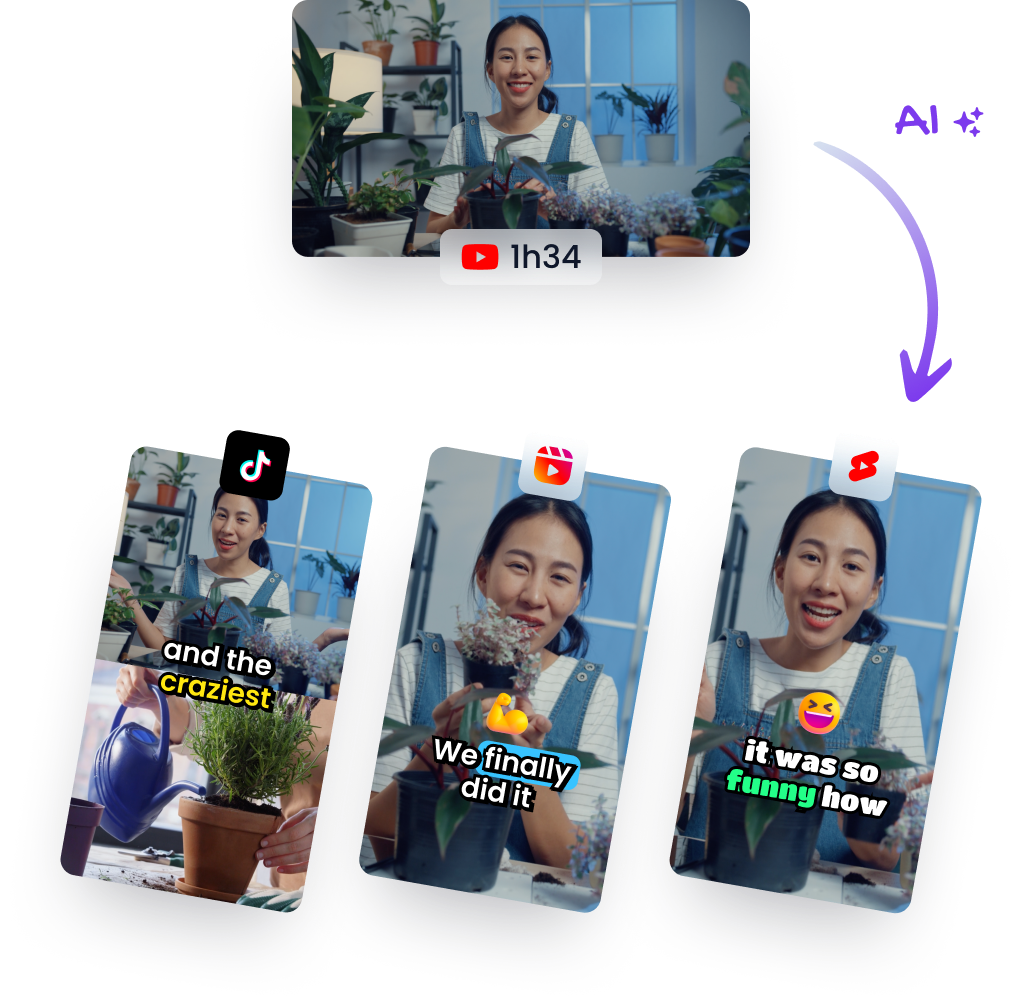
For long-form repurposing, Klap is an option alongside those manual and native workflows. Its editor puts clip selection, reframing, and caption review into the same production process:

Choose where to spend your editing time
Cutting by hand gives you direct control over pacing and context. It's useful when an answer needs careful qualification, when screen recordings must remain legible, or when a simple speaker crop would hide the important action. The trade-off is the editing time you spend finding moments and building each version.
YouTube's mobile editor suits a saved clip that needs a straightforward trim or native text treatment. It's less convenient when your main task is searching a long interview for a self-contained argument. Use it when the moment is already selected.
An AI-assisted workflow can begin with a video file or YouTube URL, identify candidate hooks, reframe the footage for vertical viewing, and add captions. Review the generated clips, adjust start and end points, correct caption text, choose the ratio and style, then download or post the approved version.
The key word is candidate. An energetic statement may depend on a qualification that appears later, and an isolated answer can sound more absolute than the guest intended.
The workflow demonstration shows where automated preparation ends and editorial review begins:
<iframe width="100%" style="aspect-ratio: 16 / 9;" src="https://www.youtube.com/embed/srDpvEnGQg4" frameborder="0" allow="autoplay; encrypted-media" allowfullscreen></iframe>Don't confuse automation with originality
In July 2025, YouTube renamed its repetitious content policy inauthentic content, explicitly covering repetitive or mass-produced material and requiring monetized content to be original and authentic, according to YouTube's channel monetization policies.
That makes unconditional bulk publishing a poor editorial standard. Owning the source footage addresses an important rights question, but it doesn't automatically make a stream of near-identical clips substantively different.
Editorial test: If removing the caption style makes every clip feel interchangeable, revisit the selection and framing before producing more.
YouTube also excludes non-original Shorts, including unedited film or television clips, reuploads of other creators' work, and compilations without original additions; artificial views from click or scroll bots don't qualify either, under its Shorts revenue eligibility guidance.
Build a distinct reason for each clip to exist:
- A separate question: Choose a moment that answers something the other clips don't.
- Meaningful context: Preserve the explanation needed to interpret the statement accurately.
- Substantive review: Check meaning and pacing, not just spelling.
- Clear permissions: Keep a record of what you can publish, with a content rights management workflow.
Automation can prepare the cut. You still decide whether the result contributes something worth publishing.
What to Fix After a Short Fails to Perform
A blocked Short and a quiet Short need different fixes. Don't start rewriting hooks when the actual problem is a rights restriction, and don't replace the soundtrack when viewers are leaving because the opening takes too long.
YouTube warns that unauthorized protected material can trigger a Content ID claim, while a valid copyright takedown can remove a video and result in a copyright strike, as explained in its copyright guidance for mobile Shorts uploads. Reuploading the same unresolved file isn't a useful repair.
Fix the publishing problem first
Inspect the restriction before changing the edit. Replace uncleared audio with appropriately licensed material, verify permissions for third-party footage and graphics, and check whether your permission covers the intended commercial use. Keep the record with the source project so the next editor doesn't repeat the mistake.
For an upload that publishes normally but stalls, change your diagnosis. You're testing audience response, not file eligibility.
A study of approximately 70,000 channels and 9.9 million Shorts found that Shorts received about 110 times more views on average than regular videos from the same channels, but this was an observational comparison, not a promised outcome, according to the academic analysis of Shorts and regular-video performance.
Use that as evidence of distribution potential, not a target your channel has failed to meet.
Change a variable you can explain
Compare related uploads rather than judging the whole workflow from an isolated result. Keep the topic and audience reasonably consistent while testing the opening, length, captions, framing, or call to action separately.
| What you notice | What to inspect |
|---|---|
| Viewers swipe away | Whether the opening makes the subject and payoff clear |
| Viewers leave during the explanation | Missing context, repetition, or an avoidable detour |
| People watch but don't subscribe | Whether the clip connects to a recognizable channel promise |
| Comments show confusion | Caption accuracy and context removed from the source |
| Little interest in the longer video | Whether the Short gives a relevant reason to continue |
Review viewed versus swiped away, average view duration, percentage viewed, rewatches, likes, comments, subscribers gained, and traffic to the long video. These measures answer different questions, so don't reduce the entire review to the view count.
For more troubleshooting ideas, use this guide to getting more views on Shorts after identifying the weak point. Recut a slow opening rather than reposting an identical file and expecting a different response.
Choose an owned long video, extract a self-contained moment, clear the audio, and publish a distinct edit. Judge how well viewers stay with the explanation before making the next cut.
Klap can turn a long video or YouTube URL into candidate Shorts with vertical reframing and captions, leaving you to review the context, permissions, and final edit. Visit Klap to prepare a clip from your existing library, then use the publishing checks above before releasing it.