Conference Video Editing: A Practical Workflow Guide
Other
You've got the cards dumped, the client is asking for a teaser by Tuesday, and the room still feels loud in your head. That's the start of conference video editing, not the moment the cameras stop rolling. The job is no longer to make one clean recap and call it done, it's to turn a full event into a usable library of clips that can live in different places for weeks, not hours.
That shift matters because a conference produces more than one story at once. Keynotes, panels, audience questions, sponsor mentions, and speaker interviews all want different edits, different pacing, and different framing. A single recording can fuel a long-form recap plus shorter assets for internal comms, social, lead nurturing, and post-event distribution, which is why conference editing now sits inside a larger content system rather than a one-off delivery flow. One conference, six months of video content is a useful way to think about it, not as a slogan, but as an operating model.
Conference editing stops being about “making a highlight reel” the moment you need multiple deliverables from the same footage.
Why Conference Editing Is Now a Content System
The first mistake many teams make is treating the conference like a single deliverable. The edit starts that way in the timeline, but the moment stakeholders ask for a board recap, a speaker cut, and a few social clips, the project stops behaving like one video and starts behaving like an asset pipeline. That's the shape of conference video editing now, especially when one recording has to serve people who care about different things.
A board member wants the event's business significance. Marketing wants a punchy recap with energy. Sales wants a clip with a clean promise and a clear call to action. Internal teams may want training cuts or speaker-specific excerpts that make sense without the live room. If you only build for the highlight reel, you'll end up re-cutting the same moments over and over because the original edit wasn't designed for reuse.
The content-system mindset also changes how you pace the edit. A clip made for replay can breathe. A clip made for social has to land quickly and still make sense when muted, cropped, and watched out of context. That's why the early decisions matter, from framing to title length to where you leave room for later versioning.
A useful way to anchor that mindset is to remember that the event footage is raw material, not the final product. The more intentionally you select moments for future reuse, the less time you'll spend trying to rescue weak footage later. For a broader repurposing lens, the internal playbook on content repurposing lines up with this approach.
Preparing and Ingesting Your Footage the Right Way
The edit usually falls apart before the timeline gets interesting. That's why ingestion is not admin work, it's the point where you decide whether the project will feel calm or chaotic two days later. I've seen clean projects come from messy shoot days, and I've seen polished shoots become disasters because nobody imposed structure on the media.
Start with a folder system that mirrors the event
Use folders that separate sessions, camera angles, audio sources, and slides. That sounds basic, but it prevents the common problem where an editor has to guess which file belongs to which panel or keynote. Add a naming convention that survives multi-day events, something consistent enough that a freelancer can open it and understand it without asking a single question.
Before you batch-import anything, pull a short sample from each camera and each audio source. Scrub it for sync markers, drift, obvious corruption, and any clip that came in with unexpected levels or silence. That one minute of checking saves more time than a full afternoon of blind importing.
Practical rule: back up raw footage before you do anything else, and keep at least one mirror copy so a bad card or a bad drive doesn't decide your delivery schedule.
The ingestion guide from planning classroom recordings is useful here because the same logic applies to conferences, lectures, and internal events, separate sources cleanly and verify the media before you build on top of it. If you're working on a laptop, proxies can keep you moving without choking on high-bitrate multicam footage. If you're in a full suite, transcoding to an edit-friendly intermediate can be worth the storage cost when you're dealing with long timelines and multiple camera files.
The point is simple. Don't open a timeline until the footage has been sorted, checked, renamed, and backed up. That discipline looks slow for about ten minutes, then it saves hours.

Syncing Multi-Camera Timelines and Slides
The edit becomes technical instead of administrative. Most conference projects involve two to four camera angles, plus a screen capture or slide feed, and the job is to make them behave like one coherent program. If sync is sloppy, every cut feels heavier than it should.
Use the cleanest sync method available
If the team gave you a slate clap, use it. If the cameras share timecode, even better. If neither exists, waveforms can still get you there, but only if the room audio is clean enough to trust. In Premiere Pro, DaVinci Resolve, and Final Cut, the workflow is the same in spirit, match the anchors first, then verify the sequence by hand.
Slides are where editors get punished. A laptop freeze, a presenter who forgot to advance, or a screen capture that drifted during a long section can ruin what looked like a tidy multicam setup. When that happens, don't force the slide feed to carry the whole sequence. Cut around it, use the camera angle that preserves the speaker's intent, and only reintroduce the slides when they help the viewer understand the point.
The same goes for lower-thirds. Keep speaker names visible long enough to be read, but don't leave them hanging over the first sentence of a strong opening. The title should support the content, not compete with it. In practice, that means you place names early, keep them out of the speaker's face, and remove them the moment they stop serving orientation.
Audio gets the same treatment. Balance the lavalier against the room mic instead of assuming one source will carry everything. Applause spikes need control, HVAC hum needs cleanup, and you should treat gates or spectral repair as tools for correcting specific problems, not as a substitute for a good source.
The drop-frame issue trips people up too, especially when they're moving between recording setups and delivery specs. If you need a refresh on that, the guide on understanding drop-frame time code is a practical reference point.

Selecting Highlights and Hooks That Survive Without the Room
A moment can land perfectly in the ballroom and still fail completely on a phone. That's the hardest part of repurposing conference footage, because applause, stage energy, slide context, and audience reaction do a lot of work in the room that a short clip has to do on its own.
A useful filter is hook, conflict or claim, payoff. The hook gives the viewer a reason to keep watching. The claim or tension gives the clip a point. The payoff resolves it, even if the resolution is only a sharp insight or a useful takeaway. If you can't identify those three pieces inside a segment, the clip probably depends too much on live context.
What survives in short-form cutdowns
Professional recap guidance tends to favor 1 to 2 second cuts, 2 to 3 speaker sound bites in the 5 to 10 second range, and supporting reaction shots or B-roll to keep the rhythm moving in recap editing guidance. That structure works because it doesn't ask the viewer to hold a single unbroken thought for too long. It also gives you room to cover jump cuts when a speaker's pacing gets uneven.
The mistake is assuming every strong live moment becomes a strong social clip. It doesn't. A joke that gets a huge laugh in the room may feel flat without the audience response. A slide-dependent statistic may look empty if the graphic is off-screen in the crop. A smart, concise statement can still work if it carries its own meaning without applause, stage lighting, or a giant screen behind it.
For short-form distribution, I like to score candidates by three questions. Does the clip make sense in the first few seconds. Does it still make sense with no room noise. Does it still work if the viewer is half distracted. If the answer is no to two of those, it probably needs a different edit, not just a tighter trim.
If you're looking for another framing tool, the guide on crafting engaging video reels is worth reading for its emphasis on clip-level clarity. The underlying principle is the same, remove the dependence on context and keep the idea legible.
A great conference moment is not automatically a great clip. A great clip is understandable after the room disappears.
Using AI Clipping Tools Inside a Human-Led Workflow
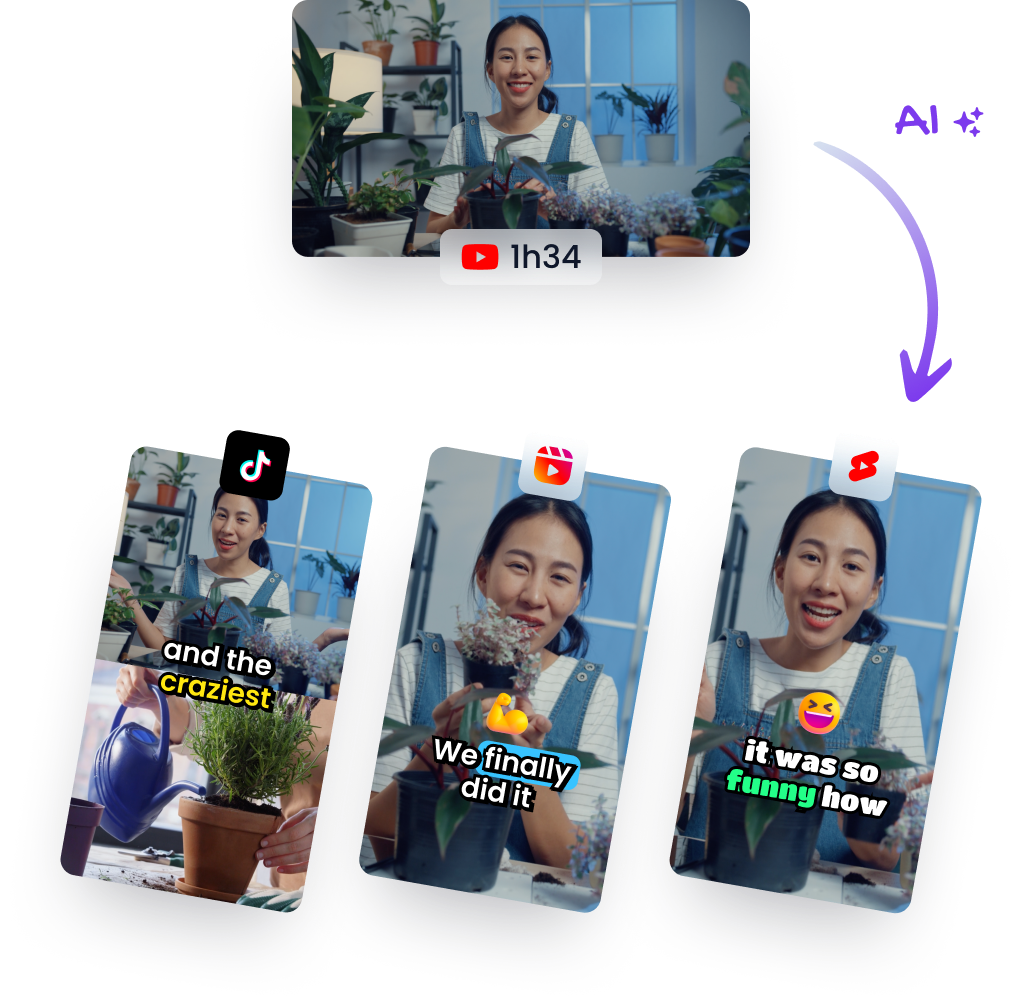
AI clipping tools can save real time, but only if you use them like assistants, not editors-in-chief. The cleanest workflow I've seen is simple, upload the source, let the tool analyze the content, review the candidate clips, then rebuild or refine the winners in your NLE when needed. Klap's AI video clipping workflow fits that pattern well, because it's built around generation first and human judgment second.
Where AI helps, and where it gets lazy
The value is speed. A long keynote can become a stack of candidate shorts quickly, which is useful when the pressure is less about raw cutting and more about finding the right starting points. That matters in conference work because the editor is often dealing with a narrow turnaround and multiple deliverables at once.
The weak spots are predictable. AI can misread the hook, captions can drift into paraphrase instead of faithful transcription, and reframing can crop a speaker's hands or body language at exactly the wrong moment. That's a bigger issue in conference footage than in some other formats because presenters use gesture, slide pointers, and stage movement to emphasize points.
My rule is straightforward. Keep the auto-generated cut when the hook is obvious, the framing is balanced, and the captions are clean. Rebuild it manually when the tool chops the thought in the wrong place, buries the emphasis, or makes the speaker look boxed in. If you're shipping brand content, the caption voice also needs a manual pass so the phrasing sounds like your team, not a machine summary.
Klap is one example of an AI tool that can sit inside that workflow. It can help identify candidate segments, reframe video for vertical formats, add captions, and get you to a review stage faster, but it still needs an editor who can tell the difference between a usable clip and a merely complete one. That difference is where the final quality lives.
Captioning, Subtitles and Export Settings for Social Platforms
A strong crop still fails if the text is unreadable. Social clips live on small screens, and the captions are doing more work than many teams admit. They help when the viewer is muted, they anchor the pacing, and they make the clip legible when the speaker's delivery is fast.
Burned-in captions are the safest option when you want the text always visible in-platform. SRT sidecar files give you more flexibility if a platform or team wants editable subtitle tracks later. For mobile feeds, keep the style simple, high contrast, and placed where it won't collide with the subject's face or the platform UI.
The timing matters too. Captions should land on the speaker's emphasis, not trail behind it. If the text appears late, the clip feels sluggish even when the edit itself is tight.
The reference guide on captions for video repurposing is useful for teams that want to standardize subtitle handling across exports. For my own workflow, the main question is always the same, does the viewer understand the line instantly or not.
Recommended Export Settings for Short-Form Platforms
SettingTikTokInstagram ReelsYouTube Shorts
Resolution
9:16 vertical
9:16 vertical
9:16 vertical
Frame rate
Match source when possible
Match source when possible
Match source when possible
Codec
H.264 or platform-friendly delivery file
H.264 or platform-friendly delivery file
H.264 or platform-friendly delivery file
Bitrate
Keep clean for mobile delivery
Keep clean for mobile delivery
Keep clean for mobile delivery
Audio
Clear, intelligible, low ambient noise
Clear, intelligible, low ambient noise
Clear, intelligible, low ambient noise
Safe zones
Keep captions away from UI overlays
Keep captions away from UI overlays
Keep captions away from UI overlays
Those platform settings are less about chasing perfection and more about avoiding unnecessary re-encodes. If you export a file that's already framed correctly, cleanly captioned, and easy for the platform to ingest, you reduce the chances of softening the image or introducing avoidable artifacts on the next upload.
Review, Approval and Distribution Rhythm
A lot of conference edits get slowed down by the approval process, not the cut. The fix is a single source of truth, versioned filenames, and timecoded notes that tell the editor exactly what to change without opening a group chat war. If the file names are clear and the review folder is clean, the process stays editable instead of becoming folklore.
The stakeholder conflict is usually familiar. Speakers want more of themselves. Marketing wants shorter clips. Legal wants disclaimers. Those goals don't have to clash if you set an approval matrix early and decide which changes are cosmetic, which are mandatory, and which ones would require a re-edit rather than a tweak.
Distribution should feel paced, not dumped. One strong launch clip can lead the rollout, but the rest of the assets usually perform better when they're spaced out across weeks instead of all arriving on the same day. Match the caption and hook to each platform's expectations, then keep an eye on what actually happened, views, completion rate, and click-through tell you which moments were worth promoting and which ones only looked good in the edit bay.

A quick checklist for the next conference:
- Version clearly: name each export so nobody guesses which file is current.
- Collect notes in one place: timecodes beat vague feedback every time.
- Approve before publishing: separate stakeholder preference from must-fix issues.
- Track what lands: use the next event's edit plan to respond to real performance, not assumptions.
Klap can help turn long conference recordings into shorter clips with captions and reframing, then leave the final judgment to the editor who knows what the audience needs. If you're building conference video editing into a repeatable content system, visit Klap and see how its workflow fits into repurposing, review, and export without pretending the human part is optional.