10 Video Edit Suites for Turning Long Videos Into Shorts
Other
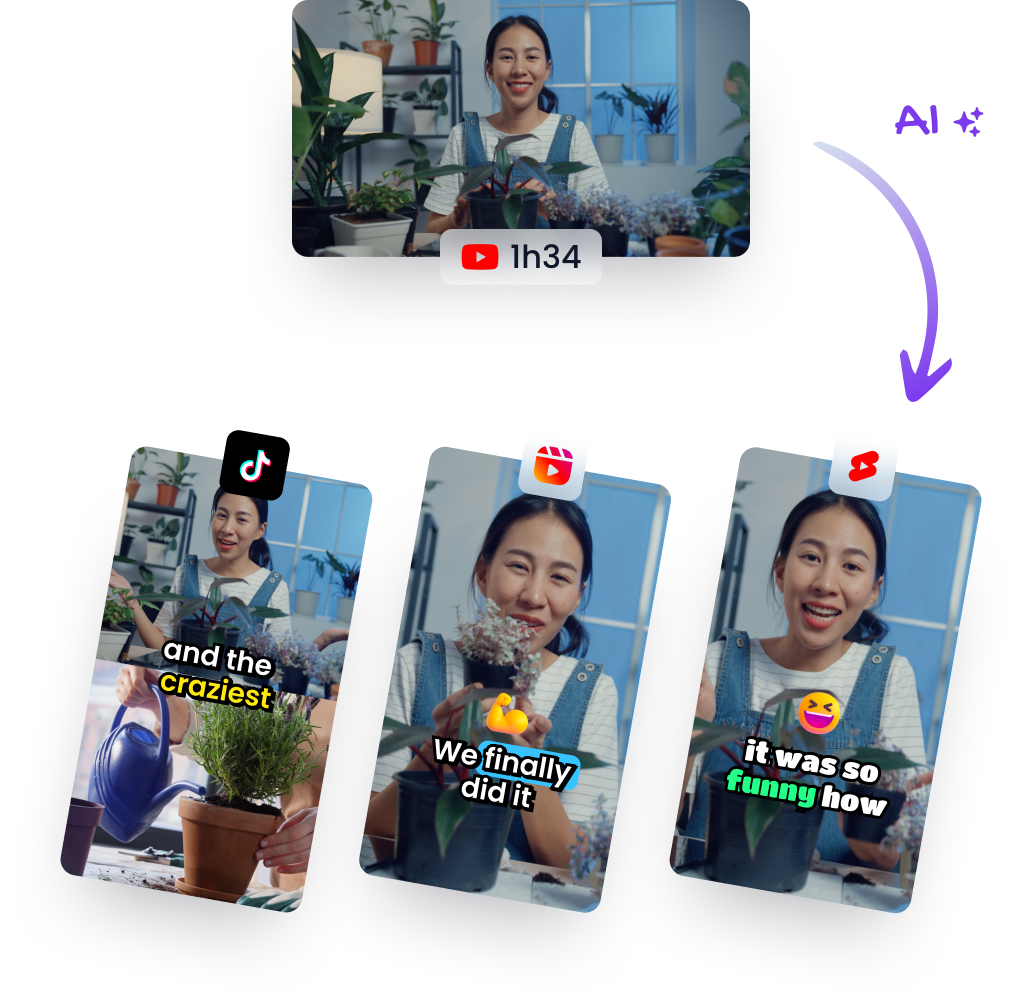
In the Wyzowl 2025 survey of 205 marketing professionals and online consumers, 93% of marketers reported positive return on investment from video marketing, while 26% of non-users cited lack of time as a major barrier. That's the production problem in one line. You've got hours of podcasts, webinars, and interviews sitting idle, and no spare afternoon to mine them for shorts.
The math changes when the suite does the hunting. Creators using Klap alone have made more than 8.5 million clips, and a single 3-minute YouTube video can become 5 ready-to-publish shorts in one click. Not every tool works that way, which is why your choice of video edit suites decides whether you publish daily or publish when you find time.
This list covers 10 suites in three categories, AI clipping platforms, browser editors, and professional desktop suites. I'm judging each one on the same job, how fast it turns one long video into publishable short clips. Look for auto-captioning, smart reframing, batch exports, usable templates, and integrations that hand clips cleanly to your scheduler or finishing editor. Where automation ends, I'll say so plainly, because reviewing captions and context still sits with you.
1. Klap

Paste a YouTube link or upload a file, and Klap turns speech-led footage into vertical clips in minutes: it extracts likely topics, applies Auto Reframing around the main subject, adds captions, and scores each clip for viral potential. A 3-minute YouTube video can become five ready-to-publish clips for Instagram or TikTok in one click, so judge it as a batch generator.
Where the manual work remains
Klap works best when the hook is spoken, so podcasts, interviews, educational videos, product reviews, and trainings give the speech detection enough to rank. You still approve the picks: tighten start and end points, correct caption wording, then set fonts, colors, logos, and framing before high-resolution export or direct scheduling to TikTok, YouTube, Instagram, and LinkedIn. Editing and transcription cover 52 languages, useful when one recording feeds several markets.
- Pros: Fast candidate generation, responsive subtitles, brand customization, direct publishing and scheduling, plus an API for teams producing clips for their own end users.
- Cons: The free trial is limited to one video, though no credit card is required. Footage with little dialogue gives the algorithm less to work with.
Annual billing is the pricing to compare: Pro is $39 per month for professionals with 300 clips, and Pro+ is $94 per month for teams with 1,000 clips.
2. OpusClip

OpusClip is built for the first pass: feed it one long recording and it returns a stack of candidate shorts, each with a Virality Score for triage. You set target lengths, then it applies animated captions, reframing, and filler-word or silence removal. For weekly podcast episodes, that turns a scrubbing job into a review queue.
The trade-off is control. Imports start with local files, while paid tiers add YouTube, Zoom, Vimeo, and Google Drive; scheduling is on paid plans, and Pro adds team features plus Premiere Pro and DaVinci Resolve exports for finishing elsewhere. Expect to approve picks, tighten in/out points, and correct caption phrasing before anything goes live.
Quality control rule: Treat every AI pick as a draft. Adobe's global survey of more than 16,000 creators found 57% said AI-generated creative outputs usually required moderate or extensive editing before publication.
- Pros: Fast candidate generation, caption styling, scoring, and editor exports when a clip needs more polish.
- Cons: Free exports carry a watermark, in-tool editing is limited, and credit-based pricing ties cost to processing volume.
Pricing is tiered rather than flat: entry paid plans suit lower volume, Pro sits above them for team workflows, and the bill scales with how much footage you process.
3. CapCut

CapCut is the manual-control option across web, desktop, and mobile. One long video still becomes shorts faster than a blank timeline because AI auto captions, auto reframe, templates, effects, and a long-video-to-shorts workflow get the first draft moving. Automation ends at taste: hook placement, pacing, caption timing, and the final crop still need hands.
Reframe carefully before export. Instagram's Reels upload requirements set a minimum resolution of 720 pixels and a minimum frame rate of 30 frames per second, so check that cropping horizontal footage hasn't dropped you below either threshold.
Best use for repurposing
Reach for CapCut when a clip needs trending audio, stickers, or template styling that an AI clipper won't choose well. If you're weighing the upgrade, this breakdown of whether CapCut Pro is worth it maps what the paid tier includes.
- Pros: Quick social creation on any device, with free tools to start.
- Cons: Some features, including Auto Reframe, may require Pro, and heavy template use can make clips look generic.
Pro is billed monthly, and current rates vary by region, account, platform, taxes, or offers. Confirm the price on CapCut's pricing page before subscribing.
4. Descript

Delete a sentence, delete the footage. Descript turns a spoken-word recording into a transcript you can cut like a document, which is why podcasts, interviews, and webinars move quickly here. For repurposing, the speed comes from reading: pull the clean two-minute answer, trim the ramble around it, then shape the clip for vertical export.
The toolkit covers captions, templates, speaker detection, filler-word removal, Studio Sound cleanup, and built-in recording. Higher tiers add 4K and watermark-free exports. Automation ends at the story choice: it can make text edits fast, but you still choose the hook, tighten the point, and check that captions survive the crop.
- Pros: Fast for editors more comfortable with text than timelines. Recording and cleanup live in the same app.
- Cons: Visually driven footage and frame-precise cuts feel awkward. Transcription and AI allowances vary by plan, so high-volume clipping needs a limit check first.
A free plan exists, with paid tiers priced per editor when billed annually, so confirm current rates before committing a whole library. If transcript editing does not fit your workflow, compare the Descript alternatives worth testing before migrating.
5. VEED

VEED keeps everything in the browser, which matters more than it sounds. No installation, no local render queue, and a shared workspace your marketing team can open from anywhere. You get trimming, text-based editing, automatic subtitles with styling, and a stock video and royalty-free audio library.
That convenience has a cost structure worth watching. A 2025 survey of 403 people responsible for more than 250 TB of cloud infrastructure found 93% of media organizations had experienced unexpected cloud-storage fees. Browser suites shift spending from hardware to storage, seats, and AI credits, so count all three.
Fit for short-form teams
VEED works best when several people touch one clip, a marketer captions, a designer brands, a manager approves. Solo creators may not need that layer.
- Pros: Editing, subtitles, and creator tools in one web workspace, with a free plan for testing.
- Cons: Free exports include a watermark. Per-seat billing and AI-credit allowances can push team costs up quickly.
Plans start at $9/month billed yearly or $19/month billed monthly, with paid tiers adding higher-resolution exports and more AI features.
6. Adobe Premiere

Adobe Premiere is the finishing end of video edit suites, not the discovery end. Nobody opens Premiere to find highlights in a two-hour webinar. You open it when the clip is chosen and needs precise timeline work, titles, effects, and sound mixing that browser tools can't match.
The lineage runs deep. The history of non-linear editing traces modern suites to systems like the 1989 Avid/1, and by the 1993 National Association of Broadcasters conference, nonlinear systems from Avid, Silicon Graphics, and Sony were displacing film cutting. Premiere inherits that import, rearrange, export model, with far more manual control at every step.
- Pros: Extensive control for complex edits, tight fit with other Creative Cloud apps, and equally capable on short and long form.
- Cons: Demands real editing knowledge and hands-on time. For quick social clips, it's often more tool than the job needs.
Adobe lists $22.99/month on an annual plan billed monthly, including Adobe Express Premium and Frame.io, with a seven-day free trial. This video editing software comparison shows where that depth justifies the subscription.
7. DaVinci Resolve

Most short clips need a trim and captions, nothing more. When one needs real polish, DaVinci Resolve is the answer. It combines editing, color correction, visual effects, and audio post-production in one desktop app for Mac, Windows, and Linux, and the free version already covers most of what a short-form creator will touch.
Users rate it accordingly. PCMag's 2026 Readers' Choice reporting states Blackmagic Design achieved the highest scores across almost all evaluated categories among desktop video editors.
Resolve won't find your clips for you. Pair it with an AI clipper for discovery, then finish color and sound here.
That split defines its place in a repurposing workflow. Highlight selection stays manual, so every minute an upstream tool saves on clipping is time you can spend grading and mixing. Plan hardware accordingly, too. High-resolution timelines punish weak machines, and every effect lands harder on an older laptop.
- Pros: Extensive free functionality, standout color and audio tools, runs on three operating systems.
- Cons: Steeper learning curve than social editors. Advanced AI features sit in the paid Studio version, and clip discovery is entirely on you.
The paid Studio version adds the advanced AI tools, so check the DaVinci Resolve product page for current pricing before you buy. For finishing quality per dollar, nothing else on this list beats it.
8. Final Cut Pro

Apple users get a different bargain with Final Cut Pro. The Magnetic Timeline and library-based organization keep large interview libraries manageable, and two features speak directly to repurposing, AI-generated captions and Smart Conform, which reframes footage to vertical or square for social delivery.
That framing choice is a publishing decision, not a style preference. YouTube's Shorts classification rules state that videos uploaded after October 15, 2024 count as Shorts when they use a square or vertical aspect ratio and run up to three minutes. Export in 16:9 and you've made a regular video, whatever the length.
Who should pick it
Choose Final Cut if you're Mac-based, edit long form already, and want social cuts without leaving your main suite.
- Pros: Substantial control, broad format support, and a one-time purchase option instead of a subscription.
- Cons: Mac and iPad only. It's editor-driven, so highlight hunting stays manual, and some premium content is subscription-only.
Mac pricing is $299.99 one-time, or it's included in Apple Creator Studio at $12.99/month or $129/year after a 30-day trial.
9. Kapwing

Kapwing is the collaborative browser editor small teams reach for when projects live in links, not local folders. You can import from a video URL, trim, add effects and templates, caption, and record inside shared workspaces. Paid plans add brand-kit features and exports up to 4K.
For repurposing, the shared workspace carries the weight. One person drafts clips from a webinar, another fixes captions, a third approves, and nobody exports and re-uploads files between steps. The editing toolset itself is standard. What you gain is handoff speed, and what you give up is automation: Kapwing won't pull highlights from a long recording, so someone still watches the source and marks cut points before the workflow pays off.
Storage discipline matters here too. Proxy thinking applies even in the browser, keep camera originals archived separately and treat Kapwing projects as working copies, not your only master.
- Pros: Accessible shared projects, a free plan to test the workflow, and editing, recording, captions, and collaboration in one place.
- Cons: Free exports carry a watermark. Larger uploads and longer exports need a paid plan, and credit allowances apply to some AI features.
Paid plans are priced per member, so multiply by seats before you commit the whole team.
10. Microsoft Clipchamp

Microsoft Clipchamp is the lowest-friction starting point on this list, a browser editor and Windows app built for straightforward cuts. You get trim, crop, resize, recording, titles, AI subtitles, voiceovers, and silence removal without a learning curve worth mentioning.
One policy stands out against every other free tier here. The free plan allows unlimited exports without a watermark, up to 1080p. For a small brand cutting its first product clips, that alone can settle the choice.
Where it stops
Clipchamp won't mine a long video for highlights, and it won't match Premiere or Resolve for detailed post-production. It resizes and captions clips you've already chosen, quickly and without fuss.
- Pros: Watermark-free 1080p exports free, works in browser or Windows, and convenient if you already pay for Microsoft 365.
- Cons: Premium stock assets, brand-kit tools, and 4K export require paid access through Microsoft 365 Personal or Family.
I recommend it as a first editor, not a repurposing engine. When clip volume grows, you'll feel the missing automation first.
Video Edit Suites Compared
| Suite | Platform | Starting Price | Free Plan | Best For |
|---|---|---|---|---|
| Klap | Web | Pro: $39/month, billed yearly | One-video trial; no credit card required | Turning speech-led long videos into social clips |
| OpusClip | Web | $15/month | Yes; exports have a watermark and usage limits | AI-generated clips from long-form videos |
| CapCut | Web, desktop, mobile | $19.99/month for Pro | Yes | Quick social video editing across devices |
| Descript | Web, desktop | $12/editor/month, billed annually | Yes | Text-based editing of podcasts and interviews |
| VEED | Web | $9/month, billed yearly | Yes; exports have a watermark | Browser-based editing and captions for creators and teams |
| Adobe Premiere | Desktop, mobile | $22.99/month, annual plan billed monthly | Seven-day free trial | Detailed editing and production workflows |
| DaVinci Resolve | Mac, Windows, Linux | Free; Studio is $295 | Yes | Professional editing, color grading, and audio post-production |
| Final Cut Pro | Mac, iPad | $299.99 one-time for Mac | 30-day trial through Apple Creator Studio | Detailed editing for Mac and iPad users |
| Kapwing | Web | $16/member/month, billed annually | Yes; exports have limits and a watermark | Collaborative browser-based video creation |
| Microsoft Clipchamp | Web, Windows | Free; premium features included with Microsoft 365 | Yes; watermark-free exports up to 1080p | Beginner-friendly editing and straightforward social videos |
The main difference is where each suite saves time. Klap and OpusClip help find and assemble short clips from longer videos. The other editors are better suited to editing footage you have selected, with more hands-on control over the cut and finish. Klap's Pro plan is $39 per month when billed yearly and includes 300 clips per month.
Picking Your Suite and Building a Repurposing Workflow That Sticks
Match the suite to your volume, not your ambitions. If you publish several shorts a week from long recordings, AI clipping platforms like Klap and OpusClip win on speed and batch output, because discovery is the slow part and they automate it. Klap, for example, turns a YouTube link into vertical clips in minutes and can publish them directly to TikTok, YouTube, Instagram, and LinkedIn on a schedule. If you cut occasionally and want hands-on control without installing anything, the browser editors, CapCut, VEED, Kapwing, Clipchamp, and Descript, cover most jobs. When finishing quality decides whether a client pays, Premiere, Resolve, and Final Cut Pro earn their learning curve.
Hardware belongs in that decision too. The Vegas Pro specifications recommend an 8-core CPU, 16 GB RAM, and a discrete GPU with at least 4 GB VRAM for 4K work, and flag proxy media for weaker machines. Browser and AI suites sidestep that spend, which is a real saving if your laptop already struggles.
A repeatable weekly pipeline
Build the habit once, then repeat it. Upload or link the long video the day it is published, while the topic is fresh. Let the AI draft clips, then review each one for context, pacing, and caption accuracy, checking that a cut has not changed what the speaker meant. Klap scores each generated clip for its potential to go viral, so treat that score as a review order rather than a final verdict. Apply your branded caption style, confirm the subject stays framed, and schedule across platforms instead of posting everything at once.
Front-load every clip while you review. Viewers decide whether to keep watching a Short within its opening seconds, so put the hook and payoff early, never at the end. A simple checklist taped to that review step, hook lands fast, captions verified, framing checked, keeps quality steady when volume rises.
Test before you commit budget. Klap offers a one-video free trial with no credit card, Pro at $39/month for 300 clips billed yearly, and paid users own their output, so you can trial automated repurposing on real footage at low risk. Run your most recent long-form video through one suite this week and measure clips produced per hour of editing. That single number will tell you more than any feature list.
Ready to see what your back catalog is hiding? Klap turns your existing YouTube videos, podcasts, and webinars into captioned, reframed vertical clips in minutes, with your branding applied and scheduling built in. Start with one video free, no credit card required, and judge the output against the hour you would have spent cutting by hand.