Video Transcription Free
Other
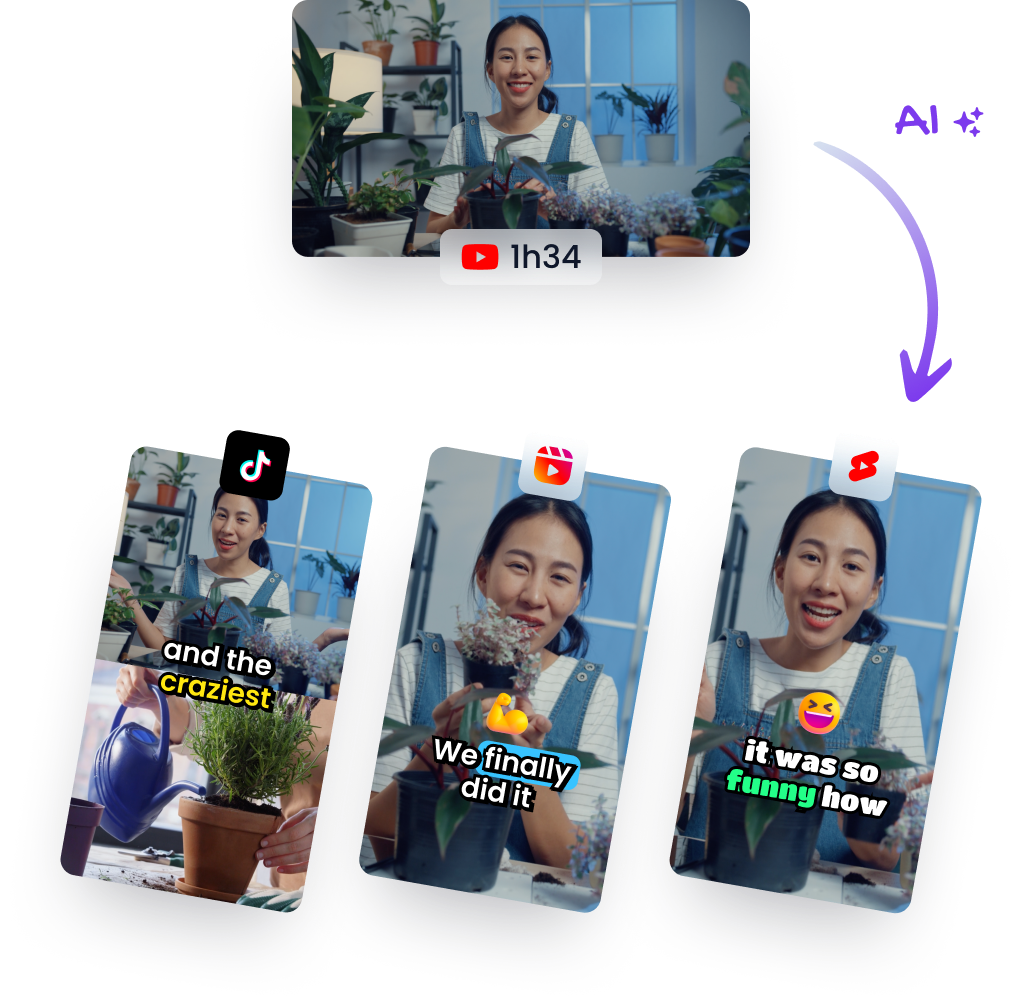
You've got a good video. Maybe it's a podcast interview, a tutorial, a client webinar, or a YouTube upload that took half a day to record and edit. Now you need the transcript, not because transcripts are exciting, but because transcripts enable everything that comes after: captions, blog posts, quotes, carousels, Shorts, Reels, and searchable content.
That's where most creators get stuck. They think transcription is an admin task or a paid add-on. It isn't. If you approach it the right way, video transcription free becomes the first practical step in a repurposing workflow that squeezes more value out of every minute you already recorded.
Why Free Video Transcription Is a Game Changer
A free transcript does more than turn speech into text. It gives you a rough script of what was captured on camera. That matters because creators usually remember the topic of a video, but not the exact sentence that could become a strong short-form hook, a caption line, or a pull quote.
The biggest shift is access. In 2026, free video transcription tools include tiers like two transcripts per day with uploads up to 20 minutes each, and some tools claim up to 99% accuracy, which makes transcription far more reachable for small brands and solo creators than it used to be, according to this roundup of free video transcription options. If you've been treating transcription like something to “deal with later,” that's old thinking.
What free actually looks like
“Free” isn't one thing. It usually falls into a few buckets:
- Platform-native options that are already built into places like YouTube
- Free tiers from AI services that cap minutes, file length, or daily use
- Local AI tools that run on your own machine and cost nothing in software fees, but take setup
- DIY hacks using tools you already have, such as voice typing
Each one solves a different problem. If you need speed, use the native route. If you need cleaner text, use a stronger AI model. If you care about privacy or don't want to upload client files, local processing is often the smarter move.
Practical rule: Don't ask “What's the best free transcription tool?” Ask “What's the cheapest workflow that gets me usable text for this specific video?”
That question changes everything. A transcript for note-taking is different from a transcript you'll turn into subtitles. A transcript for a solo talking-head video is different from a noisy panel discussion.
Why creators should care
The transcript is the raw material for repurposing. It helps you spot the opening hook, the objection-handling line, the surprising quote, the clean one-sentence takeaway. If you want a deeper foundation for how this works, video transcription works as the bridge between spoken content and reusable assets.
Free transcription isn't just about saving money. It's about removing the friction between recording long-form content and turning that content into more outputs.
Use YouTube's Built-in Transcript Feature
If your video is on YouTube, start there. It's the fastest no-signup option, and for many creators it's enough to get a working draft you can clean up in a few minutes.

YouTube's built-in Show transcript feature is the only completely free, native tool for generating video transcripts without third-party services. You open the video, click the three-dot button below it, and select Show transcript, as explained in this guide to YouTube transcripts.
How to pull the transcript fast
Use this when you need text immediately.
- Open the YouTube video in your browser.
- Look below the video player for the three-dot menu.
- Click Show transcript.
- The transcript panel opens beside or below the video, depending on your screen.
- Copy the full transcript into Google Docs, Notion, Word, or your subtitle editor.
- Clean the text before doing anything public with it.
That's the simple version. No tool switching, no upload, no waiting.
A practical walkthrough helps if you haven't used it before:
When this method works best
YouTube's transcript feature shines in a few specific situations:
- Published YouTube videos where you only need a rough draft
- Fast quote extraction for social posts or newsletter notes
- Topic mining when you want to scan a long video without rewatching it
- Editing prep before you start clipping a video into shorter segments
If you're also refining the video itself, strong transcript notes pair well with comprehensive video editing techniques that help tighten pacing, improve watchability, and make later clip extraction easier.
Use YouTube transcripts as a retrieval tool first, not a final deliverable.
That mindset saves time. You're not expecting perfection. You're trying to pull language, ideas, and moments out of the video as quickly as possible.
What it doesn't do well
This method has limits. It won't give you the polished, export-ready workflow you get from dedicated transcription tools. It's also tied to videos that are on YouTube.
It's best for creators who want speed over control. If your real goal is copying text from a video URL with minimal effort, this walkthrough on turning a YouTube video into a transcript is a useful companion workflow.
For rough drafts, it's hard to beat. For subtitles you plan to publish, expect cleanup.
Get High-Quality Transcripts with Local AI Tools
When YouTube's transcript is too rough and free web tools feel restrictive, local AI tools become the serious option. Open-source transcription then starts to feel less like a hack and more like a real production workflow.

Open-source models like OpenAI Whisper offer high-quality, locally processed transcriptions for free, but they require technical setup and often lack features like speaker tracking. That's the trade-off compared with services that impose limits such as 30 minutes per conversation or 300 minutes monthly, as noted in Atlassian's overview of AI video transcription.
Why local tools are worth the effort
Running transcription locally gives you three advantages that web-based free plans often don't.
BenefitWhy it matters
Privacy
You don't need to upload sensitive interviews, internal meetings, or client footage
Control
You can work with your own files, formats, and repeat the process when needed
No usage meter
You're not constantly checking whether you've hit a daily or monthly cap
That last point matters more than people think. Free plans are fine until you have a week with multiple recordings and suddenly every cap feels tiny.
The trade-off is real
Local AI isn't the easiest path. You may need to install software, use a desktop interface, or follow setup instructions that feel unfamiliar if you're used to browser tools. That's the price of getting stronger output without paying a subscription.
Here's the cleanest way to decide:
- Choose local AI if the transcript needs to be trustworthy enough for captions, client review, or content repurposing at scale.
- Skip local AI if this is a one-off video and a rough transcript is enough.
- Avoid it for now if you need speaker-separated transcripts but don't want to handle manual cleanup.
Better transcription usually costs either money or setup time. Local AI saves the money and charges you in setup time.
What works best in practice
For creators, local AI is strongest on clear recordings. Solo speaking videos, educational breakdowns, and voiceovers are usually good candidates. Messier formats still need human review, especially interviews with crosstalk or niche terminology.
A practical workflow looks like this:
- Export your video audio if needed.
- Run the file through a local model or desktop wrapper based on Whisper.
- Review the output in a text editor.
- Add speaker labels manually if the tool didn't catch them.
- Turn the cleaned transcript into subtitles, clips, or written content.
The sweet spot is simple. Use local AI when the transcript is part of production, not just reference. If the text is going to feed subtitles, scripts, social posts, or documentation, the extra setup usually pays for itself fast.
Creative Transcription Hacks for Quick Jobs
Not every transcript deserves a full workflow. Sometimes you just need text from a short recording, a fast quote pull, or a rough draft for an idea you're testing. That's where scrappy methods earn their keep.
These aren't polished. They are useful.
Hack one with Google Docs voice typing
This is the classic low-budget workaround. Open Google Docs, turn on Voice Typing, play your video audio through speakers, and let Docs type what it hears.
It can work surprisingly well on clean audio, especially with one speaker and a steady pace. It can also go sideways fast if the room is noisy, the speaker talks over music, or the audio includes jargon.
Automated transcription on high-quality recordings can reach 85–99% accuracy, but that drops significantly with background noise, slang, or multiple speakers, according to Sonix's breakdown of video transcription accuracy. That's exactly why voice-typing hacks are hit or miss.
How to make the hack less messy
If you're going to use voice typing, stack the odds in your favor.
- Use headphones only for monitoring, not playback. The mic needs to hear the video audio clearly.
- Turn off music beds. Intro music and sound effects confuse the transcript instantly.
- Lower playback speed if needed. Slower speech gives the tool more room to keep up.
- Use a quiet room. Keyboard clicks and room echo become transcript garbage.
- Keep expectations low. This is a draft generator, not a subtitle master.
The best use case is a quick extraction from a clean talking-head video when you don't want to upload the file anywhere.
If the audio is messy, hacks multiply the mess. They don't solve it.
Hack two with a rough draft plus manual cleanup
This one is more reliable. Start with any free auto-generated transcript you can get. Then edit only the parts that matter.
That means you don't transcribe from zero. You correct the hook, the call to action, the key quote, the product name, the client name, the industry term. For repurposing, that's often enough.
A smart cleanup pass usually focuses on:
- Opening lines because those often become your clip hooks
- Brand and proper names because AI misses these constantly
- Technical terms because one wrong word can change the meaning
- Sentence breaks because raw transcripts often read like one long breath
When these hacks are the right choice
Use a shortcut when the video is short, the stakes are low, or you only need fragments.
A few examples:
- You're pulling two quotes from a webinar for LinkedIn.
- You need rough text from a coaching call to remember phrasing.
- You want to scan a lesson recording and find the strongest 20-second clip.
- You're testing a content idea before committing to a paid workflow.
These hacks aren't glamorous, but creators who publish consistently know the truth: fast and imperfect often beats delayed and ideal.
From Raw Text to Polished and Usable Captions
Getting the transcript is only half the job. Raw text is rarely ready to publish. If you skip cleanup, your captions look sloppy, your subtitles become harder to read, and your social clips lose impact.

Clean the transcript before you format it
Start with meaning, not punctuation. Fix names, product terms, acronyms, and any phrase that sounds wrong when read back against the video. This matters most in interviews, tutorials, and educational content where one transcription error can muddy the point.
Then make the text readable.
- Break long blocks into short paragraphs
- Add punctuation where pauses and emphasis naturally happen
- Remove filler if the transcript is for subtitles or social clips
- Insert speaker labels when more than one person talks
Match the output to the job
A transcript for research is different from captions for publishing.
OutputBest use
TXT
Quick notes, summaries, blog drafting
DOCX
Editing with comments or collaboration
SRT
Subtitles with timestamps
VTT
Web video captions and platform compatibility
If your video includes multiple speakers, timestamp key transitions early. It makes subtitle cleanup easier later, especially when you're syncing cuts.
Clean captions don't come from perfect AI. They come from a short, disciplined editing pass.
Make captions readable on-screen
On-screen captions need rhythm. Short lines read better than dense transcript blocks. Split sentences where a viewer would naturally breathe. Keep the most important phrase intact on one line when possible so the message lands cleanly.
The transcript should help the edit, not fight it. Once the text is polished, it becomes much easier to create subtitles, descriptions, quote graphics, and clip scripts from the same source.
Repurpose Transcripts into Engaging Social Content
You finish recording a 20-minute video, then the primary bottleneck shows up. Finding the 20 seconds that will stop a scroll takes longer than the shoot if you hunt for clips by replaying the whole thing.
A transcript cuts that work down fast. It gives you a text version of your best raw material, which is exactly what short-form editing needs. Good repurposing starts with words, not the timeline.

How to mine a transcript for clip ideas
Read the transcript like a shorts producer.
Look for sections that make sense without extra setup. The best clips usually have one clear idea, a strong first line, and a payoff that lands quickly. In practice, that often means spotting:
- An opening line with tension or curiosity
- A direct answer to a problem your audience already has
- A strong opinion said in plain language
- A mistake, lesson, or turnaround moment from a story
- A concise takeaway that can stand alone in feed
This is why free transcription matters beyond admin work. Once the words are searchable, you can scan for hooks, objections, and quotable lines before you ever start cutting footage.
Why transcripts increase short-form output
Creators who repurpose consistently do not rely on memory. They use the transcript to spot what already sounds good out loud.
That changes the editing process. Instead of reviewing every minute of footage from scratch, you shortlist promising moments in text, match them to timestamps, and cut only what has a real chance of working. As a rule of thumb, one solid long-form video usually contains several usable short clips if the transcript reveals enough clean, self-contained moments.
That is its true value. Transcription is the first sorting pass for short-form content.
Build a workflow you can repeat every week
A simple system works well:
- Generate the transcript.
- Highlight lines that would make sense to someone who never saw the full video.
- Group those lines by type, hook, teaching point, story, hot take.
- Match each selected line to the source timestamp.
- Cut vertical clips around the spoken moment, then add captions and framing.
This process gets faster with volume. After a few rounds, patterns show up. You learn which phrases become good openings, which answers hold attention, and which stories need too much setup to survive as a 30-second clip.
If you publish across TikTok, Reels, Shorts, and LinkedIn, a transcript-centered workflow also makes repurposing content for social media much more efficient. You stop guessing where the clip is. You find it in the text first.
The transcript is not the deliverable. It is the filter that helps you turn one recording into multiple pieces people will watch.