
How to Transcript a YouTube Video: A Complete Guide
Other
The simplest way to get a transcript from a YouTube video is to use the platform's built-in "Show transcript" feature. You can usually find it right below the video description. With just a couple of clicks, you get a full, timestamped text of the video's dialogue.
This method is the fastest and most direct way to get the raw text from a video for free. But if you need better accuracy or more advanced formatting, plenty of third-party AI transcription tools can deliver a more polished result.
Unlocking Your Content's Hidden Potential
It’s easy to think of a YouTube transcript as just a block of text—a simple byproduct of the video itself. But that's a huge missed opportunity. In reality, a transcript is the key that unlocks massive growth. It turns your video from a closed media file into a fully searchable, indexable asset that search engines can actually understand and rank.
This simple text file is the foundation for a much smarter content strategy, one with benefits that go way beyond the video page itself.
More Than Just Words
At its core, a transcript turns your spoken words into data. This data makes your content discoverable for countless keywords you might not have even thought to target in your title or description. Think about all the valuable long-tail phrases and questions you answer in your video; a transcript puts them on the record for Google to see.
Beyond search visibility, transcripts are a massive win for accessibility. They open up your content to a much wider audience, including:
- Viewers who are deaf or hard of hearing (over 430 million people worldwide).
- People watching in sound-sensitive environments, like on public transit or in a quiet office.
- Non-native speakers who find it easier to read along while they listen.
A well-crafted transcript isn't an afterthought. It’s a strategic tool for expanding your reach, improving user experience, and squeezing every last drop of value out of the videos you work so hard to produce.
The Power of Analysis and Repurposing
These days, analyzing a YouTube transcript goes far beyond just reading the text. Using artificial intelligence and natural language processing (NLP), modern tools can pull actionable insights directly from your content. This means automatically identifying key topics, spotting emerging trends, and even gauging the emotional tone of your video.
This analytical power is a game-changer for SEO. By making your video content completely indexable, transcripts give your discoverability a serious boost. To really get a handle on why this matters, it's worth exploring the importance of video for SEO, where transcripts play a starring role.
But maybe the biggest win of all is that a transcript is the ultimate key to content repurposing. That single video can be effortlessly spun into dozens of other content pieces—think blog posts, social media updates, email newsletters, and short-form video clips. All from one original source.
Here’s a quick summary of the real-world advantages you get by creating and using transcripts for your YouTube content.
Why Transcribing Your Videos Is a Game Changer
BenefitImpact on Your ChannelActionable Insight
Improved SEO
Makes your video's content fully searchable by Google, ranking you for more keywords.
A viewer searches "how to fix a leaky faucet drip" and your DIY video ranks because the transcript contains those exact words.
Enhanced Accessibility
Opens your content to viewers who are deaf, hard of hearing, or non-native speakers.
A student in a library watches your educational video on mute, reading the transcript to learn without disturbing others.
Content Repurposing
Provides a ready-made script for creating blog posts, social media clips, and newsletters.
Pull a powerful quote from your interview transcript to create a graphic for Instagram, driving traffic back to the full video.
Better User Experience
Allows viewers to quickly scan the text to find the exact information they need.
Someone looking for a specific product review in your 20-minute video uses the transcript to jump straight to that section.
Ultimately, taking the time to generate and use a transcript is one of the highest-leverage activities a creator can do to grow their channel and maximize the impact of every video.
How to Get a Transcript from Any YouTube Video
So you need to pull the text from a YouTube video. It sounds technical, but it’s actually one of the easiest things you can do—if you know where to look. Whether you just need something quick and free or a polished, highly accurate document, there’s a way to get it done.
The most straightforward path is already built right into YouTube itself. It's your fastest route to a basic transcript, and it costs absolutely nothing.
Using YouTube's Built-In Transcript Feature
For a huge number of videos, you can grab the full transcript with just a couple of clicks. No need to leave the page or sign up for anything. It’s simple and surprisingly effective.
Here's the actionable step-by-step:
- Go to the YouTube video you want to transcribe.
- Below the video player, look for the "..." (three dots) button next to "Share" and "Save."
- Click it and select "Show transcript" from the menu.
That's it. A full transcript, complete with timestamps, will pop up right next to the video. From there, you can easily copy and paste the whole thing into a text editor for cleanup. It's the perfect method for quickly analyzing what was said or grabbing quotes to repurpose.
When You Need More Accuracy and Firepower
Let's be real—YouTube’s free tool is great, but its auto-generated transcripts can be a bit of a gamble. Accents, background noise, or multiple speakers can trip it up, leaving you with a script full of errors.
When accuracy is a must, you’ll want to bring in a dedicated transcription service. These tools, often running on powerful AI, are a major step up.
What you get with a dedicated service:
- Serious Accuracy: Most professional tools hit 95% accuracy or higher, which dramatically cuts down on your manual correction time.
- Speaker Labels: They can automatically tell who is talking and label them accordingly—an absolute lifesaver for interviews or podcasts.
- Flexible Export Options: Need a .txt, .srt, or .vtt file? No problem. You can download your transcript in whatever format you need.
- Speed: Even long videos are often transcribed in just a few minutes.
While the free, built-in option is a fantastic starting point, investing in a specialized service really pays for itself when you need a professional, reliable transcript for client work, detailed content creation, or accessible video captions.
AI-Powered Services vs. Manual Transcription
Ultimately, your choice boils down to AI versus a real human. AI transcription services are fast and budget-friendly, making them the go-to for creators who need to transcript YouTube video content regularly without breaking the bank. The tech has gotten incredibly good at handling clear audio.
On the other side of the coin is manual transcription, where a human professional listens to your video and types everything out by hand. This route delivers the best accuracy possible—often up to 99.9%—but it comes with a higher price tag and a longer wait. It's the industry standard for legal, medical, or highly technical content where every single word has to be perfect.
For creators focused specifically on audio, checking out a guide on podcast transcription tools can give you a better idea of services that specialize in that format.
From Raw Text to Polished Asset: How to Refine Your Transcript
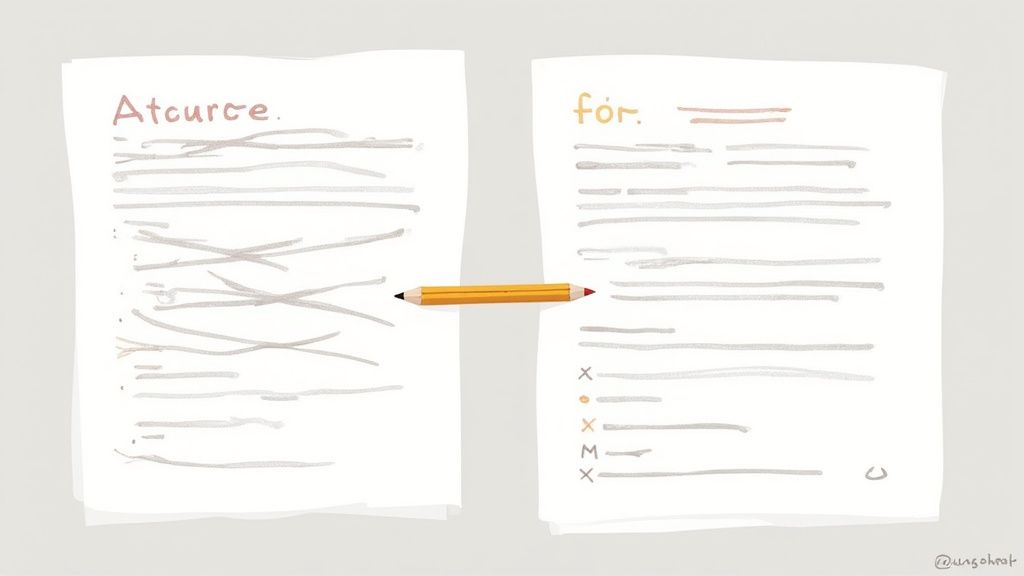
Grabbing the raw text from a YouTube video is a great first step, but it's rarely the last. What you get from an auto-generator is often a messy jumble of misheard words, zero punctuation, and all the "ums" and "uhs" you didn't notice while recording.
To turn that rough draft into something you can actually use, it needs a good cleanup. This is what separates a confusing block of text from a polished document ready for blog posts, social media clips, or accurate captions. The good news? All you need is a simple text editor and a bit of focus.
The First Pass: Cleaning Up Your Auto-Generated Transcript
Your first editing pass is all about clarity. The best way to do this is to read the transcript while listening to the video. This immediately highlights the most common errors AI makes, especially with niche-specific jargon, brand names, or proper nouns.
Here’s an actionable checklist for your initial cleanup:
- Fix Typos and Misheard Words: Correct any words the AI fumbled.
- Add Punctuation: Drop in periods, commas, and question marks to shape the text into readable sentences.
- Cut the Filler: Get rid of distracting words like "um," "ah," "like," and "you know." This makes the final text much punchier.
- Structure with Paragraphs: Break up long stretches of dialogue into smaller paragraphs. A good rule of thumb is to start a new paragraph whenever the topic shifts.
This manual review is non-negotiable. The AI transcription market is exploding—projected to hit $31.82 billion by 2030, largely because of the 500 hours of video uploaded to YouTube every single minute. But even with all that tech, AI still trips over accents and less-than-perfect audio quality. Human oversight is what makes a transcript youtube video truly accurate.
And as you’re refining your transcript to repurpose it, make sure you're doing so ethically. Understanding how to avoid plagiarism is key to making sure your adapted content is original and gives credit where it's due.
Formatting for Captions: A Quick Guide to SRT and VTT
With your text cleaned up, you can now format it for video captions. The two industry standards you'll run into are SRT (SubRip Text) and VTT (WebVTT). They're both just simple text files that sync your dialogue to timestamps, telling the video player exactly when to show each line of text.
SRT is the workhorse of captions—it's simple, universally supported, and perfect for most platforms like YouTube. VTT is a bit more modern and allows for extra styling like colors and positioning, but SRT is still the go-to for reliability.
You can use a dedicated subtitle generator to handle this automatically, or you can create an SRT file by hand. The structure is surprisingly simple:
100:00:01,250 --> 00:00:04,750This is the first line of dialogue that appears on screen.
200:00:05,100 --> 00:00:08,300And this is the second line, timed perfectly to the audio.
Each caption block gets a number, a start and end timestamp (formatted as hours:minutes:seconds,milliseconds), and the text itself. That's really all it takes to create professional, perfectly synced captions for your videos.
What to Do When Transcripts Go Wrong
You’ve found the perfect video, you click to get the transcript, and... crickets. Or worse, you get a wall of garbled text that's more confusing than helpful. It happens to the best of us. But before you write off the video, most of these roadblocks have a pretty simple workaround.
Let's walk through the most common headaches you'll hit when trying to grab a YouTube transcript and, more importantly, how to fix them so you can keep your content workflow moving.
Why Is the Transcript Option Missing?
The most common frustration is the good old missing "Show transcript" button. It's not just one thing, but it almost always comes down to a choice the video creator made or a quirk in how YouTube processes new content.
A few usual suspects are to blame:
- The Creator Disabled Transcripts: Yep, some creators just turn the feature off for their videos.
- Auto-Captions Aren’t Ready: For brand-new videos, YouTube's AI might still be chugging away, trying to process the audio.
- The Video Is Private: Unlisted or private videos sometimes have limited features, and that often includes public-facing transcripts.
- It’s a Livestream: Transcripts for live content usually don't show up until after the stream has ended and been saved as a regular video.
This just goes to show that creators have direct control over whether automatic captions—and by extension, the public transcript—are even generated in the first place.
When YouTube's built-in feature is a no-go, your best bet is to turn to a third-party tool. Many services, including Klap, can generate a brand new transcript from scratch using nothing more than the video’s URL.
Tackling Bad Accuracy and Messy Audio
Sometimes the problem isn’t a missing transcript, but a really, really bad one. If a video has loud background music, people talking over each other, or strong accents, YouTube's auto-captioning AI can seriously struggle to keep up. In fact, research shows that YouTube's automated captions have an average error rate of about 12%, meaning roughly 1 in 8 words could be wrong.
The quality of your transcript is directly tied to the quality of the source audio. Clear, crisp sound with minimal background noise will always yield the best results from any transcription tool.
To get a cleaner transcript, try these actionable strategies:
- Prioritize High-Quality Audio: If you’re the one making the video, using a decent microphone and recording in a quiet space is the single most important thing you can do. It's the difference between a clean auto-transcript and a digital word salad.
- Use a Specialized Tool: For interviews or panel discussions with multiple speakers, you need a tool built for that challenge. Services that offer speaker diarization (the ability to identify and label who is speaking) are an absolute game-changer for cleaning up confusing dialogue.
- Roll Up Your Sleeves and Edit: When all else fails, manual cleanup is your friend. Copy the jumbled text into an editor, listen to the video, and correct the mistakes as you go. It’s tedious, for sure, but it’s the only way to guarantee a 100% accurate final product.
Turning Transcripts Into Engaging Short-Form Clips
The real magic of a transcript isn’t just in what it says, but in what it allows you to create. Think of it as a blueprint for turning your long-form content into a powerful engine for social media, capable of churning out dozens of engaging clips for TikTok, Instagram Reels, and YouTube Shorts. This is how you 10x your output with minimal extra effort.
Your video's transcript lets you pinpoint the most compelling moments—the hooks, the key takeaways, and the emotional peaks—and slice them into bite-sized, shareable videos.
The AI-Powered Repurposing Workflow
Let's be honest: manually scrubbing through a long video to find viral moments is a soul-crushing chore. This is where AI-powered tools like Klap completely change the game by analyzing the transcript for you.
The process is refreshingly simple. You just feed it your long-form video, either by uploading the file or pasting the YouTube link. From there, the AI takes over:
- Analyzes the Transcript: It scans the full text to understand context, identify key topics, and flag the most engaging segments based on semantic analysis.
- Generates Clips Automatically: The tool then proposes a series of short clips, complete with dynamic, animated captions ready for social media.
- Reframes for Vertical Viewing: Each clip is automatically reframed to a 9:16 aspect ratio, making sure it looks perfect on mobile.
This turns a multi-hour editing job into a task that takes just a few minutes. You get to spend your time refining the final product instead of starting from scratch. For a deeper dive, check out our guide on how to create YouTube Shorts from existing videos.
To see just how much of a difference this makes, let's compare the old way with the new way.
Short-Form Clip Creation Workflow
This table breaks down the side-by-side process of creating clips manually versus using an AI-assisted tool like Klap.
StepManual ProcessAI-Assisted Process (e.g., Klap)
1. Find Moments
Watch the entire video, taking timestamped notes on potential clips. (1-2 hours)
Paste the video link; AI identifies the best moments from the transcript. (2 minutes)
2. Edit & Trim
Import the video into an editor, find the timestamps, and manually cut each clip. (1-2 hours)
Review AI-suggested clips and approve them. (10 minutes)
3. Add Captions
Transcribe each clip, format the text, and manually time the captions to the audio. (1-2 hours)
AI generates and syncs dynamic, animated captions automatically. (Instant)
4. Reformat
Create a new project for vertical format, reframe each shot, and export. (30-60 minutes)
AI auto-reframes for vertical (9:16) and applies branding. (Instant)
Total Time
3.5 - 6 hours
~15 minutes
The contrast is pretty stark. The AI workflow doesn't just save time; it frees you up to focus on strategy and creativity rather than getting bogged down in repetitive editing tasks.
Best Practices for Customizing Captions
Once the AI generates your clips, the final step is adding your personal touch. The default captions are a great start, but tailoring them to your brand and audience can seriously boost engagement. Always prioritize readability and visual appeal.
A Verizon Media study found that 80% of consumers are more likely to watch an entire video when captions are available. Your captions aren't a bonus feature; they are the primary way many viewers will consume your content.
Here are a few actionable tips to make your captions pop:
- Font and Color: Choose a bold, easy-to-read font. Use high-contrast colors (like yellow or green) to make key words stand out.
- Animations and Emojis: Use subtle animations or relevant emojis to inject personality and emphasize important points.
- Pacing: Make sure the captions appear on screen with a natural rhythm that matches the speaker’s cadence.
Of course, this all assumes you have a clean transcript to begin with. The reality is often messier.
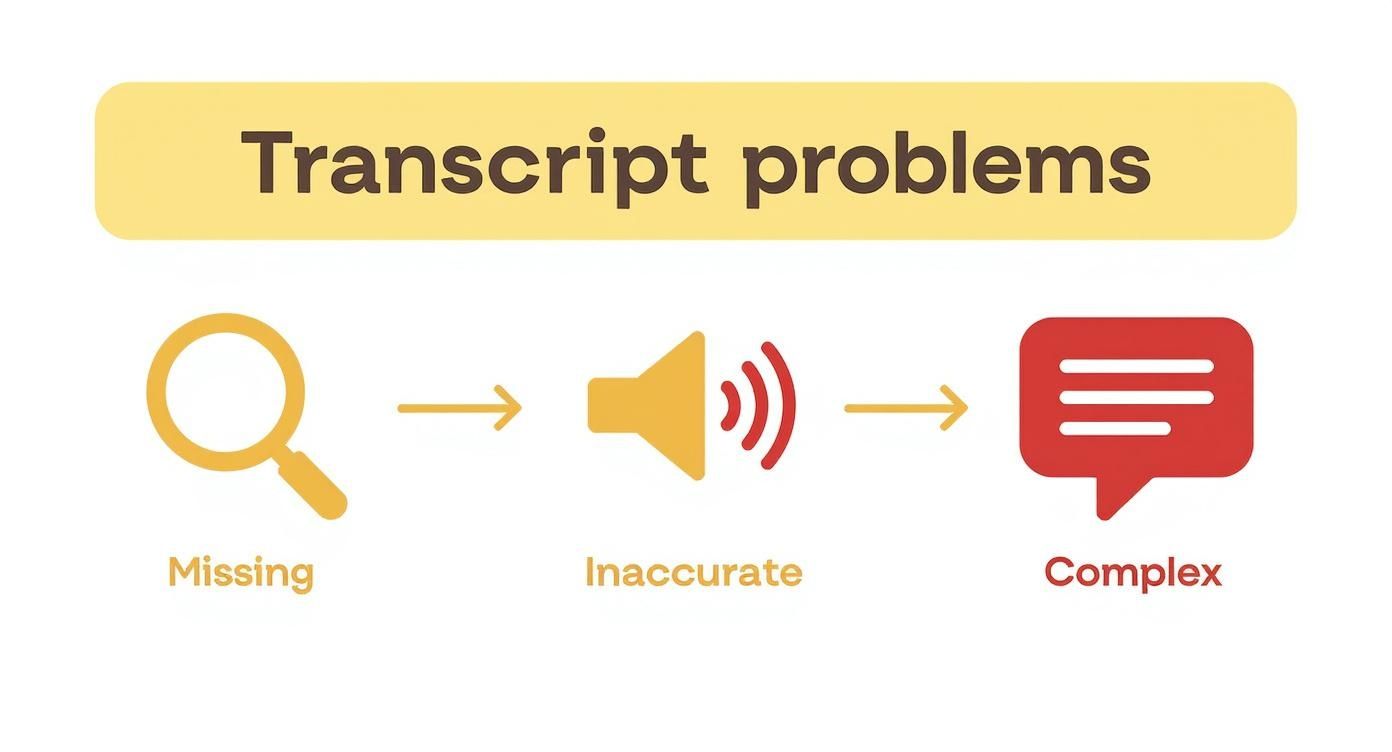
Understanding these potential headaches makes it clear why automated tools that clean and process transcripts are so valuable for a smooth clip-creation workflow.
The rise of short-form content has completely changed how people consume video. YouTube Shorts now pull in over 70 billion daily views, making up more than 30% of all content consumption on the platform. This shift demands a new approach where transcripts are essential for discovering and repurposing content quickly. By using your transcript as a foundation, you can effectively tap into this massive audience.
Got Questions? We've Got Answers
Diving into the world of video transcripts usually brings up a few questions, from the murky legal stuff to the nitty-gritty technical details. Let's clear up some of the most common ones creators run into when they start working with YouTube video transcripts.
Whether you're wondering about copyright, accuracy, or which tools to use, this should get you on the right track.
Is It Legal to Transcript Someone Else’s YouTube Video?
This is a big one, and the answer is… it depends. Transcribing a video for your own private use—like for research, personal notes, or study—is almost always fine. This generally falls under the umbrella of fair use since you're not distributing someone else's work.
But the game changes the second you hit "publish."
If you post the full, word-for-word transcript on your blog or use huge chunks of it in your own content without asking, you could easily run into copyright problems.
Actionable advice: The safest bet is to use transcripts as a tool for analysis or to create something new and transformative. Think summary blog posts, commentary clips, or reaction videos. If you absolutely have to republish the whole thing, do the right thing: reach out and get permission from the original creator first.
How Can I Improve YouTube’s Auto-Transcript Accuracy?
The accuracy of YouTube's auto-captions boils down to one crucial thing: audio quality. To give the AI a fighting chance, you need to feed it clean audio. That means speaking clearly at a steady pace and, most importantly, using a decent microphone to cut down on background noise and echo. It’s not just a guess—clean audio has been shown to boost AI transcription accuracy by over 20%.
What about videos that are already live? You can't go back and re-record the audio, of course. Your best move is to jump into YouTube Studio and edit the transcript yourself.
Here's how to do it:
- Head to the "Subtitles" tab for the video in question.
- Find the auto-generated captions and click "Duplicate and Edit."
- This pulls up a simple editor where you can fix typos, add punctuation, and polish the text until it's 100% accurate.
What’s the Best Format to Save a Transcript?
The "best" format really just depends on what you plan to do with it. There’s no single right answer, but there are clear winners for different jobs.
- For Writing or Analysis (.txt): If you're pulling quotes for a blog post, running the text through an analysis tool, or just need the raw words, a plain text file (
.txt) is your best friend. It’s simple, light, and works everywhere. - For Video Captions (.srt): To add captions back to your video, the industry-standard SubRip format (
.srt) is the most reliable option. It's a no-frills file that just contains timestamps and the corresponding text. - For Advanced Captions (.vtt): If you want to get fancier with text styling—like colors, bolding, or specific screen positioning—then WebVTT (
.vtt) is what you're looking for.
Most professional transcription tools will let you export in multiple formats, so you can just grab the one that fits your project.
Are There Free Tools to Transcript a YouTube Video?
Absolutely. The quickest and most accessible free tool is YouTube itself. The built-in transcript feature lets you copy and paste the text directly from the video page. For most simple tasks, that's all you'll need.
If you need something a bit more robust, many third-party services offer generous free plans that let you transcribe a certain number of minutes each month. And for the more technically adventurous, open-source AI models like OpenAI's Whisper can be run locally on your own computer to generate incredibly accurate transcripts for free, though it does take a little setup.
Ready to stop manually scrubbing through videos and start creating content at scale? Klap uses AI to analyze your long-form videos, find the most viral-worthy moments, and automatically generate ready-to-post short clips with dynamic captions. Turn your videos into viral shorts today!
