
YT to Transcript: 4 Fast Methods for Creators in 2026
Other
You've probably done this before. A podcast episode finishes, a webinar goes live, or a long YouTube video finally gets published. Then the actual work starts.
You need a clean quote for LinkedIn. A few captions for Shorts. A blog outline. Maybe three clip ideas that don't require scrubbing through an hour of footage again. That's when “yt to transcript” stops being a little utility search and turns into a content bottleneck.
For creators, a transcript isn't the final asset. It's the raw material. Once your spoken ideas become text, you can search them, trim them, rewrite them, pull hooks from them, and turn one upload into many smaller pieces. That's why transcript workflows matter so much more now than they did a few years ago.
Why You Need More Than Just a Video File
A video file is hard to work with when you're in repurposing mode. You can watch it. You can trim it manually. But you can't skim it the way you skim a page.
A transcript changes that. Instead of guessing where the strongest moment was, you can scan for the line, find the timestamp, and turn that moment into something else. A tweet thread. Show notes. Email copy. A talking-head clip with captions. A tighter script for a follow-up video.
That's also why a lot of creators eventually move from “I need the words” to “I need a repeatable system.” The transcript becomes the center of the workflow. The video feeds it. The clips come out of it. The written assets come out of it too.
What creators usually realize too late
Most long-form content already contains dozens of reusable moments. The problem isn't lack of ideas. The problem is access.
When spoken content stays trapped inside the timeline, repurposing is slow. Once it becomes text, everything gets easier to sort and prioritize. That's the practical bridge between YouTube and social output.
A lot of the best expert content repurposing techniques start with exactly that shift. Stop treating each upload as one finished asset. Treat it as source material. If you want a deeper look at that source-to-text step, this guide on video to transcript workflows is a useful companion.
A transcript is what makes a long video editable at the idea level, not just the timeline level.
Why this matters for clips, not just archives
Creators often search for yt to transcript because they want text. What they usually need is speed in deciding what to clip.
A searchable transcript helps you spot:
- Strong hooks: The lines that open a short clip well.
- Clean takeaways: Sentences that can stand alone without extra setup.
- Theme clusters: Moments you can group into series content.
- Caption-ready phrasing: Spoken lines that already sound natural on social.
That's the main payoff. Not a giant wall of text in a document. A faster path from long-form video to reusable content.
The Built-in YouTube Transcript Method
The fastest method is still the one inside YouTube itself. If a video has captions available, YouTube lets you open the transcript from the video page, and the clickable lines jump to exact moments in the video. That transcript workflow has become a standard part of how creators extract searchable text from uploads, and it's one reason transcript retrieval is now a normal content step rather than a niche task. You can also see the same broader shift in tools like the open-source youtube-transcript-api project, which shows a simple fetch(video_id) workflow.
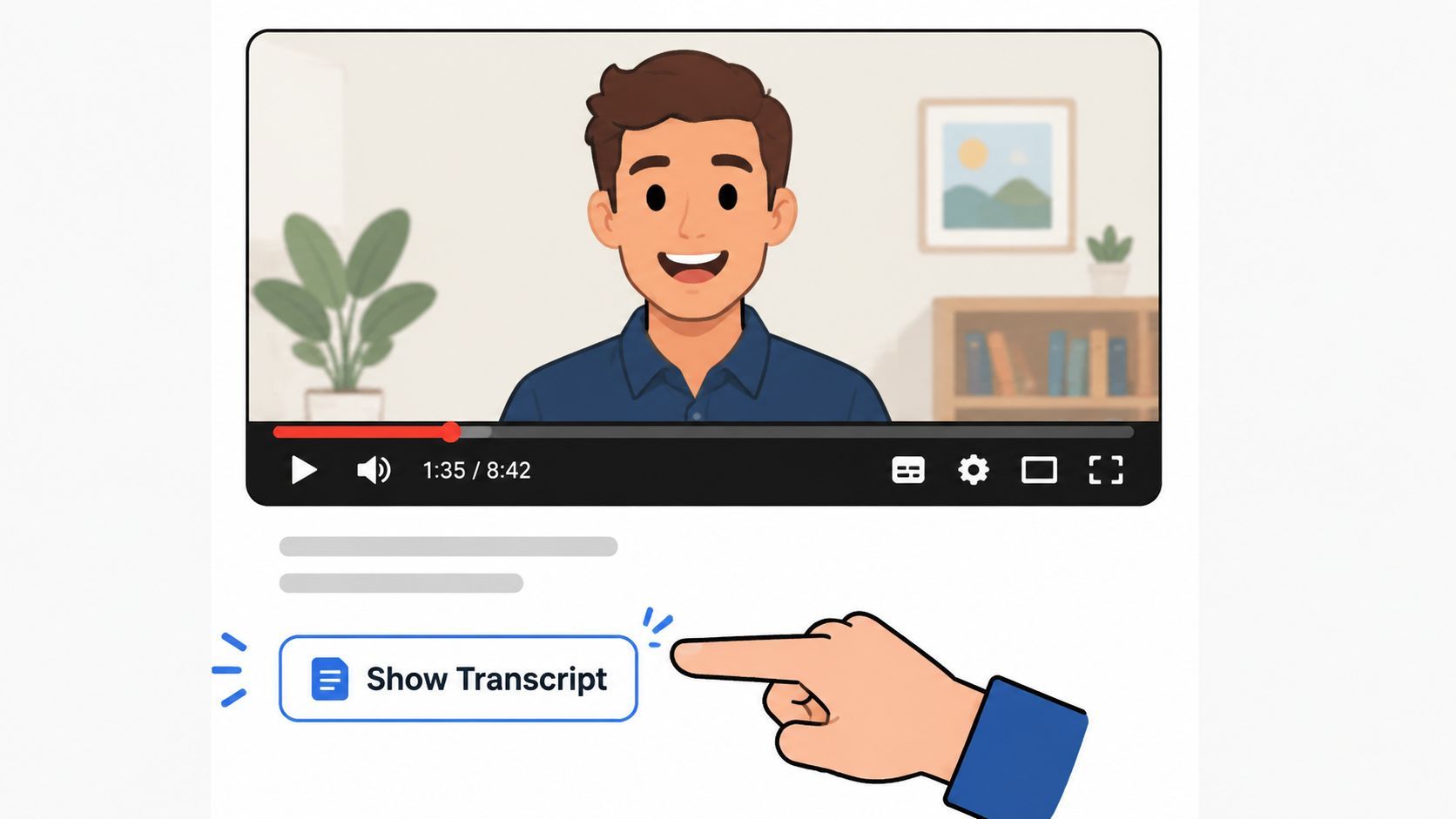
How to pull a transcript from YouTube
On most desktop views, the process is simple:
- Open the YouTube video
- Click the description area
- Open the menu with the three dots
- Choose “Show transcript”
- Copy the text you need
- Turn timestamps off if you want cleaner text for notes or drafting
If all you need is a quick quote, a rough outline, or a fast way to find a moment in the video, this method works well.
It's also useful when you're evaluating whether a video is even worth clipping. You can scan the transcript first, then decide if the source has enough sharp moments to justify editing time.
Where this method breaks down
The built-in method is convenient, but it's not dependable enough for every workflow.
A major gap most guides ignore is that YouTube transcripts are not always available for every video. If captions are disabled or the audio quality is too low, the transcript can be missing entirely, which forces you to use another method, as noted in Tactiq's guide to missing YouTube transcripts.
Fast is not the same as production-ready. The YouTube transcript panel is good for extraction, but weak for cleanup.
Other practical issues show up quickly:
- Formatting is clunky: copied text often needs cleanup
- Speaker changes aren't clear: bad for interviews and panel videos
- Punctuation can be messy: especially in long unscripted recordings
- Clip selection is still manual: you're finding moments yourself
If you want to see the interface before trying it, this quick walkthrough helps:
When to use it
Use the native YouTube option when:
- You need speed: one quote, one section, one quick copy-paste
- You're researching your own video: and want to find a specific line
- You're validating a clipping idea: before moving into a fuller workflow
Skip it when you need clean exports, multilingual handling, batch processing, or a transcript you can confidently hand off to an editor.
Free Tools for More Control and Customization
Once the YouTube panel starts feeling cramped, the next step is usually a free workaround. These methods give you more control, but they ask for more effort too.
I think of them as two different lanes. One is simple and scrappy. The other is technical and much stronger if you plan to repurpose content often.
The low-tech option with Google Docs voice typing
This method is basic, but it still helps in a pinch.
You open Google Docs, turn on Voice Typing, play the YouTube video out loud, and let Docs transcribe in real time. It's not elegant, and it isn't ideal for long sessions, but it works when you want a free transcript without installing anything.
This is best for:
- Short videos
- Solo creators on a tight budget
- Rough drafts you'll rewrite anyway
What doesn't work well:
- Real-time waiting: the video has to play through
- Messy formatting: cleanup is part of the job
- Weak timestamping: not great for clip editors
- System-audio quirks: setup can be fiddly depending on device
If your end goal is polished short-form content, this method feels like a stopgap, not a workflow.
The technical creator workflow with yt-dlp and Whisper
If you want more control, the stronger DIY path is to extract the audio first, then run speech-to-text locally.
A widely used setup is yt-dlp plus Whisper. The practical workflow is: pull audio from YouTube with yt-dlp, run it through Whisper locally, and export a timestamped file such as SRT. BrassTranscripts describes this as a practical path for technical teams that want high-quality timestamped output without relying on the browser transcript UI, in its guide to transcribing YouTube with yt-dlp and Whisper.
That workflow suits:
- Podcasters
- Editors who want subtitle files
- Teams building repeatable content pipelines
- Anyone who wants more control over transcript output
The real trade-off
This route gives you stronger assets, but it asks for setup work.
Here's the honest breakdown:
- Time: better after setup, slower at the beginning
- Cost: often low if you run it yourself
- Accuracy: generally better than rough browser copying
- Effort: highest of the free options
Practical rule: If you repurpose video every week, the setup pain is usually worth it. If you do this once a month, it may feel like overkill.
For creators who want something between raw extraction and full clip production, a YouTube video transcript generator can help you compare where manual, DIY, and automated workflows fit.
Which free method should you choose
A simple decision framework works better than obsessing over the “best” tool.
WorkflowWhat you gainWhat you give up
Google Docs Voice Typing
No install, very accessible
Real-time speed, weak structure
yt-dlp + Whisper
Better control, timestamps, local files
Setup effort, more technical work
If you mainly want a wall of text, either can work.
If you want transcript text that leads cleanly into clipping, subtitles, and editing, the technical route is much closer to what creators need.
Comparing the Best YouTube Transcript Methods
Creators usually discover the limit of transcript tools the same way. The transcript is done, but the clip is not.
A raw block of text can help you search a video. It does far less if the job is pulling hooks for Shorts, cutting a clean quote for LinkedIn, or finding the strongest 30 seconds for TikTok. That is the standard worth using when you compare yt to transcript methods.
What paid services actually improve
Paid AI tools earn their keep by reducing cleanup after transcription.
In practice, that usually means:
- Cleaner sentence breaks
- Speaker labels
- Timestamps that are easier to edit against
- Exports you can hand off to an editor
- Support for multiple languages
Those details matter because repurposing breaks down when the transcript needs heavy repair. If captions are split badly, speakers are merged, or timestamps drift, every clip takes longer to build.
YouTube to Transcript Method Comparison
MethodCostAvg. AccuracyEffort LevelBest For
YouTube native transcript
Free
Varies
Low
Quick reference and basic copy-paste
Google Docs voice typing
Free
Varies
Medium
Rough drafts from shorter videos
yt-dlp + Whisper
Free or low-cost DIY
High with review
High
Technical creators who want timestamps and control
Paid AI transcript services
Paid
Strong with review
Low to medium
Teams that need speed, structure, and cleaner exports
Klap
Paid
Transcript plus clip workflow
Low
Creators turning long videos into short social clips
The practical trade-off
Each method saves a different resource.
The YouTube transcript is fastest to access, but it usually creates more editing work later. Google Docs is free and simple, but it is slow because you have to play audio in real time. A DIY setup with Whisper gives better control and stronger transcript assets, but setup takes time and some technical confidence. Paid AI tools cost more upfront, yet they often save the most time once you are clipping content every week.
That difference matters most for creators working from one long video into many outputs.
If the end product is just text, several options are good enough. If the end product is a captioned short, quote post, subtitles file, or translated clip, the better method is the one that gives you usable structure right away.
For creators, transcript quality is really about edit readiness. The closer your transcript is to clip selection, captioning, and export, the less manual work sits between the YouTube link and the finished post.
The Smartest Workflow From Link to Viral Clip
The most useful shift is this one. Stop treating transcription as the destination.
If you paste a YouTube link into a tool, get the words, and then still have to identify the best moments, resize the frame, add captions, and prep exports manually, you haven't solved the core problem. You've only finished the first step.
The workflow creators actually want
Most creators want one motion from source to output:
- Drop in the YouTube link
- Get the transcript
- Find the strongest moments
- Turn those moments into vertical clips
- Review and publish
That's a different category of workflow from transcript extraction alone.
Why transcript-only tools create extra work
A transcript by itself still leaves a lot of editing decisions unresolved:
- Which sentence starts the clip
- Which moment is the hook
- Where the cut should end
- How the frame should be cropped for vertical
- Whether captions need restyling
That's why transcript-only workflows often stall after extraction. The creator has the text, but still has to do all the editorial selection manually.
Commercial transcript and scraper tools now commonly expose structured output such as plain text, timestamps, and JSON. For example, SerpApi says its YouTube Video Transcript API includes a free tier of 250 searches per month and sample responses with fields like snippet and start_time_text, which are useful for finding quotable moments. Firecrawl's 2026 survey also notes batch-style transcript tooling, while Choppity reports YouTube automatic transcript accuracy commonly falls in the 60% to 90% range depending on audio and speech conditions, which is why review still matters in production workflows, especially for long-form content repurposed into short clips. Those details are summarized in Firecrawl's review of YouTube transcript extractors and workflow trade-offs.
Where a full repurposing tool fits
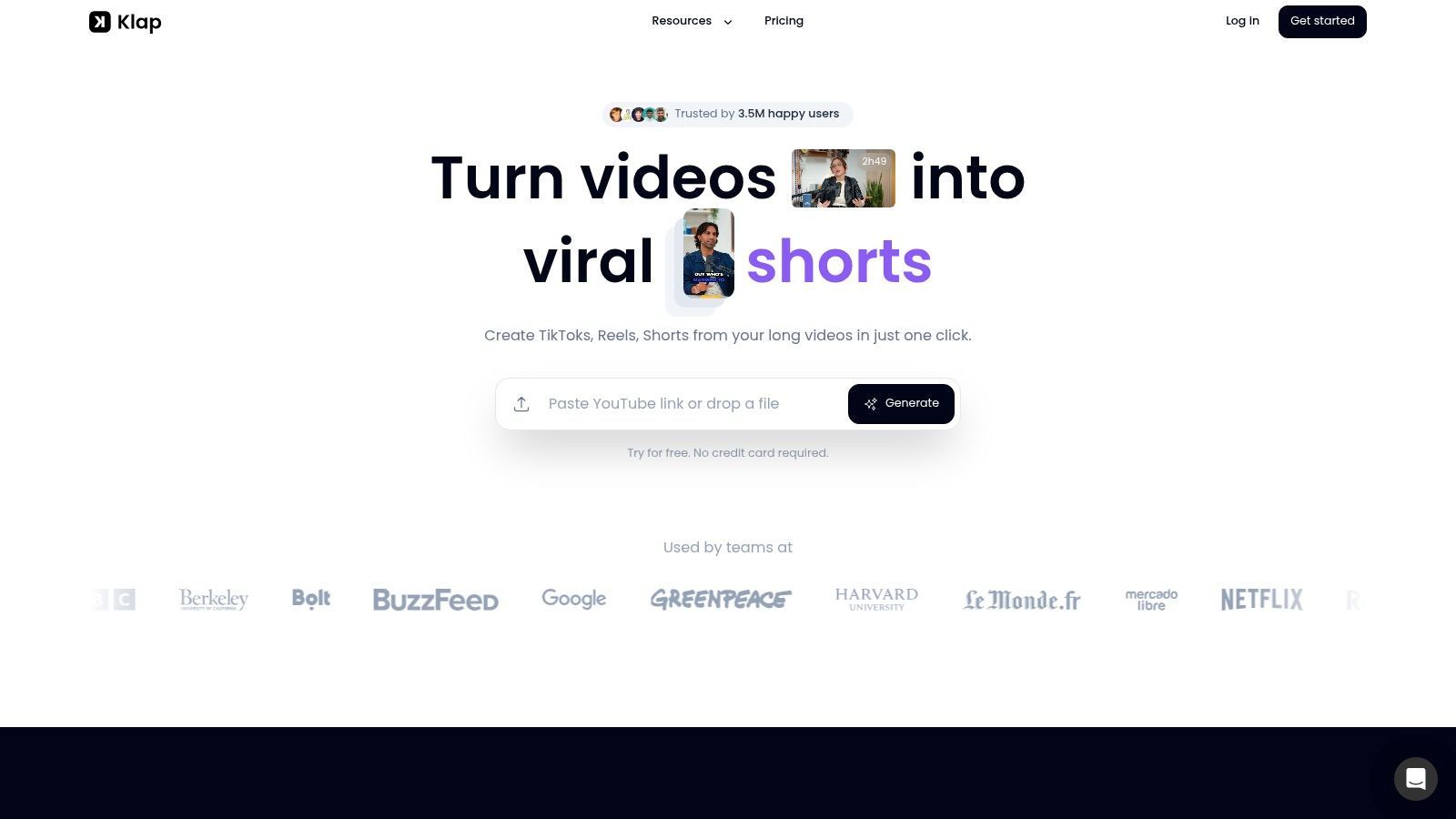
Klap distinguishes itself from plain yt to transcript tools. You can import a YouTube link, let the system analyze the long-form video, generate short clips from engaging moments, and work from a transcript-aware editing flow instead of starting from a blank timeline.
That matters because clipping is usually the bottleneck, not extraction.
The useful output isn't “transcript complete.” It's “three publishable clips ready for review.”
For creators publishing into TikTok, Reels, and Shorts, that workflow is closer to the actual job. The transcript still matters. It just works best as the layer underneath selection, subtitles, reframing, and export.
Pro Tips for Polishing Your Transcript
No matter how you get the transcript, the raw output is rarely ready to publish.
That's especially true for spoken content with interruptions, weak punctuation, repeated phrases, names, jargon, or overlapping speakers. If the transcript is going to feed clips, captions, or written content, cleanup matters.
YouTube's automatic transcript accuracy is commonly reported in the 60% to 90% range depending on audio clarity, accents, background noise, and specialized terminology, which is why a manual review is usually still needed, according to Choppity's guide to editing YouTube transcript output.
What to fix first
Start with meaning, not cosmetics.
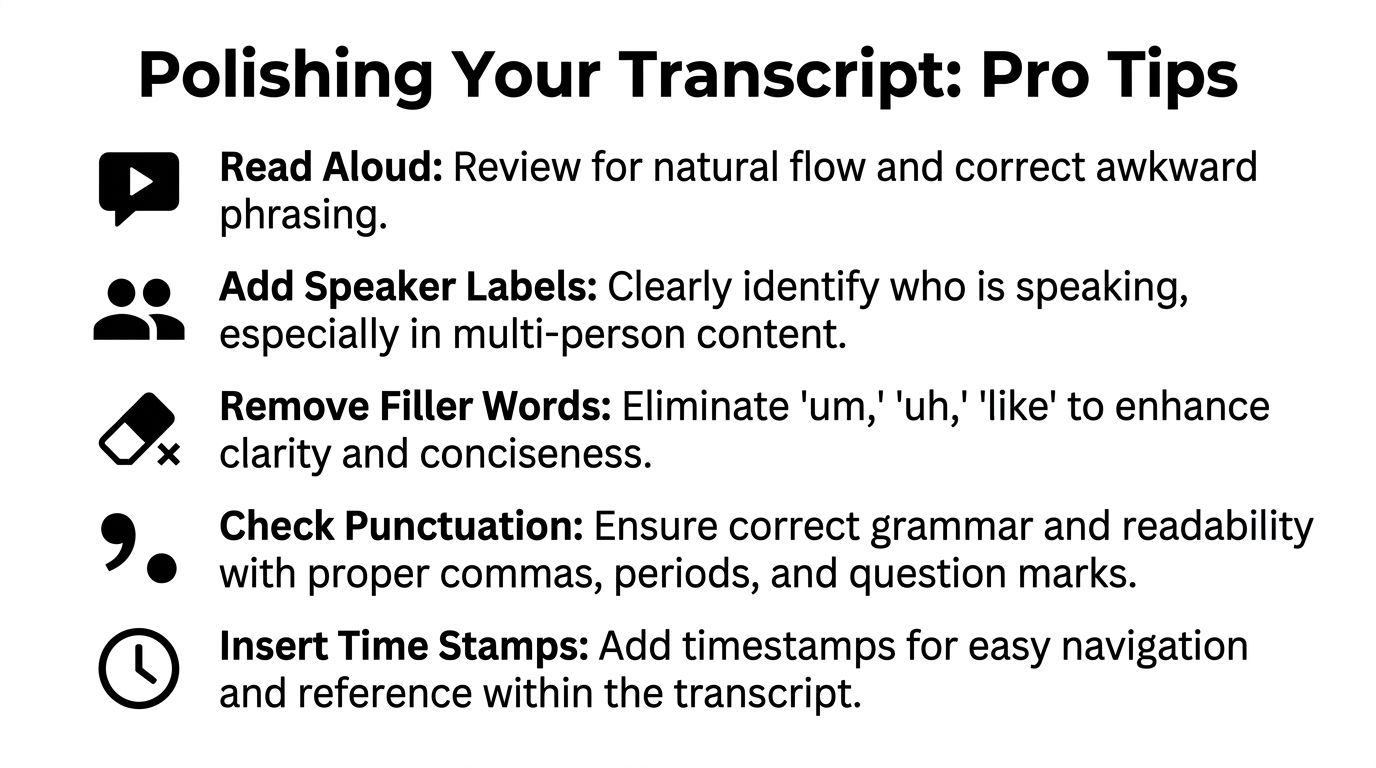
- Correct names and terms: Proper nouns, products, and technical words are where automated tools often fail.
- Remove obvious transcript noise: repeated words, false starts, and accidental fragments.
- Break giant text blocks: readable paragraphs make review much faster.
- Label speakers when needed: interviews without labels become hard to repurpose.
- Check timestamps around key quotes: especially if those lines will become clips.
If you're building polished assets from transcript text, this walkthrough on how to write a transcript cleanly is worth bookmarking.
The best review pass is purpose-driven
Edit the transcript for the thing you're making next.
If the transcript will become:
- Show notes, tighten structure and phrasing
- Captions, keep natural speech but remove clutter
- A blog post, group ideas by topic
- Clip selection notes, mark timestamped moments with strong stand-alone hooks
That approach is faster than trying to create one perfect “master transcript” for every possible use.
Review for reuse. Don't edit every line with the same standard if the output is a social clip.
One last caution
If the video isn't yours, be careful.
Transcribing and repurposing someone else's content raises obvious ethical and legal questions. At a minimum, get permission when appropriate, respect platform rules, and give clear attribution when you're working from source material you didn't create.
If your goal is more than getting text, Klap is worth trying. You can start with a YouTube link, turn long-form video into short clips, review captions and framing, and move from source content to publishable social assets in one workflow.
