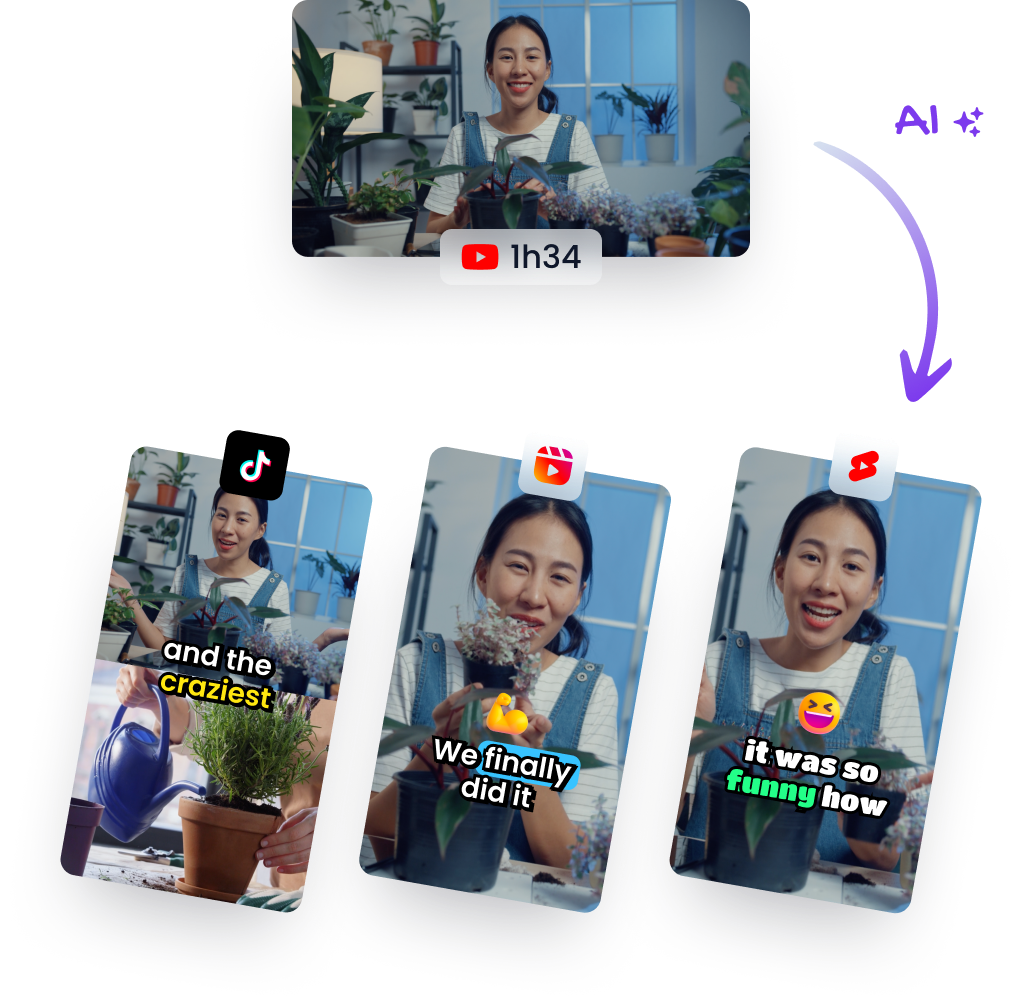
Mobile Video Editing That Turns Long Footage Into Short
Other
You've got a long recording on your phone, a queue full of empty calendar slots, and the same thought every creator gets at some point, “I should turn this into a week of clips.” That's where mobile video editing stops being a convenience and starts being the bottleneck. The fastest teams don't open an app first, they decide what the clip is for, what frame it needs, and what survives repurposing before they touch the timeline.
Why Most Mobile Edits Stall Before They Start
The usual failure point isn't the editing app. It's the moment you stare at a 45-minute podcast and promise yourself you'll “pull five shorts out of it” before Monday. That sounds like an editing problem, but it's really a planning problem, because the clip already has to know its destination before you trim the first second.
A creator with one strong episode and three days to publish a week's worth of clips can waste hours hunting for moments that were never framed for short-form in the first place. The smarter move is to decide whether the source recording is being cut for TikTok, Instagram Reels, YouTube Shorts, or a mixed output set before you open the editor. If the answer is mixed, the framing and hook choice have to survive multiple aspect ratios, not just one vertical crop.
A simple pre-edit checklist keeps this from turning into a six-hour grind:
- Pick the primary platform first. That choice affects hook timing, caption placement, and how aggressive the crop can be.
- Mark the strongest opening line before editing. If the first usable hook doesn't land quickly, the rest of the timeline is probably filler.
- Check whether the shot can survive repurposing. A tight face crop might work for one platform and fail badly for square or horizontal output.
- Decide what you're not fixing. Bad audio, awkward framing, or a dead intro usually need to be avoided upstream, not rescued in the app.
A practical guide like the Viral.new TikTok filming guide is useful here because it pushes the same upstream thinking, shoot with the end format in mind, not with a vague hope that the edit will save everything. That mindset is what turns repurposing from a weekend project into a repeatable workflow.
Practical rule: if you can't explain the clip's purpose in one sentence, you're not ready to edit yet.
Capture and Device Setup That Survives Repurposing
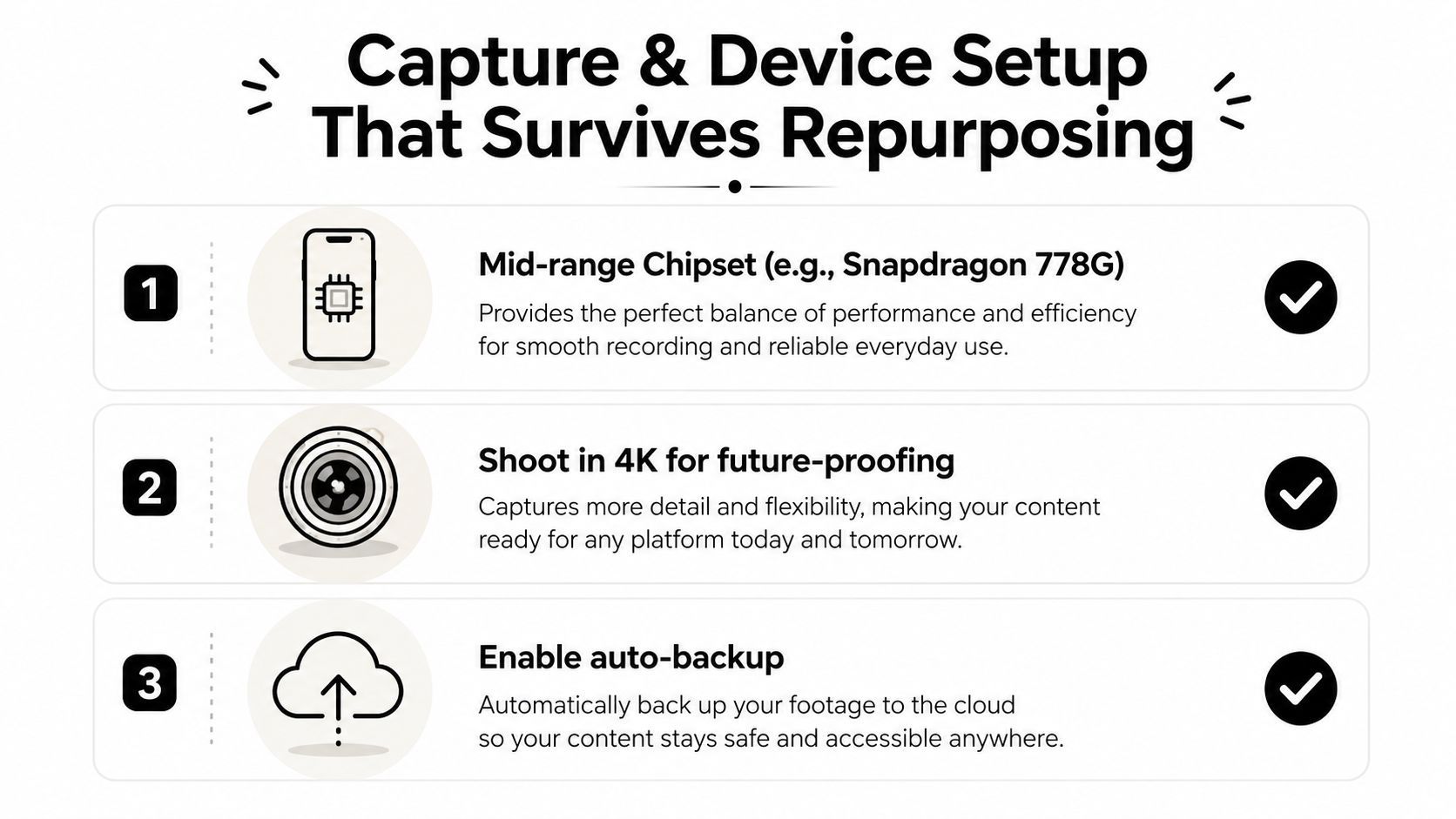
Before the first trim, the footage and the phone doing the work need to be capable of finishing the job. For short social edits, a credible floor is a Snapdragon 778G, Dimensity 900, or A13 Bionic, along with 6 GB RAM and 128 GB storage. For more demanding YouTube clips, client ads, or documentary work, the safer range is Snapdragon 8 Gen 1 or 2, A15 to A17, 8 to 12 GB RAM, and UFS 3.1 or UFS 4.0 storage. The point is simple, chipset, memory, and storage speed matter before display specs do.
The main thing that kills a mobile timeline is slow storage or not enough memory. The source explicitly warns against eMMC because it bogs down scrubbing and exporting, and it treats 8 GB as the sweet spot for smoother multitasking, with 12 GB+ reserved for larger projects. If the phone starts stuttering when captions, overlays, and a second layer of audio are stacked, the edit won't feel fast no matter how polished the app looks.
Capture choices that make repurposing possible
A single source recording should be framed so it can become 9:16, 1:1, and 16:9 later. That usually means shooting a little wider than you think you need, keeping the subject centered enough for a vertical crop, and avoiding edge-to-edge text in the original frame. The crop only feels generous if the original shot gives the editor room to move.
A useful mobile routine is to record the source with export flexibility already in mind, then back it up automatically so the raw file doesn't become the weak link. If the device is older, skip heavy multitasking during capture, avoid stacked effects while recording, and keep the edit simpler. That's also where tools like LunaBloom AI's app can fit into a creator workflow, especially when you want to move from rough capture to a cleaner mobile edit without juggling too many apps.
For a deeper capture walkthrough, the setup in this Instagram recording guide lines up with the same practical idea, keep the source footage reusable, not just usable once.
Screenshot this specs baseline
- Short social edits: Snapdragon 778G, Dimensity 900, or A13 Bionic, 6 GB RAM, 128 GB storage.
- Heavier projects: Snapdragon 8 Gen 1 or 2, A15 to A17, 8 to 12 GB RAM, UFS 3.1 or 4.0 storage.
- Avoid: eMMC storage when timeline smoothness matters.
- Prioritize first: chipset, RAM, and storage speed.
- Skip on older phones: unnecessary layers, heavy live effects, and long multitask sessions.
Aspect Ratios, Safe Zones, and the Three Output Trick
The cleanest mobile edit usually starts as a crop problem, not a timeline problem. If the source clip can survive 9:16, 1:1, and 16:9, the same recording can feed multiple platforms without another shoot. That's the core advantage, one take becomes several deliverables because the frame was planned for reuse.
The technical baseline for most short-form delivery is 1080×1920 px in 9:16 at 30 fps, encoded in H.264/MP4 with 8 to 12 Mbps bitrate. For mobile social playback, AAC 128 to 192 kbps is enough for audio, and 60 fps only makes sense when the motion really benefits from it. In practice, the safest workflow is to keep the master sequence at 1080×1920, then only deviate when the footage has fast action or a platform-specific need.
PlatformAspect RatioMax Length (2026)Best Use
TikTok
9:16
10 minutes
Fast hooks, dense commentary, trend-driven clips
Instagram Reels
9:16
3 minutes
Personality clips, commentary, polished repurposes
YouTube Shorts
9:16
3 minutes
Search-friendly, repeatable short clips
Snapchat Spotlight
9:16
Under 60 seconds
Very short, immediate payoff edits
Safe zones matter because platform overlays cover real estate you can't ignore. The username strip, caption bar, and title overlay all eat into the usable frame, so text and faces need to live inside the center mass of the shot. A short-form editor who keeps subtitles low and wide enough for mobile screens avoids the classic mistake of putting the best line directly under a username badge.
Keep the subject centered, but not trapped. You want enough headroom for platform UI, enough side space for crops, and enough room for captions to breathe.
If you want a visual walk-through of ratio conversion, this aspect ratio conversion guide aligns with the same rule, shoot once with crop flexibility, then cut the frame to fit the platform instead of forcing the platform to fit the frame.
Finding the Hook in Long Footage Without Guesswork

The hook usually isn't the opening greeting. It's the line in the middle where the speaker finally says something that feels complete, surprising, or useful. That matters more now because YouTube Shorts alone is reported to reach over 200 billion daily views, so the opening seconds are doing more work than they ever did in a desktop-first workflow.
A clean scan-mark-score routine saves a lot of wasted scrubbing. Start at 2x speed, drop markers on every complete thought or surprising statement, and score each one on a simple question, “Would I tap this?” If the answer is no, the line probably works as context, not as a clip.
What makes a hook worth cutting
An informational hook promises a clear payoff, usually a useful tip, a specific answer, or a strong takeaway. A curiosity hook leaves a gap, it hints at a result or conflict without resolving it immediately. In practice, the best short clips often start in the middle of the conversation, where the speaker is already past the intro and into the actual point.
That's where software selection matters too. A practical roundup like Flexwork Podcast Studios software picks can help creators compare tools that handle timeline review, marker-based trimming, and short-form export without overcomplicating the workflow. The point isn't to chase features, it's to find a tool that makes fast review feel mechanical instead of creative.
A simple 90-second decision tree works well:
- Scan the long video at double speed.
- Mark complete thoughts, surprises, and sharp claims.
- Delete any marker that needs too much setup.
- Keep the one that still makes sense when clipped to 15 to 60 seconds.
The strongest clip is usually the one that can stand alone even after the context is stripped away. If it depends on three minutes of setup, it's not a hook, it's a chapter break.
Captions, Pacing, and the Polish Pass That Actually Matters

Once the slice is locked, the work gets quieter. You trim the filler, keep the speech moving, and make sure the captions do the heavy lifting because a lot of viewers still meet the clip on mute first. If the words on screen aren't readable at a glance, the edit is already behind.
The fastest polish pass isn't about adding more. It's about removing friction. Trim pauses that don't change meaning, cut repeated phrases, and place captions where the eye naturally lands without covering the face or the platform UI.
Where to spend effort
Captioning is the first real polish layer. A good caption track behaves like the transcript's sharpest version, not a decorative overlay. The captions guide is useful here because it reinforces the same practical point, subtitles are not a bonus effect, they're part of the viewing experience.
Pacing comes next. Use b-roll when it clarifies or resets attention, not whenever the shot feels empty. Speed ramps and beat markers can help a short clip stay coherent, but overdoing transitions makes a 30-second video feel busier, not stronger.
Motion continuity matters more than many creators expect. Cutting from a stationary shot straight into aggressive handheld movement, without a reason, can make the clip feel disjointed on a small screen. A better edit either stays consistent in motion language or changes motion on purpose, usually to emphasize a point or land a beat.
A practical polish checklist looks like this:
- Trim filler words and dead air. Keep the spoken line moving.
- Stack captions clearly. Make the transcript readable on mute.
- Time cuts to speech beats. Let the rhythm feel intentional.
- Use b-roll only when it adds context.
- Avoid chaotic motion jumps. Keep camera movement coherent.
The best polish pass is the one nobody notices. The clip just feels easy to watch.
Export Settings and Platform Posting Strategy

For most mobile clips, the safest export preset is 1080×1920, 30 fps, 8 to 12 Mbps bitrate, H.264 MP4, and AAC 128 to 192 kbps audio. It keeps uploads manageable, plays back cleanly on phones, and avoids the compatibility problems that show up when a file is pushed too hard. If the clip depends on fast motion, 60 fps can be the better choice, but only when the smoother movement is worth the larger file and slower upload.
The weak export choices are easy to spot. One version is bloated, takes forever to upload, and slows down the posting workflow. The other is compressed so hard that faces, text, and movement start to look soft on a phone screen. Both cost time, but in different ways.
Platform ceilings shape the post
Use the platform limits from Section 3 as the reference point, then adjust the hook and caption density for the job. A clip that holds attention on TikTok can usually take a little more setup, while Reels, Shorts, and Spotlight need quicker context and less padding. The edit should follow the posting target, not fight it.
That is also where AI-assisted tools can remove some of the repetitive work. One option is Klap, which turns long-form video into short social clips with reframing and captions, so the review pass starts closer to something publishable. For creators moving through a steady weekly queue, that can reduce the amount of manual setup needed before export.
A posting plan that holds up across platforms keeps the same source footage, but changes the finish. The export stays clean and consistent, while the opening beat, caption density, and framing choices shift to match how each platform is watched.
PlatformExport FocusPosting Habit
TikTok
Fast hook, readable captions, flexible pacing
Prioritize the opening beat
Instagram Reels
Clean framing, polished timing, concise text
Keep overlays tight
YouTube Shorts
Clear payoff, strong title alignment, compact edits
Make the first line count
Snapchat Spotlight
Very short, immediate clarity
Cut straight to the point
If a clip still misses after posting, the first place to look is usually the edit before export. Recut the hook, shorten the opening, or simplify the caption stack before assuming the preset is the problem.
The Weekly Repurposing Routine and Quick Fixes
The repeatable version of this workflow is dull in the right way. Pick one long video on Monday, run the device check, mark five hooks, polish three, export the strongest two, and post them on the platforms that fit the clip. That routine works because it turns one source file into a controlled batch instead of a last-minute scramble.
The biggest time saver happens before the edit opens. Decide the hook and aspect ratio first, then cut to that frame. If a clip is meant for TikTok, you can afford a little more setup. Reels, Shorts, and Spotlight usually need faster context and less padding, so the edit should match the posting target instead of fighting it.
The same source footage can serve different platforms, but the finish has to change. One version may need tighter caption density, another may need cleaner framing, and another may need a shorter opening beat. Keep the export clean and consistent, then adjust the parts viewers notice first.
Fast fixes when a clip underperforms
- Low retention: Recut the first three seconds and move the strongest line earlier.
- No comments: Make the ending more opinionated or more specific so viewers have something to react to.
- Weak reach: Check whether the clip matches the platform's length and framing expectations.
- Jumpy pacing: Remove one transition type and simplify the motion language.
- Caption fatigue: Shorten on-screen text and reduce clutter near the edges.
A weekly workflow only works if the setup is repeatable. The phone, the footage, and the platform constraints need to line up before the edit starts. Once that part is handled, mobile editing stops feeling like a rescue job and starts feeling like a production habit.
If a clip still misses after posting, go back to the hook, the opening length, or the caption stack before blaming the preset. Those are the pieces that usually decide whether a short gets watched through or swiped away.