
7 Best Video Editing Software for YouTube in 2026
Other
Quick Summary
Finding the best video editing software for YouTube depends on your skill level, budget, and how you plan to publish. This article covers 7 top tools, from beginner-friendly free options to pro-grade suites, with honest pros, cons, and pricing. For tips on turning your finished YouTube videos into viral short clips, head to the Klap blog.
Struggling to Find a YouTube Video Editor That Actually Fits Your Workflow?
More than 500 hours of video are uploaded to YouTube every single minute, and the creators behind the best-performing channels are not spending any more time editing than they have to.
That puts a lot of pressure on creators to edit faster without sacrificing quality. Yet picking the wrong editing software is one of the most common reasons new and growing YouTubers hit a wall: too complex to learn fast, too limited to grow into, or too expensive to justify at the start.
In this Klap article, we break down the 7 best video editing software options for YouTube in 2026, so you can skip the trial-and-error, find your fit faster, and spend more time on the content that actually grows your channel.
Why Listen to Us?
At Klap, we work with thousands of YouTube creators who use our platform to repurpose their long-form videos into short clips for Shorts, Reels, and TikTok. With over 8.5 million clips created by 3.5 million users, we understand the full YouTube content workflow, from raw footage to final upload and everything in between. That gives us a grounded view of which editing tools actually fit real creator needs at every level.

What Is Video Editing Software for YouTube?
Video editing software for YouTube is any desktop, browser-based, or mobile application that lets you cut, arrange, colour, and export raw footage into a polished video ready to upload. Beyond basic cutting and trimming, the best YouTube-focused editors support the platform's specific needs: 16:9 and vertical 9:16 export for Shorts, 4K resolution at 60fps, chapter-ready timelines, clean audio mixing, and direct upload workflows.
Video editing software includes beginner-friendly editors, advanced professional tools, and AI-powered platforms that streamline workflows by turning long videos into short-form clips, adding captions, and optimizing content for multiple channels.
Why Does Choosing the Right YouTube Editor Matter?
- Output quality depends on your editor: Your editing software determines the level of colour grading, audio mixing, effects, and overall production quality you can achieve.
- Efficiency impacts consistency: Slow rendering and export times can delay publishing, making it harder to maintain a reliable upload schedule.
- The right fit saves time: Choosing software that matches your skill level reduces frustration and avoids costly re-learning as your channel grows.
- Repurposing drives more reach: Many creators turn videos into Shorts, making tools that streamline repurposing valuable additions to their workflow.
- Costs vary significantly: Subscription fees, one-time purchases, and upgrade costs differ widely, so choosing carefully helps avoid unnecessary spending.
7 Best Video Editing Software for YouTube in 2026
- Klap
- DaVinci Resolve
- Adobe Premiere Pro
- Wondershare Filmora
- Final Cut Pro
- CapCut
- Canva Video
1. Klap
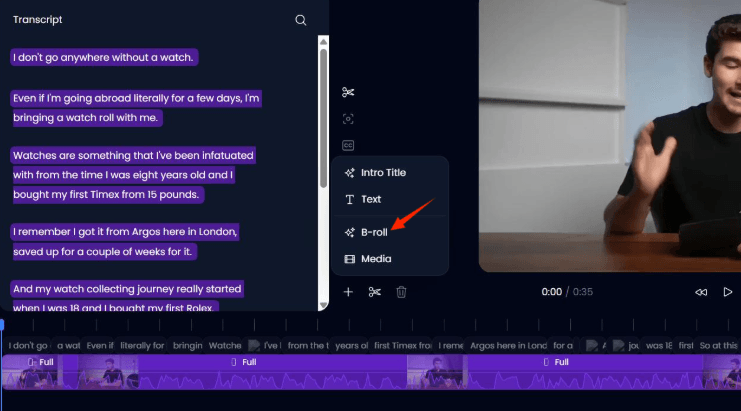
Klap is an AI-powered video repurposing tool built for YouTube creators who want to get more value from every video they publish. With Klap, creators can turn existing long-form YouTube videos into multiple short-form clips for TikTok, Reels, and YouTube Shorts.
The platform automatically adds captions, reframes videos for vertical formats, and scores clips based on viral potential. For many creators, it fills a gap in their editing stack: turning one upload into several pieces of short-form content that can reach new audiences across platforms.
Key Features
- AI clip extraction: Automatically scans your YouTube video, identifies the most engaging moments, and turns each one into a standalone short clip ready to post.
- AI Reframe 2: Detects the active speaker or key subject in every scene and automatically reformats your clip to vertical 9:16 or square for Shorts, Reels, and TikTok.
- Auto-generated captions: Produces styled, fully editable subtitles in 52 languages, optimised for short-form platforms where most viewers watch with the sound off.
- Viral score: Rates every clip's predicted engagement potential so you can prioritise your strongest content and publish the right clips first.
- Publish and schedule: Push finished clips directly to YouTube Shorts, TikTok, Instagram, and LinkedIn without needing a separate scheduling tool.
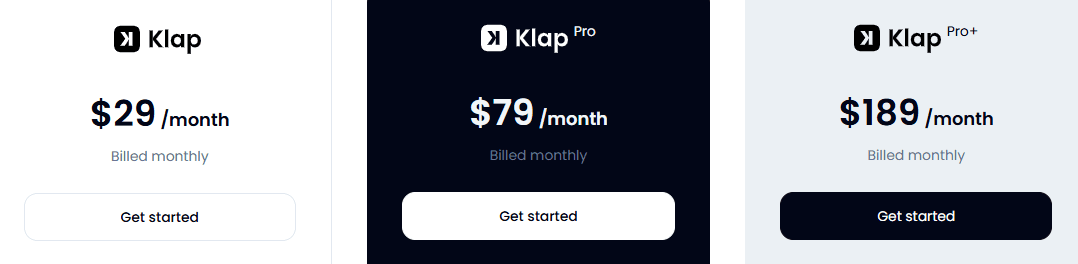
- Free: 1 video and 10 watermarked clips, no credit card required
- Basic ($29/month): Up to 10 videos and 100 clips monthly
- Pro ($79/month): 30 videos, 300 clips, 4K downloads
- Pro+ ($189/month): 100 videos and 1,000 clips monthly
Pros
- Turns one YouTube video into 10+ ready-to-post Shorts automatically
- No video editing experience needed to get professional-looking clips
- Captions are accurate and highly customisable across 52 languages
- Viral score takes the guesswork out of what to post
Cons
- Designed for repurposing rather than full-scale video editing
2. DaVinci Resolve
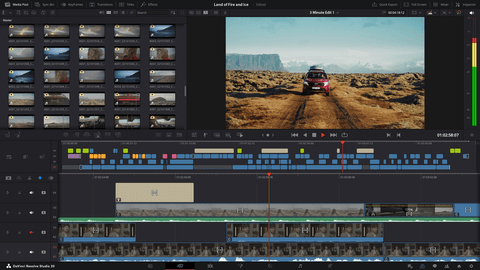
DaVinci Resolve is a professional video editing software for creators who need detailed control over longer editing projects. It combines timeline editing, color correction, audio post-production, and visual effects in one platform.
For YouTubers, it can be a strong option for editing full-length videos, polishing footage, and managing more advanced production work. Its free version includes many core editing features with no watermark or time limit, though the tool can feel complex for creators who mainly need to turn long videos into short-form clips quickly.
Key Features
- Colour grading (colour page): Professional node-based grading tools, the same system used on major film productions, available in the free version.
- Cut page: A streamlined edit interface designed for fast assembly, ideal for YouTubers who want to rough cut quickly before fine-tuning.
- Fairlight audio: Full multi-track audio editing suite with noise reduction, dialogue cleanup, and mixing, no separate audio app needed.
- Fusion VFX: Built-in compositing and motion graphics, including text animations and lower thirds for YouTube overlays.
Pricing
- Free: Full-featured, no watermark, no time limit
- DaVinci Resolve Studio ($295 one-time): Adds advanced noise reduction, AI tools, multi-user collaboration, and 3D stereoscopic tools
Pros
- Professional colour grading tools completely free
- Handles 4K@60fps editing smoothly on capable hardware
- No subscription, studio version is a one-time purchase
- Massive, active tutorial community on YouTube itself
Cons
- Steep learning curve, overwhelming for absolute beginners
- Requires a capable GPU to run smoothly; struggles on older machines
- Interface can feel complex when all you need is a simple cut
3. Adobe Premiere Pro
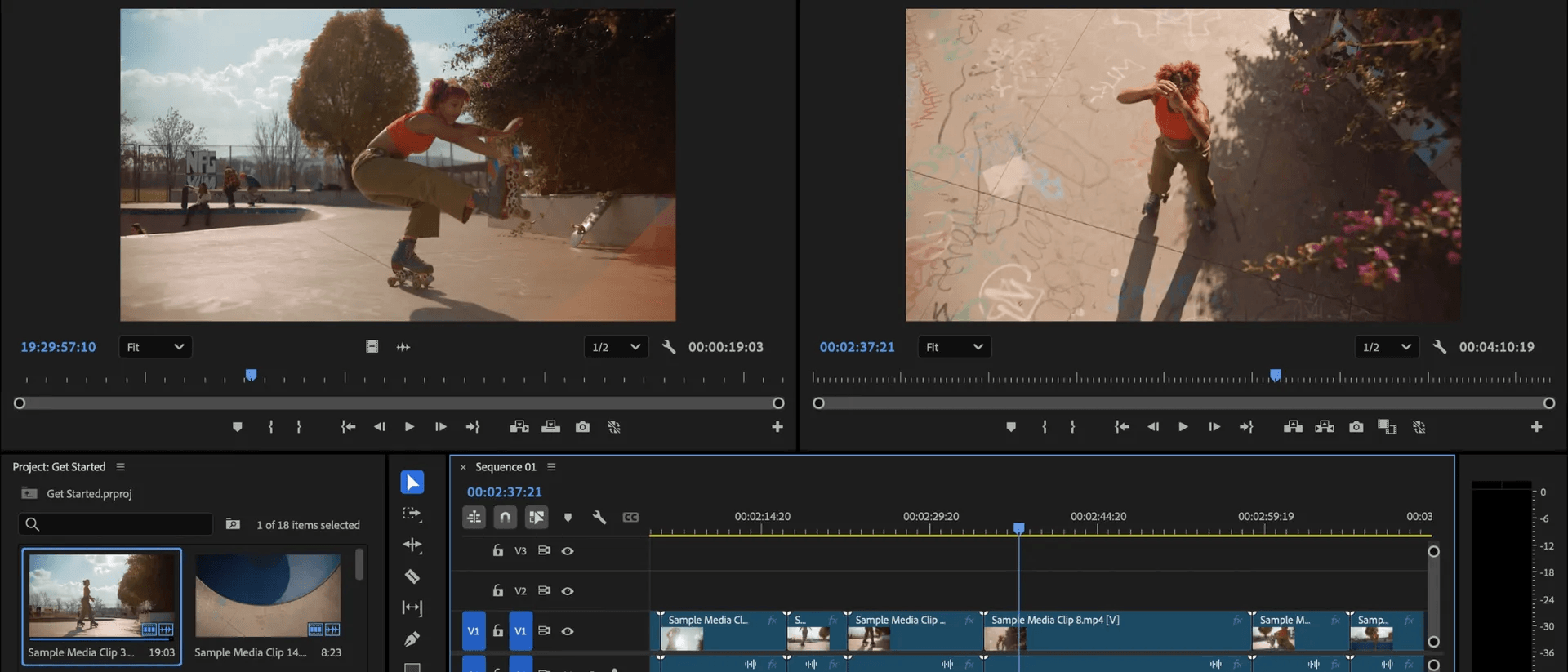
Adobe Premiere Pro is a popular software used to edit, arrange, and polish full-length videos. It gives creators a timeline editor, color tools, audio controls, motion graphics support, and export settings for platforms like YouTube.
Premiere Pro also connects with other Adobe tools, including After Effects, Audition, and Photoshop, which can be useful for YouTube creators who already work inside Creative Cloud. It also includes AI-assisted features like text-based editing and auto-transcription.
Key Features
- Adobe Creative Cloud integration: Direct dynamic links to After Effects for motion graphics, Audition for audio, and Photoshop for frame-level adjustments.
- AI audio cleanup: Removes background noise, reverb, and audio inconsistencies automatically, critical for creators filming in non-studio environments.
- Multi-camera editing: Syncs and switches between multiple camera angles in a single timeline, ideal for interview-format YouTube channels.
- Lumetri colour: Professional colour grading panel with scopes, curves, and HSL controls built into the main editing timeline.
Pricing
- Premiere Pro only: $22.99/month
- Creative Cloud All Apps: $59.99/month (includes After Effects, Audition, Photoshop, and more)
- Student/Teacher pricing available at reduced rates
Pros
- Industry standard, skills are transferable across agencies and studios
- Text-based editing dramatically speeds up dialogue-heavy YouTube videos
- Best Creative Cloud integration of any editor
- AI audio tools clean up dialogue without a separate app
Cons
- No one-time purchase option
- Requires a powerful machine to run smoothly with 4K timelines
- Overkill for new creators who just need to trim and colour a talking-head video
4. Wondershare Filmora
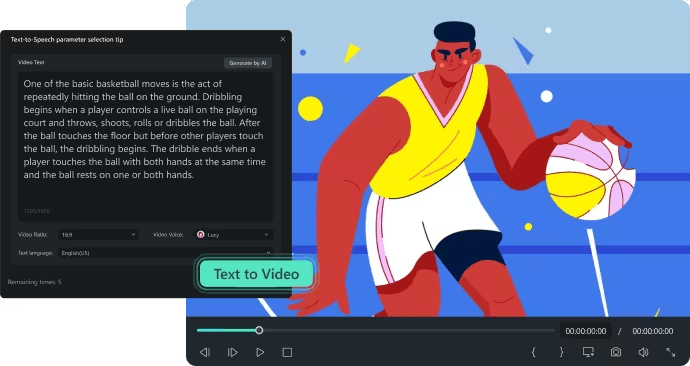
Filmora is the editor most commonly recommended for YouTubers who are serious about their channel but not ready for the complexity of Premiere Pro or DaVinci Resolve. It threads the needle between beginner-friendly and genuinely capable, with a clean, intuitive interface that doesn't sacrifice features.
The platform has evolved significantly over the years, and its current AI feature set puts it ahead of most tools in its price bracket for solo YouTube creators.
Key Features
- AI smart cutout: Removes backgrounds from video clips without a green screen, useful for tutorial-style YouTube content with custom backgrounds.
- Auto beat sync: Automatically syncs your video cuts to the rhythm of your music track, popular for travel vlogs and montage-style YouTube content.
- AI noise reduction: Cleans up audio from less-than-perfect recording environments, reducing the need for external audio tools.
- Motion tracking: Attaches text, stickers, or graphics to a moving subject in the frame, great for annotations and callouts in tutorial videos.
Pricing
- Basic Plan ($49.99/year): Full features, no watermark, 1GB cloud storage
- Advanced Plan ($59.99/year): Everything in Basic plus AI features including Smart Short Clips, Text-to-Speech, and 10GB cloud storage
- Perpetual Licence ($79.99 one-time): Lifetime access to current version, Windows only
Pros
- Genuinely easy to learn
- One-time licence option avoids ongoing subscription costs
- AI features are practical and well-implemented for YouTube workflows
- Active template and preset community on the Filmora platform
Cons
- Free version adds a watermark, not usable for real channel publishing
- Less powerful colour grading than DaVinci Resolve or Premiere Pro
- Perpetual licence is Windows only, Mac users must subscribe
5. Final Cut Pro
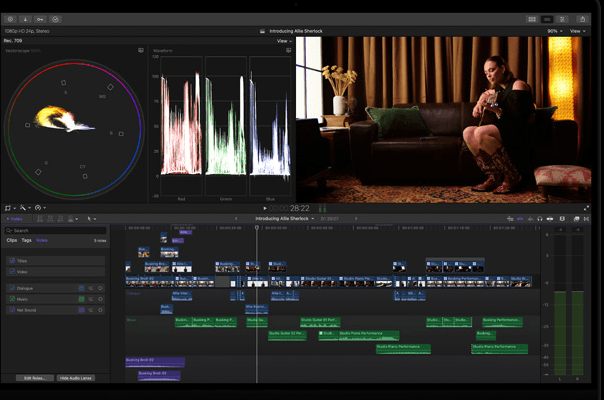
Final Cut Pro is Apple's professional video editor, and on Apple Silicon hardware it remains one of the fastest editing experiences available at any price point. Its magnetic timeline has a steep adjustment curve for editors coming from Premiere Pro, though most who stick with it find it faster for assembly editing.
For Mac-based YouTubers who want professional output without a monthly Adobe subscription, Final Cut Pro is a strong alternative. Its one-time price makes it especially appealing for creators who want advanced editing tools without ongoing software costs.
Key Features
- Magnetic timeline: Clips snap into place without leaving gaps or knocking adjacent footage out of sync, speeds up assembly editing significantly once learned.
- ProRes optimization: Handles Apple ProRes footage natively and at high performance, especially relevant for creators shooting on iPhone 15 Pro or newer.
- 360° video editing: Full equirectangular editing workflow for 360 YouTube content with support for spatial video.
- Roles-based audio mixing: Labels and organises audio tracks by role (dialogue, music, effects) for cleaner multi-track mixing in longer YouTube productions.
Pricing
- Final Cut Pro: $299.99 one-time purchase
- 90-day free trial available from Apple
Pros
- Best performance on Apple Silicon, renders faster than Premiere Pro on comparable Mac hardware
- One-time purchase, no ongoing subscription cost
- Tight integration with iPhone footage, ProRes, and the Apple ecosystem
- 90-day trial lets you test properly before committing
Cons
- Mac-only, completely rules it out for Windows creators
- Magnetic timeline has a learning curve for editors used to traditional track-based layouts
- Limited built-in collaboration features compared with cloud-based editing tools
6. CapCut
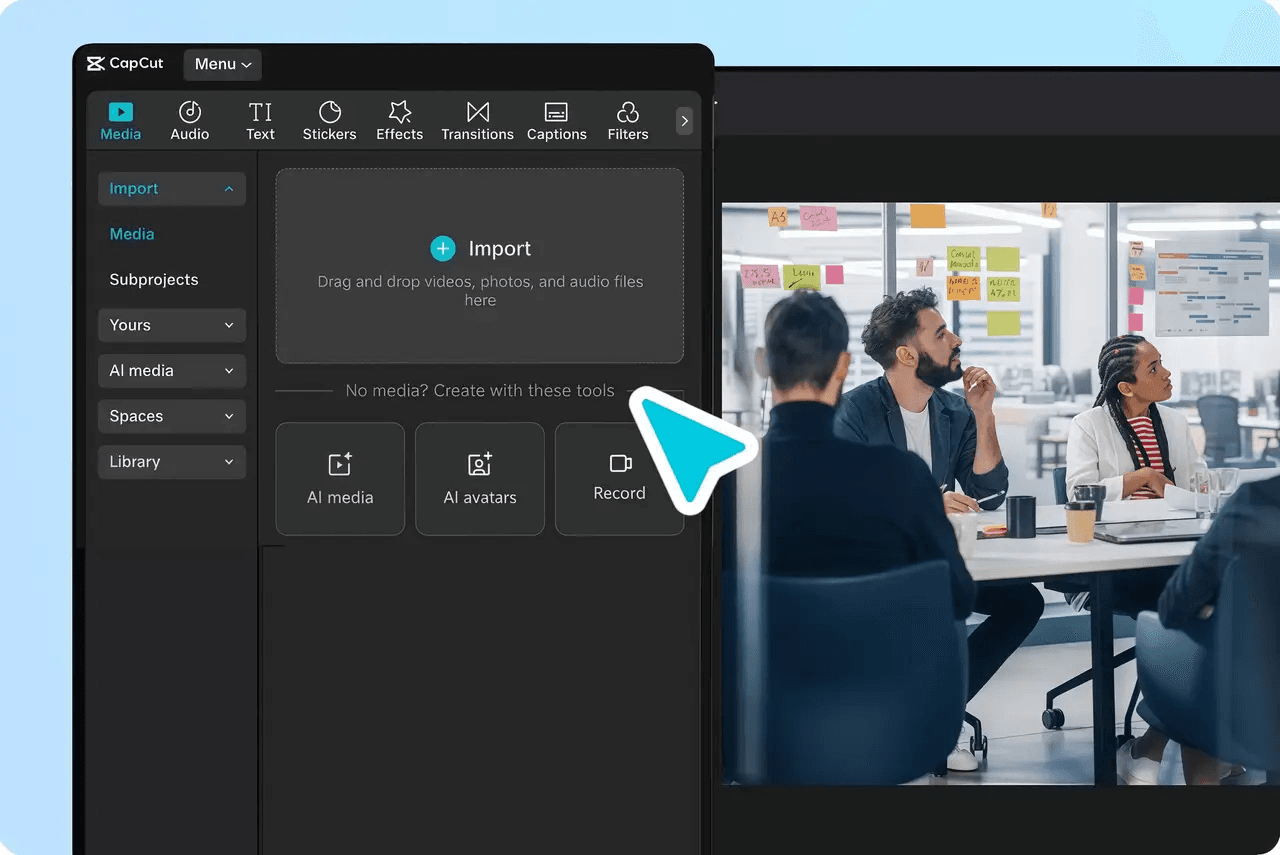
CapCut is the most widely used free video editing app in the world, with over 800 million monthly active users. Originally built for TikTok content, it has expanded into a capable cross-platform editor available on Windows, Mac, iOS, Android, and browser.
YouTubers who primarily publish Shorts, vlogs, or social-first content get a remarkably generous free tier. Its AI features also go well beyond what most free tools offer.
Key Features
- Auto captions: One-click caption generation with multiple style presets, fast, accurate, and highly customisable without any external tools.
- AI background removal: Remove or swap backgrounds from video clips in a single click, without needing a chroma key setup.
- Templates library: Hundreds of trend-driven templates, many synced to viral sounds, that let creators replicate popular YouTube Shorts formats instantly.
- Cross-device cloud sync: Projects sync across desktop, mobile, and web, so you can start an edit on desktop and finish on your phone.
Pricing
- Free: Generous feature set with most AI tools included
- Pro ($9.99/month or $89.99/year): Removes watermark, adds cloud storage, unlocks premium assets and templates
Pros
- Most generous free tier of any major video editor
- Auto-captions are fast and accurate
- Available across every major platform including browser
- Templates make trend-driven YouTube Shorts creation very fast
Cons
- Advanced editing controls can feel limited for creators working on longer, more complex YouTube videos
- Free exports include a CapCut watermark on some content
- Desktop workflow is less suited to detailed post-production
7. Canva Video
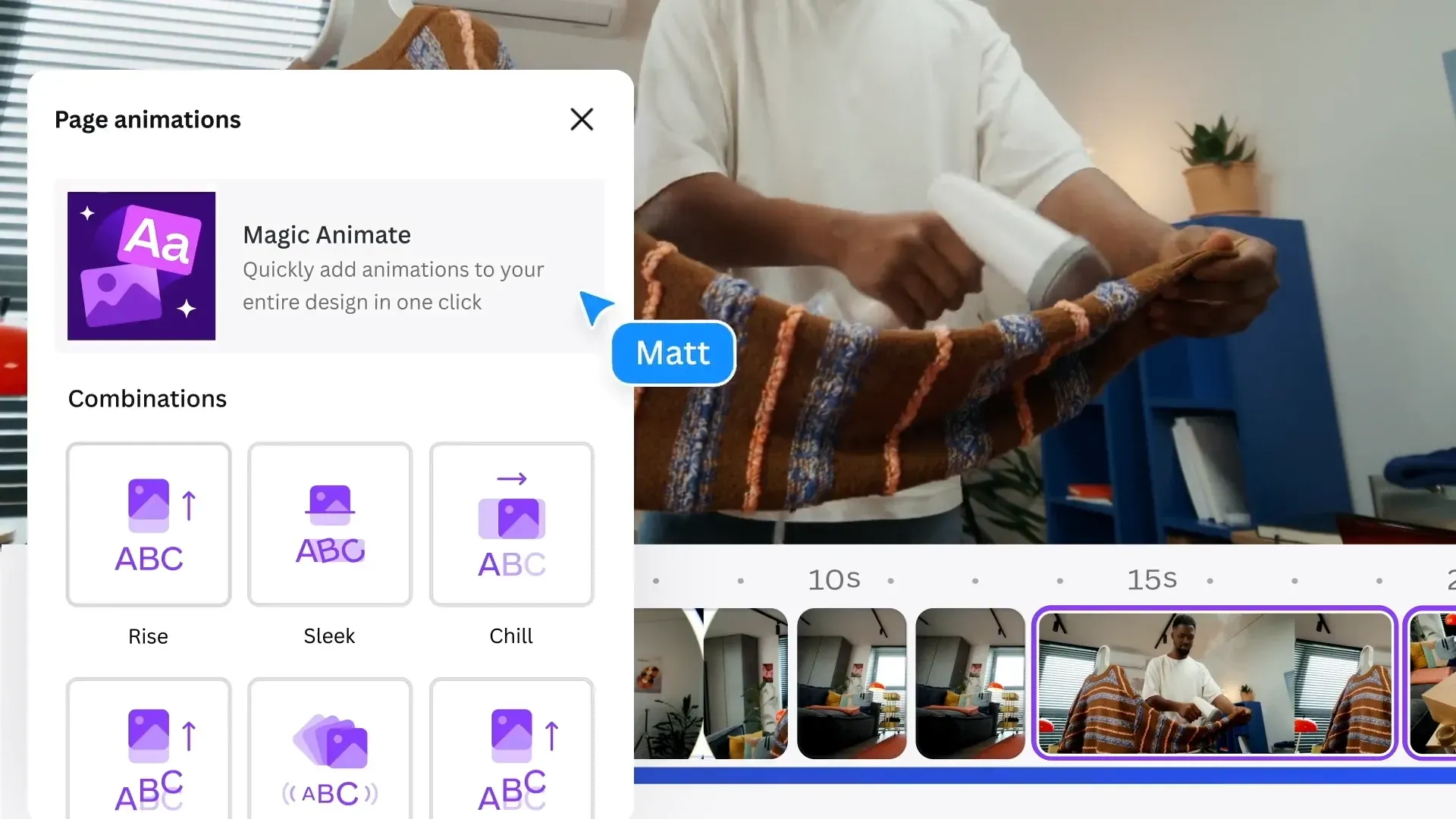
Canva Video is a browser-based video editor built into the Canva design platform, making it an easy entry point for creators who already use Canva for thumbnails, channel art, or social graphics. It is not a traditional timeline editor, but its AI-powered features, Magic Video, Highlights, and auto-captions make it useful for simple video workflows.
The tool’s template library also helps creators produce consistent, branded YouTube content without spending time learning traditional editing software.
Key Features
- Magic video: AI tool that automatically styles, cuts, and sequences your footage into a polished clip with transitions and music, ideal for intro videos, promos, and channel trailers.
- Multi-track timeline: Full layered timeline with separate video, audio, and graphics tracks, a significant upgrade from Canva's earlier page-based approach.
- Brand kit integration: Applies your brand colours, fonts, and logos automatically to any video template, essential for creators maintaining a consistent visual identity.
- Direct social publishing: Publish directly to YouTube, Instagram, TikTok, LinkedIn, and Facebook from within Canva, no separate download and re-upload step.
Pricing
- Free: Core editing tools, limited AI features, Canva watermark on some exports
- Canva Pro ($18/month or $144/year): Full AI suite, Brand Kit, Magic Resize, premium assets, watermark-free exports
- Canva Business ($250/person/year): Collaboration and team admin tools, shared Brand Kit, 141M+ premium photos, videos, graphics,audio, access to Leonardo.Ai and Flourish
Pros
- Zero learning curve for existing Canva users, everything is familiar
- Brand Kit makes consistent channel branding effortless
- Direct publish to YouTube saves download-and-upload time
- Great for YouTube thumbnails, intros, and channel art in the same tool
Cons
- Best only for clips under a few minutes
- Lacks the colour grading and audio tools of dedicated editors
- Some AI features and watermark-free export require the paid Pro plan
Ready to Get More Out of Every YouTube Video You Make?
The best video editing software for YouTube is the one that fits where you are right now, and leaves room for where you're going. Whether you're cutting your first video in CapCut or colour grading in DaVinci Resolve, the real growth comes from publishing consistently.
Distributing your content across platforms is just as important as creating it. Getting more value from every upload helps you reach new audiences without spending more time editing from scratch.
Try Klap for free and turn your next YouTube upload into a full week of short-form content automatically.
