
12 Best AI Clip Maker Tools in 2025 (Klap vs. Alternatives)
Other
Short-form video has become the dominant language of social media, with platforms like TikTok, Instagram Reels, and YouTube Shorts rewarding a constant stream of fresh content. For creators with extensive long-form videos, such as podcasters, YouTubers, and marketers, this presents a significant bottleneck. Manually identifying, cutting, and captioning compelling moments from an hour-long podcast can easily consume an entire day. This is the precise problem an AI clip maker is designed to solve. These platforms act as intelligent video editors, automatically analyzing your long-form content to pinpoint viral-worthy segments.
An effective AI clip maker doesn't just slice your video; it identifies moments with the highest engagement potential, applies dynamic captions, and reframes the shot for vertical viewing. This isn't just about saving time; it's a strategic move to maximize your content's return on investment (ROI). Repurposing existing assets is a proven growth strategy, with some studies showing it can boost audience reach by over 150%. The same logic applies to other formats, with specialized tools now able to automate the process of repurposing long-form blog content into engaging TikTok clips as well.
This guide takes the guesswork out of choosing the right tool by breaking down the top 12 AI clip makers available today. We’ll dive into each option, comparing core features like hook detection, speaker tracking, and caption styling. For each tool, you'll find direct links, screenshots, pricing, and an honest assessment of its strengths and weaknesses. My goal is to give you the actionable insights needed to select the perfect AI clip maker for your workflow and turn your content library into a powerful engine for social media growth.
1. Klap
Best For: Repurposing long-form spoken content into a high-volume social media pipeline. Price: Free plan (one video); Klap Pro at $29/month for expanded use.
Klap establishes itself as a premier ai clip maker by offering a highly efficient, end-to-end solution for transforming extensive video archives into engaging short-form content. Purpose-built for creators and marketers with a library of podcasts, interviews, or webinars, Klap automates the most time-consuming aspects of video repurposing. You just provide a YouTube link or upload a file, and the platform’s AI gets to work. It identifies compelling topics, isolates key moments, and generates a series of ready-to-publish vertical clips in minutes.
The platform’s real power lies in its intelligent automation features that go beyond simple trimming. This robust system is trusted by over 1.5 million users and has generated more than 9.3 million clips, demonstrating its reliability and effectiveness at scale.
Key Features and Analysis
- AI-Powered Clip Generation: At its core, Klap's AI analyzes video transcripts to detect distinct topics and hooks. It then generates clips based on these findings, complete with a "virality score" to help you prioritize the content most likely to perform well on platforms like TikTok and Instagram. This metric helps you make data-informed decisions on what to post first.
- AI Reframe 2: This is a standout feature. Instead of a generic center-crop, the AI intelligently tracks faces and on-screen action, dynamically adjusting the frame to keep the most important elements in view. It also applies layouts like split-screen for interviews, ensuring a professional look without manual keyframing.
- Automated Captions & Styling: Klap automatically generates and styles captions, a critical component for modern short-form video where over 85% of views happen with the sound off. With support for 52 languages, it greatly improves accessibility and global reach. You can customize fonts, colors, and animations to match your brand identity.
- Integrated Workflow: The platform provides a complete workflow from generation to publication. After the AI creates the clips, you can easily tweak the edits, adjust the framing, add your logo, and then publish or schedule the final videos directly to your social media channels.
Who is Klap Best For?
Klap is the ideal tool for YouTubers, podcasters, and social media managers who need to consistently produce short-form content but lack the time or resources for manual editing. If your primary content is dialogue-driven, such as interviews, educational videos, or commentary, Klap’s speech-based detection will deliver high-quality results with minimal effort.
Pros & Cons
ProsCons
Massive Time-Saver: Turns a single long video into multiple ready-to-post clips in minutes, with users reporting 5x speed gains.
Best for Spoken-Word Content: Performance may be less effective for videos without clear dialogue, like music montages or cinematic B-roll.
Intelligent Auto-Reframing: The AI Reframe 2 feature ensures subjects remain perfectly centered in vertical formats.
Limited Free Tier: The free plan is for trial purposes (one video); consistent use requires a subscription to the Pro plan.
All-in-One Platform: Includes captioning, editing, branding customization, and direct social media scheduling.
AI Needs Supervision: While powerful, the AI-generated clips and captions often require a quick human review for accuracy and context.
2. OpusClip
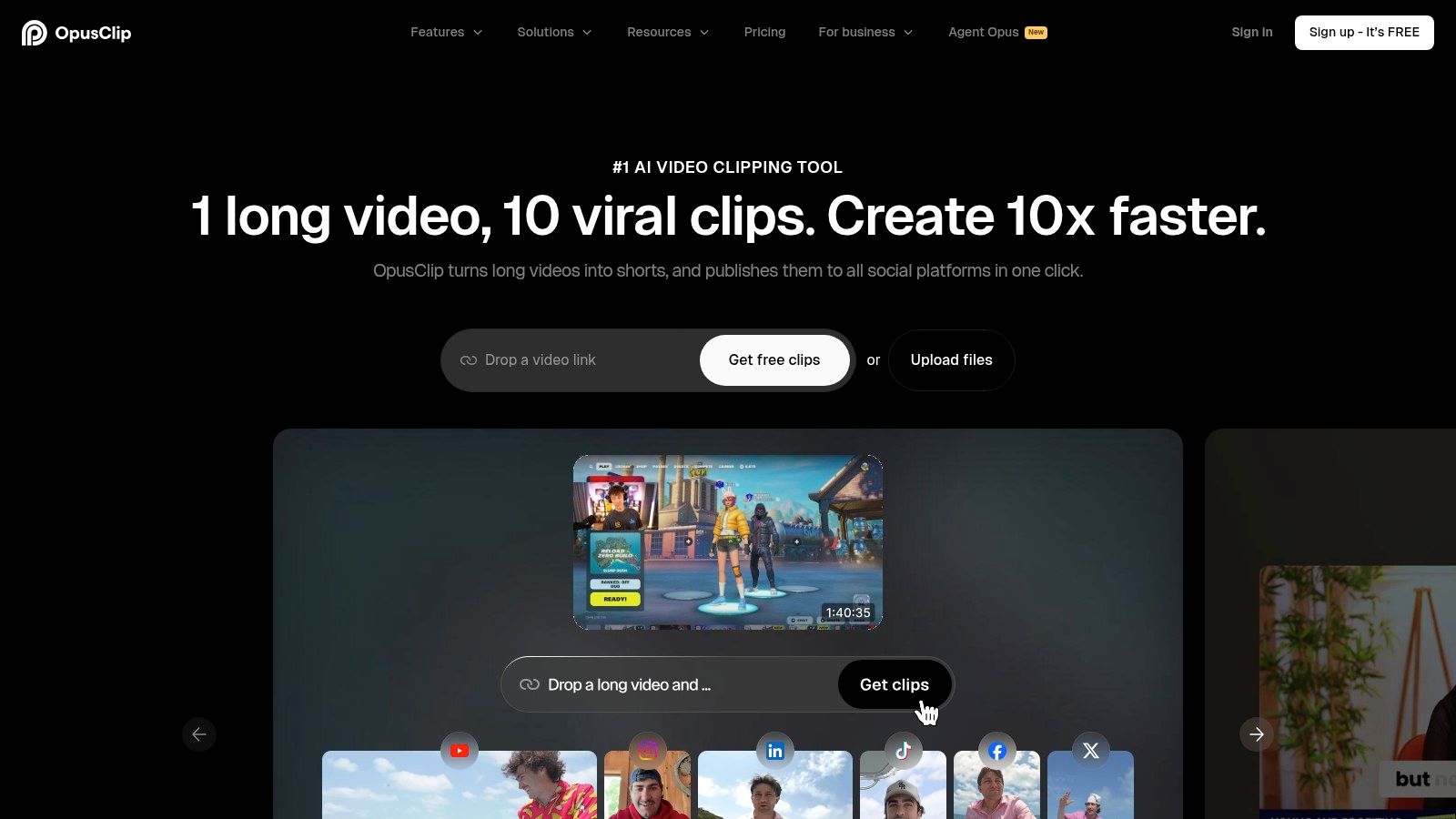
OpusClip is a specialized AI clip generator that scans long-form video across podcasts, interviews, gaming streams, sports events, and vlogs to spot the most engaging moments. It automatically adds animated captions, smartly reframes for 9:16, 1:1, or 16:9 outputs, and supports built-in scheduling and auto-posting to major social networks. Its enterprise API and team workspace options make it an ideal choice for agencies and in-house content teams.
Key Features
- ClipAnything AI model for multi-genre highlight detection
- Animated caption generator with customization
- Reframe presets for TikTok (9:16), Instagram (1:1), YouTube (16:9)
- Scheduler and auto-post across platforms
- Premiere Pro and DaVinci Resolve export options
- Team workspaces and API for enterprise integration
Pricing and Access
- Free plan: 60 credit-minutes per month
- Starter: $19/month, 300 minutes and basic scheduling
- Pro: $49/month, 1,000 minutes plus AI B-roll
- Enterprise: custom pricing with unlimited API calls
Credits unlock faster processing but require monitoring
Pros and Cons
Pros
- Fast and accurate for non-podcast content
- Clear tiered plans with enterprise API
Cons
- Scheduler and AI B-roll limited to paid plans
- Credit/minute tracking adds management overhead
Why OpusClip Stands Out
OpusClip’s dashboard offers drag-and-drop organization, live clip previews, and bulk style edits. Customers report a 40% drop in manual editing time and reducing their upload-to-post workflow from two hours to under 15 minutes.
User Experience & Support
- Intuitive UI for first-time creators
- 24-hour email support with dedicated Slack channel for enterprises
- In-app tutorials and best-practice guides
Practical Tips
- Batch Your Work: Upload raw footage in batches to apply consistent caption styles across multiple clips at once.
- Maintain a Cadence: Use the built-in scheduler to maintain a daily publishing cadence without needing a separate tool.
- Refine Offline: For advanced color grading or effects, export the XML file to Premiere Pro or DaVinci Resolve for final touches.
Learn more about OpusClip on klap.app (https://klap.app/alternatives/opus-clip)
3. Klap
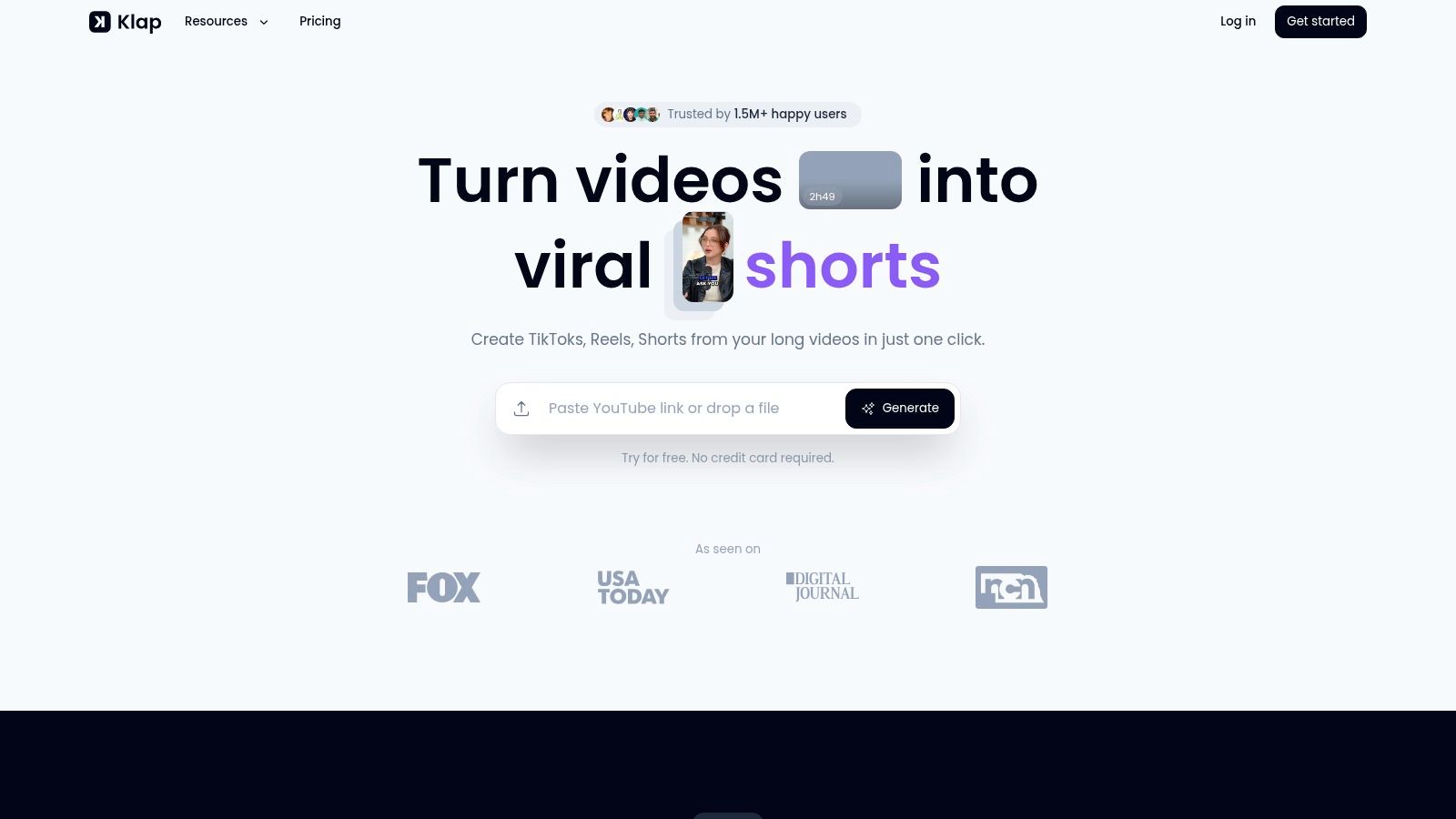
Klap is a browser-based AI clip maker designed to repurpose long-form videos into engaging short-form content. By simply pasting a YouTube link or uploading a file, Klap's AI identifies compelling topics and viral hooks, automatically generating captioned clips. It offers advanced features like AI-powered reframing to focus on speakers, multi-language dubbing, and high-resolution exports, making it a powerful tool for global content teams and individual creators.
Key Features
- AI-Curation from YouTube links or direct uploads
- Auto-Reframing to keep speakers centered in vertical formats
- Dynamic Captions with customizable fonts and animations
- AI Dubbing for translation into multiple languages
- Virality Score to help prioritize the best clips
- 4K Export available on higher-tier plans
Pricing and Access
- Free plan: 10 clips from 1 video, watermarked
- Pro: $29/month, 15 videos and 100 clips
- Business: $79/month, 50 videos and 400 clips, plus 4K export
- Enterprise: custom pricing for teams and API access
Pros and Cons
Pros
- Extremely fast from upload to shareable clips
- Strong AI dubbing and translation for global reach
- Clean and intuitive user interface
Cons
- Heaviest features like 4K export are locked behind higher tiers
- Base plans have strict limits on video uploads and minutes
Why Klap Stands Out
Klap excels with its multilingual support, making it a standout AI clip maker for creators targeting international audiences. The AI dubbing feature automatically translates and generates new voiceovers, a capability not commonly found in competing tools. This allows teams to localize content with minimal effort, transforming a single video into multiple assets for different regions.
User Experience & Support
- Minimalist dashboard designed for speed and efficiency
- Email support available for all users
- Comprehensive help center with tutorials and FAQs
Practical Tips
- Prioritize Your Posts: Use the virality score to identify and post your most promising clips first to maximize initial engagement.
- Test New Markets: Experiment with AI dubbing to test how your content performs in new language markets without hiring voice actors.
- Start with Quality: Upload your highest-quality source video to get the best results from auto-reframing and 4K exports.
Learn more about Klap on klap.app (https://klap.app/)
4. Quso (formerly Vidyo.ai)
Quso is an all-in-one social AI platform that builds on the core capabilities of its predecessor, Vidyo.ai. This AI clip maker specializes in auto-clip generation, captioning, resizing, and integrated scheduling with analytics. It offers a familiar workflow for users migrating from Vidyo.ai while expanding into a broader social media management tool, making it a solid choice for creators who need both clipping and distribution features.

Key Features
- Intelliclips for AI-powered highlight detection and clip generation
- Automated caption generation with style customization
- Multi-ratio exports for YouTube (16:9), TikTok/Reels (9:16), and Instagram (1:1)
- Social scheduling and bulk publishing tools
- Analytics to track clip performance across platforms
- Seamless migration path for existing Vidyo.ai accounts
Pricing and Access
- Free plan: 75 minutes of video upload per month to test features
- Starter: $14.99/month for 100 minutes of processing
- Pro+: $29.99/month for 300 minutes and 1080p exports
- Pricing may vary by region and active promotions
Pros and Cons
Pros
- Generous free plan to test the core clipping workflow
- Clear and simple migration path from Vidyo.ai
Cons
- The recent brand transition may cause temporary confusion in plan naming
- Pricing varies and requires verification at checkout
Why Quso Stands Out
Quso's strength lies in its integration of an AI clip maker with a full social media scheduler. This combination allows creators to go from long-form video to a fully scheduled content calendar within a single platform, streamlining the entire content repurposing and distribution process.
User Experience & Support
- The interface remains intuitive for previous Vidyo.ai users
- Support is available via a help center and direct contact forms
- Onboarding guides help new users navigate the combined feature set
Practical Tips
- Schedule in Batches: Use the bulk publishing tool to schedule an entire week's worth of clips in a single session, saving daily administrative time.
- Brand Your Captions: Customize caption templates to match your brand's font and color scheme for a consistent look across all platforms.
- Analyze and Adapt: Regularly monitor the analytics dashboard to identify which clip formats and topics resonate most with your audience, then create more of that content.
Learn more about Quso (formerly Vidyo.ai) on klap.app (https://klap.app/alternatives/vidyo-ai)
5. Munch (GetMunch)
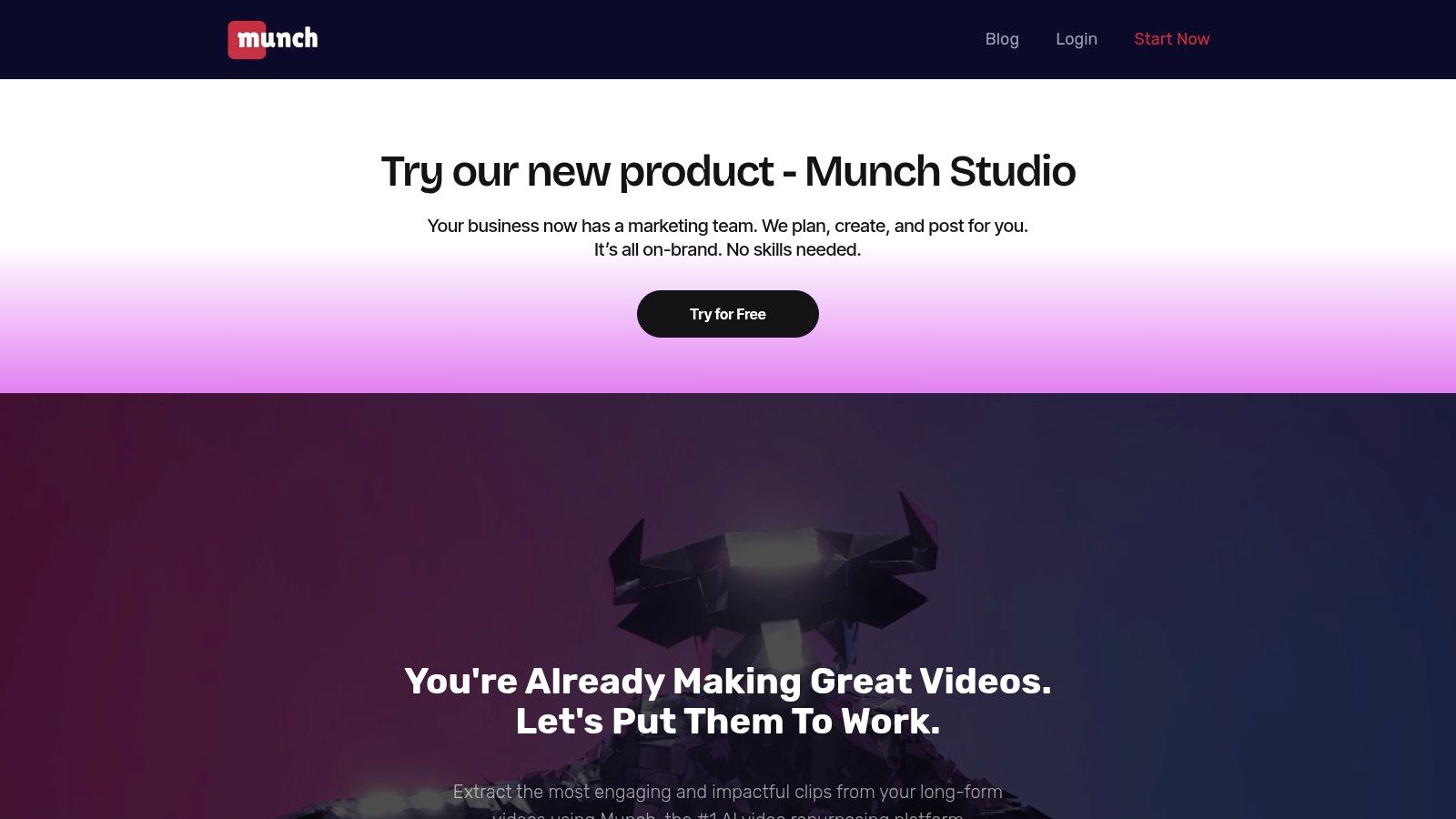
Munch is an AI video repurposing platform designed for creators, brands, and agencies who need to create short-form content at scale. The platform excels at extracting engaging highlights from long videos and packaging them into social-ready clips complete with captions, distribution suggestions, and performance analytics. Its workflow is heavily geared towards marketers who manage large volumes of content and require data-driven insights to guide their strategy.
Key Features
- AI-powered clip selection that analyzes trends and engagement potential
- Automatic subtitle generation with support for multiple languages
- Auto-reframing for TikTok, Reels, and Shorts (9:16)
- Social media trend analysis to inform content creation
- Integrated publishing and post-performance analytics
- Coherent Story feature to connect related clips for narrative continuity
Pricing and Access
- Pro: $49/month for 200 upload minutes
- Elite: $110/month for 500 upload minutes
- Ultimate: $220/month for 1,000 upload minutes
- Enterprise: custom pricing for agencies and large teams The pricing model emphasizes monthly auto-renewals, and higher production needs quickly move users into more expensive tiers.
Pros and Cons
Pros
- Excellent for repurposing large volumes of content efficiently
- Analytics and trend data cater directly to marketers and social teams
Cons
- Public pricing can be gated, requiring sign-up to view details
- Higher tiers are necessary for users with significant upload needs
Why Munch Stands Out
Munch's core differentiator is its focus on the entire social workflow, not just clip creation. It provides data on what topics are trending and suggests the best platforms for distribution, acting as both an editor and a strategist. This makes it a powerful ai clip maker for teams aiming to maximize reach and engagement.
User Experience & Support
- The user interface is built around a project-based workflow
- Support is available via email and an in-platform help center
Practical Tips
- Let Data Guide You: Use the analytics feature to identify top-performing clip topics and double down on what works for your audience.
- Build a Pipeline: Batch-process a series of related videos to maintain a consistent content pipeline and publishing schedule.
- Standardize Your Look: Customize and save caption templates to match your brand's visual identity, ensuring consistency across all clips.
Learn more about Munch on klap.app (https://klap.app/alternatives/munch)
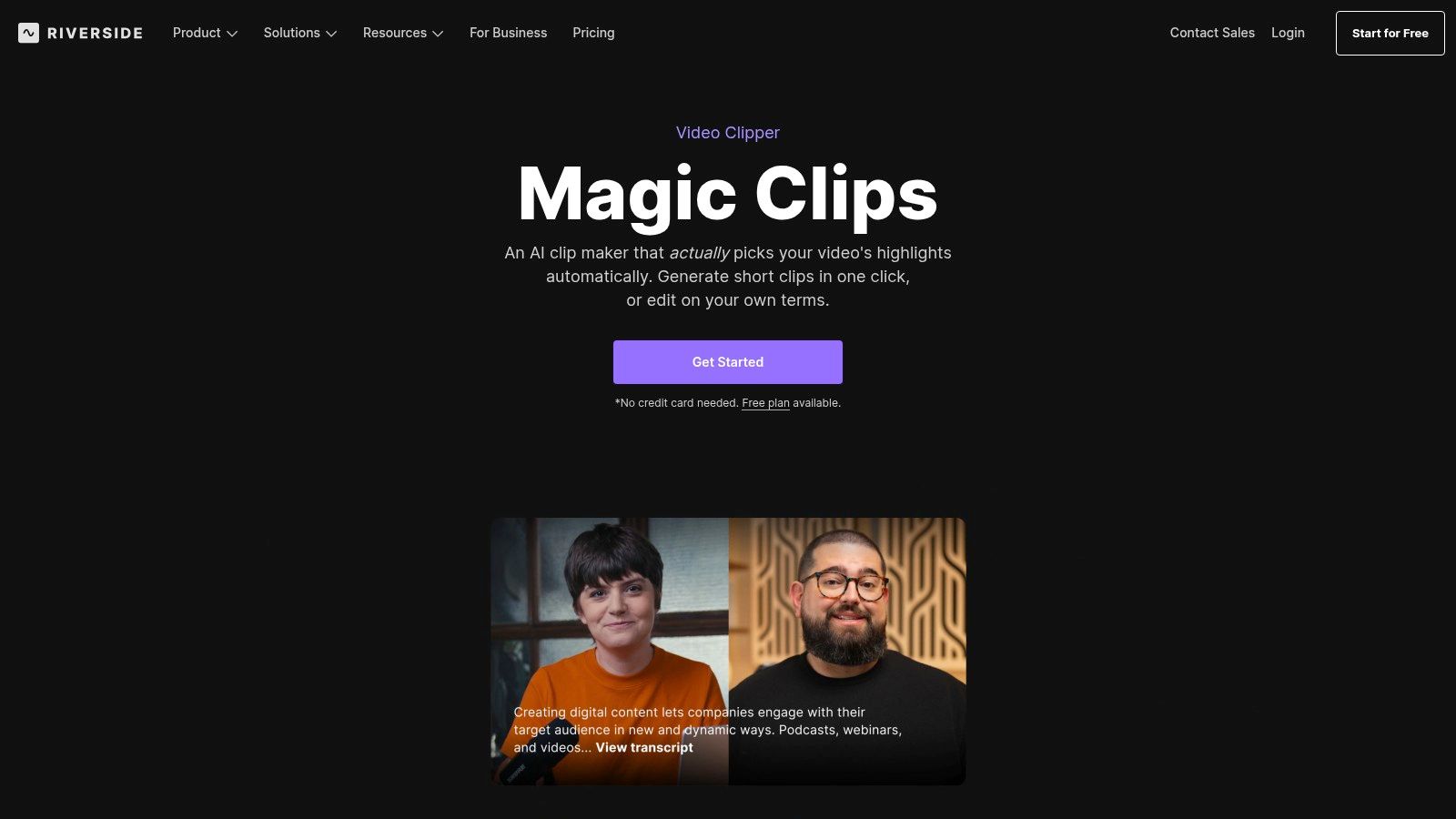
6. Riverside Magic Clips
Riverside is an end-to-end platform that combines high-quality remote recording (up to 4K) with its AI-powered Magic Clips. This tool uses AI to find the most engaging highlights in your recordings and generates social-ready short videos with just one click. It's an ideal solution for podcasters and teams needing a single service that handles everything from recording to automated clipping.
Key Features
- One-Click Magic Clips for instant highlight generation
- Vertical and widescreen aspect ratio presets
- Customizable captions and brand presets for consistent styling
- Cloud recording up to 4K and text-based video editing
- Integrated workflow from recording to clip publishing
Pricing and Access
- Free plan: Includes 2 hours of recording and basic Magic Clips access
- Standard: $19/month for 5 hours of recording and 15 Magic Clips/month
- Pro: $29/month for 15 hours of recording and 30 Magic Clips/month
- Business: Custom pricing with unlimited clips and dedicated support
Pros and Cons
Pros
- True end-to-end solution from recording to publishing
- High-quality 4K source material improves final clip quality
- Free plan is available to test the Magic Clips feature
Cons
- Best export limits and multi-track recording reserved for paid plans
- More of a recording platform with an AI clipper, not a standalone motion graphics editor
Why Riverside Magic Clips Stands Out
The platform’s strength is its seamless integration. Users can record a high-resolution interview or podcast and immediately use the AI clip maker on the same platform, eliminating the need to download, re-upload, and process footage elsewhere. This unified workflow saves significant time for regular content creators, with some reporting a 75% reduction in their post-production timeline.
User Experience & Support
- Clean, intuitive interface for both recording and editing
- Text-based editing feels familiar to anyone who has used a document editor
- Extensive help center and email support available
Practical Tips
- Record in High Quality: Always record your sessions in the highest possible quality (4K if available) to ensure your final clips look crisp and professional.
- Set Up Your Brand Kit: Before generating clips, set up your brand kit with your logo, colors, and fonts. This allows for one-click branded clips every time.
- Refine with Text: Use the text-based editor to quickly refine the start and end points of a Magic Clip. It's often faster and more precise than scrubbing a timeline.
Learn more about Riverside Magic Clips on riverside.fm (https://riverside.fm/magic-clips)
7. CapCut
CapCut is a versatile video editor from ByteDance that has become a staple for social media creators. It integrates powerful AI clip maker tools like auto-captions, background removal, and smart cutters designed for TikToks, Reels, and Shorts. Its cross-platform availability on web, desktop, and mobile allows creators to start a project on one device and finish on another, making it perfect for creators who need a fast, template-driven workflow.
Key Features
- AI Auto-Captions with customizable styles and animations
- One-click background removal and chroma key
- Smart Cutters for reframing to social media aspect ratios
- Expansive library of templates, effects, filters, and trending sounds
- Multi-platform support: web, desktop (Windows/Mac), and mobile (iOS/Android)
- Cloud-based project syncing for seamless editing across devices
Pricing and Access
- Free Version: Offers a robust set of editing tools with watermarks on some exports.
- CapCut Pro: Starts around $7.99/month (pricing varies by region/platform) for 100GB cloud storage, watermark removal, and access to premium templates and effects.
- Business Plans: Custom pricing for team collaboration and commercial asset licensing.
Pros and Cons
Pros
- Massive template and effects library simplifies fast content creation
- Strong cross-platform support for editing on the go
- Generous free tier makes it highly accessible for new creators
Cons
- Pricing structure can be confusing as it varies by platform and region
- App store availability may be affected by regional regulatory changes
Why CapCut Stands Out
CapCut’s main advantage is its deep integration with the TikTok ecosystem. Creators gain access to trending audio, effects, and templates often before they appear elsewhere, giving them a competitive edge. Its intuitive, mobile-first design makes complex editing tasks feel simple, reducing the learning curve for beginners.
User Experience & Support
- User-friendly interface suitable for both novice and experienced editors
- Community-driven support through tutorials on TikTok and YouTube
- In-app guides and feature pop-ups to assist with new tools
Practical Tips
- Reframe Instantly: Use the "Auto Reframe" feature to instantly adapt a horizontal 16:9 video for vertical platforms without manual adjustments.
- Leverage Templates: Don't start from scratch. Browse the "Templates" tab to find trending formats and replicate them with your own footage in seconds.
- Sync Your Work: Enable cloud project syncing to easily switch between editing on your desktop for detailed work and your phone for quick tweaks on the go.
Learn more about CapCut on capcut.com (https://www.capcut.com/)
8. VEED
VEED is a comprehensive, browser-based video editor that integrates an AI clip maker with a full suite of traditional editing tools. It excels at generating automatic subtitles and translations, making it ideal for creators targeting global audiences. The platform also offers templates and brand kits, allowing teams and solo creators to produce consistently styled, quick-turnaround social shorts.
Key Features
- Magic Cut for AI-powered highlight detection and clip creation
- Auto subtitle generation and one-click translation into 100+ languages
- Customizable templates and brand kit management for consistent branding
- Team workspaces for collaborative project editing
- Full suite of editing tools including text, transitions, and stock media
Pricing and Access
- Free plan: 10-minute exports with watermark, 720p quality
- Basic: $25/month, no watermark, 25-minute exports, 1080p
- Pro: $38/month, 2-hour exports, auto-subtitles, brand kit
- Business: $70/month, 4K exports, analytics, and custom templates
Pros and Cons
Pros
- Simple browser UX allows for very fast onboarding
- Frequent promotions and educational discounts are available
Cons
- Advanced AI features and higher export quality require paid tiers
- Pricing and feature limits can change; always confirm within your workspace
Why VEED Stands Out
VEED stands out by combining the simplicity of a web-based AI clip maker with the functionality of a more traditional video editor. Its strength lies in its auto-captioning and translation features, which are among the most accurate available and help creators expand their reach with minimal effort.
User Experience & Support
- Intuitive drag-and-drop interface suitable for beginners
- Live chat and email support available
- Extensive library of tutorials and help center articles
Practical Tips
- Use Your Brand Kit: Pre-load your logos, fonts, and brand colors into the Brand Kit feature. This will save you minutes on every video and ensure brand consistency.
- Go Global Easily: Use the one-click translation on your auto-generated subtitles to easily repurpose a single video for multiple international markets.
- Start with a Template: Leverage the template library to jumpstart your video projects. This not only saves time but also helps maintain a professional, polished look.
Learn more about VEED on veed.io (https://www.veed.io/)
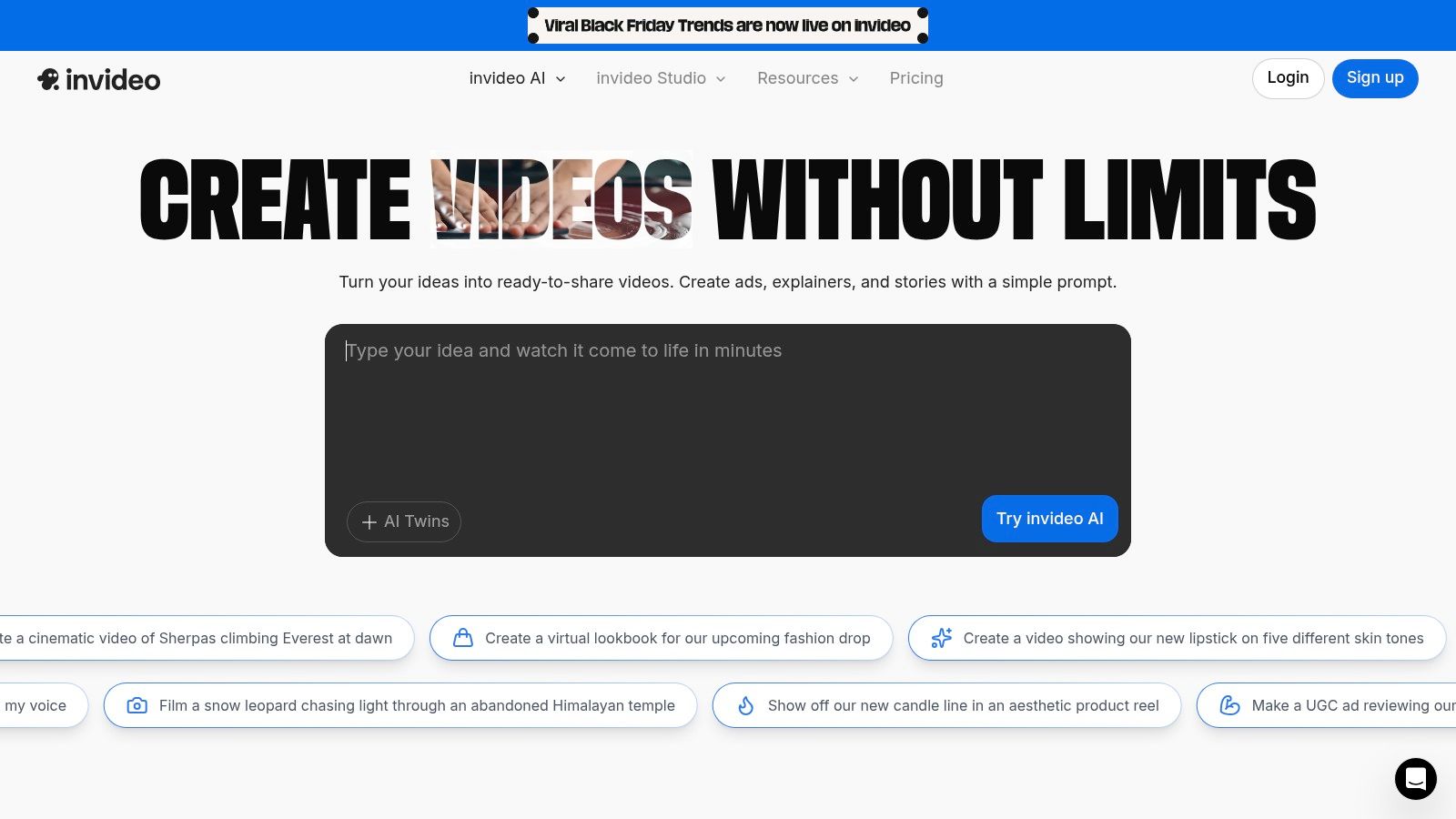
9. InVideo AI
InVideo AI is an AI-assisted video editing and text-to-video platform with a built-in clip maker workflow. It integrates powerful generative AI with access to vast stock asset libraries and advanced features like voice cloning, making it a comprehensive tool for creators who need both short-clip outputs and broader video creation capabilities within a single, credit-based ecosystem.
Key Features
- AI Clip Maker Workflow for editing existing videos
- Text-to-Video Generation to create new content from prompts
- Access to premium stock libraries (iStock, Storyblocks, Shutterstock)
- Voice cloning and custom AI avatar generation
- Team collaboration with shared projects and assets
- Credit-based system for flexible usage metering
Pricing and Access
- Free: 10 minutes of AI generation per week, 4 watermarked exports
- Plus: $25/month for 50 minutes/month, 80 iStock assets, and 1 user
- Max: $60/month for 200 minutes/month, 320 iStock assets, and 3 users
- Enterprise: Custom pricing with unlimited minutes and advanced features
Pros and Cons
Pros
- All-in-one platform combines clip making with AI video generation
- Generous free plan for testing core functionalities
Cons
- Watermarks on free exports can be limiting for professional use
- Credit and minute quotas require careful management
Why InVideo AI Stands Out
InVideo AI's strength lies in its dual functionality. Users can repurpose long videos with its AI clip maker or generate entirely new social media content from text prompts, all while accessing a premium stock library. This versatility makes it ideal for marketers and creators managing diverse content strategies without switching platforms.
User Experience & Support
- Clean, intuitive interface suitable for beginners
- Live chat support available on all plans
- Extensive library of tutorials and guides for getting started
Practical Tips
- Generate B-Roll: Use the text-to-video feature to create custom B-roll footage that matches the topic of your clips, adding visual interest.
- Manage Your Quota: Keep a close eye on your weekly credit quota to plan your exports effectively and avoid running out mid-project.
- Go Pro for Branding: If you're creating content for a business, upgrade to a paid plan to remove watermarks for a more professional presentation.
Learn more about InVideo AI on invideo.io (https://invideo.io/)
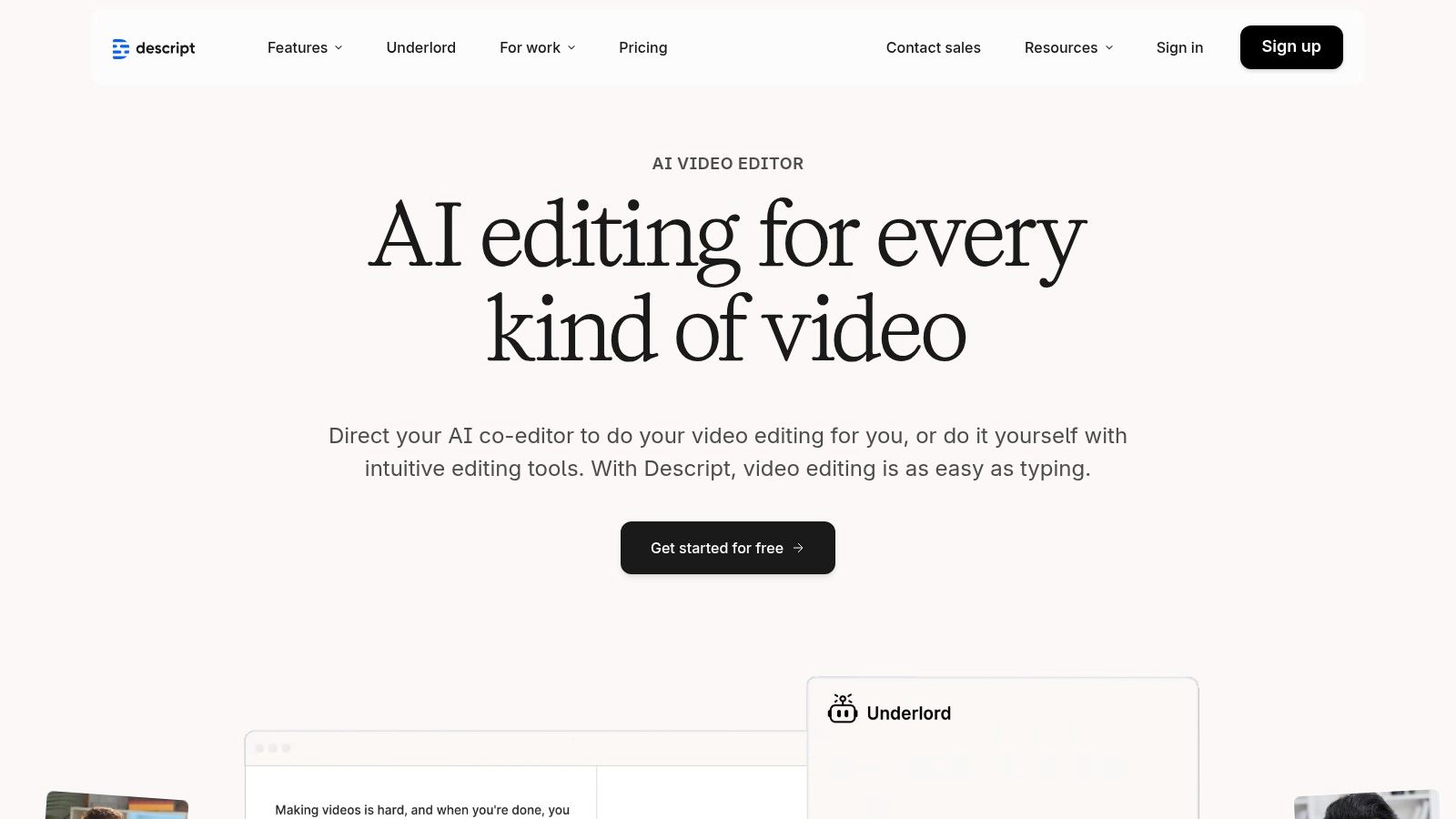
10. Descript
Descript is a text-based video editor where you create clips by editing a transcript, not a timeline. This unique AI clip maker is ideal for creators who want to search their footage like a document, highlight compelling text, and instantly export it as a shareable clip. It consolidates recording, editing, and captioning into a single workflow with powerful AI features like Studio Sound and Green Screen.
Key Features
- Transcript-based video editing for fast clip selection
- AI-powered Studio Sound to remove background noise and echo
- Auto-remove filler words like "um" and "uh" with one click
- Searchable transcripts to quickly find key moments
- AI Green Screen and Eye Contact features
- SquadCast integration for remote recording
Pricing and Access
- Free plan: 1 hour of transcription per month, 1 watermark-free export
- Creator: $15/month, 10 hours of transcription
- Pro: $30/month, 30 hours of transcription and unlimited filler word removal
- Enterprise: Custom pricing with dedicated support and onboarding Note: Plans have metered media minutes and AI credits; confirm current limits before subscribing.
Pros and Cons
Pros
- Extremely fast clip creation directly from searchable transcripts
- Consolidates recording, editing, and captioning in one app
Cons
- Plan structure and credit metering can be confusing
- Some users report performance issues with large files
Why Descript Stands Out
Descript's transcript-first approach is its biggest differentiator. Instead of scrubbing timelines, users can find a quote, highlight the text, and generate a clip in seconds. This radically speeds up the post-production workflow for interview-heavy content and podcasts, where pinpointing specific soundbites is the primary goal.
User Experience & Support
- Intuitive for anyone familiar with a word processor
- Active community forum and help center documentation
- Email support available for paid plans
Practical Tips
- Search for Keywords: Use the transcript's search function (Ctrl+F or Cmd+F) to quickly find and clip every mention of a specific keyword or topic.
- Enhance Your Audio: Apply Studio Sound with a single click before exporting clips to get broadcast-quality audio, even if your recording environment was noisy.
- Remove Filler Words: Use the "Remove Filler Words" tool to instantly tighten up your clips without making a single manual cut. This makes speakers sound more confident and articulate.
Learn more about Descript on their official website (https://www.descript.com/)
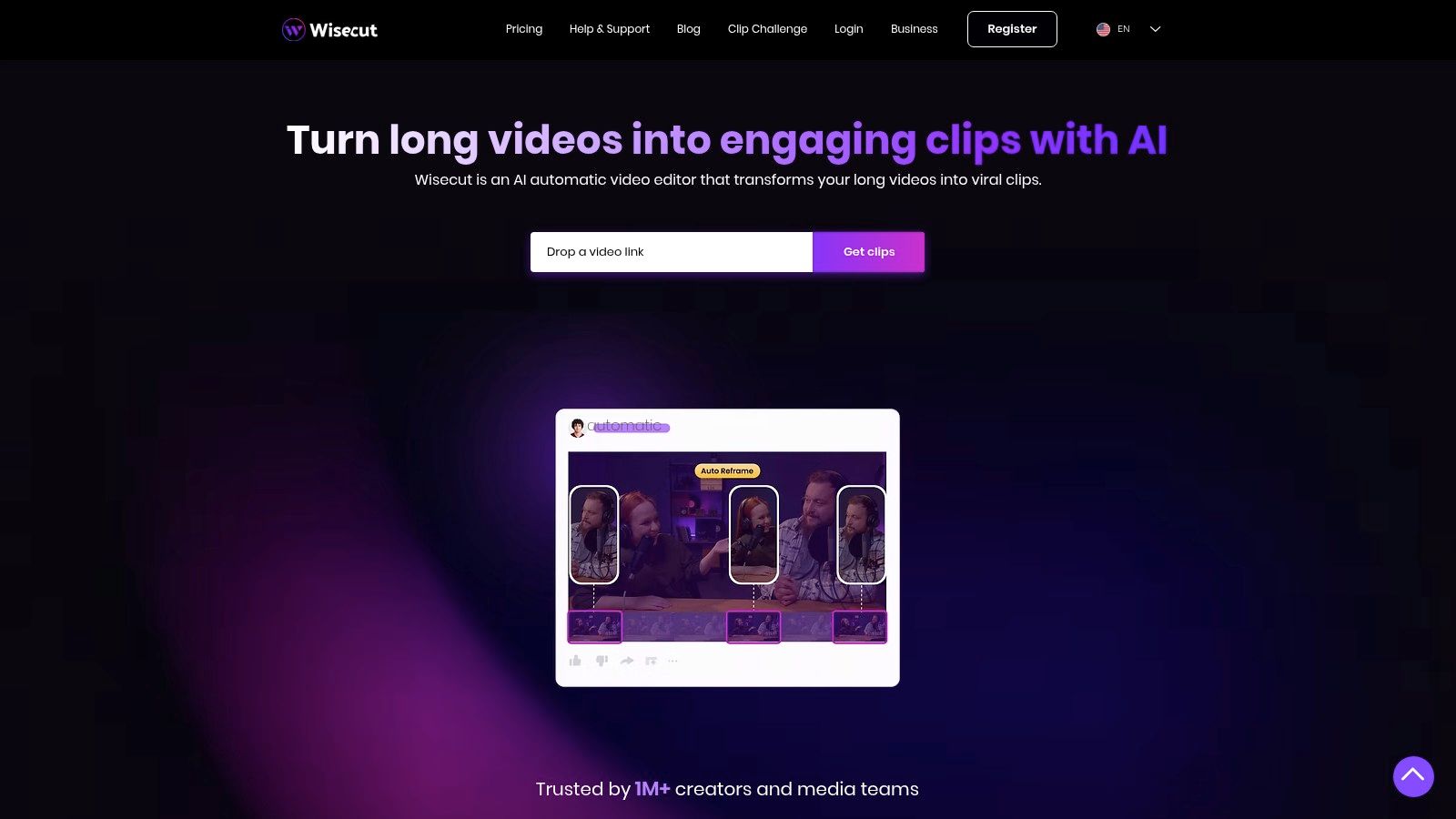
11. Wisecut
Wisecut is an AI editor designed to streamline post-production for talking-head videos, online courses, and creator-led content. It automatically removes silences, creates jump-cuts and punch-ins for dynamic pacing, and generates captions with translation options. Its core strength lies in automating the repetitive tasks that bog down creators, making it a valuable AI clip maker for anyone producing dialogue-heavy videos.
Key Features
- Automatic Silence Detection to remove long pauses
- Smart Background Music with auto-ducking during speech
- Auto Punch In/Out to create visual emphasis and reframe shots
- AI Storyboard for reviewing and editing the AI-generated timeline
- Subtitle & Translation into multiple languages
- Social Hub add-on for direct publishing and scheduling
Pricing and Access
- Free plan: Up to 30 minutes/month with a 7-day project expiry
- Starter: $29/month, 120 minutes of processing
- Professional: $57/month, 300 minutes, 4K export, and premium music
- Enterprise: Custom pricing for team collaboration and API access
Pros and Cons
Pros
- Excellent for automating tedious talking-head edits
- Clear, time-based monthly allowances for AI processing
Cons
- Lower-tier plans have short project expiry windows
- 4K resolution and high-quality exports are restricted to upper plans
Why Wisecut Stands Out
Wisecut's "AI Storyboard" feature gives creators a text-based overview of the video's structure before finalizing cuts, a unique approach that merges script editing with video timelines. Users report it cuts editing time for vlogs and tutorials by over 50%, handling the rough cut entirely on its own.
User Experience & Support
- Simple, storyboard-based interface is easy for beginners to grasp
- Email and chat support available across plans
- Comprehensive help center with video tutorials
Practical Tips
- Upload Raw Footage: For best results, upload your raw, unedited footage. This lets the AI handle the initial silence removal and pacing without fighting against previous edits.
- Review the Storyboard: Before exporting, quickly review the AI Storyboard. It's the fastest way to rearrange scenes or correct any AI misinterpretations.
- Use Auto-Ducking Music: Add a professional audio layer without manual keyframing. The auto-ducking feature automatically lowers the music volume when you speak, a simple trick that elevates production value.
Learn more about Wisecut at wisecut.video (https://www.wisecut.video/)
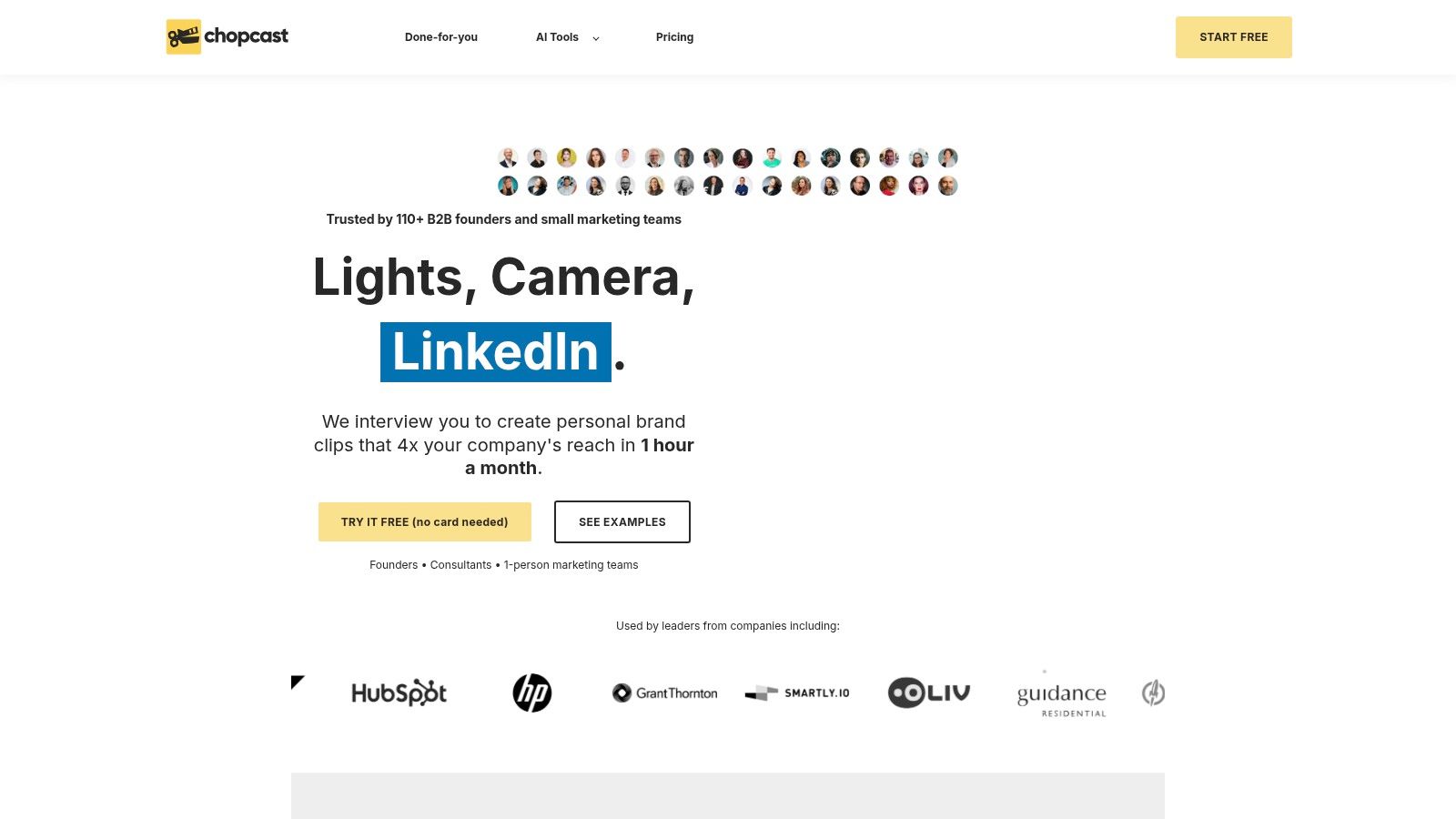
12. Chopcast
Chopcast is an AI clip maker designed for creators who need a simple, efficient way to repurpose long-form content. Users can upload video files or provide YouTube links to let the AI automatically detect engaging highlights suitable for Shorts, Reels, and TikToks. The platform emphasizes a straightforward workflow, generating multiple captioned clips from a single source video, making it ideal for podcasters and educational content creators.
Key Features
- AI Highlight Detection for finding engaging moments in long videos
- Auto-Captioning to make clips social-media-ready
- YouTube Link and Direct Upload support for flexible sourcing
- Unlimited Clip Exports on all paid plans, no watermarks
- Team Minutes Pooling allows agencies to share resources across clients
- Auto-reframing for vertical (9:16) video formats
Pricing and Access
- Free Trial: 7-day trial with a starting credit of free minutes
- Basic: $29/month for 120 minutes of upload credits
- Pro: $49/month for 240 minutes of upload credits
- Premium: $99/month for 540 minutes and team features
Plans are tiered based on the total duration of uploaded video footage
Pros and Cons
Pros
- Simple, transparent pricing based on upload minutes
- Generous free trial to test the full feature set
Cons
- Lacks advanced editing features found in full NLEs
- High-volume usage can become costly due to the minute-based model
Why Chopcast Stands Out
Chopcast’s main advantage is its simplicity and scalable, minute-based pricing. Unlike credit systems that can be confusing, its model is a direct 1:1 ratio of video length to cost. This makes it a predictable and easy-to-budget AI clip maker for teams managing multiple client accounts.
User Experience & Support
- Clean, minimal UI focused on the core clipping workflow
- Responsive email support and a detailed knowledge base for self-help
- In-app guides to help new users generate their first clips
Practical Tips
- Use YouTube Links: Save upload time by using the YouTube link feature to quickly process existing library content without re-uploading large files.
- Review Before Generating: Before committing to a final export, review all AI-suggested clips and manually select the best ones to ensure quality and relevance.
- Manage Team Minutes: For teams, assign specific videos to different members to manage the shared minute pool effectively and avoid unexpected overages.
Learn more about Chopcast on chopcast.io (https://www.chopcast.io/)
AI Clip Makers: 12-Tool Comparison
ToolKey Features ✨Quality / Speed ★Price / Value 💰Best For 👥Unique Edge
Klap 🏆
AI Reframe 2, auto-captions, viral scoring, 52-lang transcription
★★★★☆ — very fast, one‑click clip generation
Free trial; Pro $29/mo 💰
👥 YouTubers, podcasters, marketers, agencies
🏆 AI reframe + viral-potential scoring; 1.5M+ users
OpusClip
ClipAnything model, animated captions, multi-aspect reframing, scheduler
★★★★☆ — strong for multi‑genre content
Tiered plans; credits/minute 💰
👥 Creators, teams, enterprises
✨ API + Premiere/DaVinci export, enterprise tools
Quso (Vidyo.ai)
Auto-clips, captions, multi-ratio exports, scheduling
★★★☆☆ — familiar Vidyo.ai workflow
Free plan; regional pricing varies 💰
👥 Migrating Vidyo.ai users, creators
✨ Migration path + Intelliclips automation
Munch (GetMunch)
AI highlights, auto-subtitles, social analytics, scale workflows
★★★☆☆ — built for volume
Pricing gated; monthly auto-renew 💰
👥 Brands, agencies, social teams
✨ Analytics-focused repurposing at scale
Riverside Magic Clips
One-click Magic Clips, 4K cloud recording, brand presets
★★★★☆ — end‑to‑end record→clip workflow
Free tier; best exports on paid plans 💰
👥 Podcasters, remote teams, interviewers
✨ Integrated high-quality recording + clipping
CapCut
Auto-captions, templates, quick cutters, background removal
★★★★☆ — template-driven, fast mobile workflows
Free/varies by region/platform 💰
👥 Mobile creators, trend-driven editors
✨ Extensive template & effects ecosystem
VEED
Auto subtitles/translation, templates, brand kits, team workspaces
★★★☆☆ — simple browser UX, quick onboarding
Free tier; paid for advanced exports 💰
👥 Small teams, educators, creators
✨ Brand kits + easy team workflows
InVideo AI
AI video generator, clip maker, stock libraries, voice/avatars
★★★☆☆ — generative + clip workflow
Credit/minute model; free with watermarks 💰
👥 Creators needing generative assets
✨ Voice/avatars + stock integrations
Descript
Transcript-driven edits, Studio Sound, filler removal, clip export
★★★★☆ — fast transcript→clip workflow
Free tier; metered media minutes & AI credits 💰
👥 Podcasters, editors, producers
✨ Text-based editing + advanced audio tools
Wisecut
Silence removal, auto punch-ins, captions, translation support
★★★☆☆ — saves hours on talking‑head edits
Tiered minutes; Social Hub add-on 💰
👥 Talking‑head creators, course makers
✨ Auto silence/jump-cut automation
Chopcast
AI highlight detection, unlimited captions (within minutes), team minutes
★★★☆☆ — straightforward, reliable clipping
Minute‑based pricing; 7‑day trial 💰
👥 Creators wanting simple, scalable pricing
✨ Generous trial minutes + no-watermark tiers (higher plans)
Making Your Final Choice: Which AI Clip Maker Wins?
Navigating the crowded landscape of AI-powered video editing can feel overwhelming, but after analyzing a dozen of the top contenders, a clear picture emerges. The era of manual, time-consuming clip creation is officially over. Today's AI clip maker tools are not just a convenience; they are a strategic advantage for any creator or marketer looking to maximize their content's reach and impact.
We've explored everything from the hyper-focused efficiency of Klap and OpusClip to the all-in-one production powerhouses like Descript and Riverside. We've seen how tools like Munch leverage social trend analysis to boost virality, while platforms like CapCut and VEED offer extensive creative control for those who want a more hands-on approach. The key takeaway is that there is no single "best" tool, only the best tool for you.
Distilling Your Decision: A Needs-Based Framework
Your final choice boils down to a few critical questions about your specific workflow and content goals. Don't get distracted by the longest feature list; focus on the tool that solves your primary bottleneck.
- For High-Volume, Spoken-Word Creators (Podcasters, Coaches, Interviewers): Your priority is speed and intelligent selection. You need a tool that understands conversational nuances and can quickly identify the most engaging moments. Klap, OpusClip, and Quso are purpose-built for this, turning hours of footage into a dozen shareable clips in minutes. Klap, in particular, excels with its refined AI that minimizes awkward cuts and maximizes the clarity of your message.
- For All-in-One Production Teams (Agencies, Marketers): You need more than just a clipper. Your workflow likely involves recording, transcribing, editing, and then clipping. Solutions like Riverside with its Magic Clips feature, or Descript with its text-based video editing, offer an integrated ecosystem. This consolidation can save significant time and subscription costs by keeping your entire production process under one roof.
- For Visually Diverse Content (Vloggers, Gamers, E-commerce): If your content relies heavily on visual action rather than just dialogue, a standard AI clip maker might struggle. You'll benefit more from a tool with greater manual control. CapCut and VEED provide AI-assisted features within a more traditional editing interface, allowing you to pinpoint the exact visual moments you want to highlight.
- For Data-Driven Social Media Managers: If your success is measured in views, shares, and engagement rates, a tool with analytical capabilities is crucial. Munch stands out here by not just creating clips but by analyzing social trends and telling you why a certain clip might perform well, providing a data-backed edge for your content strategy.
Implementation and Final Considerations
Before committing to a subscription, always leverage the free trials. Upload one of your typical long-form videos, at least 20-30 minutes long, to your top two or three choices. This is the ultimate litmus test. Observe the quality of the AI-selected clips, the accuracy of the captions, and the intuitiveness of the reframing. How much manual adjustment is needed? A tool that requires 50% less manual tweaking can translate to dozens of hours saved per month.
The landscape of generative video is evolving rapidly. For a wider perspective on the available solutions and a comprehensive review of similar platforms, explore these top AI highlight reel creator tools to stay informed on the latest advancements in the space. Ultimately, the right AI clip maker will feel like a natural extension of your creative process, empowering you to connect with your audience on more platforms, more often, and with greater impact than ever before.
Ready to transform your long-form content into a stream of viral-ready clips? Klap is the purpose-built AI clip maker designed for creators who value speed and quality. Stop spending hours scrubbing through timelines and let our AI find your best moments in minutes. Try Klap for free and see how quickly you can multiply your content output.
