What Is an Overlay and How Creators Use It Today
Other
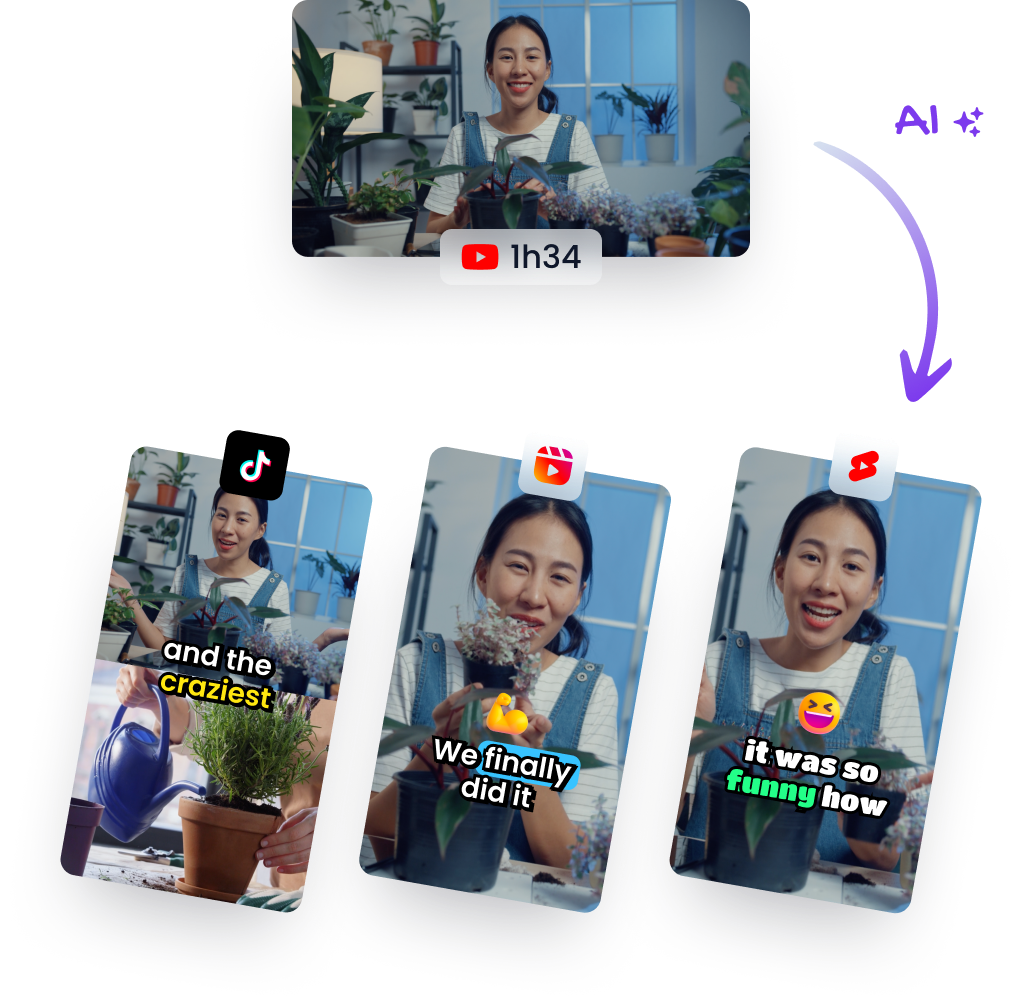
You've probably had this moment already. A long interview lands in the edit folder, the first cut looks solid, and then the actual work starts, turning one horizontal recording into a batch of vertical clips that can survive a crowded feed. That's where overlays do most of the heavy lifting. They add context, keep a clip readable on mute, and help the same source footage work across different platforms without rebuilding the whole edit.
At the simplest level, an overlay is content placed on top of existing media while the base layer stays visible. That base can be a photo, a website screen, a chart, or a video frame. In creator work, overlays are the text, graphics, and secondary visuals that make a clip clearer, more branded, and easier to watch fast. They're also the reason the same raw recording can become a captioned Reel, a punchy Short, and a polished tutorial without feeling like three separate productions.
Why Creators Care About Overlays Right Now
A podcast editor uploads a 45-minute interview on Tuesday afternoon, then the team asks for ten vertical clips before tomorrow morning. The footage is already good, but good footage isn't enough on its own. The clip still needs readable captions, a clean hook, a framing choice that works on a phone, and maybe a branded label so it doesn't disappear into the feed.
That's the answer to what is an overlay in creator terms. It's the layer that helps one recording do more jobs at once. In video, overlays commonly mean text, graphics, or another image placed over the main footage, so the content stays visible underneath while the added layer does the explanatory work Merriam-Webster's overlay definition.
The creator use case is broader than “design polish”
Overlay thinking shows up every time someone adds captions for silent autoplay, places a name tag under a speaker, or drops a progress bar into a teaser clip. It also shows up when a repurposing workflow needs to turn one long source file into many short outputs with different framing and message density. That's why overlays matter so much in short-form production, they let editors change how a clip lands without changing the source moment itself.
Practical rule: if the clip still works without the added layer, you're probably looking at an overlay, not a replacement.
Overlay also explains why creators keep seeing the same mechanic in different tools. In some apps it's a title bar. In others it's a callout, a lower-third, a watermark, or a sticker. The label changes, but the job stays the same, add information on top of the original frame and preserve the underlying shot.
The Core Definition Every Creator Should Know
A creator opens a clip, adds a caption, drops in a logo, and suddenly the same footage carries a clearer message. That added layer is the overlay. It sits on top of the original frame so the base video still does the main visual work while the extra element guides attention, adds context, or keeps the clip useful in a different format.

The base layer stays visible
An overlay is content placed on top of an existing image, interface, or footage so the material underneath remains visible. That definition aligns with Merriam-Webster's overlay definition, but the creator version is simpler: the frame stays intact, and the added layer does the explaining, labeling, or directing.
That distinction matters in short-form workflows. A headline over B-roll, a logo bug in one corner, or a subtitle line over a talking head clip all change how the viewer reads the scene without replacing the scene itself. The overlay is doing support work, not taking over the shot.
A useful way to spot overlays in the wild
If you can still identify the original image, page, or video behind the added element, you are probably looking at an overlay. Temporary elements also point to the same mechanic, since tooltips, modals, lower-thirds, and captions all appear above the base layer and then get out of the way. In editing, that same pattern helps a creator keep the source moment visible while adding whatever the viewer needs to understand it faster.
A practical way to sort them is by the job they do:
- Text overlays add reading context.
- Graphic overlays add brand or visual emphasis.
- Video overlays add another visual layer, often for picture-in-picture or B-roll.
- UI overlays temporarily cover part of a screen to focus attention.
- Data overlays annotate charts or dashboards with extra meaning.
For creators repurposing interviews, this is also where a lower-third earns its keep. A clear label can tell the viewer who is speaking before they have time to wonder, which is why a guide to how lower-thirds work in video fits naturally into the editing process.
Watermarks belong in the same family of layered signals, especially when a clip needs branding and attribution at the same time. For a practical look at placement and format choices, see best video watermark tools and techniques.
Once that idea clicks, the word stops feeling vague. An overlay is a layer on top, one that preserves the original frame while changing how the viewer uses it.
Main Types of Overlays and Where They Show Up
Different overlay types solve different problems, and creators usually need to choose based on the job, not the name. A caption overlay helps someone follow speech on mute. A sticker overlay can add emphasis or keep the eye moving. A lower-third identifies a speaker. If you want a quick example of a lower-third in practice, the breakdown on what a lower-third is and how it's used is a useful companion read.
Overlay typeBest forWatch out for
Text and caption overlays
Silent autoplay, emphasis, clarity
Too much text crowding the frame
Graphic and sticker overlays
Branding, visual cues, quick reactions
Visual clutter and distraction
Video-on-video overlays
Picture-in-picture, reactions, side-by-side explainers
Blocking the main subject
UI overlays
Modals, pop-ups, tooltips, prompts
Covering the wrong part of the screen
Data overlays
Charts, screen annotations, callouts
Over-explaining what the viewer can already see
A coach posting a Reel might use a text overlay to pull out the quote that matters. A product marketer might use a call-to-action overlay during a demo so the viewer doesn't miss the next step. A creator repackaging an interview might use a small video overlay to show the speaker and the supporting footage at the same time.
Watermarks, labels, and short-form trust signals
Watermarks are a common overlay too, especially when a clip may travel beyond the first platform. If you're comparing placement, opacity, and branding approaches, best video watermark tools and techniques is a helpful reference point. The main idea is simple, a watermark should be visible enough to identify the source, but not so loud that it fights the content.
Watch for this: overlays that solve one problem but create three more, usually by sitting on top of the wrong part of the frame.
The important distinction is outcome. Some overlays clarify. Some persuade. Some brand the clip. Some just make the edit feel finished. In a strong short-form workflow, the creator chooses the overlay type based on what the viewer needs at that exact moment, not based on which effect looks newest.
Overlays Inside the Video Editing Workflow
In the edit timeline, overlays are the layers you add after the base cut is already working. They're different from a cut or transition, because the underlying shot doesn't change. They're also different from B-roll, which often replaces the view for a moment rather than sitting on top of the main clip. That difference matters when the goal is to keep motion, continuity, and attention in the same frame.

Why overlays do retention work
A caption overlay lets a viewer stay with the clip when the room is noisy or the phone is on mute. A progress bar tells the audience they're moving through a short segment, which can make the clip feel more navigable. A side-by-side interview layout can keep two speakers visible without forcing the editor into constant hard cuts.
Those choices aren't cosmetic. They help the viewer process the clip faster. In short-form repackaging, that often means the overlay is doing continuity work too, hiding jump cuts, softening awkward pauses, or carrying the visual rhythm when the original footage has dead space.
What counts as an overlay in real edits
A title that appears on top of the video is an overlay. A callout arrow pointing at an object in the frame is an overlay. A small second video clipped into a corner is an overlay. A jump cut itself is not an overlay, and a separate B-roll shot is usually not an overlay either, because those elements replace or interrupt the base view instead of sitting on it.
For editors, that distinction changes the workflow. If a clip needs clarity, overlays are often the lightest fix. If it needs a new structure, cuts or B-roll may be the better move. The strong edit usually combines both, but overlay-heavy work is what keeps a repurposed clip from feeling empty when the source footage was never shot for the feed it ends up in.
How Overlays Boost Engagement and Brand Recall
Overlays earn their place when the viewer needs help deciding what to watch, what to remember, or what to do next. On a muted feed, a text overlay can carry the message even if the audio never plays. In a busy scroll environment, a branded lower-third helps viewers recognize the creator before they've fully processed the clip. On a product walkthrough, a question overlay or progress cue can keep curiosity alive until the payoff lands.
Attention management, not decoration
That logic matches how UI overlays behave on websites. The Digital Bunch describes overlays as elements that sit on top of page content with a dimmed background and block interaction with the layer underneath, which is a good reminder that overlays are really attention-management tools, not page replacements the Digital Bunch on overlays. Short-form video uses the same principle, the overlay narrows focus to the thing the creator wants the viewer to notice now.
For creators working on accessibility and transcription, best iScribe features for accessibility is a useful side reference because it frames captions and readable text as a usability issue, not just a stylistic choice. That mindset maps cleanly to overlays, especially when the clip needs to work for people who watch without sound or skim fast.
What tends to work best
- Lower-thirds for identity: they help viewers remember who's speaking across a series.
- Caption styling for clarity: they make silent autoplay clips usable.
- Progress or question overlays for momentum: they keep viewers oriented and curious.
- Brand marks and watermark overlays for consistency: they help a library of clips feel connected.
- Callout overlays for demos: they direct the eye to the part of the screen that matters.
You can see the same branding logic in logo placement guidelines for short-form video, where the challenge is less “where do I put the logo” and more “how do I keep it visible without hijacking the frame.” That's the core overlay tradeoff in almost every format.
When a viewer remembers the speaker, the brand, or the key idea after a clip ends, the overlay probably did part of the job. When the clip feels crowded or hard to scan, the overlay probably did too much.
Best Practices for Designing Overlays That Work
The best overlays disappear into the edit until the viewer needs them. That sounds contradictory, but it's really just a design rule. If the overlay is fighting the main subject, it's too loud. If it's unreadable, it's too weak. The sweet spot sits in the middle.

A practical checklist for creators
- Placement matters. Avoid the built-in UI zones on mobile platforms, because buttons, captions, and progress indicators can cover your text.
- Contrast matters. Make sure overlay text still reads cleanly over bright or busy footage, especially in vertical 9:16 layouts.
- Timing matters. Leave text on screen long enough for a viewer to read it without pausing.
- Typography matters. Use a readable size and keep the font simple enough to scan quickly.
- Simplicity matters. Don't stack so many overlays that the frame feels like a dashboard.
Practical rule: one clip, one main overlay job. If you need five different overlays to explain the same moment, the source edit probably needs work.
Accessibility belongs in the same checklist. Overlays that hide critical information behind tiny type or low contrast don't just look messy, they exclude part of the audience. That's why surface-level polish can't fix structural problems in the original footage, a clip with weak framing or bad composition won't become strong just because you add more layers.
The safest workflow is to test each overlay against two questions. Can a viewer read it in a second? Can they still understand the main shot beneath it? If either answer is no, simplify.
Where Overlays Fit in an AI Repurposing Workflow
Overlay work becomes much easier when it's tied to a repurposing pipeline instead of handled clip by clip from scratch. A long video goes in, the system scans it, reframes it for vertical use, adds captions as an overlay layer, and then the editor fine-tunes the start and end points before export. That matters because a single long recording can become a large batch of shorts, and manual overlay adjustment on every version turns into the bottleneck fast.
Why the pipeline matters more than the individual clip
AI-assisted editing tools increasingly treat captions, reframing, and aspect ratio changes as part of the same workflow. The useful shift is that the overlay isn't a late-stage garnish anymore, it's part of how the clip becomes feed-ready in the first place. That's especially useful for interviews, webinars, podcasts, and other long-form assets that need to be repackaged into TikTok, Reels, or Shorts without rebuilding each version by hand.
If you want a deeper look at that workflow mindset, how AI video editors handle repurposing is a helpful reference point. The important takeaway is that overlay choices made upstream affect the whole batch, not just one exported file.
When the process is set up well, the creator is only deciding a few things repeatedly, caption style, brand treatment, framing, and whether a given clip needs a text callout or a visual highlight. That keeps the work focused on message and pacing, not repetitive mechanics.
Add Your First Overlay in the Next Ten Minutes
Start with one existing long-form video from your library. Choose the platform first, because a vertical Reel, a YouTube Short, and a TikTok clip all need slightly different framing choices. Then decide on one overlay job, usually a caption, a branding mark, or a simple title card.
From there, apply the overlay where it does the most work. If the clip is for silent viewing, make the text legible and placed where it won't collide with platform UI. If the clip is a talking-head moment, use the overlay to support the speaker rather than cover them. If the goal is continuity, use the overlay to smooth a jump or highlight a transition point.
Quick recap before you publish
- Overlay means layer on top, not replacement.
- Text, graphics, video, UI, and data can all be overlays.
- In short-form editing, overlays help with clarity, continuity, and retention.
- Good overlays are readable, restrained, and placed with the platform in mind.
- AI repurposing workflows work best when overlay decisions scale across many clips.
Pick one clip tonight, add one overlay layer, and export it in the right aspect ratio. If you've already got a library of long videos sitting untouched, visit Klap and turn one of them into a short-form test case you can publish this week.