
Video to Text: The Complete 2026 Workflow Guide
Other
You probably have more usable content than you think.
A webinar recording, a customer interview, a podcast episode, a product demo, a team training. Most of it sits in a folder after publishing because turning one long video into captions, clips, posts, and articles feels slower than making the original video. That's the bottleneck.
A solid video to text workflow fixes that. It takes spoken content out of the timeline and turns it into something you can search, edit, quote, caption, summarize, and slice into new formats without scrubbing through footage for hours.
Why Your Video Content Needs a Text-Based Workflow
Long-form video creates a strange kind of content backlog. You already did the hard part. You planned the topic, recorded the conversation, edited the file, and maybe even published it once. But the value stays trapped inside audio until someone converts it into text and makes it usable.
That's why the transcript matters. Not as an archive. As infrastructure.
When teams move video to text early, everything downstream gets easier. Search improves because you can find exact moments by phrase instead of memory. Accessibility improves because captions and readable transcripts become part of the publishing process. Repurposing improves because a transcript gives you raw material for short clips, quote posts, summaries, threads, show notes, and blog drafts.
The time case is already strong. Research summarized by Sonix says 62% of professionals save more than four hours per week using automated transcription, which the source equates to more than a month of recovered work time per year in its video transcription efficiency analysis. That matters because transcription stops being a painful production task and becomes a fast prep step before clipping and publishing.
Practical rule: If your transcript is created after distribution, you're leaving repurposing value on the table. If it's created before distribution, it becomes the operating system for the rest of the workflow.
This is also where a lot of teams misunderstand content repurposing workflows. They treat repurposing as “make a few social posts from the webinar.” In practice, the most effective approach involves structuring the source material in text first. Once the words are visible, reusable assets stop feeling handmade.
A buried point in all of this is that text is easier to evaluate than video. You can scan a page in minutes. You can't scan an hour of footage the same way. That single difference changes how quickly a team can identify hooks, objections, examples, memorable lines, and teaching moments.
Choosing Your Video to Text Toolkit
The right toolkit depends on what you need after the transcript exists. If you only need a readable draft, a lightweight speech-to-text tool may be enough. If you need captions, short clips, and editable social assets, your decision changes.
The strategic reason is simple. A 2026 roundup reported that 93% of marketers say video improves product understanding, and 63% of consumers say they prefer learning about a product or service through a short video, according to this video marketing statistics roundup. In other words, video to text isn't just for documentation. It supports distribution.
The three common options
Manual transcription still has a place when language is highly specialized, the audio is rough, or legal precision matters. But it's slow, tedious, and expensive in human attention. It also creates a hidden second cost. Once someone types the transcript, you still need to turn it into captions, pull clips, and format derivative assets.
Standalone AI transcription services are the usual middle ground. You upload audio or video, get a transcript back, then edit the text. This is often enough for internal meetings, rough show notes, searchable archives, and straightforward captions. The weakness appears later when you try to move from transcript to social output. You end up exporting text into one tool, timestamps into another, and clips into a video editor.
Integrated repurposing platforms make more sense when the transcript is only the first step. Tools in this category connect speech recognition with clipping, reframing, subtitles, and export workflows. Klap fits here because it takes long-form video, identifies segments, adds captions, and prepares short-form outputs from the same source material rather than treating transcription as a separate task. That matters when your actual deliverable is a week or month of social content, not just a document.
For readers comparing voice and speech workflows at a more technical level, this breakdown of Evaluate Voice Control Pro and Whisper is useful because it frames the trade-off between control, raw model capability, and workflow fit.
What to compare before you choose
FormatBest ForKey Feature
Plain transcript
Search, documentation, rough blog drafting
Full spoken text in readable form
Timestamped transcript
Editing, quote extraction, clip planning
Links words to exact moments in the video
Caption file
Social publishing, accessibility, platform uploads
Time-synced subtitle formatting
A tool looks good in a demo when it produces clean text from clean audio. That's not the proper test. The proper test is whether it helps with these questions:
- Can it handle production reality? You need speaker separation, time alignment, and editing controls. Otherwise the transcript stalls at draft stage.
- Does it support the assets you publish? If your team publishes Reels, Shorts, carousels, quote graphics, and newsletters, the tool should help move text into those formats.
- How much cleanup happens after export? Some tools save time on transcription, then give it back as editing debt.
A cheap transcript is expensive if it creates manual work in three other places.
If your workflow ends with “someone copies lines into a doc and manually finds the timestamps later,” your toolkit is incomplete. The best choice isn't the one that creates text fastest. It's the one that reduces friction all the way to publishable assets.
For a practical look at what these tools usually output and how to evaluate them, this guide to AI video transcript generators is a helpful reference point.
The Core Transcription Workflow From Start to Finish
Most transcription problems start before you upload anything. People blame the model when the actual issue is the recording.

Start with the audio, not the software
If you're recording fresh content, the biggest win is simple setup discipline. Rev recommends using a high-quality microphone 6-12 inches from the speaker, recording in a quiet room without crosstalk, and choosing tools with industry-trained ASR models, as outlined in its guidance on AI vs. human transcription accuracy.
That advice sounds basic because it is. It also solves most avoidable transcript errors.
Use this checklist before you transcribe:
- Check speaker distance: Keep the mic close enough to capture voice clearly without room echo.
- Control room noise: HVAC hum, keyboard clicks, and side conversations create messy drafts fast.
- Separate voices when possible: One mic per speaker is easier to transcribe than multiple people sharing bad room audio.
- Export the cleanest source file you have: Don't feed the system a compressed social upload if the original recording exists.
For YouTube-specific use cases, especially when you're working from existing published videos, this guide on understanding YouTube video transcripts gives useful context on what transcript data is available and how creators typically use it.
Run the first-pass transcription
Once the file is ready, the actual workflow is straightforward.
- Upload the source video or audio file. Most tools accept direct video upload or a hosted link.
- Set the language and any known options. If the tool lets you flag multiple speakers or domain-specific language, use it.
- Generate the transcript draft. Don't edit during processing. Let the first pass complete.
- Export in the right format for your next step. Plain text for writing, timestamps for editing, caption files for publishing.
This short demo helps visualize the basic flow from file input to usable transcript:
Treat the first draft as raw material
The output from AI transcription is a working draft, not a final asset. That mindset matters.
If you expect perfect punctuation, flawless speaker labels, and publication-ready text from the first pass, you'll be disappointed. If you treat it like a rough assembly cut, it becomes much more useful. You now have searchable language, approximate timing, and the skeleton of every downstream asset.
Clean recordings produce cleaner transcripts. Better transcripts produce faster edits. Faster edits produce more repurposed assets.
That chain is what turns video to text from a convenience feature into a production habit.
Refining Your Transcript for Publication
A draft transcript can be accurate enough to understand and still be unusable for publishing. That gap is where most of the quality work lives.
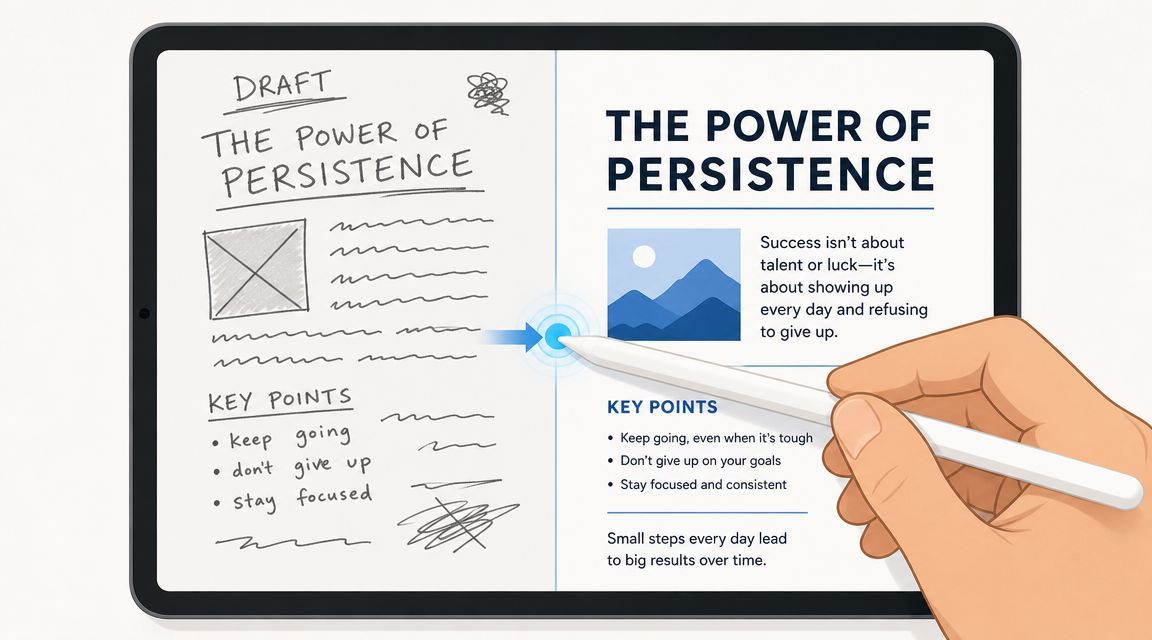
AssemblyAI notes that AI speech-to-text can exceed 90% accuracy in ideal conditions, that 5-10% WER is considered high quality for real-world audio, and that anything above 25% WER is often unreadable and needs significant cleanup in its review of speech-to-text accuracy. That lines up with what practitioners see every day. A transcript can be “pretty good” and still contain exactly the mistakes that make it risky to publish.
Fix the errors that damage trust
The first pass should focus on meaning-critical corrections, not cosmetic perfection.
Look for:
- Names and brands: AI often mangles people's names, software names, and company names.
- Industry vocabulary: Acronyms, product categories, and technical phrases are common failure points.
- False punctuation: A sentence broken in the wrong place can change the meaning of a quote.
- Filler overload: Remove repeated hesitations if the transcript is meant for reading rather than archival accuracy.
Not every transcript needs to preserve spoken language exactly. A podcast archive and a blog source doc are different products. One can stay close to speech. The other should read like clean prose.
Clean up speaker labels and timestamps
This matters most for interviews, webinars, training sessions, and roundtables. If the wrong speaker gets attached to the right sentence, the transcript becomes unreliable.
Use a second review pass for these items:
- Verify each speaker turn in the opening minutes. If the system gets the speakers wrong early, the error often repeats.
- Spot-check timestamps around strong quotes, topic changes, and transitions to Q&A.
- Standardize labels so the document doesn't switch between full names, initials, and generic tags like Speaker 1.
- Remove overlaps carefully when two people talk at once. If the overlap matters, note it rather than guessing.
Editing rule: Correct what changes meaning first. Correct what changes polish second.
That order keeps the process efficient. Too many teams burn time fixing commas while leaving bad speaker attribution untouched.
Prepare the transcript for its final use
A publishable transcript is not one-size-fits-all. Format it based on destination.
If it's headed to a blog workflow, break long passages into readable paragraphs and convert spoken repetition into clean phrasing. If it's headed to captioning, preserve timing and line breaks that read naturally on screen. If it's headed to clip extraction, keep the timestamps visible and don't over-edit the wording.
The most common failure here is over-cleaning. People polish the transcript until it reads well, then realize they removed the verbal cues that made clipping and caption matching easy. Keep one clean reading version if needed, but preserve a time-linked production version too.
Turning Transcripts into Social Media Gold
Once the transcript is cleaned up, the useful question changes from “What was said?” to “What can we publish from this?”
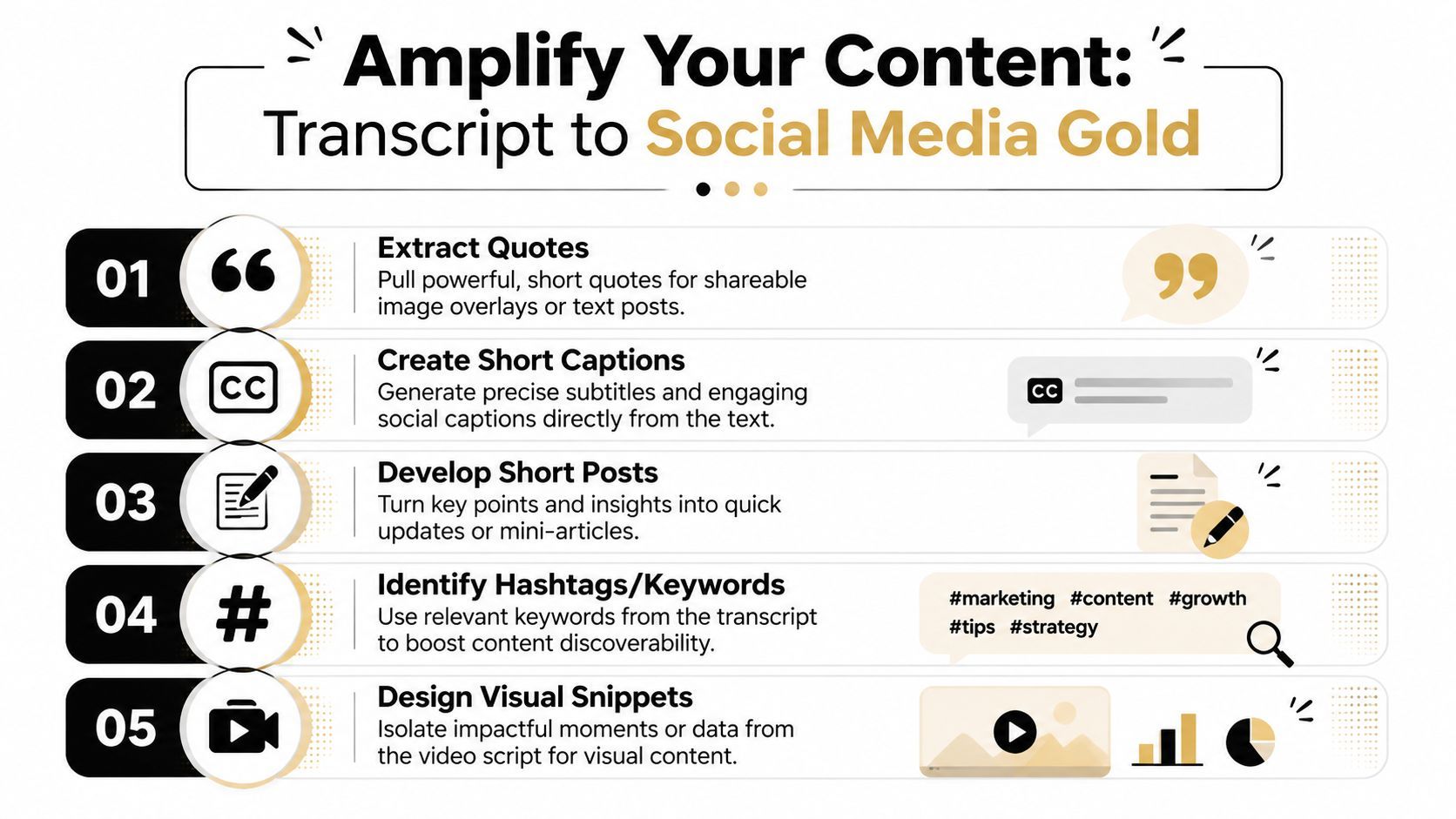
A lot of teams still hunt for clips by dragging through the timeline and waiting to feel something interesting. That works, but it's slow and inconsistent. A transcript gives you a faster method. You scan for tension, novelty, disagreement, concise teaching, and quotable phrasing. Then you go back to the footage only for the strongest candidates.
Adobe's product direction reflects where this is going. Its speech tools emphasize speaker labels, timestamps, and summaries, which supports the idea that the transcript is becoming a production asset for clip discovery, not just a text export, as described on Adobe Premiere's speech-to-text page.
How a single transcript becomes multiple assets
Take a typical one-hour interview. Inside it, you usually have several different content types hiding in plain sight:
- A sharp opinion that works as a short vertical clip
- A concise how-to sequence that becomes a carousel or text post
- A memorable sentence that works as a quote graphic
- A customer objection that can anchor a newsletter segment
- A strong answer that deserves full captions and standalone posting
The transcript helps because these pieces look different on the page. You can spot short, self-contained moments. You can find repeated themes. You can identify where the speaker finally says the point clearly after circling around it for two minutes.
What makes a good clip candidate
The best social clips usually have one of these traits:
- Immediate context: The viewer can understand the point without watching the whole interview.
- Compressed value: The speaker gets to the lesson quickly.
- Natural spoken rhythm: It sounds good out loud, not just on paper.
- A clean visual section: The corresponding footage doesn't have distracting cuts, glitches, or interruptions.
This is especially important in multi-speaker content. Interviews and webinars contain strong moments, but they also create messy handoffs, interruptions, and overlapping audio. That's why good speaker labeling and reliable timestamps matter so much when you're extracting clips.
The transcript tells you where to look. The video editor decides whether the moment holds up visually.
Build from text first, then shape for platform
A practical repurposing pass often looks like this:
- Read the transcript and highlight moments with a strong hook in the opening line.
- Mark the surrounding timestamp range so you can pull enough setup and payoff.
- Turn the raw quote into a social caption or post copy.
- Check whether the moment works better as a talking-head clip, a quote card, or both.
- Package the same idea differently for each platform.
That's where a repeatable social media repurposing workflow pays off. Instead of asking “what should we post today,” you're extracting from a source library that already contains approved messaging in spoken form.
The transcript is the selection layer
The strongest teams don't use transcripts only for captions. They use them to choose.
A transcript can reveal three clip-worthy moments that were easy to miss in the edit. It can also save you from publishing a segment that sounds interesting in isolation but loses clarity when read line by line. Reading spoken content exposes weak openings, rambling phrasing, and jargon-heavy sections before you spend time designing around them.
AI-assisted clipping has proven useful. Systems can scan transcript structure, identify likely hooks, reframe footage for vertical viewing, and place captions quickly. But the transcript still does the strategic work. It gives you the evidence for why a moment is worth turning into an asset.
Automating Your Content Repurposing Pipeline
Doing this manually once is manageable. Doing it every week without a system is where teams stall.
A scalable pipeline starts with a simple rule. Every new long-form recording should enter the same process: store the source file, generate the transcript, clean the transcript, identify publishable moments, create derivative assets, and move approved outputs into a publishing queue. If any one of those steps depends on someone remembering what to do next, the process will break under volume.
What automation should handle
Automation works best on the repetitive parts, not the judgment-heavy ones.
Use it to:
- Ingest content consistently: Pull in uploads, links, or recorded sessions without manual handoff.
- Generate transcript drafts automatically: Get searchable text into the workflow immediately.
- Surface likely highlights: Let the system propose moments worth review.
- Prepare export-ready assets: Captions, aspect ratios, and clip formatting are good automation targets.
Keep human review for message accuracy, brand language, legal sensitivity, and final selection. That's the split that usually holds up in practice.
Connect transcription to publishing outcomes
The mistake is stopping at the transcript. The better model is a chain where text triggers the next actions.
A webinar transcript can feed summaries for internal notes, clips for social, pull quotes for design, and ad variants for paid testing. If your team also experiments with creative automation on the ad side, tools such as ShortGenius automated ad generation are relevant because they extend the same idea beyond organic repurposing into campaign production.
Systems beat effort. A decent pipeline used every week will outperform a clever manual process used twice.
The content teams that get the most from video aren't producing radically more source material. They're extracting more value from each recording because the path from raw footage to text to assets is already defined.
That's what a mature video to text workflow gives you. Not just transcripts. A repeatable engine.
If you're turning long videos into Shorts, Reels, or TikToks on a regular basis, Klap is worth a look. It's built for the part that usually slows teams down after transcription: finding strong segments, reframing them for vertical formats, adding captions, and getting clips ready for review and export.
