How to Add Caption to Instagram Reels
Other
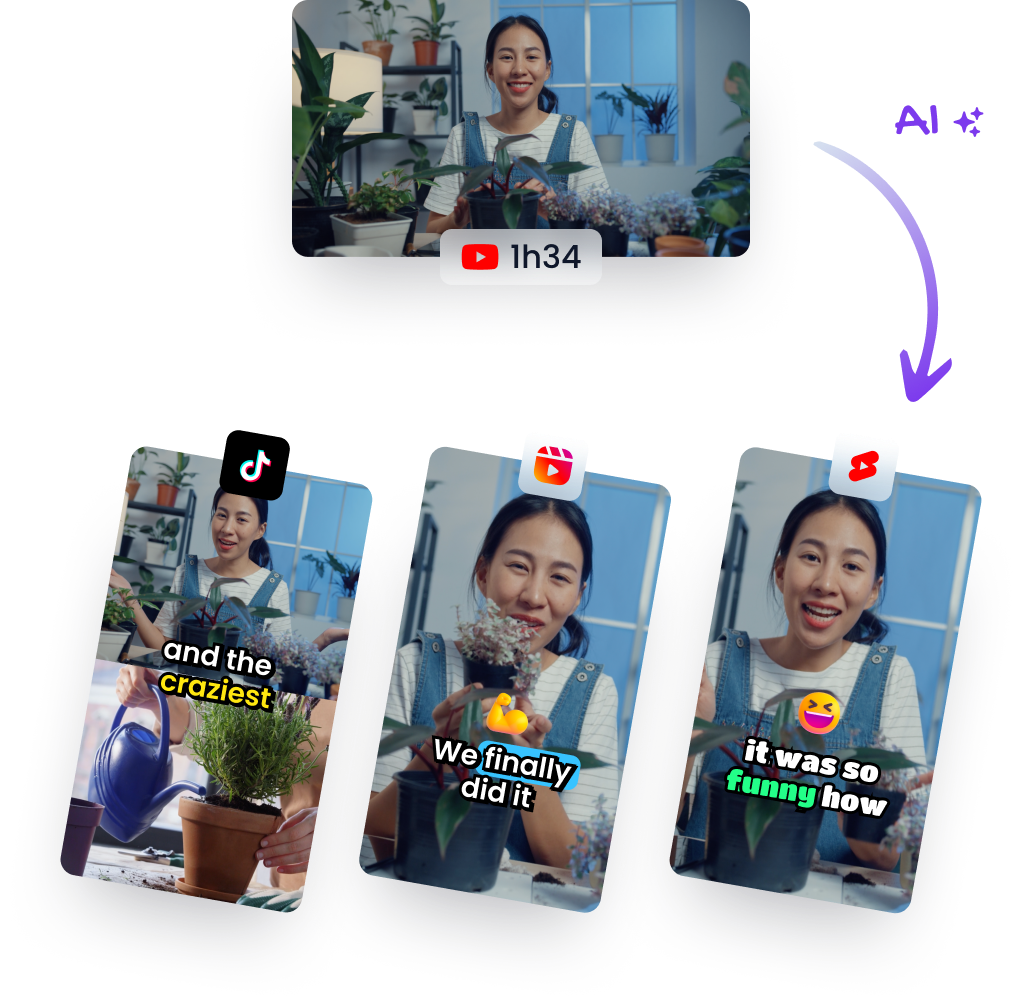
You've finished the Reel, checked the hook, trimmed every pause, and uploaded it to Instagram. Then you notice the problem: the message depends on spoken words, but many viewers are watching in a quiet office, on public transport, or with their phone muted. Without readable text, a strong video can lose attention before the viewer understands what it offers.
Learning how to add caption to Instagram Reels is therefore more than finding a sticker in the editor. You're choosing a publishing workflow. Native Instagram captions are convenient for a quick post, while pre-burned subtitles can make the same video reusable across TikTok, YouTube Shorts, and Facebook Reels. The right choice depends on how you create, edit, and distribute content.
Why Captions Matter for Instagram Reels
A creator can spend hours scripting and editing a useful Reel, then discover that the opening line disappears into silent playback. Captions give viewers a second way to follow the story, which matters when audio isn't practical or when the speaker's accent, terminology, or delivery is difficult to catch on the first pass.
Captioned video has shown a measurable viewing advantage. A 2026 review of independent social-video research reported that viewers were 80% more likely to watch an entire video when captions were present (reviewed social-video research). A separate Facebook A/B test found that captioned video achieved 16% higher reach and 17% higher reactions, while removing captions produced 26% fewer CTA clicks in that test (caption engagement findings).

Those figures come from social-video research outside Instagram, so they shouldn't be treated as a guaranteed result for every Reel. They do support a practical conclusion: captions protect comprehension during silent viewing, and stronger comprehension gives the viewer more opportunity to reach the payoff or act on the message.
Captions serve more than one audience
Captions help people who are deaf or hard of hearing, viewers who speak English as an additional language, and anyone watching in a sound-sensitive environment. They also make fast explanations easier to scan, especially when a Reel includes product names, technical terms, prices, or a sequence of instructions.
I treat captions as part of the creative asset, not a final accessibility checkbox. The Klap guide to captions is useful context for creators who are turning spoken content into short-form clips and need text to remain synchronized with the video.
Practical rule: If the message matters, make sure the viewer can understand it without relying on audio alone.
Adding Captions Using Instagram's Native Tools
Instagram's native caption tool works well when you're publishing a single Reel directly from the app. It transcribes the spoken audio, places the text over the video, and lets you make corrections before posting. The process is quick, but the review step is where quality is won or lost.

Follow the native caption workflow
- Open the Reel editor: Start a new Reel or select an existing video, then continue to Instagram's editing screen.
- Open the sticker controls: Tap the sticker or captions control in the editor. Select Captions from the available options.
- Wait for transcription: Instagram will process the audio and generate a transcript. Processing time can vary with the clip and connection.
- Review every word: Scrub through the transcript word by word. Correct names, brands, technical vocabulary, homophones, accented speech, and any phrase Instagram has misheard.
- Adjust the presentation: Choose an available text style, color, and position. Keep the words readable against the footage rather than choosing a style solely because it looks animated.
- Preview the full Reel: Watch it with sound off and check the beginning, middle, and end. Look for captions hidden behind faces, product demonstrations, usernames, or Instagram's interface.
- Publish only after the final check: Once the transcript and placement are correct, add your post details and share the Reel.
The native workflow's biggest strength is speed. It doesn't require another editor, a separate subtitle file, or an export step. Its weaknesses appear when you need consistent branding, multilingual versions, batch production, or the same captioned asset on multiple platforms. Native captions are attached to the Instagram post experience, so they aren't a reusable part of the original MP4.
The tool may also behave differently depending on region and language support. Don't assume the transcript is accurate because the words appear quickly. Auto-transcription is a draft, not an approval.
This short walkthrough shows where the caption control fits into the broader Reel editing process:
Quality check: Preview the finished Reel on a phone with sound off. A caption that looks fine in the editor can be obscured by the interface or become difficult to read on a smaller screen.
Native Captions Versus Pre-Burned Subtitles
The native-versus-pre-burned decision affects more than visual style. It determines whether your caption work stays inside Instagram or becomes part of a portable video asset.
Native captions are added after the video reaches Instagram's editor. Pre-burned subtitles are rendered directly into the video before upload, using tools such as CapCut, Submagic, Descript, or another video editor. Neither approach is universally correct.
CriteriaNative Instagram CaptionsPre-Burned Subtitles (Third-Party)
Production speed
Fast for one-off Instagram posts
Adds an editing and export step
Brand consistency
Limited to Instagram's available styles
Supports repeatable fonts, colors, layouts, and animation
Cross-platform portability
Captions remain tied to the Instagram post
Captions travel with the exported video file
Accessibility review
Requires transcript and placement checks inside Instagram
Allows review before upload, with the final text visible in the asset
Team scalability
Convenient for individual publishing
Better suited to shared templates and repeatable production systems
When native captions are the sensible choice
Choose native captions when a Reel is time-sensitive, Instagram-only, or likely to be edited immediately before publication. A solo creator responding to a trend may value speed more than a perfectly standardized subtitle treatment. Native captions also reduce software switching and keep the entire process in one app.
That convenience has a cost. If you later upload the same video to TikTok or YouTube Shorts, you'll need to create captions again or export a version from another workflow. Styling can also vary from post to post, which makes a feed feel less cohesive.
When pre-burning pays off
Pre-burned subtitles make more sense when your team repurposes webinars, podcasts, interviews, tutorials, or long-form videos. The captions become part of one exportable asset, so the same file can move through several publishing destinations without rebuilding the text each time.
For creators comparing automation options, an AI caption generator can help turn spoken audio into synchronized subtitle text before the final review. The important safeguard remains human editing. Automation can accelerate transcription and formatting, but it shouldn't approve brand names, claims, or accessibility details without inspection.
The trade-off is permanence. Once text is burned into a video, changing the wording, language, or position usually requires a new export. Keep an editable project file and, where your workflow supports it, a reusable transcript or SRT file.
Caption Design and Readability Best Practices
Accurate captions can still fail if viewers can't read them. Mobile footage changes rapidly, backgrounds vary from frame to frame, and Instagram's interface occupies parts of the screen. Treat each caption line as a small piece of on-screen design.

Make every line easy to decode
Use a clean sans-serif typeface with enough weight to survive compression and small-screen viewing. Decorative fonts can suit a title card, but they often slow down reading when used for continuous dialogue. Keep lines short enough that viewers can understand them while following the action.
High contrast matters more than novelty. White text may disappear over a bright wall, while black text can vanish into a dark shirt or night scene. A solid or semi-transparent background, text stroke, or shadow can separate the words from the footage without covering the entire frame.
Protect the safe areas
Place captions away from faces, hands demonstrating a process, product labels, and other information the viewer needs to see. Keep them clear of Instagram's lower interface area, profile handle, and engagement controls. The Instagram accessibility guidance recommends high-contrast text and backgrounds and advises positioning captions so they don't cover faces or key visuals.
Timing deserves the same attention as typography:
- Match speech naturally: Captions should appear as the words are spoken, not noticeably before or after.
- Break at meaningful phrases: Avoid splitting a person's thought in the middle of a name, instruction, or grammatical unit.
- Show enough text to read: Rapid word changes can create visual fatigue, while long blocks make viewers fall behind.
- Review the opening carefully: The first caption must support the hook rather than obscure it or arrive after the key point.
Exported subtitles need another check. A layout that looks balanced on Instagram may be cropped or covered when the same video appears in another app. Keep important text comfortably inside the central visual area, then test the file on a phone with sound off before distributing it.
Caption Length and Engagement Insights
Caption length doesn't have one universal winner. Short, punchy on-screen phrases can suit a visual joke, product reveal, or lifestyle clip, while a tutorial may need fuller transcription so viewers can follow each instruction. The best choice depends on whether the viewer needs the words as emphasis or as a complete substitute for audio.
The available evidence is mixed. One experiment reported higher engagement and reach for shorter captions, while another found a positive but modest relationship between caption length and engagement score, with r=.160 (caption length study). That isn't a contradiction to ignore. It means length interacts with subject, audience, delivery, and the role captions play in the video.
Instagram post copy has a separate constraint. Multiple 2026 sources state that the caption field permits up to 2,200 characters, but only about 55 to 60 characters may be visible before truncation (Instagram Reels caption specifications). Put the hook, context, or promise first rather than burying it after a long introduction.
Content TypeRecommended Words Per MinuteOptimal Caption LengthBest Use Case
Entertainment
Not fixed by the available evidence
Short phrases that reinforce the joke or reveal
Fast visual storytelling
Lifestyle
Not fixed by the available evidence
Brief emphasis with selective detail
Mood, routine, or product context
Education
Not fixed by the available evidence
Fuller transcript when every step matters
Tutorials and explanations
Interviews
Not fixed by the available evidence
Complete, carefully timed dialogue
Quotes, answers, and discussion clips
The table avoids invented benchmarks because the verified evidence doesn't establish a reliable words-per-minute standard for these categories. For examples of concise social copy, review resources focused on captions that boost engagement, then adapt the tone to the actual content rather than forcing every Reel into a short-caption formula.
Choosing the Right Caption Workflow for Your Strategy
Use native Instagram captions when Instagram is the only destination, publication speed is the priority, and you're comfortable reviewing each transcript manually in the app. This works especially well for a solo creator posting a quick response, a timely announcement, or a simple talking-head Reel.
Use pre-burned subtitles when the video will move across platforms, needs a consistent brand treatment, or comes from a larger content library. The extra preparation is justified when rebuilding captions for every upload would create repeated work.

Before choosing, ask:
- Content distribution: Is the video Instagram-only, or will it also appear on TikTok, YouTube Shorts, Facebook Reels, or another channel?
- Team resources: Can someone correct transcripts and placement for every post, or does automation need to handle the first draft?
- Asset management: Do you need a reusable video and editable subtitle files, or is a permanent caption layer acceptable?
- Quality expectations: Does your brand require consistent fonts, colors, terminology, and multilingual review?
- Publishing pressure: Does the post need to go live immediately, or can the team accommodate another export step?
For a broader production workflow, see this guide on how to add captions to videos. The practical answer to how to add caption to Instagram Reels is simple: choose native captions for speed and platform-specific publishing, and choose pre-burned subtitles when reuse, consistency, and control matter more than avoiding an extra editing step.
Klap turns long-form videos into social-ready short clips with AI-assisted clip selection, mobile reframing, and synchronized captions that you can review before export. If you're repurposing podcasts, webinars, interviews, or YouTube videos for Instagram Reels, visit Klap to build a captioned short-form workflow around your existing content.