
LinkedIn Video Specifications: 2026 Cheat Sheet & Guide
Other
Uploading a video to LinkedIn shouldn't feel like a gamble, but for most social teams, it does. One guide tells you to keep it short and square. Another says vertical is the future. Then you hit an upload error because the file that worked fine as an organic post won't pass ad requirements.
That confusion usually comes from treating linkedin video specifications like one fixed rulebook. They aren't. LinkedIn has different practical limits and performance expectations depending on where the video will run, whether that's the organic feed, a sponsored campaign, or a live stream.
The bigger mistake isn't just using the wrong dimensions. It's exporting one “master file” and pushing it everywhere, even when the placement has different compression behavior, device usage, and approval constraints. A video can technically upload and still underperform because it was built for the wrong context.
Navigating the Maze of LinkedIn Video Specs
Many teams don't struggle because the specs are impossible. They struggle because the specs change by use case, and many articles stop at listing limits instead of helping you choose what to optimize for.
That distinction matters. Native feed posts can be as large as 5GB, while sponsored ads are often capped at 200MB, and the right export depends on whether the file needs to survive mobile rendering, ad review, or company-page publishing, as noted in this breakdown of LinkedIn video size decisions. The practical takeaway is simple. There is no single “best” export for every LinkedIn placement.
Think in terms of goal, not just format
If you're posting an executive clip to the feed, you care about visual clarity in-scroll and mobile readability. If you're launching a paid campaign, you care about compliance, delivery quality, and a clean ad review path. If you're repurposing a webinar, you care about how quickly you can cut it down, reframe it, and publish it without introducing quality issues.
Practical rule: Start with the destination. Then choose the file settings.
That mindset changes how you export. It also prevents the two most common workflow problems: oversized files for ads and awkward aspect ratios for mobile viewers.
Here's the cleanest way to approach it. Use one dependable master export, then create placement-specific variants only when the campaign requires it. If you need a quick walkthrough of the actual posting flow after export, this guide on how to post a video on LinkedIn is a useful companion.
The Ultimate LinkedIn Video Specs Cheat Sheet
When you're exporting under deadline, you don't need theory first. You need a fast reference that tells you what to use, what to avoid, and where the limits change.
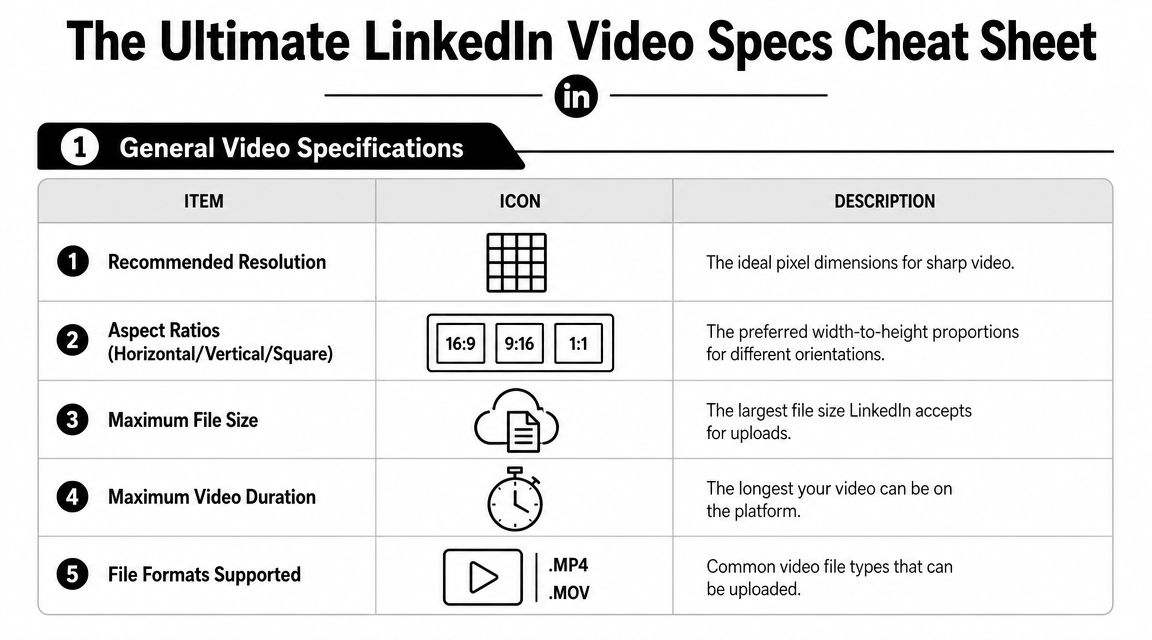
PlacementFile sizeDurationAspect ratios to prioritizeFormat guidancePractical recommendation
Native feed video
Up to 5GB
Typically 3 seconds to 10 minutes on mobile, often up to 15 minutes on desktop
16:9, 1:1, 4:5, 9:16
1080p is a safe baseline for cross-device playback
Use 1:1 or 4:5 for most feed posts, 16:9 for webinar clips that stay desktop-first
Sponsored video ad
200MB
3 seconds to 30 minutes
16:9, 1:1, 4:5, 9:16 depending on campaign creative
MP4, with H.264 video, AAC audio, and commonly 30 fps
Export tighter, cleaner files to avoid approval and delivery issues
LinkedIn Live
Varies by streaming setup
Real-time stream rather than uploaded runtime
Usually 16:9
Depends on your encoder and live tool
Prioritize connection stability and audio consistency over aggressive visual settings
Use this as an export checkpoint, not just a spec list. The best-performing file is usually the one that matches the placement cleanly on the first upload.
Native Feed Video Specifications Explained
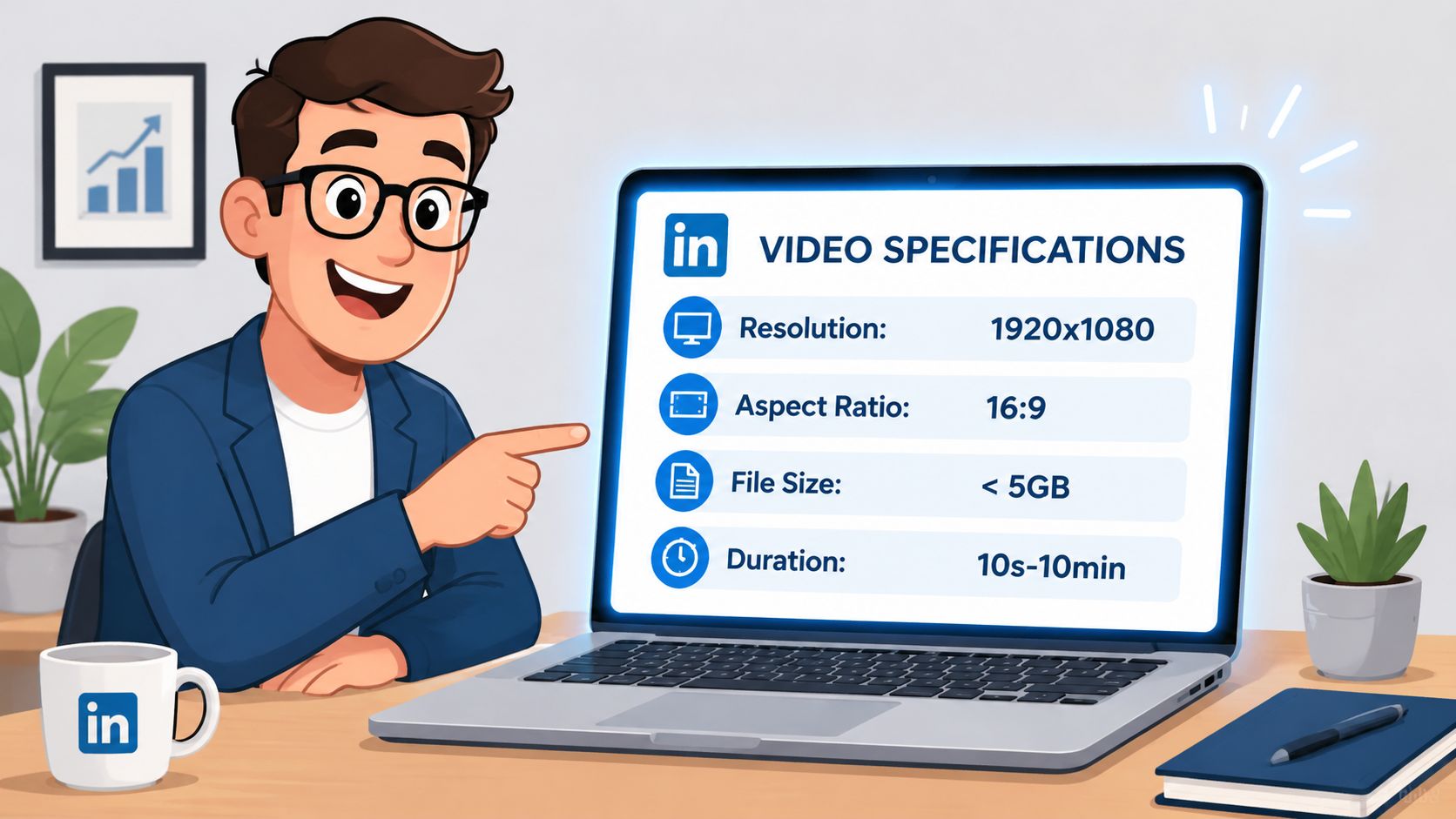
Organic feed video gives you more room than ads, but that extra flexibility can create sloppy decisions. Native feed uploads can reach 5GB and typically support 3 seconds to 10 minutes on mobile, with desktop uploads often reported up to 15 minutes. The more important decision is aspect ratio. For cross-device playback, the most dependable choices are 16:9 for desktop-first viewing, 1:1 for a balanced feed presence, and 4:5 or 9:16 for mobile-first visibility, according to Sprout Social's LinkedIn video spec guide.
What to use for most organic posts
If you manage a brand page or executive account, 1:1 and 4:5 are usually the safest bets. They occupy more feed space than horizontal video without feeling overly platform-native in a way that clashes with LinkedIn's professional tone.
Use 16:9 when the content is presentation-led, webinar-derived, or built around slides. It preserves layouts better. Use 9:16 when the speaker is the focus and the message is designed for mobile consumption first.
A good shortcut:
- Thought leadership clips: 4:5 works well because it gives the speaker more screen presence.
- Interview snippets: 1:1 is easier to crop cleanly when two people share the frame.
- Product demos or webinars: 16:9 keeps interface detail intact.
- Direct-to-camera commentary: 9:16 can work if the framing feels intentional rather than recycled from another platform.
The best aspect ratio isn't the one LinkedIn allows. It's the one that keeps the important part of the frame visible on the devices your audience actually uses.
Why 1080p is usually the right call
Often, 1080p is the practical baseline. It gives you enough detail for feed playback without creating oversized files that process slowly or compress harshly. You don't need to chase the heaviest possible export for organic LinkedIn. Clean framing, readable text, and stable compression matter more.
If you're reworking an existing asset, aspect ratio is usually the first fix, not the last. A dedicated tool for converting video aspect ratio can save time when you're testing 16:9 against square or vertical variants.
This is also where publishing strategy meets formatting. If your team is refining distribution and messaging at the same time, this guide on how to post on LinkedIn for B2B pairs well with the technical side.
A quick visual walkthrough helps if you're training teammates or handing off to another editor:
LinkedIn Video Ad Specifications Decoded
Paid video is where teams get tripped up fastest, because LinkedIn ads look similar to feed posts but operate under tighter technical rules. Native LinkedIn videos can be up to 5GB and 10 to 15 minutes long, but sponsored video ads are much more restrictive at 200MB and can run from 3 seconds to 30 minutes, as summarized in this LinkedIn video ads guide.
Why ad specs are stricter
The difference isn't arbitrary. Ads have to clear review, render reliably across placements, and deliver consistently inside a paid system where technical errors affect spend. That's why ad guidance is more specific about file construction.
For ads, MP4 is the standard. H.264 for video and AAC for audio are widely recommended, and 30 fps is commonly cited. Those settings aren't just “nice to have.” They reduce the chance of odd playback behavior, processing delays, or quality loss after platform compression.
What works in practice
When a creative team hands over a cinematic, oversized source file, the ad team usually ends up re-exporting it anyway. The cleaner workflow is to build ad-ready files from the start.
Here's the practical comparison:
Decision areaOrganic feedPaid ad
File size tolerance
More forgiving
Much tighter
Format flexibility
Broader in practice
Narrower and more standardized
Review sensitivity
Lower
Higher
Delivery risk from bad exports
Moderate
High
For sponsored campaigns, keep your approach conservative:
- Use MP4 exports only for final delivery.
- Stick with H.264 and AAC unless a specific workflow forces a different intermediate format earlier in production.
- Avoid bloated masters that sit close to the file cap. Leave room for safe uploading.
- Choose aspect ratio based on placement intent, not on whatever the editor exported first.
The trade-off most teams miss
A technically valid ad file can still be a poor ad asset. If the opening frame is weak, the first seconds drag, or mobile framing is off, LinkedIn won't rescue the creative for you.
That's the fundamental difference between feed and ads. Organic can tolerate experimentation. Paid creative needs to be precise before you spend against it.
LinkedIn Live Video Streaming Requirements
LinkedIn Live is a different workflow from uploaded video. You're not delivering a finished file into the feed. You're sending a real-time video signal through a third-party streaming setup, which means reliability matters as much as image quality.
Live setup starts outside LinkedIn
LinkedIn Live typically runs through streaming tools such as OBS, StreamYard, Vimeo, or another encoder-based platform. That changes the job for the social manager. Instead of worrying about upload file limits, you're managing encoder settings, internet stability, scene layouts, mic quality, and moderation flow.
The simplest setup usually wins. A stable camera feed, a clean microphone, and readable on-screen branding outperform a more ambitious live stream that drops frames or drifts out of sync.
Settings that keep streams stable
Aim to treat 720p or 1080p as the practical resolution range for LinkedIn Live. Use 16:9 framing because it fits webinar panels, interviews, demos, and presentation layouts cleanly. Keep your frame rate consistent from camera to encoder to avoid motion stutter and sync issues.
A few live-streaming habits matter more than people expect:
- Check audio first: Viewers will tolerate average lighting longer than bad sound.
- Keep lower-thirds large enough to read: Desktop-friendly text often becomes tiny on mobile.
- Use a wired connection when possible: Wi-Fi is where many “mystery” live failures start.
- Run a private rehearsal: Test transitions, screen shares, and guest handoffs before the actual event.
Live video fails less often because of LinkedIn itself and more often because the stream setup was never tested end to end.
What not to optimize for
Don't chase ultra-heavy output settings for live content. The goal isn't maximum file quality. The goal is a stable, watchable broadcast with clear speech and predictable pacing.
If you're hosting a panel, keep visuals simple. If you're showing slides, make the text larger than you think you need. If you're bringing guests on, standardize microphones and camera positioning before you go live. Those practical choices do more for the viewing experience than aggressive encoder tuning ever will.
Optimal Export Settings for Maximum Quality
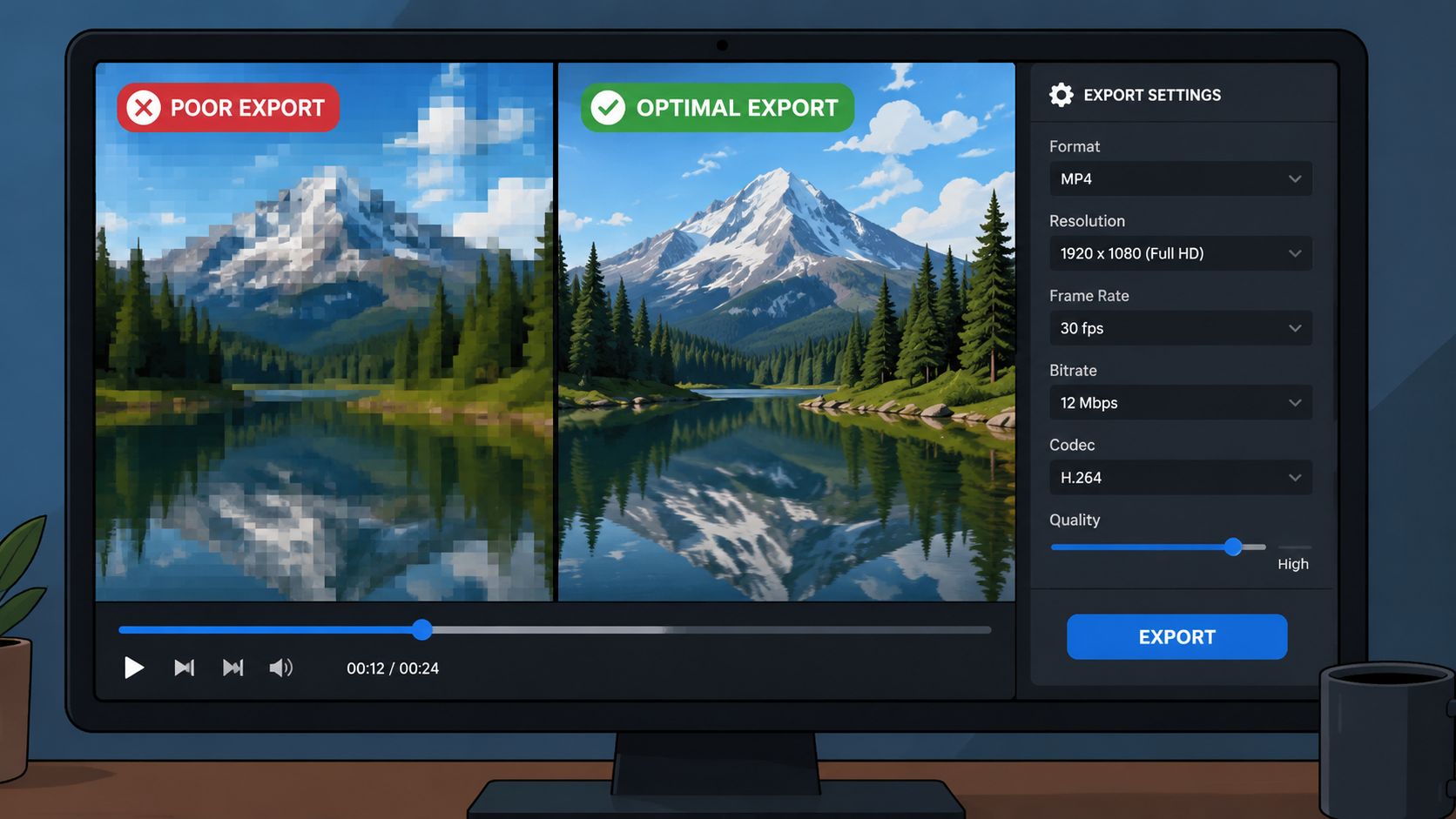
A lot of LinkedIn videos look soft or muddy for one reason. The export was technically acceptable, but badly matched to the platform. If you want one reliable master for most workflows, start with 1080p MP4 using H.264 video and AAC audio, then create lighter variants for ad placements when needed.
The master export I'd default to
For Adobe Premiere Pro, Final Cut Pro, or DaVinci Resolve, a sensible baseline looks like this:
- Container: MP4
- Video codec: H.264
- Audio codec: AAC
- Resolution: 1080p
- Frame rate: 30 fps if the source was shot for standard social delivery
- Bitrate mode: VBR if your editor supports it cleanly
- Audio quality: Prioritize clarity and consistency over aggressive compression
That setup balances compatibility, file size control, and visual quality. It's also close to what LinkedIn ad workflows already prefer, which reduces the chance that your organic master needs a complete rebuild later.
Why shorter videos deserve a different edit mindset
Performance benchmarks matter here. A 2025 benchmark summary reported that videos under 30 seconds can achieve roughly 35% to 45% completion rates, while videos longer than 60 seconds can fall below 20% completion. The same source notes 154 billion video views in 2024, with viewership up 36%, and recommends delivering the core message within the first 2 seconds. Awareness ads are commonly recommended in the 15 to 30 second range, based on these LinkedIn video benchmarks and specs.
That changes how you should export and edit. Don't just make a long video smaller. Make a short video sharper. Tighten the first line, open on the strongest visual frame, and remove slow intros that waste the first seconds.
Editing rule: Export settings preserve quality. They don't create urgency. Your hook still has to do the heavy lifting.
A practical export workflow
If you're repurposing content across platforms, keep one clean source timeline and produce placement-specific versions from it. Resize first, then refine text positioning, then export.
For teams that regularly move the same clip between YouTube, LinkedIn, and short-form channels, this guide on how to improve YouTube video quality and speed is helpful because many compression mistakes carry over between platforms. If you need to quickly adapt one asset into square or vertical variants before export, a dedicated tool to resize videos for different formats keeps the workflow cleaner.
Checklist for Repurposing Content for LinkedIn
Repurposing works best when you stop thinking in terms of “cutting highlights” and start thinking in terms of rebuilding context. A strong webinar moment can still fail on LinkedIn if the framing is wrong, the hook starts too late, or the captioning doesn't carry the meaning without sound.
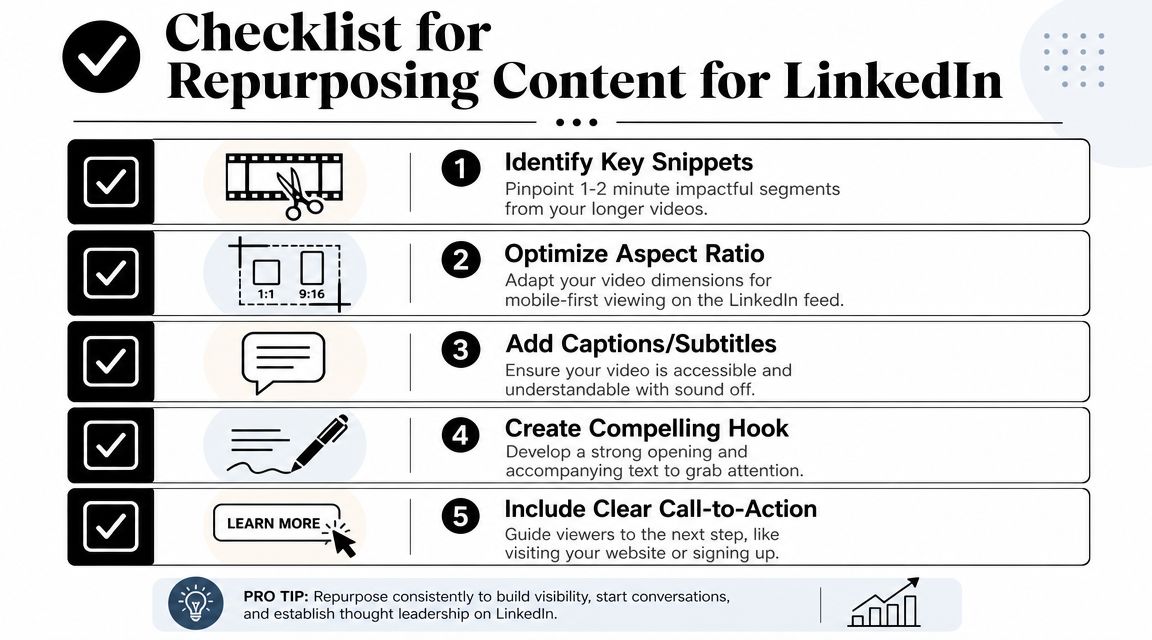
The five-part workflow
- Identify the segment with a self-contained point
Don't start with “best moment.” Start with “complete idea.” A good LinkedIn clip can stand alone without the audience needing the full webinar, interview, or podcast setup. - Reframe for the feed you expect people to use
If the clip is speaker-led, square or vertical usually gives you a better result than leaving it horizontal. If the value comes from slides or product UI, preserve width and readability instead of forcing a crop. - Add captions that do more than transcribe
Raw subtitles often need cleanup. Fix line breaks, names, and punctuation so the video feels intentional rather than auto-generated. - Rewrite the opening for in-feed viewing
The start of a long-form discussion is rarely the right start for LinkedIn. Trim throat-clearing. Lead with the argument, insight, or tension. - Add a clear next step
A LinkedIn clip should tell viewers what to do next, whether that's comment, follow, register, or watch the full session elsewhere.
What this looks like in practice
A one-hour webinar can become several very different LinkedIn assets:
- A direct opinion clip for the company page
- A customer insight snippet for a sales leader's profile
- A product explanation cutdown for paid testing
- A quote-led teaser to drive registrations for the next event
That's why it helps to understand broader essential social content formats before you start clipping. Different source material naturally fits different post styles.
If your team wants to automate the first pass of this workflow, tools such as Descript, Premiere Pro, and Klap can help. Klap, for example, takes long-form video, identifies clip-worthy segments, reframes them for social aspect ratios, adds captions, and prepares short exports for review. The time savings usually come from reducing manual search and reframing work, not from removing editorial judgment.
Common Pitfalls and How to Avoid Them
Most LinkedIn video problems aren't mysterious. They come from mismatches between the file you exported and the placement you uploaded to.
Blurry playback after upload
This usually starts before the upload. The source may be too compressed, the text may be too small, or the crop may be wrong for the feed. Another common issue is exporting a widescreen file and expecting it to feel crisp in a mobile-first environment.
Fix it by simplifying the visual design. Use larger on-screen text, avoid tiny interface details unless the video stays horizontal, and export from a clean timeline rather than re-rendering a file that has already been compressed multiple times.
Audio and video drift
If dialogue slowly moves out of sync, look at your frame-rate handling first. Mixed source footage, inconsistent timeline settings, or rushed exports often create the problem. Live-event recordings are especially prone to this if they've gone through several tools.
The practical fix is boring but reliable. Standardize the timeline, keep the export settings consistent with the source where possible, and check the final file before upload instead of trusting the editor preview.
If the uploaded video looks wrong, don't assume LinkedIn broke it. Check whether the file was already compromised before it ever hit the platform.
Upload failures and processing delays
These tend to come from unsupported or awkward file setups, oversized exports for the placement, or ad files that don't match expected standards closely enough. Feed posts are more forgiving. Ads are not.
A simple troubleshooting order works well:
- First, confirm the placement: Organic and ads don't share the same practical envelope.
- Next, inspect the export: MP4 with common codecs is the safest route.
- Then, reduce complexity: Re-export a clean version at 1080p rather than trying to salvage a problematic master.
- Finally, test a shorter file: If the content is long, isolate whether duration or encoding is causing the issue.
Frequently Asked Questions About LinkedIn Video
Can you edit a LinkedIn video after publishing it
You can usually edit post copy, but the uploaded video file itself is much less flexible. If the wrong file went live, the clean fix is often to delete and repost rather than trying to patch around it.
What's the best aspect ratio for LinkedIn
There isn't one universal winner. Square and vertical usually make more sense for mobile-first feed viewing, while horizontal works better for webinars, product screens, and slide-heavy content. Choose based on what the viewer needs to see, not on habit.
Why does my video take so long to process
Processing delays usually point to a heavy file, a less compatible export, or a queue on LinkedIn's side. If it happens repeatedly, use a cleaner MP4 export and reduce unnecessary file weight.
Should I add captions to LinkedIn videos
Yes. Captions improve comprehension in-feed and help when viewers watch with low or no sound. Auto-generated captions are a good starting point, but review them before publishing.
Can I use the same file for organic posts and ads
Sometimes, but it's not ideal as a default workflow. Organic feed gives you more flexibility. Ads need stricter formatting and smaller files. If a video is important enough to promote, make an ad-specific export.
What kind of music is safe to use
Use music you have the rights to use. Don't assume that a track that worked on another platform is safe on LinkedIn. For branded content, licensed audio or original music is the low-risk option.
If you're turning webinars, interviews, podcasts, or YouTube videos into LinkedIn-ready clips on a regular basis, Klap can simplify the repurposing part of the job. You upload a long-form video, review AI-selected snippets, adjust captions or framing, and export social-ready versions without rebuilding every clip from scratch.
