
How To Add Captions To Instagram Story: 2026 Guide
Other
If you're still posting Instagram Stories without captions, you're leaving comprehension to chance. In major markets, over 80% of users watch Stories with muted audio, and captioned Stories see 12% higher completion rates, according to platform analytics summarized here. That changes the question from “Should I caption this?” to “What’s the fastest way to caption it well?”
There are three real options. Use Instagram’s built-in Captions sticker when speed matters. Type captions manually when you need total control over a short phrase or headline. Use an AI workflow when you’re repurposing long-form content and care about accuracy, consistency, and output volume. Each method works. They just solve different problems.
Why Your Instagram Stories Need Captions in 2026
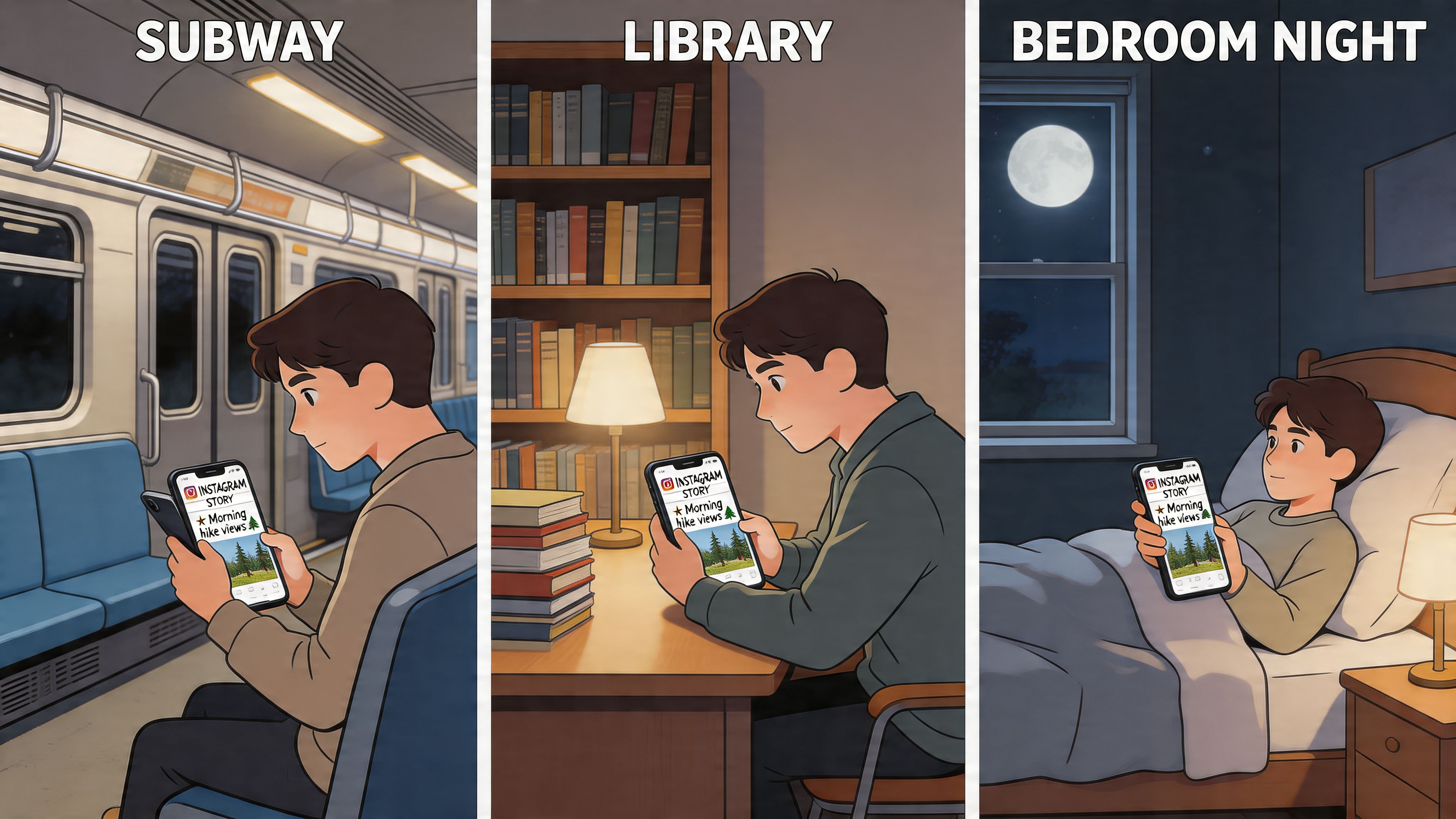
Stories are often consumed in places where audio is inconvenient. Commutes, offices, waiting rooms, late-night scrolling. In those moments, a spoken message with no text might as well not exist.
That’s why captions now sit at the intersection of accessibility, retention, and performance. They help people follow your point immediately, even if they never turn sound on. They also reduce the drop-off that happens when viewers need to guess what’s being said.
What most tutorials miss is that how to add captions to instagram story isn’t just a button-clicking exercise. It’s a workflow decision. The right method depends on what you’re posting.
The three practical options
MethodBest forMain trade-off
Native Captions sticker
Fast, casual Stories
Less control and variable accuracy
Manual text tool
Short phrases, creative emphasis
Slow for full transcription
Third-party AI tools
Repurposing content at scale
Requires an external workflow
Practical rule: If the Story is spontaneous and disposable, native is usually enough. If the Story is part of a repeatable content strategy, casual shortcuts start to cost you time.
Captions also signal professionalism. A Story with readable text feels finished. A Story with missing, broken, or cluttered captions feels rushed, even when the underlying video is good.
Using Instagram’s Native Captions Sticker
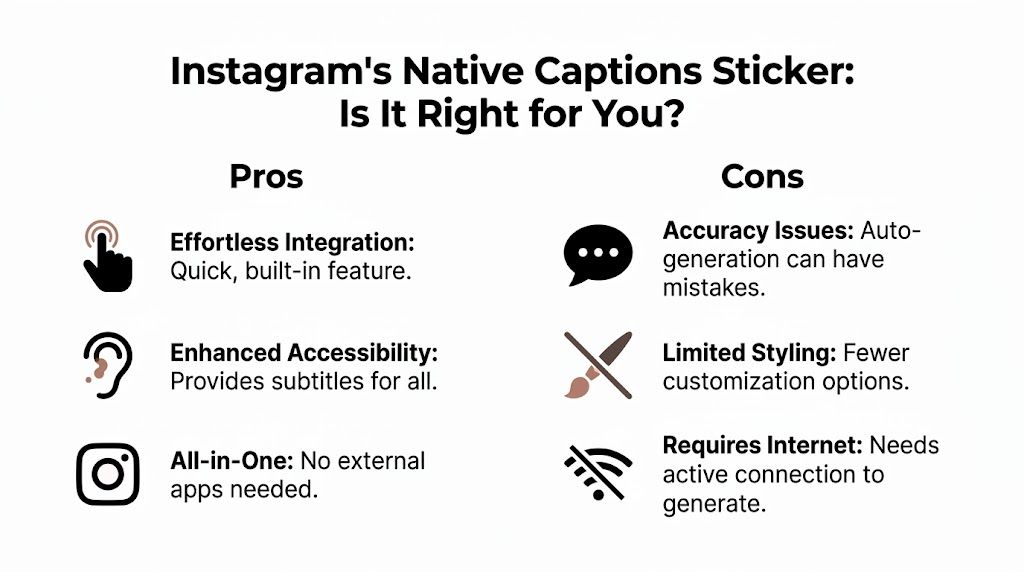
Instagram’s native sticker is the fastest route when you need captions inside the app and don’t want to export anything. For quick updates, behind-the-scenes clips, event coverage, or a direct-to-camera Story recorded on your phone, it’s often good enough.
Start by recording your Story or uploading a vertical video in the Instagram app. Then tap the sticker icon at the top and choose Captions. Instagram will generate speech-to-text automatically. After that, you can move the caption block, change the style, and place it where it won’t cover faces or key visuals.
How the built-in process works
The workflow is straightforward:
- Record or upload first: Native captions work after the video is in your Story draft.
- Add the sticker: Tap the sticker tray and select Captions.
- Adjust the presentation: Pick the caption style, resize it, and drag it into a readable position.
- Proofread before posting: Check names, jargon, and any phrase spoken quickly.
Instagram’s auto-captions sticker can boost engagement and reach by up to 40%, but user benchmarks also show accuracy is around 85-90% for clear English audio and can drop to 70% with accents or noise, which is why proofreading matters so much, as noted in this breakdown of the Captions sticker.
A quick visual walkthrough helps if you haven't used the sticker recently:
When native captions work well
Native captions are strongest when the video is simple. One speaker. Clean audio. Short clip. Minimal editing. In that environment, the convenience is hard to beat.
They’re also useful when you want to stay entirely inside Instagram. No exporting. No extra software. No handoff between tools.
Native captions are a speed tool, not a precision tool.
Where they fall short
There are predictable failure points. Background noise hurts transcription. Fast speech hurts transcription. Industry terms, names, and accents can produce errors that make a Story look sloppy fast.
The second limitation is creative control. You can style the captions, but not with the same precision you’d get from an editing tool built around subtitles. If you want branded caption treatments, tighter pacing, or more advanced animation, the native sticker starts to feel restrictive.
For everyday posting, that might be fine. For campaign content, it usually isn’t.
The Manual Method When Auto-Captions Aren't Enough
Manual captions still have a place, just not for full transcription. If Instagram’s sticker isn’t available, or the auto-generated text keeps mangling names and key phrases, the old Aa text tool becomes your fallback.
The process is basic. Upload your Story, tap Aa, type the line you want viewers to read, then position and style it yourself. For a short sentence, a hook, or a punchy takeaway, that’s completely workable.
When manual text is the right call
Manual text is useful in a few specific cases:
- Headline-first Stories: You want one strong message on screen, not every spoken word.
- Brand-sensitive language: Product names, guest names, and technical terms need to be exact.
- Creative emphasis: You want to highlight a single quote or phrase in a larger type treatment.
If you also publish across short-form platforms, this guide to adding captions to YouTube Shorts is useful because the same captioning logic applies. Keep text scannable, keep timing tight, and don’t bury the main message under too many words.
Why it stops scaling
Manual captioning breaks down as soon as the clip gets longer or your posting frequency goes up. Listening, pausing, typing, repositioning, and syncing every line takes too long. It also creates inconsistency because each Story ends up handled a little differently.
That’s why I treat manual captions as a creative overlay method, not a serious transcription workflow. Use it to emphasize. Don’t use it when you need reliable, repeatable production.
Generate Perfect Captions with Third-Party AI Tools
If native captions are the fast option and manual text is the fallback, third-party AI tools are the pro-level workflow for serious creators. This is the route for marketers, agencies, podcasters, educators, and YouTubers who want to turn existing video into Story-ready clips without redoing the same work inside Instagram every time.
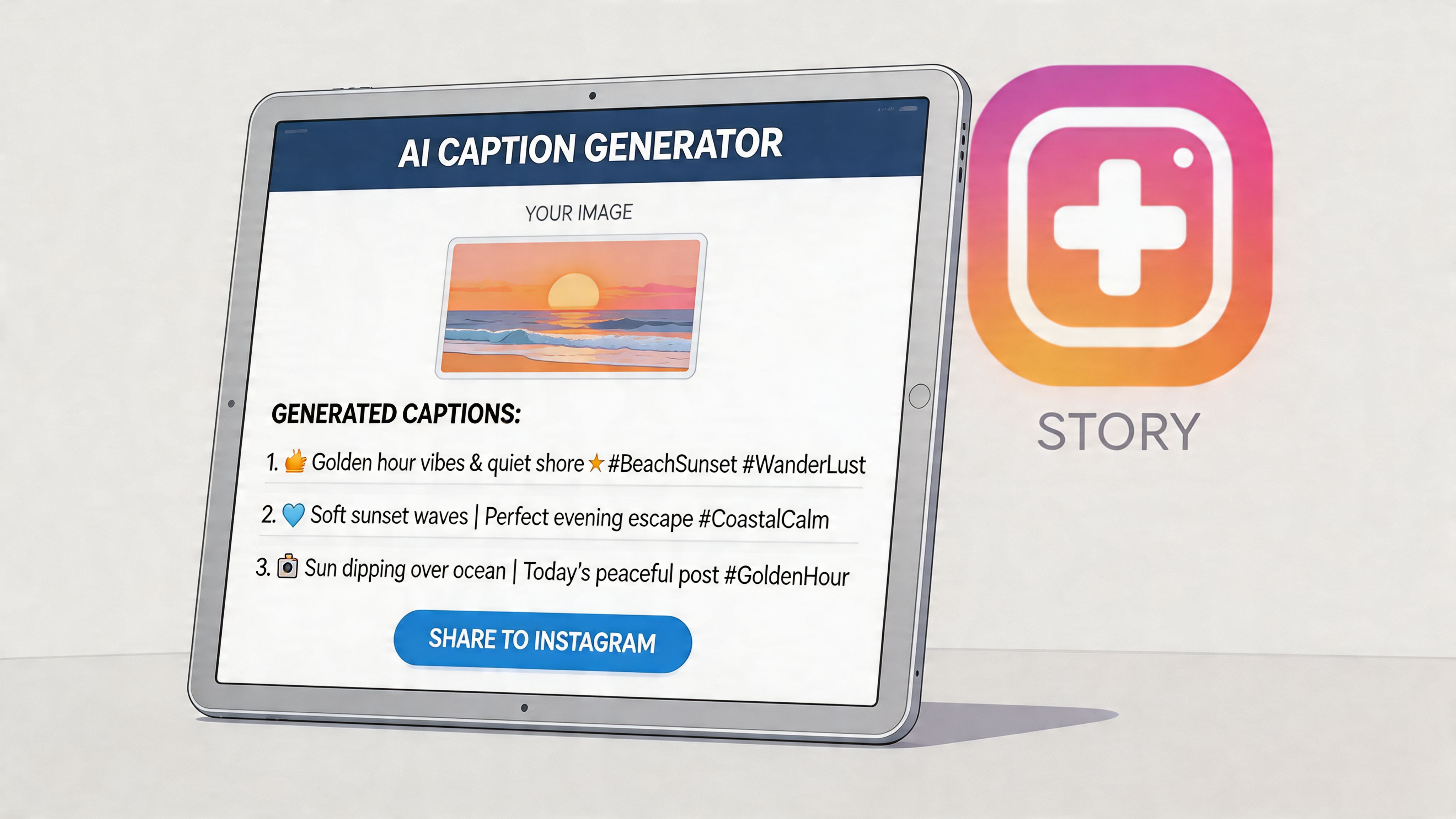
The big advantage is that these tools solve several problems at once. They transcribe more accurately, format for vertical viewing, and let you edit before the file ever reaches Instagram. That matters when your Story is part of a broader content system rather than a one-off post.
What the workflow looks like
A typical process is simple. Upload a long-form video or paste in a video link. The platform finds usable moments, turns them into short vertical clips, generates subtitles, and gives you an editable output before export.
That’s the reason serious teams move this step upstream. Instead of building each Story manually in Instagram, they prepare captioned assets in advance and publish finished clips.
One example is Klap’s subtitle generator, which fits this workflow by generating short social clips with captions from longer source videos. That’s a different job than Instagram’s sticker. It’s meant for repurposing, not last-second patching.
Why creators move beyond native tools
Third-party AI platforms like Klap reach 95%+ transcription accuracy, while Instagram’s native tool can have a 30% error rate on non-US accents. Klap users also report a 2.5x engagement lift and 92% clip repurposing efficiency versus manual methods, according to this analysis of third-party caption workflows.
Those numbers line up with what content teams run into in practice. Native tools are fine until you have volume. Once you’re repurposing interviews, podcasts, webinars, or educational content, the friction shows up quickly.
Here’s where external tools usually win:
- Accuracy: Better handling of varied speech patterns and longer clips.
- Editing control: You can correct captions before publishing, not after noticing mistakes in a live Story.
- Repurposing: One source video can become multiple social assets.
- Consistency: Caption style stays aligned across Reels, Stories, and Shorts.
The real productivity gain isn’t just better transcription. It’s removing repetitive in-app editing from your publishing process.
There’s also a writing layer to this. If AI-generated subtitle lines sound too stiff, some teams run supporting copy through a tool that helps humanize chatgpt text before publishing captions, overlays, or Story hooks. That won’t fix timing or design, but it can help the wording feel less robotic when you’re adapting scripts into short social text.
For anyone posting occasionally, the native sticker is fine. For anyone trying to turn one long video into a week of Story assets, an AI repurposing workflow is the more efficient choice.
Caption Styling and Accessibility Best Practices
Good captions don’t just exist. They need to be readable at a glance on a small screen while the viewer is half-distracted and moving quickly.
The first rule is contrast. If your text blends into the video, the caption might as well not be there. Use a color combination that stays legible over changing backgrounds, and don’t rely on thin fonts when the video itself is visually busy.
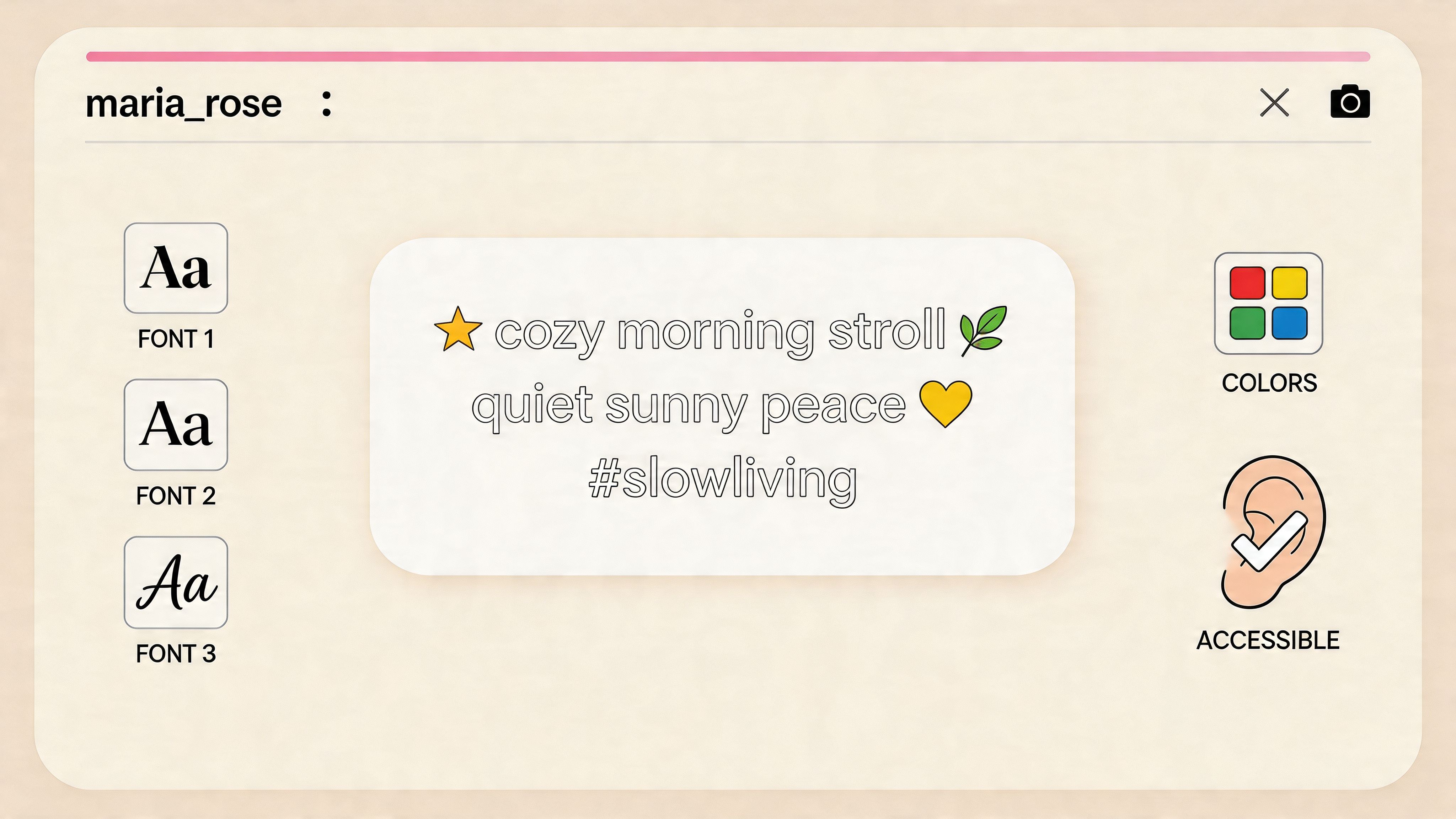
Make captions easier to scan
Viewers don’t read Story captions like a paragraph. They scan in bursts. That means your formatting choices affect retention.
- Keep lines short: Break speech into clean chunks instead of long text blocks.
- Protect key visuals: Place captions away from faces, product demos, or UI details.
- Use punctuation strategically: Small pauses make fast speech easier to follow.
- Match style to pace: A fast clip needs tighter, cleaner text than a reflective talking-head clip.
When motion helps
Animated captions can hold attention better than static ones when used well. Static captions can cause a 22% drop in engagement compared to animated ones, and dynamic styles can boost view time by up to 35%, based on Hootsuite analysis discussed here.
That doesn’t mean every word needs to bounce across the screen. It means subtle movement, timed emphasis, and line-by-line reveals can make captions feel part of the edit instead of pasted on top of it.
If you publish for multilingual audiences, a video translation workflow also helps. Tools that translate videos for social use can make captioned Story content more usable when your audience spans more than one language.
Readability beats decoration. If animation makes the text harder to follow, it’s the wrong animation.
Troubleshooting Common Instagram Caption Problems
Some caption issues are user error. Others come from Instagram’s own limitations. Either way, the fix is usually practical.
The Captions sticker is missing
Start with the obvious checks. Update the app, restart it, and try again from a fresh Story draft. If the sticker still doesn’t appear, your account may not have access in your region or app version.
If that happens, you have two realistic workarounds. Use manual text for a short Story, or prepare the captioned clip outside Instagram and upload the finished video instead.
The captions are full of errors
This usually comes back to audio quality. The built-in tool struggles when speech is rushed, muffled, or competing with music and background noise. Record closer to the phone mic, reduce ambient sound, and speak more cleanly if you know the Story needs auto-captions.
If the mistakes are concentrated around names, acronyms, or technical vocabulary, don’t trust the first draft. Correct those manually before posting. A small typo in casual speech is forgivable. A wrong product name isn’t.
The captions cover the wrong part of the screen
Drag them. Then watch the full Story once before publishing. Many creators only check the first second, then miss that the caption block covers a face, a poll sticker, or a product demo later in the clip.
A simple review habit helps:
- Watch once muted: Check pure readability.
- Watch once with sound: Check timing and meaning.
- Watch once for layout: Check overlap with visuals and Story UI.
I posted and noticed a typo
Instagram doesn’t make post-publication caption cleanup easy. In most cases, the cleanest solution is to delete the Story and repost the corrected version if the mistake changes meaning or looks unprofessional.
That sounds annoying, but it reinforces the bigger lesson. Captioning works best when it’s treated as part of production, not as a last-second add-on.
If you’re turning long videos, podcasts, or webinars into Instagram Stories regularly, Klap is worth considering as part of your workflow. It lets you upload or link long-form video, generate short vertical clips with captions, review the edits, and export social-ready assets without rebuilding everything inside Instagram.
