
What Editing Software Do YouTubers Use to Save Time in 2026?
Tools for Creators
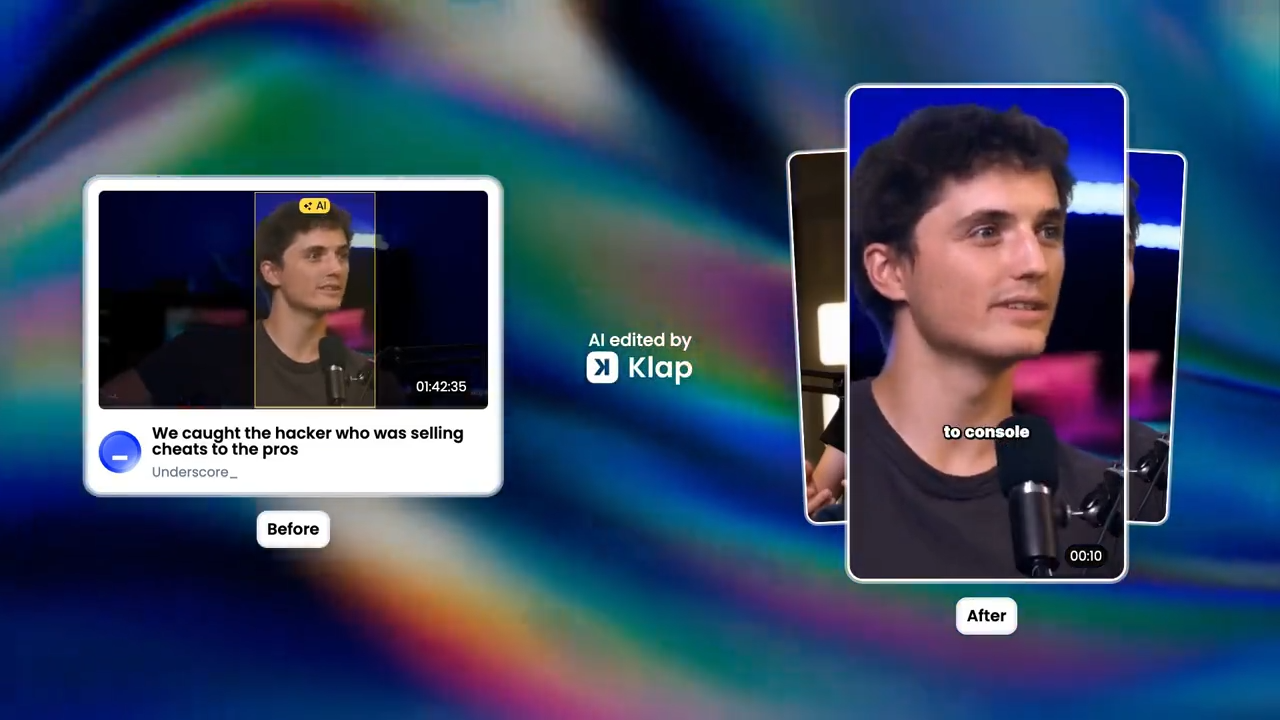
Quick Summary
Discover the top video editing software YouTubers use, from Klap to DaVinci Resolve or Premiere Pro. If you create tutorials, vlogs, or short-form clips, this guide highlights real user experiences, pricing, and performance details to help you choose the right tool. You’ll learn which tools save time, which offer the most creative control, and which align with your workflow and budget.
Struggling to Edit Your YouTube Videos?
Creating content for YouTube is exciting until it’s time to edit. Many creators spend hours cutting clips, syncing audio, and adjusting visuals before a video is ready to post. The process can take longer than filming itself, often making creativity stressful.
That’s why more YouTubers are searching for faster, smarter editing solutions. Traditional tools still work, but they require technical know-how and high-end hardware.
Modern creators are now leaning toward AI-driven platforms like Klap, which automatically detects key highlights, adds captions, and formats videos for YouTube Shorts in minutes. It saves time, reduces burnout, and keeps the focus on creating rather than editing.
But first…
Why Listen to Us?
Klap is trusted by 1.8 million creators who've generated 3.3 million clips using our platform. We work with YouTubers of all sizes daily, from beginners posting their first video to established creators managing multiple channels. We've analyzed editing workflows across every skill level and seen what actually works in practice, not just what sounds good in marketing materials. The insights we share come from real creator experiences and data-driven results.
What Do YouTubers Actually Look for in Editing Software?
Most YouTubers want the same thing: speed, simplicity, and control. The right software helps you move from raw footage to polished video without slowing down your creative process.
Here are the key things creators care about when picking a tool:
- Performance: Fast rendering, smooth playback, and hardware efficiency.
- Ease of use: Simple timelines, drag-and-drop editing, and quick exports.
- AI assistance: Smart reframing, caption generation, and auto-cut tools.
- Integration: Support for plugins, templates, and cross-platform projects.
- Export quality: Reliable 1080p and 4K output for YouTube.
- Price flexibility: Free or affordable plans that scale with growth.
The best editors save hours of manual work, giving creators more time to focus on storytelling and strategy.
8 Video Editing Software YouTubers Use in 2026
- Klap: Short-form / repurposing long videos
- Adobe Premiere Pro: Long-form professional editing
- Final Cut Pro: Long-form editing for Mac users
- DaVinci Resolve: Long-form + color grading
- CapCut: Short/mid-form, mobile-focused edits
- Filmora: Easy long-form and mid-tier short-form edits
- iMovie: Beginner-friendly simple edits
- HitFilm Pro: Advanced editing with VFX
1. Klap
Klap is an AI-powered video editor built to help creators repurpose long-form videos into short, ready-to-post clips. It automatically detects engaging moments, adds dynamic captions, and formats your content for YouTube Shorts, TikTok, and Reels in minutes. This makes it ideal for YouTubers who want to stay consistent without spending hours editing.
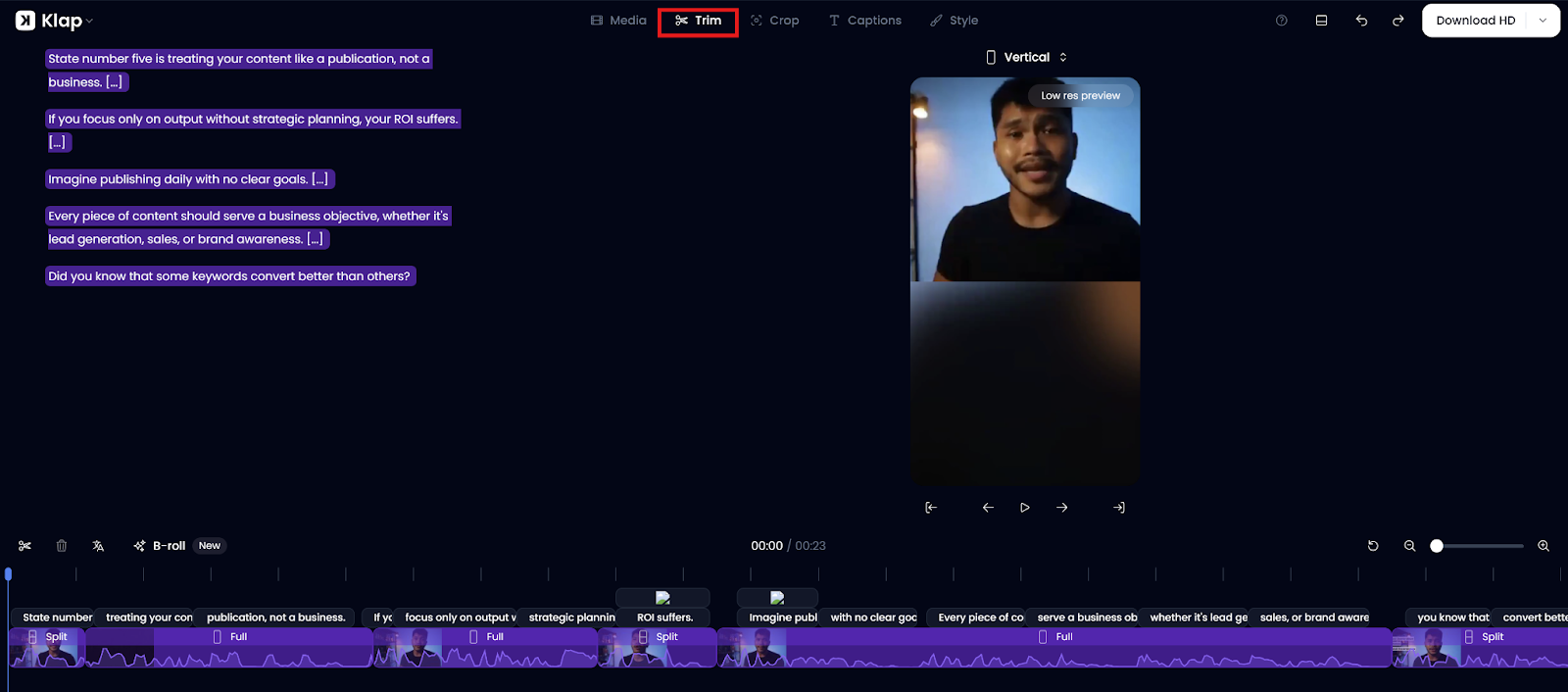
Key Features
- AI Shorts Generator: Analyzes full videos to detect high-impact moments and turns them into multiple clips
- Smart Reframing: Automatically adjusts aspect ratios to keep speakers centered for vertical formats
- Auto-Generated Captions: Adds accurate, customizable subtitles with brand-consistent fonts and colors
- Batch Export: Generates and exports multiple clips simultaneously in HD or 4K
- Multi-Platform Formatting: Optimizes clips for YouTube Shorts, Instagram Reels, and TikTok
Pricing
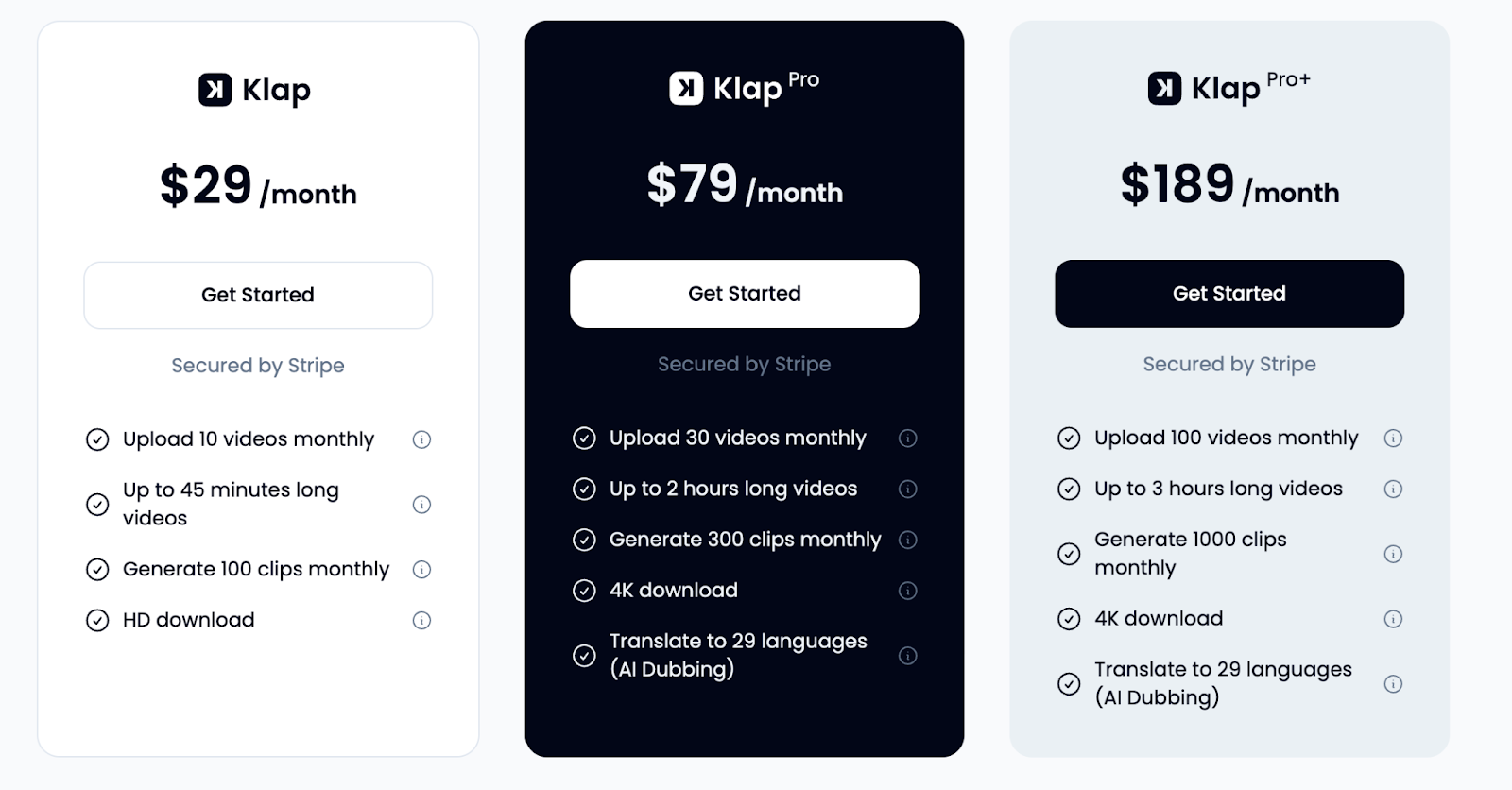
Plans start at $29/month, with higher tiers at $79/month and $189/month, depending on upload limits and video length. Klap also offers a free trial for new users.
Pros
- Reduces editing time by up to 80%.
- Produces multiple clips from one video.
- Consistent formatting across social platforms.
- Clean captions and accurate translations.
- Custom templates for faster branding.
- Exports in HD and 4K.
Cons
- Very long videos may take longer to process.
Best For: Creators repurposing long videos into Shorts, podcasters, webinar hosts, educators, and consistency-focused creators
2. Adobe Premiere Pro
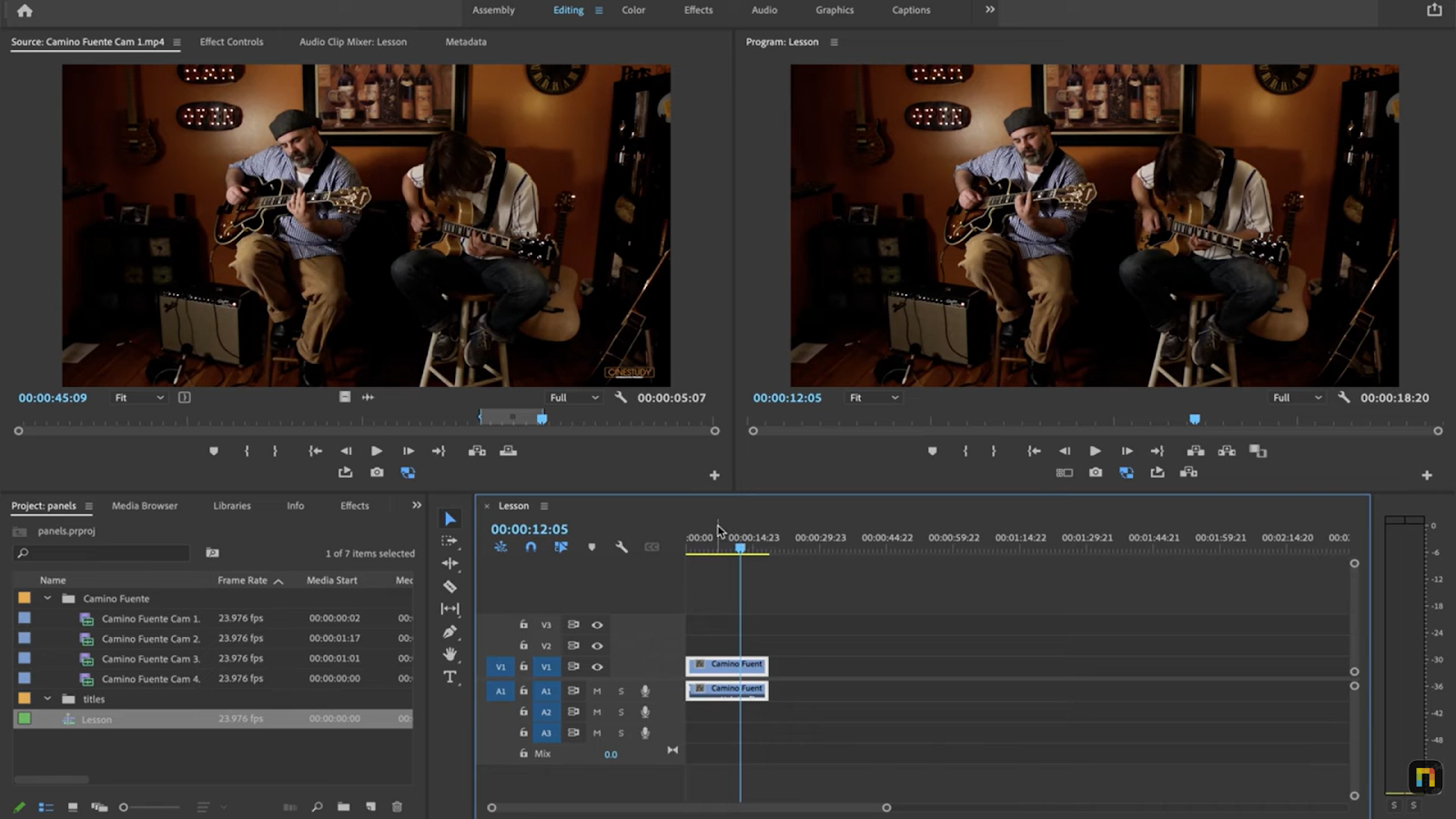
Adobe Premiere Pro is one of the most widely used professional video editing software programs among established YouTubers. It offers comprehensive editing tools, seamless integration with Adobe Creative Cloud (After Effects, Photoshop, Audition), and cross-platform compatibility.
Key Features
- AI Auto Reframe: Automatically adjusts aspect ratios for vertical or horizontal formats.
- Multi-Camera Editing: Sync and manage footage from multiple cameras.
- Lumetri Color Panel: Offers professional-level color correction and grading.
- Adobe Dynamic Link: Connects with After Effects and Audition without rendering.
- Speech-to-Text: Generates captions automatically using Adobe Sensei AI.
Pricing
Premiere Pro costs $22.99/month as a standalone app or $34.99/month with the full Creative Cloud suite. Adobe also offers a free 7-day trial for new users.
Pros
- Industry-standard software with transferable skills
- Massive plugin library and third-party support
- Seamless Adobe ecosystem integration
- Powerful timeline and organizational tools
- Regular updates with new features
Cons
- Subscription costs add up over time
- Steep learning curve for beginners
- Resource-heavy (requires a powerful computer)
- It can feel overwhelming for simple edits
Best For: Professional creators, teams, those needing After Effects integration, creators making complex edits with VFX
3. Final Cut Pro
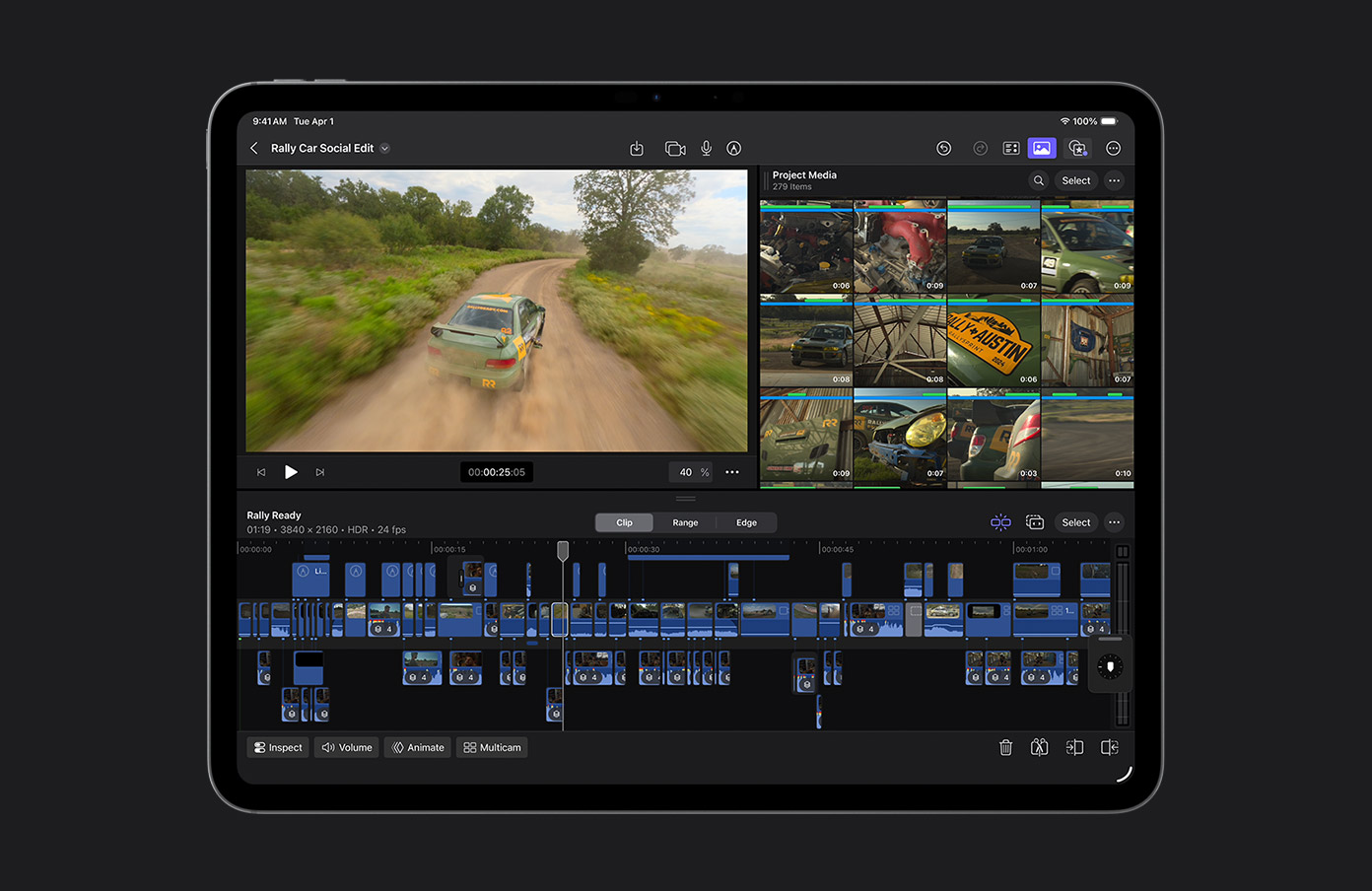
Final Cut Pro is Apple's professional video editing software, exclusively available for Mac. It's optimized for Apple Silicon chips (M1, M2, M3), delivering incredibly fast rendering speeds. YouTubers like Marlin Bird, iJustine, and Peter McKinnon praise Final Cut's magnetic timeline and smooth performance.
Key Features
- Magnetic Timeline: Prevents clip collisions and automatically closes gaps for faster editing
- Apple Silicon Optimization: Leverages M1/M2/M3 chips for lightning-fast rendering and playback
- Background Rendering: Continuously renders while you work without interruptions
- Multi-Cam Editing: Edit up to 64 camera angles simultaneously
- Advanced Color Grading: Professional color wheels and curves for cinematic looks
Pricing
Final Cut Pro is available for a one-time payment of $299.99 on the Mac App Store. Apple also offers a 90-day free trial for new users.
Pros
- Lightning-fast rendering on Mac
- One-time payment (no recurring subscription)
- Magnetic timeline simplifies editing
- Smooth playback even with 4K footage
- Excellent organization with keyword tagging
Cons
- Mac-only (no Windows version)
- Different workflow from other popular editing tools
- Smaller third-party plugin ecosystem
- Limited collaboration features compared to other tools.
Best For: Mac users, creators prioritizing speed, those avoiding subscriptions, Apple ecosystem users
4. DaVinci Resolve
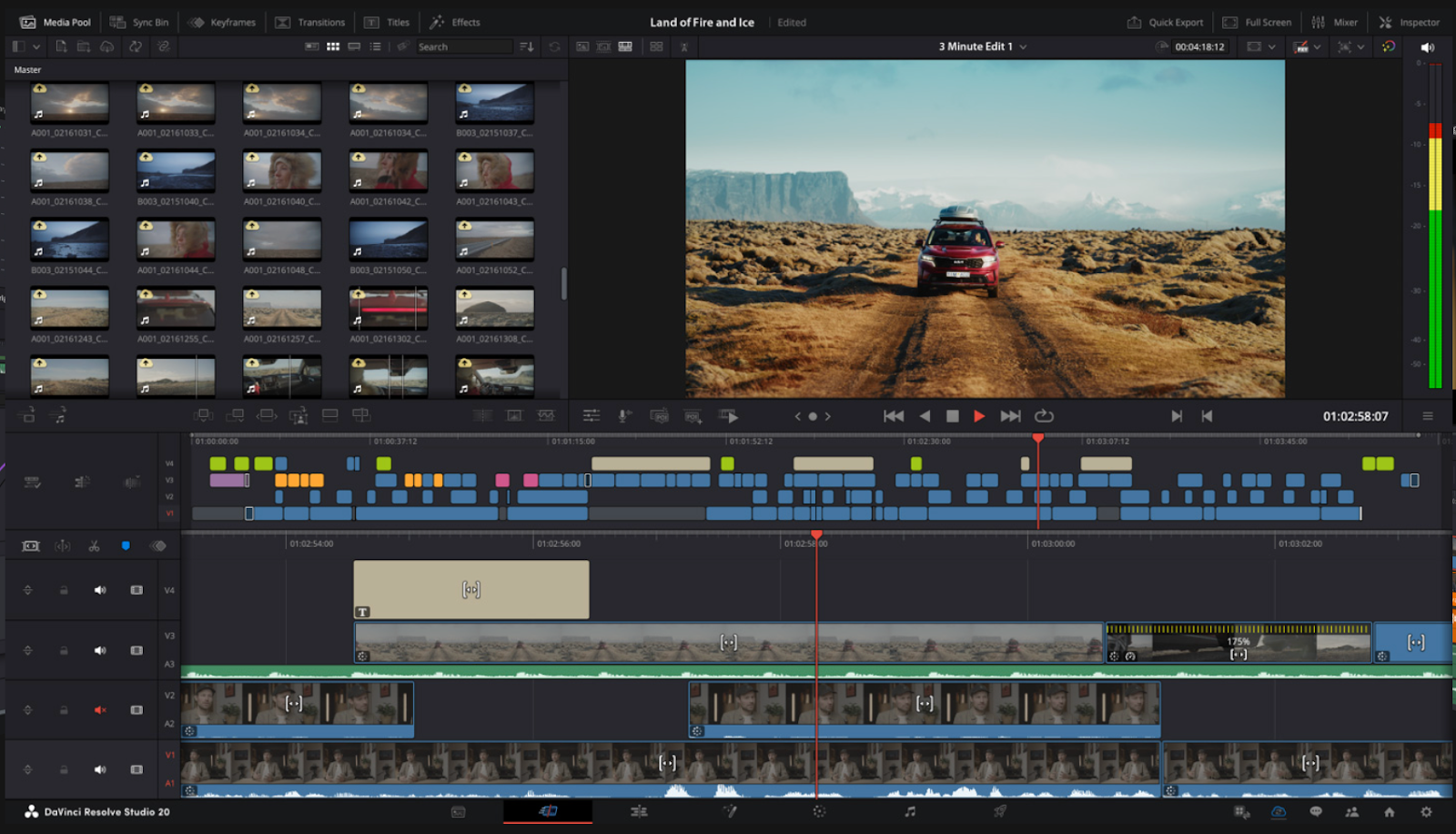
DaVinci Resolve by Blackmagic Design offers professional-grade video editing, color grading, and audio post-production in one package. The free version includes 90% of features, making it the best value in professional editing. YouTubers like Tyler Stalman and Potato Jet use Resolve for its color grading capabilities.
Key Features
- Industry-Leading Color Grading: Hollywood-grade color wheels, curves, and HDR tools
- Fairlight Audio Suite: Professional audio editing, mixing, and mastering built in
- Fusion VFX: Motion graphics and visual effects without needing After Effects
- AI-Powered Tools: Smart facial recognition, object tracking, and upscaling
- Multi-User Collaboration: Team editing with project sharing (Studio version)
Pricing
DaVinci Resolve is free to download with no watermark or export limits. The upgraded Studio version costs a one-time $295 fee and includes all advanced AI and HDR features.
Pros
- Completely free with robust features
- Best color grading tools available
- All-in-one solution (edit, color, audio, VFX)
- One-time payment for Studio version
- Cross-platform (Windows, Mac, Linux)
Cons
- Heavy system requirements (needs a powerful GPU)
- Its complex interface can feel overwhelming
- Free version limits some export formats
- Smaller YouTube tutorial library vs. Premiere
Best For: Color grading enthusiasts, creators with powerful computers, those wanting pro features for free, and filmmakers transitioning to YouTube
5. CapCut
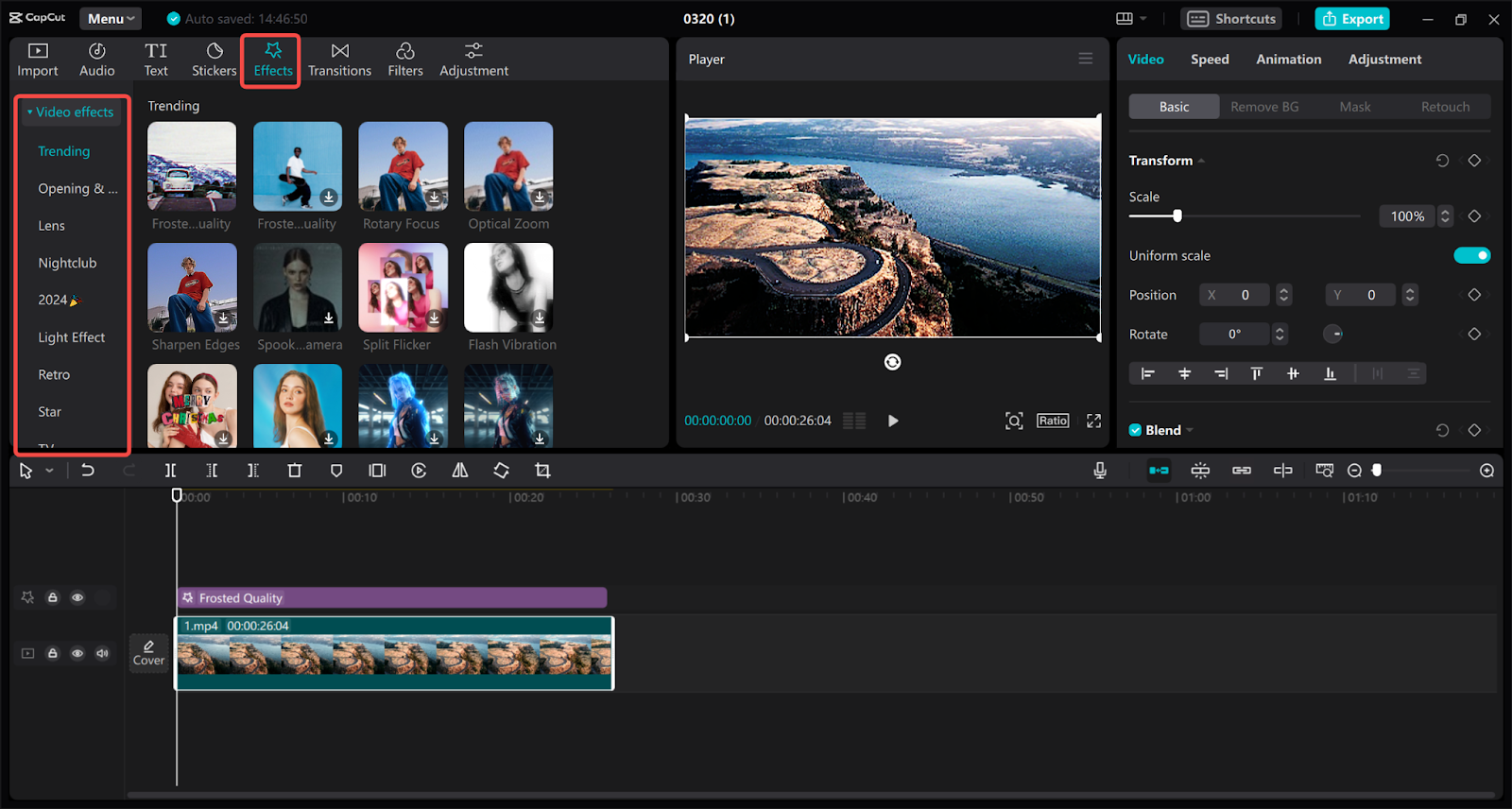
CapCut (by TikTok's parent company ByteDance) is a free, beginner-friendly editor optimized for vertical video. It is popularly used for creating Shorts/Reels with AI-powered features, trending templates, and mobile-first design. Creators like Ali Abdaal and productivity YouTubers use CapCut for quick Shorts edits.
Key Features
- Auto-Captions: Highly accurate speech-to-text with customizable styles and animations
- AI Background Removal: Automatically removes backgrounds without green screen
- Trending Templates: Updated library of viral effects and transitions
- Beat-Sync Editing: Automatically syncs cuts and transitions to music beats
- Cloud Sync: Edit seamlessly across mobile and desktop devices
Pricing
CapCut is free to use for most features. The Pro version starts at $19.99 per month, offering access to advanced effects, cloud storage, and premium templates.
Pros
- Extremely beginner-friendly interface
- Optimized for vertical video (Shorts/Reels)
- Auto-captions are highly accurate
- Trending effects are updated regularly
- Cross-device editing (mobile/desktop)
Cons
- Limited advanced features vs. Pro Tools
- Free version includes a watermark
- The desktop version is less robust than the mobile version
- Some effects are primarily for TikTok and won’t be effective on other platforms.
Best For: YouTube Shorts creators, complete beginners, mobile-first creators, social media content makers
6. Filmora
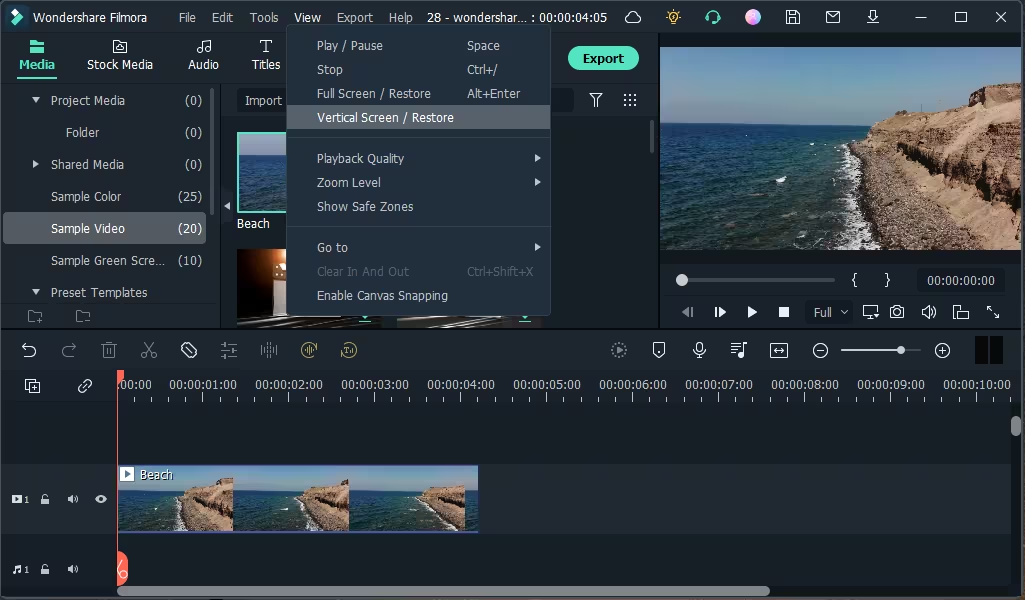
Filmora by Wondershare strikes a balance between beginner accessibility and intermediate features. It's more approachable than Premiere Pro but more capable than iMovie. YouTubers like Justin Brown (Primal Video) recommend Filmora for creators transitioning from basic to intermediate editing.
Key Features
- Drag-and-Drop Interface: Intuitive timeline for beginners without sacrificing power
- AI Audio Stretch: Adjusts audio length to match video without pitch changes
- Screen Recording: Built-in capture tool for tutorials and gameplay
- Speed Ramping: Create smooth slow-motion and fast-forward effects
- Stock Media Library: Access millions of royalty-free videos, images, and music
Pricing
The pricing structure for Filmora is as follows:
- Basic Plan: $8.99/month
- Advanced Plan: $29.99/year
- Perpetual License: $49.99 (one-time payment)
- Team Plan: $155.88/year for 1 user
Pros
- User-friendly for beginners
- Affordable pricing models
- Regular updates with new features
- Good balance of simplicity and power
- Lifetime license option available
Cons
- Less advanced than Premiere/Final Cut
- Some features feel basic for pros
- Limited third-party plugin support
- Rendering can be slow on older computers
Best For: Intermediate creators, hobbyists upgrading from iMovie, those wanting an affordable lifetime license, creators who find Premiere too complex
7. iMovie
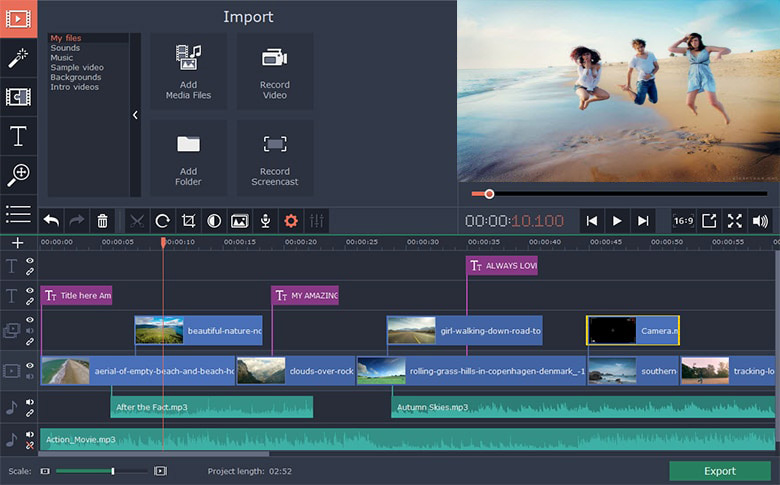
iMovie is Apple's free video editor pre-installed on all Macs and iOS devices. It's designed for absolute beginners with an ultra-simple interface. Many YouTubers, including tech reviewer MKBHD, started with iMovie before transitioning to professional tools.
Key Features
- Drag-and-Drop Editing: Simple timeline that anyone can learn in minutes
- Built-in Themes: Pre-designed templates for professional-looking videos
- iCloud Sync: Start editing on iPhone, finish on Mac seamlessly
- Green Screen Support: Chroma key effects without complex setup
- 4K Export: Supports high-resolution video output
Pricing
- Completely free (pre-installed on Mac/iOS)
Pros
- Zero cost for Apple users
- Incredibly simple interface
- No learning curve whatsoever
- Seamless iCloud sync across devices
- Good for testing YouTube viability
Cons
- Very basic features (not scalable)
- Mac/iOS exclusive
- Limited customization options
- No advanced color grading
- Can't handle complex projects
Best For: Complete beginners, casual YouTubers testing the platform, students, creators with simple editing needs
8. HitFilm Pro
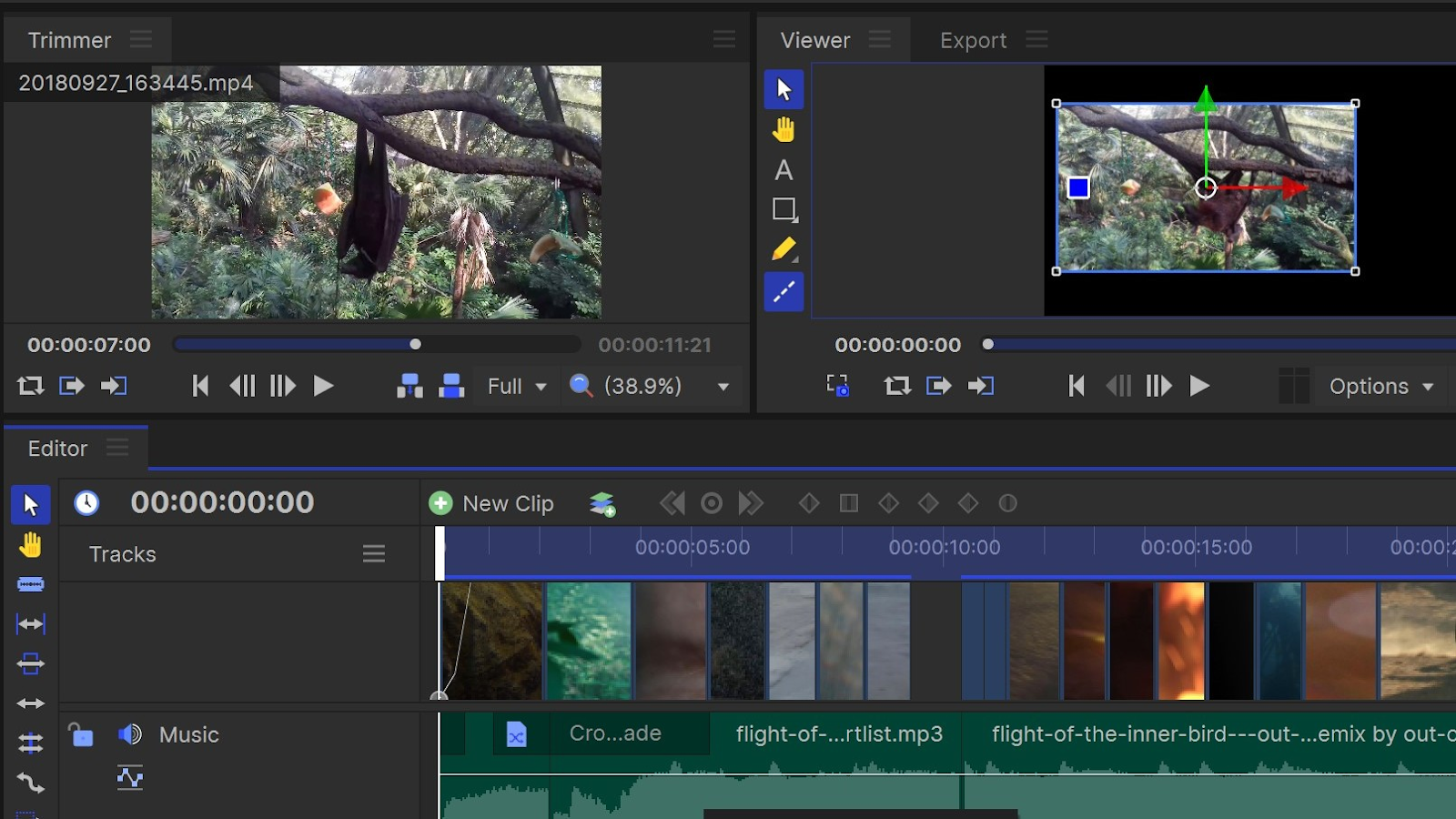
HitFilm Pro combines video editing with built-in VFX tools, making it popular among gaming and sci-fi content creators. It offers professional compositing without needing After Effects. YouTubers in gaming, tech reviews, and VFX tutorials often use HitFilm for its effects capabilities.
Key Features
- Built-in VFX Compositing: Professional 2D and 3D effects without After Effects
- Particle Effects: Advanced particle systems for explosions, smoke, and magic effects
- Green Screen & Motion Tracking: Automatic tracking and keying for seamless composites
- Color Grading Suite: Professional color correction and cinematic looks
- Gaming Templates: Pre-built effects designed for gaming content
Pricing
HitFilm offers a free version with basic features and HD export. The Creator Plan starts at $6.25/month, while the Pro Plan costs $11.6/month, both billed annually.
Pros
- The free version has no watermark
- Built-in VFX eliminates the need to use After Effects
- Good for gaming and tech content
- Cross-platform (Windows and Mac)
- One-time purchase option available
Cons
- Resource-intensive (requires a powerful GPU)
- Interface is less intuitive than its competitors '
- Smaller community vs. Premiere/Final Cut
- Learning curve for VFX tools
Best For: Gaming YouTubers, VFX-heavy content, tech reviewers, creators needing motion graphics without After Effects
How to Choose an Editing Software for YouTube
1. Define Your Main Content Format
Start with what you want to publish the most: long-form YouTube videos, short-form vertical clips, or both. If your focus is long-form YouTube content, go for tools that have advanced timeline control and multi-track editing.
But we highly recommend going for short-form content, especially since YouTube Shorts now generates 200 billion views daily on average. For this content format, choose a video editor that provides vertical framing and captions, and creates clips fast.
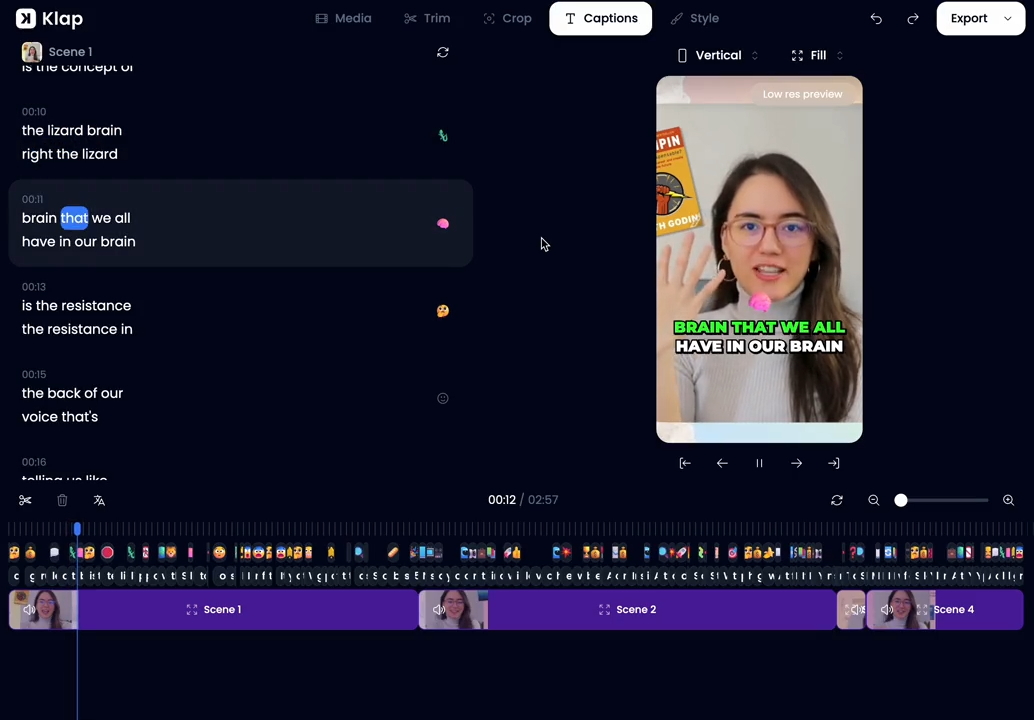
This is where Klap comes in. Instead of manually cropping and duplicating timelines, you can upload one full-length video and generate multiple 9:16 captioned clips optimized for YouTube Shorts in a few clicks.
2. Consider Your Editing Skill Level
Certain software, like DaVinci Resolve and Adobe Premiere Pro, requires you to have some professional editing skills so you can navigate their complex panels and grading tools. If you have that experience, you can work with those tools.
But if you’re a beginner or solo creator, go for simpler ones like Klap to cut down learning time and editing errors.
3. Evaluate Workflow Speed
Consider how long it takes you to trim clips, add captions, resize formats, and export. If repeating these steps slows you down, you’ll have a hard time publishing consistently.
In that case, tools that take the load off for manual resizing, captioning, or highlight detection work wonders. For instance, our AI video translator automatically turns your video into subtitles in 50+ languages so you can reach a global audience without doing the translation manually.
4. Check Export Options
Exporting in the wrong format can reduce quality or create cropping issues after upload. Each platform has recommended aspect ratios and resolutions, so manual adjustments increase the risk of mistakes.
Choose a video editor with preset exports for YouTube (16:9) and Shorts (9:16). Also, YouTube’s official recommendation is to upload videos in an MP4 container with H.264 video codec and AAC‑LC (or Opus) audio codec for best compatibility and quality. So make sure your tool supports these too.
Why Your Choice of Editing Software Matters
The right editing software affects more than just video quality. It impacts your entire YouTube journey:
- Posting consistency: Faster editing means more frequent uploads, which the algorithm rewards with better visibility
- Creative control: Better tools unlock advanced storytelling techniques that set your content apart
- Workflow efficiency: Time saved editing equals time for strategy, filming, and audience engagement
- Scalability: The right tool grows with your channel without forcing platform switches that reset your learning curve. We share more tips to grow your YouTube channel in this article.
- Monetization readiness: Professional output quality attracts sponsors and builds credibility with brands
Best Practices for Using Editing Software
Organize Footage Before You Start Editing
When you don’t label your files or organize them in a relevant folder, you end up wasting your time searching for them. In tools like Premiere Pro or DaVinci Resolve, creating folders for A-roll, B-roll, music, graphics, and exports keeps timelines organized as your projects grow.
With Klap, the workflow is simpler because you upload the full recording directly instead of managing multiple project files or timelines. Our platform analyzes the video and automatically generates short clips with captions, so you don’t need to organize large editing projects manually.
Use Templates and Presets
Creating captions, intros, and graphics from scratch for every single video is not only a hassle but also leads to inconsistent visuals. Templates and presets reduce this repetitive formatting and help maintain a consistent look across uploads, which strengthens brand recognition.
For example, instead of manually adjusting caption size, font, and color for each Short, create a preset style in your tool and apply it consistently.
Post-editing, you can also set up YouTube Studio’s upload defaults once to pre-load titles, descriptions, tags, and visibility settings for faster publishing and consistent metadata.
Automate Repetitive Tasks
Adding captions, resizing, and selecting highlights can actually take up a huge chunk of your editing time, especially when you have to create multiple short clips from a single long-form video.
Instead, automate these. Small and medium-sized brands are already making the move, with 45% of their digital video ads to be AI-built by 2026, compared to 36% for large advertisers.
Avoid falling behind by using AI-powered captioning, auto-reframing, and clip detection that save editing time and make it easier to scale content output. And Klap provides it all, with tools from video resizer and trimmer to AI shorts maker.
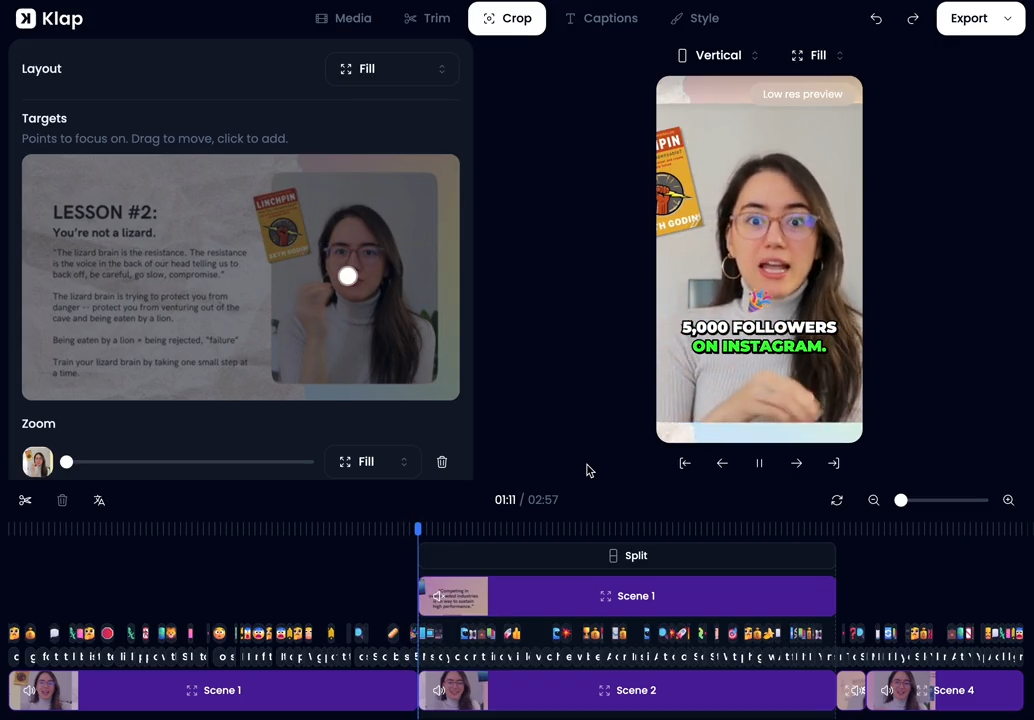
Balance Audio and Visuals
Poor audio quality is one of the fastest ways to lose viewers. If your dialogue is unclear or background music overpowers your speech, viewers will skip the video, no matter how great the visuals are. Clear, balanced sound supports watch time more than heavy effects or transitions.
Filmora’s Smart Audio Adjustment can help by normalizing loudness, reducing noise, and enhancing voice clarity, making it easier to achieve a balanced sound. At the same time, make sure your captions are readable, and visuals are not cluttered.
Review Analytics and Iterate
Don’t rely on your instincts alone. Instead, check audience retention graphs in YouTube Studio to see exactly where viewers stop watching. Sudden drops often signal pacing issues, long explanations, or unclear transitions.
Also look at watch time and average view duration to see how long viewers actually stay on your video, click‑through rate (CTR) to assess how well your titles and thumbnails attract viewers, and traffic sources to learn where your viewers find your content.
These insights help you refine thumbnails, pacing, hooks, and topics for better performance over time.
Scale Your YouTube Workflow with Klap
Consistency is what separates growing YouTube channels from stagnant ones. But consistency becomes nearly impossible when editing eats up your entire schedule. That’s where Klap changes the game.
Klap uses AI to help creators repurpose their long-form videos into engaging short clips, ready for YouTube Shorts, TikTok, and Reels. It detects your most impactful moments, adds subtitles, and formats everything perfectly for each platform. Instead of spending hours cutting footage, you can now edit, brand, and post in minutes.
The best part? Klap doesn’t just save time; it helps you publish more often, reach new audiences, and stay active across multiple platforms without burning out. Whether you’re managing a content team or growing your solo channel, Klap keeps your workflow fast, creative, and consistent.
Start free with Klap today and see how automation transforms your posting consistency.
FAQs
What video editing software do YouTubers use in 2026?
This depends on their format and workflow. Tools like Adobe Premiere Pro and Final Cut Pro work well for long-form content, while Klap helps creators grow through short-form by turning full-length videos into captioned vertical clips for Shorts.
What do YouTubers use to edit videos as beginners?
Beginners often start with simpler tools that reduce the learning curve. Klap, CapCut, iMovie, and other beginner-friendly editors with built-in templates are common starting points.
Is free video editing software good enough for YouTube?
Yes. Free tools like DaVinci Resolve, CapCut, and iMovie work well for YouTube. Klap also helps by automatically creating captioned clips, saving time while producing polished content.
How do I know what program to use to edit YouTube videos?
If your content includes multi-camera editing, color grading, sound mixing, or visual effects, professional tools such as Premiere Pro or DaVinci Resolve work best. For quicker publishing and automated edits, simpler tools like Klap are easier to manage. Match the software to your experience, hardware, and workflow.
What are the best video editing tools for vloggers?
Vloggers need tools that balance ease of use with editing flexibility. For simple edits, Klap or Filmora are great, while Premiere Pro or Final Cut Pro offer more customization. Choose based on your channel’s style, content volume, and platform needs.
Can I edit YouTube videos on a laptop?
Yes. Lightweight editors like CapCut, Filmora, and iMovie run on mid-range laptops. Online AI tools like Klap handle edits in the cloud, letting you create Shorts and repurpose videos quickly.
