
10 Best Thumbnail Maker Tools for 2026
Other

You've spent hours writing, filming, editing, and packaging a video. Then it lands in a feed next to ten stronger-looking thumbnails and gets ignored. That's the frustrating part of YouTube and short-form distribution. The content can be solid, but if the thumbnail doesn't earn attention fast, viewers don't give it a chance.
A thumbnail maker matters because thumbnails aren't just artwork anymore. They're a standardized discovery surface, especially on YouTube, where the platform recommends 1280 × 720 pixels in a 16:9 ratio with a minimum width of 640 pixels, and creators can upload a custom image instead of relying on a video frame, as explained in this breakdown of AI thumbnail generator templates. That standard changed the job. Good tools now help you design inside those constraints, export the right file, and keep your visual language consistent across a growing library of videos.
The shift is bigger than design convenience. The AI thumbnail-generation market was valued at about USD 908 million in 2025 and is projected to reach roughly USD 10.23 billion by 2035, a projected 27.4% CAGR from 2026–2035, according to Market.us coverage of the AI thumbnail-generation market. That doesn't mean every creator needs AI for everything. It does mean thumbnail creation is moving from “make something nice” to “build a repeatable publishing workflow.”
If you're also trying to grow channel momentum from multiple angles, some creators pair thumbnail optimization with audience-growth tactics like buy youtube subscribers, but the thumbnail still does the daily work of winning the click.
How to Choose a Thumbnail Maker
Most creators choose the wrong tool for the wrong reason. They pick the app with the most templates, or the one with the loudest AI promise, then end up fighting the interface every upload day.
The better way is to decide how you make thumbnails.
Two categories that matter
AI-first tools help when you already know the idea but want speed, variants, cutouts, frame selection, or style generation. They're useful if you publish often and hate staring at a blank canvas.
Template-first tools work better when your channel has recurring formats. If you run a reaction series, interview format, podcast clips, gaming episodes, or tutorials with repeatable visual patterns, templates usually beat pure AI.
Practical rule: If your channel depends on recognizable series branding, start template-first. If your bottleneck is idea generation or visual assembly, start AI-first.
Think like a designer, even if you aren't one
Most thumbnail maker advice focuses on features. That misses the core issue. A thumbnail can be easy to make and still fail in the feed.
Recent creator-tool commentary points to five pillars that matter before publishing: virality, clarity, idea, curiosity, and emotion, discussed in this creator-focused thumbnail evaluation video. In practice, I'd simplify that into three questions:
- What's the subject? One face, one object, or one clear visual conflict.
- What's the promise? The viewer should understand the topic in a second.
- Why click now? Curiosity, contrast, emotion, or an unusual outcome.
High contrast, readable text, simple composition, and deliberate empty space still win because viewers judge thumbnails at tiny sizes on crowded mobile feeds. Fancy effects usually lose if they reduce clarity.
One more workflow shift worth watching
A lot of newer tools are no longer just helping you make a thumbnail. They're trying to analyze, score, recreate, or reverse-engineer one from a video URL or an existing visual style. That trend is covered in this discussion of thumbnail analysis and style recreation workflows. Some of those features are useful. Some push creators toward generic clickbait aesthetics.
That's the trade-off to keep in mind throughout this list. Faster doesn't always mean better. More AI doesn't always mean clearer.
1. Adobe Express
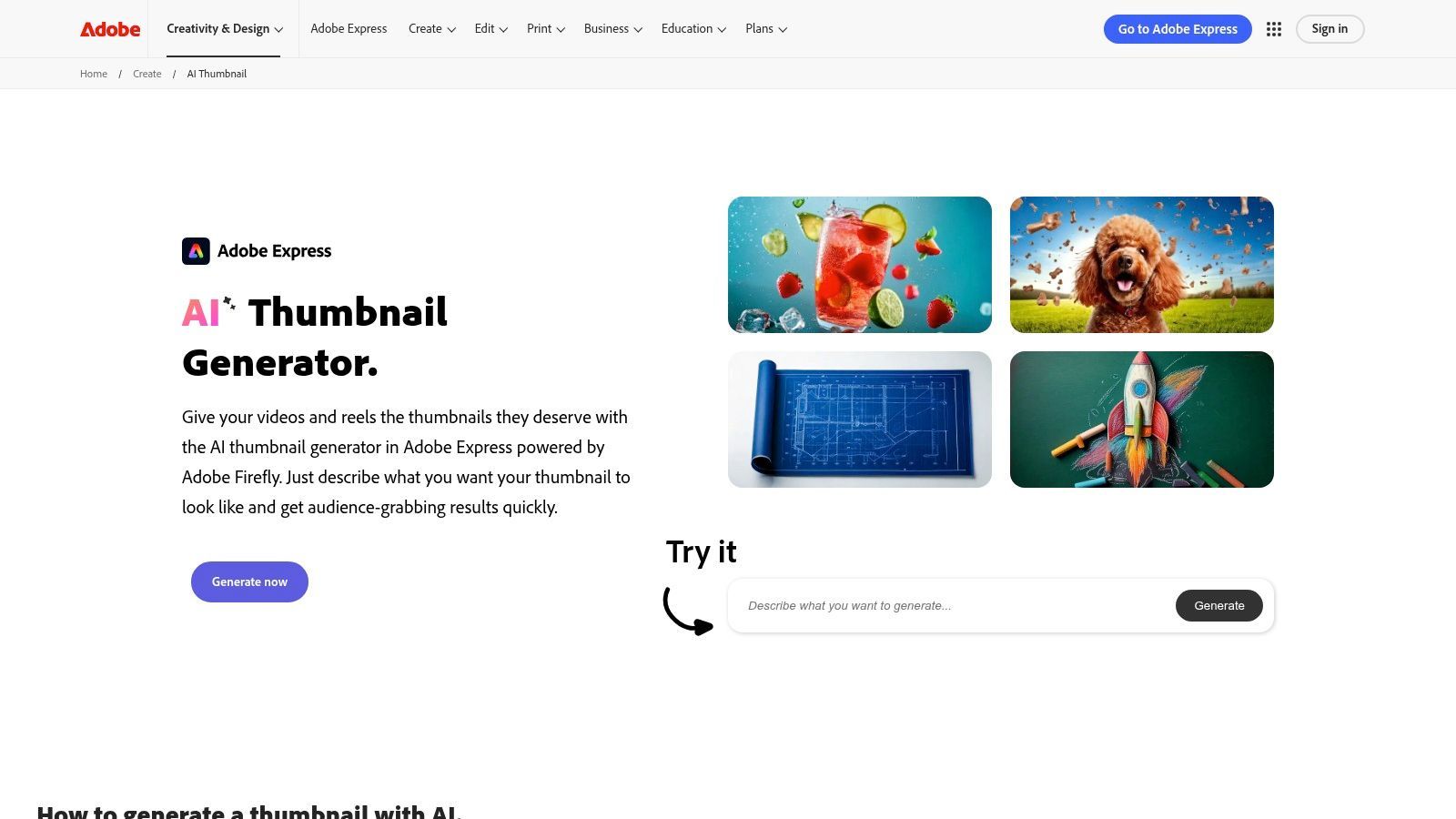
Adobe Express is one of the better picks if you want AI assistance without giving up control. It starts fast, but it doesn't trap you in a one-click result. You can generate a thumbnail concept, then keep refining it inside the Express editor instead of starting over somewhere else.
That matters more than it sounds. A lot of AI thumbnail maker tools are good at “first draft energy” and bad at cleanup. Adobe Express is stronger when you need to tighten text placement, swap assets, align branding, and keep the output usable across a series.
Where Adobe Express fits best
Adobe Express makes the most sense for creators who already live somewhere in the Adobe ecosystem, or teams that care about licensed assets and brand consistency. The stock library, fonts, and graphics reduce the need to hunt for outside elements.
It also helps if you're balancing thumbnails with broader content operations. Adobe built Express to stretch beyond a single image task, so if your workflow includes social scheduling and repeated campaign assets, the tool feels more complete than a single-purpose thumbnail app.
- Best for brand control: You can move from AI generation to manual adjustment without leaving the platform.
- Best for mixed skill levels: Beginners can start with templates, while more advanced users can polish details instead of accepting whatever the AI spits out.
- Less ideal for speed-only users: If all you want is the fastest possible thumbnail with minimal editing, the interface can feel heavier than lighter tools.
For creators building a broader stack, Adobe Express pairs well with other creator software discussed in these AI tools for content creators. It's not the leanest option, but it's one of the safer ones when your thumbnails need to look polished, not just generated.
A practical outside perspective is to evaluate design tools through Tool Radar's Adobe Express coverage, especially if you want to compare it with lighter web apps.
2. Canva
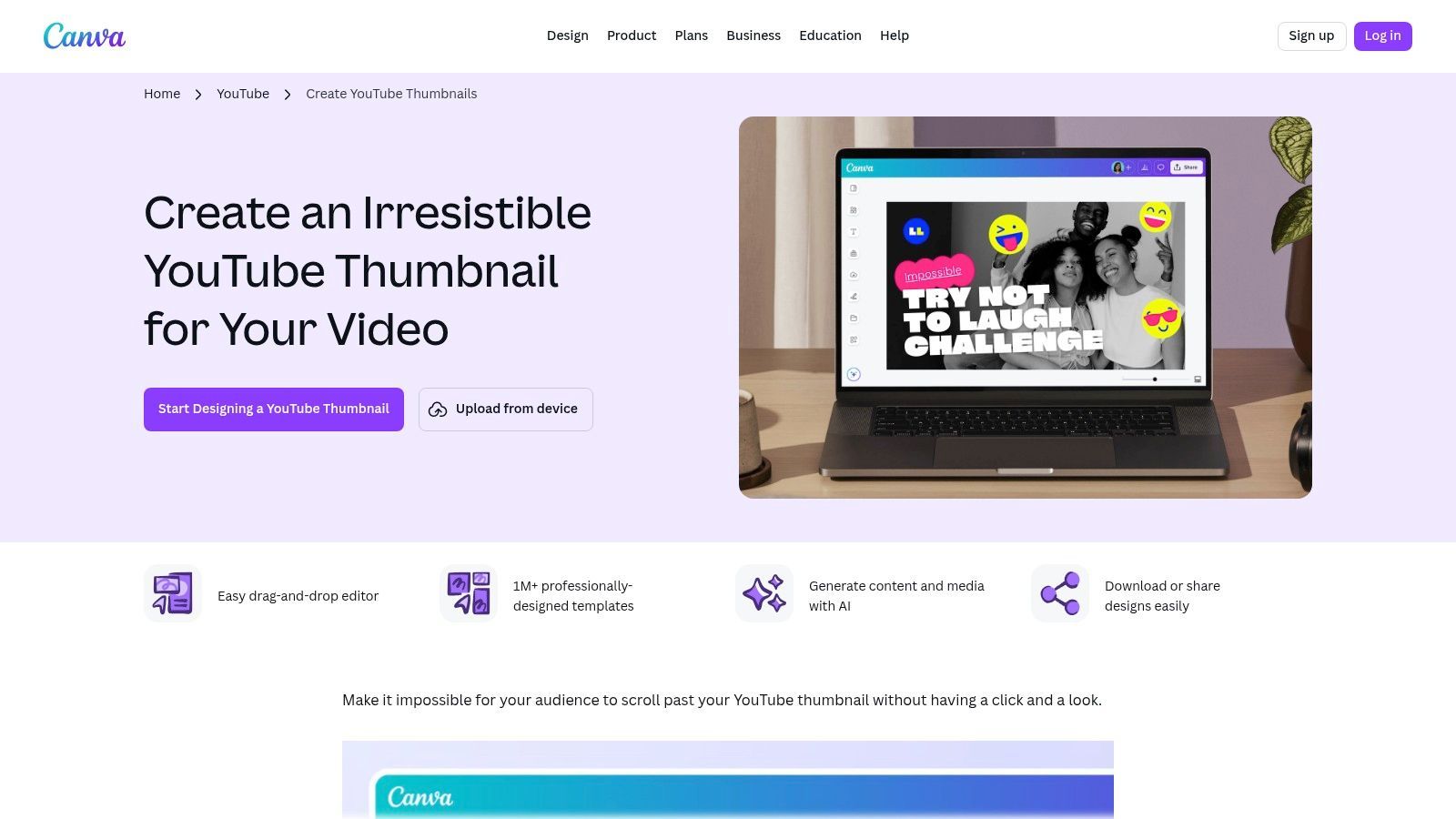
Canva's YouTube thumbnail maker is still the easiest recommendation because it solves the most common thumbnail problem. You need something decent, quickly, without a steep learning curve.
Canva is template-first at heart, and that's a strength. If your channel has repeatable formats, Canva makes it easy to duplicate a winning layout, swap the title, replace the face or product image, and export. For series-based publishing, that's usually more valuable than fancy generation.
Why Canva keeps showing up on creator stacks
The main reason Canva works isn't just that it has a lot of templates. It's that those templates reduce decision fatigue. You don't burn time deciding canvas size, text hierarchy, or rough layout every time.
That's especially useful on YouTube, where size compliance matters. If you need a quick refresher on dimensions and upload considerations, this guide on thumbnail size for YouTube videos is worth keeping nearby.
Use Canva when your priority is consistency. Don't use it if you want your thumbnails to feel radically different from everyone else using templates in your niche.
Its Brand Kit and collaboration tools are what push it beyond “beginner app” status. Teams can lock in fonts, colors, and reusable design systems, which keeps thumbnails from drifting visually when multiple people touch the channel.
The trade-off
Canva can make your channel look organized fast. It can also make your channel look generic fast.
That happens when creators rely too heavily on prebuilt compositions. If you use Canva well, you'll treat templates as a wireframe, not a finished design. Replace stock visuals, simplify text, enlarge the focal subject, and remove any extra decorations that don't help the click.
3. Snappa

Snappa is for people who are tired of opening a design tool and getting dragged into a mini project. It's lighter, simpler, and more focused than many all-purpose editors.
That's its main selling point. Snappa doesn't try to be your entire creative suite. It tries to help you make a clean thumbnail without a lot of friction.
What Snappa does well
Snappa is strong when your process is repetitive. You have a recurring format, maybe a talking-head episode, gaming upload, commentary video, or tutorial series, and you need to turn around assets quickly.
The learning curve is short. Most creators can figure out the basics in one sitting, then create reusable patterns they can repeat each week.
- Fast setup: Presets and ready-made layouts help you get to a usable design quickly.
- Simple asset handling: Custom fonts and stock elements make recurring branding easier.
- Low mental overhead: You won't spend half your session navigating layers, panels, and extra workspace clutter.
That simplicity is also the ceiling. Snappa is not where I'd go for deeper photo manipulation, dramatic composite work, or nuanced edits on a hero image. If your thumbnail style depends on heavy cutouts, layered effects, or detailed image treatment, you'll start to feel the limits.
Best use case
Snappa works best for creators who already know their style and just need a reliable production tool. It's less about inspiration and more about execution.
If your main pain point is “I need three decent thumbnail options before lunch,” Snappa is a practical thumbnail maker. If your pain point is “my channel looks flat and I need stronger visual concepts,” a more flexible or more AI-assisted tool will help more.
4. Kapwing
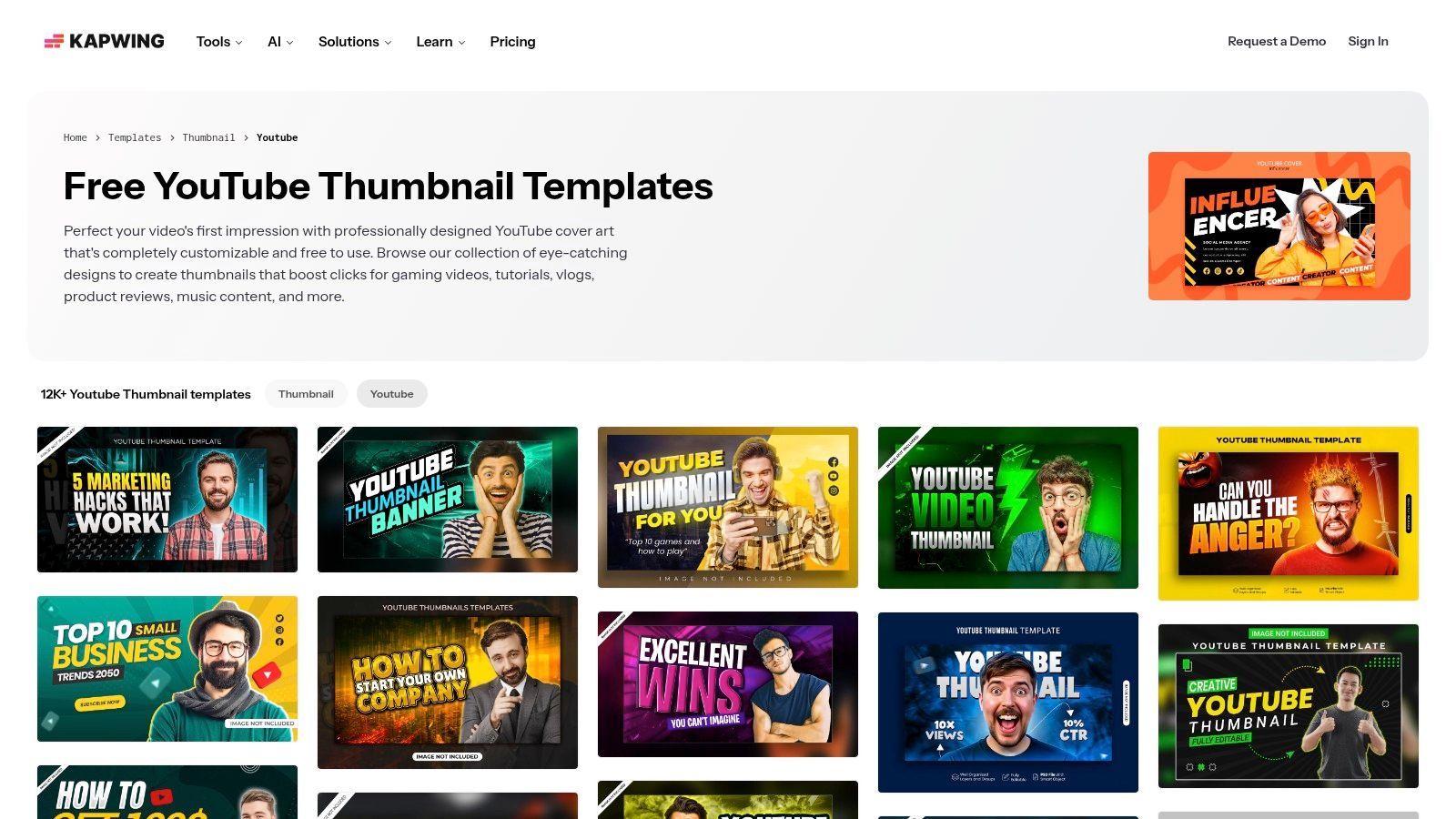
Kapwing is a smart choice when your thumbnail workflow starts with video, not graphics. That sounds obvious, but it changes the whole experience.
A lot of creators grab screenshots manually, dump them into another tool, then start designing. Kapwing shortens that chain because you can pull stills directly from video and build on top of them in the same environment.
Why video-first creators like it
Kapwing is useful when the thumbnail needs to come from a specific moment. Interviews, tutorials, reactions, podcasts, and explainers often perform better with real footage than with heavily synthetic visuals.
Because Kapwing also handles broader video tasks, it's efficient for creators who are already clipping, captioning, and resizing content in the browser. You don't have to bounce between as many tools.
The more often your thumbnail comes from a freeze-frame, the more useful Kapwing becomes.
The real trade-off
Kapwing isn't the cleanest dedicated thumbnail maker. It's a broader web editor, and you feel that. On heavier projects, it can be slower than a single-purpose design app.
Still, that trade-off makes sense for teams that want fewer tool handoffs. If your editor, social manager, or producer is already working in Kapwing, building the thumbnail there can be more efficient than exporting assets to a separate platform.
Use Kapwing if your thumbnail and your video are tightly linked. Skip it if your thumbnails are heavily designed standalone assets that rarely depend on a frame from the source footage.
5. Fotor
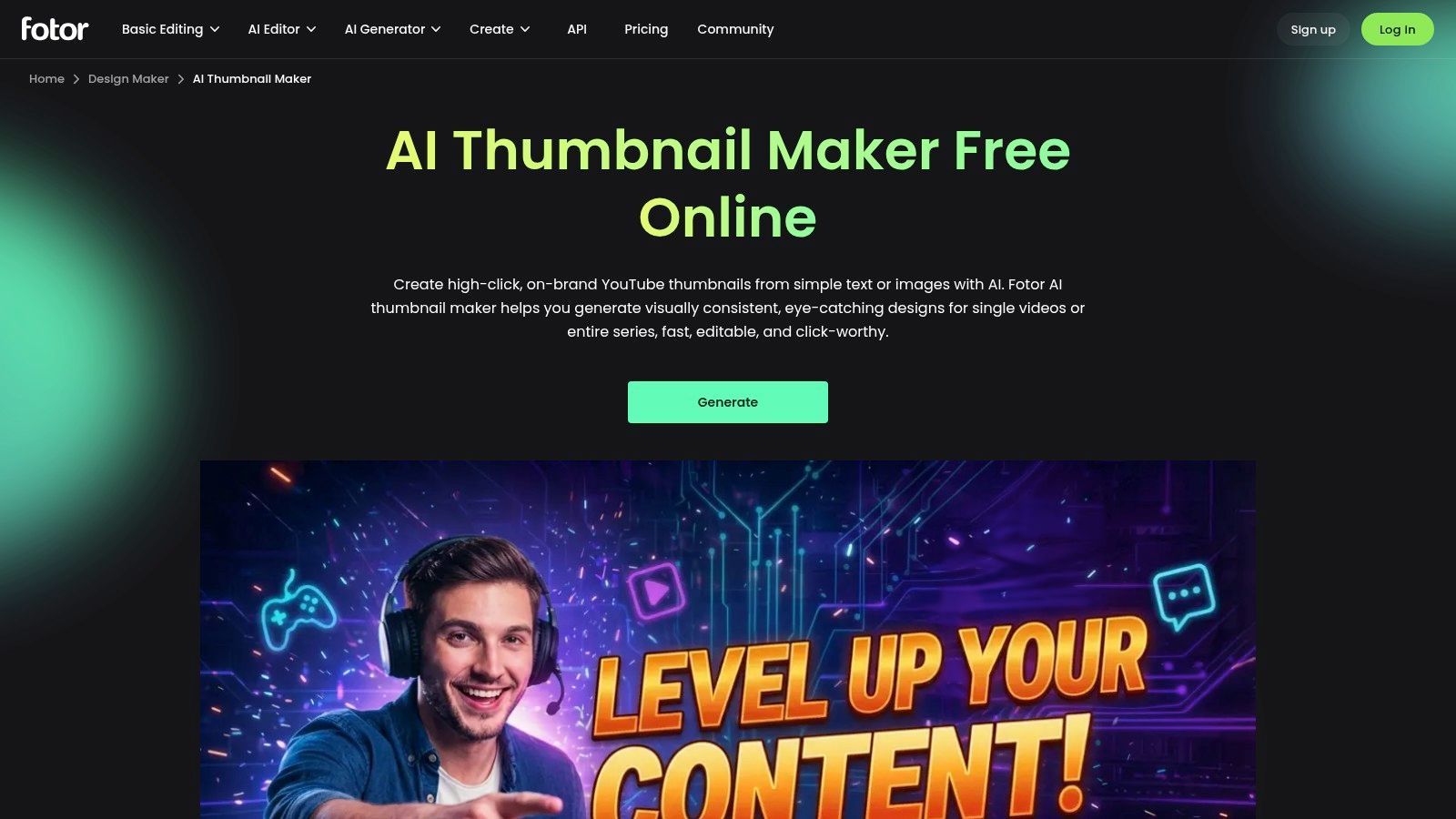
Fotor sits in the middle ground between pure AI generation and practical editing. That makes it appealing to non-designers who want help, but don't want a fully automated result that feels random.
Its value is less about making one perfect thumbnail and more about helping you establish a repeatable look. If you run a series, Fotor's AI-assisted generation, cutout tools, and style controls can help keep episodes visually related without rebuilding every layout by hand.
Where Fotor earns its spot
Fotor is useful when you want AI to do the boring work. Subject isolation, basic layout direction, image restyling, and color matching can save time on recurring uploads.
That's especially helpful for solo creators who need a thumbnail maker that reduces setup friction but still allows small corrections before export.
- Helpful for style continuity: You can keep a visual pattern across multiple uploads.
- Good for non-designers: The editor is approachable enough that you can make quick fixes without learning advanced design software.
- Less ideal for precision work: If you're particular about typography, spacing, or layered composition, you may want a stronger manual editor.
What to watch out for
AI convenience can flatten originality. Fotor can help you move faster, but if you accept every generated layout at face value, your channel can start to look algorithmically assembled.
The right approach is to use Fotor for structure, then make human decisions on the last pass. Tighten the crop. Remove extra text. Check mobile legibility. Push one element to stand out. That final bit is usually what separates a serviceable thumbnail from a clickable one.
6. TubeBuddy
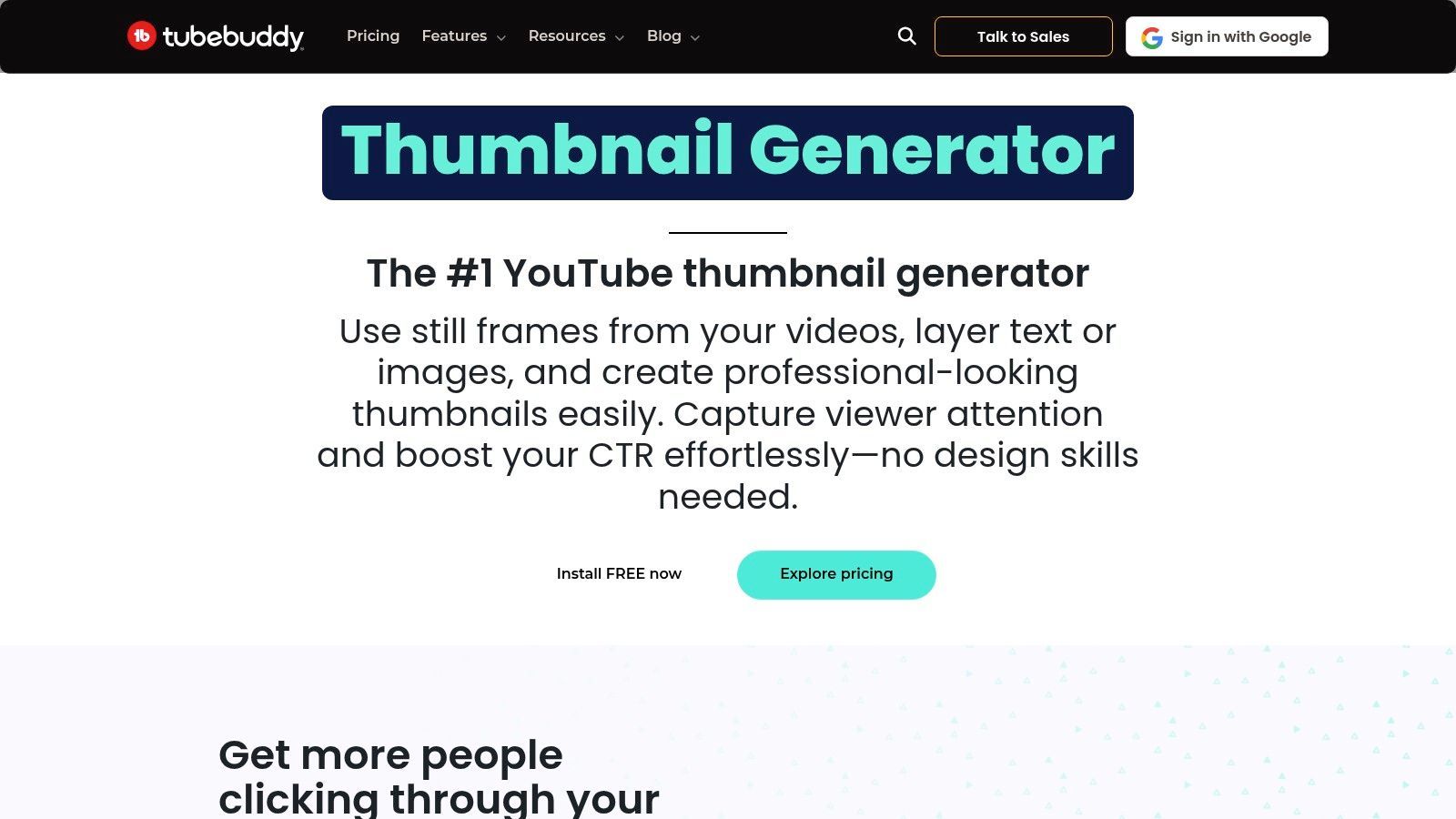
TubeBuddy is the most data-minded tool on this list. It's not the prettiest editor, and it's not trying to be. Its strength is that it lives close to the YouTube workflow and helps you make decisions based on performance, not taste alone.
That matters because the primary job isn't just making a thumbnail. It's making one that improves click behavior over time.
Why TubeBuddy stands out
TubeBuddy's thumbnail generator is useful, but the bigger advantage is the surrounding context. Preview features, testing tools, and YouTube-native workflow integration make it easier to treat thumbnails as experiments instead of one-off assets.
Independent industry commentary has cited thumbnail-related lifts of up to 25% in click-through rate and around 30% in engagement for AI-generated thumbnails, while also suggesting AI thumbnail usage is becoming widespread across YouTube, as summarized in this overview of AI-generated thumbnail trends for 2025. The exact adoption figures should be treated cautiously, but the practical takeaway is clear. Iteration matters.
Best for creators who test, not guess
TubeBuddy fits channels that already have enough traffic to learn from thumbnail changes. If you publish regularly and review results, the platform's testing mindset becomes useful quickly.
- Strong workflow fit: You're working close to YouTube Studio instead of exporting and guessing.
- Useful for validation: You can compare versions rather than relying on internal opinions.
- Weaker as a pure design environment: If you want a rich canvas, large template ecosystem, or advanced visual editing, pair it with another tool.
If you're serious about CTR, TubeBuddy is one of the more practical picks here. It won't make you a better designer overnight. It will make you a more disciplined operator.
7. Placeit by Envato
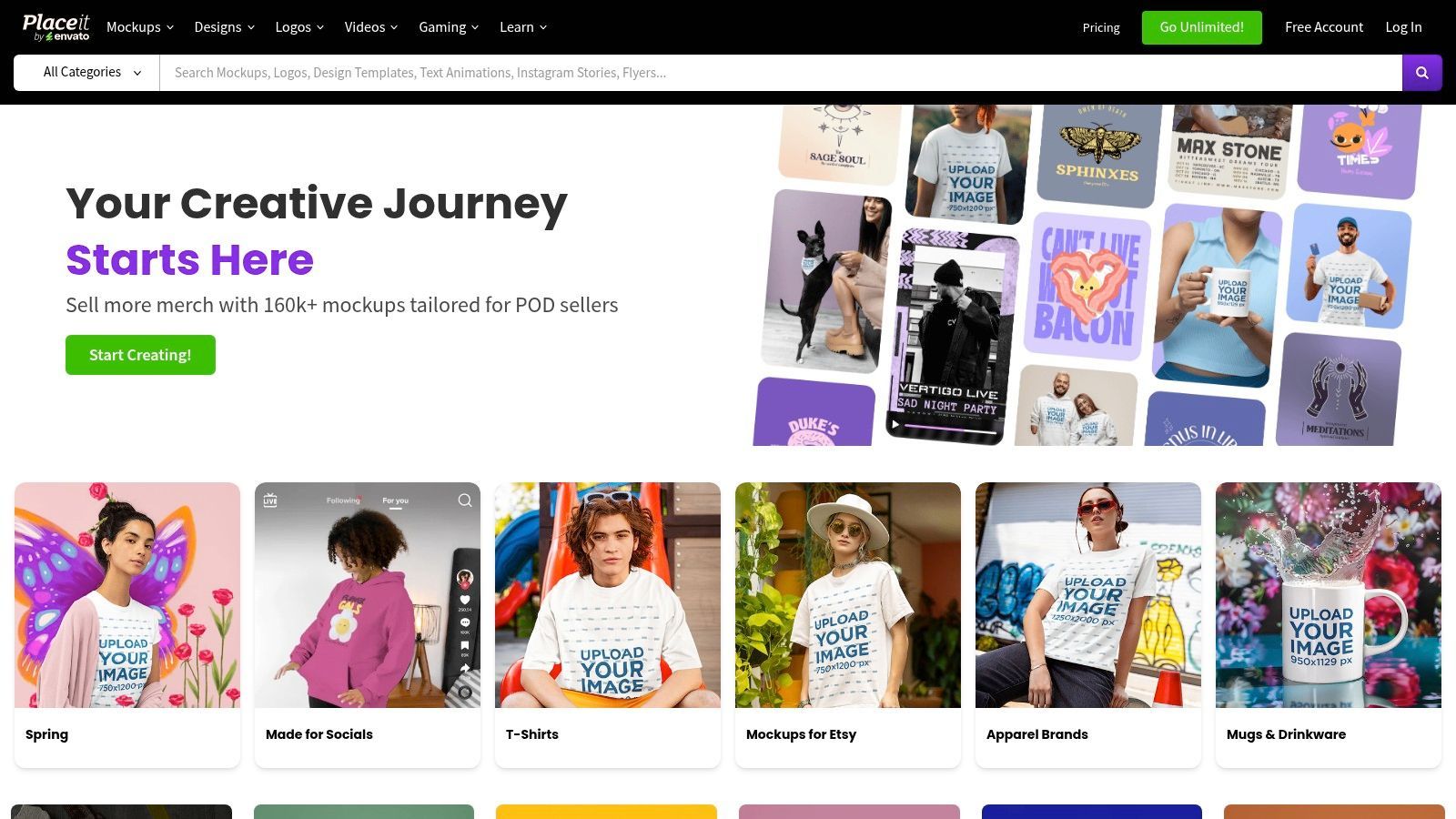
Placeit by Envato is a volume tool. If your priority is producing lots of on-brand variants without designing from scratch each time, it does that well.
This is one of the fastest ways to get from idea to asset when you already know the visual lane you want. Gaming channels, promo-heavy channels, niche entertainment creators, and marketers building series artwork often get value from that speed.
Where Placeit makes sense
Placeit's library is the main attraction. You browse, choose a direction, swap text and visuals, export, and move on. That's useful when the bottleneck is production throughput, not concept development.
It's also helpful if your content operation extends beyond thumbnails. Logos, intros, mockups, and related creative assets live in the same ecosystem, which can simplify branding work for smaller teams.
Placeit is best when “good and consistent” beats “custom and deeply refined.”
Where it falls short
The downside of template-heavy tools is predictability. If you rely too much on the stock look, your thumbnails can feel like they were assembled from the same shelf as everyone else's.
Post-download editing flexibility is also more limited than in broader editors. That means Placeit works best when the template is already close to the result you need. It works less well when you want to significantly reshape the composition after the fact.
For creators shipping a lot of thumbnails across repeatable series, Placeit is efficient. For creators trying to develop a distinctive visual identity from scratch, it's more of a shortcut than a foundation.
8. Visme
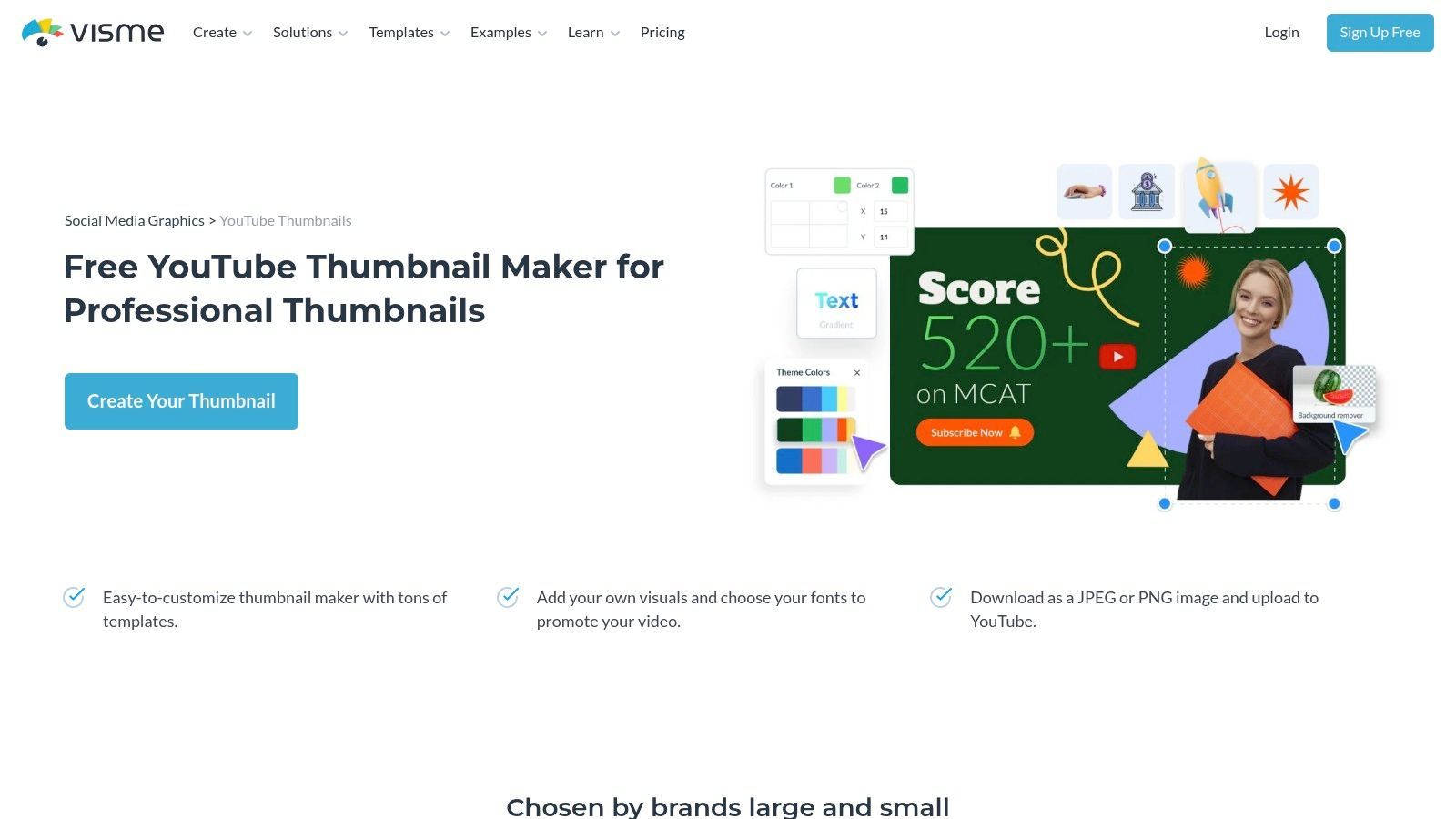
Visme is the thumbnail maker I'd look at if your work sits inside a broader marketing machine. It's not just for YouTube creators. It's for brands, agencies, and in-house teams that need thumbnails alongside decks, reports, presentations, and campaign assets.
That broader scope changes the feel of the product. Visme is less lightweight than Canva or Snappa, but it gives teams more structure around brand control and collaboration.
Why teams may prefer Visme
If multiple stakeholders review content, comment on visuals, and manage branded assets centrally, Visme can feel more organized than lighter creator-first tools. It supports a more formal process.
That's useful for brands publishing educational videos, webinars, social clips, and cross-channel content where the thumbnail is one part of a larger campaign system. Tools like the ones covered in this roundup of content creator tools often overlap with that kind of workflow.
- Good for team review: Commenting and collaboration help when design isn't done by one person.
- Good for brand governance: Asset and export controls matter more in business environments.
- Less ideal for solo speed: If you just want a fast thumbnail before upload, Visme may feel more structured than necessary.
Practical fit
Visme is not the tool I'd hand to a solo creator who wants to move fast with minimal friction. It is a solid option for organizations that care about consistency across many asset types.
That's the key trade-off. You give up some speed and simplicity. You gain process, control, and broader campaign alignment.
9. VistaCreate
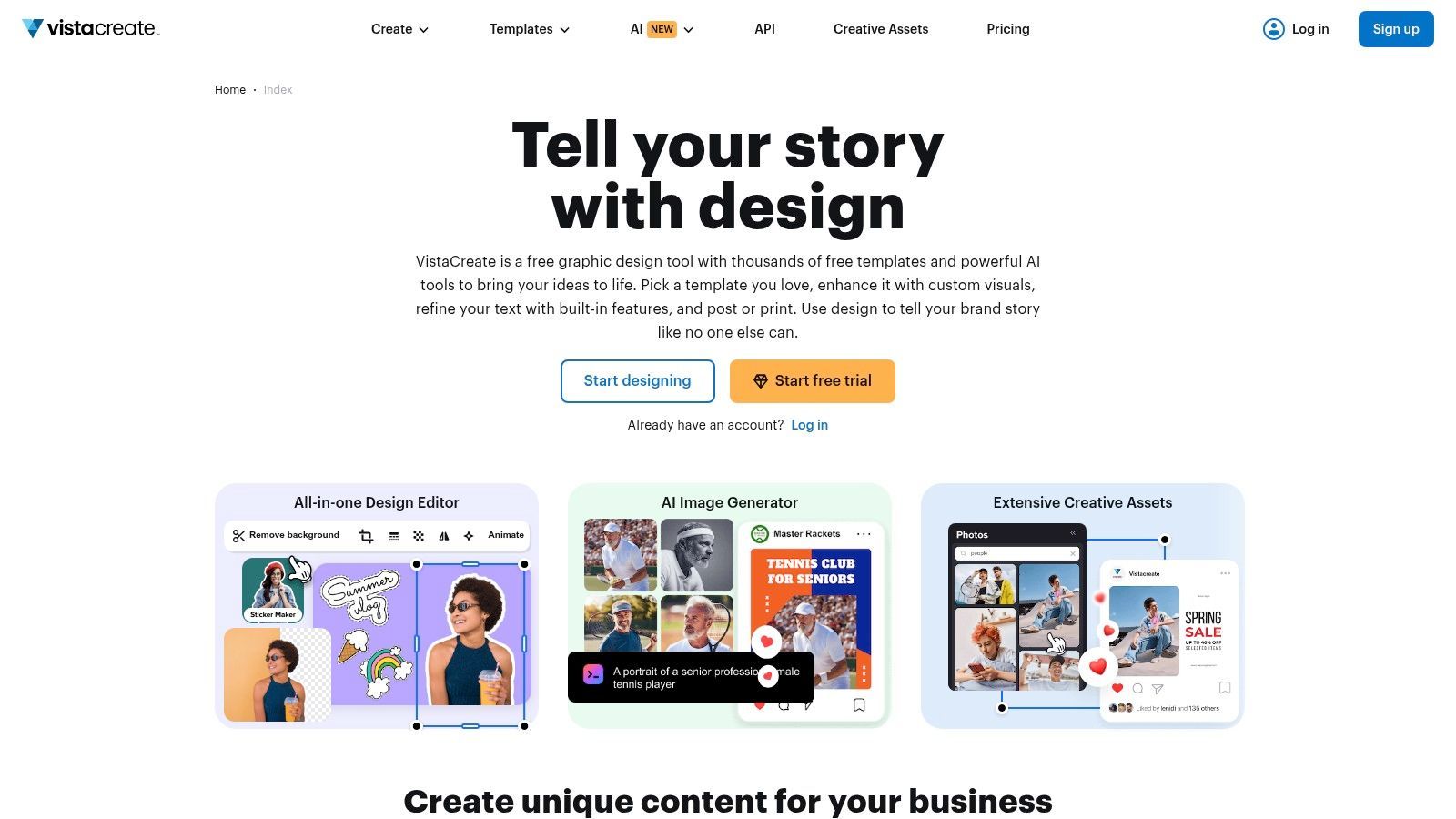
VistaCreate is a practical middle-tier choice if you want modern templates, correct sizing, and a few AI cleanup features without stepping into a more complex suite.
It tends to appeal to creators who want something visually fresh but still familiar. The dedicated YouTube thumbnail format removes setup friction, which sounds small until you're juggling multiple assets every week.
What stands out
The AI background and object removal tools are a key feature here. For many channels, the thumbnail hinges on one clean subject cutout. If a tool makes that process faster, it earns its keep.
VistaCreate also does a good job of giving users a starting point that doesn't feel too stale. Some template libraries start to look dated fast. VistaCreate generally feels more current.
- Strong starting point: Correctly sized templates get you moving quickly.
- Useful cleanup tools: Subject isolation helps when your own photos are central to the thumbnail.
- Some feature inconsistency: Mobile and web don't always match perfectly, which matters if you edit on both.
Best for
VistaCreate works well for creators who want a smoother template experience with a little AI assistance, but who don't need a deep ecosystem.
It's not the most famous thumbnail maker, but that can help. You're sometimes less likely to end up with the same overused look that dominates the biggest template platforms.
10. PicMonkey
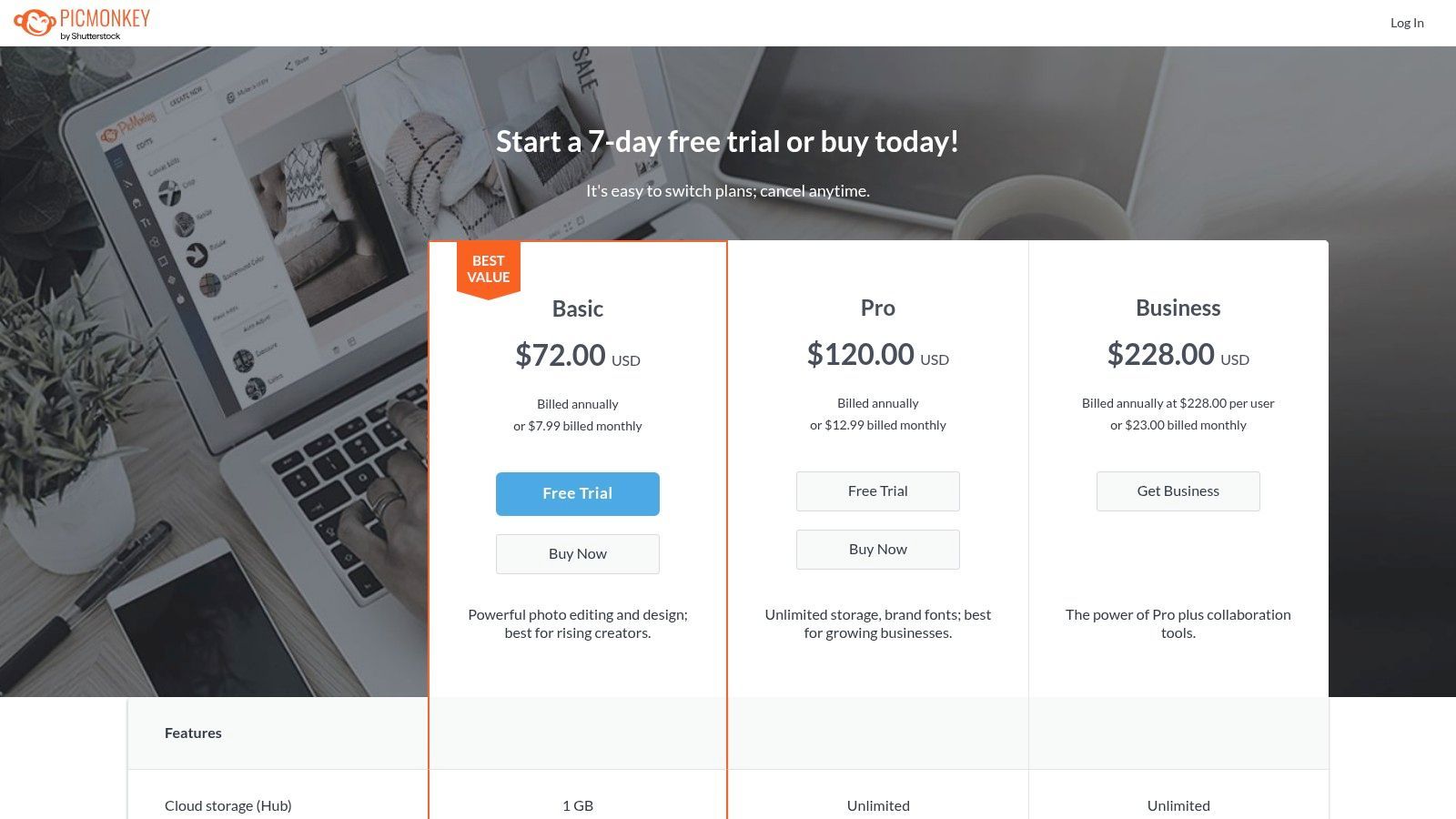
PicMonkey is what I'd call a photo-first thumbnail maker. It's a good fit when your thumbnails depend on stronger image treatment, better typography control, and a more polished editorial feel than lighter tools usually offer.
This is especially useful for creators whose thumbnails are built around portraits, products, lifestyle shots, or commentary images that need more than a simple template swap.
Why some creators stick with PicMonkey
PicMonkey gives you more control over how the image feels. Many lightweight apps can place text and assets, but they don't always help much with photo-led styling. PicMonkey is better when the image itself is doing most of the persuasive work.
That makes it useful for channels where the thumbnail needs to look designed, not just assembled.
If Canva feels too templated and Photoshop feels too heavy, PicMonkey sits in a sensible middle zone.
The trade-off
The downside is straightforward. Some of the more useful features are gated behind higher tiers, and it's not as frictionless as the simplest web tools.
Still, for creators who care about type, image effects, and cleaner aesthetic control, PicMonkey remains a strong option. It won't be the right pick for every channel. But if your thumbnail style leans visual-first rather than template-first, it deserves a look.
Top 10 Thumbnail Makers, Features & Pricing
ToolCore featuresQuality ★Price/value 💰Target 👥Unique/Standout ✨🏆
Adobe Express (AI Thumbnail Generator)
AI thumbnail editor, templates, stock, social scheduling
★★★★
💰 Free → Pro (premium assets & AI credits)
👥 Adobe users, creators wanting brand-safe assets
✨ Editable AI thumbnails, Adobe licensing, 🏆 Familiar Adobe workflow
Canva (YouTube Thumbnail Maker)
Massive templates, Brand Kit, collaboration, AI Magic tools
★★★★★
💰 Free → Pro/Business (best value for teams)
👥 Teams, creators needing consistent series
✨ Huge template library & fast repeatable thumbnails, 🏆 Best for scalable branding
Snappa (YouTube Thumbnail Maker)
Lightweight editor, presets, large stock library, social integrations
★★★★
💰 Clear plans; paid = unlimited downloads
👥 Solo creators who value speed
✨ Super fast, minimal learning curve, 🏆 Quick recurring-format production
Kapwing (Thumbnail + Video Tools)
Pull stills from video, templates, all-in-one web editor
★★★★★
💰 Free → Paid (limits on exports/features)
👥 Video-first creators repurposing clips
✨ Seamless video→thumbnail workflow, 🏆 Ideal when working with long-form video
Fotor (AI Thumbnail Maker)
AI generation from text/image, cut-out, style matching
★★★★
💰 Free → Credits/Pro (limits on lower tiers)
👥 Non-designers needing AI guidance
✨ AI-driven style consistency & quick retouches, 🏆 Strong for on-brand series
TubeBuddy (Thumbnail Generator + A/B Testing)
YouTube-integrated generator, preview, A/B testing, CTR insights
★★★★★
💰 Free → Higher tiers for Tester & analytics
👥 YouTubers focused on CTR growth
✨ Built-in A/B testing & Click Magnet insights, 🏆 Best for data-driven optimization
Placeit by Envato (Template-driven)
Huge ready-to-edit thumbnails, mockups, in-browser edits, downloads
★★★★
💰 Pay-per-template or subscription; license included
👥 Creators needing many variations fast
✨ Massive template catalog + commercial license, 🏆 Fast production at scale
Visme (Thumbnail Maker)
Thumbnails + marketing templates, Brand Kit, team tools
★★★★
💰 Paid plans for advanced exports & privacy controls
👥 Brands & marketers producing multi-format campaigns
✨ Strong campaign asset management, 🏆 Good for thumbnails within broader marketing
VistaCreate (formerly Crello)
YouTube format, AI background/object remover, image generator
★★★★
💰 Free → Pro (stocks & advanced tools)
👥 Creators wanting modern templates & quick tweaks
✨ AI remover & correct sizing out-of-the-box, 🏆 Fast modern templates
PicMonkey (by Shutterstock)
Photo-led editor, smart resize, bg remover, Brand Kit
★★★★
💰 Trial → Pro (exports & premium stock)
👥 Photo-focused creators needing richer effects
✨ Deeper photo-editing than light editors, 🏆 Best for image-heavy thumbnail looks
Stop Guessing and Start Designing
The best thumbnail maker isn't the one with the longest feature list. It's the one that fits how you publish.
If you're a solo creator posting once or twice a week, Canva, Snappa, or VistaCreate may be enough. If you want AI help with concepting and cleanup, Adobe Express or Fotor can save time. If you care about testing and YouTube-native iteration, TubeBuddy stands apart. If your workflow starts in video, Kapwing makes more sense than forcing screenshots through a separate design app. If you work inside a brand or agency setup, Visme is more realistic than a creator-only tool.
The mistake I see most often is creators overvaluing generation and undervaluing judgment. A tool can remove the background, suggest a layout, pull a frame, and even generate variations. It still can't decide what your audience will instantly understand. That part is still on you.
A simple process works better than endless tweaking:
- Start with one clear idea: Don't cram three storylines into one image.
- Make the subject obvious: If the face, object, or claim is tiny, the thumbnail will struggle on mobile.
- Write less text: Shorter almost always reads better.
- Make multiple versions: Three to five variations usually teach you more than perfecting one design for an hour.
- Review in small size: Zooming out exposes weak contrast and clutter fast.
The bigger shift in this category is that thumbnails are no longer treated as a last-minute export. They're becoming part of creative operations. As noted earlier, the category itself is scaling quickly, and that lines up with what creators already feel in practice. Publishing speed matters, but repeatable optimization matters more.
That's also why some creators pair a thumbnail workflow with repurposing workflows. If you're clipping long-form content into shorts, the visual packaging decisions don't stop at the main upload. A platform like Klap can fit into that broader process if you're turning long videos into social-ready short clips and want tighter control over how content gets adapted across formats.
If you want one practical next step, don't switch five tools this week. Pick one from this list that matches your workflow, make several thumbnail variations for your next upload, and compare them objectively. Not by which one you like best. By which one communicates fastest, looks cleanest on mobile, and feels most aligned with the promise of the video.
That's the difference between making thumbnails and building a system. If you need a second opinion on adjacent creative workflows, you can also compare design feedback platforms and see how other teams tighten review loops before publishing.
If you're already creating long-form videos and want more mileage from each upload, Klap is worth a look. It helps turn existing videos into social-ready short clips with captions, reframing, and format adjustments, which makes it useful when your thumbnail workflow is part of a bigger repurposing system.
