
How to Attach a Video to Email: The 2026 Guide
Other
You’ve probably done this before. You export a clip, open Gmail or Outlook, attach the file, hit send, and get a bounce, a warning, or a message that never lands where it should.
That frustration usually has nothing to do with your video being bad. It has everything to do with email being a poor transport layer for modern video files.
Knowing how to attach a video to email starts with a simple shift in mindset. The question is not just “How do I send this file?” It’s “What is the safest way to get the right viewing experience on the other side?” For creators, marketers, and teams sending webinar clips, product demos, podcast snippets, or customer updates, that distinction matters. A raw file, a hosted link, and an embedded playback experience all solve different problems.
Why Sending a Video Through Email Is So Tricky
The most common failure happens at the exact moment the workflow feels finished. You’ve already recorded the clip, trimmed it, maybe added captions, and exported what looks like a reasonable file. Then email reminds you it was built for documents, not modern video.
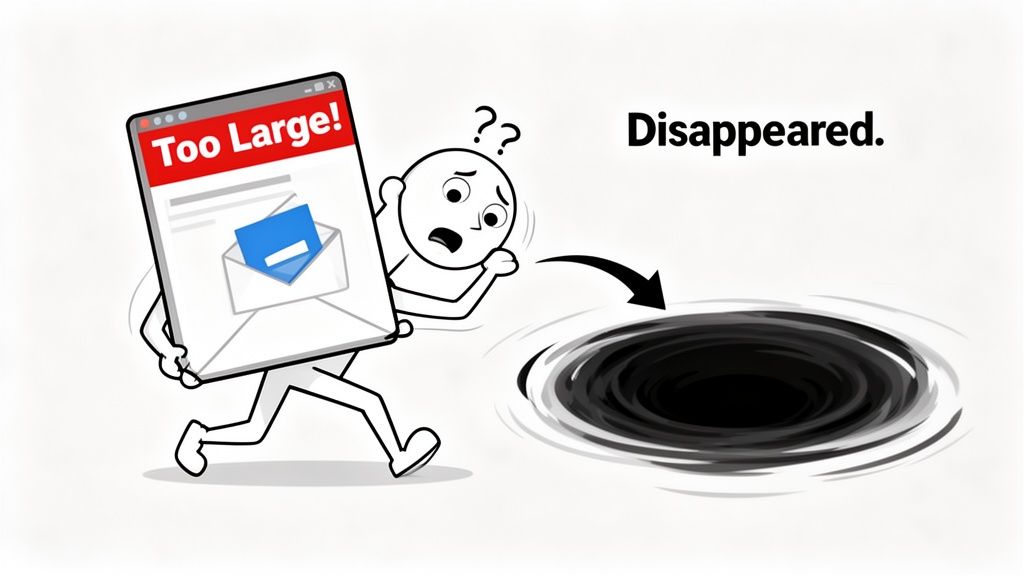
Old email rules meet modern video files
Major providers still center their workflows around an attachment ceiling of 25 MB, which affects over 4.5 billion global email users as of 2025, according to Atomic Mail’s guide to sending video through email. That sounds workable until encoding overhead gets involved.
Email does not send your file in the same neat package you see in Finder or File Explorer. MIME encoding adds overhead, which reduces the practical delivery range to about 15-18 MB for reliable sends, and that same Atomic Mail source says over 70% of uncompressed video attachments fail.
That is why a clip that feels “small enough” often still causes trouble.
Obstacles are not just size
File size is the first problem. It is not the only one.
A video email can fail because:
- The file is too heavy: even a short smartphone export can overshoot safe attachment size.
- The format is unfriendly: MOV files often create more friction than MP4.
- The recipient environment is strict: company mail servers, spam filters, and security gateways can block or quarantine media.
- Playback is inconsistent: some recipients can download the file but cannot preview it smoothly on mobile or desktop.
Practical takeaway: The best video email is usually not the biggest or highest-quality file. It is the version that arrives, opens, and plays with the least resistance.
Creators have a different problem
This gets worse when the source material is long-form. A webinar, interview, podcast recording, or talking-head lesson usually contains one good email-worthy moment buried inside a much bigger file.
That means the primary job is often not “attach the video.” It is “extract the right segment, then choose the right delivery method.”
If you send the full file, the message bloats. If you over-compress, the video looks cheap. If you embed the wrong way, some inboxes break. The smart path depends on your goal:
GoalBest methodWhy
One quick personal send
Direct attachment
Fast if the clip is very small
Newsletter or campaign
Hosted link with thumbnail
Best deliverability and cleaner experience
Advanced branded email
HTML embed with fallback
Strong experience, but only with careful setup
The Direct Attachment Method And Its Hidden Dangers
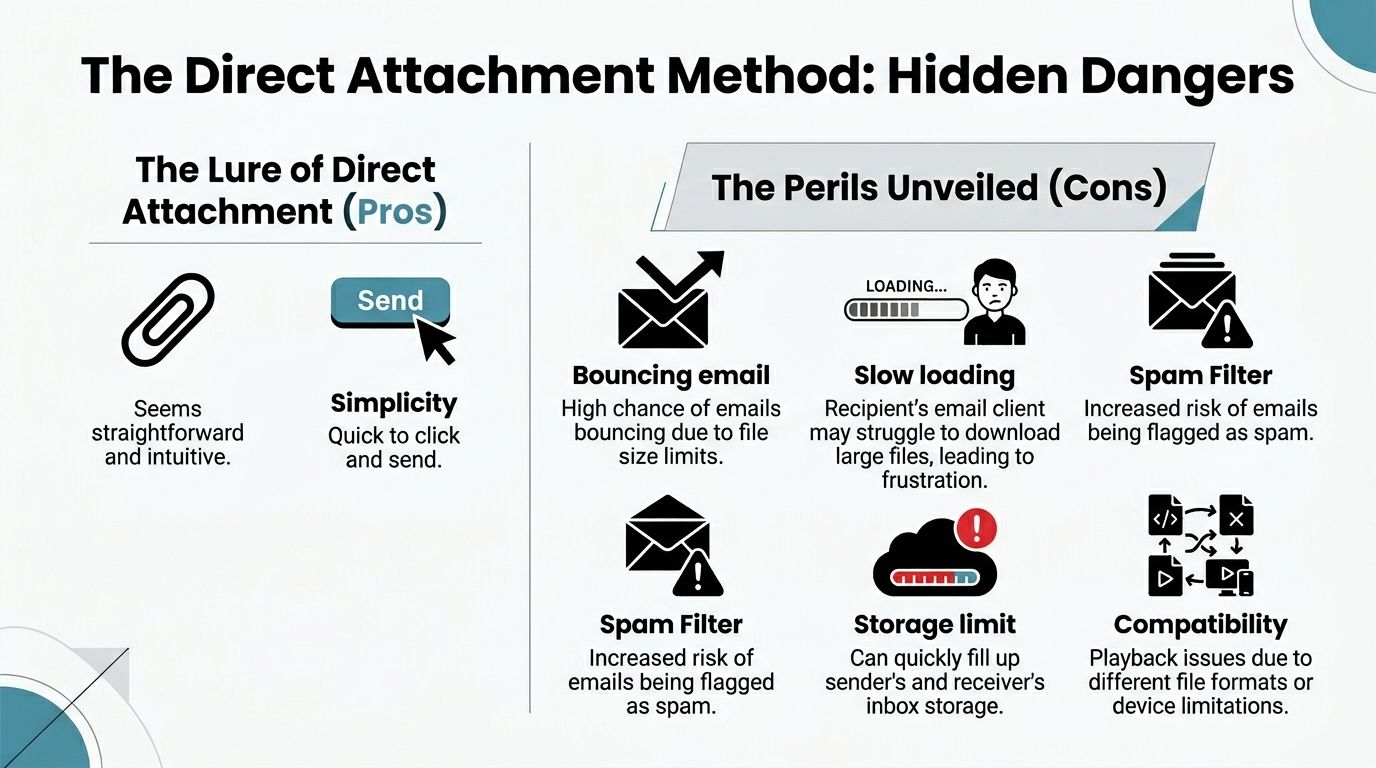
Direct attachment feels obvious because it matches how people send PDFs, decks, and images. Click the paperclip, choose the file, send. For very small clips, it can work. For most video, it is the riskiest option.
How the basic process works
In Gmail, you attach the file from the compose window. If it crosses the limit, Gmail typically switches to a Google Drive link instead of sending the file directly.
In Outlook, the flow is similar. Smaller files can go directly, and larger ones may trigger a OneDrive prompt.
That part is easy. The hard part is deciding whether you should use direct attachment at all.
When direct attachment is still viable
Direct send is best reserved for very short clips that have already been compressed aggressively and exported in a universal format.
According to Atomic Mail’s attachment methodology for video email, you should compress the file to under 15-18 MB because MIME encoding adds roughly 33% overhead. The same source says delivery success is around 92% for files under 10 MB, but falls to 65% for files near the 20-25 MB limit.
That drop is the whole story. The closer you get to the ceiling, the less predictable the send becomes.
The hidden dangers many discover too late
The first danger is false confidence. A file can appear to fit, then fail during transmission or trigger provider throttling.
The second is format choice. The same Atomic Mail source notes that MOV files have a 25% higher rejection rate than MP4. If you export from an iPhone or from editing software with default settings, that matters.
The third is sender reputation. Big attachments can create friction with spam filters and corporate security rules. Even when the message sends, the recipient may face a clumsy download process instead of a clean click-to-watch experience.
A direct attachment also creates a storage burden for both sides. That does not always break delivery, but it adds more reasons for email systems to treat the message cautiously.
A practical decision rule
Use direct attachment only if all of the following are true:
- The clip is short: you are sending a highlight, not a full session.
- The export is MP4: this keeps compatibility straightforward.
- The file is comfortably below the edge: not barely under it.
- The email is one-to-one or low-volume: not a campaign where deliverability matters more than convenience.
If your file needs trimming before you even think about attachment, use a proper video trimmer and cut to the strongest moment first. In practice, that step solves more email problems than last-minute compression does.
Rule of thumb: If you have to hope the file goes through, do not attach it directly.
Linking to Hosted Videos The Deliverability Champion
If you care most about getting the message delivered and watched, hosted video links win.
That sounds less elegant than attaching a file, but in campaigns it is the method that creates the fewest surprises for senders and recipients.
Why hosted links work better
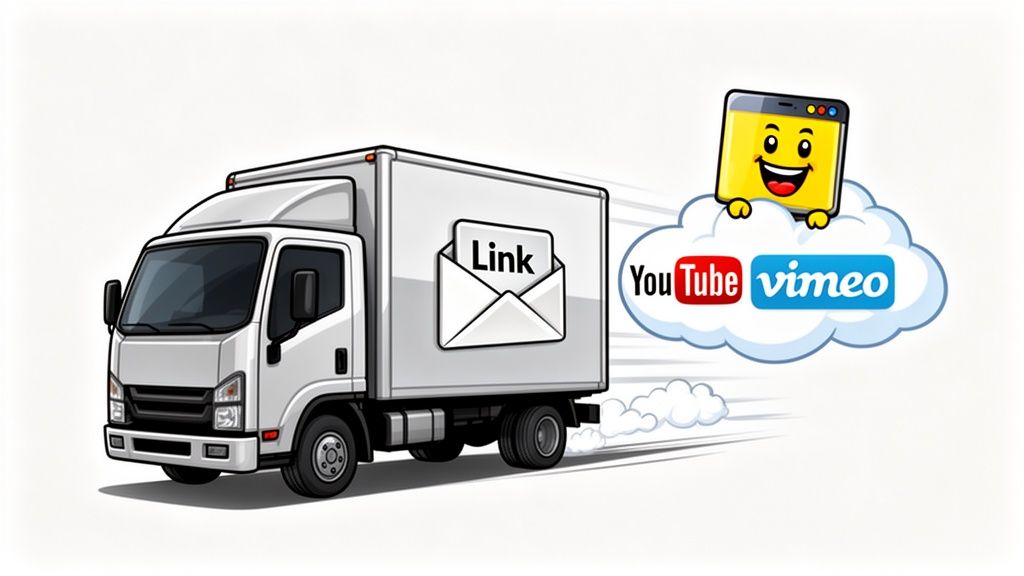
A hosted workflow is simple. Upload the video to YouTube, Vimeo, Google Drive, Dropbox, or another video host. Then place a linked thumbnail or play-button image inside the email.
This approach avoids the attachment bottleneck entirely. It also gives the recipient a familiar click path instead of forcing a download.
That is not just a preference. According to Litmus on video in email, HTML5 video support exists in only 10-15% of clients, which is why marketers rely on thumbnails or GIFs linking to hosted video. Litmus says those linked approaches achieve 99% compatibility and 40% higher engagement than direct attachments.
The best version is not a naked URL
Do not paste a raw link into the body and call it done unless the email is purely personal.
A better setup looks like this:
- Upload the clip to your host of choice.
- Choose a strong thumbnail that shows motion, emotion, or a clear subject.
- Overlay a play button so the image reads as video immediately.
- Link the image to the hosted page or file.
- Add a short line of context beneath it, so the recipient knows why they should click.
This is especially useful when the source video is long-form. Instead of sending an entire webinar replay, send the strongest short segment and let the email act as the doorway.
What hosted delivery looks like in practice
For educational sends, a Drive link works fine if permissions are clean and the recipient just needs access.
For marketing and outreach, public-facing hosts usually create a better experience because playback feels immediate and expected.
A walkthrough can help if you want to see a simple visual example before building your own:
Why this method fits creators best
Creators often start with too much footage, not too little. A podcast episode, tutorial, interview, or launch demo rarely belongs in the inbox as a file. The better move is to share a highlight clip that earns the click.
Hosted delivery also keeps your options open. You can update the title, thumbnail, landing context, or destination without resending the asset itself. That is useful when the same clip appears in a newsletter, outreach sequence, or follow-up email.
Best practice: Treat the email as the invitation and the hosted page as the viewing environment.
If you are deciding between attachment and hosted delivery, hosted wins most of the time because it respects both the inbox and the viewing experience.
Embedding Video for In-Email Playback
Embedding is the version people want because it feels polished. The video appears inside the message, the recipient presses play, and the experience stays inside the inbox.
It can work. It just does not work everywhere.
What embedding means
This method uses HTML5 video markup inside the email. In a supportive client, the recipient can play the file without leaving the message.
A basic structure looks like this:
For senders using modern email builders, that code is often abstracted into a video block. Under the hood, though, the same compatibility issues still apply.
The compatibility trade-off
According to Kit’s guide to embedding video into email, HTML video can boost click-through rate by 25-300%, but playback works in only about 45% of modern clients and fails completely in some environments such as Outlook 2016. The same source says 60% of autoplay attempts fail if the video is not muted.
That means embedding is not a universal playback solution. It is a selective enhancement.
How to do it without breaking the experience
If you still want in-email playback, use this workflow:
- Host the video on HTTPS Your media must load securely. If the file host is sloppy, some clients will block it.
- Use an MP4 or another broadly supported web format Keep the file lightweight and web-friendly.
- Set a poster image This gives the email a good visual before playback starts.
- Mute autoplay if you use autoplay Otherwise, many clients will block playback behavior.
- Always create a fallback This is the part many senders skip.
A fallback is usually a linked image or animated GIF that appears when embedded playback is unsupported. That fallback is not optional. It is the thing protecting the email from looking broken.
Key takeaway: Embed for the clients that support it. Design for the fallback that everyone else will see.
When embedding makes sense
Embedding fits brand emails where design matters and the team can test across clients before sending.
It is less suitable for one-off sends, cold outreach, or any workflow where universal reliability matters more than presentation. In those cases, a hosted thumbnail usually gives you most of the visual upside without the rendering risk.
How to Prepare Your Video for Email
Most video email problems start long before the send. They start in export settings, file format, and clip selection.
If you want a video to survive email, prepare it for email. Do not export a giant master file and try to rescue it afterward.
Start with the right segment
This is the mistake I see most often. People try to email the whole thing.
A full webinar, interview, or product walkthrough is rarely the right unit for email. The inbox rewards short attention windows, so pick the sharpest slice first. That might be the key answer, the strongest hook, the quick demo, or the one moment with clear emotional energy.
If the source video is long, isolate the send-worthy section before you worry about bitrate or codec.
Use the safest format
If your goal is direct attachment or broad compatibility, export as MP4 with H.264.
That recommendation is practical, not trendy. According to the Atomic Mail workflow cited earlier, using HandBrake with H.264 is a workable path when you need to bring an attachment under the safe range. That same source also notes that unoptimized MOV files face a 25% higher rejection rate than MP4.
For email, universal beats exotic.
Think in terms of safe size, not maximum size
Do not aim for “just under the platform limit.” Aim for a file that has room to survive encoding and transit cleanly.
The same Atomic Mail source says direct attachment success is around 92% for files under 10 MB, while sends near the upper edge fall to 65%. That gap should change how you export.
A practical prep checklist looks like this:
- Clip first: remove dead air, intros, outros, and repeated setup.
- Export in MP4: avoid format friction.
- Compress intentionally: HandBrake is a good starting point.
- Keep dimensions realistic: the inbox is not a cinema screen.
- Test the finished file: send it to yourself before using it in a real campaign.
Match the aspect ratio to the use case
Email is often opened on mobile, so framing matters.
A vertical or mobile-friendly crop can make a short clip more watchable in the inbox preview and on the landing page after the click. If your original video was horizontal and you plan to reuse it in email and social, resize it once instead of rebuilding multiple versions. A tool built to resize videos can speed that up and help you avoid awkward crops.
Compression is supposed to be selective
Bad compression tries to make a giant file tiny at the last second. Good compression starts with the right source clip, the right dimensions, and the right format.
Here is the difference:
Bad workflowBetter workflow
Export full video, then panic-compress
Trim first, then export only the usable clip
Keep default camera format
Convert to MP4
Aim for the maximum allowed size
Aim comfortably below it
Ignore preview testing
Send test emails across devices
A creator-friendly prep mindset
The most reliable email video is usually a short, focused clip that was designed to travel well. That means clear framing, readable captions if needed, and a length that feels native to inbox behavior.
When people ask how to attach a video to email, they often think the answer starts in Gmail. It usually starts in the editor.
Practical advice: Edit for attention first. Compress for delivery second. If you reverse that order, the video often ends up both larger and weaker.
Troubleshooting Common Video Email Problems
Even a careful workflow can go sideways. Most failures come down to a handful of repeat issues.
The email sends, but nobody seems to watch
This is often a packaging problem, not a video problem.
If you used a direct file, recipients may hesitate to download it. If you used a hosted link, the thumbnail may not look clickable enough. If you embedded video, the client may have shown the fallback and made the message feel flatter than expected.
Try this checklist:
- Rewrite the surrounding copy: tell the reader what the clip covers and why it matters.
- Improve the thumbnail: choose a frame with a face, product action, or obvious motion cue.
- Add subtitles or captions: many recipients scan first. A subtitle generator helps when the clip needs to communicate even before playback starts.
The file is too large, especially from a phone
This is a recurring creator problem. Smartphone footage gets heavy fast, and generic advice like “just use Drive” is incomplete.
The underserved issue here is videos over 100MB from smartphones. For creators, manual compression often damages quality, and research indicates that users often abandon large file sends. That is why pre-clipping matters so much more than brute-force shrinking.
If the source is a phone video, do this instead:
- Cut the strongest section first: do not compress dead weight.
- Export a shorter shareable clip: especially for outreach or newsletters.
- Use hosted delivery if quality matters: attachment is rarely the best home for large mobile footage.
The recipient says the video will not play
This usually comes from one of three causes:
- The file format is awkward
- The recipient is on a locked-down device or mail system
- The hosted link has permission issues
For hosted files, check sharing permissions before resending. For direct attachments, re-export to MP4. For embedded playback, assume client incompatibility first and inspect the fallback.
The email lands in spam or promotions
Attachments can contribute to this, especially when the message feels heavy or unusual. So can sloppy file naming, oversized assets, or a mismatch between the email’s purpose and its payload.
Before resending, review:
- File name cleanliness: avoid messy export names.
- Message simplicity: remove extra baggage.
- Delivery method: hosted link often reduces friction compared with bulky attachments.
Frequently Asked Questions About Sending Videos
What is the best method for a marketing newsletter
Use a hosted video with a clickable thumbnail. It gives you the cleanest balance of deliverability, design control, and viewing experience.
Should I ever attach the video directly
Yes, but only when the clip is short, lightweight, and needs to arrive as a file. For most campaigns, direct attachment is more fragile than it looks.
Can I track who watches my video from an email
You usually track this more effectively through the hosting or landing environment than through the email itself. That is another reason hosted delivery is often the better operational choice.
Is a GIF better than a static image with a play button
It depends on the goal. A GIF can show motion and signal energy, while a static thumbnail with a play button is simpler and often cleaner. If the motion itself is the hook, use a GIF. If clarity matters most, use the thumbnail.
What is the smartest workflow for creators with long videos
Do not send the full asset. Pull the strongest short segment, prepare it for mobile viewing, and then choose between attachment, hosted link, or embed based on the recipient experience you want.
If you already have long-form content and the hard part is turning it into a short clip that works in email, Klap is built for that. It helps creators and marketers turn webinars, podcasts, interviews, and YouTube videos into short, social-ready clips with reframing, captions, and export options that are much easier to send, link, and reuse.
