
5 Best Kapwing Alternatives for Fast, AI-Powered Video Repurposing (2026)
Tools for Creators
Quick Summary
This article explores five top alternatives to Kapwing for creators looking to turn long videos, podcasts, and webinars into short, shareable clips quickly. We compare AI-powered features, pricing, and usability, highlighting which tool fits different workflows best. For deeper insights on video repurposing tools, check our blog.
Why Creators Start Looking for Kapwing Alternatives
Kapwing is a capable tool if your workflow is simple: trim a clip, add captions, and export. But once you push it further, the limits become real.
There is a 120-minute export cap, a 6GB file upload limit, and while Kapwing does offer a Repurpose Studio for generating clips from long recordings, the tool still requires you to guide it with prompts and work within those upload and export constraints
Moreover, most viewers prefer short videos, with 71% saying the 30-second to 2-minute range is the sweet spot for effectiveness. This means the cost of a slow repurposing tool is not just time; it is reach.
Hence, in this guide, we’ll explore Klap as the top Kapwing alternative, as well as some other tools as options.
Why Listen to Us?
We built Klap specifically to streamline AI video editing. Since launching, we have processed long-form videos into viral short clips for over 2 million creators, podcasters, and marketing teams, and we have seen firsthand what breaks in manual repurposing workflows.
What Is Kapwing?
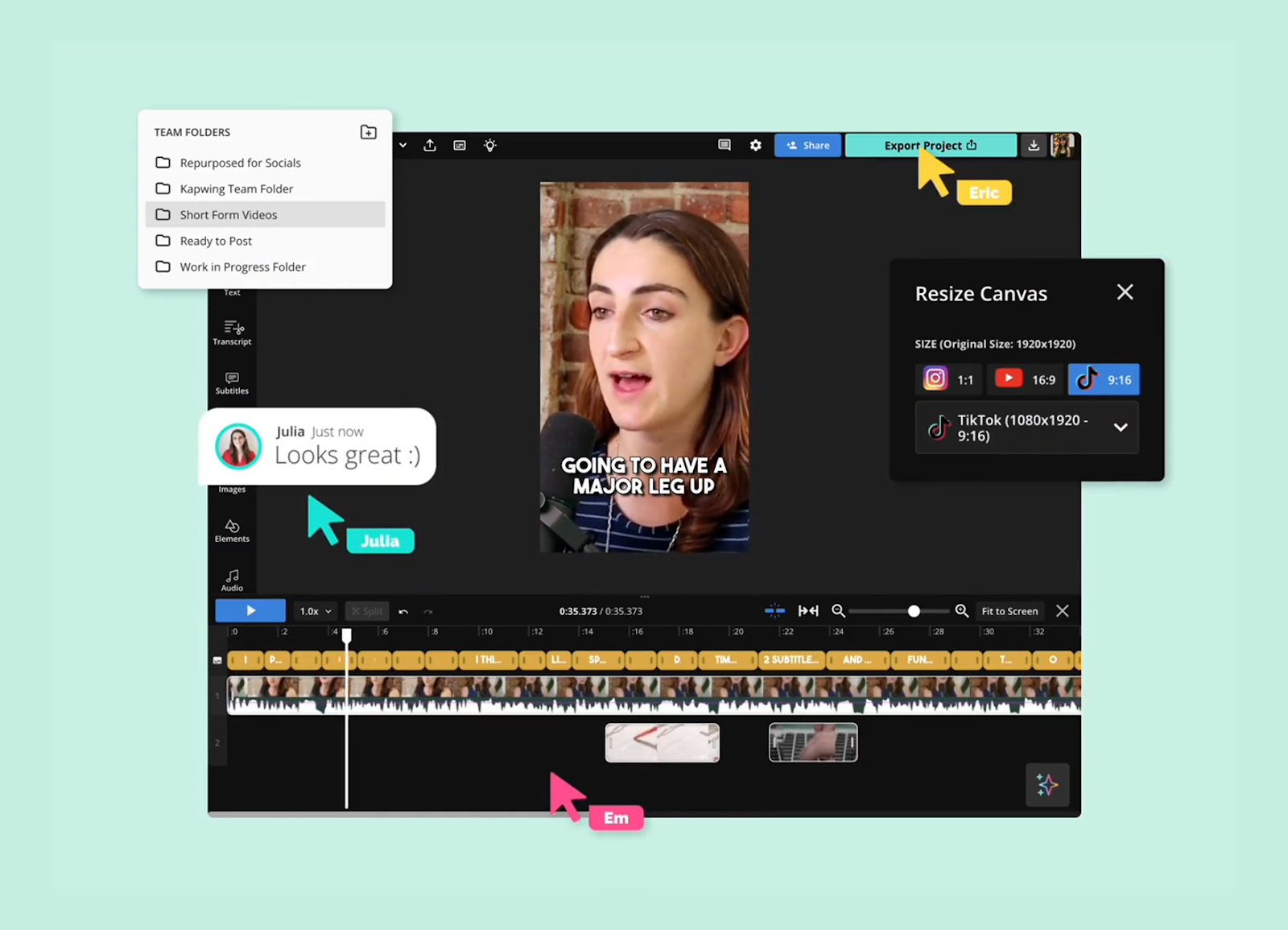
Kapwing is a cloud-based collaborative video editor that runs entirely in the browser, built for teams that need to produce social video quickly without installing software. Its AI features, Magic Create and Smart Cut, are among the most capable in the general editing category.
For straightforward editing tasks, it delivers. The limitations become visible at scale: the 120-minute export ceiling is a hard stop for podcasters, and the 6GB upload cap is tight for 4K footage.
Kapwing does offer a Repurpose Studio that generates clips from long recordings using AI, but it operates within the same 120-minute export ceiling and 6GB upload cap, and still requires prompt-based guidance to direct the output.
Key Features
- Magic Create: Generates a complete video from a text prompt, no footage required.
- Smart Cut: Detects and removes silences and dead air automatically.
- Auto-subtitles: Transcribes and captions video in multiple languages, up to 1000 minutes per month on Pro.
- Format resizing: Reformats any video for platform-specific aspect ratios in one click.
- Team collaboration: Supports shared project libraries and multi-user editing in the cloud.
Pricing
Kapwing offers a free plan with watermark and a 1-minute export cap. Its Pro plan starts at $16 per member/month billed annually or $24 billed monthly, with a 120-minute export limit and 6GB upload cap.
The business plan is priced at $50 per member/month, billed annually or $64 billed monthly. They also offer an Enterprise plan at custom pricing.
Limitations of Kapwing
- Repurpose Studio requires prompt-based guidance, which means the clip selection process isn’t fully automated and needs your input to produce usable output.
- The 120-minute export cap and 6GB upload limit make it impractical for podcasters and anyone working with long or high-resolution recordings.
- The credit-based AI system can run out mid-project without warning, cutting off access to subtitling and AI editing tools until the next billing cycle.
- There is no built-in social scheduling, so every clip you produce still needs to be manually exported and uploaded to each platform separately.
- Rendering slowdowns are a recurring complaint during peak usage hours, particularly for longer or more complex projects.
5 Best Kapwing Alternatives in 2026
- Klap
- Descript
- VEED.io
- InVideo
- Clipchamp
1. Klap
We built Klap to handle the part of short-form video production that takes the most time and requires the least creativity: finding the right moments inside a long recording.
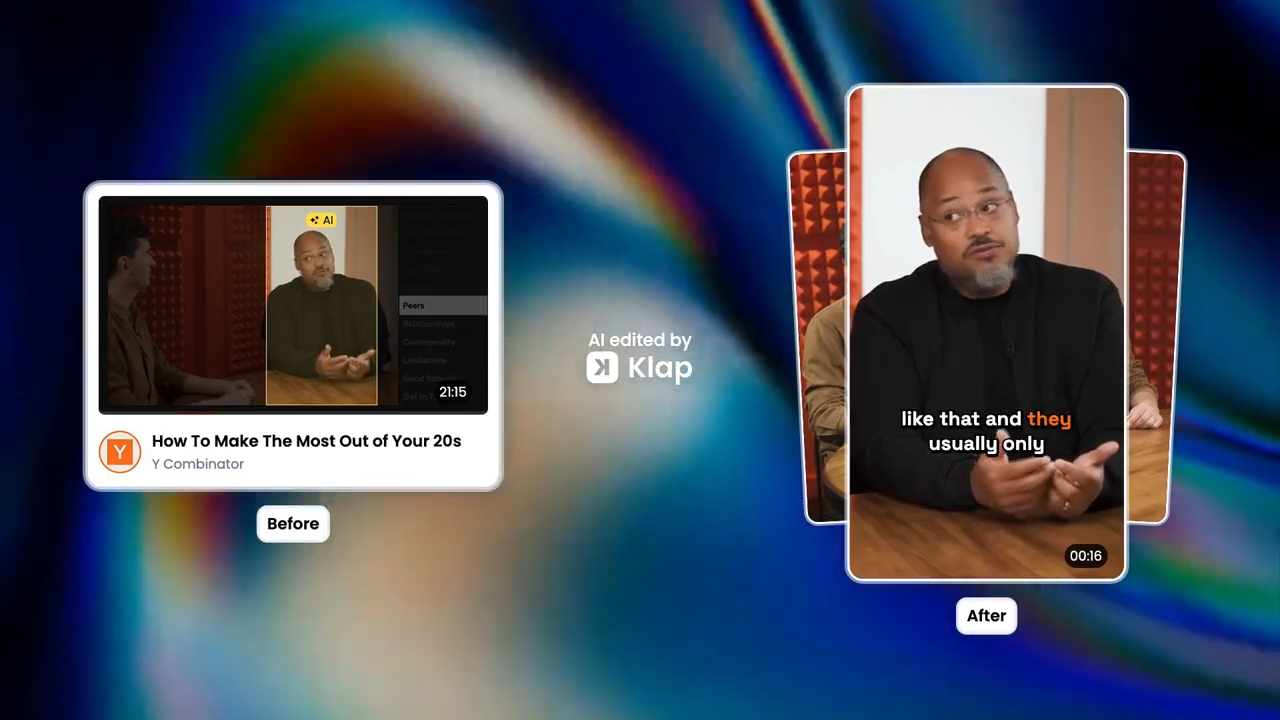
Upload a podcast episode, a webinar, or a recorded interview, and our AI analyzes the full video, identifies the highest-engagement segments based on speech and topic patterns, and produces multiple vertical clips complete with reframing and animated captions.
No timeline work required.
Our reframing engine, AI Reframe 2, reads the scene context automatically and selects the right layout. It splits screen for dual-camera conversations, standard vertical for single-speaker footage, screencast view for recorded demos. It tracks speaker movement so the subject stays centered even when they move around.
Captions are generated across 52 languages, which matters if you are publishing for non-English audiences or want to reach on platforms where viewers watch on mute.
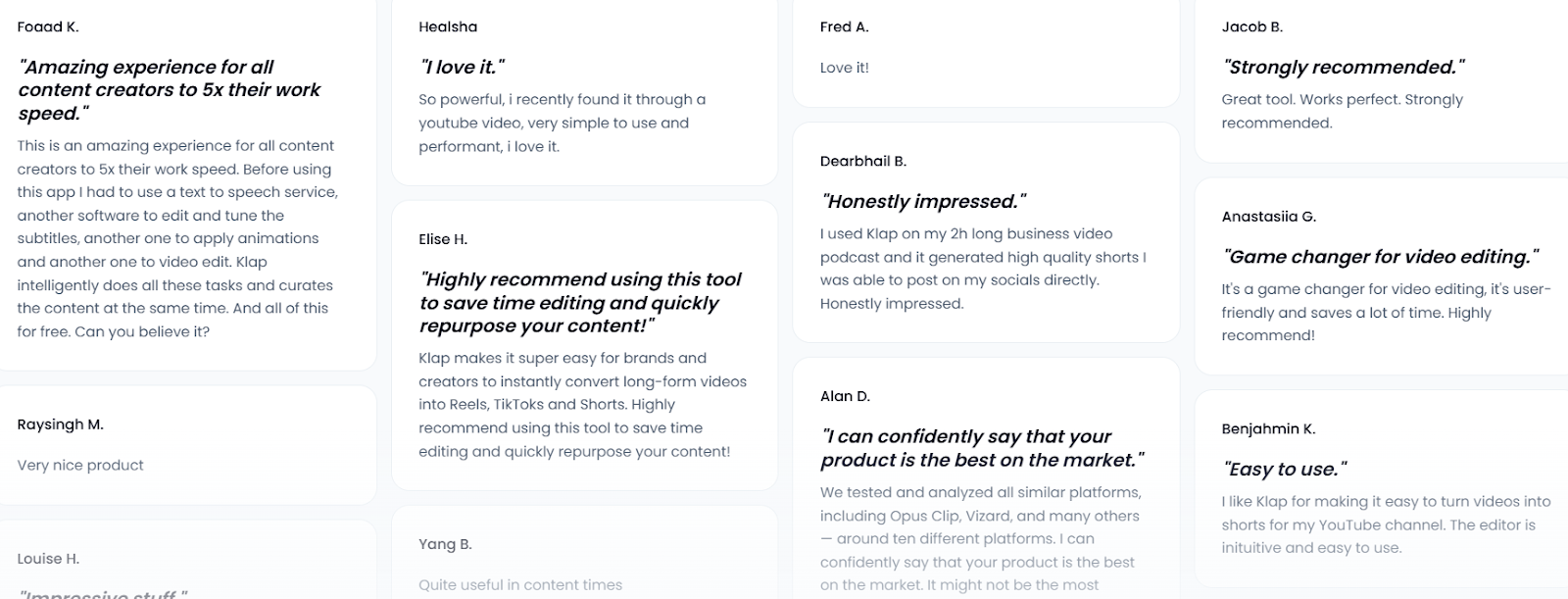
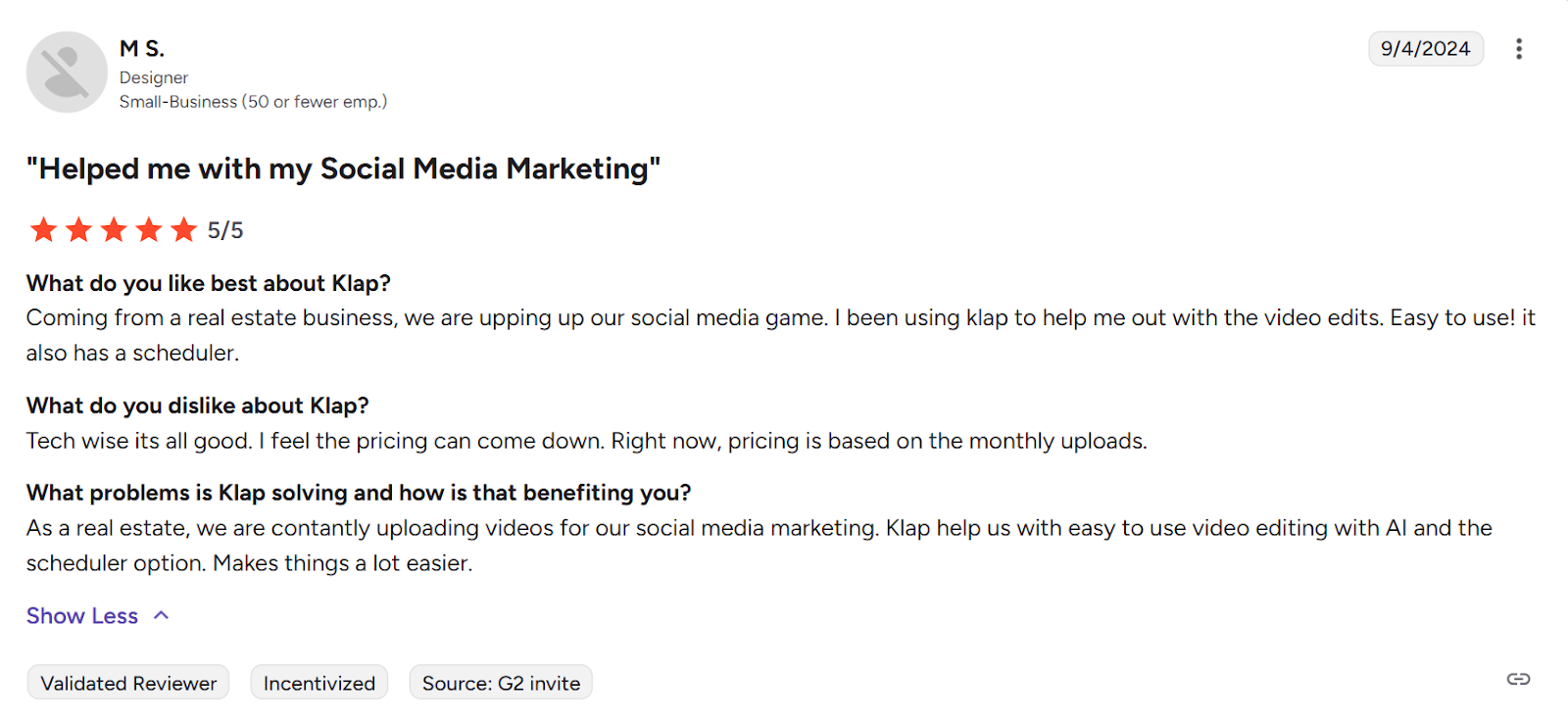
A real estate business on G2 noted they use Klap for consistent social media video uploads, relying on the AI editing and built-in scheduler to keep content moving without slowing down their workflow.
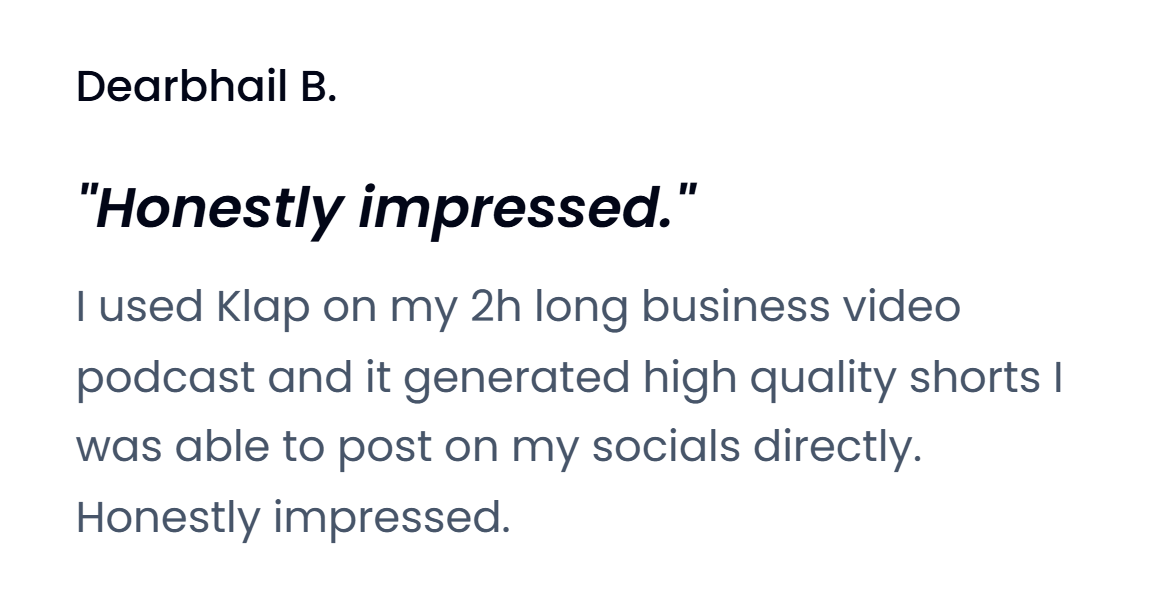
Podcasters have shared similar experiences, using Klap to extract clips from two-hour recordings and publish directly to TikTok and Reels with minimal post-processing.
Key Features
- AI moment detection: Analyzes the full video and extracts the highest-engagement segments automatically, no manual scrubbing needed.
- AI Reframe 2: Selects the right vertical layout per scene and tracks speaker movement to keep subjects centered throughout.
- Animated captions: Generates timed, styled captions in 52 languages as part of the same automated output.
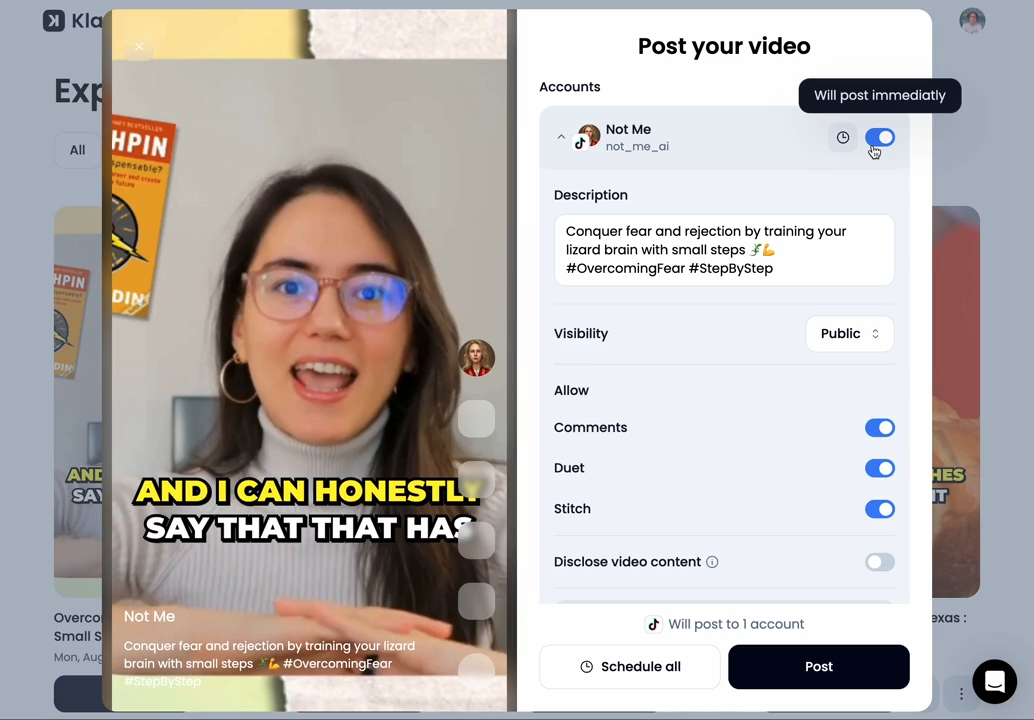
- Social scheduling: Publishes clips directly to TikTok, Reels, and Shorts from within the platform.
- Brand customization: Lets you adjust fonts, colors, and logos to match your visual identity across all clips.
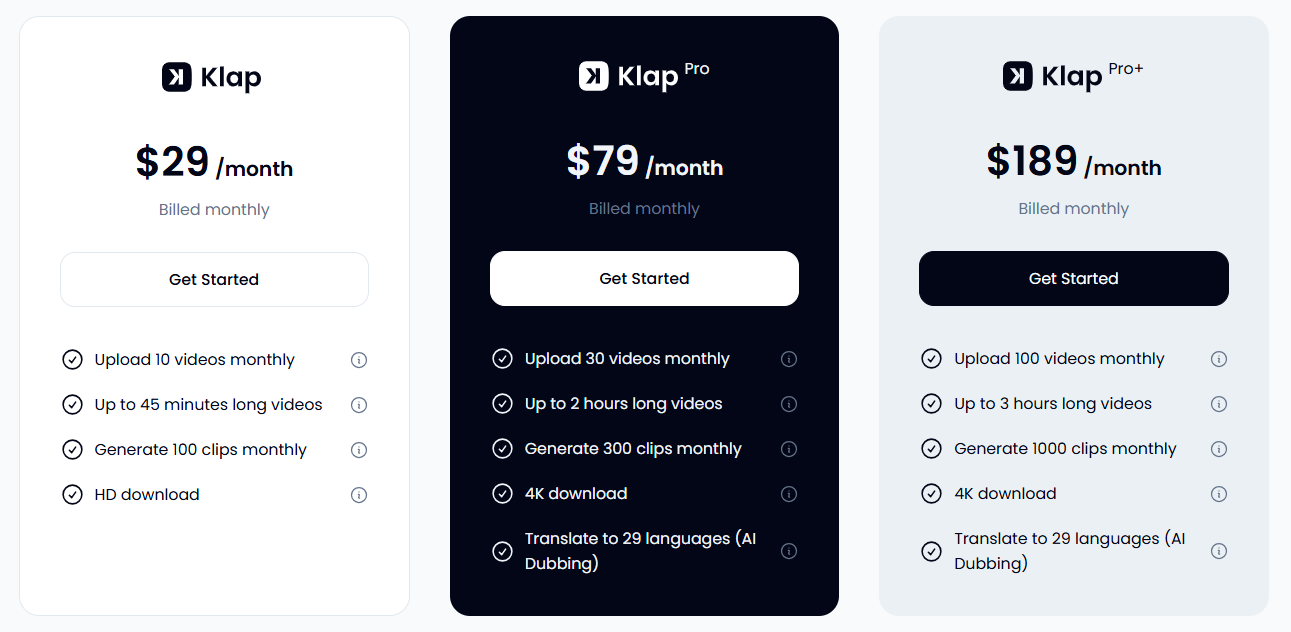
Our pricing includes a Starter plan at $29/month (10 videos up to 45 minutes, 100 HD clips), a Pro plan at $79/month (30 videos up to 2 hours, 300 clips in 4K), and a Pro Plus plan at $189/month (100 videos up to 3 hours, 1,000 clips in 4K).
You can create 1 video for free on Klap to decide if you want to upgrade to any of these paid plans.
Pros
- Fully automated clip extraction with no timeline editing required
- Reframing, captions, and scheduling handled in one workflow
- 52-language caption support for international publishing
- Purpose-built for conversational long-form content
Cons
- Works best with speech-heavy, single-speaker video; less effective for music or gaming content
- Free plan is limited enough that it is better treated as a preview than a real trial
2. Descript
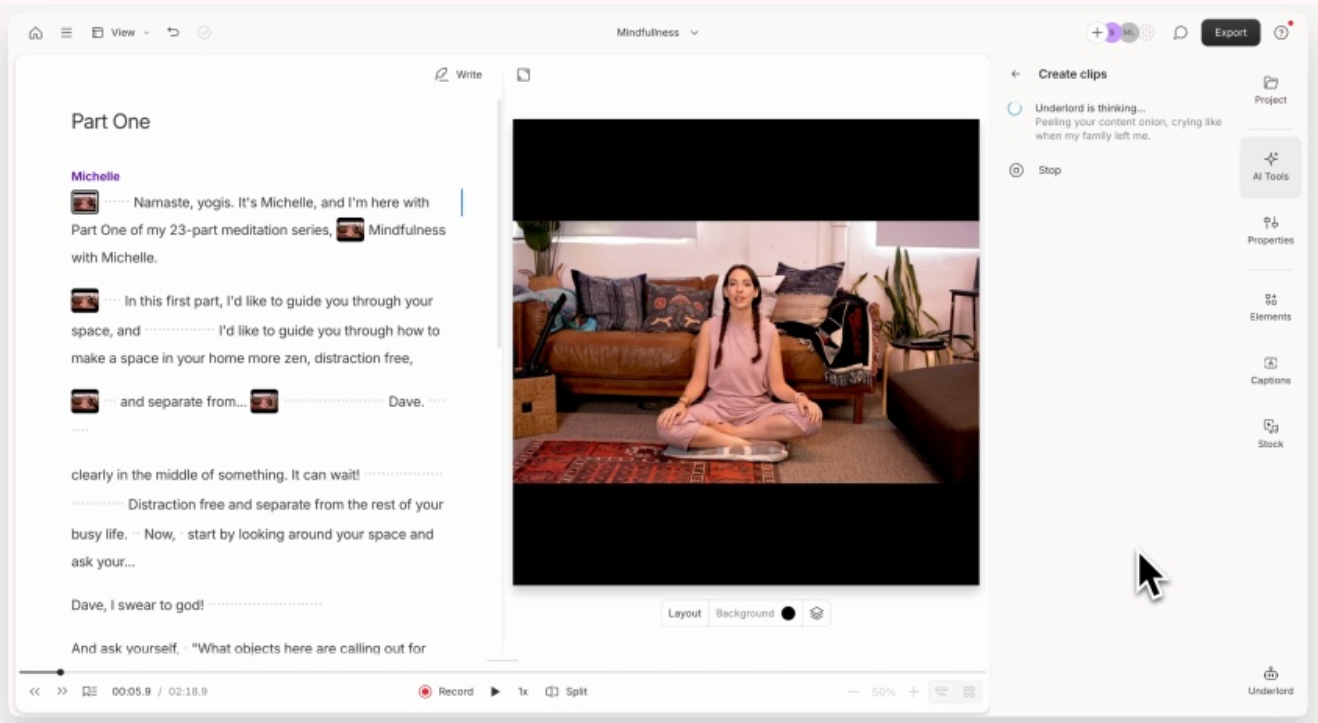
Descript is a podcast and video editor that lets you edit footage by editing a transcript. Delete a sentence from the text, and the corresponding audio and video disappear. Filler word removal works in one click, and the Studio Sound feature meaningfully improves audio recorded in non-professional environments.
It is a legitimate tool for anyone who wants fine editorial control over spoken content and prefers working in text rather than on a timeline. The ceiling appears when you need fast output: Descript requires deliberate editing decisions, which is its strength but also its speed limit.
Key Features
- Transcript-based editing: Edit video and audio by editing the script, deleting text removes the corresponding footage, making dialogue-heavy content fast to cut.
- Studio Sound: AI audio enhancement that reduces background noise and room echo in one click, without needing a professional recording setup.
- Filler word removal: Detects and removes "um," "uh," and similar words automatically across the entire recording.
- Underlord AI co-editor: An AI assistant that can handle tedious editing tasks like identifying the best moments, generating clips, and summarizing content on command.
- Screen recorder and Rooms: Built-in recording tools for both screen capture and remote multi-participant sessions, with lossless WAV audio output.
Pricing
Descript offers a free plan with 60 media minutes per month and limited AI credits. Paid plans start at $24/month for Hobbyist (10 hours of media, 400 AI credits), $35/month for Creator (30 hours, 800 AI credits, 4K export), and $65/month for Business (40 hours, 1,500 AI credits, shared Brand Studio, priority support).
All prices are monthly; annual billing reduces costs by 35% across all tiers.
Pros
- Editing by deleting transcript text is genuinely faster than scrubbing a timeline for interview and podcast content
- Studio Sound consistently improves audio quality, even for creators recording in poor acoustic environments
Cons
- AI credits introduced in September 2025 can run out quickly for heavy users, and unused credits don’t roll over
- Transcription accuracy drops with heavy accents or technical jargon, requiring manual correction before editing
3. VEED.io
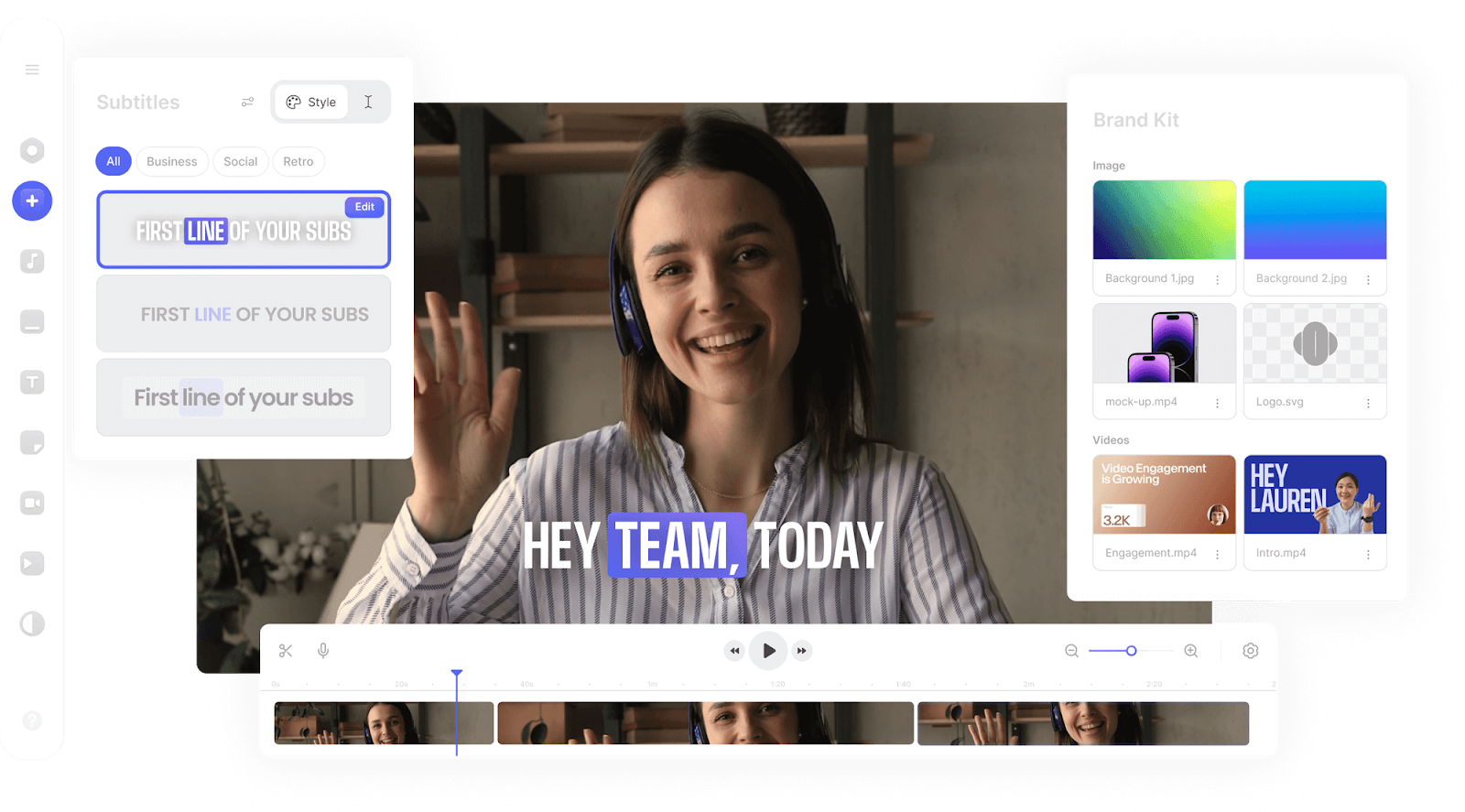
VEED.io is a browser-based video editor with strong auto-subtitling and translation across 125 languages. For teams that need captions and basic editing without downloading anything, it is genuinely accessible, and the subtitle accuracy is reliable.
The operational experience is less consistent: bugs and rendering delays come up regularly, and the customer support situation has drawn sustained criticism.
One thing worth flagging is that VEED previously offered a dedicated podcast clipping tool that let you turn long recordings into short social clips directly, and a user also switched from Kapwing to VEED specifically for that feature. It was discontinued with little warning, leaving teams that had built workflows around it in a difficult spot.
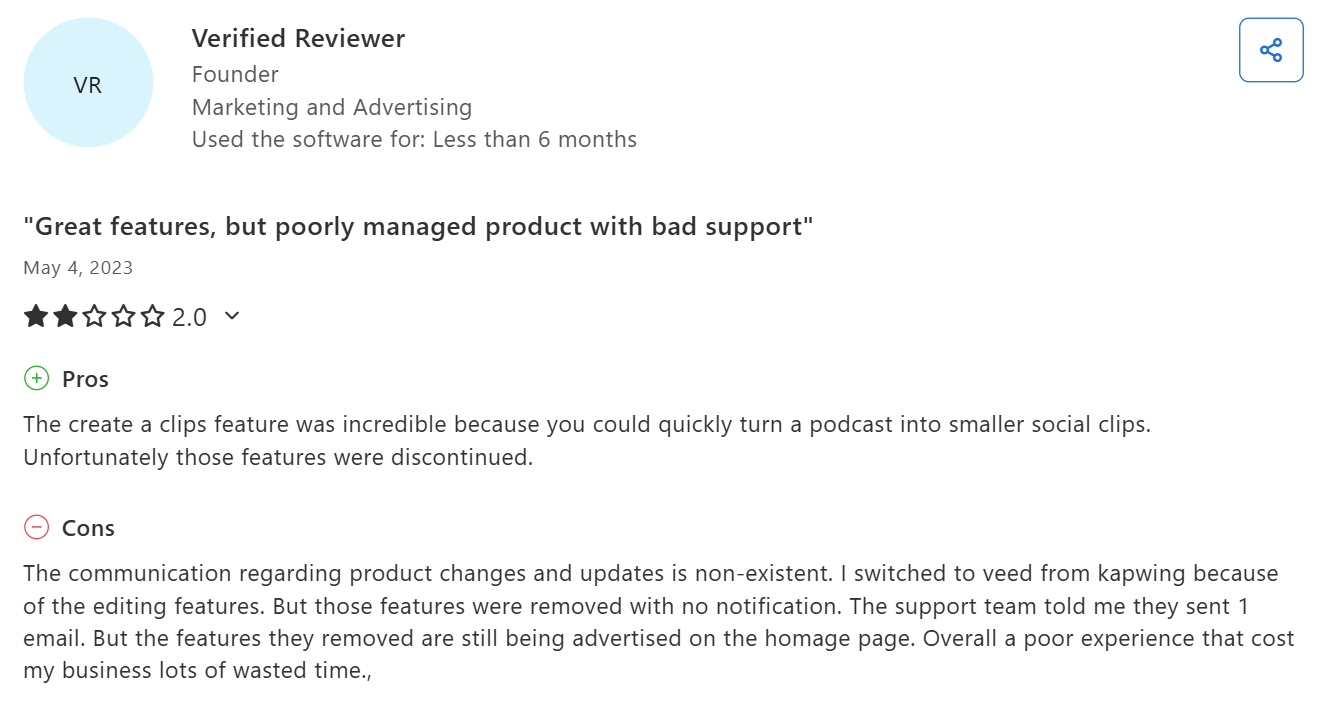
VEED has since reintroduced some clip generation capability inside its main editor, so the feature exists in some form today, but the original dedicated tool is gone, and the transition was handled poorly enough that it still comes up in reviews.
Key Features
- Auto-subtitles: Generates captions in 125+ languages with accuracy on clear English audio, with full styling controls for font, color, and position.
- Magic Cut: Strips filler words, dead air, and awkward pauses automatically from recordings.
- AI dubbing: Translates spoken audio into multiple languages using AI-generated voiceovers, useful for repurposing content across language markets.
- AI Clips: Generates short highlights from longer videos inside the main editor, replacing the discontinued dedicated podcast clipping tool.
- Brand Kit and team collaboration: Allows shared project libraries, custom fonts, color palettes, and team access to maintain visual consistency.
Pricing
VEED offers a free plan with limited features. Paid plans start at Creator ($20/month per editor, 100 video clips), Pro ($44/month per editor, 500 clips, multiple Brand Kits and AI voice), and Studio ($70/month per editor, 3,000 clips, Custom Templates and access to all AI models).
Enterprise is custom-priced.
Pros
- Subtitle translation accuracy across a wide range of languages gives reliable and faster workflows
- The browser-based editor requires no downloads and works well for quick collaborative editing across distributed teams
Cons
- Bugs and rendering failures are frequent enough that the platform becomes unusable for hours at a time during peak periods
- Customer support is widely described as unresponsive, with some users reporting that automated replies are the only response they receive
4. InVideo
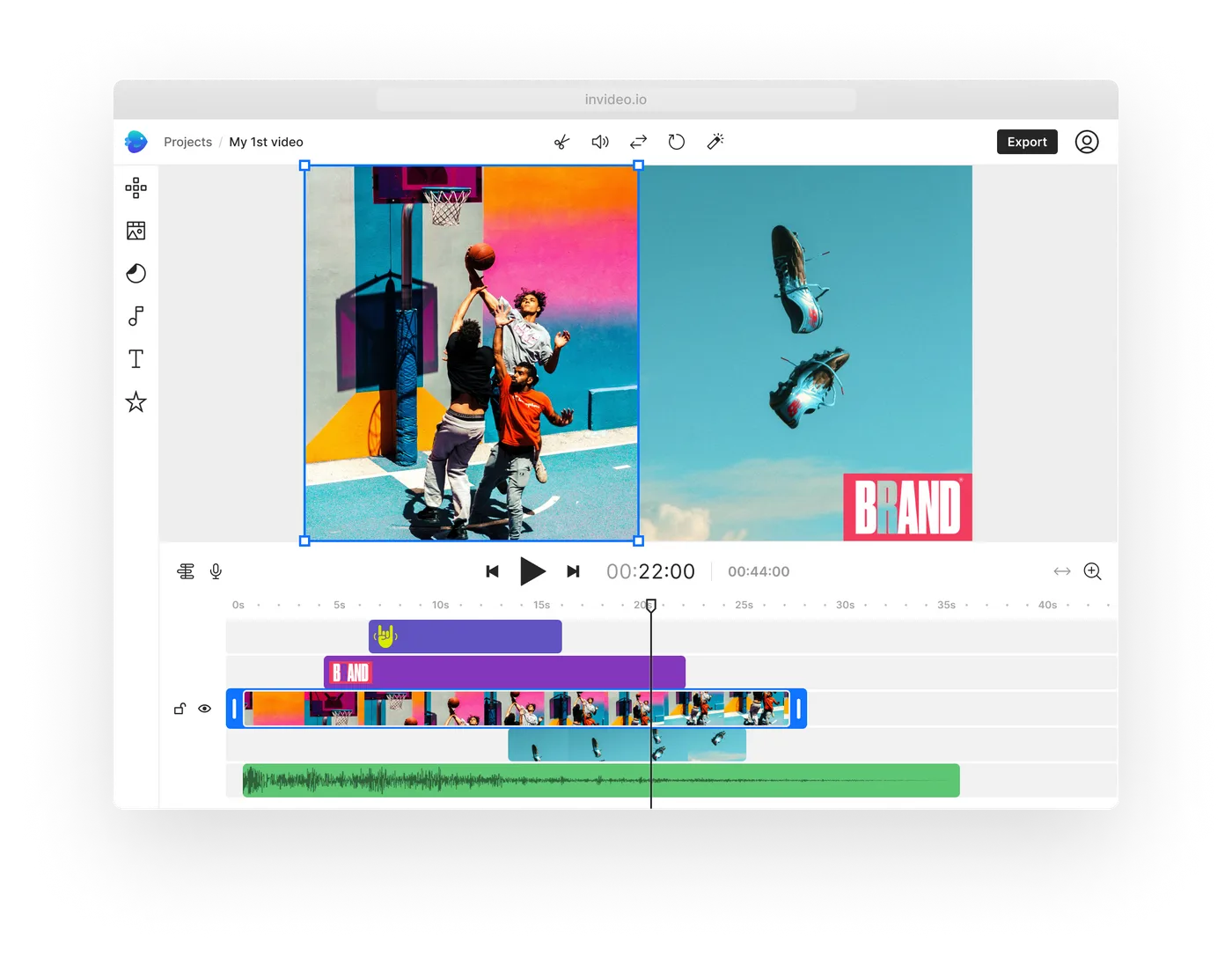
InVideo is a template-driven video creation platform built around producing video from scripts, prompts, or blog posts rather than from existing recordings. If your starting point is written content and you want to turn it into a social video quickly, InVideo is effective. If your starting point is a recorded video and you want clips from it, InVideo is the wrong tool.
The credit system has frustrated a meaningful number of users who report burning through their plan allowance much faster than expected.
Key Features
- Text-to-video AI: Converts a script, article, or text prompt into a full video with matched stock footage, voiceover, and subtitles automatically.
- AI Magic Editor: Accepts plain-text commands to make edits — type what you want changed, and the AI applies it directly to the video.
- Voice cloning: Lets you create a personalized AI voiceover using your own voice, so automated videos maintain a consistent audio identity.
- Stock media library: Provides access to millions of licensed assets from Storyblocks and Shutterstock, usable directly inside the editor.
- Multi-format export: Produces videos in 480p, 720p, 1080p, and 4K with aspect ratio options for YouTube, TikTok, Instagram, and other platforms.
Pricing
InVideo offers a free plan with watermarked exports and limited weekly generation credits. Paid plans are structured around credit usage: the Plus plan starts at $25/month and the Max plan at $60/month, with the Generative plan at $200/month for access to advanced AI models, including Sora 2 and VEO 3.1.
Pricing is credit-based, meaning your available generation time depends on which quality tier you select per video, not a simple monthly minute allowance.
Pros
- Turning a blog post or detailed script into a structured, ready-to-export video takes minutes and requires no editing skill
- Access to a massive, integrated stock library through Storyblocks and Shutterstock means you rarely need to source footage externally
Cons
- The credit system consumes far faster than most users anticipate
- Refund policies are rigid: creating any video, even an unusable one, can void eligibility for a refund within the stated guarantee window
5. Clipchamp
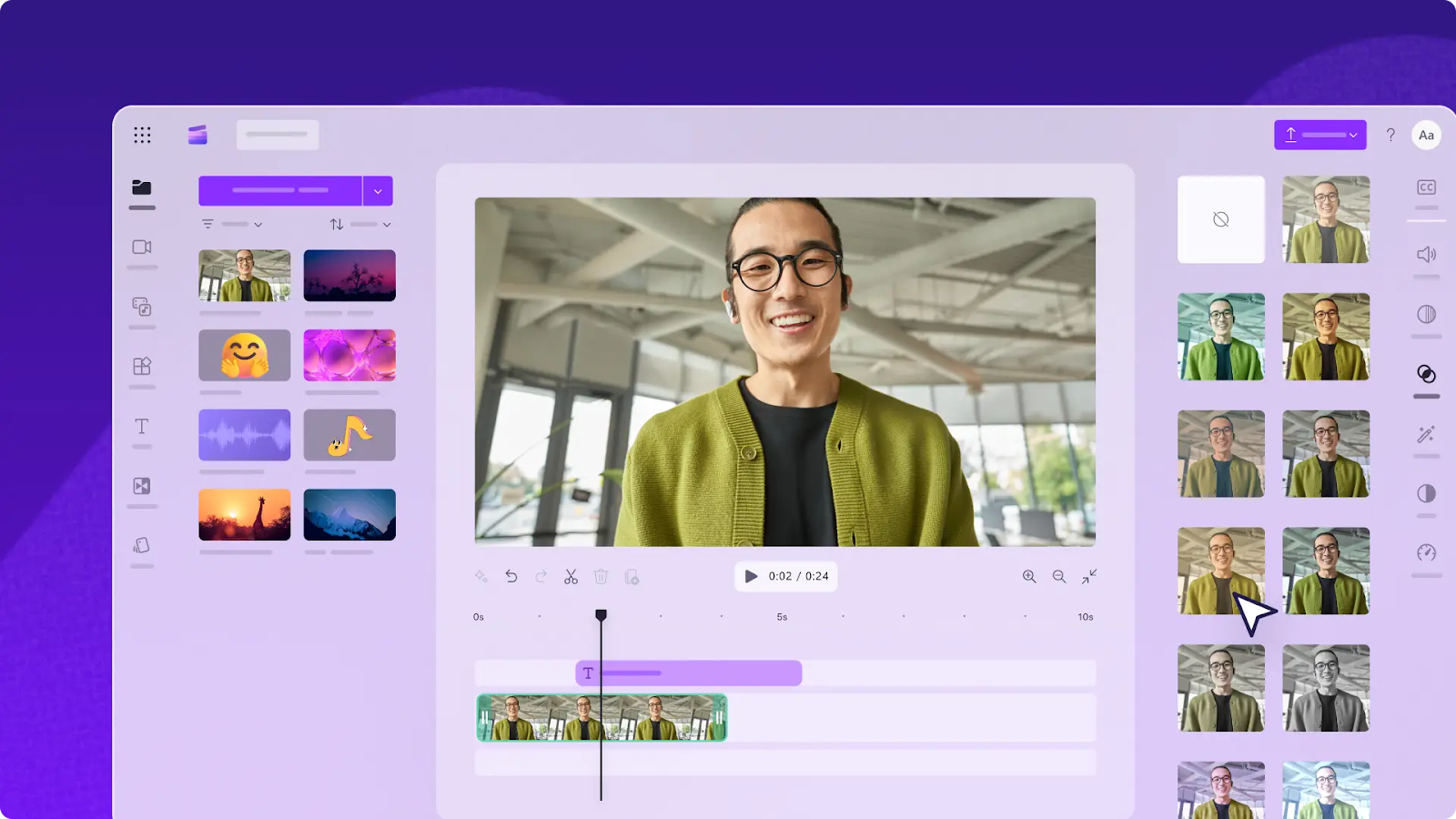
Clipchamp is Microsoft's free browser editor, integrated into Windows 11 and Microsoft 365. For users who need basic cuts, auto-captions, and simple formatting at no cost, it is the most accessible option on this list.
The free tier has no meaningful export cap and no watermark for standard resolutions, which gives it a practical advantage over Kapwing's free plan. However, advanced editing, motion graphics, and anything involving large or complex files runs into performance and stability issues.
Key Features
- Browser-based editor: Runs entirely in the browser with no downloads, supporting trimming, cropping, transitions, and text overlays out of the box.
- Auto-captions: Generates subtitles automatically from spoken audio, with manual correction available in the transcript.
- Text-to-speech: Converts typed text to AI-generated voiceover using a range of voice options, useful for narration without a microphone.
- Screen and camera recording: Built-in recording tools for capturing screen content, webcam footage, or both simultaneously.
- Microsoft 365 integration: Works directly within the Windows 11 ecosystem and integrates with OneDrive for cloud storage and project access.
Pricing
Clipchamp is free for all standard features with no watermark and 1080p export available on the free tier. A Premium plan is available for Microsoft 365 subscribers and adds premium stock assets and some additional filters.
For most users, the free tier covers everything they need.
Pros
- The free tier is usable for finished content, with no watermark and 1080p export, which puts it ahead of Kapwing's free plan for basic editing needs
- The combined screen and camera recording, auto-captions, and text-to-speech cover a complete tutorial or explainer workflow without any additional tools
Cons
- A forced OneDrive migration update caused complete and unrecoverable data loss for multiple users across Product Hunt and Capterra reviews — a significant risk for anyone storing ongoing projects in the platform
- Performance degrades noticeably with larger or more complex files, making it unsuitable for anything beyond short social clips
Repurpose Your Videos Better with Klap
Kapwing is a good editor. If your workflow is primarily original video creation with a team and you stay within its export limits, it works well. The gap appears when you want that repurposing to be fully automated and frictionless.
Klap is built for exactly that. Upload your recording, let our AI find the moments, review the clips, and push them to your channels. No timeline, separate captioning step, or reframing work.
Try Klap for free today and see the difference yourself.
