
How to Loop a YouTube Video (Desktop, Mobile & Playlists)
Other
Quick Summary
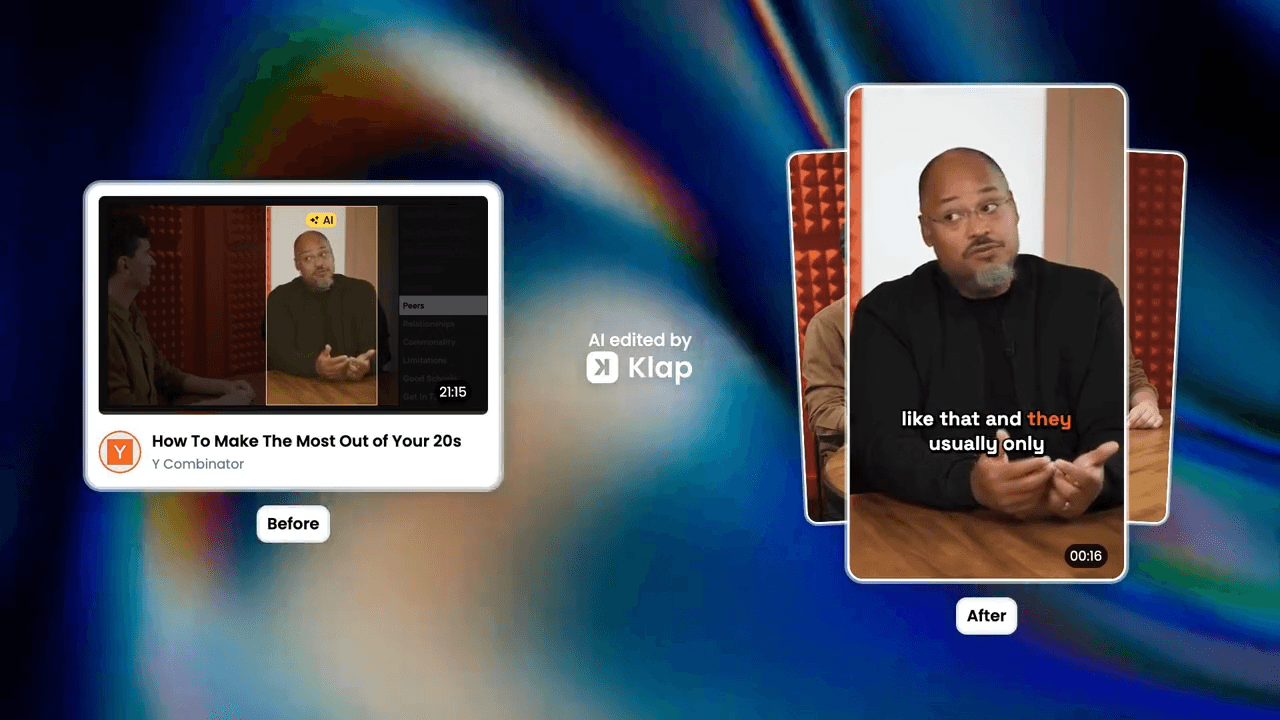
This article explains how to loop YouTube videos on any device using built-in features, playlists, and third-party tools. Step-by-step instructions cover desktop browsers, mobile apps, and playlist looping. You’ll also learn best practices for study sessions, music practice, or background ambience. Visit our blog to learn how Klap helps creators turn long videos into engaging short clips that viewers will want to watch on repeat.
Having Trouble Looping YouTube Videos?
You found the perfect video, but every time it ends, you have to restart it manually. This interrupts your focus and flow. YouTube looping fixes this by letting any video play continuously across all devices without interruption.
Interest in looping YouTube videos has grown steadily as people use loops for productivity, workouts, and learning without restarting videos manually. Musicians and creators often watch their own content repeatedly to make precise editing and creative decisions.
In this Klap guide, you’ll learn several ways to loop YouTube videos. You’ll also discover how Klap helps creators turn long videos into engaging clips that viewers will want to watch on repeat.
Why Listen to Us?
At Klap, we’ve helped over two million creators turn long recordings into high-performing short clips that capture viewers’ attention. Our AI platform analyzes thousands of videos daily to identify engaging moments, reframes them for vertical formats, and adds captions in 50+ languages. This experience gives us a deep understanding of what makes videos compelling enough for viewers to loop them naturally.
What Is YouTube Video Looping?
YouTube video looping is the process of making a video play repeatedly without stopping. When the video ends, it automatically restarts from the beginning, creating continuous playback until you turn looping off. This feature works across desktop browsers, mobile devices, and smart TVs.
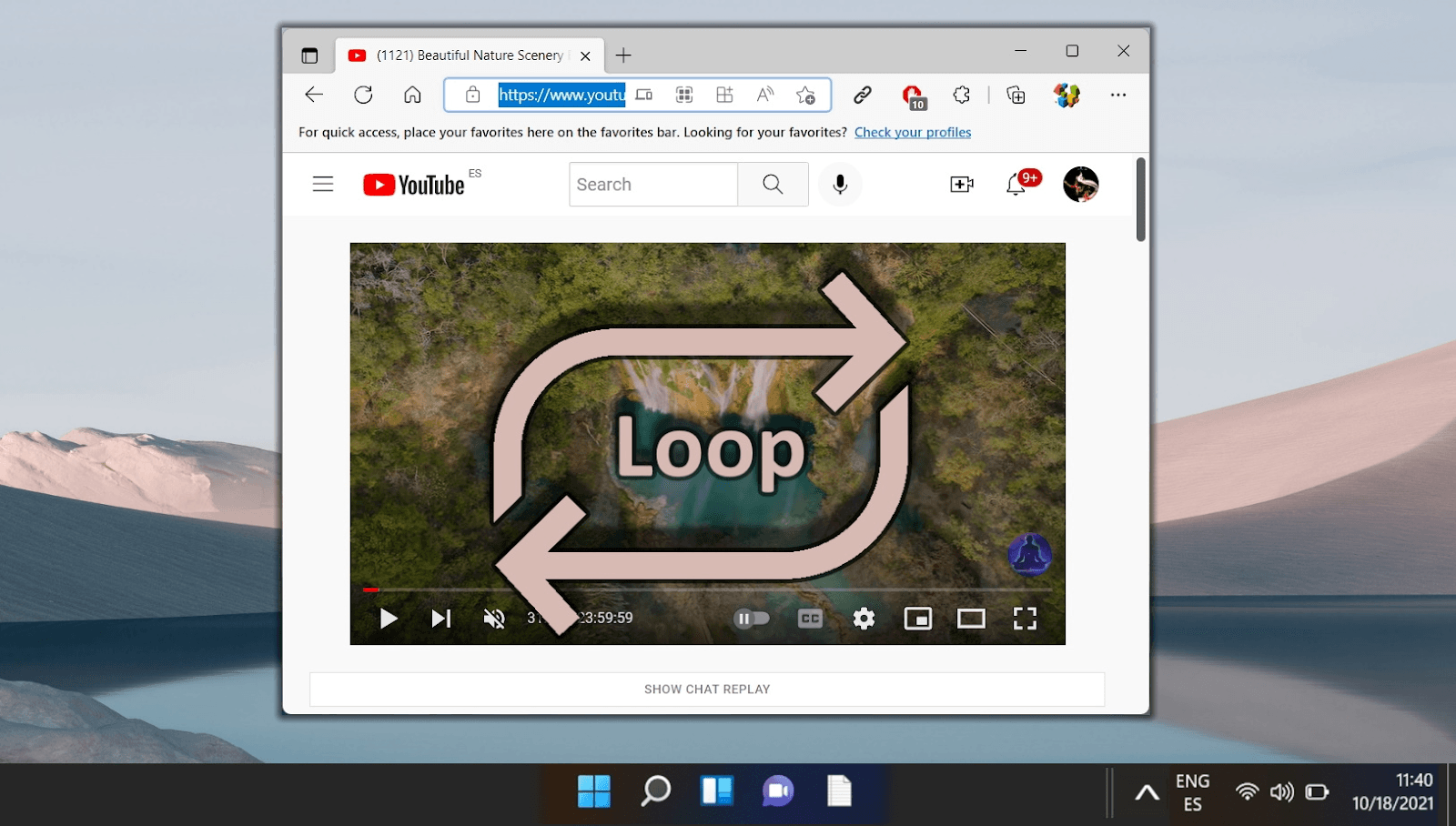
You can loop any YouTube video, from a 30-second clip to a multi-hour playlist. Looping is useful for music, tutorials, meditation tracks, and other content you want to replay continuously. This functionality is built into YouTube’s player and can also be accessed through third-party tools and browser extensions.
Why Loop YouTube Videos?
Looping videos keeps content playing continuously, helping you focus, practice skills, or create a steady atmosphere. Here are some of the most common ways people use video looping.
- Study and focus on music: Looping background music or white noise creates a steady environment for concentration. Students and remote workers often use looped videos to maintain focus during long study or work sessions.
- Tutorials and learning: Complex tutorials often require multiple viewings to master techniques. Looping allows you to practice along with the video repeatedly, eliminating the need to restart each time and making skill development more efficient.
- Relaxation and meditation: Guided meditations and breathing exercises are most effective when played repeatedly. Looping creates an uninterrupted, calming experience without any jarring breaks at the end of the video.
- Workout videos: Exercise routines with specific intervals benefit from looping. This allows you to complete multiple rounds of a workout without stopping to restart the video, helping you maintain your heart rate and workout intensity.
- Perfect background ambiance: Videos featuring rain sounds, fireplace scenes, or nature footage are ideal for looping. They provide continuous background ambiance for relaxation, sleep, or setting a specific mood in your space.
How to Loop a YouTube Video
Method 1: How to Loop a YouTube Video on Desktop
YouTube’s built-in loop feature works on all major browsers, including Chrome, Firefox, Safari, and Edge. Follow these steps to loop any video on your desktop:
Step 1: Select the YouTube Video
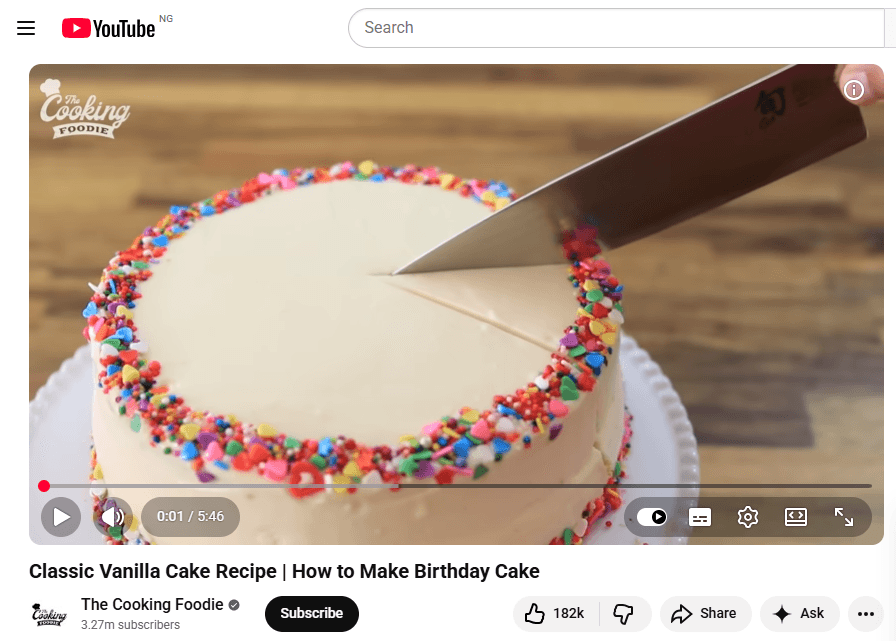
Go to YouTube.com and select the video you want to loop. Click play to start it. Make sure the video is playing in YouTube’s main player, not on another website. Videos embedded elsewhere may hide the full right-click menu needed to enable looping.
Step 2: Right-Click on the Video Player
Right-click directly on the video player. Avoid clicking on the page around it. A menu will appear with several options. Sometimes the first click brings up the browser menu instead of YouTube’s menu. If this happens, close that menu and right-click again to access YouTube’s controls.
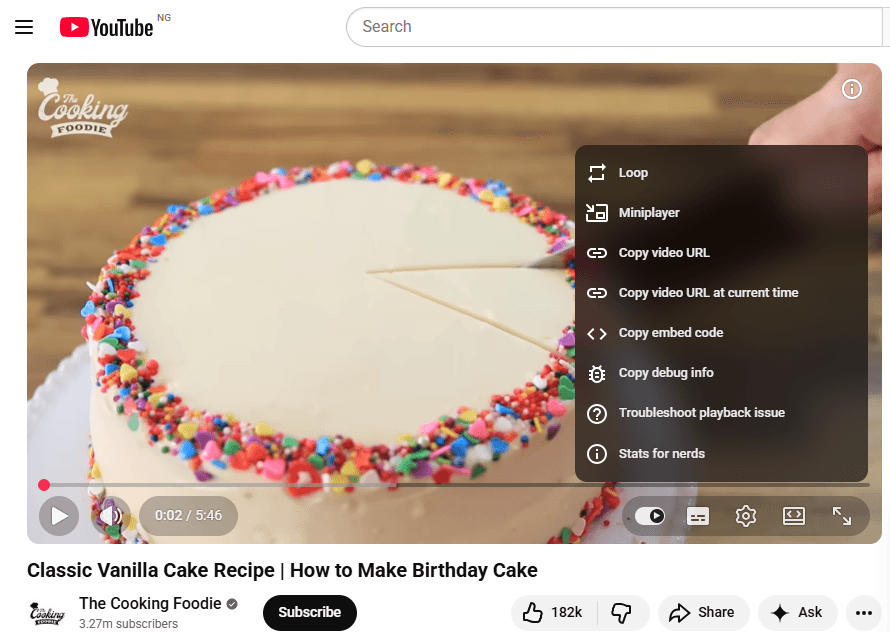
Step 3: Select "Loop"
In the menu, find and click on the "Loop" option. You'll usually see it near the top of the menu. A small checkmark will appear next to "Loop." This shows it's now active. To disable looping, right-click the video again and uncheck the "Loop" option.
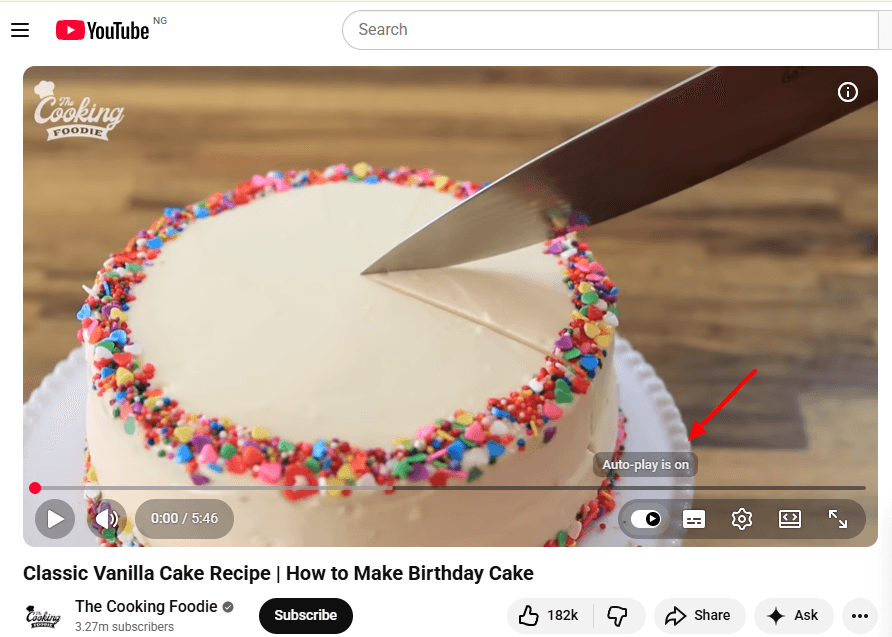
Step 4: Verify the Loop is Active
Let the video play until it reaches the end. It should automatically start over from the beginning. Right-click the video again to check that the small checkmark next to "Loop" is still visible. This confirms that looping is active.

Troubleshooting the Right-Click Menu
Sometimes right-clicking a video does not show the loop option. This usually happens for one of the following reasons:
1. The "Double Right-Click" Trick
If you are watching a video embedded on another website, the first right-click may show the browser menu instead of YouTube’s menu. To fix this, right-click once to select the player, move your mouse slightly, and right-click again to reveal YouTube’s controls.
2. Ad Interruptions
You cannot access the loop menu while an ad is playing. Wait for the ad to finish or hit "Skip Ad" before attempting to right-click. Once the actual video starts, the right-click menu will function normally.
3. Keyboard Shortcuts
There is no direct keyboard shortcut to toggle looping on or off. However, you can quickly restart a video by pressing the 0 (zero) key on your keyboard, which jumps instantly back to the beginning.
Method 2: How to Loop a YouTube Video on Mobile
The YouTube mobile app for iOS and Android uses a streamlined interface. The Gear icon now handles most video settings, replacing the old three-dot menu. Follow these steps to enable looping:
Step 1: Open the YouTube App
Launch the YouTube app on your iPhone, iPad, or Android device. Open the video you want to loop and start playing it.
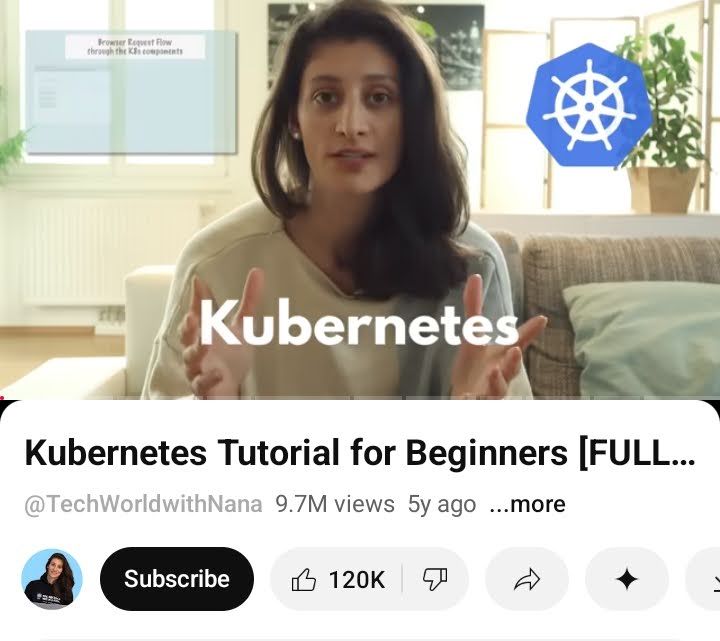
Step 2: Access Video Settings
While the video is playing, tap the video player once to show the controls. In the top-right corner, tap the Gear icon (Settings). This opens options for video quality, playback speed, captions, and additional settings.
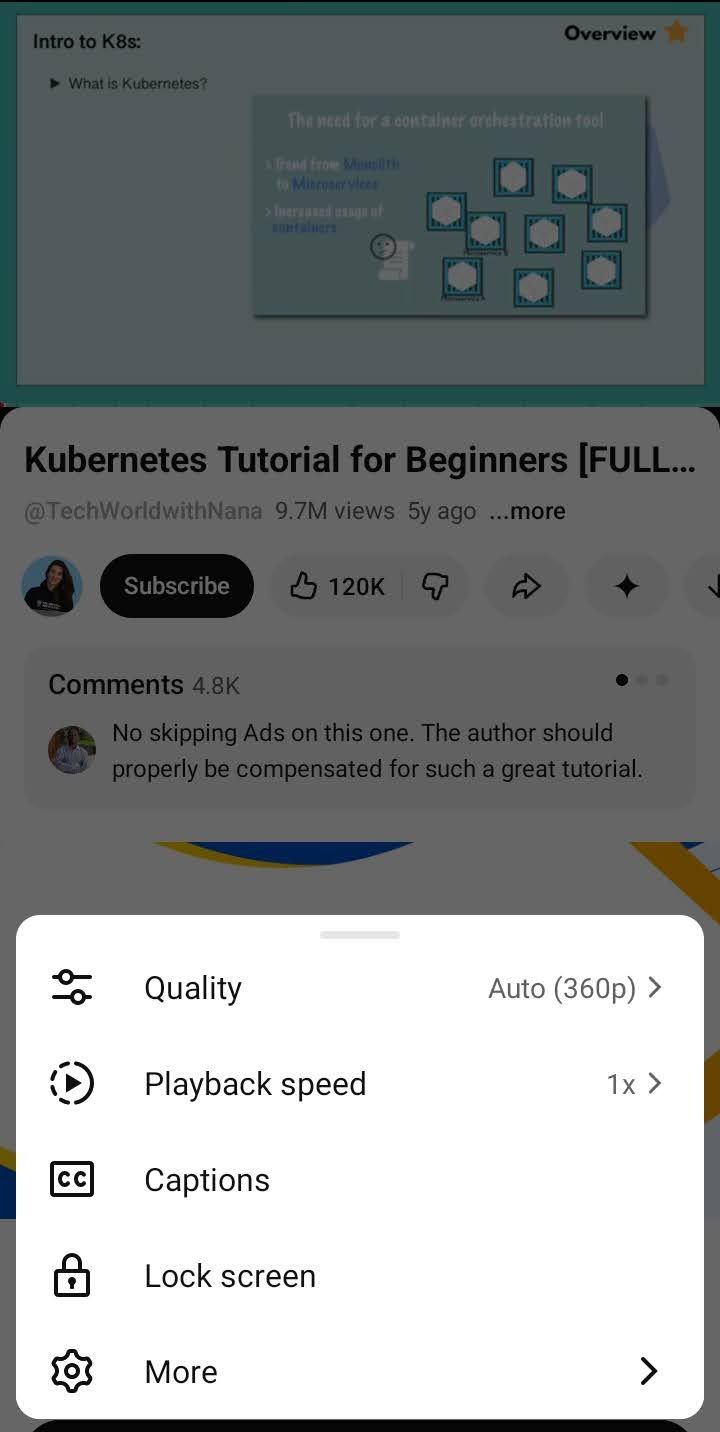
Step 3: Find Additional Settings
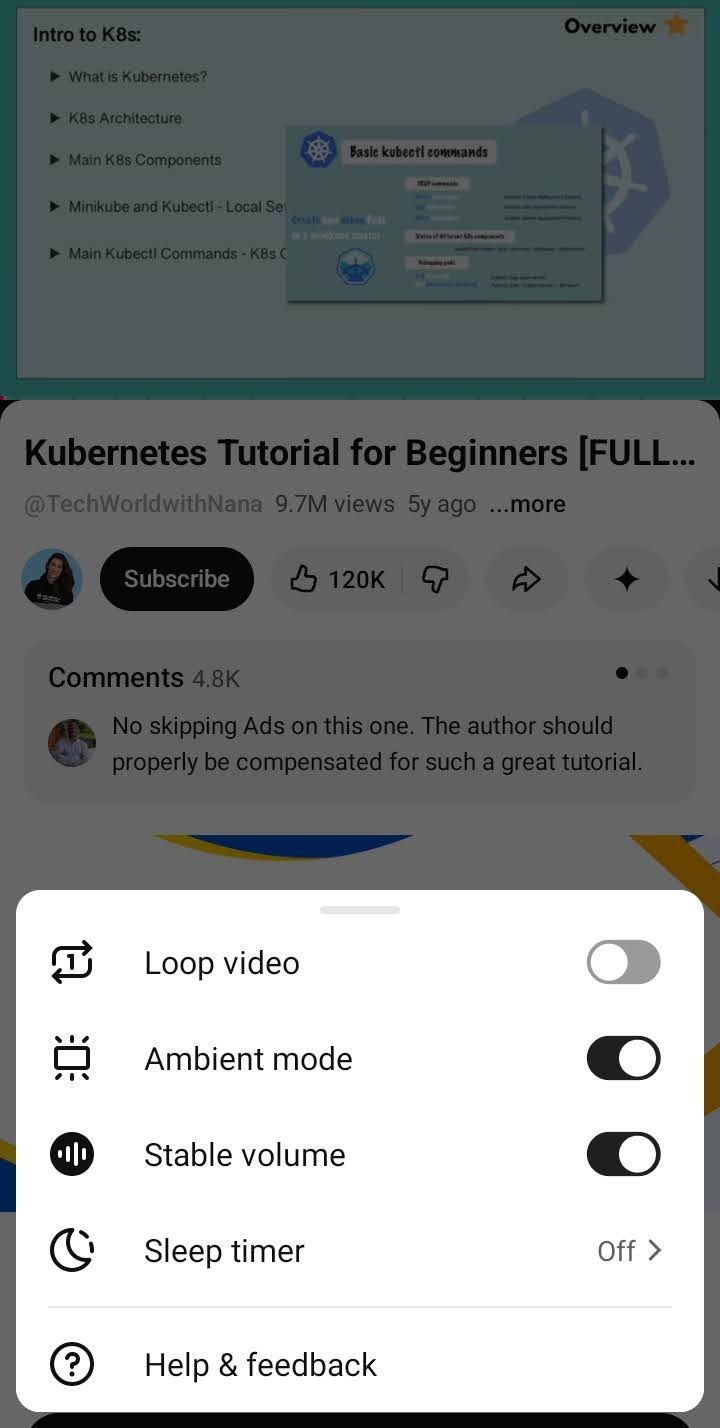
A pop-up menu will appear. Tap "Additional settings" at the bottom of the list to access advanced playback options. To turn off looping, return to the same menu and toggle the loop option off.
Step 4: Enable Loop Video
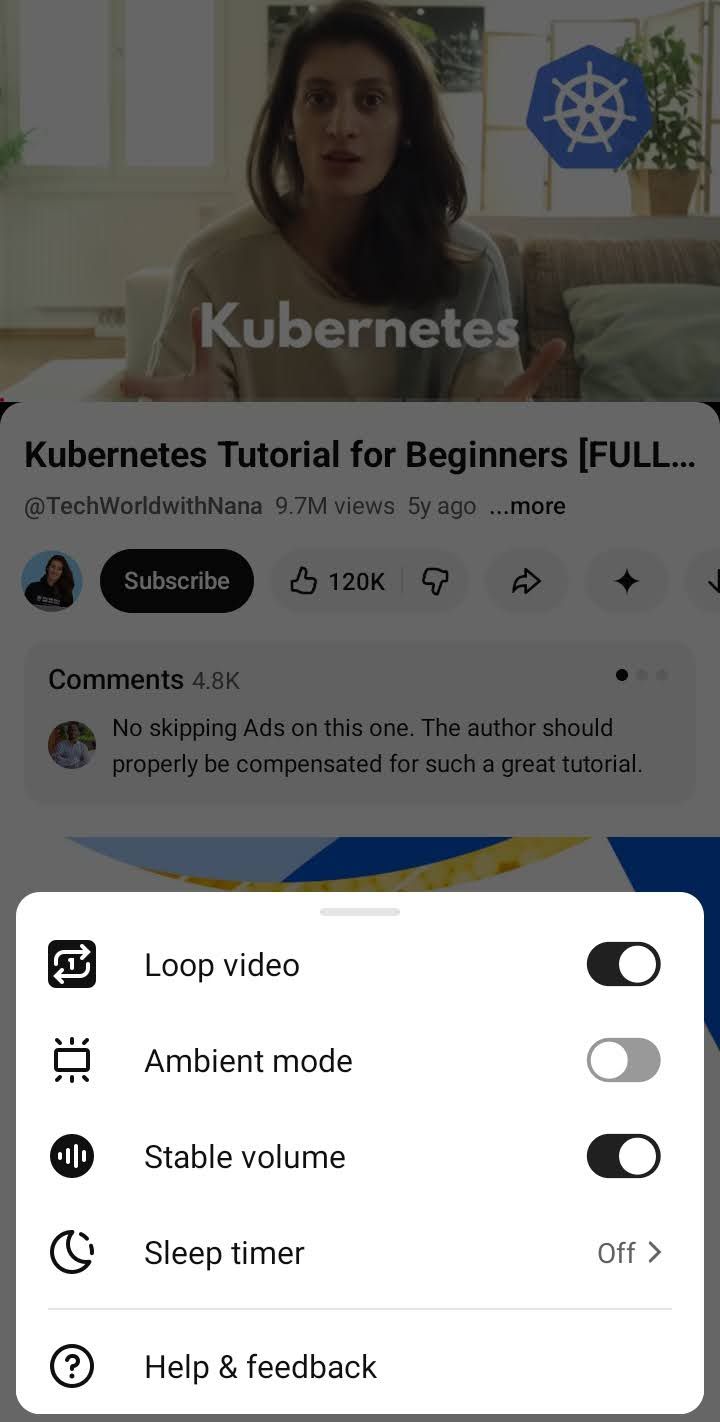
In the expanded menu, tap the "Loop video" toggle to turn looping on. The switch will highlight, confirming that looping is active.
Method 3: Looping With Screen Off (Background Play)
A common frustration for mobile users is that looping stops when the screen turns off.
You can fix this using one of these ways:
1. Using YouTube Premium
This is the official way to loop videos while the screen is locked. It enables background playback and helps preserve battery life during long sessions.
2. Desktop Site Workaround
- Open YouTube in your mobile browser, such as Safari or Chrome.
- Select "Request Desktop Site" from the browser menu.
- Use the desktop "Loop" method by long-pressing the video.
You can then lock your screen and tap Play in your phone’s notification center to keep the audio looping.
Method 4: How to Loop a YouTube Playlist
If the loop feature is not available on your device, such as older smart TVs or gaming consoles, this workaround provides a reliable solution. It can also be used to loop multiple videos.
Step 1: Create a New Playlist
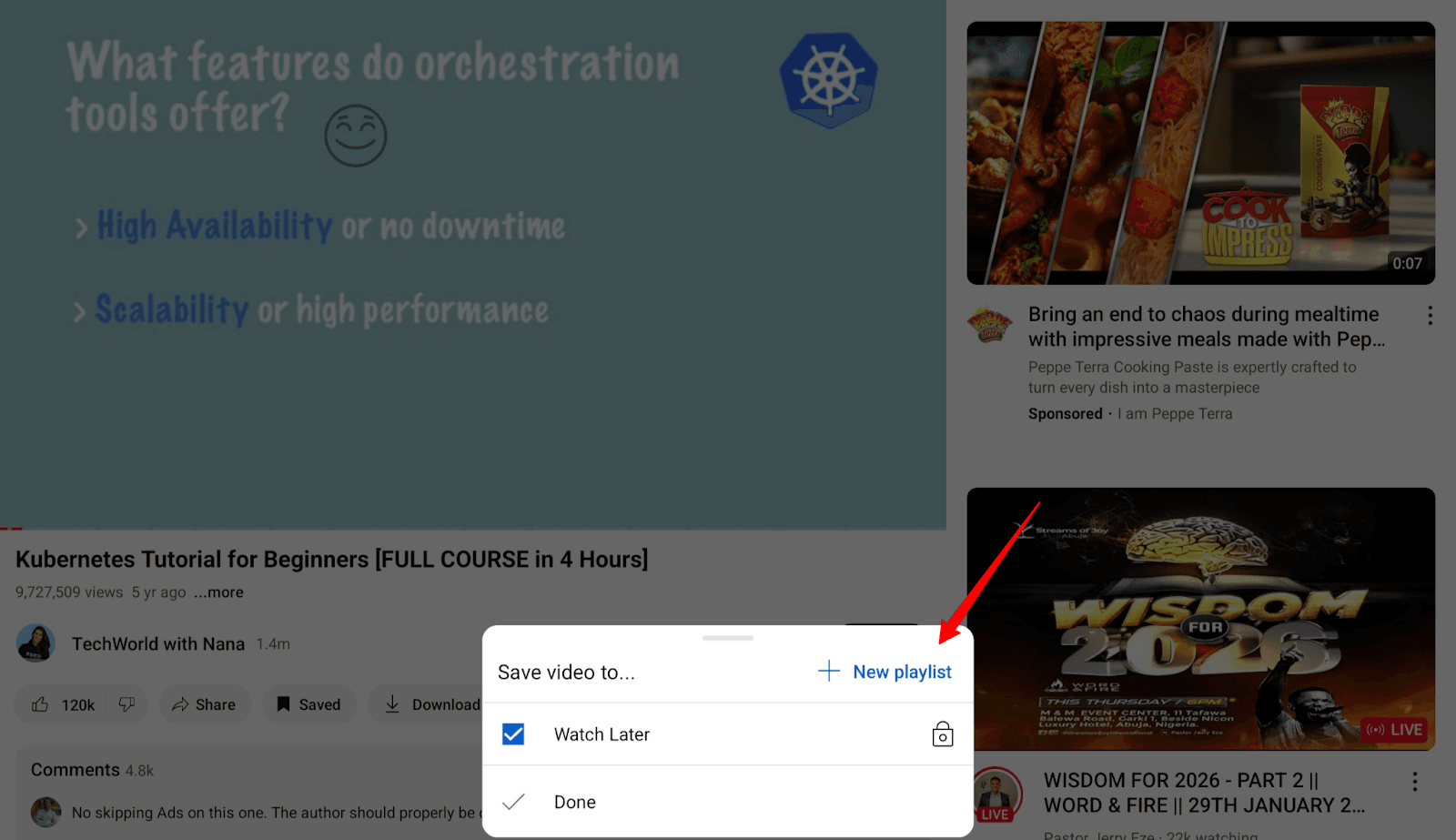
While watching the video, tap the "Save" button below the player. Select "Create new playlist" and give it a name, such as "Infinite Loop."
Step 2: Add the Video and Open Library
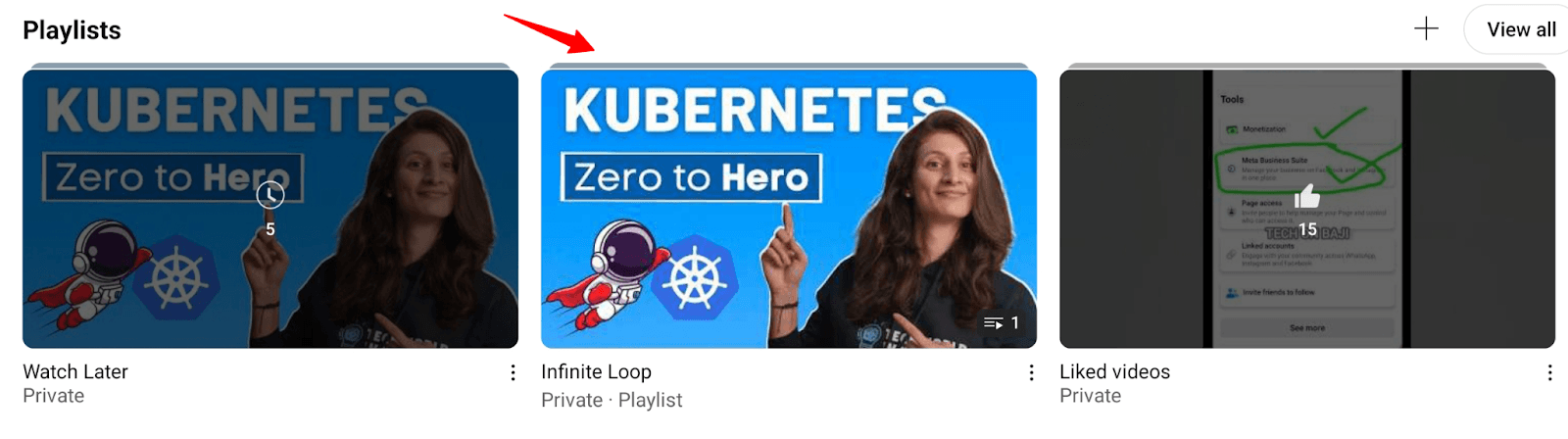
Make sure the video is saved. Go to your Library (or "You" tab in 2026) and select the playlist you just created.
Step 3: Enable Playlist Loop
In the playlist controls, click "Play all" and locate the loop icon (two arrows in a circle). Tap it until it highlights. Tapping it twice displays a small "1" in the center, indicating that YouTube will loop only the current video instead of the entire playlist.

Method 5: How to Loop Specific Sections (A-B Looping)
Looping an entire video is not always practical. If you are practicing a guitar riff, mastering a language phrase, or reviewing a specific tutorial step, you may only need a few seconds on repeat. A–B looping solves this by repeating playback between two selected timestamps instead of the entire video, using one of these methods:
1. Using Browser Extensions for Precision
YouTube does not provide native A–B section looping, so this method relies on third-party browser extensions. Tools like Looper for YouTube or LoopTube A-B add extra playback controls, allowing you to mark a start point (A) and an end point (B). Once set, the video will continuously repeat only the selected segment.
2. Web-Based Looping Tools (Reliable Alternative)
If browser extensions do not work on your device, web-based tools offer a more consistent solution. Sites like LoopTube or LoopAB let you paste a YouTube link and set start and end timestamps manually. Playback occurs in a separate player, repeating only the selected section without requiring any installation.

Method 6: Create replay-worthy segments with Klap
While Klap doesn’t automatically loop videos, it helps you create clips that feel naturally replayable.
Step 1: Upload Your Video
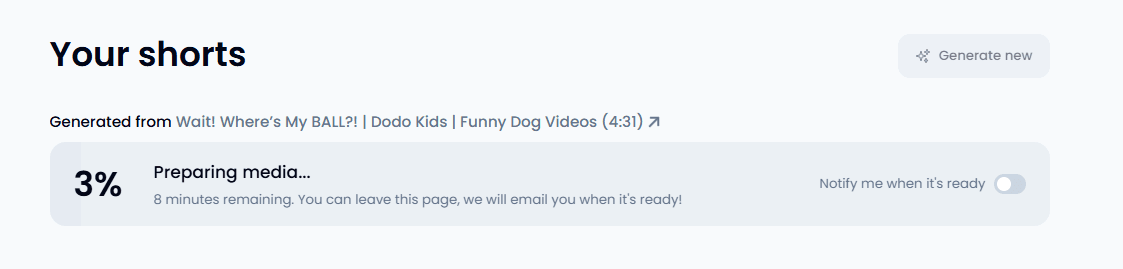
Upload your YouTube video or paste a YouTube link into Klap.

Step 2: Let AI Identify Key Moments
Klap analyzes your video to find high-impact, engaging segments ideal for short clips.
Step 3: Generate Loop-Friendly Clips
Generate vertical clips optimized for social platforms. These highlights feel naturally loopable, focusing on punchy sections viewers watch repeatedly.
Step 4: Create a Literal Loop (Optional)
To loop a full video, duplicate the clip in the timeline as many times as needed and remove transitions between duplicates.
Step 5: Preview and Export
Ensure clips play seamlessly. Export the final video as a single file for natural looping or multiple short clips.
Step 6: Share Across Platforms
Publish your loop-friendly or multi-looped clips on YouTube, Instagram Reels, TikTok, or other social platforms to maximize replay value.
Best Practices for Looping YouTube Videos
Protect Your YouTube Recommendations
Looping a single video for long periods can unintentionally influence the YouTube algorithm, showing you more of the same type of content. For example, looping eight hours of “Rain Sounds” overnight could flood your feed with similar weather or ambient videos the next day. To avoid this, use an Incognito or Private window when looping videos for extended periods.
Manage Audio Fatigue
Looping high-tempo music for long periods can cause mental fatigue. For extended sessions, choose linear or ambient tracks. Nature recordings or brown noise work particularly well, providing a “sound blanket” that masks background distractions without demanding active attention from your brain.
Optimize Audio for Seamless Transitions
If you create content meant to be looped, consistent audio levels matter. When a video ends quietly and restarts at a higher volume, the loop feels abrupt. Use an audio compressor during editing to normalize volume levels and create a smoother, more natural transition.
Be Mindful of Your Data Usage
Looping videos on mobile data can consume significant bandwidth. A 10-minute video looped for an hour uses the same data as watching six separate 10-minute videos. For long looping sessions, connect to Wi-Fi and lower the video resolution to 480p or 360p to reduce data usage.
Disable Autoplay
YouTube’s autoplay can break your loop by queuing a different video as soon as the current one ends. To keep the same video playing without interruption, turn off autoplay in YouTube’s player settings before starting a long looping session.
Create Engaging Videos People Want to Loop With Klap
Any YouTube video can be looped, but the clips people replay are usually short and precise. Long videos work well for background ambience. Intentional loops come from clear tutorial steps, standout moments, or concise quotes that feel complete on their own. Finding those moments manually takes time and often involves scrubbing through hours of footage.
Klap analyzes long-form videos to identify engaging segments automatically, then turns them into short clips designed for repeat viewing. With intelligent reframing, dynamic captions, and clean transitions, Klap helps creators publish clips viewers naturally choose to loop.
Start using Klap to create videos people come back to.
