
Our Guide On How To Make A Horizontal Video Vertical
Content Creation
Quick Summary
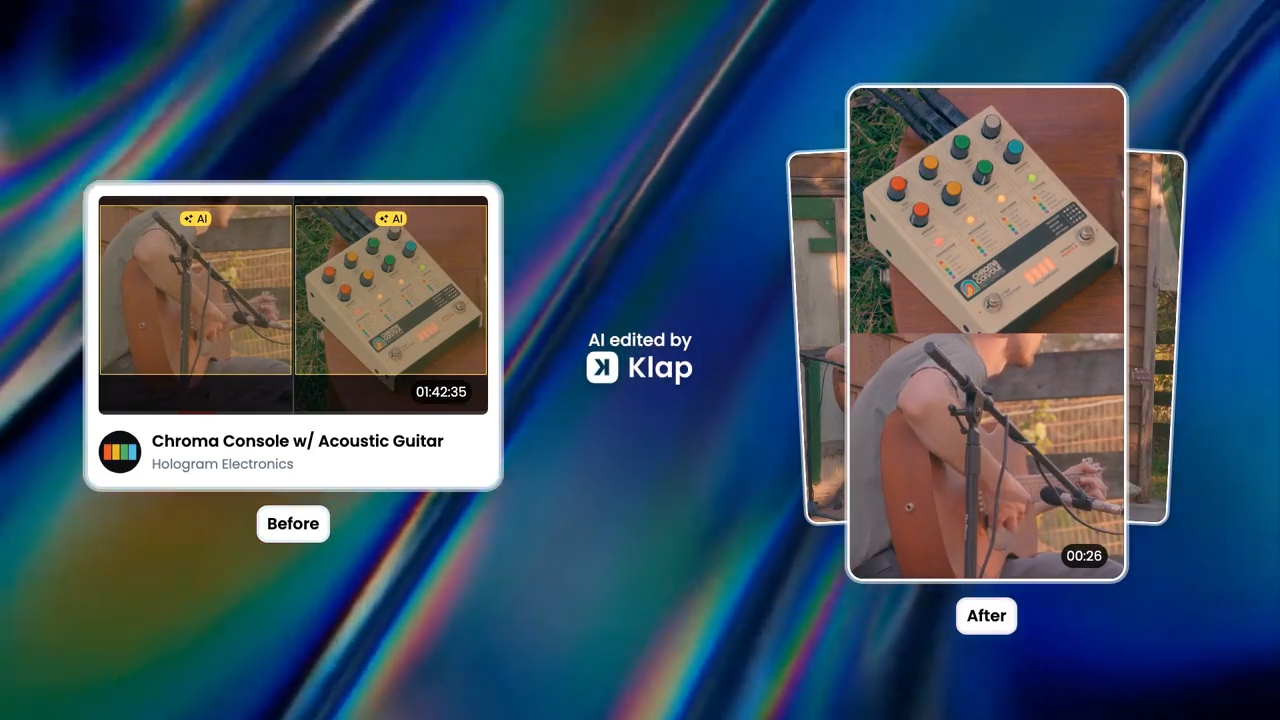
Learn how to turn any horizontal video into a vertical clip for TikTok, Reels, or Shorts. Use iPhone or Android tools to crop and rotate, or let Klap automate long videos, reframing the subject and generating polished videos in minutes. By the end, you’ll have fast, ready-to-post vertical videos from any wide shot.
Want to Turn a Horizontal Video Vertical Without Losing Your Subject?
Flipping a wide video upright can be frustrating when you just want it ready for Shorts, Reels, or TikTok. Cropping, rotating, or reframing often cuts off faces or important action.
You might be working with phone footage, screen recordings, or a long YouTube episode, getting a clean vertical shot can take time and trial-and-error.
In this guide, we show step-by-step methods for iPhone, Android, and Klap so you can quickly create tall, ready-to-post clips without compromising your subject.
Why Listen to Us?
Klap has helped over a million creators turn wide videos into clean vertical clips that perform well on TikTok, Reels, and Shorts. Our AI finds key moments, centers the subject, adds captions, and produces polished vertical cuts fast, with users reporting major time savings and better results.

What Does It Mean to Make a Horizontal Video Vertical?
Making a horizontal video vertical means changing a wide, landscape-format clip into a tall, portrait-oriented frame that fits vertical platforms like TikTok, Reels, and Shorts. The process ensures your subject stays centered, important details aren’t cropped out, and the video fills the phone screen naturally.
It can involve cropping, rotating, or reframing, and for longer videos, tools like Klap automate these adjustments, creating polished vertical videos quickly without losing key content.
Vertical conversion is not just about resizing; it’s about preserving the key action, keeping faces or products visible, and optimizing your content for mobile-first viewing, which is how most audiences now consume short-form video.
Why Is Converting Horizontal Videos to Vertical Important?
- Optimized for vertical platforms: TikTok, Reels, and Shorts display upright videos, making vertical videos look cleaner and more professional.
- Keeps subjects centered: Faces, products, and key actions stay in frame without awkward cropping.
- Fills the phone screen: Viewers watch comfortably without rotating their device, improving engagement.
- Repurposes content efficiently: Long horizontal videos can be trimmed and reframed for vertical platforms without losing context.
- Boosts visibility and performance: Vertical videos are more likely to capture attention, retain viewers, and perform better in feeds.
How to Make a Horizontal Video Vertical?
There are lots of ways to turn a horizontal video into a vertical one, depending on your device or software. Here are three practical methods, starting with the fastest and easiest:
Method 1: Use Klap to Make a Horizontal Video Vertical
Klap is the fastest way to turn a long horizontal video into clean vertical videos without manual cropping or trimming. It detects the best moments, automatically reframes your subject, and generates polished videos for TikTok, Reels, or Shorts.
Step 1: Go to Klap.app
Visit Klap.app on your browser. No installation. No setup hurdles. The upload page loads fast and keeps everything on one screen. You can start with a podcast, interview, webinar, tutorial, or any long recording. Klap handles full episodes with ease.
Step 2: Upload Your Video
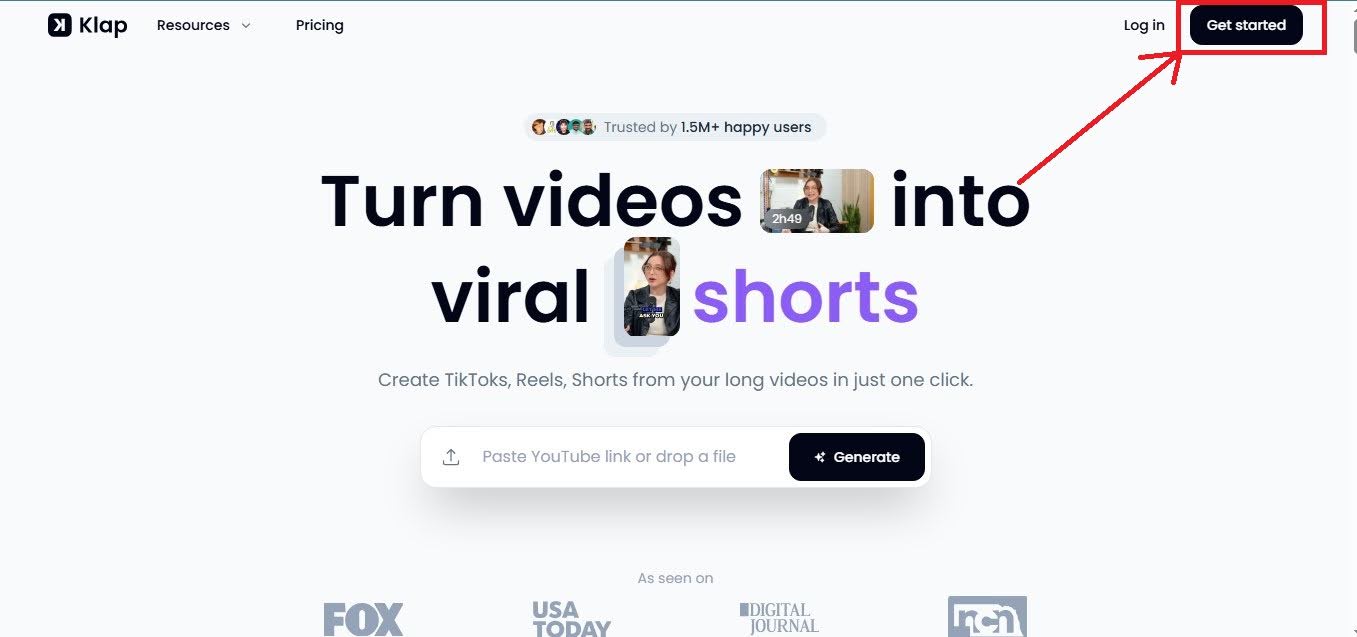
Click the upload button. Add your file from your PC, Mac, or phone. Once the file loads, Klap scans the entire recording, finds engaging moments, and prepares them for vertical cuts. This step takes a short while, depending on video size, but the system continues in the background while you stay productive.
Step 3: Select a Style and Settings
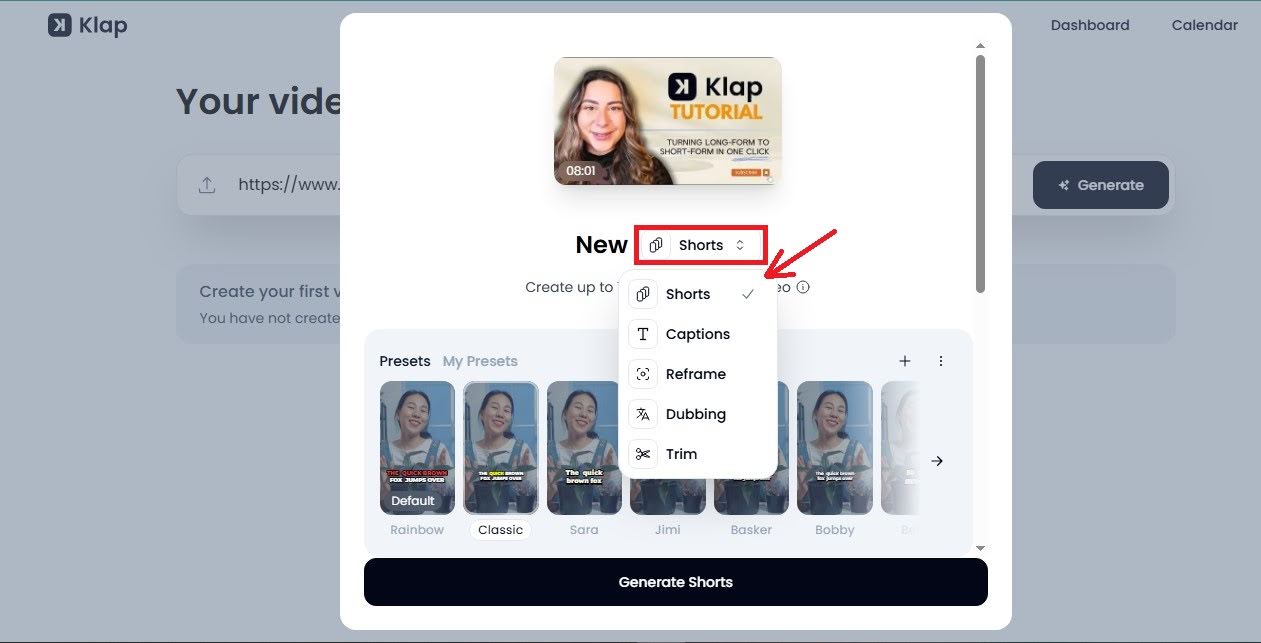
Choose your preferred style. You can adjust fonts, caption behavior, framing style, and layout. Klap reframes the subject automatically, pulling attention to the speaker even if the original shot is wide. This gives you full creative control without touching a single manual crop or timeline.
Step 4: Generate Vertical Clips
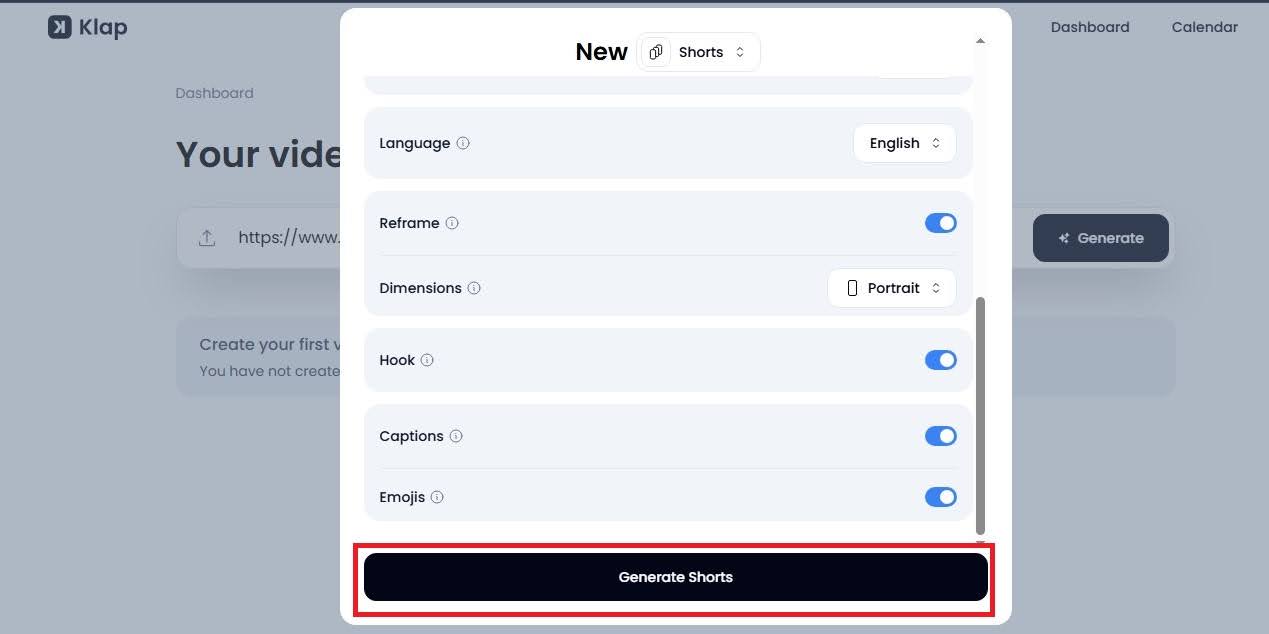
Click Generate. Klap produces multiple vertical clips from your horizontal video. Each clip includes clean captions, a centered subject, and tight framing. Preview them before saving to ensure everything looks perfect.
Step 5: Fine-Tune If Needed
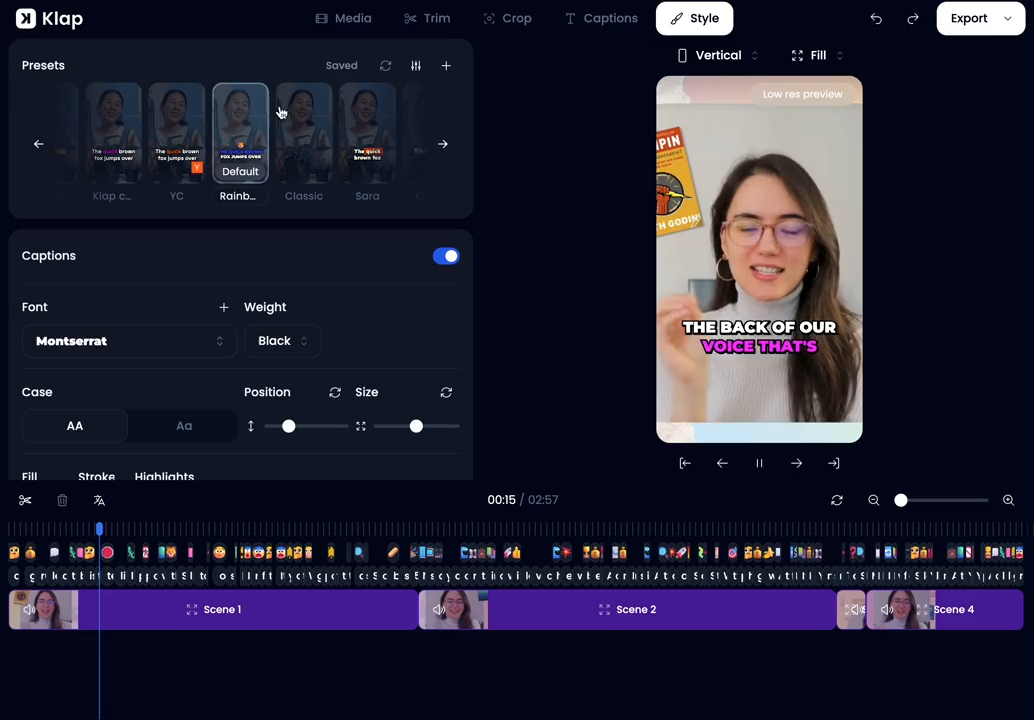
Open each generated clip and adjust small details. You can fix caption timing, adjust fonts, move text slightly, or remove a clip you do not want. Klap keeps the workspace simple. The goal is to make small tweaks instead of building the clip from scratch. If the subject moves, Klap tracks them and keeps them centered.
Step 6: Export and Share
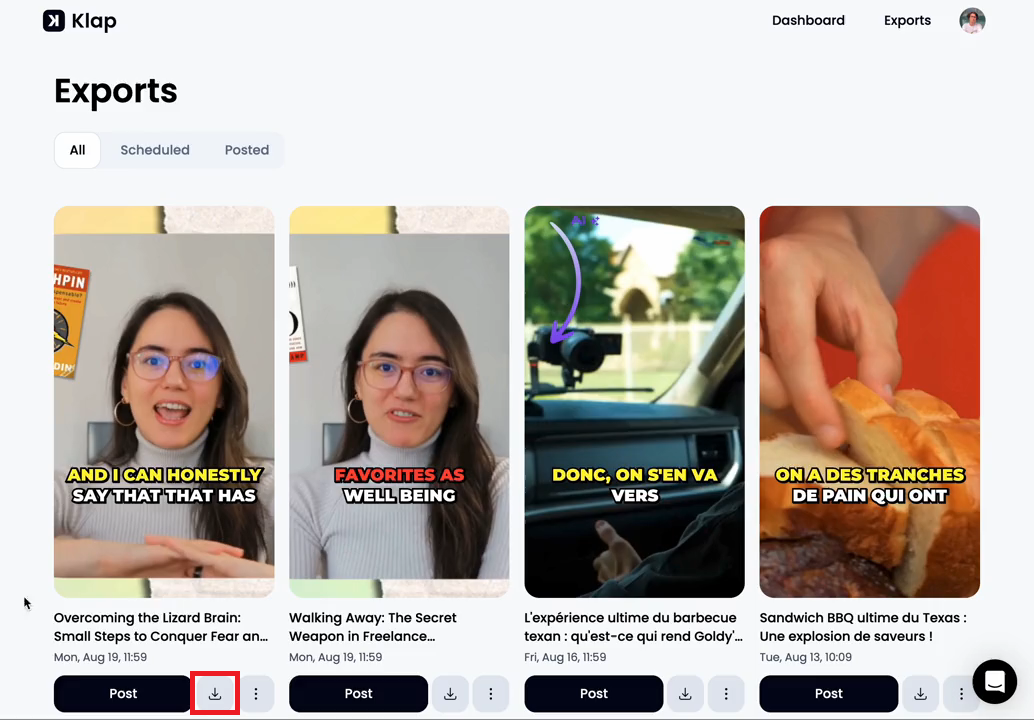
When you finish editing, export your videos. You can download them to your device or send them straight to your social accounts. Every exported video is vertical, centered, and ready for short-form platforms. You now have multiple vertical cuts from one long horizontal video with far less manual work.
Method 2: Using Your iPhone
Turning a horizontal video into a vertical one on an iPhone is simple once you know where the tools are. Everything happens inside the Photos app. No extra apps or expensive software needed.
Step 1: Open the Video In Your Gallery
Go to the Photos app and tap the video you want to adjust. The iPhone handles video edits just like photos, so you already have everything you need.
Step 2: Click Edit
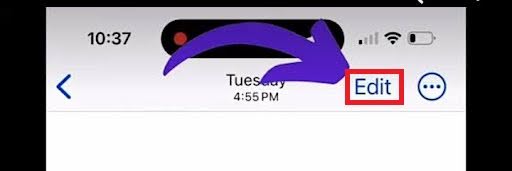
Tap Edit in the top right. This opens the editing workspace where you can trim, adjust exposure, or change the frame. The interface stays clean and simple, so nothing feels crowded.
Step 3: Click Crop
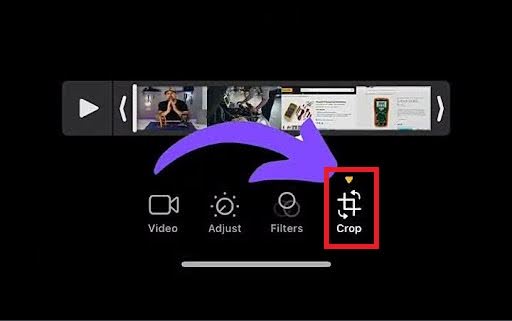
Tap the crop icon at the bottom. This opens the framing options. At this point, you will see brackets around your video. The goal is to switch from a wide frame to a tall one. The crop tool makes this clear because it shows the new shape right away.
Step 4: Click Orientation
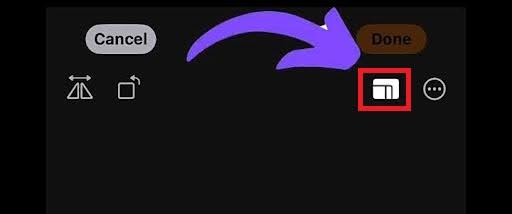
Tap the orientation icon once to rotate the frame. The video still plays as usual, but the workspace shifts the viewing area into an upright position. Do not worry if the video looks squeezed at first: the next step will fix that.
Step 5: Select 16:9 Vertical (9:16)
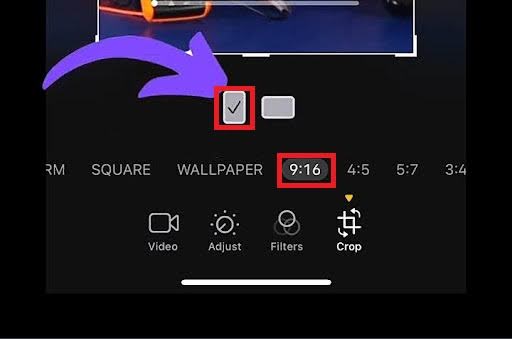
Scroll to the right and choose the 9:16 ratio. This is the standard vertical size for TikTok, Reels, and Shorts. Your subject should now sit in a tall frame. Drag the crop box up or down if the face or main subject looks off-center. This keeps your video clean and watchable.
Step 6: Preview and Click done
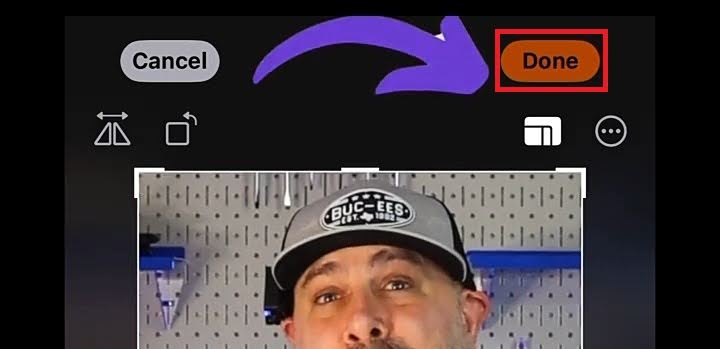
Play the video once more inside the crop window. This quick preview helps catch small alignment issues, like a subject drifting slightly to the side or hand movements being cut off. These are much easier to fix before exporting.
When ready, tap Done to save. The new version replaces the wide frame unless you revert later. At this point, your vertical video is ready for upload.
Method 3: On Your Android Using Google Photos
Google Photos gives Android users a simple way to turn a wide video into a vertical one. The layout is clean, the steps are direct, and the tools work the same across most devices.
Step 1: Open Google Photos

Open the Google Photos app. Most Android devices have it preinstalled, and all video editing tools sit inside the same panel used for photo edits. Nothing extra is required.
Step 2: Locate Your Video
Scroll through your library or tap the Videos tab. Pick the video you want to change. Make sure the subject stays visible before editing because cropping will tighten the frame. Once selected, tap it to open the playback screen.
Step 3: Click Edit
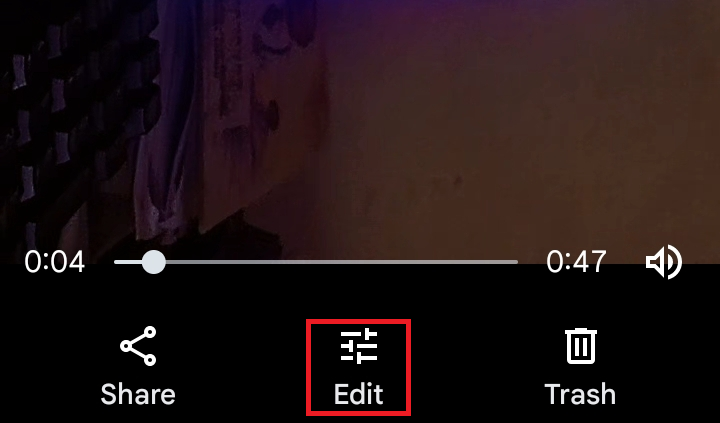
Tap Edit at the bottom. This loads the adjustment tools. You will see trimming controls, filters, and the crop function. You only need the crop tool for a vertical layout. The steps stay simple even if you have never edited a video before.
Step 4: Click Crop
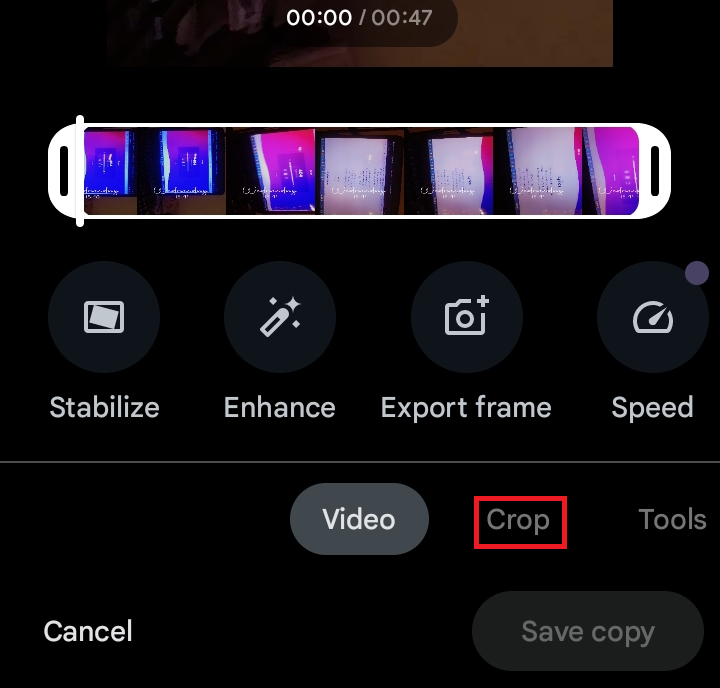
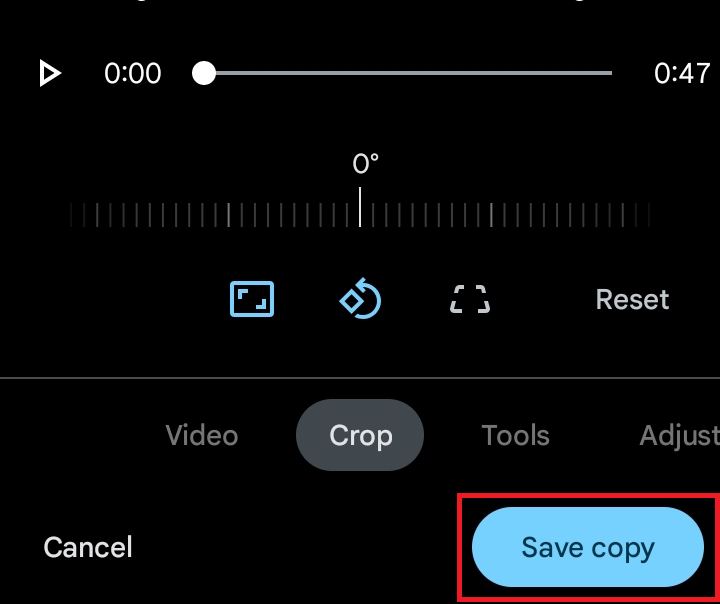
Tap the crop icon. The crop frame appears, showing the current ratio. Moving the edges will give you an upright frame, but picking a preset ratio makes the process faster. The ratios sit below the frame bar.
Step 5: Rotate Video
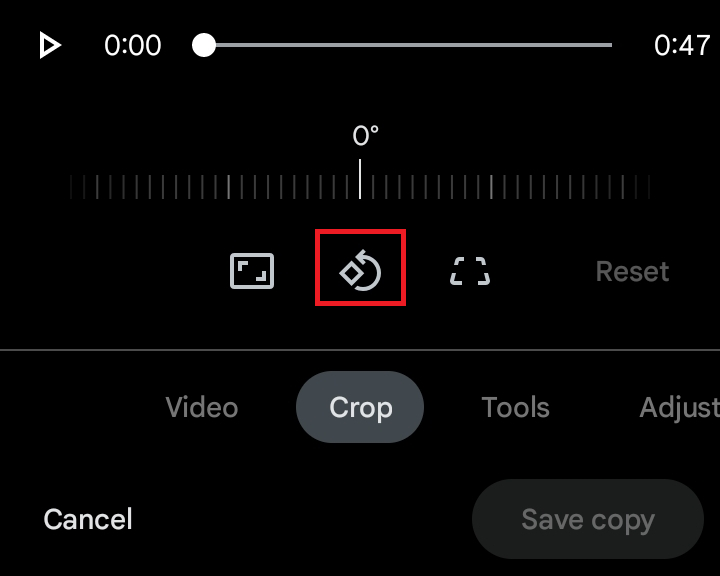
Tap the rotate icon until the video stands upright. This does not change the video’s content. It only changes how the frame sits. Once rotated, you can adjust the crop box so the subject does not fall outside the new vertical space.
If your video includes motion, like walking shots or product demonstrations, take a moment to slide the frame up or down after rotating. Google Photos won’t track subjects automatically, so this manual adjustment ensures you don’t lose important movement at the edges when switching to a tall layout.
Step 6: Adjust the Crop to Vertical Format
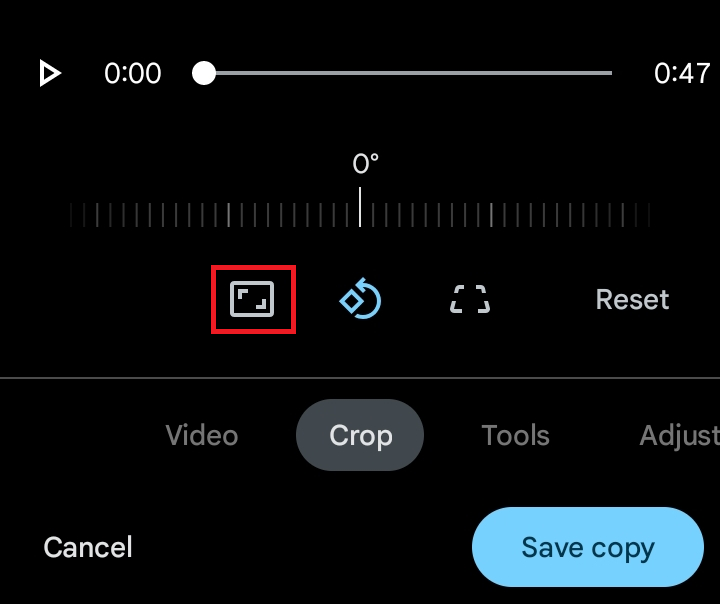
Google photos don't have the 9:16 ratio, so you’d have to use the freeform crop to make your clip tall. Drag the frame until your subject sits nicely in the middle.
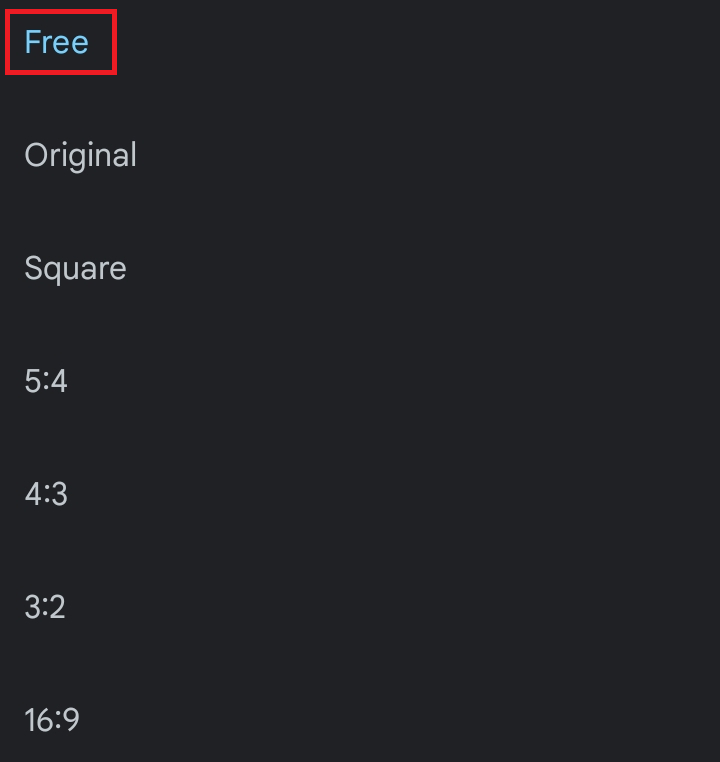
Step 7: Save Your Edit
When you are done, confirm your edit. The new video saves as a fresh version, keeping the original safe.
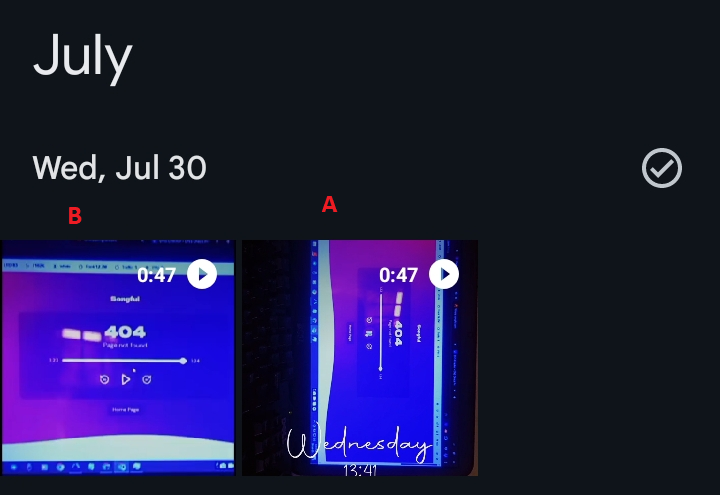
A. Before vs. B: A quick comparison shows the difference: the horizontal video is now fully optimized for vertical platforms like TikTok, Reels, and Shorts.
Why Klap Is the Best App for Turning a Horizontal Video Vertical
Ease of Use
Klap handles the heavy lifting for you. Upload your horizontal video, choose a style, and Klap automatically identifies the best moments and reframes them into a clean vertical layout. No manual cropping, trimming, or timeline work.
Post-Ready Videos
Every video comes with dynamic captions, centered framing, and clean visual formatting. You can make small edits if you want, but Klap’s output is already optimized for TikTok, Reels, and Shorts the moment it finishes processing.
Speed
Klap scans, analyzes, and reframes your entire video in minutes, much faster than doing everything by hand. Instead of spending hours inside an editor, you get multiple clean, vertical videos from a single upload. This speed helps you publish more consistently without slowing down your workflow or creative momentum.
Works on Any Device
Klap runs fully in your browser, so you can turn horizontal videos vertical on your phone, laptop, tablet, or desktop with zero installations or setup. Whether you film on mobile, edit from your workstation, or review videos on the go, Klap fits seamlessly into your workflow.
Consistency Across Videos
Klap keeps your output uniform by applying the same framing, caption style, pacing, and layout across every video. This means your content looks cohesive, even when videos come from different parts of a long recording. Your brand stays clean, recognizable, and professional without extra editing time.
Scalable for Long or Multiple Videos
Klap handles everything from short tutorials to full-length podcasts, webinars, and interviews. Whether you’re uploading one long episode or processing several videos at once, Klap automates the heavy lifting. This makes it ideal for creators, teams, and businesses producing content at scale without adding manual workload.
Turn Your Horizontal Videos Into Clean Vertical Videos Today
Turning a horizontal video into a clean vertical format doesn’t have to be slow or technical. Once you understand how reframing works on iPhone, Android, and basic editors, converting any wide video becomes a simple, repeatable process.
Klap makes the process even faster by automatically detecting key moments, reframing your subject, adding captions, and producing polished vertical videos without manual cropping or timeline work. It removes the trial-and-error and gives you clean, platform-ready outputs in minutes.
Get started with Klap today and turn your horizontal videos into vertical content instantly.
